Custom External Data Adapter Configure and Test
To implement an External Data Adapter - follow the steps outlined below. Using the APIs here:
| APIs Referenced |
|---|
| External Data Receptor API |
| External Data Command API |
| External Data Query API |
Sample Use Case for External Data Adapter
  AS: a Fenergo SaaS platform consumer:

     GIVEN: Our organization has an existing External Data Provider which meets our requirements

     AND:  I want to use that provider on the Fenergo SaaS Platform

     WHEN: I invoke the External Data Functionality through the Fenergo UI or APIs

    THEN: I want FenX to use my Provider as an External Data source
How to Set Up an External Adapter?
There are some steps for a client to follow when implementing an External Adapter for a custom External Data provider, some infrastructure is required along with the management of that resource and the configuration of that Adapter on the Fenergo platform. As illustrated below this is divided across the External Data Configuration steps required to get the adapted configured and set up correctly and the External Data Operation steps which must be implemented in your adapter to facilitate the interaction between the Fenergo platform and the your external data source. Think of the hosted adapter as a wrapper for any custom data source which resides outside the Fenergo SaaS Platform.
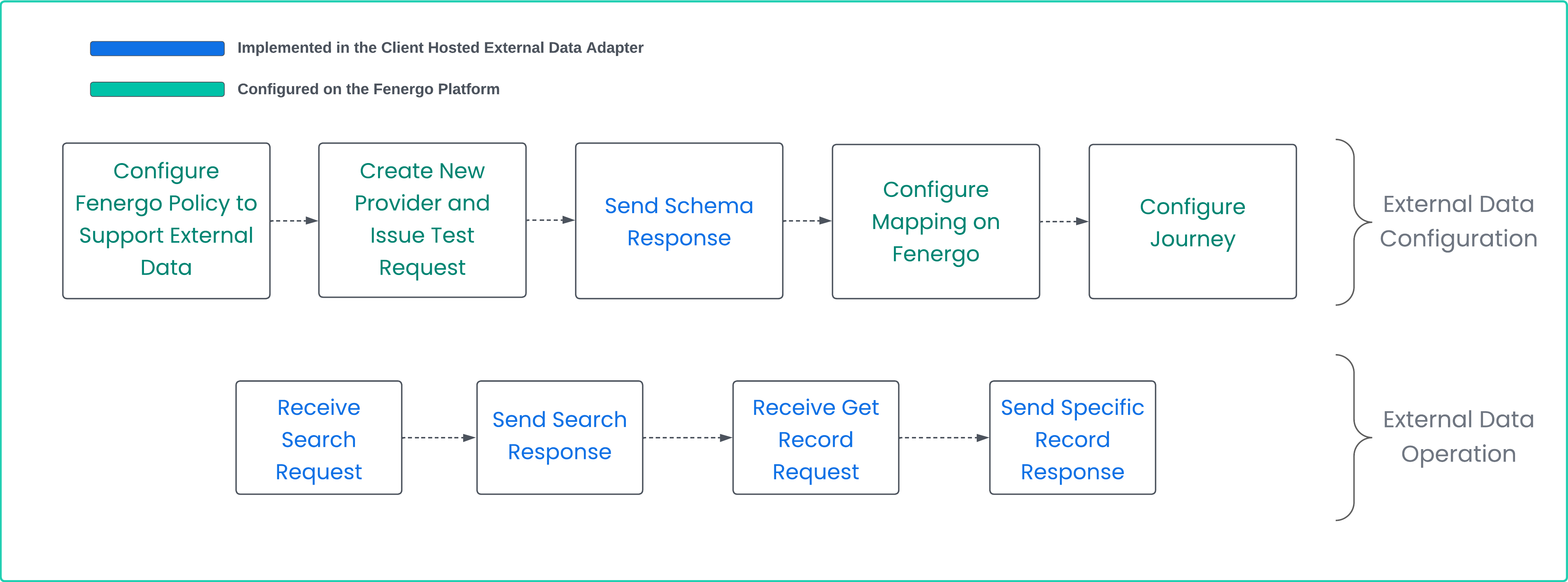
External Data Configuration Steps as illustrated above are done either On the Fenergo Platform or implemented within your hosted adapter.
- Configure Policy: In order to import data from an external source, the data points must be configured in the Fenergo Platform to contain this data. There are also specific Policy Categories which need to be created that themselves are used select and display data when interacting with the provider. There is good coverage available in the functional user guide available Configuring External Data Sources.
- Create Provider: The Fenergo SaaS Platform has an admin area where a new provider can be created. This will allow you to supply the URL where the adapter is located along with the Encryption and Authentication Keys required to secure the communications. Once entered, a Save and Test button will issue a Test message to the URL you have provided.
- Send Schema Response: When your adapter receives and decrypts the Test request, it can then send back the. Test Response. This must also include the Schema which will be used to map the data points from Fenergo to your External Data Provider (brokered via your adapter).
- Configure Mapping on Fenergo: Once the schema has been received by Fenergo, users can then use the admin screen to configure the mapping between the Fenergo Policy and the supported External Data for the various actions supported by the adapter.
- Configure Journey on Fenergo: Once the mapping is complete, the a Journey can be configured with an External Data task. This task can be configured to use the new provider you have just set up and will send and receive data in accordance to the schema.
External Data Operation Steps as illustrated above are implemented within your hosted adapter.
- Receive Search Request: When the External Data Task is loaded it will make a search call to your adapter as per the contract defined in the mapping. Your Adapter must be able to receive this message and only needs to respond with a Http 202 Accepted.
- Send Search Response: The Search Request is responded to by sending the encrypted response back to Fenergo (to the Receptor). This will also conform to the schema configured in the mapping request.
- Receive Get Specific Record Request: When a user on the Fenergo system selects a specific record from the search result set, a request will be sent to your adapter for that specific record using the key fields specified in the mapping. Your Adapter must be able to receive this message and only needs to respond with a Http 202 Accepted.
- Send Specific Record Response: Your adapter will send back a response for a specific record will all the fields as outlined in the mapping. This message will be sent back to the Fenergo Receptor.
Get Current External Data Configuration
The call to retrieve the current configuration for External Data from a tenant can be made with the following GET API call at URL {{baseURL}}/externaldataquery/api/providersconfiguration. This will return the configuration for the OOTB providers and some details for any custom providers which exist.
{
    "data": {
        "providersConfiguration": [
            {
                "id": "4f700157-0650-4855-a234-eba7d1e1ab70",
                "name": "Orbis",
                "configurationStatus": "Not Verified",
                "mappingStatus": "Not Present",
                "schemaStatus": "Not Present",
                "enabled": false,
                "isCustom": false,
                "schemaId": "00000000-0000-0000-0000-000000000000",
                "skipPolicyValidation": false,
                "documentSupport": false,
                "ongoingMonitoringSupport": false,
                "internal": false,
                "ongoingMonitoringSchema": []
            },
            {
                "id": "c87ba96a-0c3f-4c3c-8ae9-0154ec4161b0",
                "name": "Kompany",
                "configurationStatus": "Not Verified",
                "mappingStatus": "Not Present",
                "schemaStatus": "Not Present",
                "enabled": false,
                "isCustom": false,
                "schemaId": "00000000-0000-0000-0000-000000000000",
                "skipPolicyValidation": false,
                "documentSupport": true,
                "ongoingMonitoringSupport": true,
                "internal": false,
                "ongoingMonitoringSchema": [
                    {
                      .
                      .
                      . . . . { Ongoing Monitoring Properties }
                      .
                      .
                      .
                    }
                ]
            }
        ]
    },
    "messages": null
}
Understanding the Get External Data Configuration Response
The above partial configuration response contains all the configured details for the OOTB and (if created) any custom adapters.
- Within
"data""providersConfiguration"is the value""id": "4f700157-0650-4855-a234-eba7d1e1ab70"".
This is a Fenergo assigned GUID for your external data provider. The Get Configuration also supports the retrieval of a specific provider by passing this Id.
- The
"name"field within the"providersConfiguration"is the name of the provider.
Fenergo offers both Orbis and Kompany as OOTB providers and the default response as above is what is returned as neither have been enabled or configured yet.
- Another property of note is the
"ongoingMonitoringSupport". This is an indicator if Ongoing monitoring is supported for the provider.
OOTB Providers vs Custom Providers
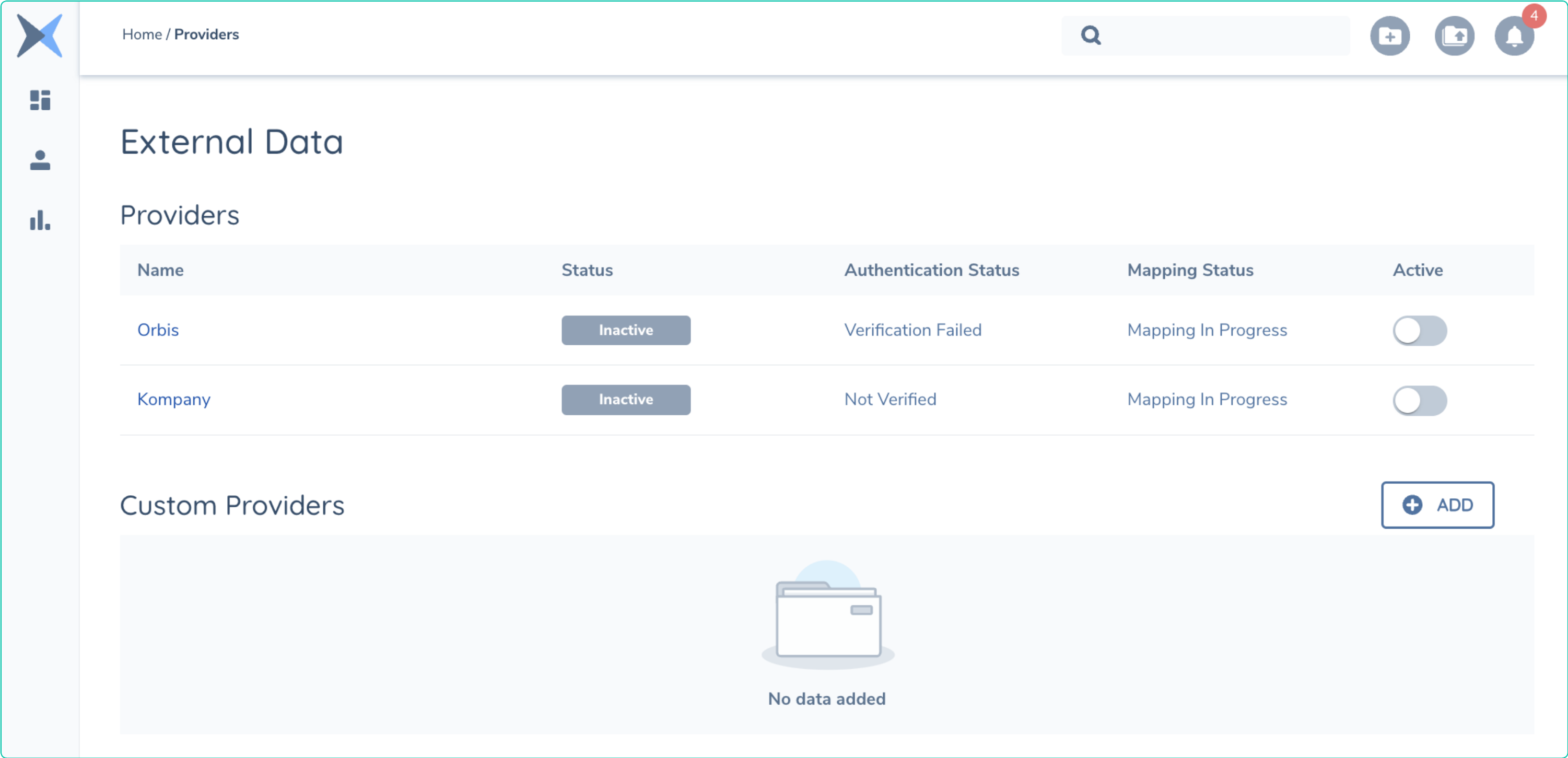
Fenergo comes with the both Orbis and Kompany External Data Providers available (but not configured) out of the box. Clients wishing to use these providers must provide their own account details for the relevant provider to enable these data sources. The default view of the External Data Configuration page on the Fenergo SaaS platform is as below. Illustrating both OOTB providers and NO custom providers configured.
Create Custom External Data Provider
You can use the Application User Interface to create an External Data Provider or make a POST API call to the following URL {baseURL}}/externaldatacommand/api/providersconfiguration/customProvider.
{
    "data": {
        "name": "Ext Data Custom Provider George",
        "url": "https://webhook.site/e2740f50-a9a2-41ce-88a6-845ec3ddf890",
        "authenticationKey": "VzM7k3VSjINSWGL3UOMbE6CbKU1v8Un4LNjgCtVAFYk=",
        "encryptionKey": "n92sfTdfuxn550ZglYeCeAyL01Mr7SxY9vPjjtkDqpI="
    }
}
{
    "data": {
        "id": "1968a450-e906-4654-844a-75ab43d91f34"
    },
    "messages": null
}
Understanding the Create Custom External Data Provider Request and Response
The above configuration request contains the details required to add a new custom adapter to your Tenant Configuration. Once Added you should receive a HTTP 202 Accepted response.
- The field
"name": "Ext Data Custom Provider George"is a free-text name for the new External Data Provider. This will be displayed in the User Interface - A destination is required where Fenergo will send External Data Requests. This is captured in the
"url"field. - The Encryption and Authentication keys
"authenticationKey"and"encryptionKey"are mandatory for eternal data providers and should be submitted in base64 format. - The Response contains simply an
"id"which is the new custom external data Provider Id.
Once your custom adapter has been added with the above call, it will be reflected in the User interface as below.Clicking into your new adapter will bring up the specific configuration. The steps described earlier around testing, and mapping can now be performed. Clicking on the Save and Test button will cause the Fenergo platform to send an encrypted test message to your adapter.
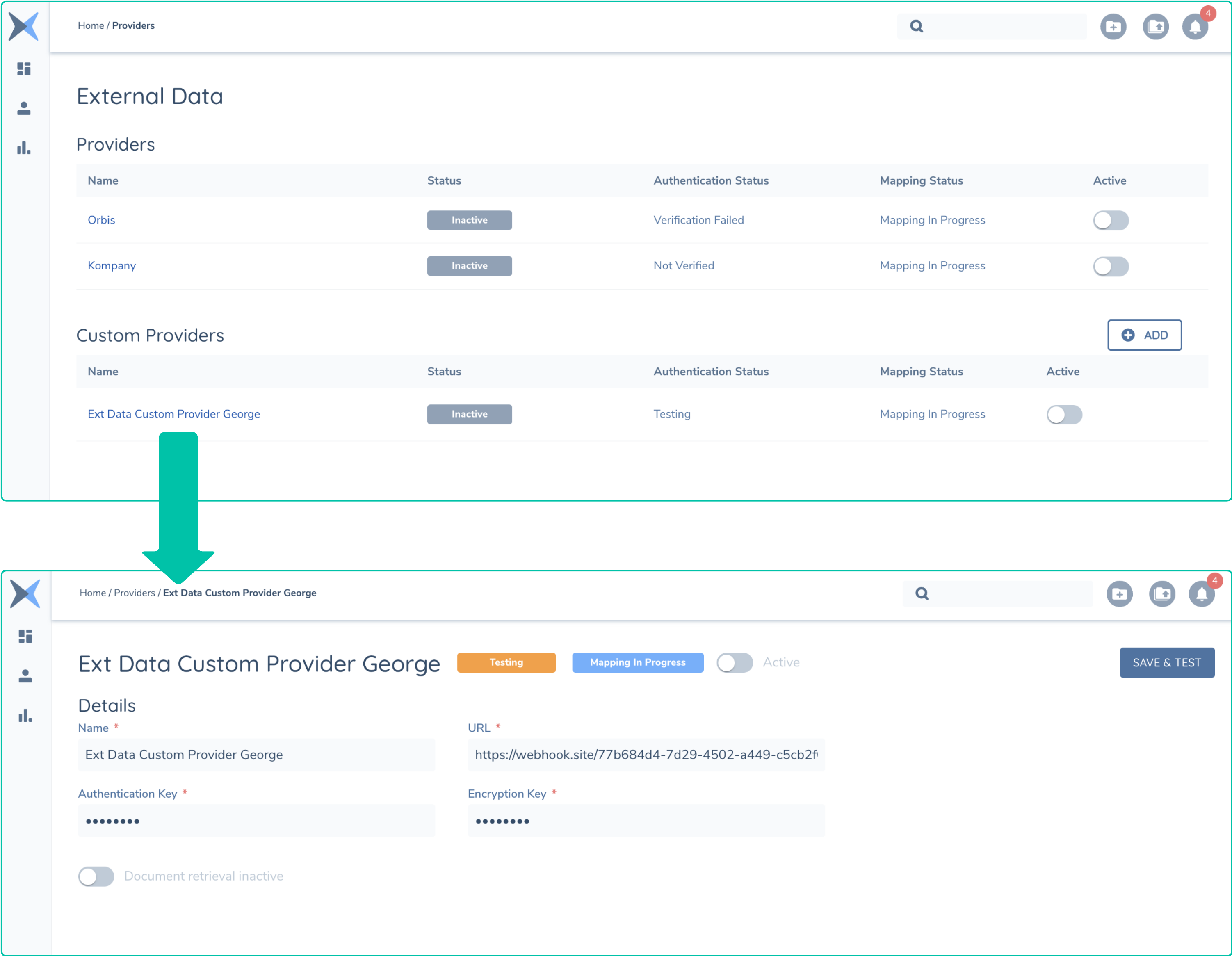
At this point, the custom adapter configuration has sent a Test method to your adapter and will await a response. That response will need to contain the full Schema that will be used to perform the mapping of data supported by your adapter and how it will apply to your Fenergo configured Policy.
Managing a Custom External Data Provider
Updating a Custom External Data Provider
To update an existing Custom External Data Provider use a PUT API call to the following URL {{baseURL}}/externaldatacommand/api/providersconfiguration/customProvider/{providerId}.
All the details can be updated except the id, this must remain the same. If required, the configuration can be deleted. The rest of the BODY of the PUT is the same as the POST used to create.
Deleting a Custom External Data Provider
The call to Delete an existing Custom External Data Provider can be made with a HTTP DELETE API call to the following URL {{baseURL}}/externaldatacommand/api/providersconfiguration/customProvider/{providerId}. The provider and any configuration will be removed.
Getting the Full Configuration for Custom External Data Provider
Your Custom External Data Provider has more configuration details that can be retrieved by making a GET request the following URL {{baseURL}}/externaldataquery/api/providersconfiguration/customProvider/{providerId}. An example of the full response is below.
{
    "data": {
        "url": "https://webhook.site/77b684d4-7d29-4502-a449-c5cb2f048142",
        "authenticationKey": {
            "key": "********",
            "createdOn": "2023-12-30T17:34:57.9561713Z"
        },
        "encryptionKey": {
            "key": "********",
            "createdOn": "2023-12-30T17:34:57.9561721Z"
        },
        "errors": {
        },
        "id": "1968a450-e906-4654-844a-75ab43d91f34",
        "configurationVersion": 2,
        "name": "Ext Data Custom Provider George",
        "configurationStatus": "Testing",
        "mappingStatus": "Not Present",
        "schemaStatus": "Not Present",
        "enabled": false,
        "isCustom": true,
        "schemaId": "c876daf5-057b-404b-a335-f13ea70130dd",
        "schemaIndividualId": "f2ea78be-f2d2-4d4c-934a-d5dd3f4ba636",
        "schemas": [
            {
                "id": "c876daf5-057b-404b-a335-f13ea70130dd",
                "entityType": "Company",
                "status": "Not Present",
                "validationErrors": []
            },
            {
                "id": "f2ea78be-f2d2-4d4c-934a-d5dd3f4ba636",
                "entityType": "Individual",
                "status": "Not Present",
                "validationErrors": []
            }
        ],
        "skipPolicyValidation": false,
        "documentSupport": false,
        "ongoingMonitoringSupport": false,
        "supportedEntityType": [
            "Company",
            "Individual"
        ],
        "enabledEntityType": [
            "Company"
        ],
        "internal": false,
        "ongoingMonitoringSchema": null
    },
    "messages": null
}
Updating Keys for Custom External Data Provider
If you need to update the Keys used by the External Data Adapter, you can make a PUT call to the following URL {{baseURL}}/externaldatacommand/api/providersconfiguration/customProvider/{providerId} where the entire config can be changed and supply the new keys in that call.
{
    "data": {
        "id": "TestExtData",
       "name": "Test Bank Custom External Data Provider",
        "active": true,
        "url": "https://webhook.site/9589ac93-0713-4062-b6ea-ee83d68a69ca",
        "authenticationKey": "{New Key in Base64 format}",
        "encryptionKey": "{New Key in Base64 format}"
    }
}
Testing Your Custom External Data Adapter
When you update your external data provider configuration, it will automatically call the Test method against your adapter. To force the Fenergo platform to make a test call to your External Adapter, call the following URL {{baseURL}}/externaldatacommand/api/providersconfiguration/customProvider/{providerId} with a PUT . If you wish to leave your keys unchanged, pass Null as a parameter for the Authentication and Encryption Keys as below.
{
    "data": {
        "id": "TestExtData",
       "name": "Test Bank Custom External Data Provider",
        "active": true,
        "url": "https://webhook.site/9589ac93-0713-4062-b6ea-ee83d68a69ca",
        "authenticationKey": "null",
        "encryptionKey": "null"
    }
}
On the User interface of the Fenergo platform (as illustrated earlier), if you navigate to your External Data provider, you will see the status is labelled as Testing and that Mapping is in Progress. The ACTIVE switch will also default to Off.
The Encrypted and Decrypted Test Request
When Fenergo calls your adapter with the Test method, it will perform all the following steps:
-
- It will create a message BODY to send to your adapter.
-
- It will Encrypt that message body using AES encryption key provided during the configuration.
-
- This encryption will include a step to generate an Initialization Vector (IV) as a salt to further protect the encryption.
-
- It will calculate a HMAC signature using the Authentication Key provided during the encryption.
-
- It will send the message body, IV, Calculated HMAC to the configured HTTP endpoint specified in the configuration.
-
- Once a HTTP response less than 400 is received, it is assumed the message has been delivered.
The encryption and decryption steps are universal for the external adapter patterns, so follow this guide for how to encrypt and decrypt messages sent to your adapter and messages you send to the External Data Receptor.
Below is an example of an encrypted Test request sent from Fenergo to the custom adapter configured earlier. Some of the relevant HTTP Headers along with the HTTP Body have been illustrated. Once your adapter has the Encryption and Authentication keys, this message can be decrypted.
{HTTP HEADERS}
x-encryption-iv  zbHrRxVEyMfQmed8sRz5YQ==
x-authentication-mac  xoOUjc5b3FMG2WlZMPzVvtpBAAT1r7cJxpqA8n+EyVo=
x-provider-id  1968a450-e906-4654-844a-75ab43d91f34
x-tenant-id  XXXXXxxxxXXXXXxxxxxXXXXXXXXXxxxxxXXXX

{HTTP BODY}
PzBwNU0aKoK49bwUhl23Cx/I2mwf6qzC/wXsS4FPHMCxbkexHInHyQMKKOoZp3cD/5RNQ1HlwrN5VpbiXmC48uEII3NAxyR3zDjBCe2715yt139OgScaCL6Vh/tZCkD8/Xj3ULhM+GsaoabiL1olBZhQUSxOwX4o0ak4rGROQQEVf5Ex9XTLMftjksQwRJ7kHTD/lQBER6BOAupmsSNuuJ+iP8llGoAXjRXyT+NuRmJd86WdJuPOUwtalAjszQks3OMYE/r91JdcLy4gg0bu9pDlkBM0X9Hw76qsJ5waI+W3gX7c2XswptuWAHsx2hFFGv9GVhuGHZATVWAShkI625EcKeRiO2l5kH4sY15Sr5eAYtDVEQWGTSBRTx1YL0RuiJK3PYlSNB7oZTt7FQ6MNJC6HbR3v8+9HOE+9OoAl4A=
Reversing the steps performed by Fenergo, your adapter implementation should do the following:
-
- Calculate the HMAC against the sent message.
-
- Verify that the HMAC matches that send in the HTTP Header.
-
- Decrypt the message body using the shared secret of the Encryption Key and the IV from the HTTP Header
-
- Use the Details in the Test Request to construct a Test Response.
{
    "IsCustomProvider": true,
    "IsInternalProvider": false,
    "UserId": "9e70d877-f8fc-47d2-b7c2-9db999a2b1a3",
    "Id": "320ec01f-3c25-45af-9ca8-6c23d2cf3dee",
    "Tenant": "XXXXXXX-XXXX-XXXX-XXXX-XXXXXXXXXX",
    "ProviderId": "1968a450-e906-4654-844a-75ab43d91f34",
    "Type": "Test",
    "Request": {
        "Id": "320ec01f-3c25-45af-9ca8-6c23d2cf3dee"
    }
}
Understanding the Test Request
Once decrypted, as above, it can be seen that there is not a lot of detail sent in the Test request. Being able to receive, validate and decrypt this message is an important first step and the above details are all required when responding back to the Fenergo Receptor as part of the Test Response.
-
- The
"id"value is unique to this SPECIFIC test request and must be send back in the Test Response as a corelation identifier that Fenergo can use to link this request to your response.
- The
-
- The
"Tenant"is the Tenant Id of your Fenergo Instance.
- The
-
- The
"ProviderId"is the GUID which was returned when the Provider was Created. This is also required in all calls back to the Receptor.
- The
Creating a Test Response
To close the test and begin the mapping exercise, you need to send a message back to the External Data Receptor. In the swagger definition for the receptor, there are a examples of all the available messages which can be sent back.
Overview of the Test Response
The Test Response takes the following general structure. In this example we see all the core elements and a Skeleton of the Schemas that can be sent back.
{
    "Id": "320ec01f-3c25-45af-9ca8-6c23d2cf3dee",
    "Tenant": "XXXXXXXX-XXXX-XXXX-XXXX-XXXXXXXXXXXX",
    "ProviderId": "1968a450-e906-4654-844a-75ab43d91f34",
    "type": "Test",
    "status": "Success",
    "errorDetails": null,
    "response": {
        "adapterSchema": {
            "Lookups": [
                {
                }
            ],
            "Schema": {
                "SearchRequest": {
                     },
                "SearchResponse": {
                  },
                "GetRequest": {
                  },
                "GetResponse": {
                 }
            }
        },
        "adapterSchemaIndividual": {
            "Lookups": [
               ],
            "Schema": {
                "SearchRequest": {
                 },
                "SearchResponse": {
                 },
                "GetRequest": {
                  },
                "GetResponse": {
                }
            }
        }
    }
}
As can be seen the "id" , "Tenant" and "ProviderId" are all taken from the Test request which was decrypted earlier. The main "response" of the request is where the schemas ged defined for both Company and Individual Legal Entity Types.
- The
"adapterSchema"is where the Schema for Company LE Types is defined. - The
"adapterSchemaIndividual"is where the Schema for Individual LE Types is defined. if your External Data Provider supports LE Individual results the structure of that data can be defined here.
Within each of the two adapters there are the following sections:
- The
"Lookups"section is where Lookup items are defined. These are essentially Dropdown Lists and for any given response that contains a value for a field sourced from a dropdown, the full list of options can be specified here. A Typical example is one where a downstream system uses Country Codes instead of a literal Country Name. Specifying the list of codes here will allow those codes to be mapped into - The
"Schema"section contains all the sections where data is both Sent and Received to and from your External Data Adapter:- The
"SearchRequest"When Fenergo makes a call to your adapter to search for a LE, it will send parameters mapped from its policy to the fields outlined in this section. - The
"SearchResponse"This set of data is what your adapter should send back as a collection of search responses. These will be displayed on the User Interface for the user to select. - The
"GetRequest"Once a user has selected a specific item from the search result, it will request the FULL record using the values defined in this section mapped from its policy. - The
"GetResponse"This is the fullest version of ALL the data points you want to return from your External Data Provider.
- The
Populating the Test Response
For a detailed and exhaustive overview of the schemas used to create the test response you should refer to the swagger spec for the Fenergo External Data Receptor, which outlines all the JSON structures to populate in a response. You can also generate stub classes that can be populated in code to create JSON from deserialized objects. That swagger specifications is available here: Fenergo Receptor. To complete this document we will populate some sample content into each of the 4 schema areas for a company type and illustrate how that is reflected in the User Interface when performing the mapping.
Populating Lookups
The "Lookups" node in the Test Response is an array of lookup types populated as follows:
"Lookups": [
    {
      "Name": "CountryCodes",
      "Values": [
            "IRL",
            "UK",
            "USA",
            "CAN"
        ]
    },
    {
      "Name": "EntityType",
      "Values": [
          "Company",
          "Individual",
          "Public"
        ]
    },
    {
      ... { other lookup type }
    },
  ],
You need to provide the lookups for both "adapterSchema" and "adapterSchemaIndividual" schemas, even if they are the same. We are looking at a way of sharing these details but currently each schema is handled differently and this allows you to use different values per schema type.
Populating the Schemas
The Schema" node in both "adapterSchema" and "adapterSchemaIndividual" is where you can define root level fields such as Legal Entity Name and Country along with complex sub entity types such as Address which can contain sub level fields.
Each Schema" is broke down into 4 separate areas and each provides a different purpose for how the end user will interact with the data returned from your External Data Provider and each one contains a "Fields" node.
SearchRequest : SearchCriteria""SearchResponse : SearchResultsData""GetRequest : RequestData""GetResponse". The response contains 3 separate sections:"ClientData"- Main data for the Entity being requested."AssociatedEntitiesCompanyData"Company Type Associated Parties"AssociatedEntitiesIndividualData"Individual Type Associated Parties
The fields you use in your own adapter will of course depend on your own data model and what is available from your provider along with your policy configuration on the Fenergo platform. The below example is illustrative of what kind of data you could use.
"Schema": {
    "SearchRequest": {
        "SearchCriteria": {
            "Fields": [
                {
                    "Name": "ExternalDataIdentifIer",
                    "FriendlyName": "External Data IdentifIer",
                    "Type": "text"
                },
                {
                    "Name": "LegalEntityName",
                    "FriendlyName": "Legal Entity Name",
                    "Type": "text"
                },
                {
                    "Name": "CountryOfIncorporation",
                    "FriendlyName": "Country Of Incorporation",
                    "Type": "select",
                    "Lookup": "CountryCodes"
                }
            ]
        }
    },
    "SearchResponse": {
        "SearchResultsData": {
            "Fields": [
                .... { SearchResponse Fields } ....
            ]
        }
    },
    "GetRequest": {
        "RequestData": {
            "Fields": [
                 .... { GetRequest Fields } ....
            ]
        }
    },
    "GetResponse": {
        "ClientData": {
            "Fields": [
                 .... { GetResponse Fields } ....
            ]
        },
        "AssociatedEntitiesCompanyData": {
            "Fields": [
                 .... { AssociatedEntitiesCompanyData Fields } ....
            ]
        },
        "AssociatedEntitiesIndividualData": {
            "Fields": [
                 .... { AssociatedEntitiesIndividualData Fields } ....
            ]
        },
        "AssociationsData": {
            "Fields": [
                .... { AssociationsData Fields } ....
            ]
        }
    }
}
Putting it all Together
A FULL response to the Test message is illustrated below. This includes all the details to correlate the message back to the original request along with the lookups and schemas for all sections in the Company Type (Schema for individual is not included yet). The message needs to be encrypted, signed and then sent back to the Fenergo Receptor. If the structure is correct the Fenergo receptor will return a HTTP 202 Accepted and the UI will be updated so the user can move onto the Mapping process.
{
"Id": "254d60a5-756c-468d-ae2d-232f117e1ec8",
"Tenant": "XXXXXXX-xxxx-xxxx-xxxx-XXXXXXXX",
"ProviderId": "1968a450-e906-4654-844a-75ab43d91f34",
"type": "Test",
"status": "Success",
"errorDetails": null,
"response": {
"adapterSchema": {
"Lookups": [
{
"Name": "CountryCodes",
"Values": [
"IRL",
"UK",
"USA",
"CAN"
]
},
{
"Name": "EntityType",
"Values": [
"Company",
"Individual",
"Public"
]
},
{
"Name": "Company Type",
"Values": [
"Bank",
"Unincorporated Body",
"Foundation"
]
},
{
"Name": "AddressType",
"Values": [
"Registered",
"Office address",
"Residential",
"Correspondence"
]
},
{
"Name": "RelationshipType",
"Values": [
"Director",
"SeniorManager",
"Shareholder"
]
}
],
"Schema": {
"SearchRequest": {
"SearchCriteria": {
"Fields": [
{
"Name": "ExternalDataIdentifier",
"FriendlyName": "External Data Identifier",
"Type": "text"
},
{
"Name": "LegalEntityName",
"FriendlyName": "Legal Entity Name",
"Type": "text"
},
{
"Name": "CountryOfIncorporation",
"FriendlyName": "Country Of Incorporation",
"Type": "select",
"Lookup": "CountryCodes"
}
]
}
},
"SearchResponse": {
"SearchResultsData": {
"Fields": [
{
"Name": "ExternalDataIdentifier",
"FriendlyName": "External Data Identifier",
"Type": "text"
},
{
"Name": "LegalEntityName",
"FriendlyName": "Legal Entity Name",
"Type": "text"
},
{
"Name": "CountryOfIncorporation",
"FriendlyName": "Country of Incorporation",
"Type": "text"
},
{
"Name": "Address",
"FriendlyName": "Address",
"Type": "text"
}
]
}
},
"GetRequest": {
"RequestData": {
"Fields": [
{
"Name": "ExternalDataIdentifier",
"FriendlyName": "External Data Identifier",
"Type": "text"
},
{
"Name": "LegalEntityName",
"FriendlyName": "Legal Entity Name",
"Type": "text"
},
{
"Name": "CountryOfIncorporation",
"FriendlyName": "Country of Incorporation",
"Type": "text"
},
{
"Name": "Address",
"FriendlyName": "Address",
"Type": "text"
}
]
}
},
"GetResponse": {
"ClientData": {
"Fields": [
{
"Name": "ExternalDataIdentifier",
"FriendlyName": "External Data Identifier",
"Type": "text"
},
{
"Name": "LegalEntityName",
"FriendlyName": "Legal Entity Name",
"Type": "text"
},
{
"Name": "EntityType",
"FriendlyName": "Entity Type",
"Type": "select",
"Lookup": "EntityType"
},
{
"Name": "CountryOfIncorporation",
"FriendlyName": "Country of Incorporation",
"Type": "select",
"Lookup": "CountryCodes"
},
{
"Name": "DateOfIncorporation",
"FriendlyName": "Date of Incorporation",
"Type": "date"
},
{
"Name": "Addresses",
"FriendlyName": "Addresses",
"Type": "multidatagroup",
"Fields": [
{
"Name": "Line1",
"FriendlyName": "Line 1",
"Type": "text"
},
{
"Name": "Line2",
"FriendlyName": "Line 2",
"Type": "text"
},
{
"Name": "City",
"FriendlyName": "City",
"Type": "text"
},
{
"Name": "Country",
"FriendlyName": "Country",
"Type": "select",
"Lookup": "CountryCodes"
},
{
"Name": "Type",
"FriendlyName": "Type",
"Type": "select",
"Lookup": "AddressType"
}
]
},
{
"Name": "Website",
"FriendlyName": "Website",
"Type": "text"
}
]
},
"AssociatedEntitiesCompanyData": {
"Fields": [
{
"Name": "ExternalDataIdentifier",
"FriendlyName": "External Data Identifier",
"Type": "text"
},
{
"Name": "LegalEntityName",
"FriendlyName": "Legal Entity Name",
"Type": "text"
},
{
"Name": "EntityType",
"FriendlyName": "Entity Type",
"Type": "select",
"Lookup": "EntityType"
},
{
"Name": "CountryOfIncorporation",
"FriendlyName": "Country of Incorporation",
"Type": "select",
"Lookup": "CountryCodes"
},
{
"Name": "DateOfIncorporation",
"FriendlyName": "Date of Incorporation",
"Type": "text"
},
{
"Name": "Website",
"FriendlyName": "Website",
"Type": "text"
},
{
"Name": "Address",
"FriendlyName": "Address",
"Type": "datagroup",
"Fields": [
{
"Name": "Line1",
"FriendlyName": "Line 1",
"Type": "text"
},
{
"Name": "Line2",
"FriendlyName": "Line 2",
"Type": "text"
},
{
"Name": "City",
"FriendlyName": "City",
"Type": "text"
},
{
"Name": "Country",
"FriendlyName": "Country",
"Type": "select",
"Lookup": "CountryCodes"
},
{
"Name": "Type",
"FriendlyName": "Type",
"Type": "select",
"Lookup": "AddressType"
}
]
}
]
},
"AssociatedEntitiesIndividualData": {
"Fields": [
{
"Name": "ExternalDataIdentifier",
"FriendlyName": "External Data Identifier",
"Type": "text"
},
{
"Name": "FirstName",
"FriendlyName": "First Name",
"Type": "text"
},
{
"Name": "LastName",
"FriendlyName": "Last Name",
"Type": "text"
},
{
"Name": "EntityType",
"FriendlyName": "Entity Type",
"Type": "select",
"Lookup": "EntityType"
},
{
"Name": "Birthdate",
"FriendlyName": "Birthdate",
"Type": "date"
},
{
"Name": "Nationality",
"FriendlyName": "Nationality",
"Type": "select",
"Lookup": "CountryCodes"
},
{
"Name": "Function",
"FriendlyName": "Function",
"Type": "text"
},
{
"Name": "Address",
"FriendlyName": "Address",
"Type": "datagroup",
"Fields": [
{
"Name": "Line1",
"FriendlyName": "Line 1",
"Type": "text"
},
{
"Name": "Line2",
"FriendlyName": "Line 2",
"Type": "text"
},
{
"Name": "City",
"FriendlyName": "City",
"Type": "text"
},
{
"Name": "Country",
"FriendlyName": "Country",
"Type": "select",
"Lookup": "CountryCodes"
},
{
"Name": "Type",
"FriendlyName": "Type",
"Type": "select",
"Lookup": "AddressType"
}
]
}
]
},
"AssociationsData": {
"Fields": [
{
"Name": "ParentId",
"FriendlyName": "Parent Id",
"Type": "text"
},
{
"Name": "ChildId",
"FriendlyName": "Child Id",
"Type": "text"
},
{
"Name": "AssociationType",
"FriendlyName": "Association Type",
"Type": "select",
"Lookup": "RelationshipType"
},
{
"Name": "OwnershipPercentage",
"FriendlyName": "Ownership Percentage",
"Type": "text"
},
{
"Name": "TotalPercentage",
"FriendlyName": "Total Percentage",
"Type": "number"
},
{
"Name": "relationshipType",
"FriendlyName": "Relationship Type",
"Type": "select",
"Lookup": "RelationshipType"
}
]
}
}
}
}
}
}
When you click into your custom External Data Adapter it will appear as below with a green chip indicating that the Adapter is Authenticated and that Mapping is in Progress. For a detailed walk through of the configuration of your adapter, you can refer to the Configuration Guide.
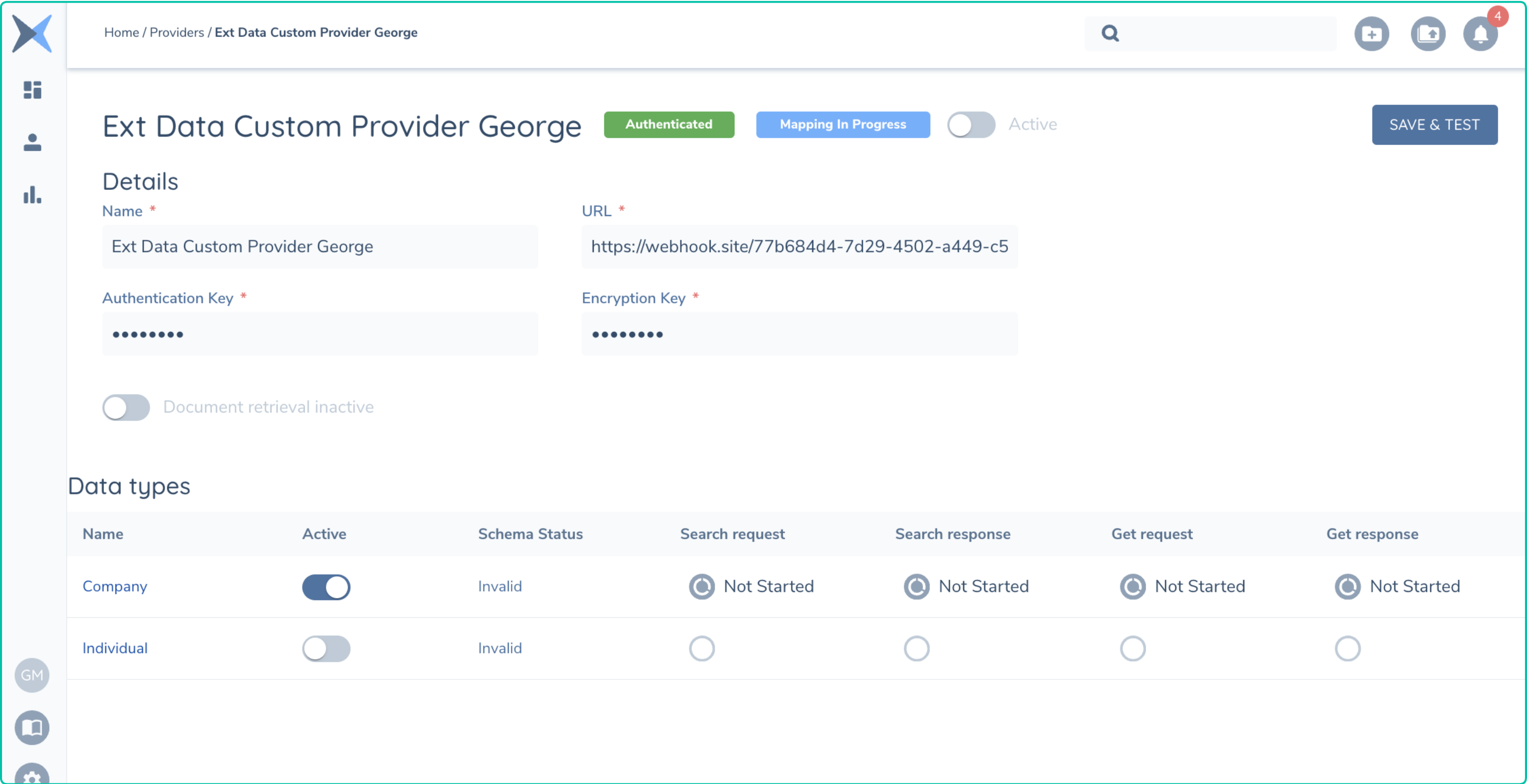
If you examine the screenshot below you can see the mapping for the Search Request where the fields specified in the schema are rendered on the User Interface and can be connected to the equivalent fields in the policy document.
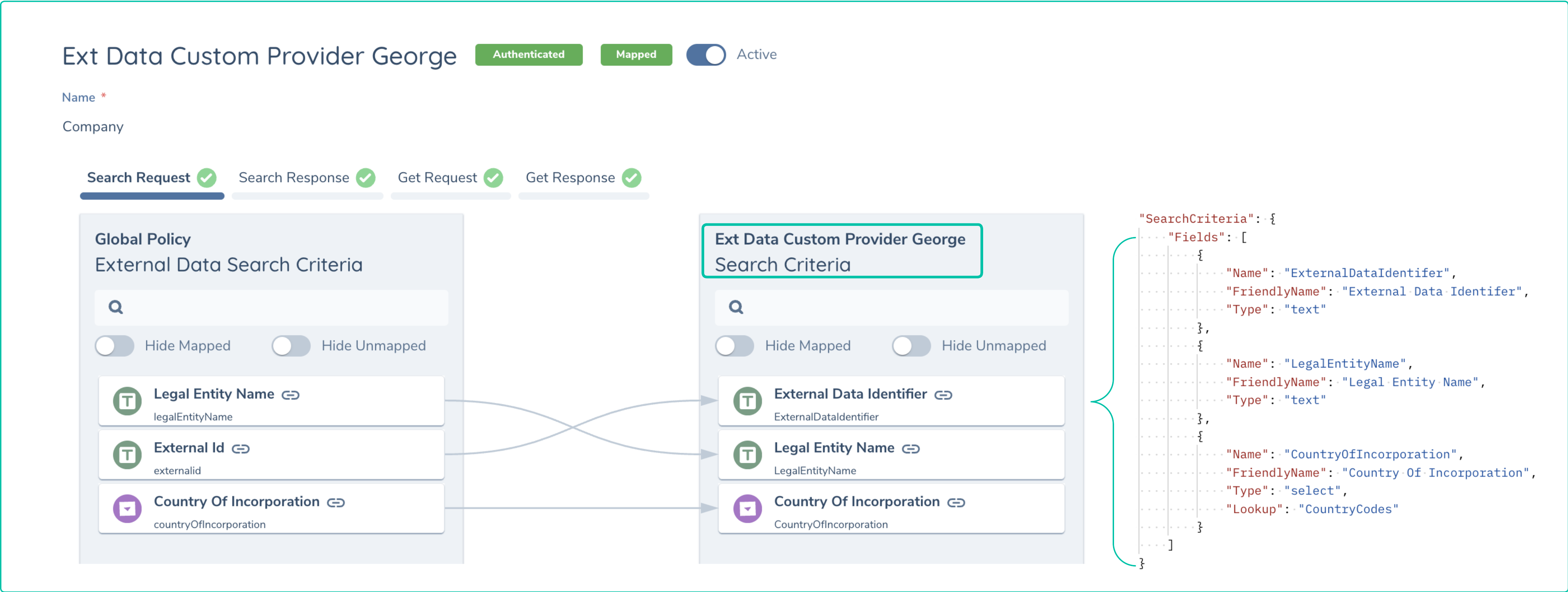
As described earlier, the Fenergo Policy must be configured with the correct Policy Categories to make sure the above mapping targets are displayed. You can use the same datakey names in Get Response so the data in the response is mapped into the Legal Entity Record.