Custom Screening Adapter Overview
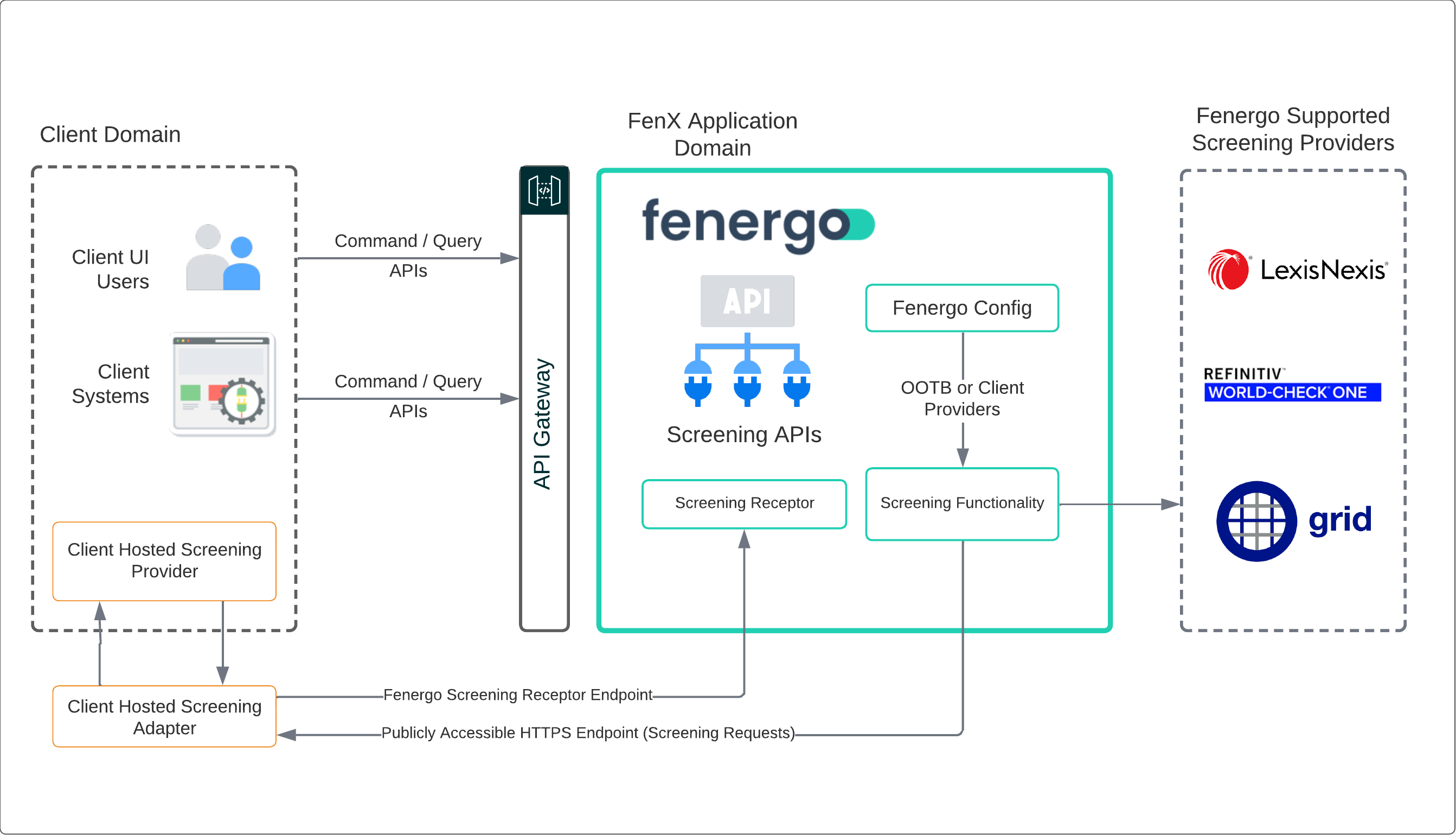
Consumers may need to use their own Screening Provider or a different Screening provider which is not supported by FenX or planned for our roadmap. For these situations, the Fenergo SaaS Platform allows consumers to setup an external adapter which they can host. That Adapter can then be targeted by the FenX application as an External Screening Provider and provided it implements the agreed interface, will function just like the OOTB screening providers.
| APIs Referenced |
|---|
| Screening Receptor API |
| Screening Command |
| Screening Query |
High level Architecture
Below is a high level overview of how the External Adapter Pattern is implemented, including all the components and how they interact together. If consumers have configured one of the Out of the Box Providers, then the Fenergo SaaS platform connects to that provider. Consumers can choose to implement a custom provider by creating and hosting a screening adapter of their own which conforms to the specification outlined in the Adapter Contract. Fenergo can then call that adapter and interact with a custom Screening Provider. Where callbacks are required, these are done via the Screening Receptor API endpoint. Further details are available in the Open API spec below.
API Resources
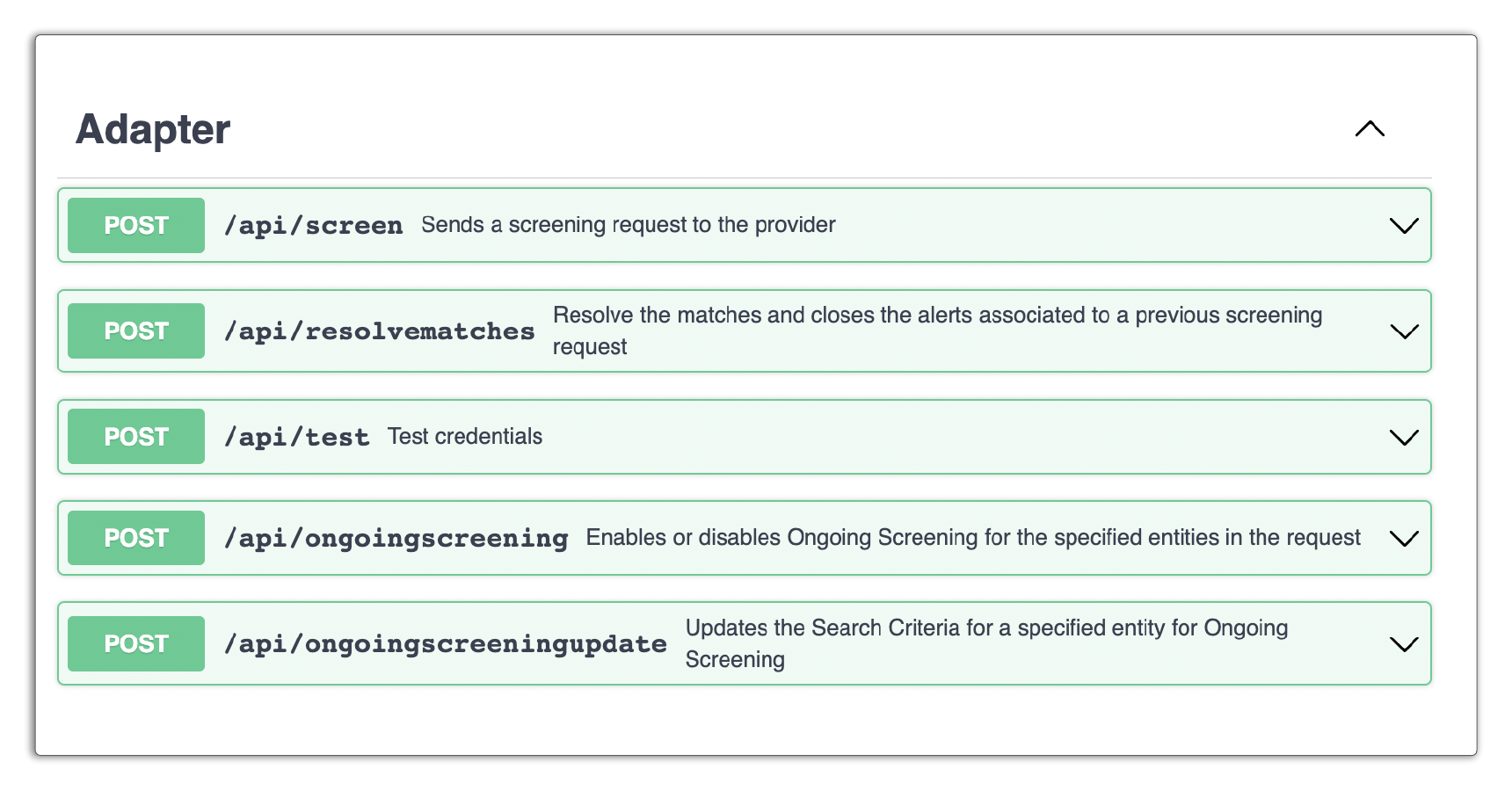
The Generic Adapter Interface can be downloaded here : Screening Adapter
You can use Swagger to load this JSON file and browse the specification then you can inspect the methods as illustrated below:
The Screening Receptor Swagger can be explored here : Screening Receptor
Asynchronous Pattern
We have engineered our screening functionality in Fenergo to be as extensible as possible, so if you are implementing a custom adapter it is important to understand explicitly how the programmatic flow works.
All actions on the User Interface or via the Screening Command / Query API calls, result in a generic handler making a call to a specific adapter. That adapter could be one of our supported OOTB services or your own implementation of an adapter.
The important point to note is all the above methods (as you would see in the Swagger Interface) return an asynchronous response of HTTP 202 Accepted (except for an error scenarios). Responses are sent back to the Fenergo Receptor once the request has been processed. The sequence is illustrated below.
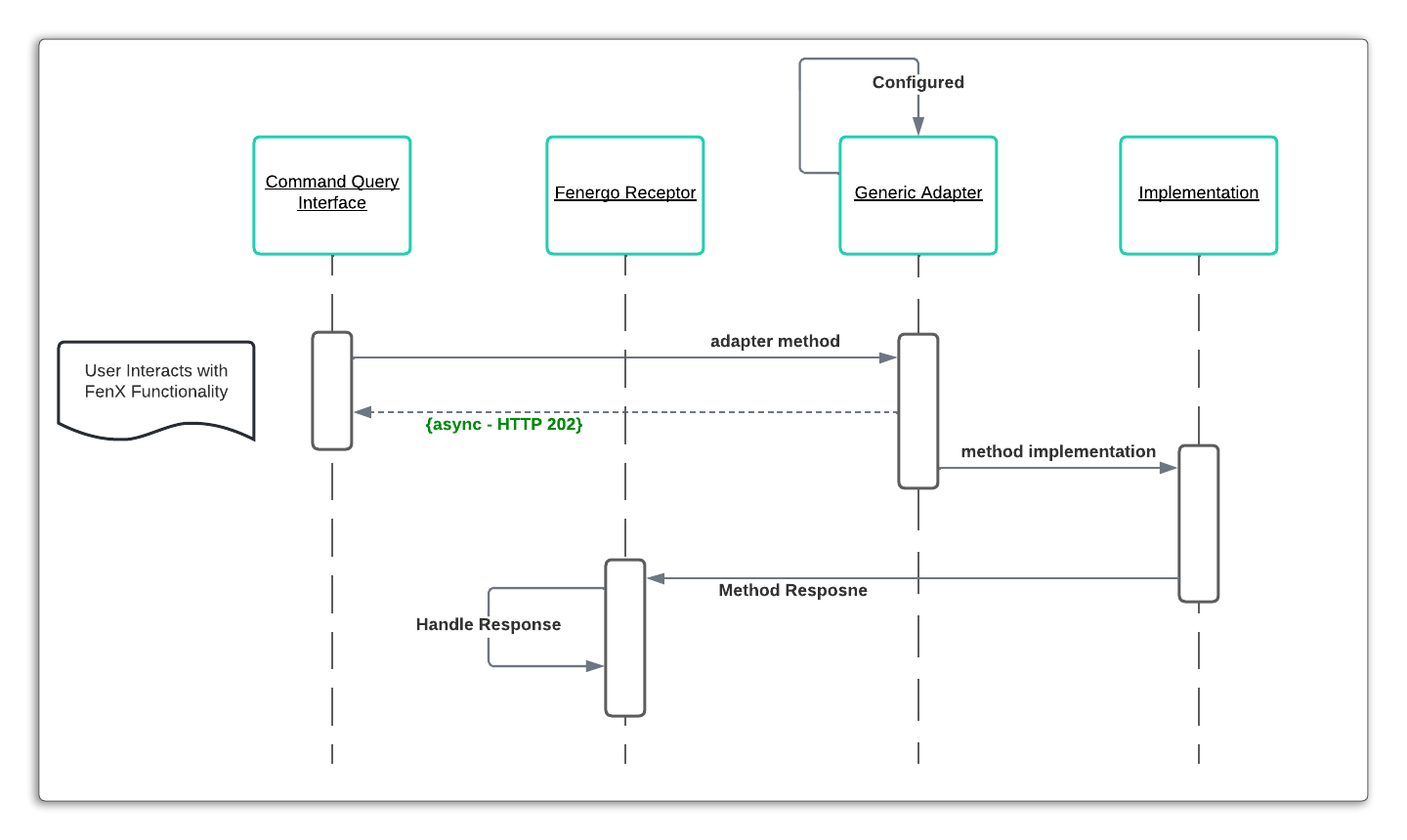
What this means from a client / consumer perspective is that your Adapter Implementation must adhere to this same pattern and implement all the methods outlined in the Screening Adapter Contract above.
Security and Encryption
Screening functionality requires that PII Data (Personally Identifiable Information) is sent from the Fenergo platform to a downstream provider to search for matches. Encryption and Authentication is required when sending such data outside our domain and clients can configure this as part of the Adapter Setup.
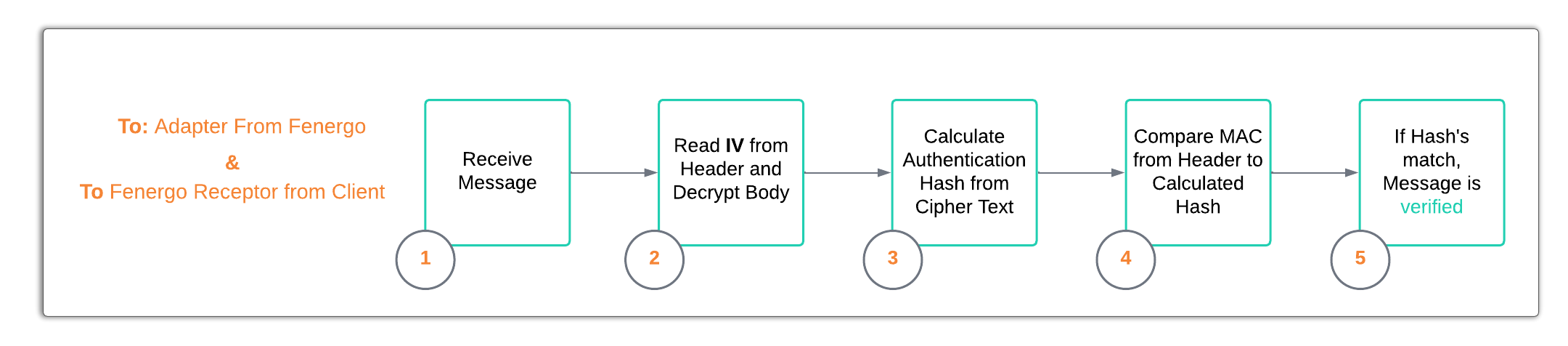
How the encryption and decryption are implemented is important to understand as Fenergo will call to a client adapter with the message body encrypted and authenticated. The client adapter must follow the Decryption Steps to read the messages and verify it originated from Fenergo. The client must then send the responses back following the same Encryption Steps. These steps are illustrated below at a high level and covered in detail within the API walkthrough.
Key Generation
To configure the External Adapter, an API call is sent to the Screening Command interface. This is covered in detail within the Screening Adapter API Walkthrough. When enabling the encryption, there is a flag called authenticationActive which must be set to true. Two keys are required, one for Encryption and one for Authentication. The Keys MUST be supplied to the API call as Base64 Encoded Strings
When you save and retrieve keys for your adapter to decode and authenticate messages or to encrypt and sign messages, ensure that you use the correct format. If you save and retrieve your Keys in the Base64 format, ensure you convert them back to byte[] arrays. In C# this done using Convert.FromBase64String(base64Key). Do NOT covert using Encoding.UTF8.GetBytes(base64Key). This will not work.
Encryption Steps
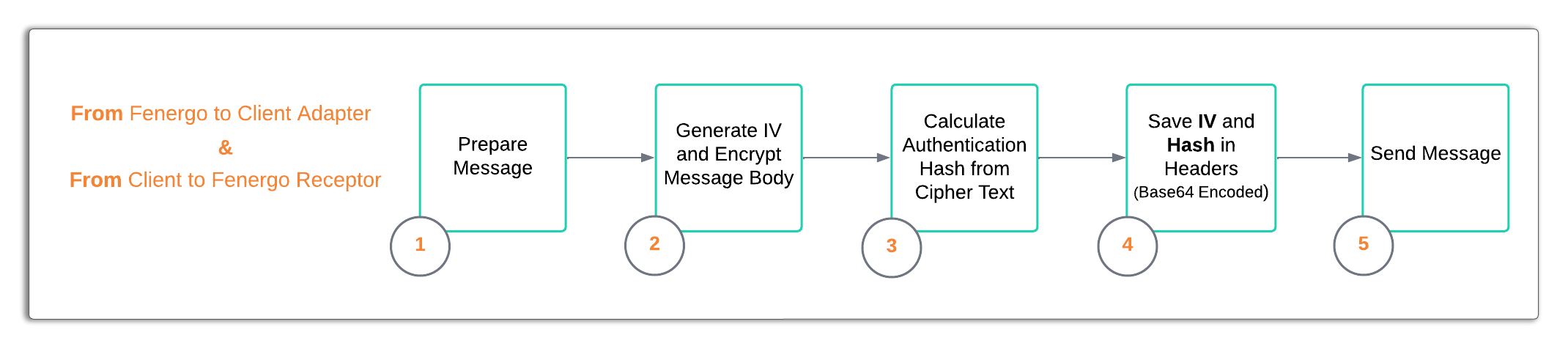
Decryption Steps