What are the Data Migration Artifacts?
The artifacts downloaded from the database migration session are a collection of CSV files representing a relational data model based on the Policy which has been configured on the Fenergo SaaS Platform.
In the Fenergo SaaS platform the data model is Document Based (Stored as a JSON document within a NoSQL database). To migrate data into documents of the same structure, which consists of a root object data points, sub-objects and collections, there needs to be a representation in a flattened table style structure. Those tables are presented as CSV files and the Schema Excel File contains the details of how to populate the files. The ordering of how this is processed is also very important.
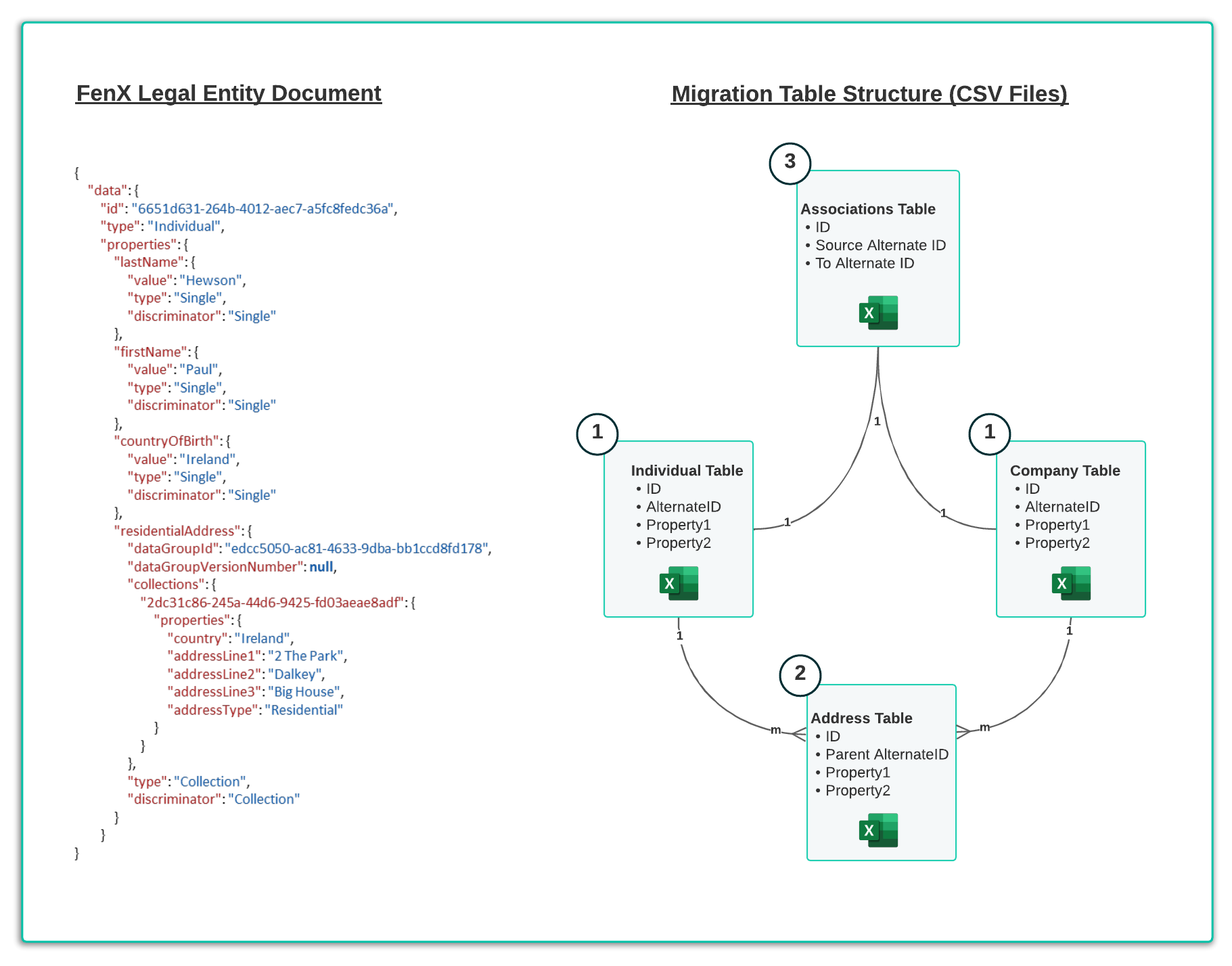
As illustrated above, Legal Entity Individual or Company data points which exist at the ROOT of the JSON document are added to the Individual or Company Table (CSV files). This data will get a the Fenergo SaaS Platform identifier when migrated, but clients need to supply their own Foreign Key identifier which is referred to as an Alternate ID.
Sub-Entity data which references the parent Alternate ID is added to an appropriate Sub-Entity table, in this case an Addresses Table.
The associations are not directly part of the Entity Data Model within the Fenergo SaaS Platform, they are stored elsewhere inside a cloud native graph datastore but reference the main Individual and Company tables.
Understanding the Migration Sequence
The sequence of how data is migrated is not a directly a client concern but it can help to understand the order the process follows.
- The entity data for Individuals and Company is used to create the Root JSON documents.
- Then the sub-entity tables are iterated after the parent entities are created and the parent JSON Documents are enriched with this data.
- The Data is validated against the policy specified in the migration.
- Once the data is valid, the JSON Document is committed to the Legal Entity Data Store
- Lastly the Associations are created once all the other data has been saved.
- All or Nothing : If any of the data fails validation it is NOT saved and the migration fails.
Understanding the Schema Document
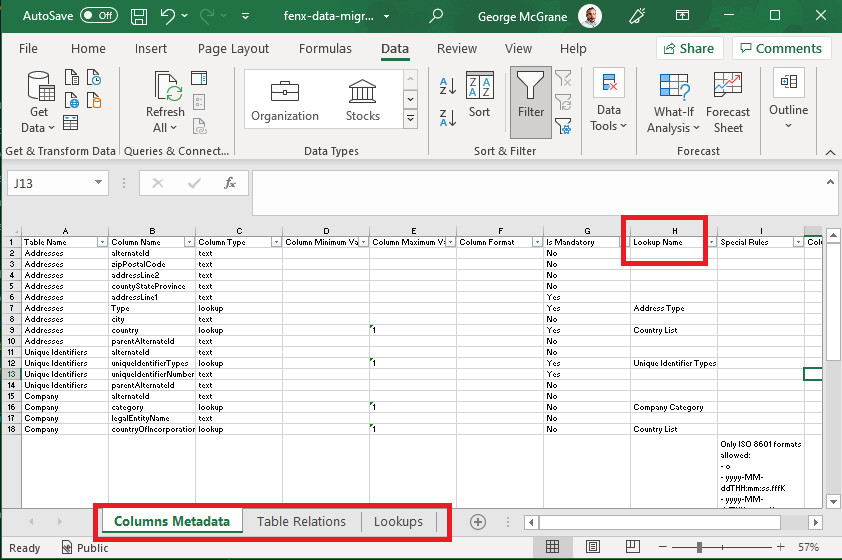
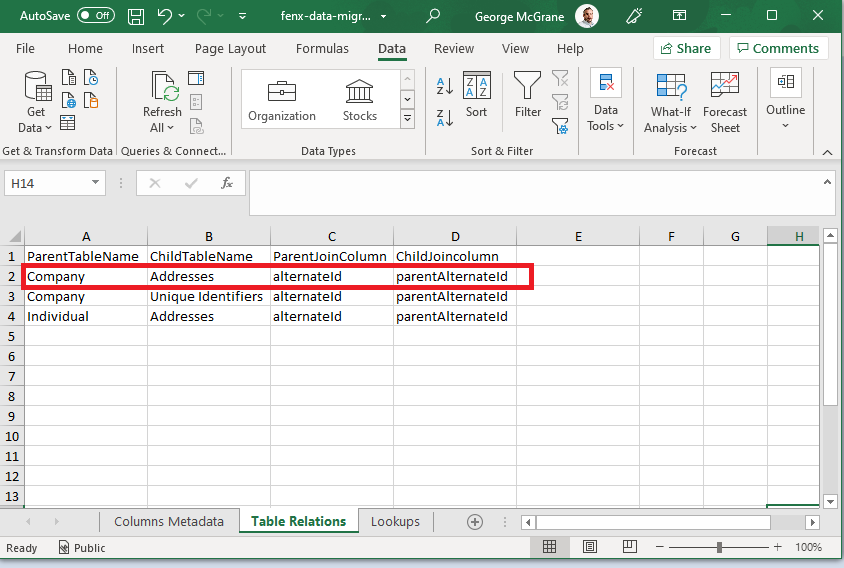
Inside the Schema Document there are three tabs.
- Columns Metadata This is the full list of all the Columns across all the CSV files and the detail related to that column. It is ordered by "Table Name" and the Type plus any specifics which are related to what valid data content looks like.
- Table Relations As in the earlier illustration, there is an entry for the relationships between tables. This depends on what has been configured in the policy's.
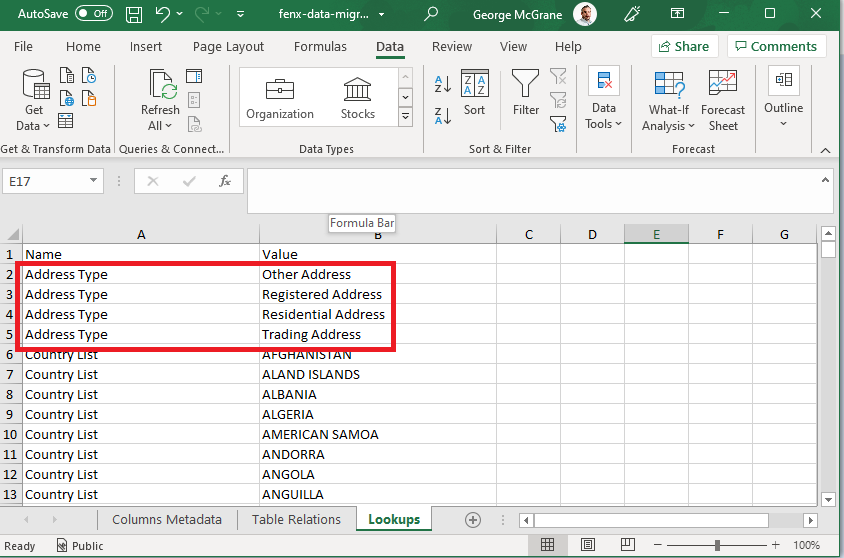
- Lookups The "Lookup Name" column (H) in the Metadata Tab identifies the lookup which is referenced. The valid values for all the lookups needed in the Migration are listed in this tab.
Populating an Entity Data CSV file
The migration Sample being examined is relatively simple but more complex migrations will only differ in number of CSV files, relationships, and number of columns.
The AlternateID entered in this sample is a foreign key passed by the client, typically this comes from an existing system of record.
Migration can be executed multiple times for the same data, the Fenergo SaaS Platform will treat a record as "existing" if the alternateID passed matches an alternateId already in the system. If it already exists, the Fenergo SaaS Platform will simply update the record with the values passed.
In Populating the Individual CSV from the sample the Schema tab can be used to correlate the correct values especially where lookups are referenced.
The lookups are case sensitive and will fail validation if they are not entered correctly.
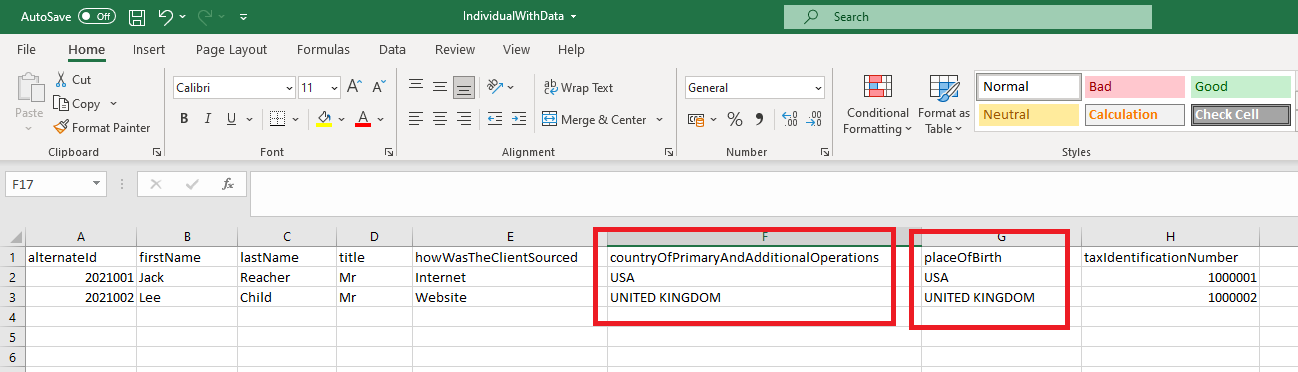
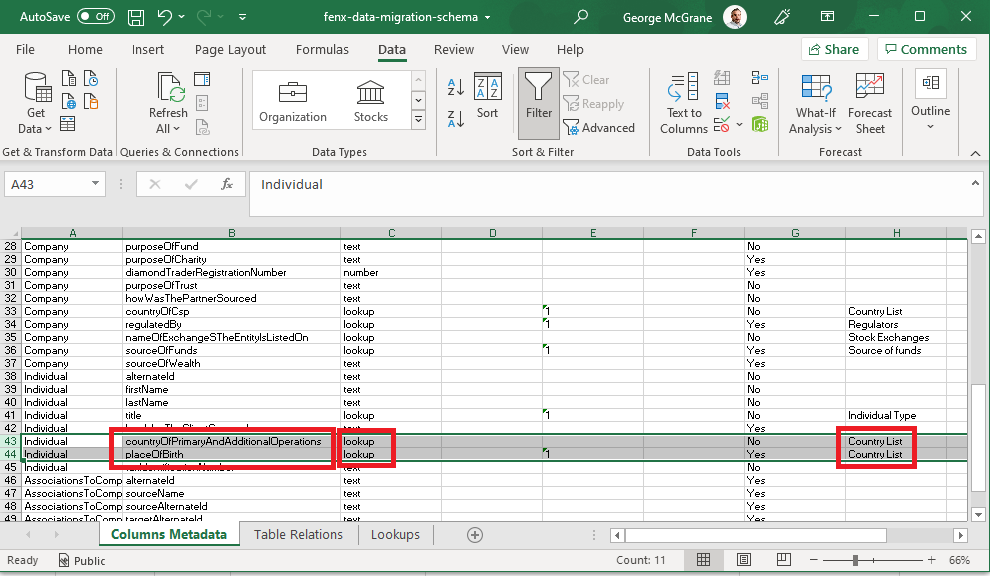
The Individual CSV has columns called countryOfPrimaryAndAdditionalOperations and placeOfBirth. Valid values have been added to the sample CSV above, these valid values came from the Lookups Tab in the "Schema" file, It indicated which lookup type needs to be used to populate the column. Clients may need to transform their data to these values before they migrate.