Design Patterns
On this page we'll documented some design patterns to help when designing you integrations with Integration Flows.
Procedural Loop
The Procedural Loop pattern allow a Flow to repeatedly execute a sequence of tasks within a single Flow Execution by combining three core capabilities:
- Transformer Task – for loop control and variable management
- Execution State – to persist loop context across tasks
- Router Task – to evaluate loop exit conditions and control flow
Use this pattern when you need to:
- Process an array of items sequentially (e.g. Run the mapping task for each entity returned by Supergraph task)
- Perform retries with a maximum limit or time limit (see HTTP Polling and Fan Out / Fan In)
- Implement controlled conditional loops without asynchronous behavior
Implementation
This pattern sets up and updates loop variables using Transformer Tasks, checks continuation conditions using a Router Task, and stores loop data in the Execution State. The loop continues until a condition (like reaching the end of a list) is no longer met.
Step-by-Step
The following example is based on the MDM Publish (/w Transformer) Template
-
Initialize Loop In a Transformer Task, define your control variables and store to Execution.State
  // This function fetches the "next" entity from the Supergraph FormattedResponse and stores it in State.
  // In Task Configuration, Input mapping is defined as:
  // - input.Entities -> {{Task.supergraph.FormattedResponse, $.entities}}
  // - input.State -> {{Execution.State}}
  function transform(input: InputObject): ResultObject {

      //Read iterator from state. If Null start at 0
      let iterator = input.State.Iterator ?? 0;

      let nextEntity = input.Entities[iterator] ?? null;

      iterator += 1;

      return {
        output: {},
        state: {
          Iterator: iterator,
          NextEntity: nextEntity,
          HasNextEntity: !!nextEntity
        }
      };
} -
Repeated Tasks Insert the tasks that perform the actions you want to repeat. That could include an HTTP Invoker
-
Route Based on Condition
- Use a Router Task:
IF state.hasMore == true
GO TO Task: Process Item
ELSE
GO TO Task: End Loop
Asynchronous Operations
Most Tasks in Integration Flows run instantaneously, meaning the Flow Execution will run in one continuous process from start to finish. Some tasks include support for asynchronous operations which pause the Execution while some long-running process runs outside of Integration Flows. When the external signal is received the Execution will resume from where it left off. This enables more advanced integration design patterns.
A side benefit of Async Operations is that by pausing and resuming the Execution it is no longer limited to the 12min timeout limit. This allows you to design long running Flows!
Async Tasks
The following tasks offer async operations:
| Task | Async Operation |
|---|---|
| Event Ingress | The Event Ingress task is used to update data in Fenergo. By default this operation runs in "fire-and-forget" mode meaning the event is queued for processing and the task will complete. The Wait for Response setting when combined with Run Mode = ASync will pause the Flow Execution until the event has completed processing. |
| HTTP Invoker | See HTTP Callback in next section |
| Flow Invoker | The Flow Invoker task is used to trigger other Flows. These Flows can be run in parallel or as an async operation by setting Run Mode to Wait. Useful in the Fan-Out / Fan-In |
| Wait | The Wait task is used to pause the execution for a configurable amount of time. When configured to sleep for more than 10 seconds this is run as an async operation. Useful in Polling patterns |
HTTP Callback
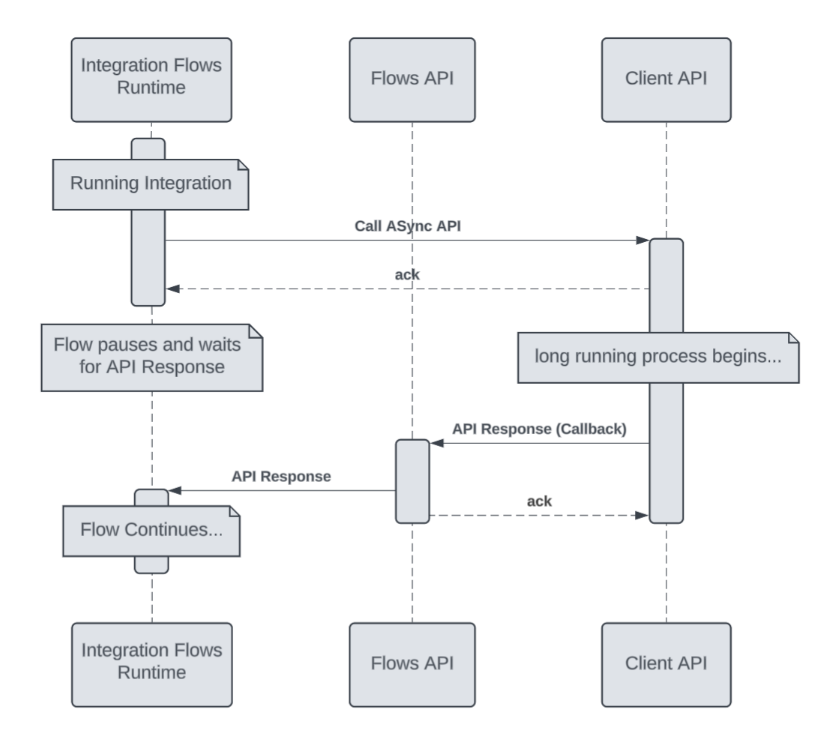
The HTTP Callback pattern enables asynchronous communication between systems by allowing an initial service (the caller) to provide a callback URL where the receiving service can send responses or status updates when they become available.
Implementation:
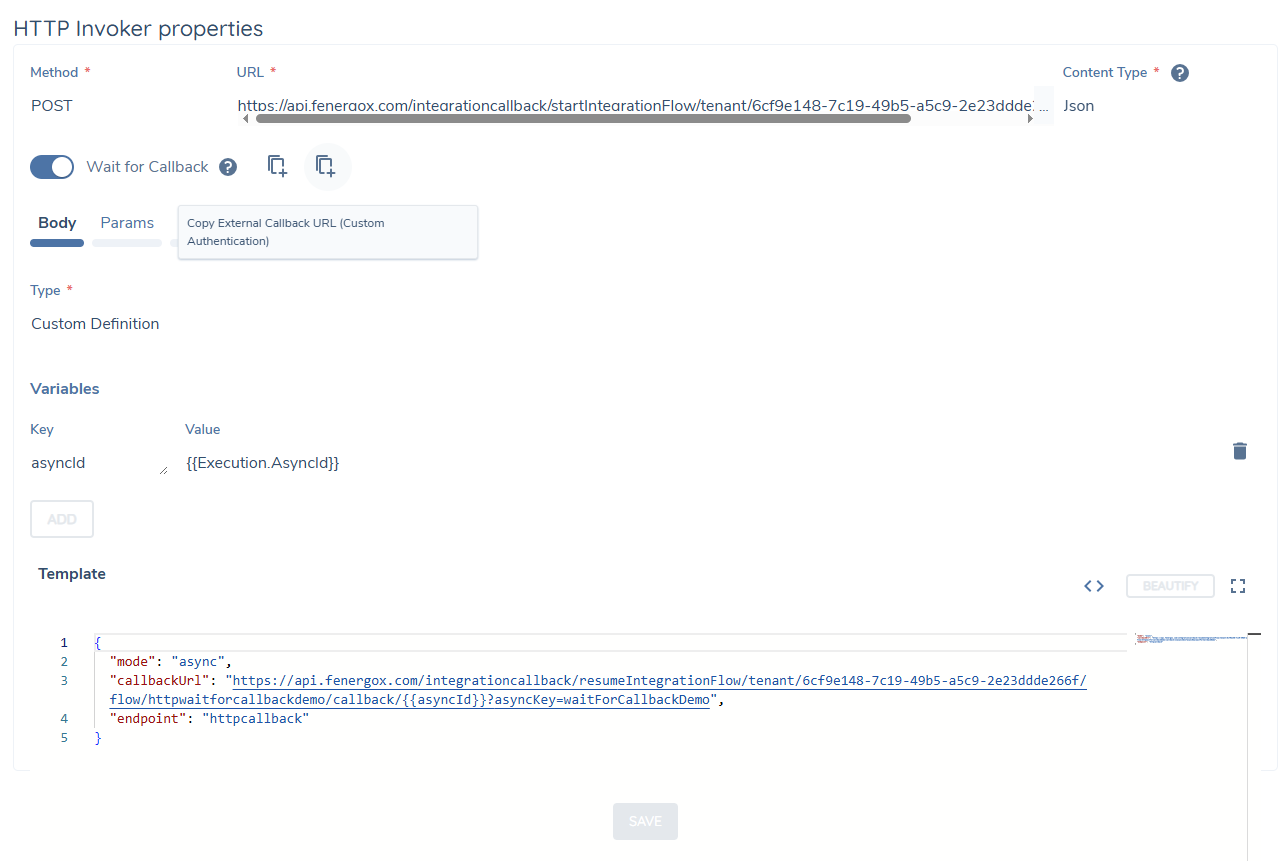
The HTTP Invoker Task includes a "Wait for Callback" option which will pause the execution until a callback is received. The callback can be sent to one of two APIs:
- with FenX Authentication:
https://api.{{env}}.com/integrationcore/api/execution/callback/{{Execution.AsyncId}} - with Custom Authentication:
https://api.{{env}}.com/integrationcallback/resumeIntegrationFlow/tenant/{{tenantId}}/flow/{{flowKey}}/callback/{{Execution.AsyncId}}?asyncKey={{asyncKey}}
A sequence diagram illustrating how this works is presented below.
HTTP Polling
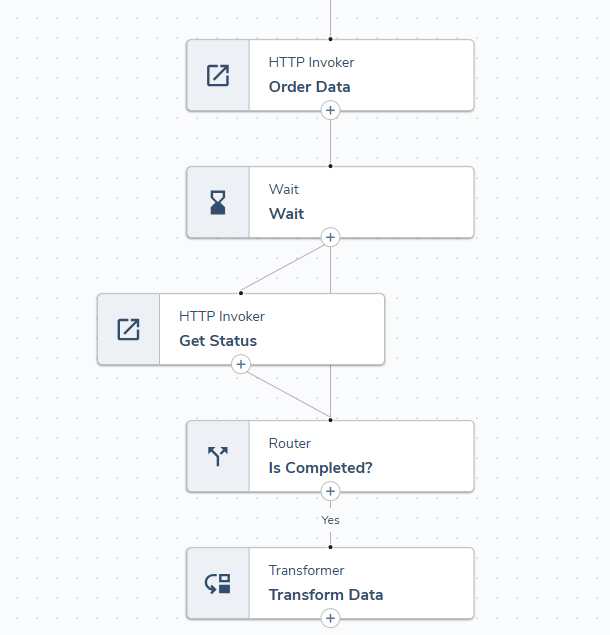
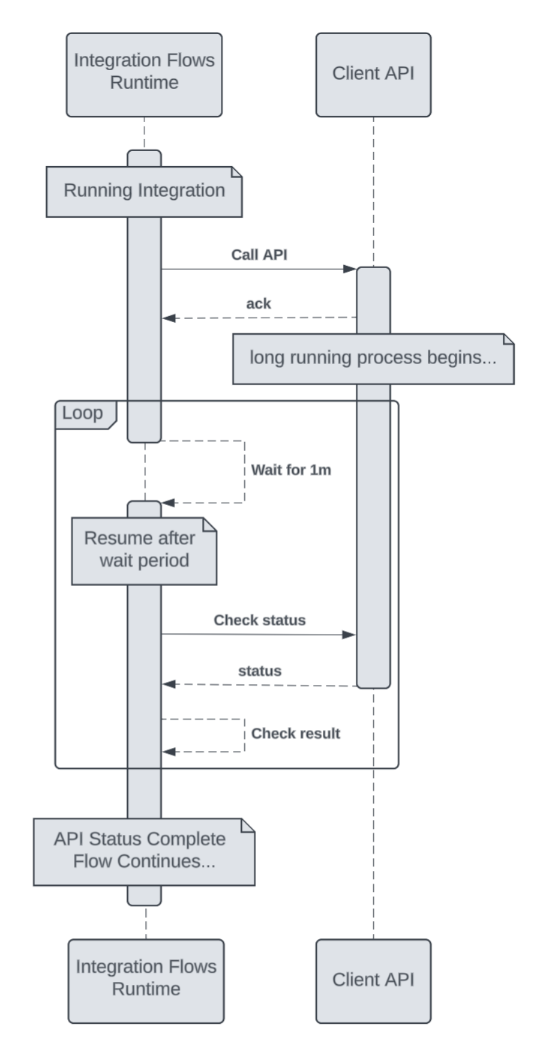
If the target API does not support callbacks, polling can be used as an alternative approach. Polling involves repeatedly checking whether the data is available by making additional API calls at regular intervals.
Implementation:
This functionality can be implemented using the Wait task in combination with the Router task, forming a loop that continues until the desired condition is met.
A sequence diagram illustrating how this works is presented below.
Flow Invoker
The Flow Invoker allows you to start the execution of another flow from within the current one. This is useful when you want to initiate a separate process - either once or multiple times in a loop.
You can configure the invocation to either wait for the result before proceeding (Async - the main flow pauses and resumes), or to trigger the flow asynchronously (Fire and Forget) and continue execution without waiting.
This provides a flexible way to orchestrate more complex workflows and delegate specific tasks to reusable sub-flows.
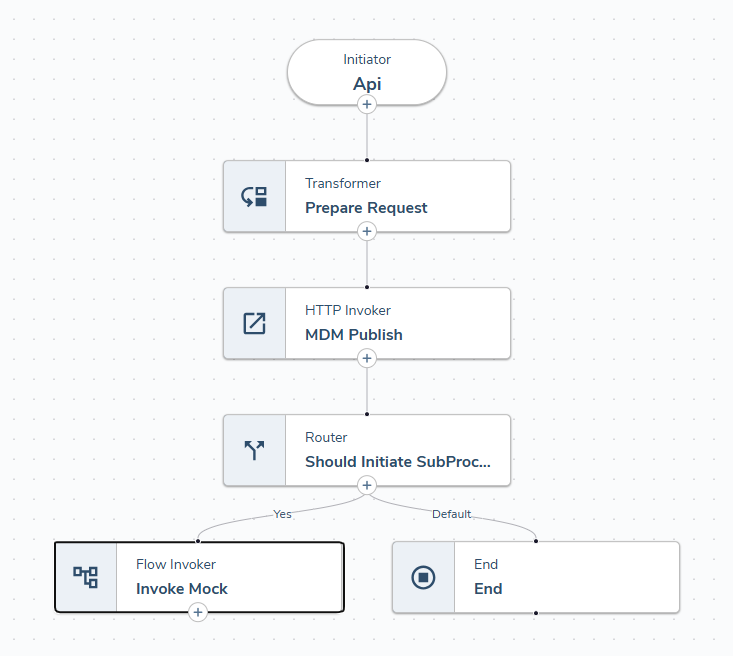
Fan Out / Fan In
The Flow Invoker task can also be combined with Persisted Storage to enable parallel processing across Flow Executions. The Parallel Flow Demo, available in Flow Studio Templates, demonstrates how to design a process that can be run in parallel and use Persisted Storage to monitor the output of those processes and receive the output for further processing.
Parallel Flows Demo
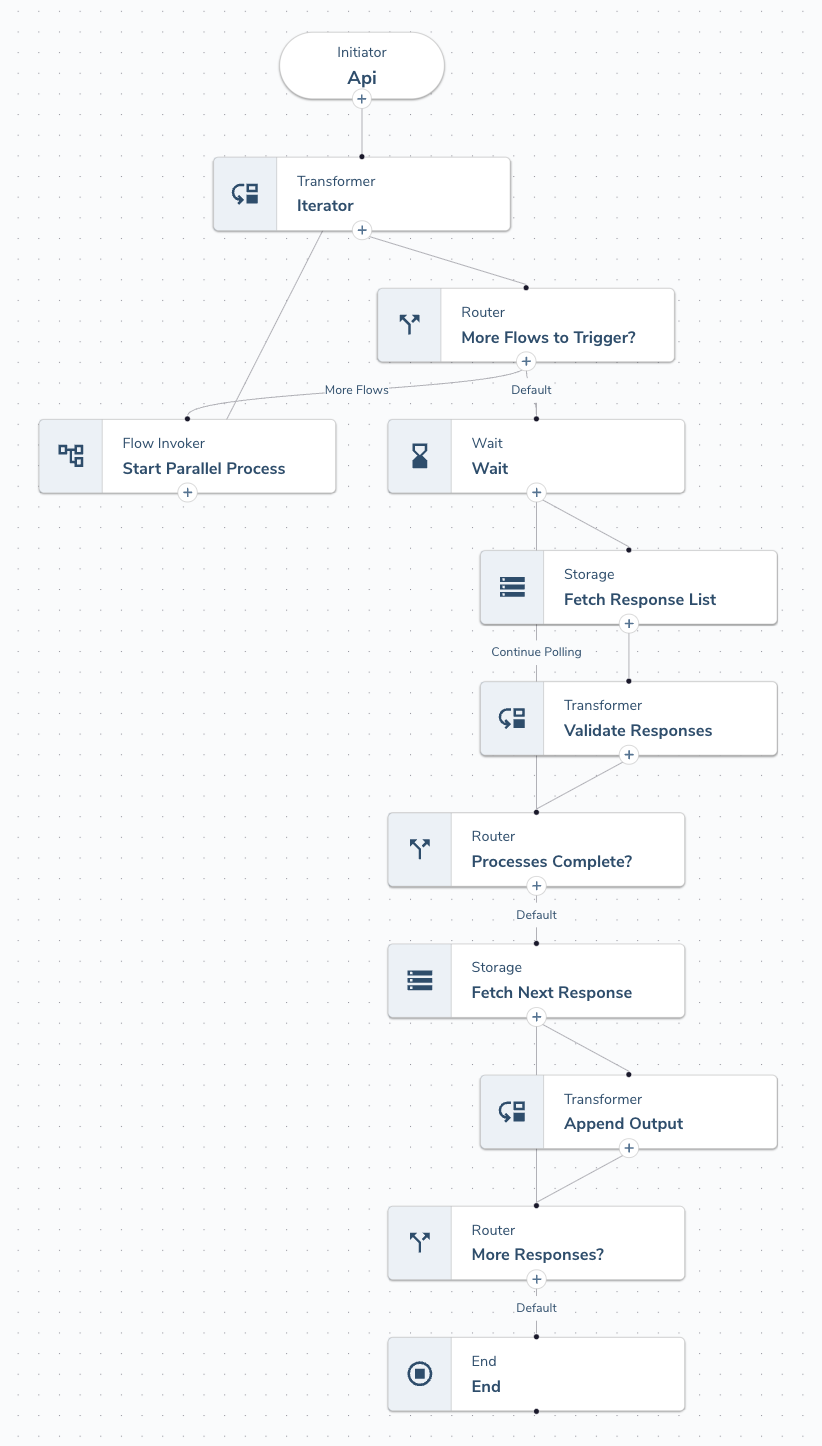
This flow acts as the orchestrator. It’s an API-triggered flow that receives a count of how many parallel processes you want to run. It’s responsible for triggering the sub-processes and then waiting for them to complete.
- Phase 1 - Sub processes are triggered via a Flow Invoker in a loop
- Phase 2 – Uses a ”Query by Prefix” storage task to poll for the resulting files created by each sub-process until all processes have completed. Includes a timeout function – if all files aren’t returned within a set window then an exception is thrown.
- Phase 3 – Fetches the list of files produced by sub-processes and loops through them and appends to a single output
Sample Payload to test flow.
HTTP POST https://api.fenergox.com/integrationcore/api/execution/flow/parallelFlowsDemo/
{
  "parallelProcessCount": 5
}
Parallel Flows Demo (Child Flow)
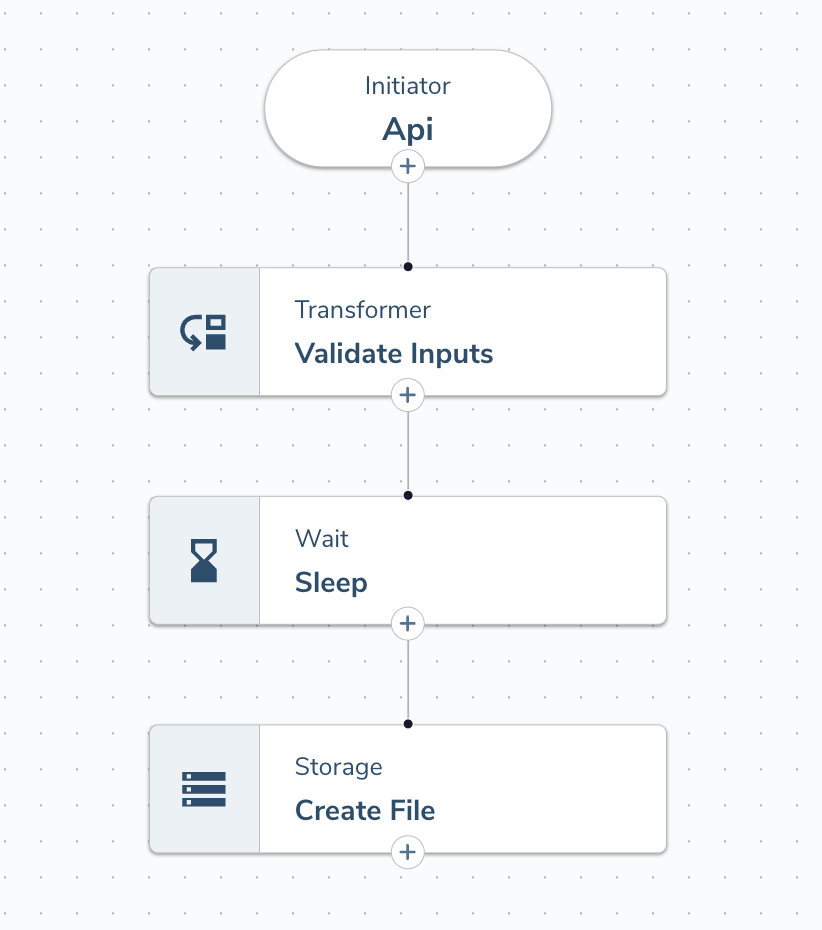
Represents a single unit of work that will be run in parallel.
- Validates inputs received from Parent Flow including Parent Execution Id and StoragePrefix
- Sleeps for a random time between 10 and the MaxSleepTime received from Parent Flow to simulate work done
- Creates a file to store our output using the key: StoragePrefix.ParentExecutionId.Instance
Error Handling
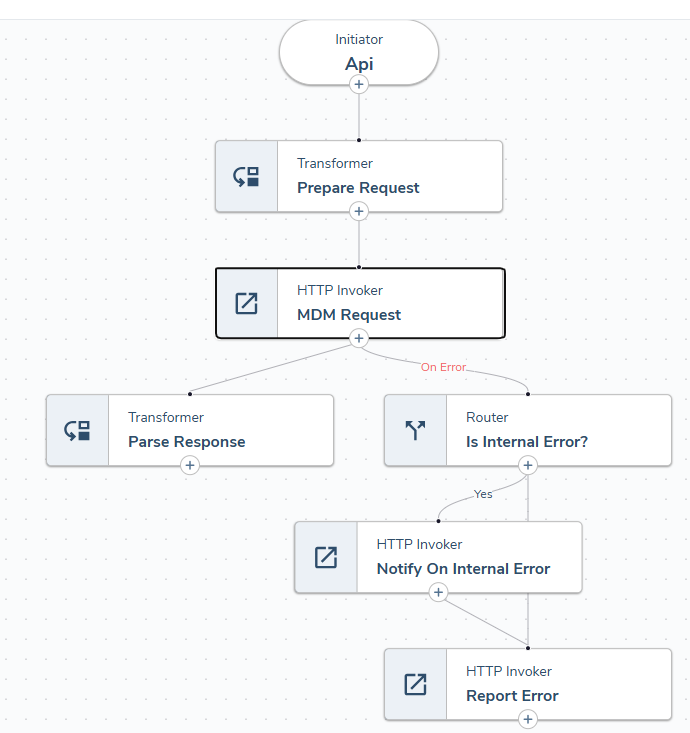
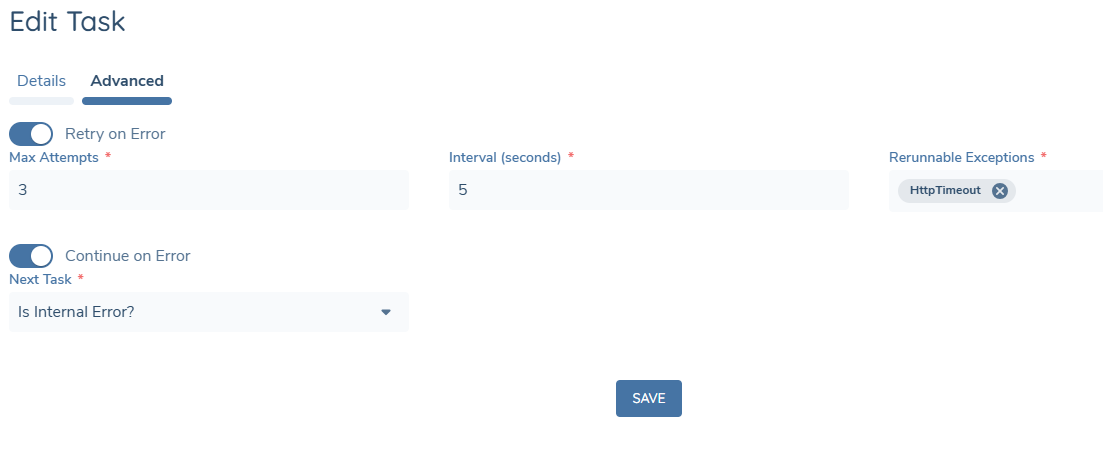
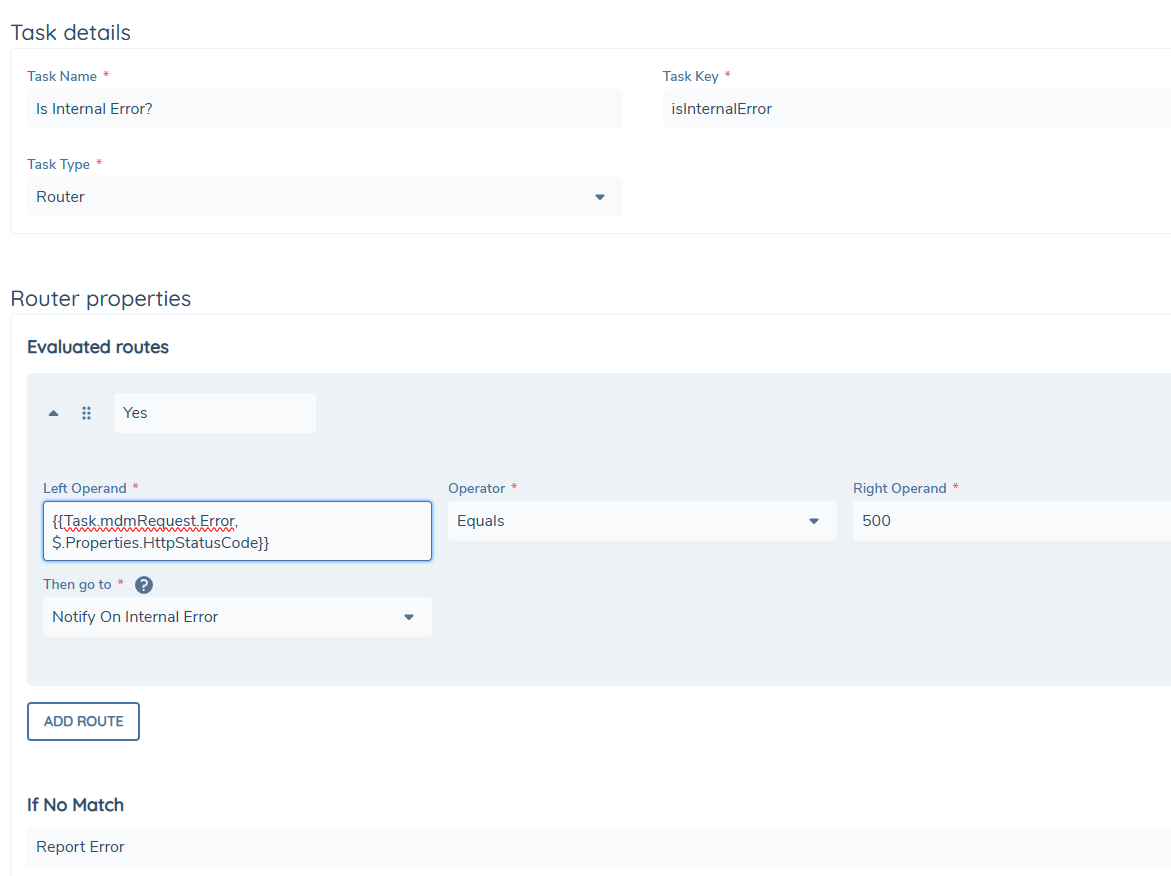
Some tasks may result in an error - for example, the HTTP Invoker might receive a response with an error status code. To handle such situations, you can define a Retry policy or specify an error path that the flow should follow when a particular error occurs.
In many cases, error outputs also expose additional properties that can help with handling - for instance, the HTTP Invoker provides the HttpStatusCode property, which can be used to make flow decisions based on specific response codes.
Any unhandled error will immediately stop the execution of the flow and mark it as Failed.
This mechanism ensures that failures are either properly addressed or clearly reported, helping maintain robustness and visibility in your automation logic.
Errors
The table below presents the possible error types for individual tasks, along with the available properties exposed for different error types.
Error Types and Available Properties
| Task Type | Error Type | Property Name | Data Type |
|---|---|---|---|
| HttpInvokerV2 | HttpErrorCode | HttpStatusCode | Number |
| HttpResponseBody | Json | ||
| HttpRawResponse | Text | ||
| HttpInvalidResponse | HttpStatusCode | Number | |
| HttpRawResponse | Text | ||
| HttpRequestError | HttpStatusCode | Number | |
| HttpInvalidRequest | - | - | |
| TransformerV1 | JsError | JsErrorCode | Text |
| JsErrorMessage | Text | ||
| JsUnhandledError | JsUnhandledErrorMessage | Text | |
| JsInvalidOutput | - | - | |
| SuperGraphV1 | SuperGraphResponseErrors | SuperGraphErrors | Json |
| SuperGraphInvalidQueryByValue | - | - | |
| EventIngressV1 | EventIngressTimeout | EventId | Guid |
| EventIngressError | EventId | Guid | |
| EventIngressInvalidRequest | - | - | |
| InternalApiV1 | InvalidInternalApiRequest | InternalApiErrorDetails | Json |
| InternalApiExecutionError | InternalApiErrorDetails | Json | |
| FlowInvokerV1 | FlowExecutionError | - | - |
| WaitV1 | InvalidNoOfSeconds | - | - |
| SecondsAboveTheLimit | - | - |