Deploy Config
What this covers
The Deploy Config wizard deploys selected configuration files from one source tenant to one or more target tenants. Deployed work is tracked in Past Deployments and the Activity Log.
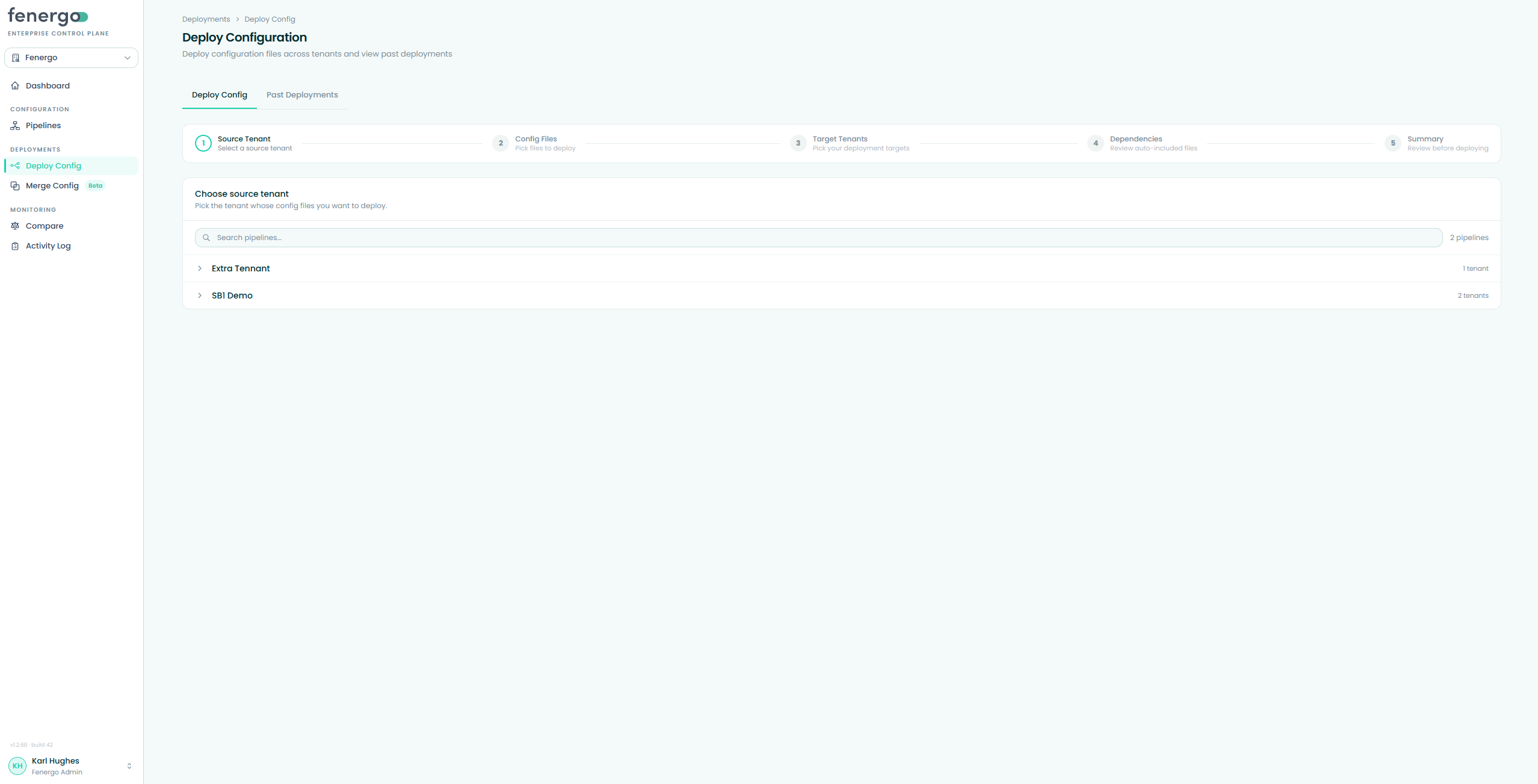
Step 1 — Choose source deployment pipeline & tenant
- Click Deploy Config in the sidebar to open the wizard.
- Expand the deployment pipeline that contains your source tenant.
- Select the source tenant. The source is read-only during deployment — you're copying from it, not changing it.
Step 2 — Select config files
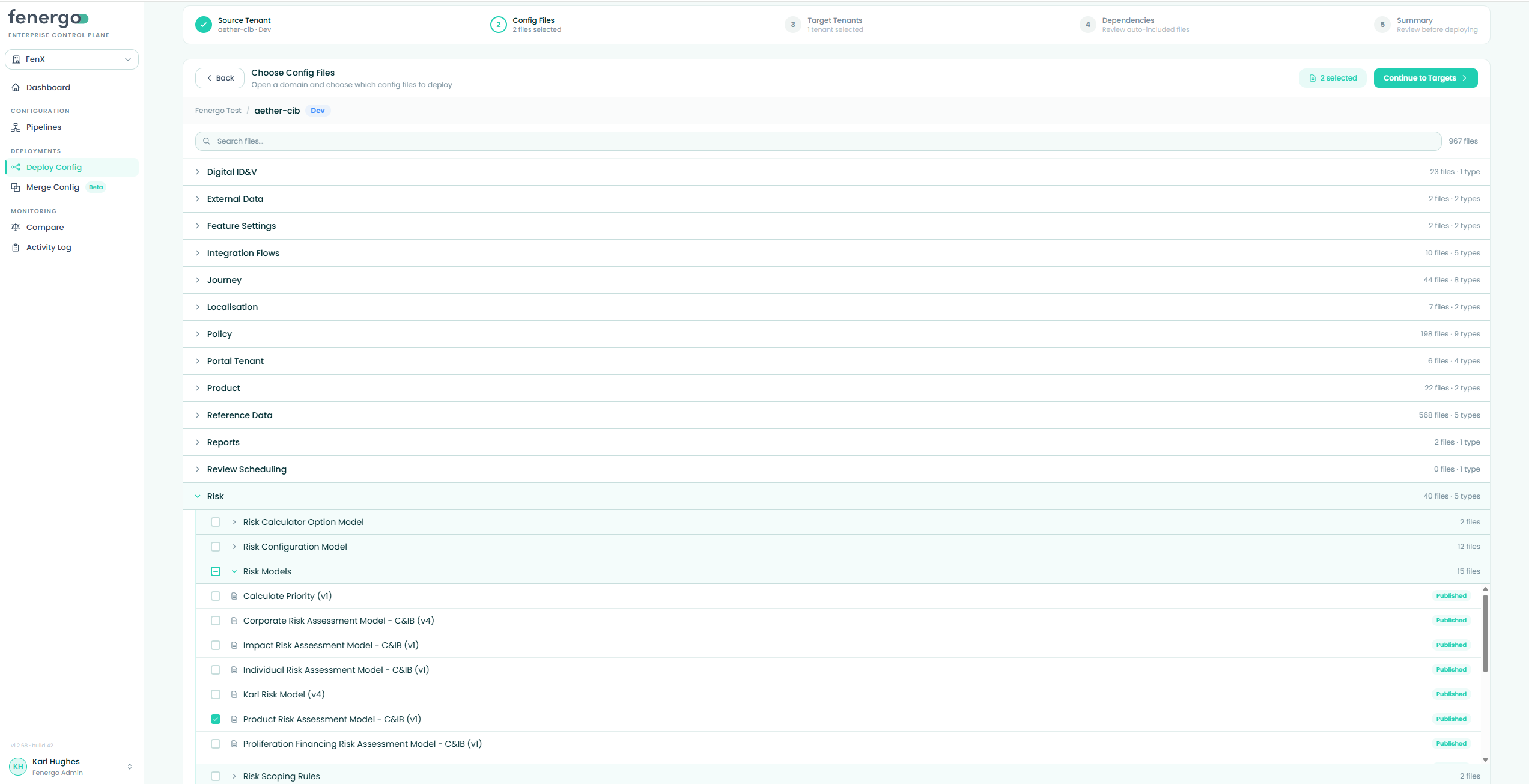
ECP organises files into parent domains and sub-domains. Expand the domain and sub-domain, then tick the file(s) to deploy. The selector supports multi-select, so you can push several changes together. Once at least one file is selected, Continue to Targets becomes active.
Step 3 — Select target tenants
The targets screen shows eligible target deployment pipelines, grouped by stage. Tick one or more target tenants. Each target receives an independent deployment job, so a failure on one doesn't block the others.
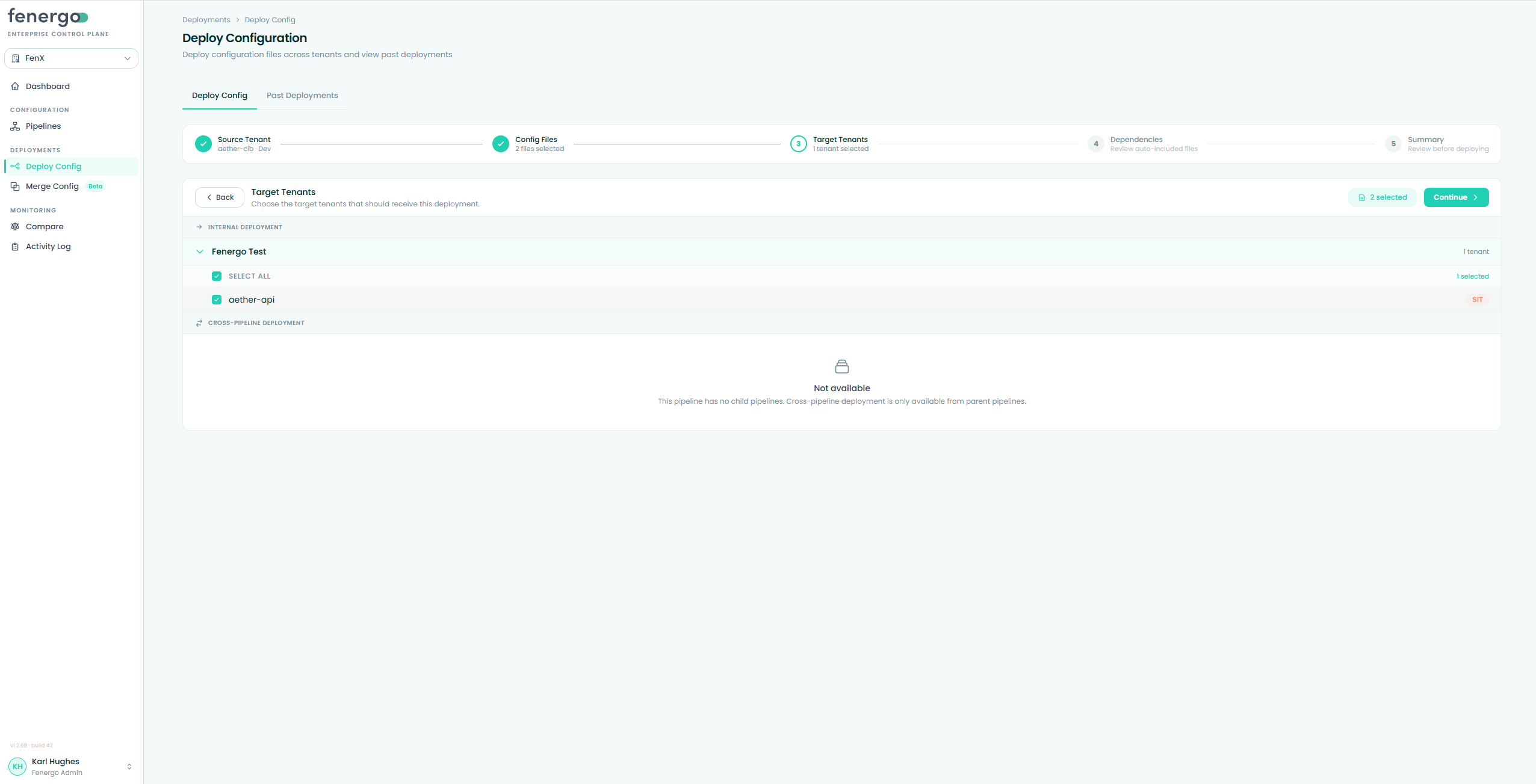
Within the same deployment pipeline, only tenants in later stages are eligible. For cross-pipeline deployments, the target deployment pipeline must be a child of the source deployment pipeline and the target must be in that child's entry stage. Ineligible tenants simply don't appear as selectable targets.
Step 4 — Review dependencies
After you continue from target selection, ECP syncs the relevant sub-domains on the source and all selected target tenants, then resolves the dependencies for each selected file.
This screen lists any files that will be automatically included in the deployment alongside your selections. These are config files that your chosen files reference — they cannot be deselected. If none of your selected files have dependencies, the screen confirms that nothing extra will be added.
- Tree view — shows the full dependency hierarchy, with child items nested under the file that requires them.
- Flat view — shows every dependency in a single list with a Required By column identifying which selected file pulls it in.
- Click any dependency row to inspect its JSON content.
- The Selected files count in the toolbar refers to the files you picked in Step 2 — click it to review that list.
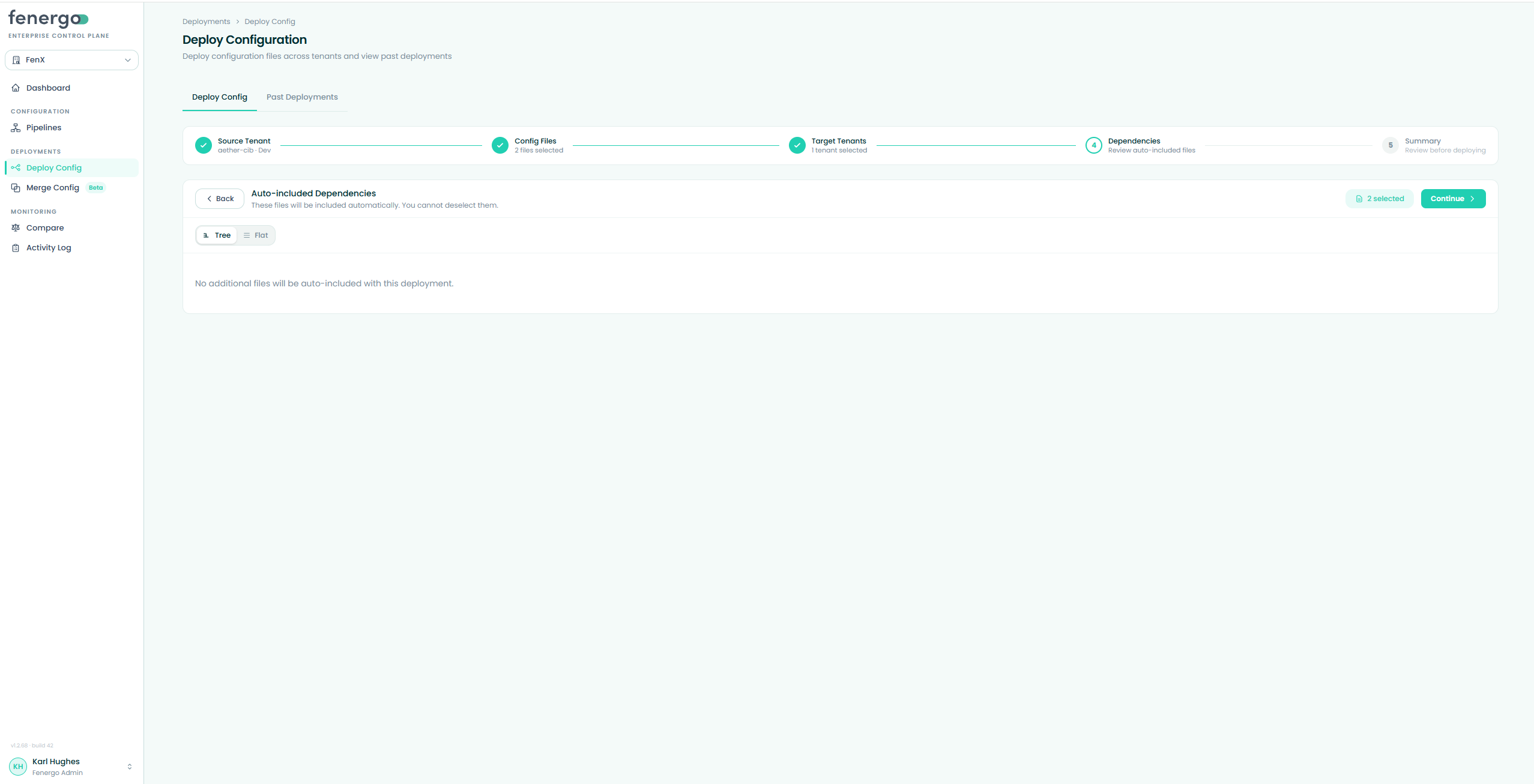
Click Continue to proceed to the summary.
Step 5 — Confirm & deploy
The summary shows each selected file (plus any auto-included dependencies), the source tenant, and the targets, with a source-to-target fan diagram. Click Deploy, then confirm in the modal.
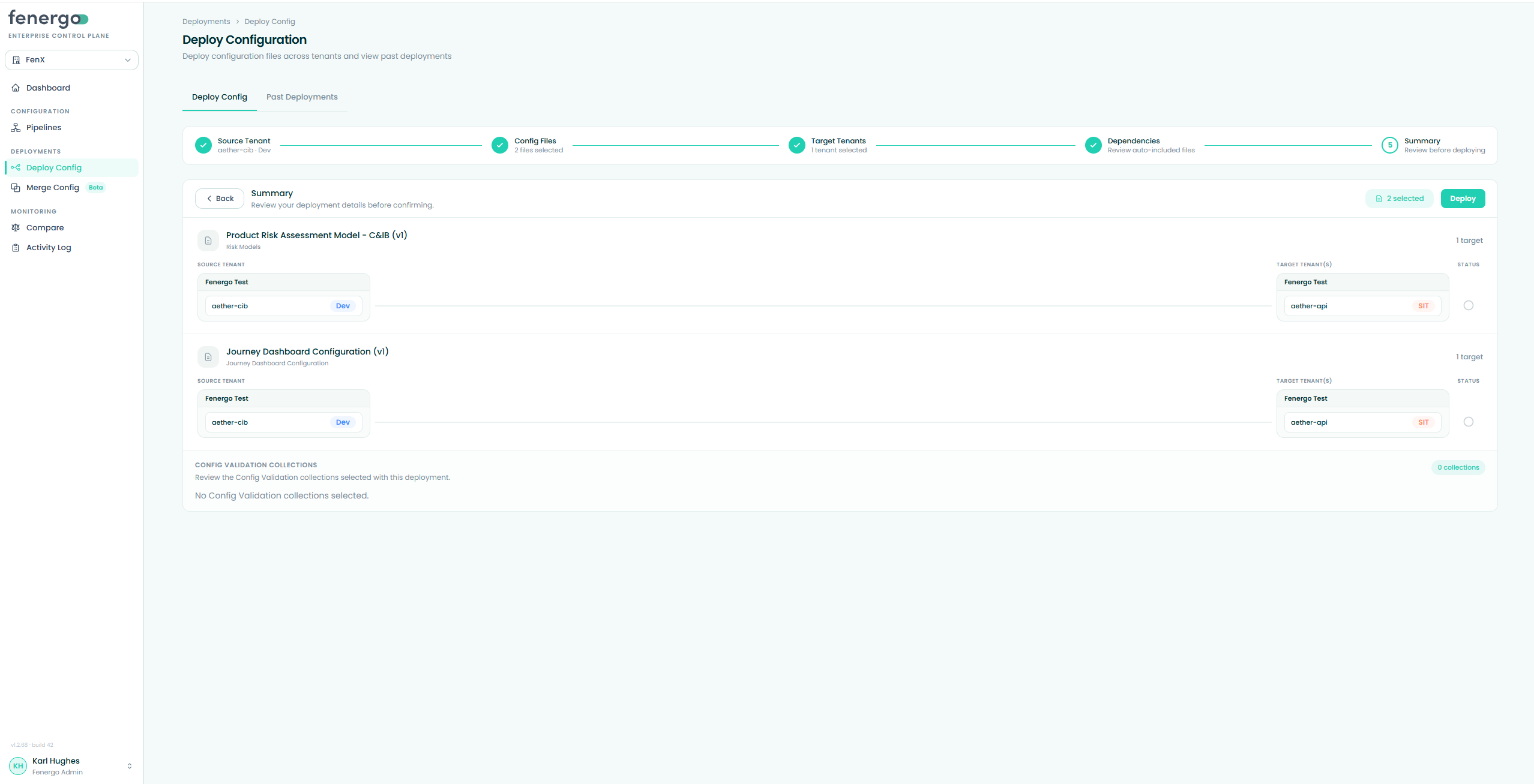
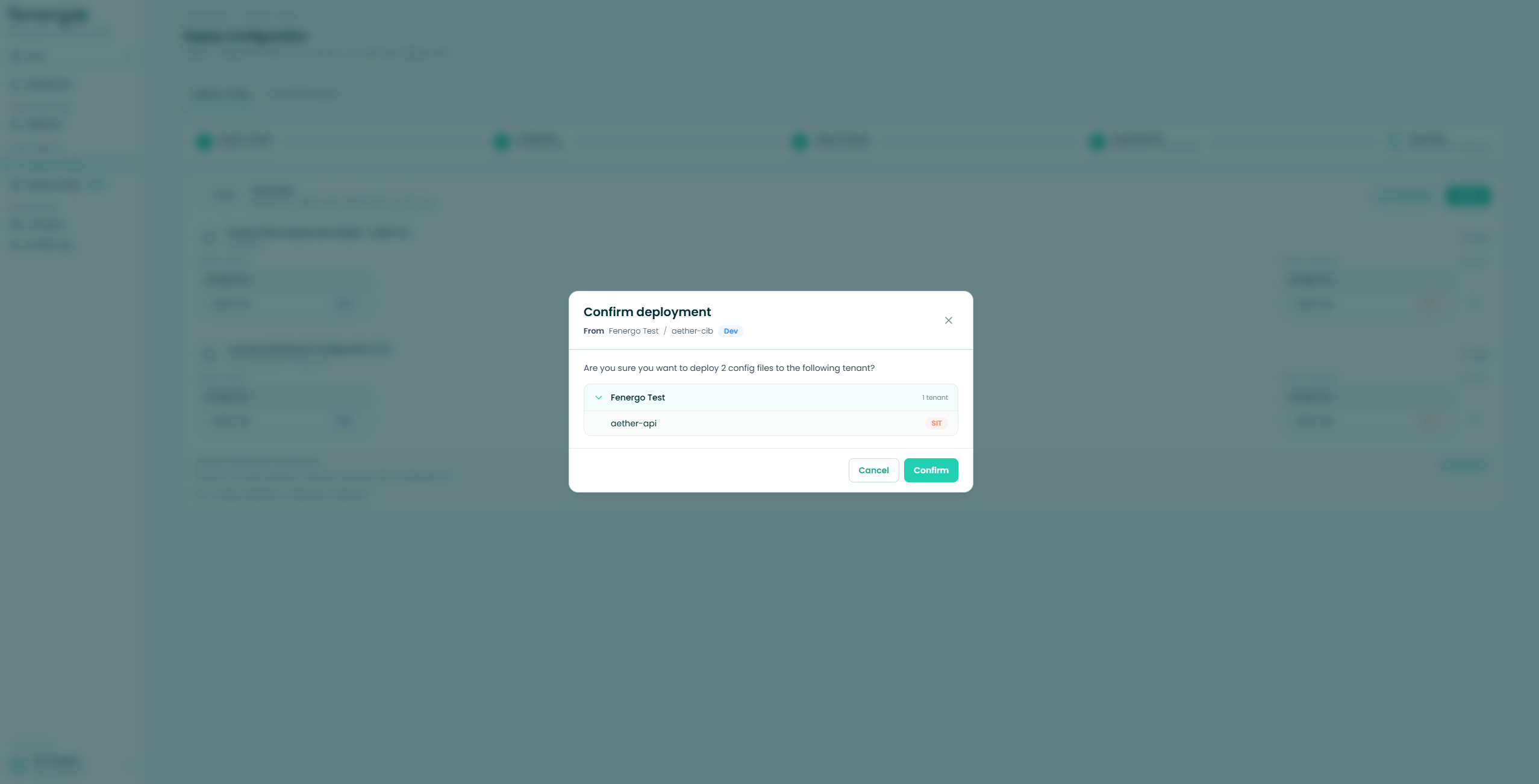
If any target is in a Prod stage, the modal shows a production warning. Once you confirm, selections are locked — if you picked the wrong file or tenant, wait for the run to finish and start a new deployment.
Monitoring progress
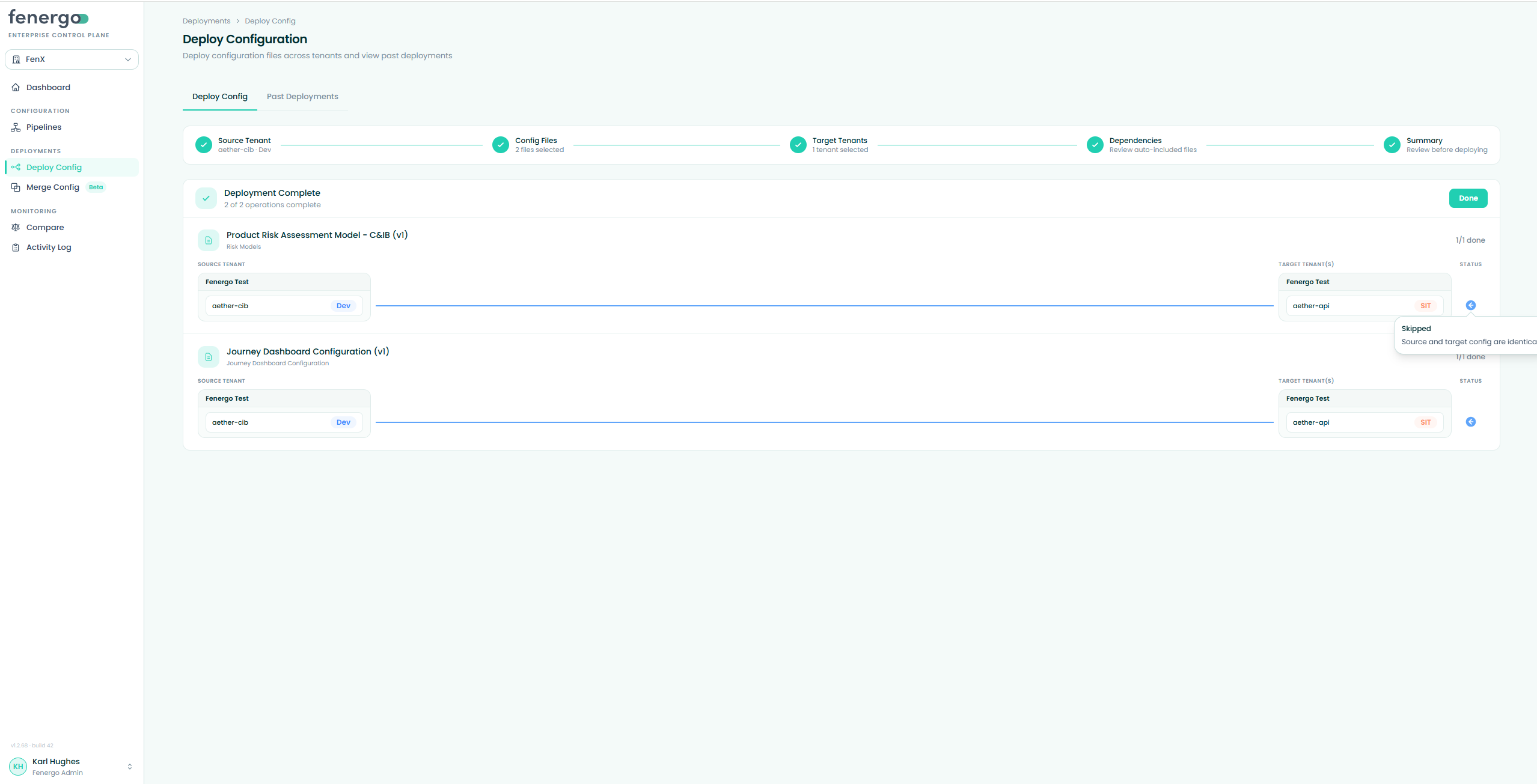
A live panel draws source-to-target fan lines with a status glyph per target: a green check for success, a spinner for in progress, and a red status for failure. A target is marked Skipped rather than failed when its config is already identical to the source. Click Done when complete.
Past deployments
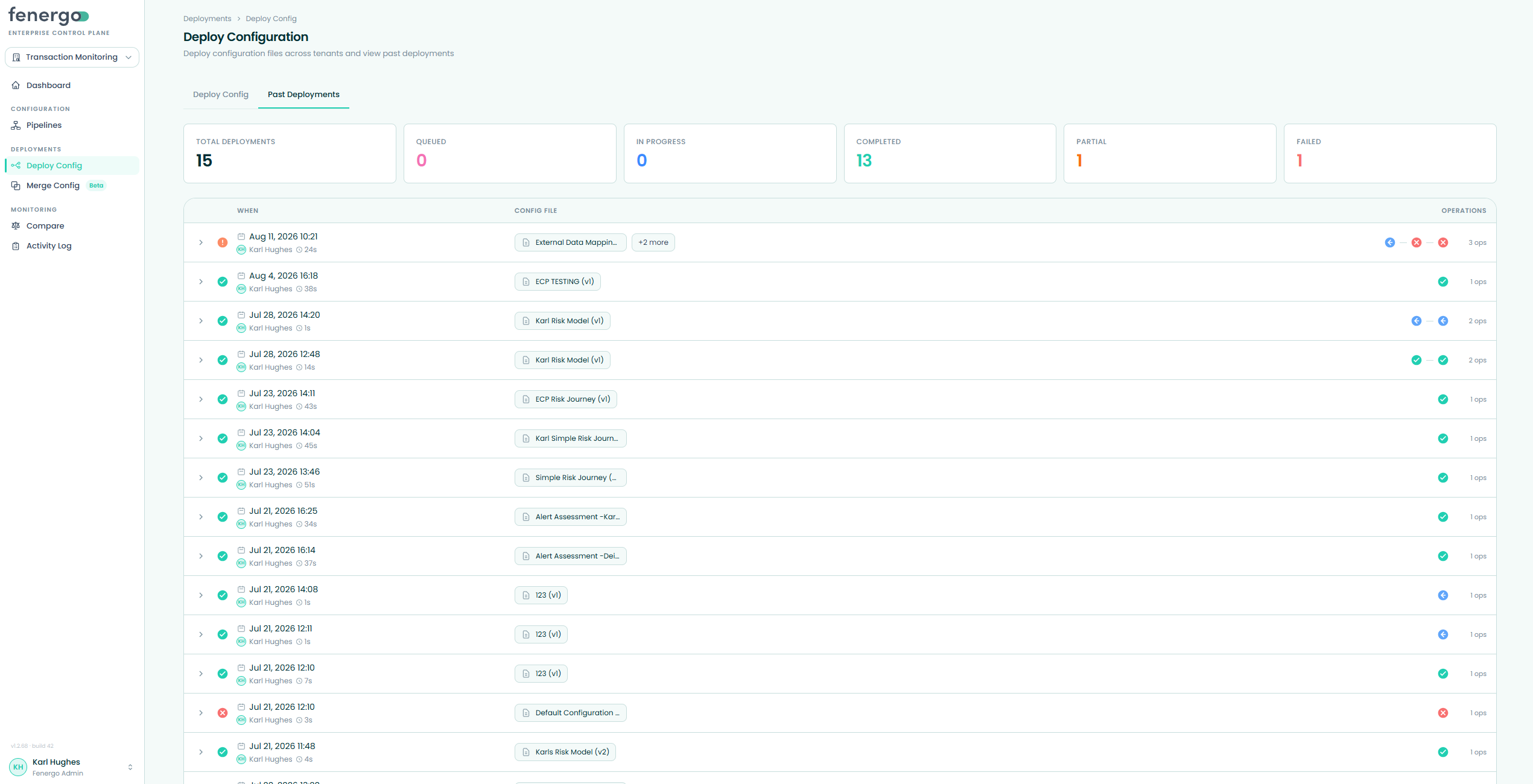
The Past Deployments tab opens with summary cards — Total Deployments, Queued, In Progress, Completed, Partial and Failed — followed by a list of previous deployments showing when each ran (with the actor and duration underneath), the config file(s) deployed, and an operations column with a status icon per target. Expand a row for the fan diagram and per-target detail — the primary place to check whether a run succeeded, failed or was skipped.
Troubleshooting
| Issue | Likely cause | How to fix |
|---|---|---|
| No deployment pipelines | None created yet. | Create a deployment pipeline with stages and tenants first. |
| No tenants in the selector | No tenants assigned to stages in that deployment pipeline. | Assign tenants to stages on the deployment pipeline detail page. |
| No config files listed | The source tenant's configuration hasn't been pulled yet. | Refresh the source tenant's configuration from its detail page, then retry. |
| Deploy failed at 'validate' | A config file has a syntax or schema error. | Fix the file in the source tenant, refresh it, and redeploy. |
| Expected target isn't selectable | It's not eligible under the stage/hierarchy rules. | Check the target's deployment pipeline membership and stage order. |