Configuring the Autocompletion Agent
When Users navigate to the Journey Builder, they will see a new tab visible in the Task Properties for the five tasks mentioned in the operational iteration of this user guide. This new tab will be titled "Autocompletion Agent". In here a new dropdown will be seen titled “Completion Logic”. This dropdown determines the logic under which this Task can be autocompleted. These options are:
Manual Completion:
- This is the default option for all eligible Tasks (i.e., the five tasks mentioned at the start of this User Guide). This simply means that this specific Task will always be completed by a User.
Agent Autocompletion:
- This option means that the Agent will always attempt to autocomplete this Task.
- As a reminder, the Agent will only complete a Task if all of the configuration in your Policy has been satisfied within that Task instance.
Conditional Agent Autocompletion:
- This option expands upon “Agent Autocompletion” and introduces a conditionality to the functionality. With this option, Clients can dictate that the Autocompletion logic should only be evaluated, if an associated Condition is met. This acts as a layer of protection when implementing autocompletion in your Journeys.
- With “Conditional Agent Autocompletion”, you can specify that a Task may attempt to be autocompleted by the application, but only if their “Risk Level” is “Low” and “KYC Level” is “Simplified".
- This condition can be thought of as an eligibility check to assess if the Task should be evaluated for autocompletion. If the condition is not satisfied, then the application will not attempt to autocomplete the Task. Even if the condition is satisfied, all validation within your Policy Requirements must still pass for the application to autocomplete the Task.
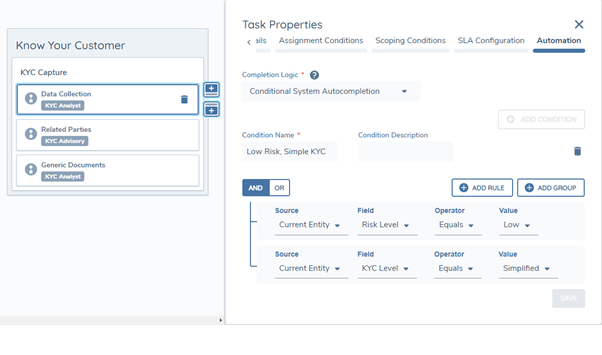
It is worth noting that this autocompletion behaviour is configured against each Task individually. Therefore, a client could configure autocompletion only in their “Periodic Review” Journeys if so desired, offering full flexibility to implement this functionality in the circumstances that meet your needs.
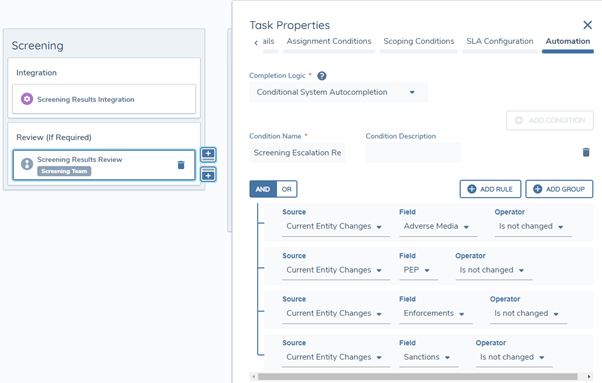
Finally, a common use-case for why something may be autocompleted is if a given Data Point has or has not changed during a Journey. For example, a Data Task that is focussed on capturing Screening Results may only need to be completed by a User, if those results have changed within the context of the Journey. To achieve this, a client can utilise our Current Entity Changes data source, which has been bolstered with a new operator of “Is Not Changed”. This will allow a Client to configure autocompletion conditionality that meets the previously mentioned use-case, like the below:
Referral / Reopen Logic for Autocompletion
One of the major use-cases we sought to address with this feature was the elimination of a very common frustration when completing Journeys. In a standard sequential Journey, when a User reopens a Task, they reopen all Tasks in between where they were in the Journey, to where they wish to reopen. This compounds the problem of Users having to manually complete or recomplete the same Tasks to get back to their original point in the Journey.
With autocompletion, before a Task becomes “in progress”, we re-evaluate its autocompletion logic. This means that if configured in your Journey, a Task may be forcibly user-completed the first time, and then the Agent can autocomplete the tasks each subsequent time upon a referral in the Journey. This means that Users are no longer forced to manually recomplete these Tasks, where they are adding nothing of value, and instead can focus on the items most needing their attention.
One important note on this referral / reopen capability with regards to Autocompletion, is that reopening a Task with autocompletion enabled will bypass that Task’s autocompletion check on a one-time basis. This is to prevent a scenario where a User attempts to reopen a Task and the Task immediately self-completes. The reopening of a Task will always be a specific action by a User, for a specific purpose. With this logic, this means that Users will be able to reopen the specific Task and make their changes as needed. It is important to note here however that any Tasks indirectly reopened will be reevaluated for autocompletion.
This ultimately means that a User could reopen a specific Task, make their changes, and then all Tasks in between will self-complete – resulting in the User returning to where they were in the Journey as soon as possible. This behaviour of course would only be applicable to those Tasks supporting this functionality. In other words, a configurator is required to ensure that that the individual Task[s] are set up for autocompletion using the "Agent Autocomplete" or "Conditional Agent Autocomplete" options as described above within the Journey Schema.
Audit
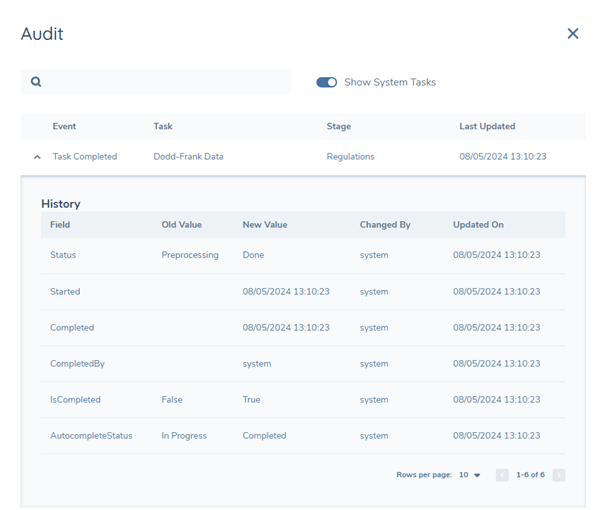
When a Task is completed by the Agent, the User will be able to be aware of this from the Audit Drawer of a Journey. The “AutocompleteStatus” represents the Agent’s attempt to complete the Task, and can vary from:
- In Progress: a temporal state while the Task is being evaluated
- Skipped: meaning the Task did not satisfy its associated autocompletion condition (if configured as “Conditional Agent Autocompletion”), or if there was outstanding validation preventing the completion of the Task
- Completed: the autocompletion completed successfully
Depending on if Agents are enabled on a tenant or not, the “CompletedBy” property will either be shown as “Autocompletion Agent” or as "System" which combined with “AutocompleteStatus” = “Completed”, can aid a User in both the Audit Drawer and in Advanced Reporting as to which Tasks were successfully autocompleted.
Configuring Automation for the OGS Unsubscribe Task
Applies to: Journey Builder administrators configuring offboarding journeys
Overview
The OGS: Unsubscribe from Ongoing Screening task supports automated completion to reduce manual analyst effort during client offboarding. You configure automation behaviour per-journey in Journey Builder using the Automation tab on the task.
Before you begin
- You must have Journey Builder configuration access.
- Automation affects all runs of the journey once saved. Test in a non-production environment before enabling in production.
Step 1 — Open the task settings
- In Journey Builder, open the offboarding journey you want to configure.
- Locate the OGS: Unsubscribe from Ongoing Screening task.
- Click the task to open its settings panel.
- Select the Automation tab.
Step 2 — Set the Completion Logic
In the Completion Logic dropdown, choose one of the following options:
Manual completion (default) The task behaves as it always has — a user must review and submit the unsubscription manually. Choose this if you want no change to existing behaviour.
System autocompletion The system runs pre-processing logic automatically when the task is triggered. Eligible entities and RPs are unsubscribed without user intervention, and the task closes automatically. Any entities or RPs that are not eligible (e.g. active for multiple clients, or clients in their own right) are marked accordingly but do not block task completion.
Conditional system autocompletion As above, but autocompletion only triggers when a configured condition is met. Use this option for journeys where you want automation to apply selectively.
Step 3 — Save the journey
Save and publish the journey as normal. The updated Completion Logic will apply to all subsequent runs.
Understanding the automated unsubscription logic
When System autocompletion or Conditional system autocompletion is active, the system evaluates each entity and RP in the task and determines the appropriate outcome:
| Entity / RP type | Automated action |
|---|---|
| Main entity — not linked to other entities | Unsubscribed automatically |
| RP — not a client in their own right, not active for multiple clients | Unsubscribed automatically |
| RP — client in their own right | Marked Active for multiple clients, subscription retained |
| RP — linked to more than one entity | Marked Active for multiple clients, subscription retained |
Once pre-processing is complete, the task closes without requiring user input. If the automation service fails, the task will surface for manual intervention in the usual way.
Task status during processing
When autocompletion is in progress, the task displays:
- An animated spinner in place of the status icon
- Grey styling to indicate the task is temporarily non-interactive
The task updates automatically once processing is complete.
Important Notes
- The logic underpinning why a Task is autocompleted comes directly from the Policy Configuration of your Tenant. If all validation is passed – including mandatory requirements – the Task will autocomplete.
- Autocompletion for these Task Types is supported in Portal. It is not supported in Salesforce currently.
- Autocompletion is evaluated during the “Preprocessing” status. If the Task autocompletes, it will never appear on a Dashboard for a User to pick up. If the Task cannot be completed, it will enter the standard "In Progress" status (represented by the blue icon). It is only then will a User be made aware via Notifications or their Dashboard, that this item requires their attention.
- Certain system auto tasks – for example Initiate Screening, Verify Entity, and Verify Associations – will display a "Task Started" event in the Journey. For these Task types, the status moves straight to autocompletion as no evaluation of requirements is carried out.
- Where a Task could otherwise be completed by a human but is autocompleted by the Autocompletion Agent (such as Policy Tasks), the Agent evaluates the Task's requirements and, if all validations pass, moves it directly from "Pre-processing" to "Autocompleted". The Task never enters an "In Progress" or "Started" state, so Users will not see a "Task Started" event for it.
In some tenants, this feature may be referred to as the Autocompletion Agent or just simply Autocompletion. Both terms refer to the same functionality and capabilities. If you are interested to learn more about our Agentic capabilities, please see the Fenergo Digital Agents section for more information.