Configuring Data Groups
Configuring Mandatory Data Groups
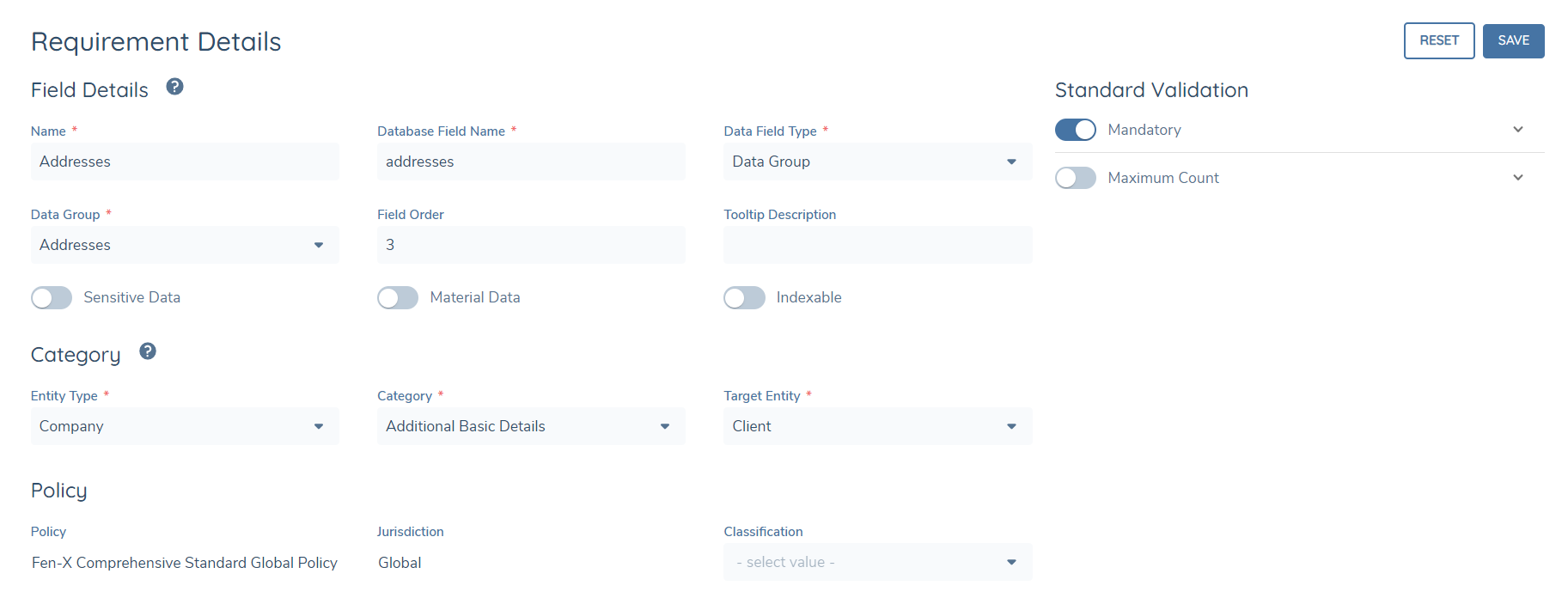
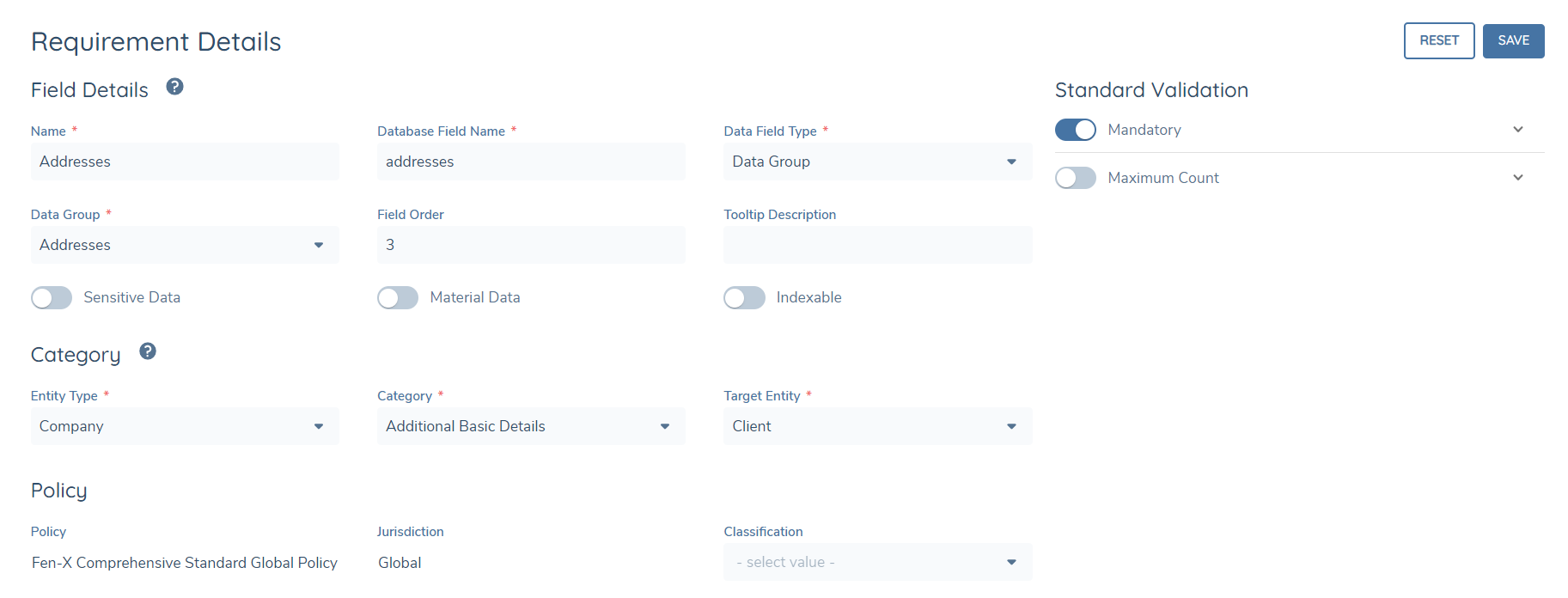
To enable Mandatory Data Groups behaviour, go to the Requirements screen for the referenced Data Group in Policy and select the ‘Mandatory’ toggle.
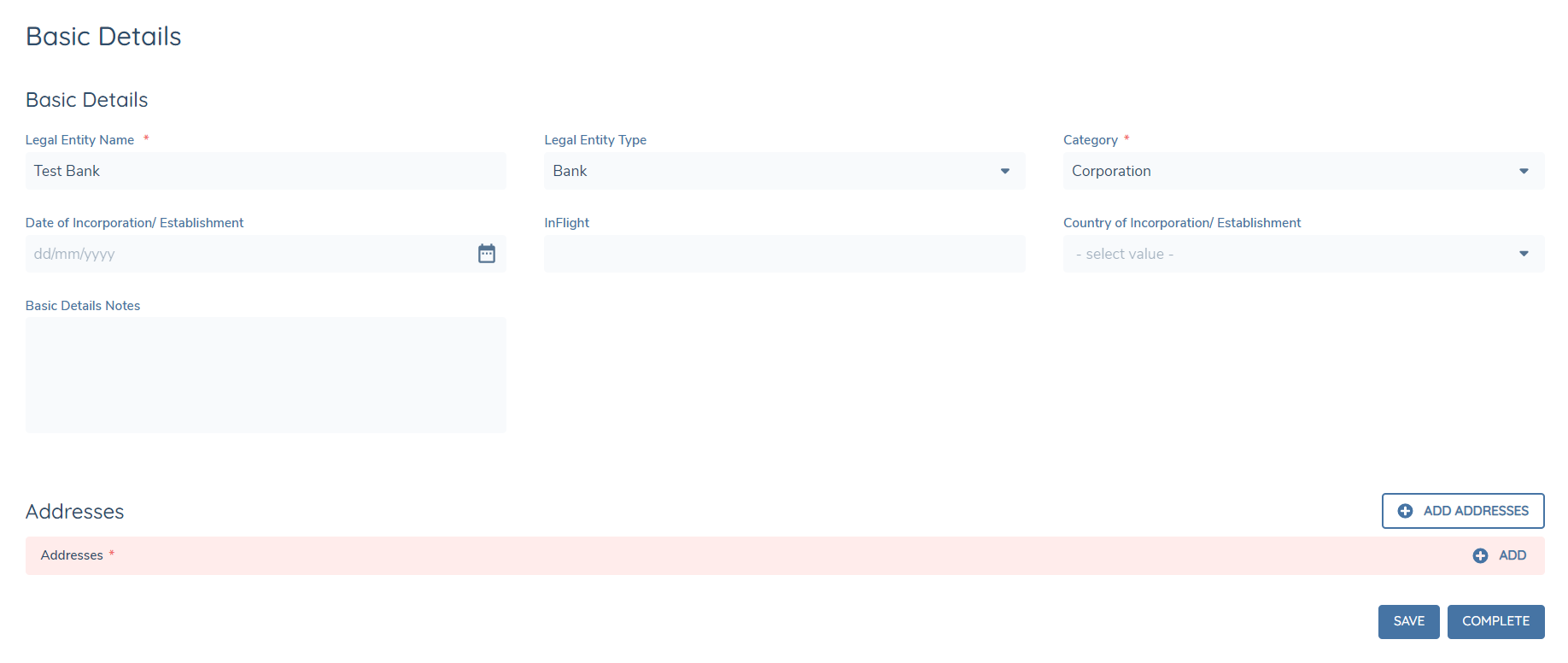
Once the Policy has been Published and the Scoping Conditions have been met in a Journey, when you navigate to a Task that references the Category that the Data Group Requirement references, you will see that the Data Group is now Mandatory on the Screen.
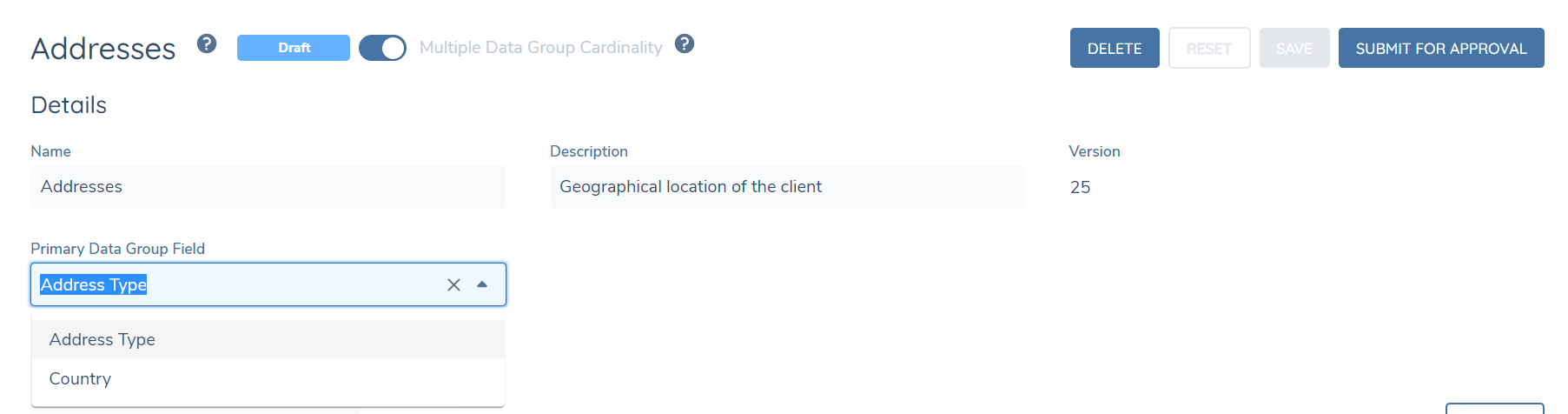
With the rollout of Mandatory Data Group functionality, clients will also be able to configure Mandatory Required Data Group Types so that they can set specific requirements for information to be captured within a Data Group (e.g. Capturing a Correspondence Address in an Addresses Data Group).
To configure this, you will need to add a value to the Primary Data Group Field which is located inside the Data Group configuration screen. The values that will be displayed in this dropdown will be any fields in the Data Group that have a field type of Select, Multi-Select, Linked Select or Linked Multi-Select.
Once you have published your Data Group, navigate to the Policy where the Data Group is referenced. Within the Requirements screen for the Data Group Requirement, you will see a breadcrumb below the ‘Mandatory’ and ‘Maximum Count’ toggles.
Under the Mandatory and Maximum Count panels, you will see a ‘Required Types’ grid with a ‘Type’ and ‘Min Count’ / ‘Max Count’ column.
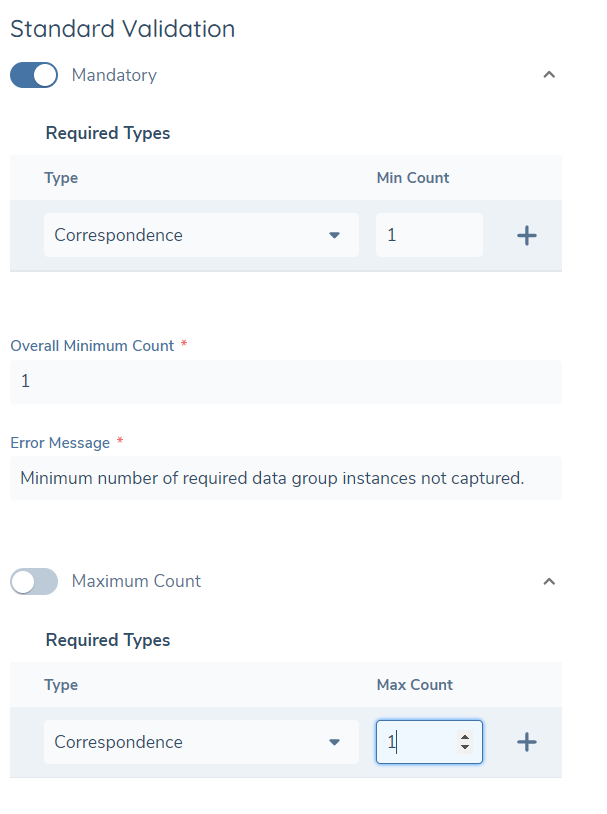
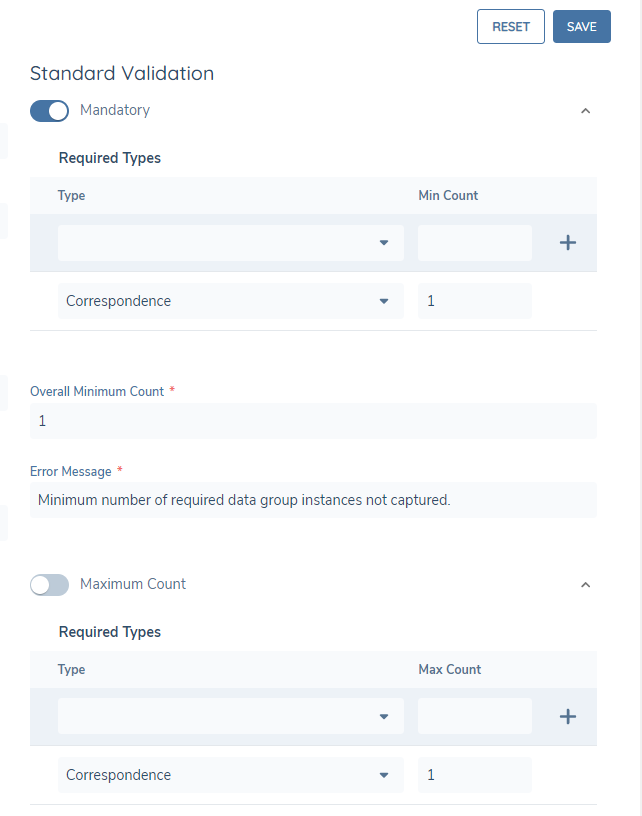
To add a value to the Required Types grid for each of these panels, you will need to select a LOV from the dropdown, identify the number required and then select the ‘+’ icon. Once selected, your value will be added to the grid:
You will also be able to determine the Overall Minimum Count and Overall Maximum Count for the Required Type values as well as a specified custom Error Message for when the set validations are not met in a Journey.
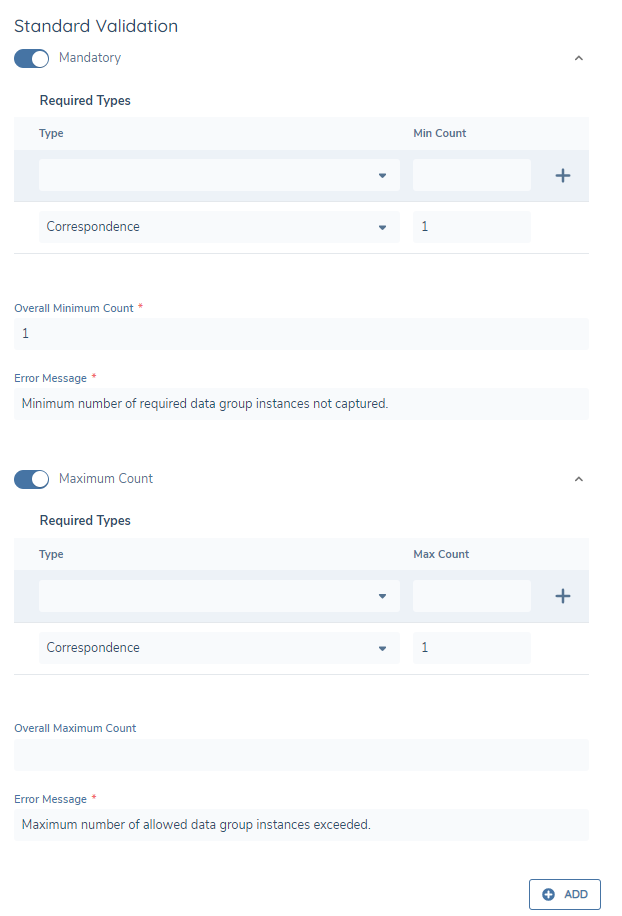
The Overall Maximum Count field will always be non-mandatory but if set, the validation will ensure that you will not be able to breach the max count set. Then, once the Policy is Published and referenced in a Journey, the Required Type will display in the Task and if you try to Save / Complete without satisfying the minimum /maximum requirements set out in the Policy, you will be presented with an error message on screen:
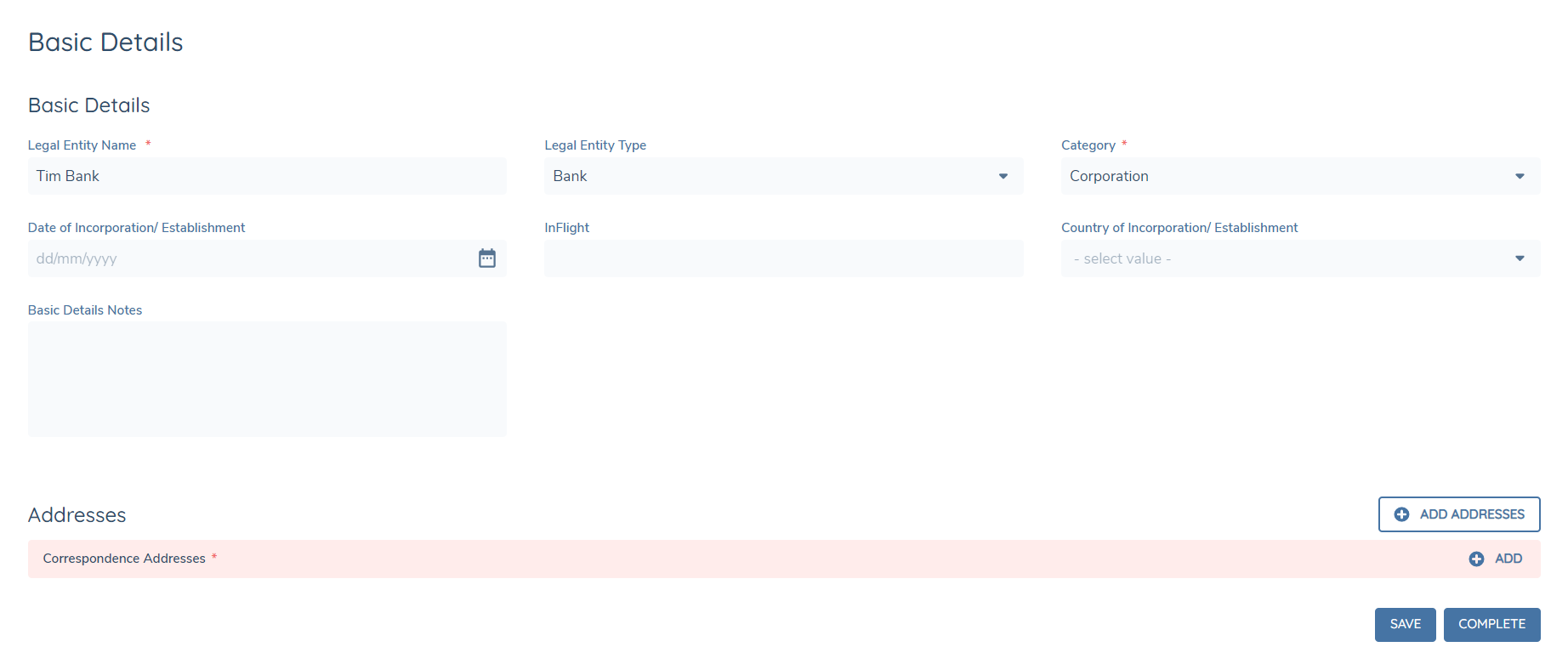
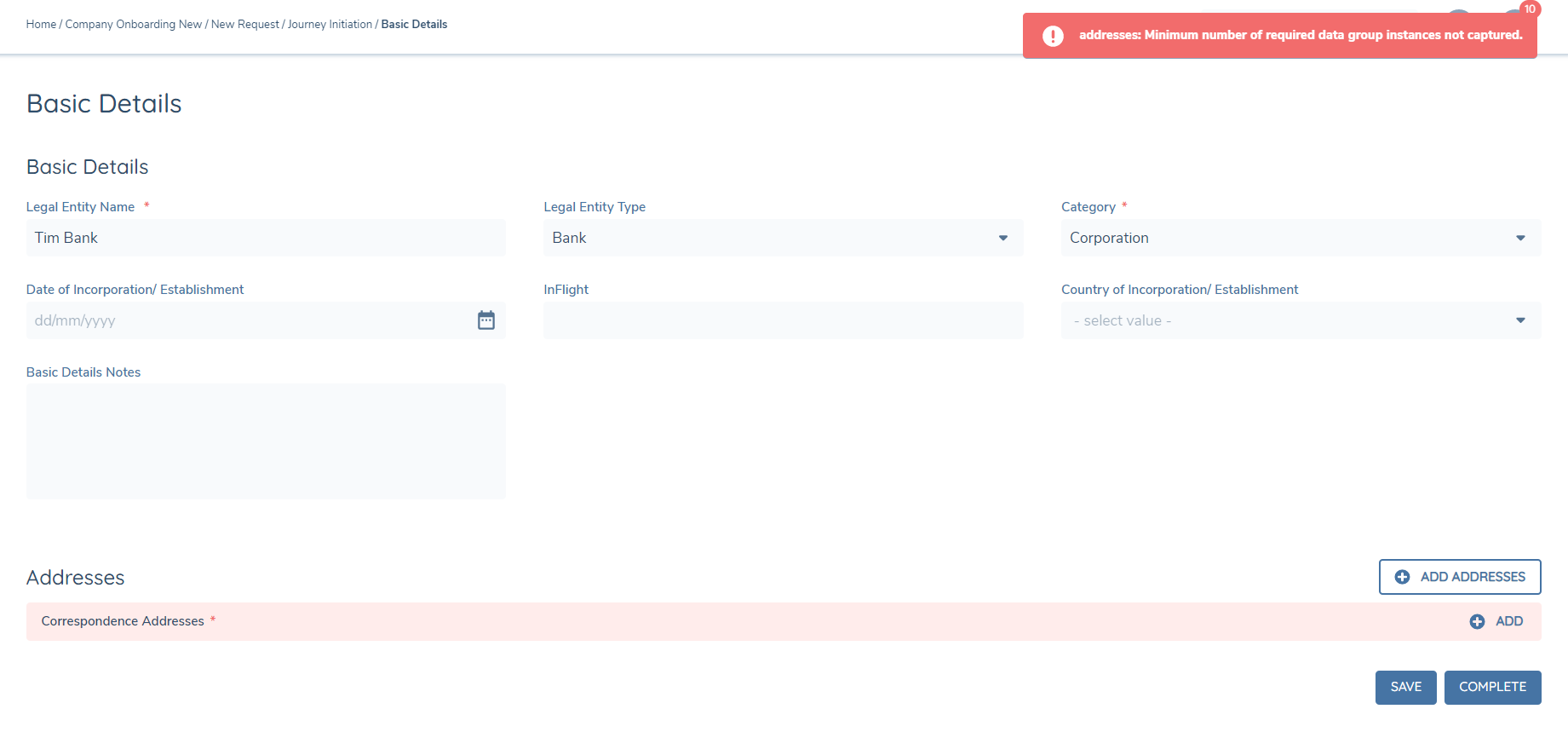
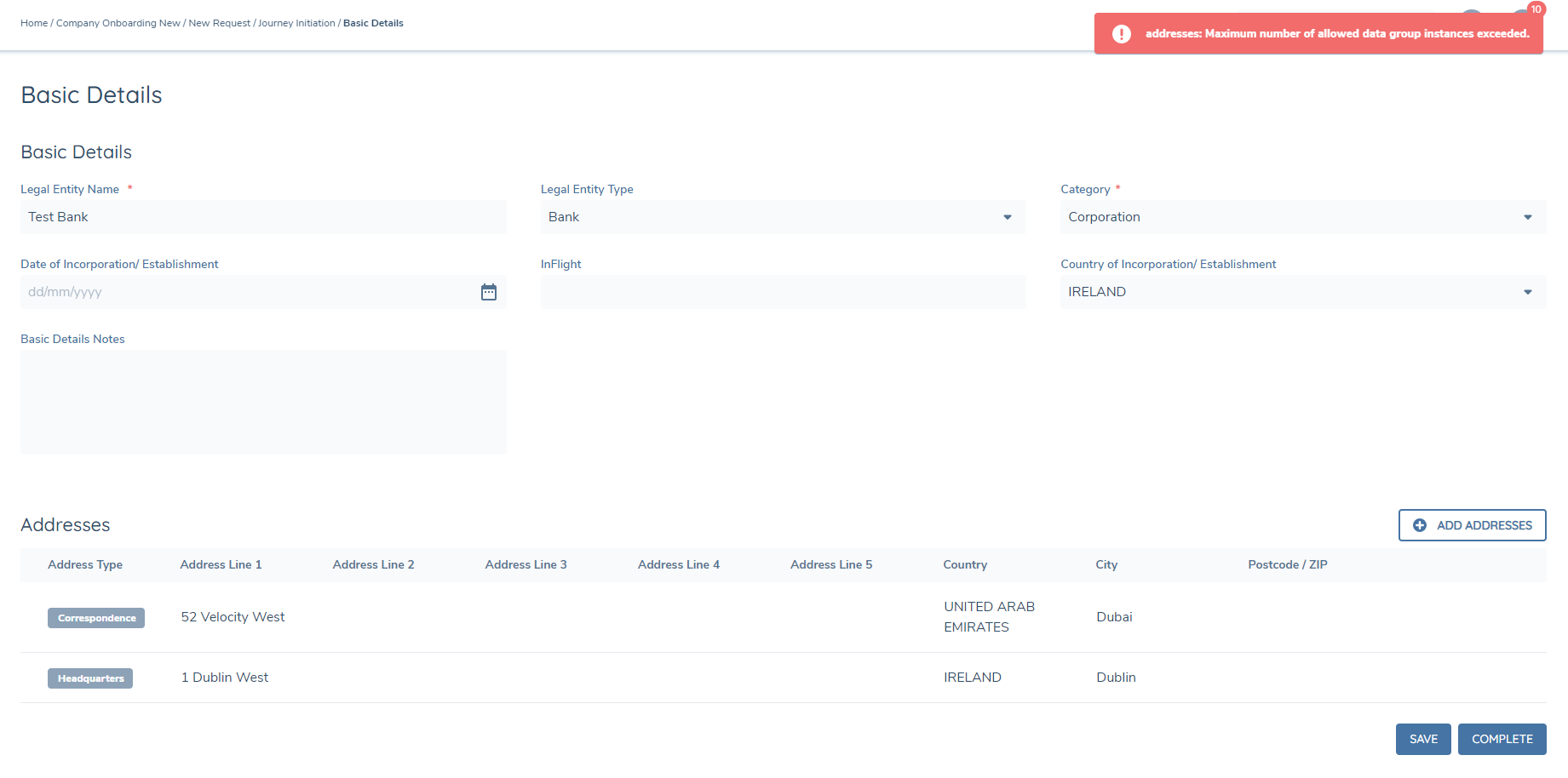
Note: When initially triggered, mandatory Data Group requirements will appear with a blue background and a red asterisk. Only when the validation is triggered on COMPLETE and the requirement is not met will the requirement be highlighted in red.

Configuring Conditional Fields in Data Groups
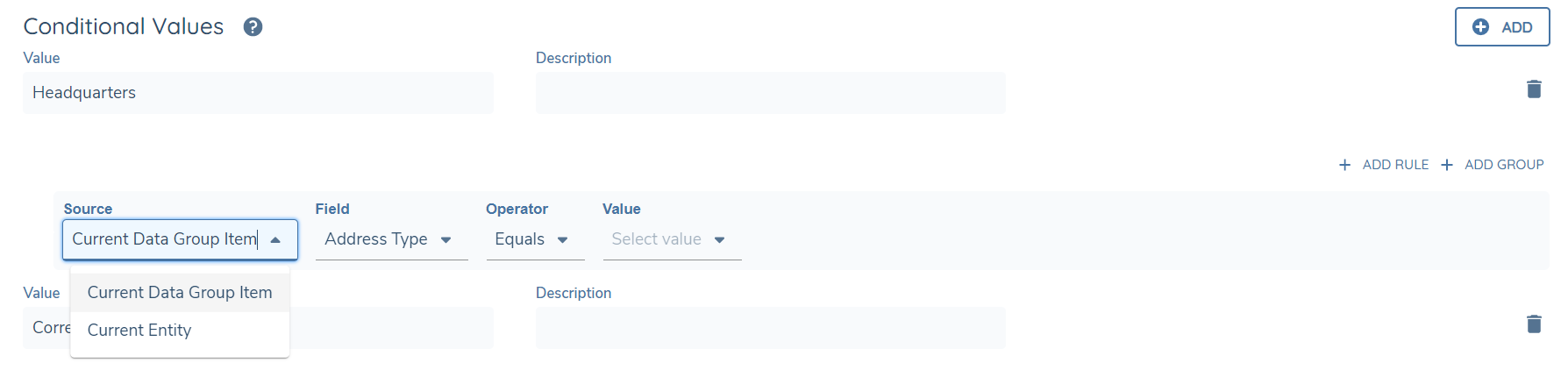
Users can trigger conditional fields or apply conditonal values on a field within a Data Group either through selecting fields within that Data Group (using the Source of Current Data Group Item) or by selecting Policy fields (using the Source of Current Entity). Users can also drive conditional behaviour in Data Groups by using fields in other Data Groups (facilitated by using Current Entity and selecting a Policy field that uses your chosen Data Group).

Configuring Conditional Validation on Data Group Fields
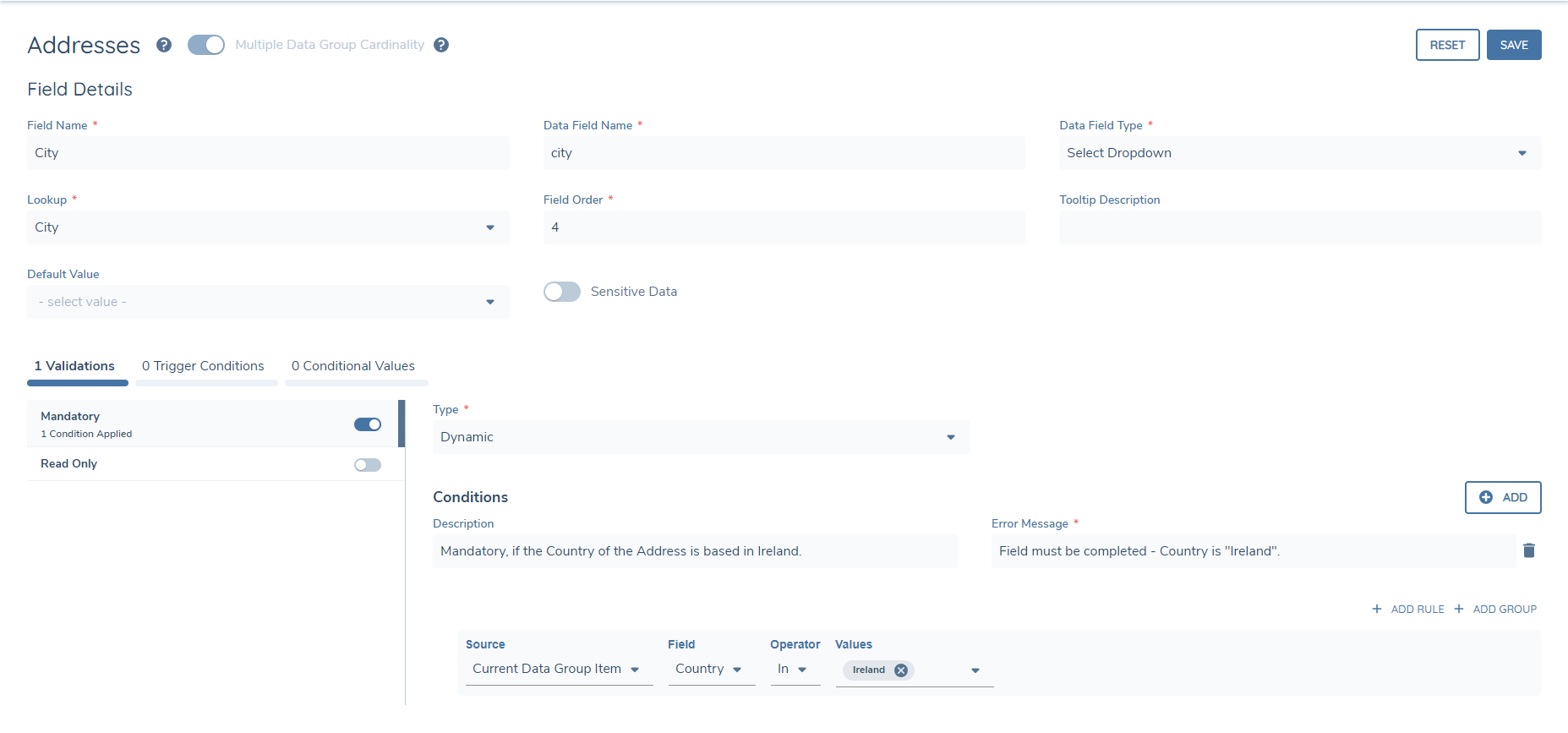
Data Group fields can have conditional validation applied. This allows configurators to create scenarios whereby a data group field may be conditionally mandatory, based on an associated logic engine condition being satisfied. In the below example, the "City" field within the Address data group is mandatory, if the Country of the current Address group record is "Ireland":
The ability to set conditional validation on data group fields is unique to certain types of validation. These are:
| Validation | Supported Field Types |
|---|---|
| Mandatory | All Field Types |
| Format Validation (Regular Expression) | Text Field, Text Area, Search Text Field |
| Selection Limit | Multiple Select Dropdown, Linked Multiple Select Dropdown |
| Conditional Limit | Number |
| Date Range | Date Field |
| Read Only | All Field Types |
All other validation may only be applied statically (i.e., that validation will always be applied if configured).
To configure Conditional Validation, a User will see a "Type" property that will only display for the above mentioned validation types. If a User wishes for a validation to always be applied, they may leave this property as the default "Static" option.
If the validation should be conditionally applied, the User can change this property to "Dynamic". Doing so will move all properties tied to the selected validation, to now be associated with an individual logic engine condition. This means that in the below scenario, the specific Regular Expression, Case Sensitivity and Error Message to be applied are all determined based on their associated Logic Engine Condition being satisfied.
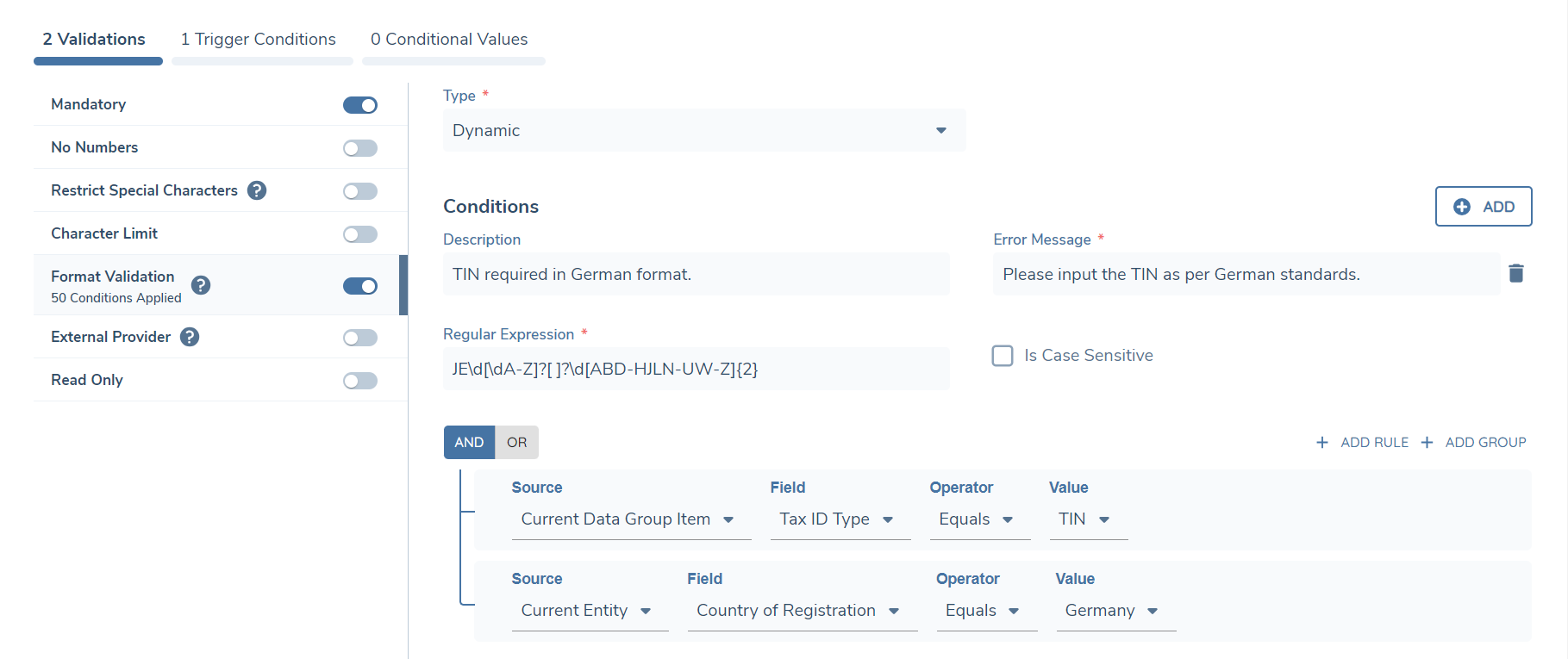
In the above example, if the Tax ID Type of the Data Group Record was not "TIN" and the Entity's Country of Registration was not "Germany", this Regular Expression would not be applied on the Data Group Field.
This Conditional Validation, per Validation Type, is evaluated hierarchically, meaning that the first condition / rule that is met will be the specific validation assigned against the Data Group Field, in the scenario where multiple Conditional Validation rules have been created. Users should configure their Conditional Validations appropriately in terms of the highest priority to be set. If none of the Conditions on a Conditional Validation are satisfied, then that specific Validation will not be applied on the Data Group Field.
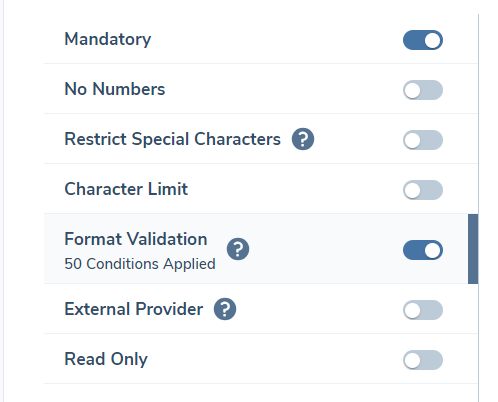
Users can configure up to fifty conditions per validation type to satisfy the varying conditional validation required per Data Group Field. The count of Conditions that have been configured per Validation Type is reflected on the left-hand panel, when the respective Validation Type has had conditionality defined:
Conditional Validation is currently supported for Data Groups that are referenced within Policy Data Tasks. This includes New Request, "Data" and "Data and Documents" task types, as well as the Related Party task. Conditional Validation on the data group fields is also supported on the Portal.
Important Note: Data Groups with Conditional Validation configured on the Data Group Fields are currently not supported for Loans, Financial Analysis, Products, Deals or Salesforce. In these scenarios where Conditional Validation is not supported, please ensure the Data Group[s] being referenced have static validation only applied.
Configuring Chips on Datagroup Grids
Users can configure select dropdown values to display as a chip within Datagroup grids. To configure a chip to display on a Datagroup users need to assign a colour to each lookup value in the Reference editor.
Screengrab of Data Group Chips
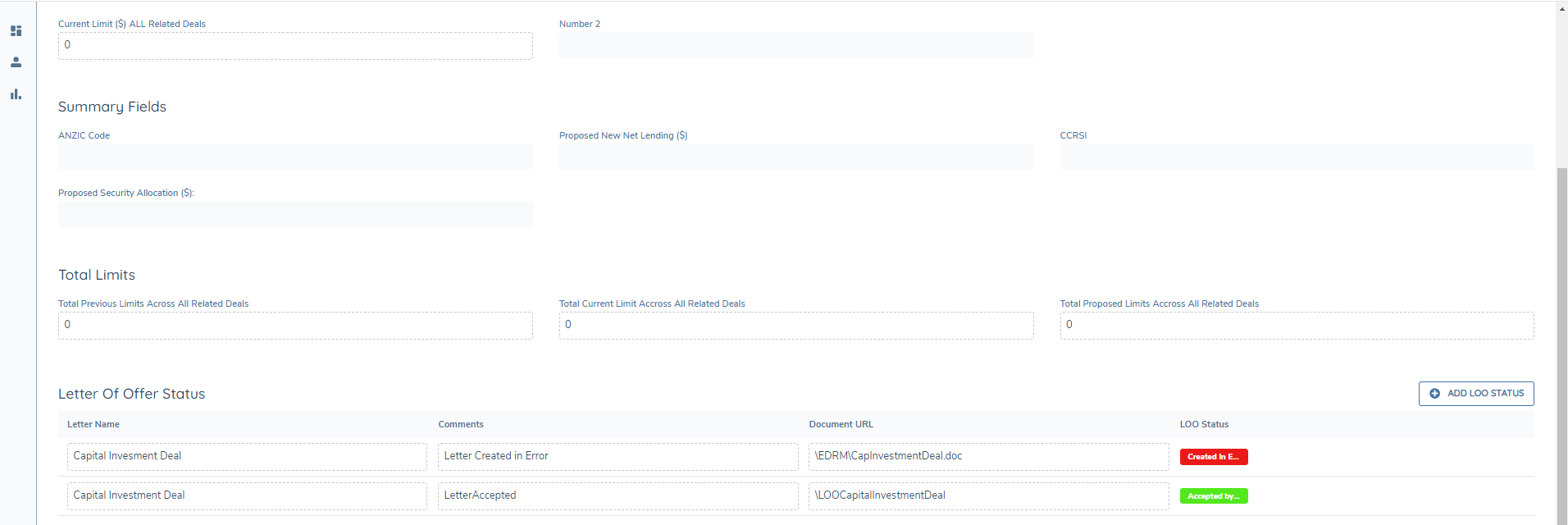
Once a select dropdown is configured with a Colour column and any value is assigned a colour, when the select dropdown is linked to a data requirement in a datagroup and that value is selected it will display as a chip.
Configuring Read Only Data Groups
To configure Read Only Data Groups in Journeys, users will need to navigate to the Policy Requirement associated to that Data Group (for example, when configuring a read only Addresses Data Group, users would need to the relevant Policy, create or search for the Requirement and within the Requirement configuration screen, select the Read Only Validation toggle).
Screengrab of Read Only Data Group Configuration
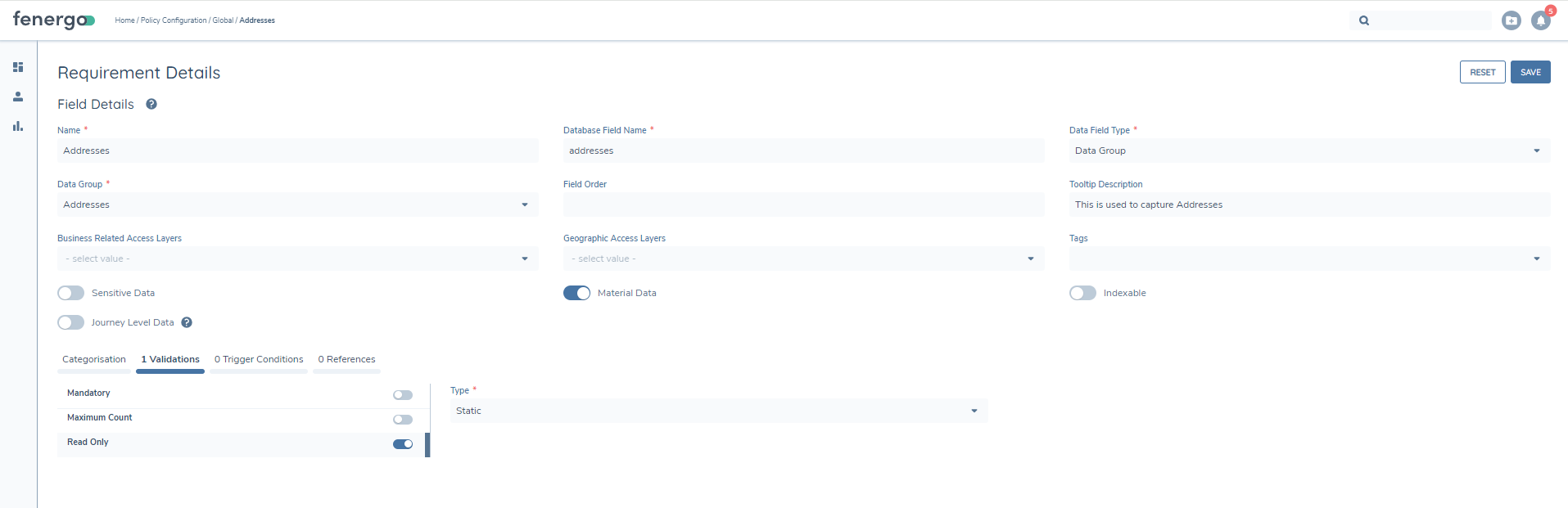
Once the Policy has then been published, users will see the relevant changes reflected in their Journeys.
Screengrab of Editable Data Group Requirement in Journey
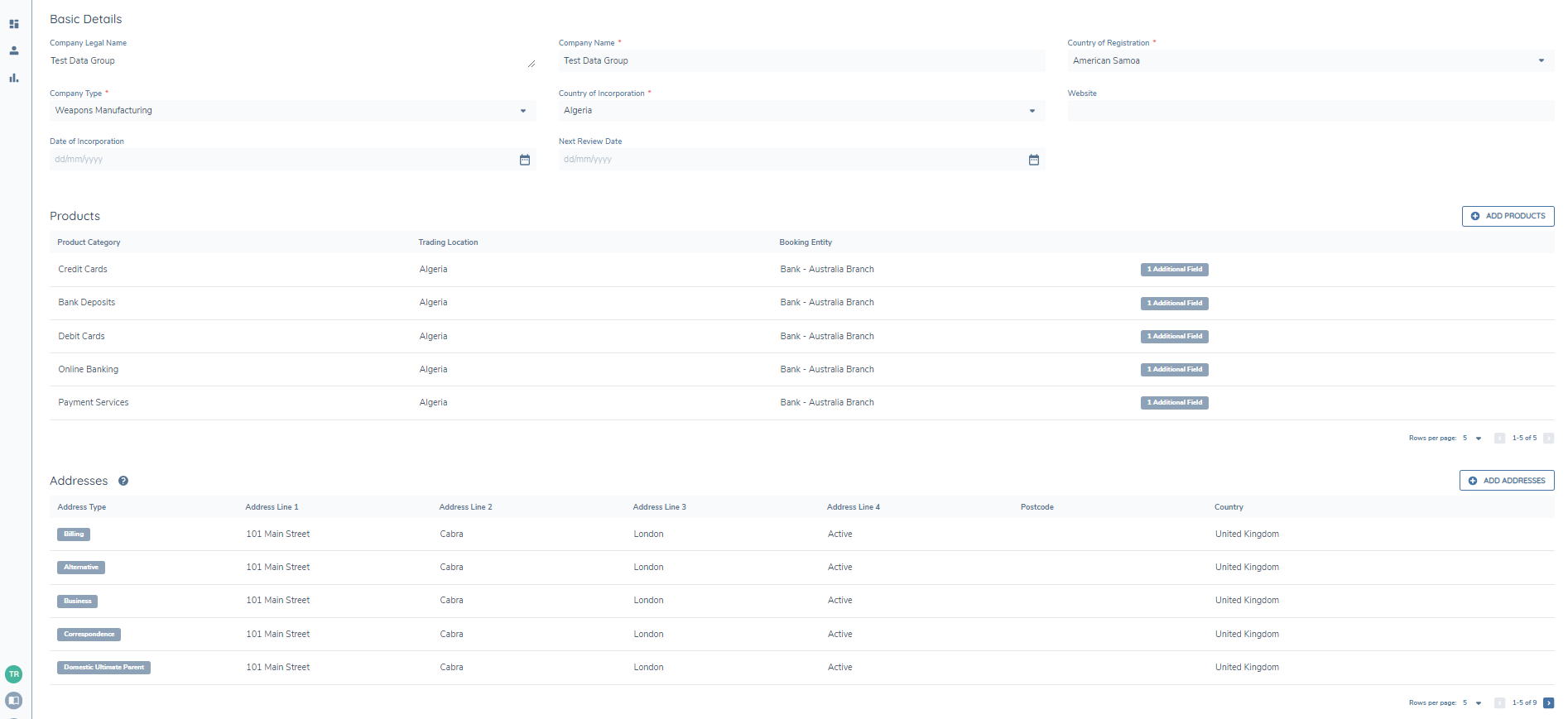
Screengrab of Read Only Data Group Requirement in Journey