Configuring Shared Data
Permissions
To configure a Shared Data Template, several new permissions have been created:
- Shared Data Template Access: Ability to access the Shared Data Template domain via the Management icon. This is a requisite permission that must be assigned in order for the other Shared Data Template permissions to be usable.
- Shared Data Template Create: Ability to create new draft versions Shared Data Templates.
- Shared Data Template Edit: Ability to edit existing draft versions of Shared Data Templates.
- Shared Data Template Delete: Ability to delete draft versions of Shared Data Templates.
- Shared Data Template Approve: Ability to approve draft versions of Shared Data Templates.
- Shared Data Template Archive: Ability to archive published versions of Shared Data Templates.
Creating a Shared Data Template
When a Configurator lands in the Shared Data Template screen, they will be able to view the existing Shared Data Templates, which will show the following columns:
- Name of the Shared Data Template, including the version
- Status of the Shared Data Template (Draft, Published, Archived).
- Last Published On.
Configuration Exchange for Shared Data Templates
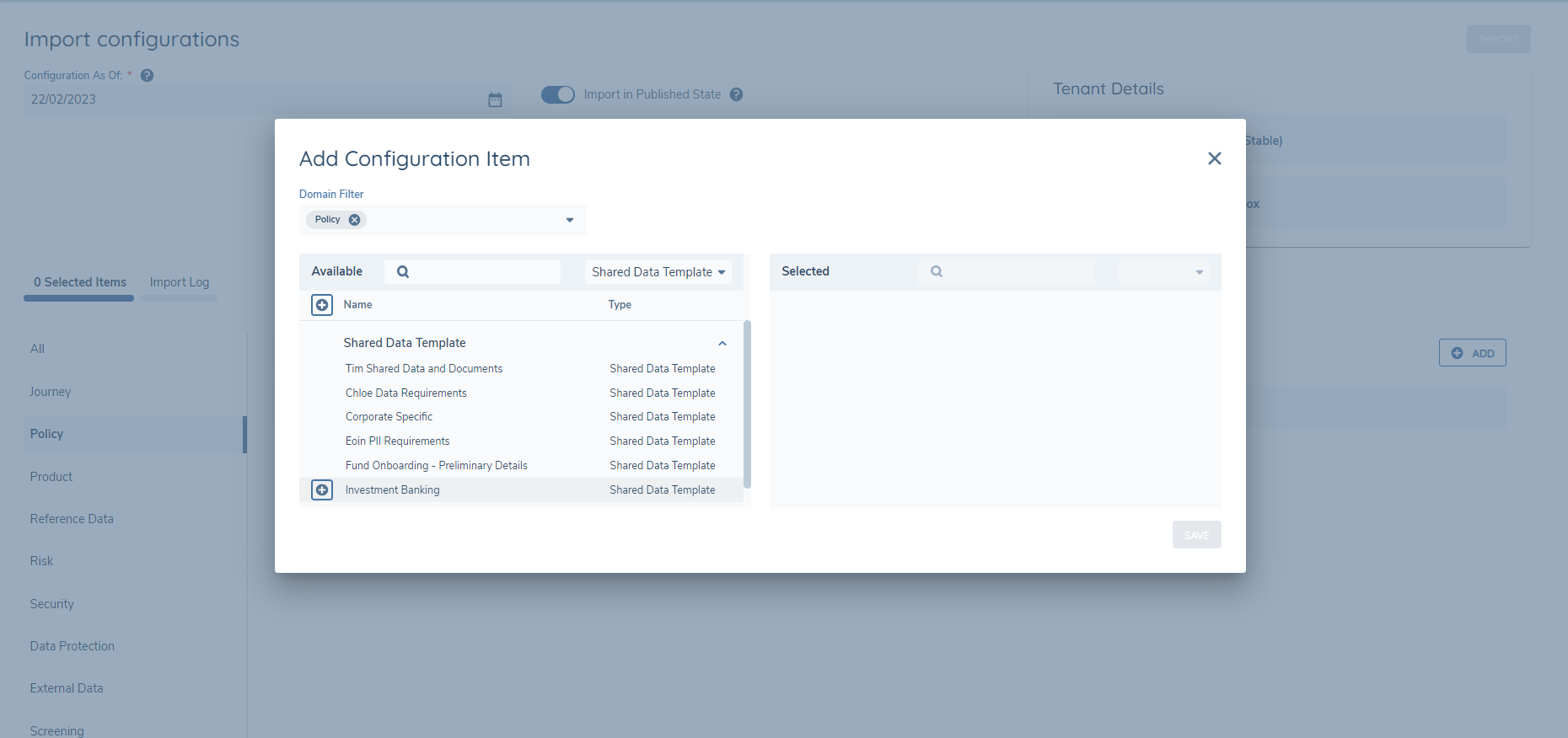
Shared Data Templates are supported in Configuration Exchange, allowing Users to import their configuration from a source tenant into their target tenant. Just as they appear in the Management Bar, the "Shared Data Template" filter option will appear under the "Policy" Domain field:
When the User has selected their specified Shared Data Templates and hits "Import", the system will verify that all datakeys defined in the Shared Data Template exist within the Target Tenant. If there are datakeys within the selected Shared Data Template[s] that do not exist in the Target Tenant, the import will fail. This is done as a form of validation, to ensure that the Shared Data Template[s] to be imported will work successfully once imported into the Target Tenant.
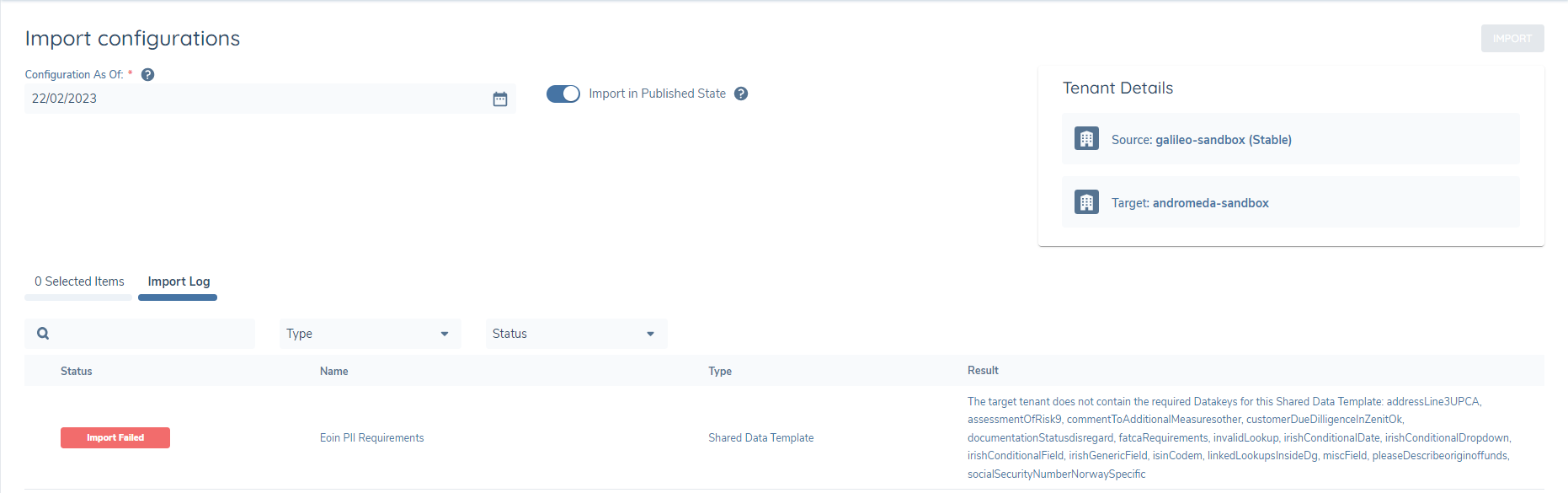
With this control, it is advised that Shared Data Templates are only imported into a Target Tenant after the successful import of Policy.
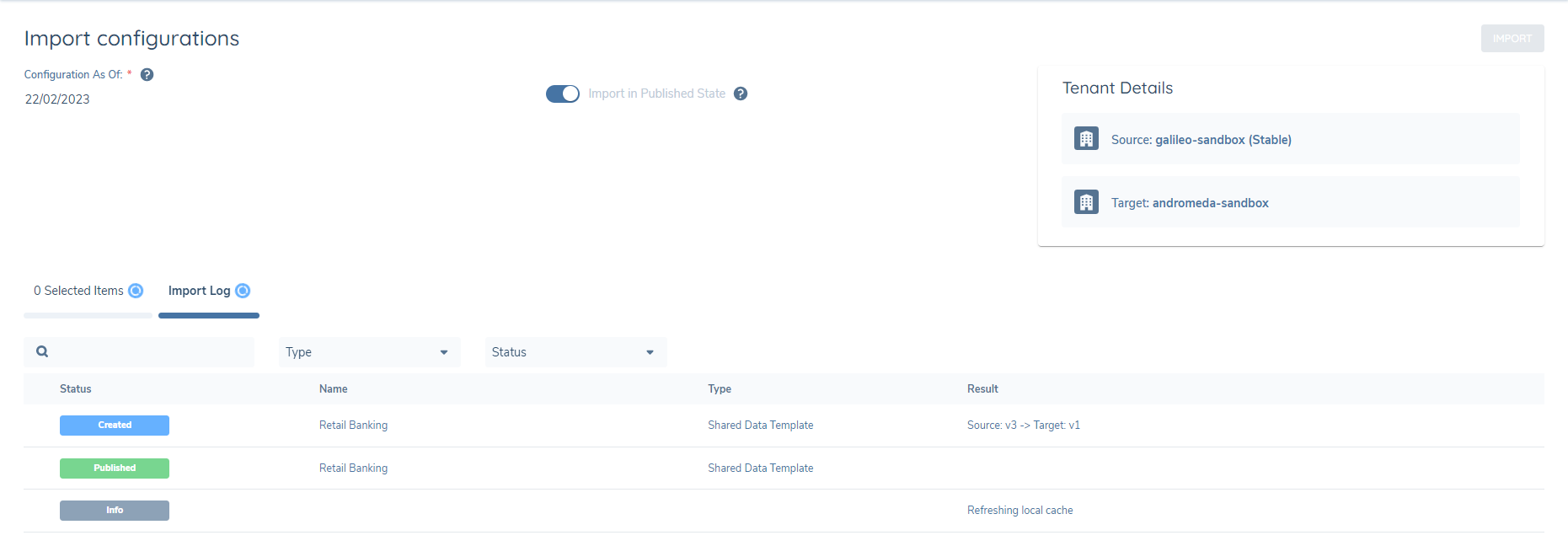
When the required datakeys specified in the Shared Data Template[s] are confirmed to be in the Target Tenant, the import will then run successfully. The Shared Data Template[s] can now be used in the Target Tenant.
Recommended Legal Entity Grouping Journey Structure for Data and Related Party Sharing
The following Journey configuration enables users to share Data and Related Parties among Groups and their Group Members. It is important to note that, similar to Data, all associations must be verifed before they can be shared from Parent > Group > Children in a Group.
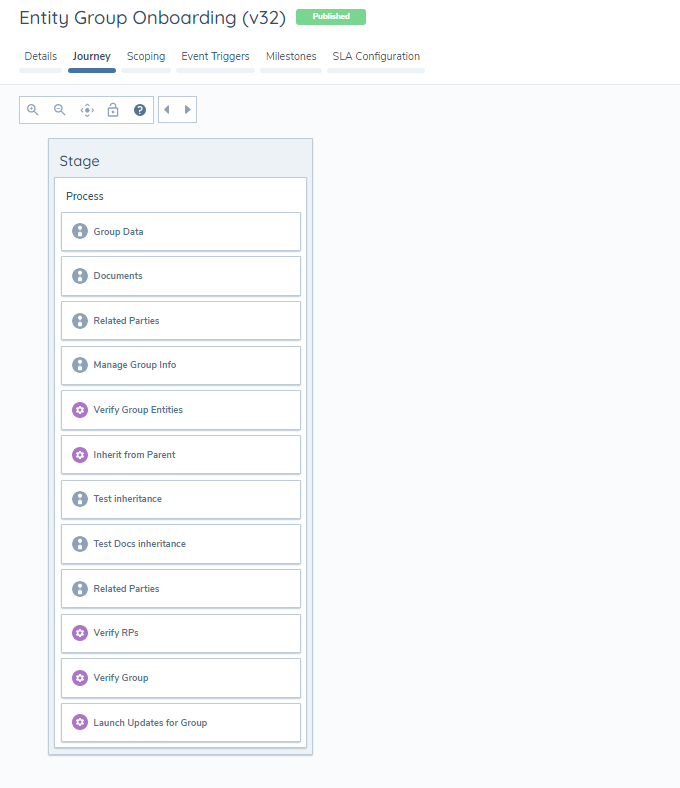
The purpose of each of these Tasks is as follows:
1. Manage Group Information: In the Legal Entity Group Journey, Data Sharing can only occur from Parent to Legal Entity Group. Therefore, a User must add a Parent if they wish to inherit Data from the Parent Legal Entity. Note that the addition of a Parent Legal Entity is optional, and data enrichment can occur directly at the Legal Entity Group level through standard Policy Data tasks if this is the desired behaviour. The User must add the relevant Child Legal Entities that the Legal Entity Group should create Journeys for and share the data to. Finally, this Task is essential as it is where the User will select the Shared Data Template to be used for this Journey. This will dictate the Data, Documents and Related Parties that can be inherited from a Parent and shared to the Child Legal Entities.
2. Verify Group Legal Entities: A Legal Entity Group can only inherit Data from a verified Parent Legal Entity. Similarly, a Legal Entity Group can only create Journeys for and share Data to verified Child Legal Entities of the Legal Entity Group.
3. Auto Group Updates: This service Task is the optional step in the Data Sharing process, in the scenario where a User has decided to add a verified Parent to the Legal Entity Group. If a Parent has been defined for the Legal Entity Group, this Task will first check that the Parent's association to the Legal Entity Group is verified. It will then check the Shared Data Template that has been selected for the Journey. The task will then check the datakeys defined in the selected Template, and will pull any values populated on these specific datakeys from the Parent Legal Entity into the Legal Entity Group. This is an automatic action, and requires no action by the User.
4. Verify Legal Entity: The Legal Entity Group can only share Verified Data from the Legal Entity Group to the Child Legal Entities of the Group. Therefore, we must verify the legal entity data of the Legal Entity Group before beginning the sharing of the data to the Child Legal Entities.
5. Legal Entity Group Updates Launchpad: This Task will take the verified Child Legal Entities of the Legal Entity Group, and scope the Journey Type selected in its Task Properties. This will be used to create Journeys for the Child Legal Entities where the Data Sharing from Legal Entity Group to Child Legal Entity can take place.
The inheritance from the Parent Legal Entity to the Legal Entity Group will be instantaneous once the Auto Group Updates task has completed. If there is review required where a Client would wish to see the previous values populated on a datakey versus what has been inherited via data sharing, a "Proposed Changes" or "Conflict Resolution" task can be included in the Journey. Document Requirements included in a Shared Data Template will immediately appear on the Legal Entity Profile of a Group or Child Legal Entity that has undergone the Data Sharing process. When sharing Documents, the Documents will be directly added to the Legal Entity Profile, as we do not have the concept of draft vs verified Documents.
Recommended Child Legal Entity Journey Structure for Data Sharing
For the Child Legal Entity Journeys that will be created via the Legal Entity Group Updates Launchpad Task in the Legal Entity Group Journey, there is minimal required tasks needed for Data Sharing. The only essential is that the Journey Schema for the Child Legal Entity Journey must contain an "Auto Group Updates" Task. This task will identify the Journey from which the Child Legal Entity Journey was created from, and from this it will identify the Legal Entity Group. Using the same Shared Data Template of the Legal Entity Group Journey, the Task will then pull in the data defined in the template from Legal Entity Group to Child Legal Entity.
Like the Legal Entity Group Journey, data enrichment can still occur alongside data sharing. The purpose of data sharing is to minimise the re-keying of already available information.
Sharing Products Across Entity Groups
The Fenergo SaaS platform supports the automatic sharing of products from a Group entity to its child member entities during a Group Onboarding journey. This is configured through the Products tab in Shared Data Templates, which extends the existing data-sharing framework to include products alongside data requirements, document requirements, and related party associations.
Configuring Product Types in a Shared Data Template
Configurators can specify which product types should be shared across group members by selecting them in the Products tab of a Shared Data Template version.
Important: The Products tab is only available when both of the following are true for the tenant:
- The Product Sharing capability (feature flag) has been enabled, and
- The tenant has an active Product Service ID (SAVS ID).
If either condition is not met, the tab is hidden. Please contact your Fenergo administrator if the tab is not visible.
The Products tab sits alongside the Data Requirements, Document Requirements, and Related Parties tabs in the Shared Data Template version editor. It presents a transfer list with an Available panel on the left and a Selected panel on the right — both panels include a search field to filter by name. Configurators move product types from Available to Selected to include them in the template, with a Select All option available to include all types in one action.
Note that Product Type and Product Family are not available for selection here — these fields are mandatory on all product records and are applied automatically when a product is shared.
Selections are saved with the draft and preserved through the approval and publish process. The published version displays the selection as read-only. When an existing template version created before this capability was introduced is opened, the Products tab shows an empty selection with no impact on existing configuration. Cloning a published version carries the selection forward into the new draft, with all previously selected types pre-selected.
To configure product types in a Shared Data Template
- Navigate to Configuration > Shared Data Templates.
- Open the relevant template and create a new draft version, or open an existing draft.
- Select the Products tab.
- In the Available panel, locate the product types to include — use the search field to filter if needed.
- Select one or more product types and move them to the Selected panel using the arrow controls, or use Select All to include all available types.
- Select Save to save the draft.
- When the configuration is complete, select Submit for Approval. Once approved, the published version will include the product type selection.
How Products Are Shared During Group Onboarding
When a Group Onboarding journey runs and the Auto Group Updates task executes, the system reads the product types configured in the selected Shared Data Template and automatically shares a product record to each in-scope child entity for each matching product on the Group entity.
Each shared product is a fully independent record on the child entity — changes to the source product on the Group entity after sharing do not affect the child entity's copy. An Owner association is created automatically between each shared product and its child entity, making the product visible and queryable on that entity.
Product-to-product associations on the source product (for example, a linked product record) are not carried over to the shared copy — only the direct entity-to-product relationship is shared.
If the Auto Group Updates task runs again for the same group — for example, when a new child entity is added later — the system does not duplicate products that have already been shared. Existing shared products on child entities are left unchanged.
Products are only shared if they are in Onboarded (verified) status on the Group entity. The following product types are excluded from sharing regardless of the Shared Data Template configuration: Managed Products (products managed by an agent or fund manager) and Fund-to-MR products.
Example scenario:
A Group entity holds three verified products: a Current Account, a Loan, and a Managed Product. The Shared Data Template has Current Account and Loan selected in the Products tab. When the Group Onboarding journey runs, the Current Account and Loan are shared to each child entity. The Managed Product is excluded. Each child entity ends up with its own independent Current Account and Loan record.
Prerequisites for Product Sharing
For products to be shared during a Group Onboarding journey, the following conditions must be met:
- The Shared Data Template selected on the Group journey must have one or more product types in the Products tab selection, and the template version must be published.
- The Group entity must have at least one verified (Onboarded) product whose type matches a product type in the template selection.
- Child entities must be set to In Scope in the MGI Parent task of the Group Onboarding journey.
- The Product Sharing capability must be active on the tenant — the feature flag is enabled and the tenant has an active Product Service ID (SAVS ID).