LE Configuration
The Fenergo Portal supports Portal code only. Only the Global jurisdiction is currently supported for Portal LE configuration.
LE Page
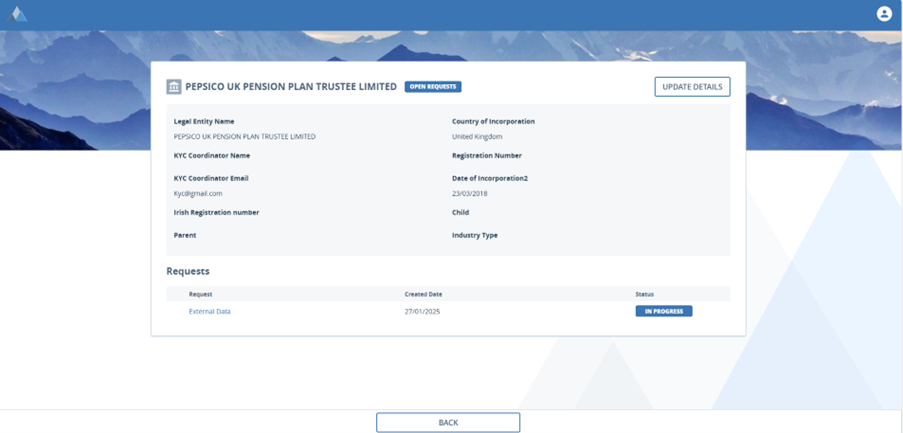
From the Dashboard, the journey page or a task, users can click on the Legal Entity name to redirect to the Legal Entity Page. Here they will see details of their Legal Entity, depending on which fields and requirement category they have configured. The portal will show Basic Details by default, filtering appropriately for Individuals or Companys. The user will also see all the external journeys for this Entity and can access them directly from here.
There is two versions of this page:
V1 Profile Page:
V2 Profile Page:
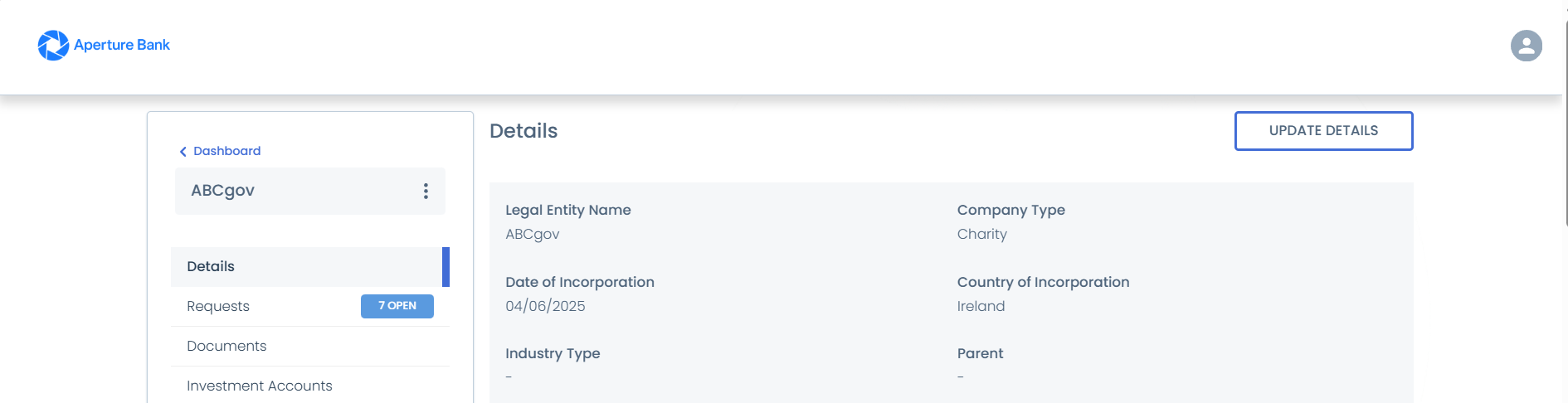
Enabling V2 Profile Page
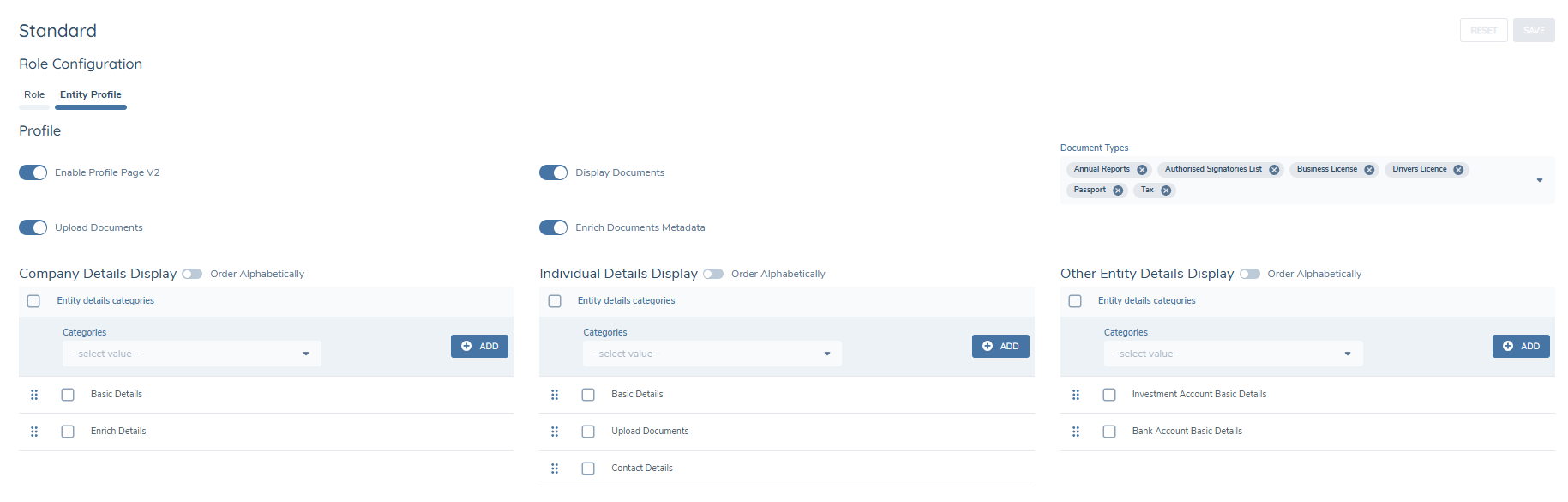
To enable the V2 profile page, please toggle on the Enable Profile Page V2 toggle on the Entity Profile Tab within Role Configuration.

Displaying Multiple Categories on the Entity Profile Page
Configurators can now configure multiple categories of information to appear on the Entity Profile Page (V2). This configuration allows different categories to be displayed per entity type - Company, Individual, or Other, ensuring each user role has access to the most relevant information.
Configuration Steps
- Navigate to Portal User Roles in Fenergo.
- Select the role you want to update.
- In the Entity Profile tab, enable the Enable Profile Page V2 toggle.
- Under the Profile heading:
- Select one or more categories to display for each entity type.
- Arrange categories in the order you want them to appear on the Profile Page.
- Click Save to apply changes.
Note:
- Categories are displayed in the configured order.
- If no categories are configured for a given entity type, the Portal displays the message: “No data to display.”
Configuring Datagroup Display on the Entity Profile Page (V2)
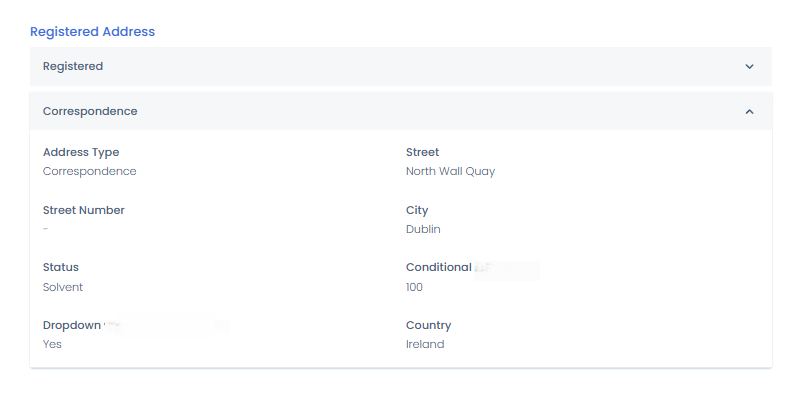
The Portal now supports displaying Datagroups (e.g., Contacts, Addresses, Bank Accounts) on the Entity Profile Page (V2).
This replaces the previous behaviour where dashes (–) appeared in place of datagroup content.
Display Scenarios for each Datagroup name
| Scenario | Description | Example |
|---|---|---|
| 1. Primary Datagroup Field Defined and Populated | When a datagroup has a primary field defined (e.g., Address Type) and populated, the display shows the datagroup name followed by the primary field value. | Address – Correspondence |
| 2. Primary Field Defined but Not Populated | When the primary field is defined but empty, the first configured field (Field Order 1) is displayed instead. | Street Name |
| 3. Primary Datagroup Field Not Defined | When no primary field is defined, the first field in the field order is displayed as the header. | City (e.g., London) |
| 4. Field Order 1 Not Defined | When neither the primary field nor Field Order 1 is defined, the datagroup name repeats for each record. | Address |
Display Documents on the Entity Profile Page

To configure the Documents tab in the Portal and avail of its functionality please follow the below steps:
- Login to Fenergo.
- Navigate to Portal User Roles.
- Click on the desired role.
- Toggle on Enable Profile Page V2, (Enabling this toggle updates the Portal entity profile page to the new updated view with tabs).
- When this toggle is enabled, the Display Documents toggle will appear as it is conditional on the Enable Profile Page V2 toggle.
- When enabled, users will be able to see the Documents tab on the profile page within the Portal. When disabled, the Document tab will be hidden.
- The Document Types dropdown is triggered when the Display Documents toggle is enabled. This multi-select dropdown allows Portal admin to decide which document types can display in the Portal.
- If no document types are configured, then no values are displayed to the Portal user.
- Document Types can be configured in the Reference Data Document Types section of FenX.
Uploading Documents to the entity profile page in Portal, is an opt-in feature which can be enabled in the role configuration section of FenX. To enable this feature, follow the below steps.
- Navigate to Portal Role Configuration section in FenX.
- Enable the Upload Documents toggle.
- Enabling this toggle will allow Portal users to upload documents on the entity profile page in Portal.
- This toggle will only be visible, if the Documents tab is enabled.
- When this toggle is enabled, another toggle will conditionally appear.
- This second toggle is called Enrich Document Metadata
- This toggle follows the same logic as the Portal Enrich Document Metadata toggle on the Documents V2 Task and will control whether users see a document upload modal and additional metadata fields in the Portal.
Display Investment Accounts on the Entity Profile Page
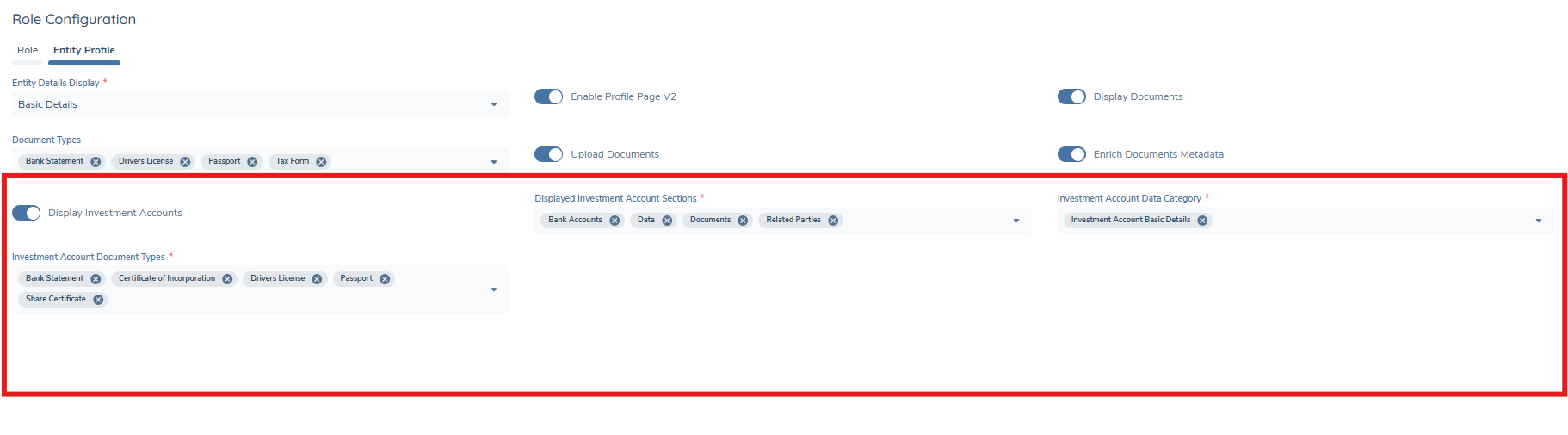
The Display Investment Accounts toggle allows Portal configurators to control whether Investment Account information is visible on the Portal Profile Page (V2 only).
Enabling Investment Accounts:
- Navigate to Portal User Roles in Fenergo.
- Open the role you want to configure.
- Enable the Display Investment Accounts toggle.
Once enabled, an Investment Accounts tab will appear on the profile page for Portal users assigned to this role. The Columns displayed in the tab are defined in the Investment Account Summary Details requirement category in Fenergo. By default, the Investment Account Name is always shown.
A multi-select field, Displayed Investment Account Sections, will conditionally appear once the Display Investment Accounts toggle is enabled. This field controls which categories of investment account data to display to Portal users. At least one of the following must be selected: Data, Documents, Bank Accounts, Related Parties.
- If Data is selected → choose which categories of investment account data to display from the mandatory Investment Account Data Category.
- If Documents is selected → choose which document types to display from the Investment Account Document Types dropdown.
- If Bank Accounts is selected → Bank Account Basic Details are displayed automatically.
- If Related Parties is selected → the related parties grid is displayed in read-only mode.
Only Investment Accounts with the status of Onboarded and Verified are shown.
Investment Accounts on the Fund Dashboard:
- The Investment Accounts Details Page is visible from all dashboard types, including the Funds Dashboard.
- When used from the Funds Dashboard, investment accounts are filtered so that the user can only see accounts linked to the funds that they have access to.
- If the toggle Display Investment Accounts toggle is disabled, the Investment Account Name is displayed as plain text and will not be clickable.
Investment Accounts are also visible from the Trader Portal.
Filtering Investment Accounts
A new Filter Investment Accounts toggle is available under the Investment Accounts header on the Entity Profile tab in Portal Role Configuration. This toggle controls whether Portal users see all onboarded investment accounts or only those linked to funds they are entitled to via Portal User Management.
Display Products on the Entity Profile Page
- The Portal introduces a Products tab to the Entity Profile Page (V2).
- This enhancement allows Portal configurators to control whether the Products tab is visible to end users and what level of product information they can access.
- The configuration follows the same logic as existing sections for Documents and Investment Accounts.
- When enabled, the Products tab displays a grid of configured product data for each entity, with access to a Product Details Page for additional information.
Only verified products are displayed in the Products grid.
How to Configure
- Navigate to Portal User Roles in Fenergo.
- Select the role you want to configure.
- Go to the Entity Profile tab (Ensure Enable Profile Page V2 is enabled).
Under the Products section, enable the Display Products toggle.
- When enabled: the Products tab becomes visible on the Entity Profile Page (V2).
- When disabled: the tab remains hidden from Portal users.
When enabled, a conditional field Product Details appears, allowing the Portal configurator to select the categories of information to display to the Portal user.

When enabled, the Products tab will also appear on the Journey Overview Page alongside Investment Accounts and Documents for the Journeys Dashboard.
Dashboard Defaults
-
Trader, Portal Default, Linked Entities, Outreach Requests: The toggle is OFF by default and read-only (no change to existing behaviour, users already need to be linked to an entity to view its information).
-
Funds Dashboard: The toggle is ON by default and read-only (this behaviour is already enforced).
-
Search Dashboard: The toggle is OFF by default but can be enabled by configurators to filter accounts based on user–fund links.
This ensures configurators can apply consistent access controls across dashboards while retaining flexibility for Search Dashboards where wider entity access may be permitted.