Using ODS: Screening Resolution & Materiality
This guide is for KYC analysts, compliance analysts, and screening reviewers who work with the ODS: Screening Resolution & Materiality task — the combined v2 task for on demand screening.
Looking for configuration help? This guide covers the analyst workflow only. For Journey Builder setup, Classification Data categories, and permissions, see Configuring ODS: Screening Resolution & Materiality.
KYRA:Screen is the Automation agent that handles configured screening hit resolution tasks within this workflow. When KYRA:Screen is enabled and configured, it automatically resolves screening hits according to your active instructions before analysts review outcomes. Analysts retain oversight and can override any agent decision. See the KYRA:Screen User Guide for setup and configuration.
What is the ODS v2 task?
The v2 task combines screening match resolution and materiality assessment into a single workflow. Before v2, these were two separate tasks. The new task type is ODS: Screening Resolution & Materiality and it appears in journeys where your administrator has enabled it.
| Capability | What is new in v2 |
|---|---|
| Combined task | Match resolution and materiality assessment in one task — no hand-off between two separate tasks |
| RP-level materiality | Materiality can be assessed at the related party level, not just the main entity |
| Provider status visibility | Real-time per-provider status banners — Completed, In Progress, and Error states shown simultaneously |
| Classification Data | Policy-driven fields captured when you confirm a match, scoped to the hit category (PEP, Sanctions, Adverse Media, Enforcements, Other) |
| Reuse of prior decisions | Review and reuse prior completed materiality decisions from the Materiality decision panel |
| Document upload | Upload supporting documents at the hit level and at the entity level |
| OGS integration | Hits triggered by an OGS batch run are visually highlighted so you can identify their origin |
Existing v1 screening tasks are unaffected — if your journey still uses the old task types, nothing changes for you.
End-to-end workflow
| Step | What you see | What you do |
|---|---|---|
| 1. Open task | Combined task opens for the selected case or journey entity | Review provider banners, entity navigation, hit counts, and outstanding work |
| 2. Review screening status | Per-provider banners show Completed, In Progress, or Error states | Monitor progress — mixed states across providers are normal |
| 3. Select entity or RP | Left navigation shows the main entity and related parties with completion icons | Select the entity or related party you want to work on |
| 4. Inspect search inputs | Search criteria and aliases panel shows what was sent to providers | Compare submitted data with returned profiles |
| 5. Review hits | Results grid shows Current Hits and Match History with search, filter, and sort | Open View or Resolve from the relevant row |
| 6. Resolve hits | Match Resolution popup shows context, hit details, and decision controls | Save Match, No Match, or Unresolved — enter Classification Data for confirmed matches |
| 7. Assess materiality | Materiality assessment appears once screening is complete, a true match exists, and all hits for the entity are resolved | Assess screening flags, jurisdictions, sanctions proceed (if required), and rationale |
| 8. Complete task | Completion rules depend on journey configuration | Complete the task when all mandatory conditions are satisfied |
Left navigation panel
While providers are retrieving screening data (or if a provider fails the search request), no icons appear next to entity names in the navigation panel. Icons populate once the provider response is received.
Each entity may display a "Show associations" link where applicable. Clicking it expands associated parties (related parties, UBOs, linked legal entities) inline within the task — it does not navigate away.
Entity list: status indicators, filtering and search
The left-hand Legal entities navigation list shows every entity in the journey structure. Alongside the existing completion icons, each row surfaces the entity's materiality outcome or escalation state and its entity type, and the list can be filtered and searched — so you can find the entities that need attention without opening each one. This is most useful on large hierarchies and in escalation (Maker/Checker) reviews.
These indicators and the filter apply to the left-hand Legal entities list. They are separate from the Screening results table filters, which filter hits by Category and Status within a single entity.
Row indicators
| Indicator | Shown when | Appearance |
|---|---|---|
| Material chip | The entity's materiality outcome is material | Red — further action needed |
| Immaterial chip | The entity's materiality outcome is immaterial | Neutral — no further action needed |
| Escalated chip | The entity has been escalated for review | Amber — further action needed |
| Entity-type icon | Always | Company/building for a Company, person for an Individual, neutral icon for other types |
An entity shows one status chip at a time — Material, Immaterial and Escalated are mutually exclusive, and escalation does not retain a materiality decision. Entities still in progress with no assessed materiality show no status chip. Chips reflect the saved (post-save) state and update when the list refreshes.
Filters
Select the filter (funnel) icon above the list to open the Filters modal. It contains three groups:
| Group | Options |
|---|---|
| Materiality | Material, Immaterial |
| Case status | In progress, Escalated, Completed |
| Entity type | Company, Individual |
Tick one or more options and select Apply to filter the list, or Cancel to close without changing it. Within a group, selections combine with OR; across groups they combine with AND — for example, selecting Escalated under Case status and Company under Entity type shows escalated companies.
The funnel icon shows a badge with the number of active filters, and each active filter appears as a removable token above the list. Remove a token to lift that part of the filter, or clear them all to return to the full list.
The filter applies to every entity, including the main (root) customer — the root customer is identified in the panel title, not pinned in the list. If a filter matches no entities, an empty-state message is shown. The active filter resets when you leave the screening view.
Search
Use the Search field above the list to find an entity by name. The list updates as you type.
Screening status by provider
Provider status is shown in real time, independently for each provider. Multiple banners can appear simultaneously when providers are in different states.
| State | Banner colour | What is shown |
|---|---|---|
| Completed | Green | Confirmation that screening completed, with a list of providers that finished. All providers used in the request appear, even those that returned no results |
| In Progress | Blue | Provider-specific transitional messages such as Search in progress or Sending results to provider |
| Error | Red | Provider name, issue description, and recovery guidance (for example, reopen the previous Request screening task after the issue is fixed) |
An error in one provider does not block other providers from completing. Mixed states are supported — status updates dynamically without a full page reload and persists after refresh.
Materiality count summary
Near the top of the screening area, category badges summarise hit volume across the main entity and related parties.
- Badge order: PEP, Sanctions, Enforcements, Adverse Media, Other
- Badge format: Category label plus count — for example PEP (5). Zero-count categories still show as 0
- Dynamic updates: Counts update in real time when a hit is resolved or new results arrive
- Counts are informational only and cannot be edited
OGS integration and OGS-triggered hits
Ongoing Screening (OGS) is a separate workflow that periodically screens entities against watchlists. When OGS identifies hits, analysts resolve them in the OGS: Screening Resolution & Client Selection task before the impact on client relationships is assessed.
The OGS task has two stages.
| Stage | Name | What you do |
|---|---|---|
| Stage 1 | Screening Resolution | Resolve each hit from the OGS batch run at the entity level — record a Match or No Match decision |
| Stage 2 | Client Selection | Identify which client relationships are affected and select which clients should receive a downstream ODS journey |
After Stage 2, a launchpad task automatically triggers an ODS journey for each selected client. The resulting task — ODS: Screening Resolution & Materiality — is the same task documented in this guide.
One visual difference applies when an ODS task is triggered by OGS: hits from the OGS batch run are highlighted in the screening results table, so you can see which hits came from the OGS run as distinct from other screening sources.
The highlighting uses a distinct icon on the hit's row in the results table. The tooltip text on the icon varies:
- When classification data is configured for the hit category: "Classification data required. Hit triggered by ongoing screening."
- When no classification data is configured: "Hit triggered by ongoing screening."
Hits that did not originate from OGS display no icon.
Where classification was already captured during OGS Stage 1, the Classification Data section in this task is pre-populated from that value rather than left blank. No re-entry is required.
Separation of concerns: OGS determines whether a hit is real at the entity level. When you work the downstream ODS task, your role is to determine what that hit means for this specific client — including classification, materiality, and any required escalation. The OGS analyst has already resolved whether the hit is real.
If you see highlighted hits in your ODS task, they were triggered by an OGS batch run. The materiality and classification decisions you make in ODS are still recorded at the client level — not the entity level.
Screening results table
| Area | Behaviour |
|---|---|
| Current hits total | Total current hits shown — for example Current hits: 10 |
| Views | Switch between Current Hits and Match History |
| Table tools | Sorting, filtering, search by name, and bulk checkbox selection |
| Filters | Filter by Category and Status — results refresh dynamically |
| Hit content | Each hit shows screening fields, current match status, and the reason for the match where relevant |
| Actions | Users with edit permission see Resolve. Read-only users see View |
Bulk selection: Select visible and Select all
This behaviour is available in the v1 Screening Match Resolution task and the v2 ODS: Screening Resolution & Materiality and OGS: Screening Resolution & Client Selection tasks.
The Screening Results table supports two bulk-selection controls for acting on multiple hits at once.
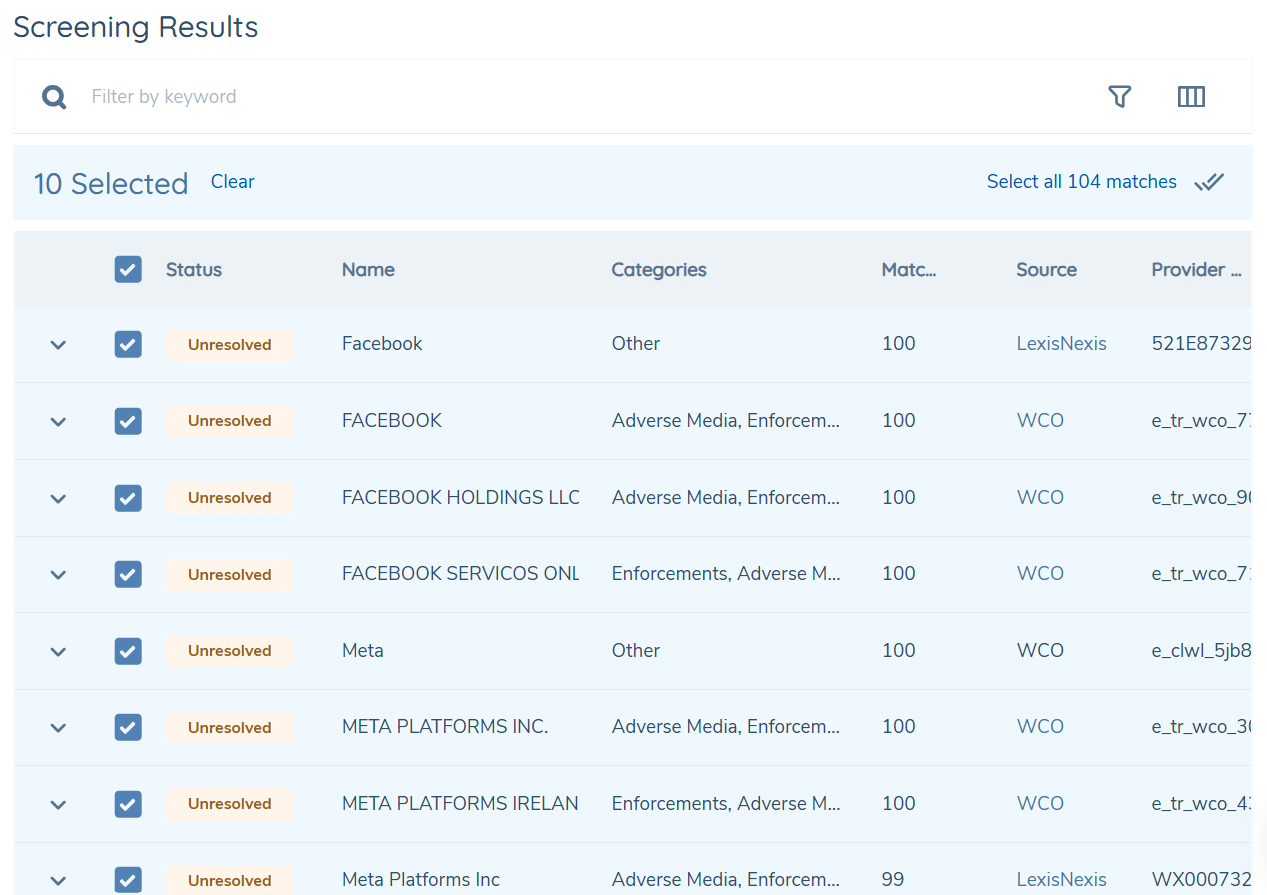
Selecting the current page:
Clicking the header checkbox selects all hits visible on the current page. A selection bar appears above the grid showing the count on the left — for example, "10 Selected" — with a Clear link alongside it. Where the total number of matches across all pages exceeds the current page, a "Select all [N] matches" control also appears on the right.
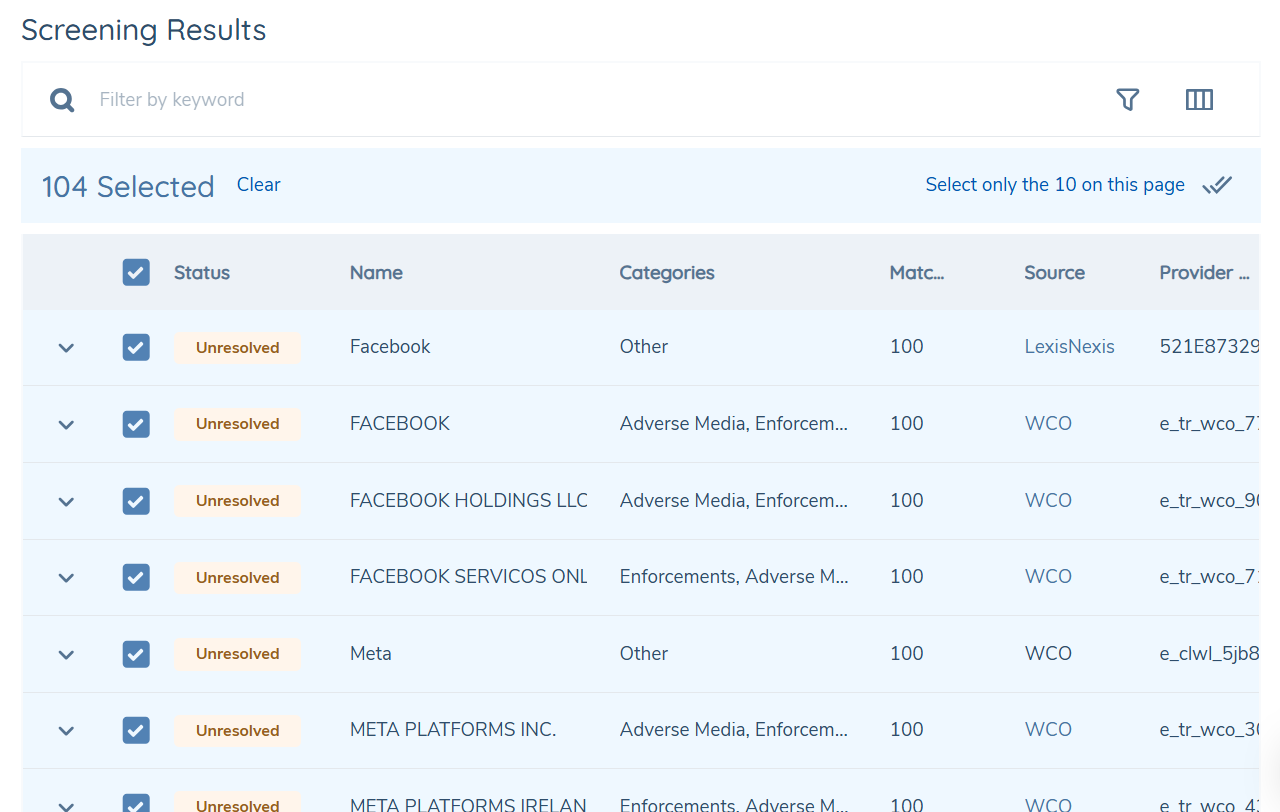
Selecting all matches:
Clicking Select all [N] matches expands the selection to every hit across all pages. The counter updates to the full total — for example, "104 Selected" — and the right-hand control switches to "Select only the [N] on this page", allowing the analyst to narrow the selection back to the current page if needed.
Bulk resolution:
The ✓✓ icon on the right of the selection bar invokes bulk resolution for all selected hits. Once selected, the existing resolution drawer opens where the analyst must capture all relevant information — Resolution, Reason, and Comments — before clicking Resolve, in the same way as resolving a single match.
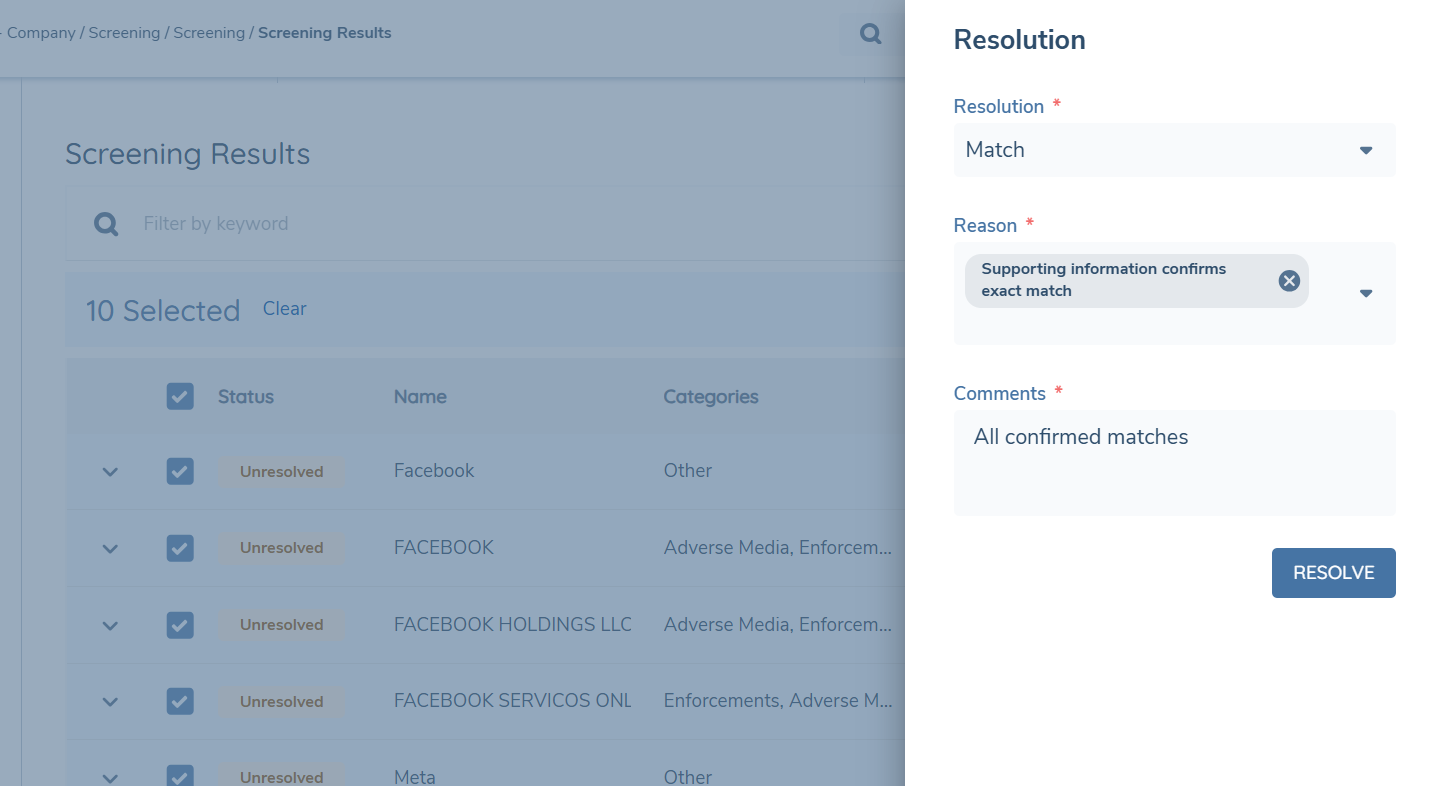
This works for both a page-scoped selection and a full selection made via Select all [N] matches — the drawer behaves identically in both cases.
The "Select all [N] matches" option does not appear when the total number of matches is equal to or less than the number of hits visible on the current page — for example when a filter has narrowed results to fit on one page. In this case the header checkbox selects all available results directly.
Key behaviours:
- Clicking Clear removes the selection entirely.
- The selection clears automatically when a filter or sort is changed.
- The header checkbox shows an indeterminate state when only some visible rows are selected.
Classification data column
An optional Classification data column can be added to the table from table configuration — it appears as the last item in the column list. When enabled, it shows the Classification Data field values already captured for each hit (see Match Resolution popup), concatenated into a single cell in the order the fields are configured for that hit's category. The column can be sorted and filtered using the same table tools as any other column.
The column is disabled by default on every view, including views that existed before it was introduced, so nothing changes in the grid until someone turns it on. Because Classification Data is a v2 concept, the column is always empty for v1 screening tasks and for any v2 hit with no Classification Data recorded.
This column is read-only — it summarises Classification Data already captured and does not change how that data is entered. It is available on any results table built on the same shared table component, including the OGS: Screening Resolution & Client Selection task.
Search criteria and aliases panel
The Search Criteria panel shows exactly what was submitted to providers for the currently selected entity. It updates when you select a different related party.
| Area | What is shown |
|---|---|
| Header | Shows the entity name and a Material or Immaterial chip once the materiality outcome is recorded. A None outcome is never displayed — the chip simply does not appear until an outcome exists. |
| Search criteria | Screening fields used in the most recent execution — name, type, date of birth, nationality, identifiers, address, and others |
| Aliases | Alternative names submitted in the screening request |
| Other Information | JSON key-value data formatted as readable key-value pairs for provider-specific identifiers |
| Formatting | Field names are sentence case with a colon. LegalEntityName and LegalEntityType are not shown in the Search Criteria section — they appear in the entity header only. A Show more / Show less control appears when content overflows the display area. |
Match Resolution popup
The Match Resolution popup is the main screen for adjudicating an individual screening hit. It opens in read-only mode from View, or in edit mode from Resolve.
Panel layout
| Panel | Contents |
|---|---|
| Left | Read-only context about the related party, relationship to the client, and search criteria |
| Middle | Provider source and hit reference, plus collapsible sections for Key Data, Profile Information, Relationships, and Sources |
| Right | Your inputs: Match decision, Reason, Comments, and Classification Data fields (for confirmed matches) |
Interaction details
| Topic | Guidance |
|---|---|
| Match decision | Always visible and mandatory. Select Match, No Match, or Unresolved. Choose a reason and optionally add comments (maximum 1,000 characters) |
| Classification Data | Shown only when Match decision = Match. Hidden entirely for No Match and Unresolved |
| Classification Data scope | Only fields relevant to the hit category are shown — for example PEP fields for a PEP hit — and only fields configured for the current Target Entity (Client or Related Party) |
| Classification Data trigger conditions | A field may also be hidden if your organisation has configured a trigger condition on it that is not met for this case's policy context. Hidden fields require no action from you and are excluded from validation |
| Supported field types | Text, text area, date, single select dropdown, multi-select dropdown. Maximum four fields per category |
| Save behaviour | Save is always enabled. If required fields are missing, inline errors appear. On success the popup closes and the grid refreshes |
Document upload for hits
When Hit document enabled is enabled on your journey's task, the Match Resolution popup includes a document upload section. Upload is optional — it does not block saving the hit decision.
| Topic | Guidance |
|---|---|
| When it appears | Only when the Hit document enabled toggle is enabled on the v2 task in Journey Builder |
| Document Type | Select from a dropdown before uploading |
| Optional | Upload does not block saving a decision — it is not mandatory per hit |
| Preview | Uploaded documents can be previewed from within the popup |
| After batch close | Once the screening batch is closed, it is not possible to upload documents |
A separate Entity document required toggle controls document upload at the entity level (outside the popup). Both toggles are independent.
Materiality assessment
Materiality Assessment entitlement: Materiality assessment can be switched off for a client. When it is switched off, this task does not show the materiality action in the Action Items panel, the Material / Immaterial / Escalated status chips and Materiality filter group described in Entity list: status indicators, filtering and search, or the reassessment warning shown when a Match Decision changes — and materiality is not required to complete the task. The Materiality column on the Screening Assessment Outcomes tab is also not shown for that client. This is managed by Fenergo Support or Product at the client level; there is no client-facing configuration screen. The Escalate action and its outcome are unaffected and continue to work as normal whichever way this is set.
The materiality assessment appears once:
- All screening providers have completed
- At least one confirmed match (true match) exists for the entity
- All hits for the entity have been resolved
| Topic | Guidance |
|---|---|
| Action Items panel | Shows a Materiality assessment item — Assess or Review. Incomplete assessments show a Required chip; completed ones show a Completed chip |
| Left panel | All confirmed matches contributing to the assessment — hit ID, match status, resolution, reason, and classification data |
| Right panel | Create a new assessment or review a prior one. Shows only the categories that have confirmed matches for this entity |
| Material flags | Select which categories are material. For each material category, choose one or more jurisdictions |
| Sanctions | If Sanctions is selected and your journey has the Sanctions toggle enabled, record an OK to Proceed or Not OK to Proceed decision with a rationale |
| Materiality outcome | Calculated automatically — Material if any category is material, otherwise Immaterial |
| Rationale | Free-text narrative — mandatory when required by your journey |
Sanctions confirmed chip
When any entity in the journey structure has a Sanctions Proceed Decision recorded as Not ok to proceed, a Sanctions confirmed chip is displayed at the main entity level — even if the main entity itself is not directly sanctioned.
Clicking the chip opens a modal with title "Sanctions Not ok to proceed" and subtitle "Select a name to view details in task". The modal lists all entities where the decision is Not ok to proceed. Each entry is a clickable link that navigates to that entity within the task and shows the Sanctions classification data recorded for that entity.
Note on the Sanctions decision section in the task:
- The section title is "Sanctions decision"
- Subtitle shown: "If not ok to proceed, journey can be completed, but off-boarding of entity may be required."
- Radio buttons are shown in this order: Not ok to proceed / Ok to proceed
- The Rationale field is always mandatory regardless of which option is selected
Reassessment trigger: If you change a Match Decision after saving a materiality assessment, the system warns you that the existing assessment will be invalidated and a new one is required. Changing only the reason, comments, or classification data does not trigger this.
Materiality with no new hits but historical matches
When the current screening returns zero hits for a provider but historical matches exist for the entity, the task still requires a materiality assessment.
Results grid messages
| Scenario | Message shown |
|---|---|
| Single provider, no new hits, has match history | "No new hits from <Provider>. Match history will include the latest screening matches for this entity." — with a View Match History button linking to the Match History tab |
| No new hits AND no match history | Existing "No data" message — unchanged |
| Multiple providers: one has no hits but history, another has hits | An info message: "No new hits for <Provider Name>" |
Materiality assessment view (no new hits, prior decisions exist)
The latest materiality decision is reused and a message is displayed: "No new hits from <Provider>. Prior materiality decisions exist for this entity." with a View Decisions button. A warning banner also appears:
- Title: "Reused materiality decision below — <LastActionedOn>"
- Subtitle: "Check carefully before saving decision in the context of this journey."
V1 migration scenario
When an entity has historical true matches from v1 but no prior v2 materiality record, the message is: "Historical true match found for this entity. No new hits were returned in the current screening. A materiality decision is required." with an info message: "This entity was migrated from a previous workflow with no recorded materiality outcome."
Visual indicator
The entity panel shows an in-progress status icon when an entity has no current matches but has historical matches requiring assessment.
Reuse of prior decisions
The v2 task supports reuse in two ways.
| Reuse type | How it works |
|---|---|
| Classification data reuse | When the same hit alerts again for the same entity in a subsequent screening, applicable classification data is reused automatically — no action required |
| Prior materiality decisions | Open Prior materiality decisions from the Materiality decision panel. Review up to 50 of the most recent completed batches, see overlap indicators for current matches, inspect previous outcomes and jurisdictions, and decide whether reuse is appropriate |
Prior materiality decisions panel
| Column | What is shown |
|---|---|
| Journey | Journey type and a link to the journey |
| Client | Root entity name (main entity of that journey) |
| Batch ID | Unique batch identifier; an overlap indicator icon appears when the batch contains hits that are also true matches in the current screening |
| Last actioned by | Name and date of the last person to action the assessment |
| Materiality | Material or Immaterial outcome |
| Classification | Total number of matching hits in the historical batch; if one or more true matches exist, an info icon shows a popover titled "Screening provider classifications" listing <MatchName>: <Provider> per true match, with a screening task link |
Materiality column tooltip: Clicking the Materiality cell opens a popup showing the screening task link, per-category materiality status with jurisdictions, overall outcome, and if Sanctions is material, the Sanctions proceed decision.
A Reuse button on each row triggers a confirmation popup before applying the prior decision.
Task completion rules
| Topic | Guidance |
|---|---|
| Completion toggle enabled | The task can be completed even when some matches remain unresolved and some materiality assessments are incomplete |
| Completion toggle disabled | All matches must be resolved and all required materiality assessments must be complete before you can complete the task |
| Auto-complete (no results) | If no screening results are returned for any screened entity or related party, the task is automatically completed. Materiality UI, classification data entry, and escalation flows do not appear |
| Timing | Auto-completion follows an exponential backoff mechanism and waits up to seven days for providers to finish |
Verify Screening Period
Verify Screening Period is a separate checkpoint task — in practice commonly grouped in its own Verify stage together with other verification tasks (such as Verify Associations, Verify Entity), positioned after the Screening stage — that checks whether screening results are still within their configured validity period. It is not part of the ODS task documented above, but it consumes the results-returned date produced by this task's provider responses.
| Topic | Guidance |
|---|---|
| What it checks | Every screening process it governs, against the validity period configured on that process's Configuration Set |
| All processes valid | The task auto-completes and no user action is required. Each process shows a simple Completed status — Expiry and Results returned detail is not shown |
| One or more expired | The journey blocks. A banner reading "One or more screenings are expired" appears, and each governed process is shown as a card with a status chip (Expired or Valid), the process's screening request Task name, an Expiry countdown/overdue message, and the Results returned date |
| No validity period configured | A governed process backed by a Configuration Set with no Validity Period (Days) set can never expire. If it's the only governed process, the task auto-completes as usual. If the checkpoint is triggered by another governed process, this process still appears as a card with a Valid chip and its Task name — but no Expiry or Results returned is shown — and it remains available as a Go back to option |
| Your options (when blocked) | Go back to [Task Name] — one option per governed process, labelled with that process's screening request task name (for example, Go back to Screening Request); available for any governed process, not only the expired one(s). Continue without rescreening — proceeds without refreshing screening |
| Duplicate option labels | If two or more governed processes share the same screening request task name, their Go back to options display identically — use distinct task names to keep them distinguishable |
| Missing data | If a process's results-returned date or screening result is missing, the task blocks with a data/configuration error that cannot be resolved via Continue without rescreening |
For configuration details, see Configuring ODS: Screening Resolution & Materiality — Verify Screening Period configuration.
Escalation: Initial Review and Final Review
If your journey is configured with an escalation pattern, your ODS task functions as Task 1 — Initial Review. A second task — Task 2 — Final Review — is available to a second-line reviewer.
| Task | Role | What happens |
|---|---|---|
| Task 1 — Initial Review | First-line analyst | When the Escalation toggle is enabled, an Escalate button appears in the Materiality Assessment page. Click it to open the Escalation side panel, select a team or user to notify, and leave a comment. An Escalated chip appears against the materiality assessment in the Action Items panel |
| Task 2 — Final Review | Second-line reviewer | Triggered by scoping conditions (typically the Materiality Outcome from Task 1). Displays all Task 1 screening results and materiality outcomes, highlights the escalation comment, and allows the reviewer to override match decisions and complete outstanding assessments |
Both tasks share the same underlying screening and materiality data. There is no frozen snapshot of Task 1 — if Task 2 overrides a decision, the change is visible if Task 1 is reopened.
Escalation notifications
When the Screening and Materiality Escalation notification toggle is enabled for a user, they receive system and email notifications when an assessment is escalated to them.
Notification text: "A materiality assessment has been escalated to you by {user}. Comment: '{escalation comment snippet}' Click to review the journey."
The notification link navigates directly to the relevant journey.
De-escalation
Escalation lives on the entity, not on the individual Materiality Assessment. There is no separate button or screen for reversing it — de-escalation happens automatically as a side effect of setting a new materiality status.
When you record a new materiality status on an assessment whose entity is currently escalated, the escalation clears as part of that same action. If the entity was not escalated, saving the status has no effect on escalation.
Access to de-escalate follows the same permission that already governs the materiality status change — no separate permission applies. Every de-escalation is recorded in the audit trail alongside the entity's other history, capturing the entity, the prior escalation value, the acting user, and the timestamp.
Permissions
| Permission | What it allows |
|---|---|
| Screening Access | Read-only access to screening results, classification data, and materiality assessments. You see the eye (view) icon only |
| Screening Edit | Edit access while the task is In Progress. Resolve matches, enter classification data, complete materiality assessments. You see eye and pencil icons |
| Screening Approve | Not used for v2 escalation routing. Escalation is configured via the Escalation toggle in Journey Builder, not via this permission |
| Read-only after completion | Once the task is Completed, all users have read-only access regardless of their assigned permission |
Key validations and system behaviours
| Area | Rule |
|---|---|
| Provider status | Providers are tracked independently. Completed, In Progress, and Error states can coexist for the same task |
| Match comments | Maximum 1,000 characters |
| Classification Data fields | Text, text area, date, single select, multi-select. Maximum four fields per screening category |
| Materiality invalidation | Changing a Match Decision after saving a materiality assessment invalidates the assessment and requires a new one |
| Materiality conditions | Materiality becomes available only when all providers have completed, at least one confirmed match exists, and all hits for the entity are resolved |
| OGS-triggered hit highlighting | Hits from an OGS batch run are visually highlighted automatically — no analyst action required |
| Document preview | Uploaded hit and entity documents can be previewed from within the task |
| Reporting | The EntityMaterialityAssessment property is included in the BatchEntity model in Athena (Advanced Reporting) without additional configuration |
| Audit trail | All v2 audit events are surfaced in the audit panel. Classification changes: MatchesUpdated rows show Classification Data fields (PEP, Sanctions, Enforcements, Adverse Media, Other) before and after the change, plus the ActionedOn timestamp. Materiality changes: "Entity Materiality Assessment Updated" rows show Rationale, ActionedOn, per-category MaterialityStatus, Jurisdictions, and OkToProceed (Sanctions proceed decision) before and after. De-escalation changes: audit rows show the entity, the prior escalation value, the acting user, and the timestamp. Document events: Five distinct labelled rows — Document Added, Document Removed, Document Status Updated, Document Archived, Document Unarchived — each expandable with file name, document type, and status details. Applies to both ODS and OGS batches. |
Screening Assessment Outcomes tab on Entity Profile
The Screening Assessment Outcomes tab on the Entity Profile page shows a consolidated history of materiality assessment outcomes for an entity, without needing to open completed tasks.
This tab is only available for entities processed through the v2 ODS: Screening Resolution & Materiality task. Entities with v1 task history only will not display this tab. The tab must be enabled by an administrator in View Configuration before it appears.
The tab displays the latest 50 assessments for the entity, ordered most recent first.
| Column | Description |
|---|---|
| Journey | Journey name as a hyperlink to the task. The link is disabled if the user does not have access to the journey |
| Client | Root entity name. Displayed as **** if the user does not have access to that entity |
| Materiality | Overall materiality outcome for the assessment |
| Classification Data | Aggregated classification data across all confirmed matches. Hover over the cell to see the full per-match breakdown |
| Last Actioned By — Decision Date | The user who last actioned the assessment and the date it was recorded |
Access controls
| Scenario | Behaviour |
|---|---|
| User does not have access to a related entity in an assessment | Client name is shown as ****. Journey link is disabled for that row |
| User does not have access to a related journey | Journey name is shown but the hyperlink is disabled |
| Entity has v1 task history only | Tab is not displayed |
For administrator setup instructions, see Configuring ODS: Screening Resolution & Materiality — Screening Assessment Outcomes tab on Entity Profile.
Glossary
| Term | Definition |
|---|---|
| ODS | On-Demand Screening. The ODS task type (ODS: Screening Resolution & Materiality) is the v2 combined task |
| OGS | Ongoing Screening. A periodic workflow using the OGS: Screening Resolution & Client Selection task type |
| RP | Related Party — an individual or entity associated with the main legal entity |
| Classification Data | Policy-driven context captured when you confirm a match (PEP type, sanctions detail, etc.). Fields can be scoped to the Client or a Related Party, and can be configured to show or hide automatically based on policy conditions |
| Current Hits | Active screening results in the current batch |
| Match History | Previously resolved or historical screening hits |
| Overlap | A prior batch containing hits that are also confirmed matches in the current batch |
| Materiality assessment | The decision on whether confirmed screening results are material for the entity or related party |
| Requirement Category | A Reference Data configuration object that defines the Classification Data fields for a screening category |
| Sanctions Proceed Decision | A journey toggle requiring analysts to record an OK/Not OK to Proceed decision when a Sanctions hit is confirmed |