Policy V2: Edit mode
What is Policy V2?
At a high level, Policy V2 is not a new engine. Policy remains the central rulebook that drives behaviour across the platform — it determines what information is required, when it is required, and for whom, so that journeys remain consistent and compliant across Entity Types and jurisdictions. V2 is a redesign of how that configuration is structured and managed.
In Policy V1, the main challenge was the size and complexity of policies. Because policies were structured by jurisdiction, each one needed to contain all requirements specific to that region. That resulted in large, often duplicated configurations across multiple policies, making them difficult to maintain and keep aligned.
Policy V2 shifts this model entirely. Policies are now defined at the Entity Type level, with jurisdiction handled at the requirement level through tagging. The outcome is a single policy per Entity Type rather than multiple policies per jurisdiction — which reduces duplication, significantly decreases policy size, and makes configuration much easier to maintain, review, and scale.
V2 also introduces Workspaces and enhanced versioning, so configuration teams can make and validate changes independently before publishing. That improves collaboration, reduces the risk of unintended impacts, and provides clear traceability of how a policy has evolved over time.
Important Note: Policy V1 remains fully live and unaffected until a client has deliberately published their first V2 configuration. Nothing changes on the runtime side until they are ready.
Why was Policy V2 introduced?
There are three core drivers behind V2:
- Flexibility — a single Entity Type policy can carry requirements for dozens of jurisdictions, rather than requiring a separate policy per jurisdiction.
- Scalability — as the rules or requirements grow, teams add requirements to one policy rather than duplicating the same change across many.
- Reduced duplication — V1 often resulted in near-identical policies across jurisdictions. V2 eliminates that by applying jurisdiction tagging at the requirement level.
The key shift: in V1, policies were organised by jurisdiction. In V2, they are organised by Entity Type — Individual, Company, Entity Group, Other etc. Entity Type is now the top-level construct, and jurisdictions are applied at the individual requirement level. This enables far more precise scoping and control.
Key Structural Changes
Entity-based structure
On the policy configuration landing page, enabling the Policy V2 toggle brings up the V2 UI. Each row represents an Entity Type policy. In V1, you would typically have tens — if not hundreds — of jurisdiction-level policies. In V2, each policy is associated with a single Entity Type (Individual, Company, Entity Group, Other, etc.), which means far fewer policies to manage and maintain overall.
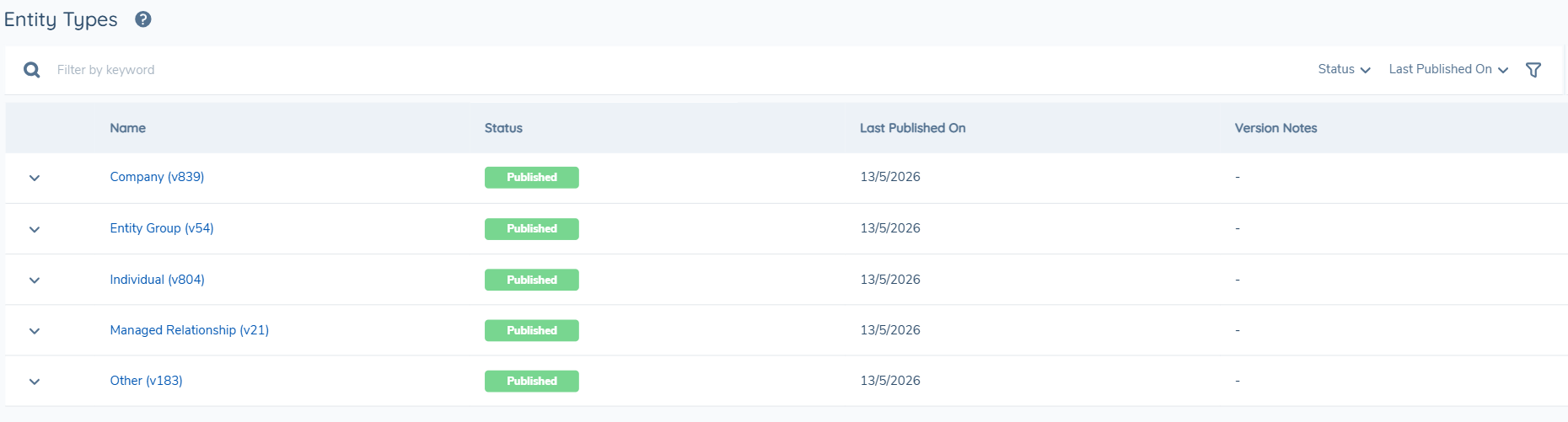
Important Note: In V2, a policy's Entity Type is fixed at creation and cannot be changed afterwards. In V1, requirement Entity Types could be edited, but that is no longer needed in V2 because the policy itself is already scoped to a single Entity Type.
Policy Requirements
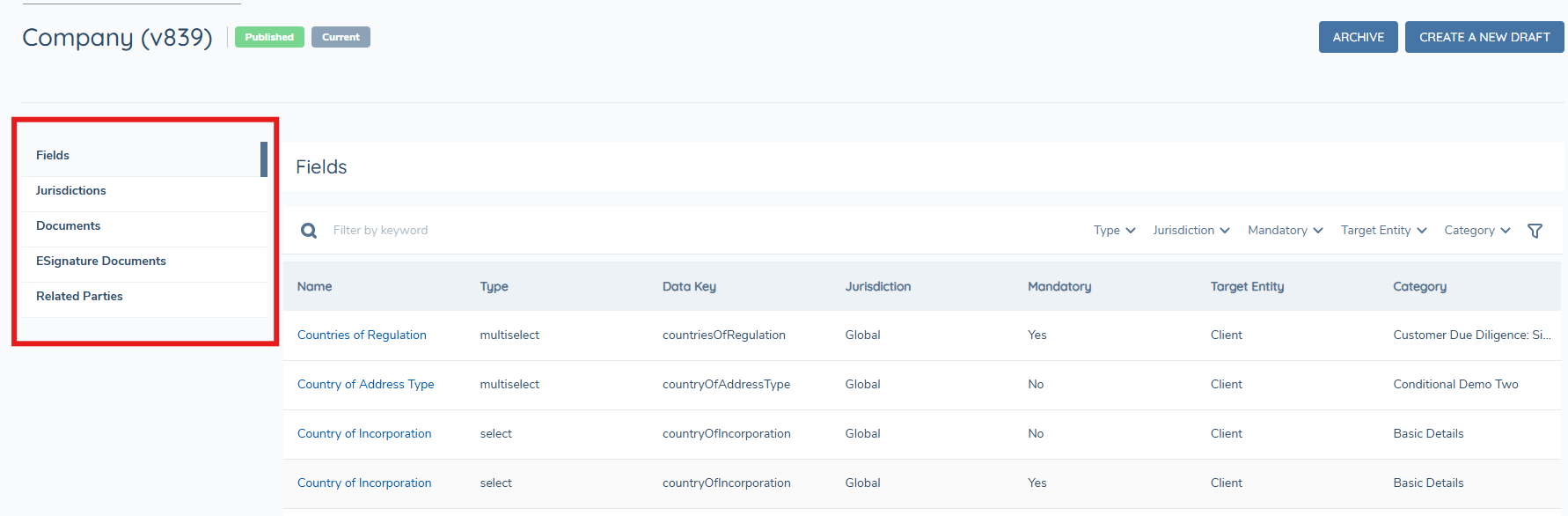
Inside an Entity Type policy, the requirements map closely to V1 concepts but a few things have changed. Requirements are grouped into four distinct sections:
- Fields — what used to be called Data Requirements in V1. Functionality is the same.
- Documents — document requirements, unchanged in behaviour.
- E-Signature — e-signature document requirements, unchanged in behaviour.
- Related Parties — replaces the Ownership and Control requirements from V1. Structured as its own standalone section, but the functionality remains the same.
Separating these into distinct sections makes configuration clearer and easier to navigate.
Multi-select Category, Target Entity and Jurisdiction
At the individual requirement level, the Category, Target Entity and Jurisdiction fields now support multi-select. A single requirement can apply across multiple categories, target entities and multiple jurisdictions without needing to be duplicated — scoping becomes much more efficient.

In V1, the only way to apply the same requirement to two jurisdictions was to have two separate jurisdiction policies, each with its own copy of the requirement. In V2, you add both jurisdictions as tags on the same requirement. This is the tangible day-to-day benefit of the new architecture.
Grid Filtering
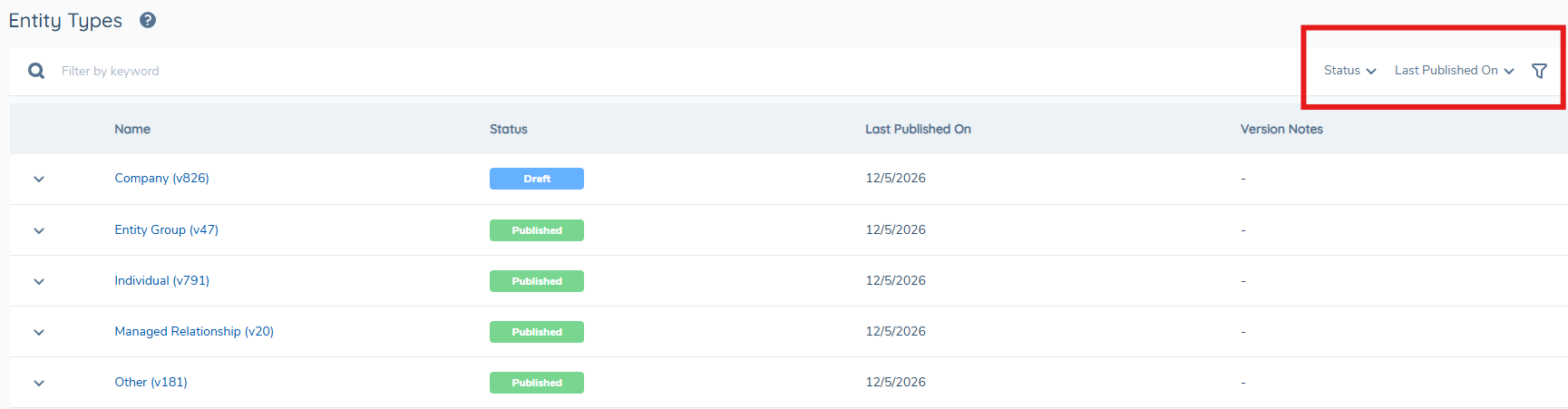
The policy grid supports filtering by Status and Last Published On date, which replaces hunting through long lists of jurisdiction-level policies. The signal-to-noise ratio is much higher.
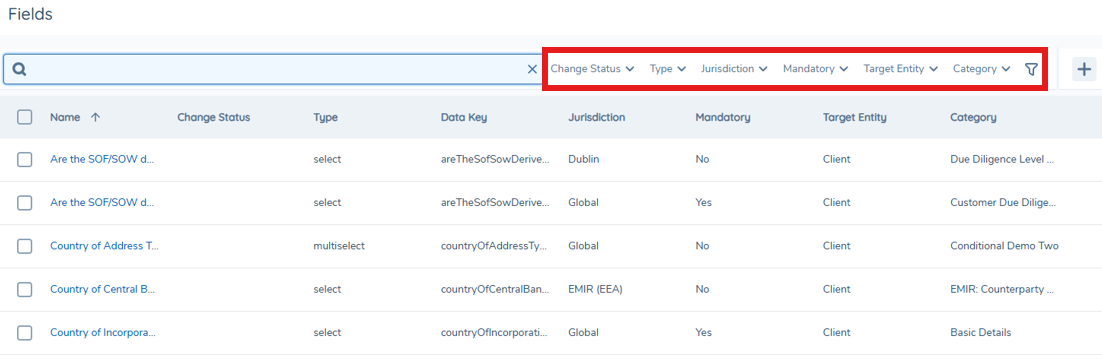
Inside a policy version, the requirements grid supports filtering by multiple attributes — Field Type, Jurisdiction, Mandatory, Target Entity, and Category. These filters are available across all requirement types (Fields, Documents, E-Signature, Related Parties) and make it fast to narrow a large set of requirements to exactly what is needed.
Data Groups
In V1, Data Groups were defined centrally and then referenced within jurisdictional policies as requirements, like any other requirement type. In V2, they are still defined once and reused, but the key difference is that they are now aligned to the Entity Type model rather than being implicitly scoped through jurisdiction-level policies.
Data Groups now live in their own dedicated area within the Policy domain, separate from Policy Configuration. This allows for a more structured policy layout and makes Data Groups easier to manage and reuse across requirements.
Conditions
Conditions work the same way as in V1. They are applied at the requirement level and evaluated at runtime. One enhancement in V2: when the condition source is set to Current Entity, the field list is filtered to only show fields configured for that Entity Type.
Permissions
Policy V2 introduces a layered permissions model across policy configuration and workspaces. The key permissions are:
- Policy Configuration Access — read-only access to view policies and their structure.
- Policy Configuration Edit — allows users to create and edit draft configurations.
- Policy Workspace Configuration Access — view workspace configuration.
- Policy Workspace Configuration Edit — create, rename, and delete workspaces.
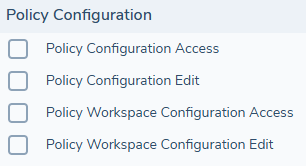
The key callout here is around workspaces: access is not workspace-specific. A user with Workspace Configuration Edit can work in any workspace — you cannot restrict access to a single named workspace. While this is an item on our roadmap, the recommended workaround is to agree a naming convention and team ownership for workspaces informally until the feature is available.
Jurisdictions
Requirement-level jurisdiction tagging
In V2, jurisdictions are no longer top-level containers. They are applied directly at the requirement level. Each data, document, e-signature, and related party requirement carries its own jurisdiction tags. A single policy can therefore handle multiple jurisdictions without duplication, with each requirement scoped as needed.
Creating a jurisdiction
Jurisdictions are created from the Jurisdictions section. There are two critical things to flag:
- Jurisdiction names are case-sensitive — "Ireland" and "ireland" are treated as entirely different values. Establishing a naming convention before any jurisdictions are created is strongly recommended.
- Names must match exactly wherever they are used in configuration — if they do not, requirements tagged to that jurisdiction will not come into scope at runtime.
Tagging requirements to jurisdictions
Requirements can be tagged to one or more jurisdictions, or set as Global, depending on where they should apply.
- A field tagged "Global + Ireland" will appear for all entities — because Global already covers every jurisdiction.
- A field tagged only "Ireland" will appear only when Ireland is in scope for the entity.

This model gives configurators precise control at the requirement level. There is no need to duplicate requirements across separate policies just because they apply to different jurisdictions — tags handle the scoping logic directly.
Workspaces
Workspaces are isolated configuration environments — almost like sandbox environments within a policy. Changes made in a workspace do not affect the published policy until they are deliberately promoted to published.
They replace the shared draft model in V1, where multiple users from different teams all worked on the same draft — which often led to overwritten changes and conflicts. In V2, each workspace stores changes independently, allowing multiple users to work in parallel without risk of collision.
The Workspace dropdown lists all workspaces configured within the tenant. The Default Workspace is always available, is system-defined, and cannot be renamed or removed. Up to 20 active workspaces can exist per tenant at any one time.
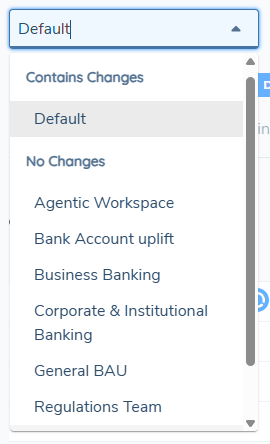
Why Workspaces matter
Workspaces introduce the isolation needed to support enterprise-scale configuration — enabling teams to work independently without impacting each other or having to manually coordinate on a single shared draft. Before publishing, teams can review their config within their workspace and validate it in context.
Workspace configuration
Users with the appropriate permissions can access Policy > Workspaces to manage workspaces within their tenant. From this screen, they can:
- View all workspaces.
- Create new workspaces (Name and Description required).
- Rename or delete existing workspaces.
- Search and sort workspaces.
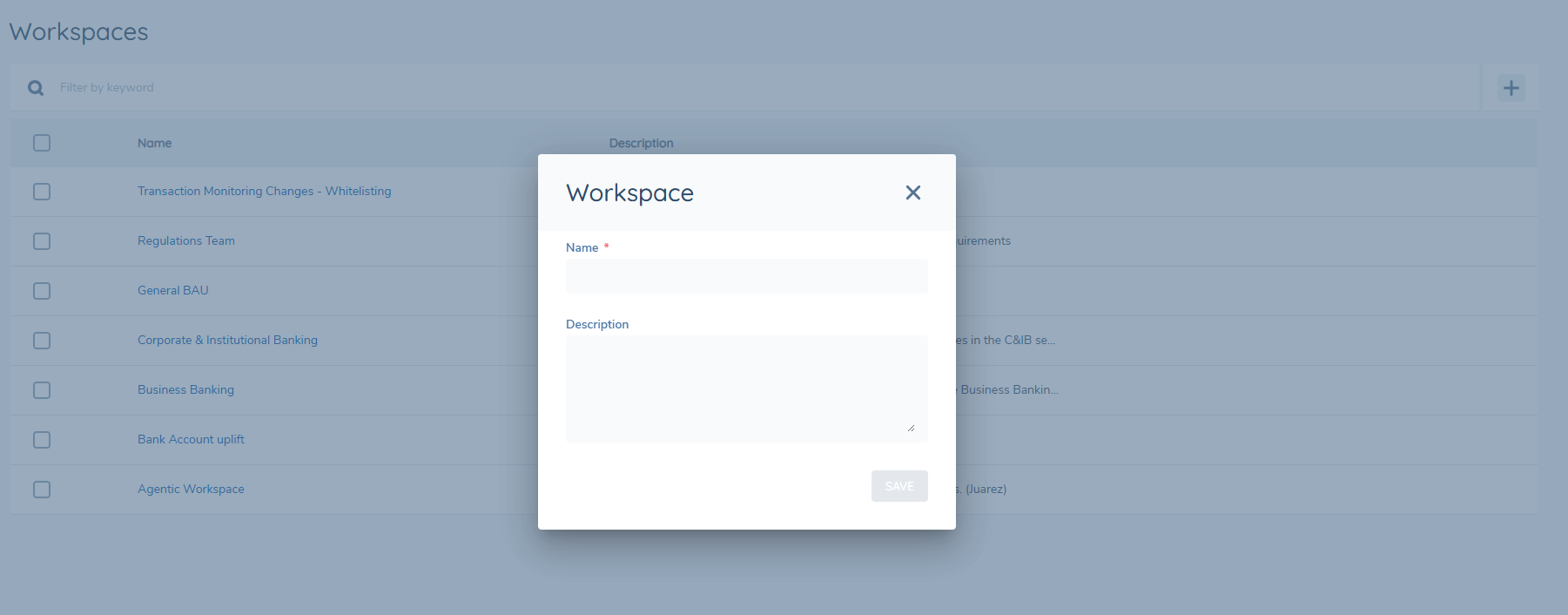
Constraints:
- Name — max 60 characters.
- Description — max 255 characters.
- Maximum of 20 active workspaces per tenant (workspaces in Pending Removal also count towards this limit until their changes are cleared).
Creating and using a workspace
When a user opens a policy, they are placed in the Default Workspace by default. They can continue working there or create a new workspace to isolate their changes. Each workspace stores all policy edits locally until published, and does not affect the published policy until promotion.
Multiple workspaces can exist for the same policy, allowing different users or teams to work on separate changes at the same time. Workspace descriptions are visible via tooltip in the Workspace dropdown so users have context before switching or publishing.
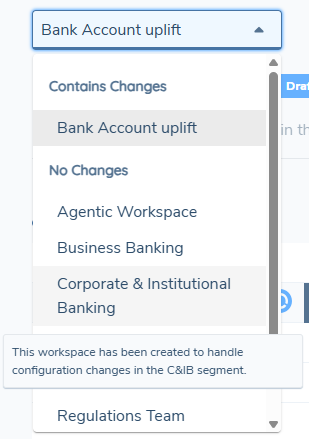
Working within a workspace
Requirement configuration inside a workspace works the same as V1 — the key difference is that all changes are stored within the workspace and remain isolated until publishing. Within a workspace, users can:
- Add, update, or delete requirements (Fields, Documents, E-Signature, Related Parties).
- Modify scoping rules, conditions, and field order.
- Test behaviour prior to publication using the Policy Simulator.
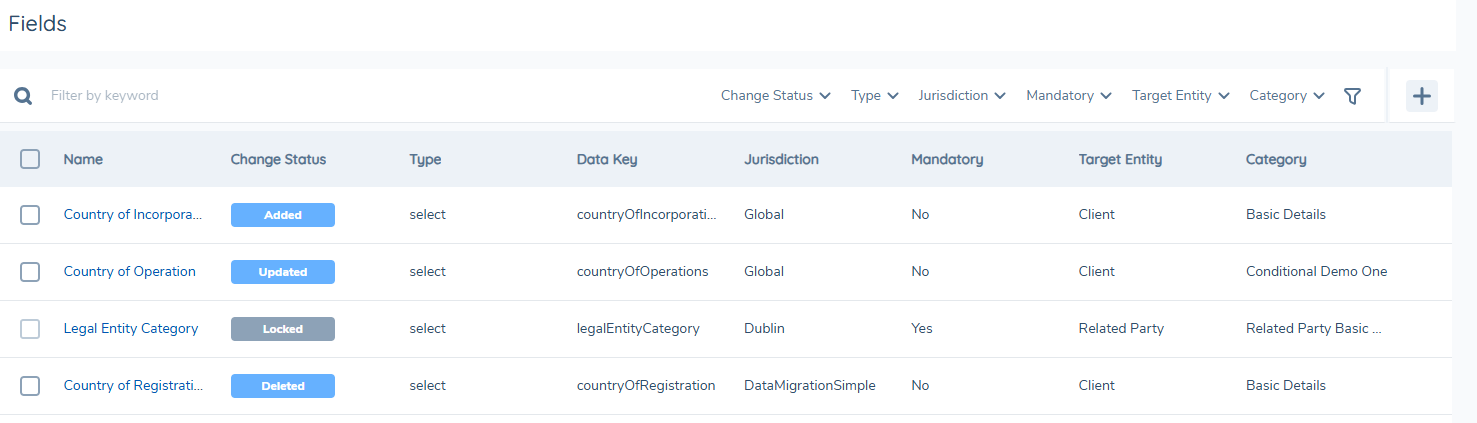
Every change is tracked with a status:
- Added — new requirement not yet in the published version. The requirement is only visible in the workspace that added it.
- Updated — existing requirement modified in this workspace (appears as Locked in other workspaces).
- Deleted — marked for removal on next publish. The requirement chip is only visible in the workspace that deleted it (Locked in other workspaces).
- Locked — represents a modification made in another workspace that has been published; requires review before this workspace can publish.
Workspace Changes
The Workspace Changes tab is where all changes made in the workspace are compared against the published version. It should always be reviewed before publishing and lists every Added, Updated, Deleted, and Locked requirement.
Reverting changes
Two levels of revert are supported:
- Revert Field — revert a single requirement change without impacting the rest of the workspace. Useful when one specific field change was a mistake but other changes are valid. This option is available from a requirement' context menu.
- Revert Workspace — resets everything back to the current published state. This option is available from the policy's context menu.
Important Note: During a full workspace revert, changes cannot be recovered after confirmation. Always use the Changes view to review first, and consider whether a field-level revert is sufficient.
Deleting a workspace
Deleting a workspace with no active changes is immediate. The more important scenario is when unpublished changes are present. If a workspace contains unpublished changes, it is not removed immediately. It disappears from the workspace domain but remains visible in the Workspace dropdown under a Pending Removal section until those changes are published or reverted.
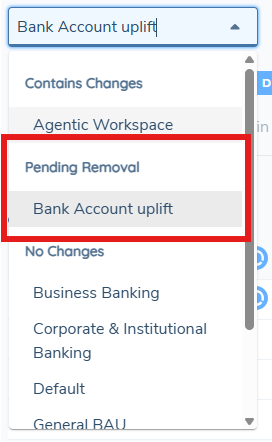
This is a deliberate safeguard — the system prevents accidental loss of configuration work. Once the changes are published or reverted, the workspace is removed and the user is directed to the Default Workspace with a UI notification.

Publishing a Workspace
Publishing a workspace:
- Creates a new policy version and makes the changes live.
- Automatically updates all other active workspaces to the latest version.
- Does not remove or overwrite other workspaces — their changes remain intact, but must be validated against the updated version before they can be published.
Before publishing, a Version Notes field is available on the publish dialogue to capture what changed and why.

Worked example:
- Workspace A publishes → Policy Version 1 is created.
- Workspace B is automatically moved onto Version 2 (Draft).
- Workspace B's in-progress changes remain intact.
- The published version always takes precedence.
The automatic update of other workspaces is what enables true parallel working. Teams never need to manually synchronise — the system keeps everyone on the latest published baseline automatically.
Publishing conflicts and the Locked status
If two workspaces both modify the same requirement, the first workspace to publish wins. In other workspaces, that requirement is marked as Locked and must be reviewed and manually resolved before those workspaces can publish. Changes are never automatically overwritten — resolution is always an explicit action.
Key benefits of Workspaces
- Parallel configuration without conflict.
- Safe, isolated drafts.
- Automatic version continuity.
- Clear visibility of changes.
- Permission-based governance.
- Reduced risk before publication.
Policy Versioning and Lifecycle
Policy V2 provides full version control, giving users clear visibility into when changes were made, by whom, and what was modified. Every time a workspace is published, a new version of that policy is automatically created.
Each policy can exist in one of several lifecycle states — Draft, Published, or Archived — which represent its current status in the configuration process.
Only one version of a policy can be Published at any given time. Drafts represent upcoming changes that will supersede the current published version once released.
Core lifecycle actions
Users can manually create a new draft from:
- The latest published version, or
- An archived version (if configuration needs to be revived or reused). Archived versions are read-only but remain visible in the version history at any time. Archived versions can serve as the base for a new draft if historical configuration needs to be reused.
Publishing promotes draft changes to the live, published version.
Users can open previous versions in read-only mode to review configurations, compare against the latest version, or validate historical compliance requirements. Audit logging ensures that every publish, edit, or deletion is captured for governance and reporting purposes.
Migration: Policy V1 -> V2
Migration from Policy V1 to V2 happens automatically, and then subsequent migrations happen each time a policy is published in V1. The system currently operates in a dual-run state, where V1 continues to drive runtime behaviour and V2 is available for visibility only. The Policy V2 toggle exposes V1 configuration in the V2 structure, allowing users to review and familiarise themselves with the new model before publishing.
What users can and cannot do during migration
Migration is an automated background process. During this time:
- Configuration UI is locked — no changes can be made during migration to ensure data integrity.
- Live journeys continue as normal — there is no impact to runtime behaviour.
What is migrated
Migration consolidates all V1 jurisdiction-level policies for a given Entity Type into a single V2 Entity Type policy. Specifically:
- All data, document, e-signature, and related party requirements are migrated.
- Jurisdiction behaviour is preserved — V1 policy-level jurisdiction assignments are converted to requirement-level tags in V2.
- Version history is preserved in V2.
- Archived versions are retained and appear as archived in V2.
Migration changes the structure, not the behaviour, of policies — journeys continue to operate as expected.
How migration works
At a high level, the migration engine:
- Identifies all V1 jurisdiction-level policies per Entity Type.
- Merges them into a single Entity Type policy.
- Applies jurisdiction tags to all requirements to preserve scoping behaviour.
- Reconstructs version history
Version history
Where version history exists in Policy V1, historical versions are reconstructed in Policy V2 to preserve chronological integrity. The migration engine walks through each point in time and rebuilds the equivalent Entity Type version from the underlying jurisdictional policies.
For each point in time:
- The earliest valid Published version for each jurisdiction is identified. For that point in time, the applicable versions of the other jurisdictions are also determined.
- These jurisdictional versions are combined to form the corresponding Entity Type version.
The engine then applies the following rules to handle archived versions in the V1 history:
- If the latest version of a jurisdictional policy is archived — the V2 Entity Type version is created from that archived version (and the corresponding versions of the other jurisdictions at that point in time) and is then itself archived. A new V2 version is then created using the latest published version for that jurisdiction, so in-flight journeys can still operate against a published version.
- If there are multiple archived versions in succession — only the most recent archived version is marked as archived in V2. A new V2 version is then created using the latest published version for that jurisdiction.
- If all versions of a jurisdictional policy are archived — that jurisdiction is excluded from the merge process for the latest published Entity Type version. Earlier merged versions still include it as archived.
This logic ensures three things:
- The policy's version history is retained.
- Published behaviour remains consistent — every point in time still resolves to a valid published configuration where one existed.
- No unintended configuration changes are introduced during the rebuild.
See: Policy V2: Read-only user guide → Migration Examples. [https://docs.fenergox.com/user-guides/fenergo-user-guides/working-with-legal-entities-and-policy/policy-v2#migration-examples]
Migration: Policy V2 -> V1
Reverse Migration
Reverse migration — from V2 back to V1 — is supported as a fallback mechanism. During this process, the configuration UI is locked and live journeys continue without interruption.
Dual-run behaviour
Before the first V2 publish, V1 remains the source of truth and drives all runtime behaviour. V2 reflects this configuration in a read-only structure.
After V2 is published, V2 becomes the source of truth. If reverse migration is triggered, V2 changes are translated back into the V1 structure as closely as possible.
Important Note: V2 allows configuration patterns that V1 cannot represent — for example, requirements tagged to multiple jurisdictions cannot be replicated in V1. When reverse migration is triggered, any V2-only pattern will not survive the translation. Clients must be made explicitly aware of this before they adopt V2-only constructs.
Incremental Migration behaviour
Because Policy V2 supports multi-select configuration patterns that do not exist in Policy V1, the migration engine performs requirement expansion and consolidation during publish migrations between the two models.
When migrating from V2 → V1, a single V2 requirement may be expanded into multiple V1 requirements where the V2 configuration contains multiple values for fields that are single-select in V1 (Category, Jurisdictions and/or Target Entities).
For example:
- A single V2 requirement configured with:
- 3 Categories
- 2 Target Entities
- 4 Jurisdictions
- will remain as one requirement in V2, as V2 supports multi-select scoping.
- During reverse migration to V1, this configuration cannot be represented as a single requirement. The migration engine therefore splits the configuration into separate V1 requirements for each valid combination, resulting in 24 individual V1 requirements.
In comparison, when migrating from V1 → V2, the migration engine performs consolidation where possible. If multiple V1 requirements contain identical configuration and differ only by single-select scoping fields (such as Target Entity or Jurisdiction), the engine identifies these compatible requirements and merges them into a single V2 requirement using multi-select tags.
For example:
- Two V1 requirements with identical configuration:
- one scoped to Client
- one scoped to Related Party
- are merged into a single V2 requirement with both Target Entities selected.
This behaviour preserves functional equivalence between the two policy models while adapting configurations to the capabilities and constraints of each version.
Roadmaps - Future Enhancements
A few items to be aware of when discussing the future with clients. These should be positioned as the direction of travel, not committed delivery dates — clients should plan for current capabilities and treat roadmap items as future enhancements.
- Data Group flexibility — reorder data groups, and eventually share group definitions across Entity Types. Also includes per-Entity-Type data groups.
- Review state workflow improvements — the optional review step before publishing will become configurable, including the ability to make it mandatory for certain policy types.
- Team-based workspace access — longer-term plans to allow workspaces to be assigned to specific user profiles or teams, enabling true segregation of configuration responsibilities.
- Policy search deprecation — the legacy policy search interface will be deprecated over time as the V2 grid controls and jurisdiction filtering provide a superior experience.
- Create drafts from historical versions — create a new draft from any previous version, not just the latest published, allowing teams to branch from any specific point in the policy's history.
- Policy Simulator — expanded capabilities to test and validate configuration behaviour in a data-task setup before publishing.
- Policy Audit — a full record of what changed, when, by whom, and the context across the entire policy lifecycle.