Configuring Product Related Parties for Screening
Including Product Related Parties for Screening
It is now possible to include product related parties in the scope of a given on-demand screening task. We have introduced a toggle in the task properties section of the 'Screening Scoping' task. The toggle is labelled Include Product Related Parties.
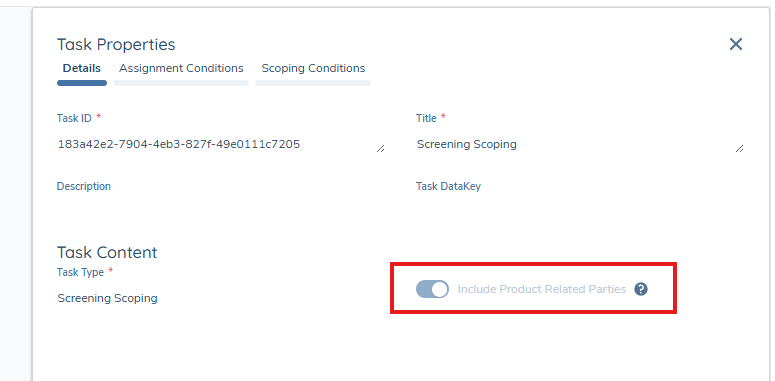
When this toggle is switched on, product related parties will be included in the scope of that specific screening process. As this toggle exists on the screening scoping task, you have the flexibility to have it enabled for some screening processes and disabled for others.
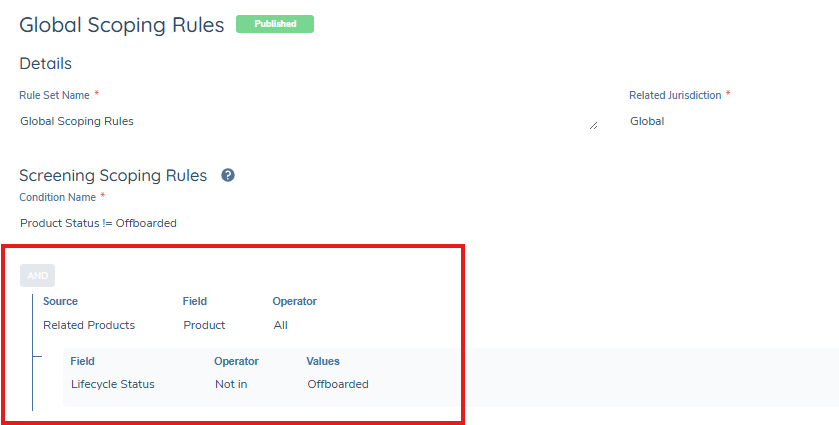
In addition to the toggle — which, if used in isolation, will include ALL product related parties — you can configure rules in the screening scoping rules with conditions based on a product status. For example, if you want to exclude product related parties from screening when their related product has a status of offboarded, you can do this.
Note: Any rules you apply here will apply to ALL screening processes.
Match Resolution & Materiality
When the toggle is enabled, product related parties will:
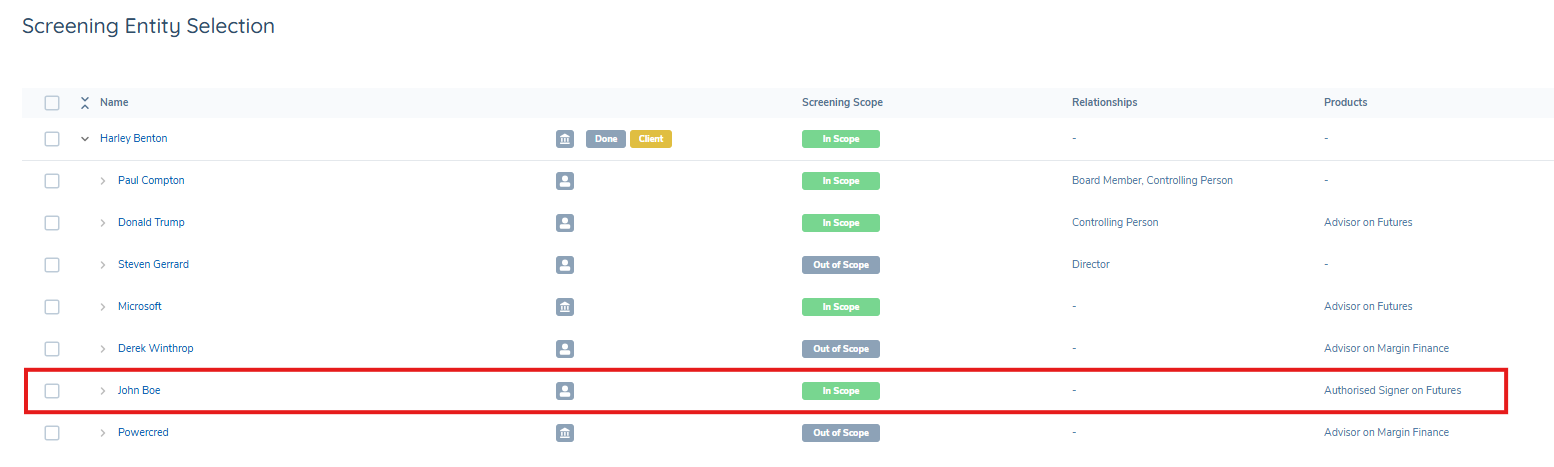
- Appear in the Screening Entity Selection task
- Be sent as part of the screening request to the screening providers
- Be available for match resolution (in both the ODS: Screening Resolution & Materiality & ODS: Screening Match Resolution tasks)
- Be available in the ODS: Materiality Assessment task
On the Screening Entity Selection task, a new Products column has been introduced that gives you the context of the relationship to the product, helping users understand why an entity is to be included in the screening process.
In the ODS: Screening Resolution & Materiality task, product related parties appear on the left-hand panel with a Show Associations link. When clicked, this displays the association path and details of the product relationships. From here the user can resolve matches and assess materiality as normal.
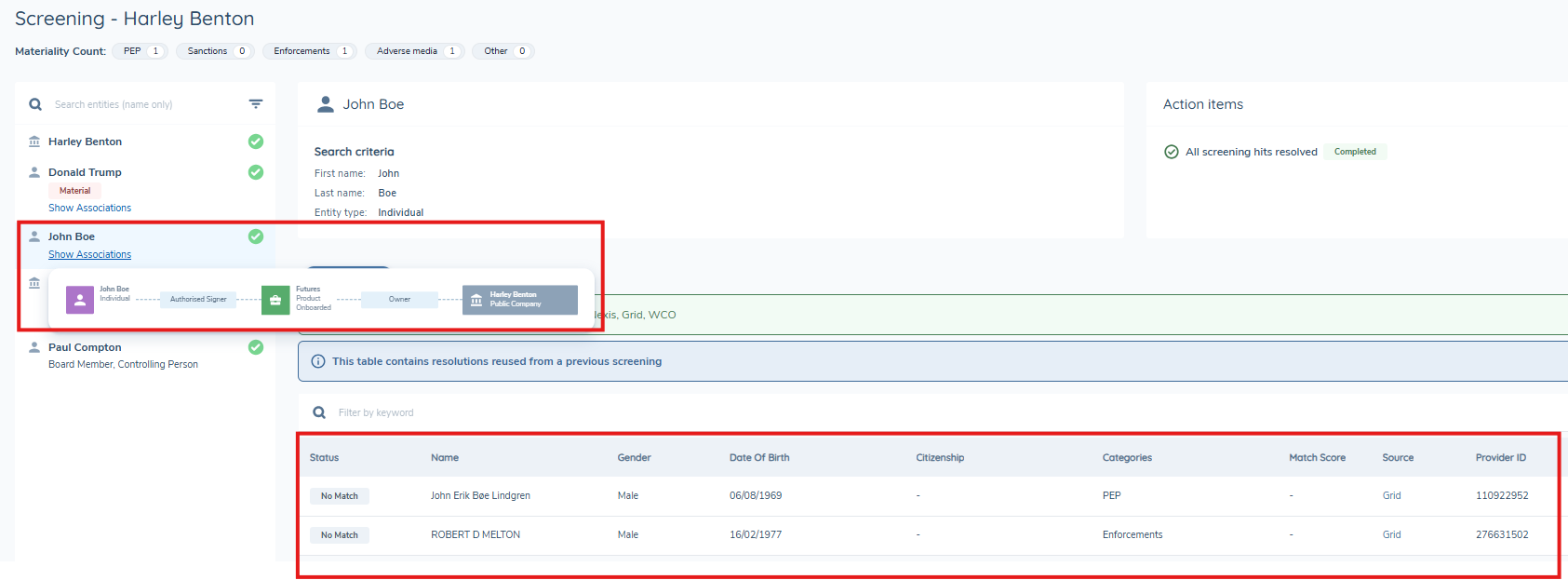
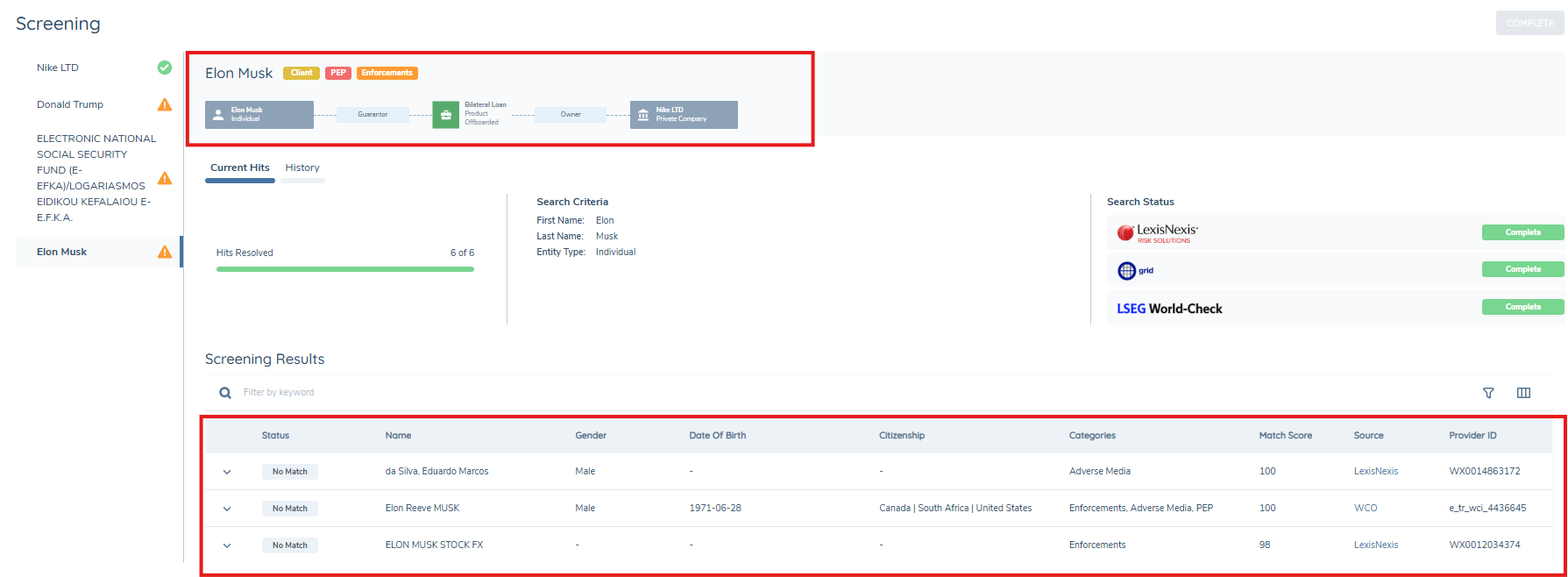
In the ODS: Screening Match Resolution task, product related parties appear on the left-hand panel and the association path appears in the middle panel, showing the details of the product relationships. From here the user can resolve matches as normal.
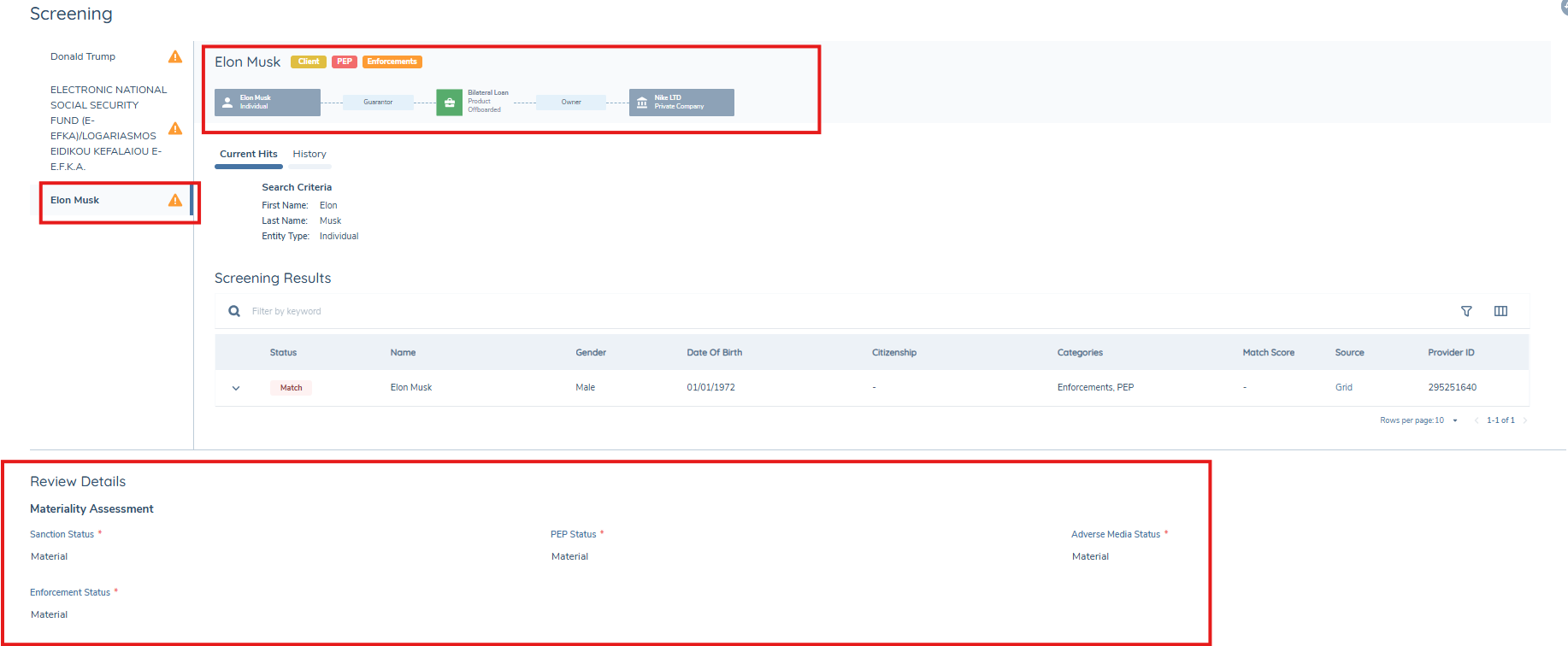
In the ODS: Materiality Assessment task, the product related party also appears in the left-hand panel. When chosen, the details appear in the centre panel and the association path shows the details of the product relationships. From here the user can record the materiality assessment as normal for the product related parties.
Ongoing Screening for Product Related Parties
When a product related party is screened as part of an on-demand screening process, they — like other related parties — will be subscribed for ongoing screening. When the daily batch job is run for ongoing screening, if any new hits are identified for the product related parties, an ongoing screening journey will be triggered as normal.
In an ongoing screening journey for a product related party, the system will show the relationship to the product and the product's ultimate owner, to allow a user to make a materiality assessment on the product owner as a result of a positive hit on the product related party.
Further re-assessment journeys will be triggered as normal for any materially impacted entities.
Unsubscribe a Product Related Party from Ongoing Screening
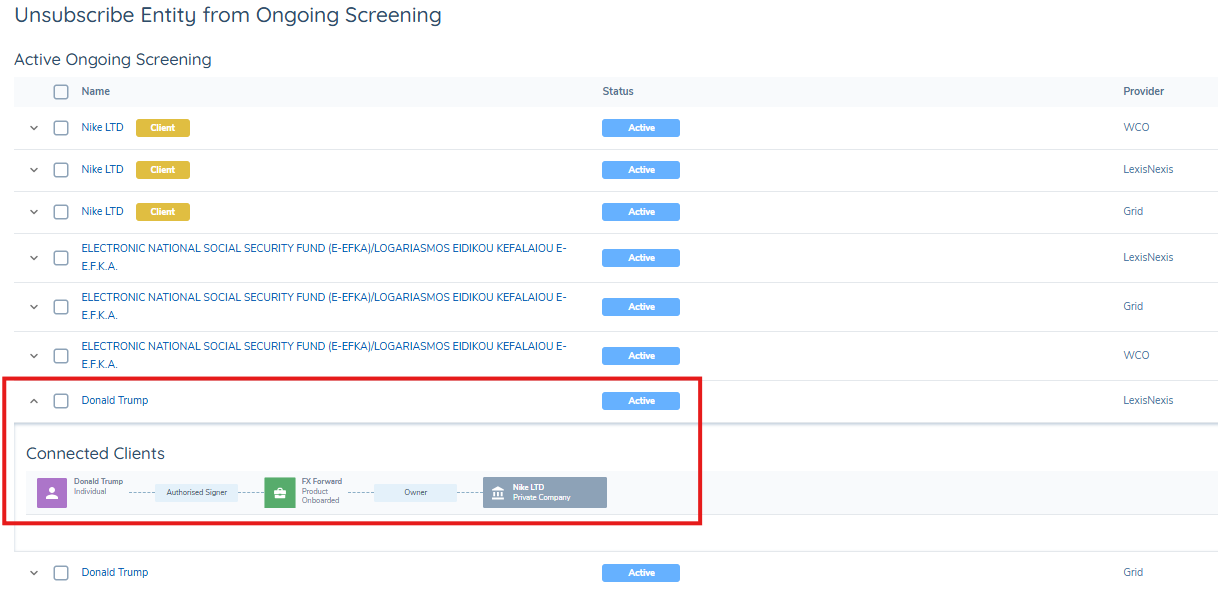
Product related parties now also appear in the Unsubscribe from Ongoing Screening task. The association path will show the details of the product relationship, allowing users to make informed decisions when unsubscribing entities from the ongoing screening process.