KYRA:Docs V2 Task User Guide
KYRA:Docs — Document Data Extraction V2 User and Configuration Guide
About this guide
This guide explains how to use and configure KYRA:Docs, specifically the Document Data Extraction V2 task. It is organised into three sections:
- User Guide — for users who review extracted information.
- Configuration Guide — for users configuring the new or changed V2 settings.
- Behaviour and Status Reference — a concise reference for outcomes, resolutions, and write behaviour.
User Guide
About Document Data Extraction V2
KYRA:Docs provides the Document Data Extraction V2 task, which allows users to review information extracted from documents in a journey. Users can compare extracted information with the information already held for the entity, decide which values should be applied, and review related parties identified in the documents.
The task brings entity data, data groups, and related parties into a single review experience:
- Entity Data contains individual entity fields and data-group records.
- Related Parties contains individuals and organisations identified as potentially related to the primary entity.
The Related Parties tab is displayed only when Related Party Extraction Enabled is switched on in the task configuration. When related-party extraction is not enabled, the tab is hidden completely.
What happens when the task is completed
During review, no changes are applied to the entity or its hierarchy. The user's decisions are held until the task is completed.
In a standard journey, completing the task applies the approved entity-data, data-group, and related-party changes together. If the write operation fails, no partial changes are retained.
In a Maker-Checker journey, completing the Maker task does not write any data. The approved changes are written only after the Checker completes the linked Checker task.
Note — multi-level related-party hierarchies
When the task is completed, entities at every level of the hierarchy are linked to their appropriate parent entity. The resulting hierarchy reflects the full organisational structure presented in the source document. Use the Relationship column on the Related Parties tab to see where each extracted entity sits within the hierarchy before completing the task. Where an entity has relationships to more than one parent, each relationship is displayed.
Discarding a parent entity affects child entities in the same extraction. Without the connecting parent, the parent-child relationship cannot be created or updated. The specific impact depends on the review outcome selected for the child:
- Child accepted as a new entity — the child entity is created, but it is not linked into the hierarchy. The user will need to manually link the child entity after the task is completed.
- Child accepted as a link to an existing entity — no action is applied, because the parent entity through which the relationship would be created is not available.
To avoid these outcomes, review the Relationship column before completing the task and ensure that parent entities are not discarded where their child entities are being accepted.
Key concepts
KYRA outcome
The KYRA outcome is assigned by KYRA:Docs when extraction completes.
For entity fields and data groups, the available outcomes are:
- New — no equivalent current value or record was identified.
- Match — the extracted information matches the current information.
- Discrepancy — the extracted information differs from the current information, or conflicting values were extracted.
For related parties, the KYRA outcome indicates whether KYRA:Docs identified a potential duplicate and whether that entity is already linked to the primary entity:
- New — no potential duplicate was identified.
- Match - Linked — a matching entity was identified and is already linked to the primary entity.
- Match - Unlinked — a matching entity was identified but is not linked to the primary entity.
- Partial - Linked — multiple potential duplicates were identified, including a mixture of linked and unlinked entities.
The KYRA outcome is fixed when extraction completes. It does not change when the user records a resolution, edits an extracted value, or selects a related-party review outcome.
Resolution
The Resolution records the user's decision. It is initially Pending and changes when the user confirms an outcome.
The Resolution is separate from the KYRA outcome. For example, a field can have a KYRA outcome of Discrepancy and a Resolution of Current value will be kept.
Current value
The Current Value is the information currently held for the entity. It is blank when no value or record exists.
Extracted value
The Extracted Value is information returned by KYRA:Docs from one or more source documents.
Source evidence
The Source identifies the document from which the information was extracted. When more than one source document contributed to a result, the interface indicates that additional sources are available.
Selecting or hovering over the source displays a tooltip. The user can open a source document from the tooltip. Source evidence includes:
- Document name.
- Page number.
Data group
A data group is a repeatable set of related fields, such as an address, tax identifier, bank account, or directorship record.
Each data-group row represents a collection of potentially matching records. The Field column displays the primary data key when the data group has one. For example, the primary data key for an address is typically the address type.
Potential duplicate
A Potential duplicate is an existing entity that may match an extracted related party. The Potential duplicates column shows the number of matching entities returned for review.
Related-party association
A related-party association describes the role an extracted party has in relation to the journey entity, such as Director, Authorised Signer, or Secretary. A single relationship between two entities can contain more than one association.
Open the task
A Documents V2 task must exist in the journey before Document Data Extraction V2 can process documents. Document Data Extraction V2 does not need to appear immediately after Documents V2, although placing it after Documents V2 is the recommended journey pattern.
To open the task:
- Open the journey.
- Select Document Data Extraction V2.
- Review the task on the Entity Data tab, which is selected by default.
The Related Parties tab is available only when related-party extraction is enabled.
Processing and automatic completion
The task becomes available for review after extraction has finished.
The system automatically completes the task when:
- No documents are eligible for extraction; or
- Extraction completes but returns no information that requires review.
Review entity fields
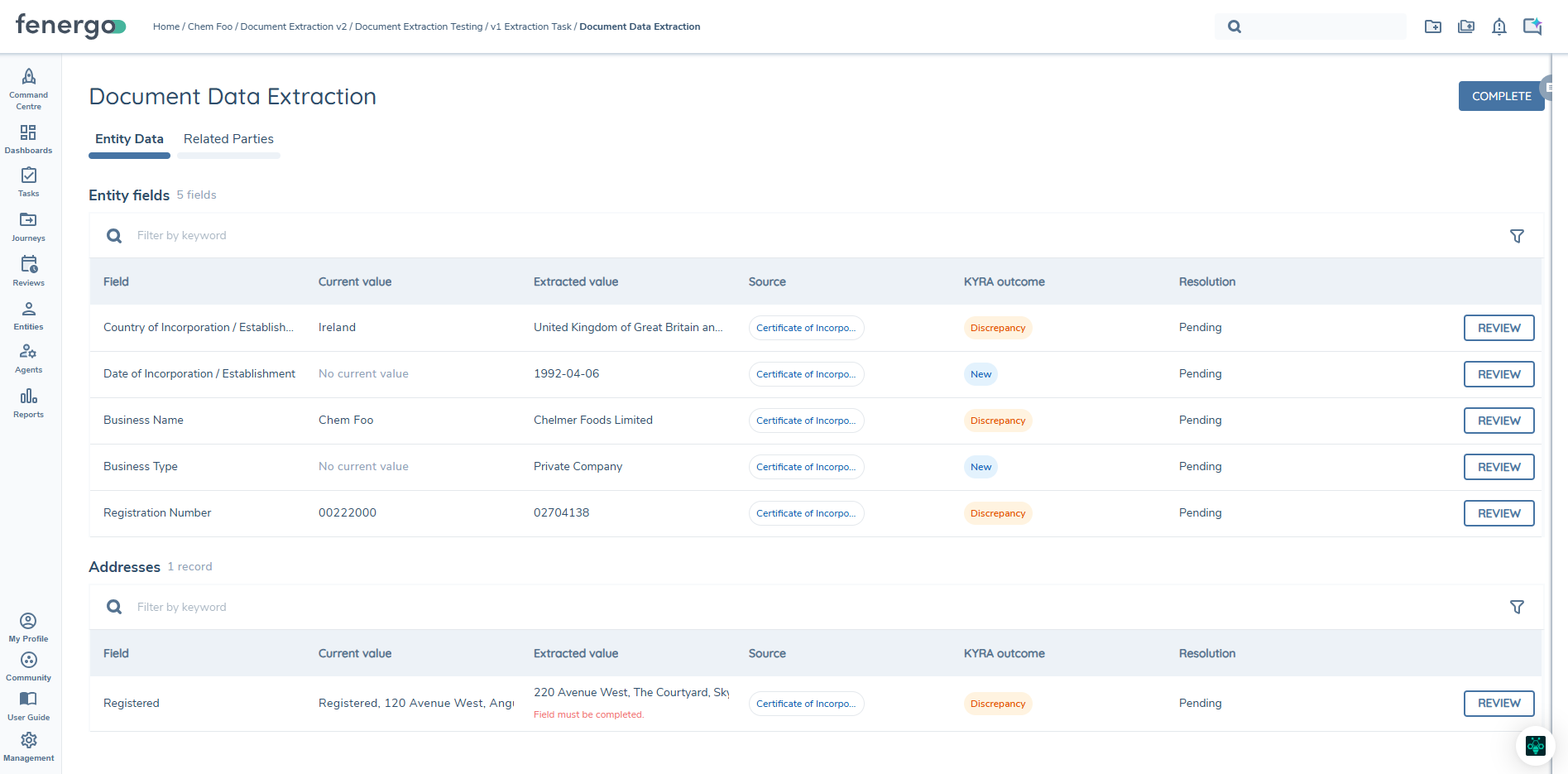
The Entity Data table displays one row for each extracted field.
Entity Data columns
The table contains the following columns:
| Column | Description |
|---|---|
| Field | The entity field name. |
| Current Value | The value currently held for the entity. |
| Extracted Value | The value returned by KYRA:Docs. When a custom value is confirmed, this column is updated to show the custom value. |
| Source | The source document and available page reference. |
| KYRA outcome | New, Match, or Discrepancy. |
| Resolution | The user's decision. Initially Pending. |
| Actions | The available quick actions and review controls. |
The available filters are:
- Source Document.
- KYRA outcome.
- Resolution.
Entity-field quick actions
Before a field is resolved, the Actions column provides the following controls:
| KYRA outcome | Quick actions |
|---|---|
| New | Accept, Reject, Review |
| Discrepancy | Reject, Review |
A Discrepancy cannot be accepted directly from the table. To accept an extracted value, keep the current value, or enter a custom value, select Review. If the user selects the Reject quick action, the review panel opens automatically with Discard this extraction selected. The user only needs to enter a reason and confirm the resolution; no additional outcome selection is required.
After a resolution is confirmed:
- The primary action changes from Review to View.
- Edit allows the user to change the resolution.
- Undo clears the resolution and returns the row to Pending.
Accept an extracted value
For a New or Match field:
- Select Accept.
- The Resolution changes to Extracted value accepted.
- The row displays View, Edit, and Undo.
The value is not written to the entity until the task is completed.
Reject an extraction
- Select the Reject quick action.
- The review panel opens automatically with Discard this extraction selected.
- Enter a rejection reason. At least one character is required.
- Select Confirm or Confirm and Next.
- The Resolution changes to Extraction discarded.
The user does not need to select an outcome after using the Reject quick action. No extracted value is applied to the entity for that field.
Review a field
Select Review to open the right-hand review panel.
The available choices are:
- Use the extracted value.
- Keep the current value.
- Enter a custom value.
- Discard the extraction.
The confirmed selection determines the Resolution:
| Selection | Resolution |
|---|---|
| Extracted value | Extracted value accepted |
| Current value | Current value will be kept |
| Custom value | Custom value captured |
| Discard | Extraction discarded |
Select Confirm to save and remain on the current item, or Confirm and Next to save and move to the next item.
Enter a custom value
Use a custom value when neither the current value nor the extracted value is correct.
- Open the field review panel.
- Select the custom-value option.
- Enter or select the required value.
- Resolve any validation errors shown by the field.
- Select Confirm or Confirm and Next.
After confirmation:
- The Resolution changes to Custom value captured.
- The Extracted Value column is updated to display the custom value.
Configured field validations remain in effect. The user cannot confirm an empty or invalid custom value.
View source evidence
The Source column shows the source document. When more than one document contributed to the extraction, the interface indicates that additional sources are available.
To review the evidence:
- Select or hover over the source.
- Review the document list in the tooltip.
- Select a document to open it.
- Use the document name and page number to verify the extracted information.
Edit or undo a resolution
To change a resolution:
- Select Edit.
- Change the selected value or outcome.
- Select Confirm.
To remove a resolution:
- Select Undo.
- The Resolution returns to Pending.
- The original quick actions become available again.
Review data groups
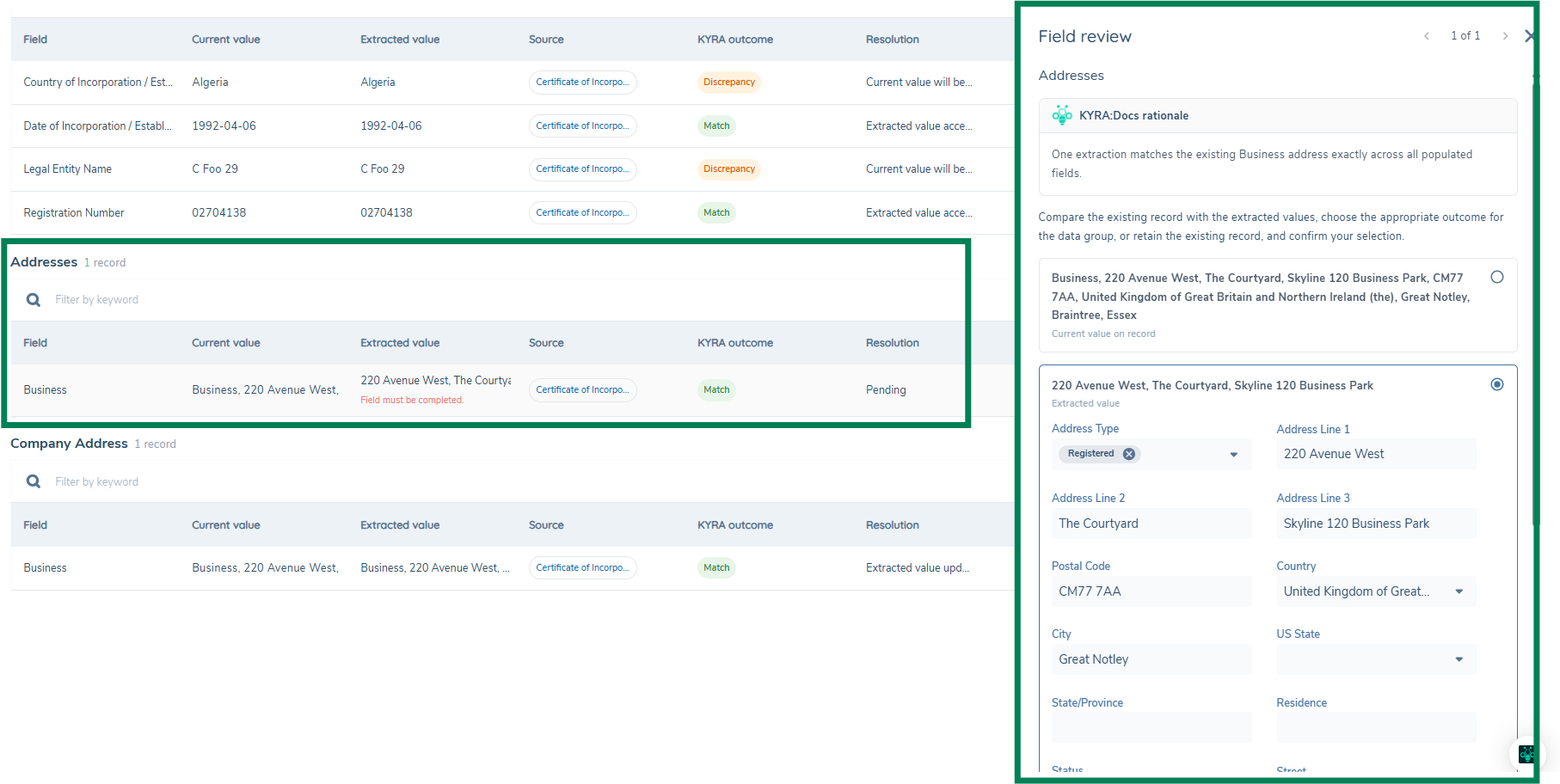
Extracted data-group records are displayed on the Entity Data tab below the individual entity fields.
Each row represents a collection of potentially matching data-group records. The table uses the same columns as the entity-field table:
- Field.
- Current Value.
- Extracted Value.
- Source.
- KYRA outcome.
- Resolution.
- Actions.
When the data group has a primary data key, the Field column displays that value. For example, an address record typically uses Address Type as its primary key.
Every displayed data-group row must be resolved before the task can be completed.
Review a data-group record
- Select Review for the data-group row.
- Review the current record, where one exists.
- Review the available extracted records.
- Choose one of the following:
- The current record.
- An extracted record.
- A custom record.
- Discard the extraction.
- Edit any fields in the extracted or custom record as required.
- Select Confirm or Confirm and Next.
No separate create or update action is required. The result depends on whether a current record exists.
Effect of each selection
| User selection | When a current record exists | When no current record exists | Resolution |
|---|---|---|---|
| Current record | Keeps the record unchanged | Not available | Current value will be kept |
| Extracted record | Updates the existing record | Creates a new record | Extracted value updated |
| Custom record | Updates the existing record | Creates a new record | Custom value captured |
| Discard | Makes no change | Makes no change | Extraction discarded |
Edit extracted or custom records
All fields in an extracted or custom data-group record can be updated before the user confirms the resolution.
If a required primary data key or another required value is missing:
- The interface informs the user that the value must be captured.
- The user cannot accept the extracted record or complete the item until the missing value is entered.
- The missing value is entered directly in the review panel.
Edit or undo a data-group resolution
After confirmation:
- Select View to review the confirmed selection.
- Select Edit to change it.
- Select Undo to clear it and return the Resolution to Pending.
The KYRA outcome remains unchanged.
Review related parties
The Related Parties tab is displayed only when Related Party Extraction Enabled is switched on.
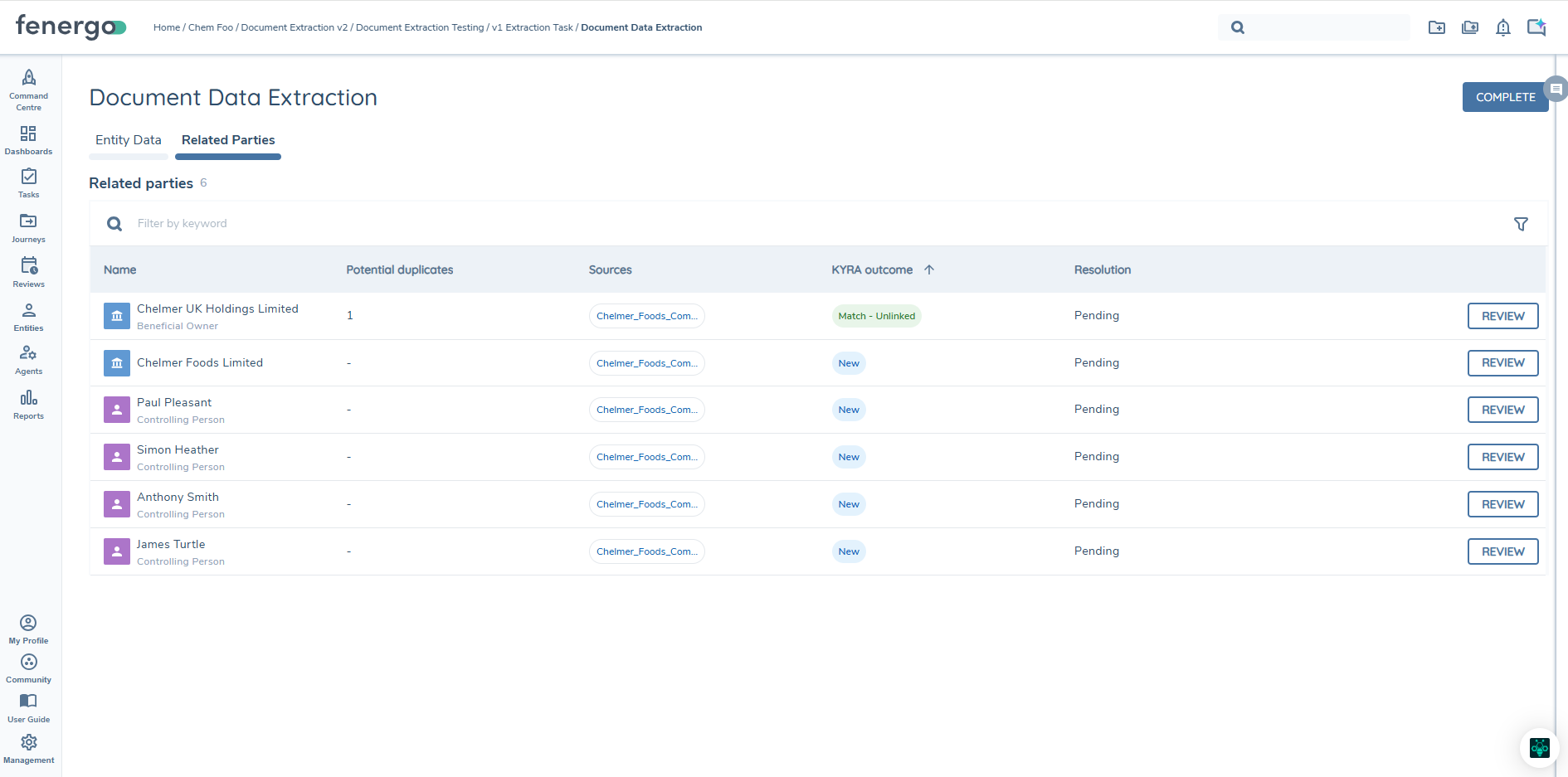
The number beside the Related parties heading shows the total number of extracted related parties in the task.
Related Parties columns
| Column | Description |
|---|---|
| Name | The related-party name, entity-type icon, and relationship role. |
| Relationship | The position of the extracted entity within the hierarchy. Where an entity has relationships to more than one parent, each relationship is displayed. |
| Potential duplicates | The number of existing entities that may match the extracted party. A dash is shown when none are returned. |
| Sources | The source document. |
| KYRA outcome | New, Match - Linked, Match - Unlinked, or Partial - Linked. |
| Resolution | The user's confirmed outcome. Initially Pending. |
| Actions | Contains Review before resolution and the relevant view/edit controls afterwards. |
Related-party outcomes
| KYRA outcome | Meaning |
|---|---|
| New | No potential duplicate was identified. |
| Match - Linked | A matching entity was identified and is already linked to the primary entity. |
| Match - Unlinked | A matching entity was identified but is not linked to the primary entity. |
| Partial - Linked | Multiple potential duplicates were identified and the returned records include a mixture of linked and unlinked entities. |
The KYRA outcome guides the review but does not force a particular decision. The user can review the returned entities and choose the appropriate outcome.
Open the related-party review panel
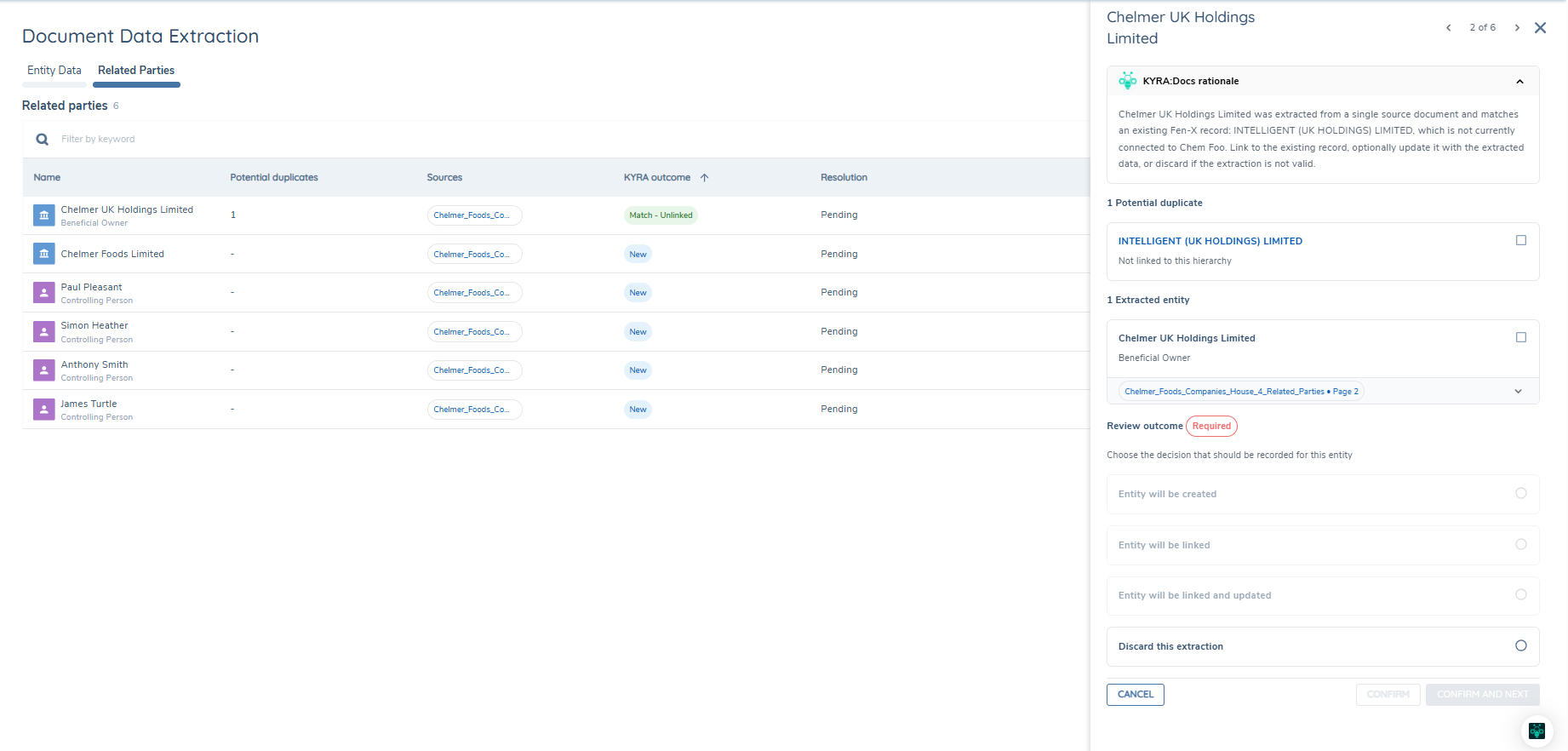
Select Review to open the right-hand panel.
The panel contains:
- The related-party name.
- Previous and next navigation with an N of M counter.
- The KYRA:Docs rationale.
- The returned Potential duplicate records.
- The Extracted entity records.
- The required Review outcome.
- Cancel, Confirm, and Confirm and Next controls.
The extracted-entity evidence shows the source document and page number.
Review outcomes
The same four decision options are displayed in the review panel for every related-party KYRA outcome:
- Entity will be created.
- Link entity with extracted associations.
- Entity will be linked and updated.
- Discard this extraction.
Options are enabled or disabled according to the records selected in the panel and whether the selected potential duplicate is already linked to the hierarchy.
How selections control the available outcomes
The review outcomes available to the user depend on whether they select an extracted entity, a potential duplicate, or both.
| Records selected | Available review outcomes |
|---|---|
| No records selected | Discard this extraction |
| Extracted entity only | Entity will be created; Discard this extraction |
| Potential duplicate only | Link entity with extracted associations; Discard this extraction |
| Potential duplicate and extracted entity | Entity will be created; Link entity with extracted associations; Entity will be linked and updated; Discard this extraction |
For a New related party, no potential duplicate is available. The user can select the extracted entity and either create it or discard the extraction.
For Match and Partial outcomes, the user can select a potential duplicate, an extracted entity, or both. This allows the user to accept an unlinked suggested match and apply the extracted associations, update the selected entity with extracted information, reject the suggested match and create a new entity, or discard the extraction.
Apply extracted associations when linking an entity
When Link entity with extracted associations is confirmed, KYRA:Docs links the selected existing entity to the journey entity and creates one relationship between them. The associations applied to that relationship depend on the extracted records selected by the reviewer:
- If no individual extracted records are selected, all supported associations represented by the extracted records in the review are applied.
- If one extracted record is selected, only the association represented by that record is applied.
- If multiple extracted records are selected, the associations represented by the selected records are applied. Associations represented only by unselected records are not applied.
- If multiple selected records represent the same association, that association is added only once.
Multiple associations are added to the same relationship. KYRA:Docs does not create a separate relationship for each association.
KYRA:Docs ignores association types that are not supported by related-party extraction. Unsupported associations are not shown to the reviewer and are not created on the relationship. Supported associations for the same entity continue to be processed normally.
Discard a related-party extraction
To discard an extracted related party:
- Select Discard this extraction.
- Enter a rejection note. At least one character is required.
- Select Confirm or Confirm and Next.
- The Resolution becomes Extraction discarded.
Edit or undo a related-party resolution
After confirmation:
- Select View to review the confirmed outcome.
- Select Edit to change it.
- Select Undo to clear the resolution and return it to Pending.
Complete the task
The task can be completed only after every displayed entity field, data-group row, and related party has a confirmed Resolution.
Standard journey
- Resolve all Entity Data items.
- Resolve all Related Parties, where the tab is enabled.
- Select Complete.
- The approved changes are applied together.
- The completed task becomes read-only.
The following are applied when the task is completed:
- Accepted or custom entity-field values.
- Data-group updates and new records.
- Confirmed related-party create, link-with-associations, and update actions.
Discarded extractions and selections that keep the current value make no change.
Maker-Checker journey
The Maker and Checker use the same task interface, KYRA outcomes, Resolution values, review panels, and actions.
The difference is when the data is written:
- The Maker reviews and resolves every item.
- The Maker selects Complete.
- The Maker task becomes read-only.
- The linked Checker task becomes active.
- No data is written to the entity or hierarchy at this point.
- The Checker sees the Maker's resolutions and can edit or undo them.
- The Checker can change a Maker-rejected item to an accepted outcome when the Checker has access to the task.
- The Checker selects Complete.
- The final set of approved changes is written.
- The Checker task becomes read-only.
A Maker cannot complete the linked Checker task. Only one Checker task can be linked to a Maker task.
Reopen or refer back the task
When a completed task is reopened or referred back, all previously recorded extraction decisions are reset. This applies even when the eligible documents and extraction results have not changed.
- The system checks document eligibility again.
- If documents are eligible, the entire eligible document set is reprocessed.
- All previous entity-field, data-group, and related-party resolutions are cleared and returned to Pending.
- Every returned item must be reviewed and resolved again before the task can be completed.
- If no documents are eligible, the task automatically completes.
Configuration Guide
Configuration scope
This section covers only configuration introduced or changed for Document Data Extraction V2. It does not repeat the wider Documents V2, document-type, journey, or permissions configuration already documented elsewhere.
The new task owns both entity-data and related-party extraction settings.
Add Document Data Extraction V2 to a journey
- Create or open a draft of the journey.
- Confirm that the journey contains a Documents V2 task.
- Add Document Data Extraction V2.
- Place it after Documents V2 as the recommended pattern. It does not need to be directly after Documents V2.
- Configure the required extraction settings.
- Save the journey draft.
The legacy Document Data Extraction task must be removed before Document Data Extraction V2 is used.
Extraction ownership validation
The new task cannot be added while extraction remains enabled on the existing extraction locations.
The Journey Builder validation message is:
Task cannot be added because extraction is enabled on one of the following tasks: Documents V2, Related Parties, or Hierarchy Capture.
Disable the existing extraction configuration and remove the V1 Document Data Extraction task before adding the new task.
Configure extraction on the new task
Document Data Extraction V2 provides the following extraction switches:
Data Extraction Enabled
Controls whether KYRA:Docs extracts entity fields and data groups for review.
- Enable the switch when entity data must be extracted.
- Leave it disabled when the task is used only for related-party extraction.
Related Party Extraction Enabled
Controls whether KYRA:Docs extracts related parties for review.
- When enabled, the Related Parties tab is displayed.
- When disabled, the Related Parties tab is hidden completely.
At least one extraction type must be enabled for the task to return reviewable information.
Configure Current Journey Only
The Current Journey Only switch is configured on Document Data Extraction V2.
When enabled, only documents uploaded in the current journey are eligible for extraction. Documents carried over from an earlier journey are excluded.
Use this setting when findings from documents reviewed in a previous journey should not be presented again.
Configure Default to Existing Value
The Default to Existing Value switch is available on Document Data Extraction V2 and is disabled by default.
It controls the value initially selected when the user reviews a Discrepancy:
- Disabled: the first extracted value is selected.
- Enabled: the current value is selected when one exists.
- Enabled with no current value: the first extracted value is selected as the fallback.
This setting affects only the initial selection. The user can choose any other available value before confirming.
Document-type configuration used by V2
Document Data Extraction V2 continues to use the applicable document-type extraction configuration.
The Extract from most recent version only setting remains in the document-type configuration. When enabled, only the most recently uploaded document of that type is considered for extraction.
This guide does not repeat the remaining document-type configuration that is unchanged from the existing process.
Configure Maker-Checker
Maker-Checker is configured by linking a separate Checker task to Document Data Extraction V2 in Journey Builder.
The configuration rules are:
- Only one Checker task can be linked to a Maker task.
- A user acting as the Maker cannot complete the Checker task.
- The Maker and Checker use the same Document Data Extraction V2 interface and statuses.
- The Maker's completion does not write any extracted data.
- The final write occurs only after the Checker completes the linked task.
Migrate from Document Data Extraction
To replace the legacy Document Data Extraction task:
- Create a draft of the existing journey.
- Remove the legacy Document Data Extraction task.
- Add Document Data Extraction V2.
- Apply the required V2 extraction settings.
- Validate and publish the new journey version.
Active journeys continue to use the journey version and task configuration with which they were created. New journeys use the newly published version.
Behaviour and Status Reference
Entity-field reference
KYRA outcomes and quick actions
| KYRA outcome | Meaning | Quick actions before resolution |
|---|---|---|
| New | No current equivalent was identified. | Accept, Reject, Review |
| Match | The extracted value matches the current value. | Accept, Reject, Review |
| Discrepancy | The extracted value differs from the current value, or conflicting values were extracted. | Reject, Review |
Selecting Reject opens the review panel with Discard this extraction already selected. The user enters a reason and confirms; no additional outcome selection is required.
Entity-field resolutions
| Resolution | Meaning | Result at completion |
|---|---|---|
| Pending | No decision has been confirmed. | Blocks task completion. |
| Extracted value accepted | The extracted value was selected. | The selected extracted value is written. |
| Current value will be kept | The existing value was selected. | No change is made to the field. |
| Custom value captured | The user entered a replacement value. | The custom value is written. |
| Extraction discarded | The extracted result was rejected. | No change is made to the field. |
Data-group reference
Data-group behaviour
| Selection | Existing record present | No existing record | Resolution |
|---|---|---|---|
| Current record | Keep unchanged | Not available | Current value will be kept |
| Extracted record | Update existing record | Create new record | Extracted value updated |
| Custom record | Update existing record | Create new record | Custom value captured |
| Discard | No change | No change | Extraction discarded |
The KYRA outcome remains fixed after the user edits or selects a record.
Every displayed data-group row must have a confirmed Resolution before completion.
Related-party reference
Related-party KYRA outcomes
| KYRA outcome | Meaning |
|---|---|
| New | No potential duplicate was returned. |
| Match - Linked | A matching entity is already linked to the primary entity. |
| Match - Unlinked | A matching entity is not linked to the primary entity. |
| Partial - Linked | The returned duplicates contain a mixture of linked and unlinked entities. |
Review-outcome enablement
| Selection state | Create | Link entity with extracted associations | Link and update | Discard |
|---|---|---|---|---|
| No record selected | No | No | No | Yes |
| Extracted entity only | Yes | No | No | Yes |
| Potential duplicate only | No | Yes | No | Yes |
| Potential duplicate and extracted entity | Yes | Yes | Yes | Yes |
The Link entity with extracted associations outcome is disabled when the selected potential duplicate is already linked to the hierarchy.
Association application rules
| Extracted-record selection | Associations applied |
|---|---|
| No extracted records selected | All supported associations represented in the review |
| One extracted record selected | Only the association represented by the selected record |
| Multiple extracted records selected | The associations represented by the selected records |
All applicable associations are added to one relationship between the selected existing entity and the journey entity. Duplicate associations are created only once.
Hierarchy write behaviour
When the task is completed, parent-child relationships are preserved across all levels of the hierarchy. An entity accepted at any level is linked to its parent entity, provided the parent entity is also accepted.
Note — discarding a parent entity affects child entities in the same extraction. Without the connecting parent, the parent-child relationship cannot be created or updated. The specific impact depends on the review outcome selected for the child:
- Child accepted as a new entity — the child entity is created, but it is not linked into the hierarchy. The user will need to manually link the child entity after the task is completed.
- Child accepted as a link to an existing entity — no action is applied, because the parent entity through which the relationship would be created is not available.
Unsupported association types
The following association types are excluded from related-party extraction:
- GroupParent
- GroupChild
- Product
- ProductCollateral
- ProductToProduct
- Collateral
- AssetCollateral
- AssetEntity
- Deal
- DealProduct
- DealCollateral
- AgencyRequest
- TransferAgency
An excluded association is not presented to the reviewer and is not created on a relationship. Supported associations extracted for the same entity continue to be processed normally.
Completion and write behaviour
Completion gate
The task may only be completed when all items have been resolved.
Standard task
When the standard task is completed:
- Approved changes are written together.
- Selections that keep the current value make no change.
- Discarded extractions make no change.
- If the operation fails, no partial changes are retained.
Maker-Checker task
- Maker completion records the proposed final resolutions but does not write data.
- The Maker task becomes read-only.
- The Checker can edit or undo the Maker's resolutions.
- Checker completion writes the final approved changes.
Automatic completion
The task is automatically completed when:
- No documents are eligible; or
- Extraction returns no reviewable information.
End of guide.