KYRA:Report User Guide
KYRA:Report
KYRA:Report is an Automation agent for governed reporting from Fenergo's client lifecycle System of Record that lets users build, run, and interpret reports using natural language. Instead of writing SQL manually in Advanced Reporting, users can describe the required information in plain language and KYRA:Report generates the underlying query, runs it, and returns the results — ready to preview, refine, save, schedule, or analyse.
KYRA:Report offers
- Natural-language query generation: Turn natural-language request — for example, “show me all high-risk clients due for a periodic review in the next 60 days” — into a validated report query, with no SQL knowledge required.
- Conversational refinement: Work with KYRA:Report in a chat interface to adjust filters, add columns, and re-run a report until it returns exactly what is needed.
- Persistent history: Conversations and generated queries are saved, so you can resume a session, revisit a previous request, or reuse a query later.
- Integrated scheduling: KYRA:Report can work with the report scheduler and can set up recurring, scheduled deliveries directly from the conversation.
Configuring KYRA:Report
To use KYRA:Report, Advanced Reporting must be configured in your tenant. KYRA:Report generates and runs Advanced Reporting queries, and binds to the same reporting schema and permissions. Refer to the Advanced Reporting in Fenergo user guide for setup instructions.
- Confirm Advanced Reporting is set up: KYRA:Report relies on your tenant’s reporting schema and saved queries. If Advanced Reporting is not yet set up, complete that configuration first.
- Enable the agent for your tenant: KYRA:Report is rolled out under a tenant-level feature toggle. If the agent is not visible, contact your Fenergo administrator or Customer Success representative to have it enabled.
KYRA:Report is subject to Fenergo’s agent guardrails. It only generates read queries against your reporting schema and respects the same access-layer security applied to Advanced Reporting, so users can never retrieve data they are not permitted to see.
Using KYRA:Report
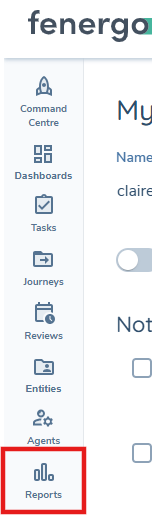
Once KYRA:Report is enabled, users can generate and run reports conversationally from the Reports area.
Generating a report from a natural-language prompt
- Open KYRA:Report: Select Talk to KYRA

- Describe the report you need: Type a request describing the data required. Be specific about the entity type, risk level, status, and any timeframe. For example: “Show me all high-risk clients due for a periodic review in the next 60 days.”
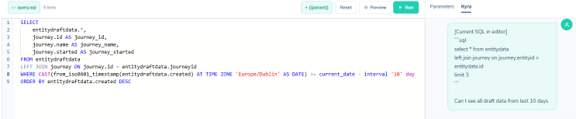
- Review the generated query and preview:KYRA:Report interprets your request, resolves the relevant schema and parameters, and returns the query it has generated together with an inline preview of the results.
- Refine the report conversationally: Ask follow-up questions to adjust the report — for example, “only include entities in EMEA” or “add the assigned analyst and last review date.” KYRA:Report updates the query and re-runs the preview.
- Run, save, or schedule the report: When you are happy with the results, save and run the full report to view it in the report viewer, save the query so it appears in your History and Saved Queries, or ask KYRA:Report to schedule it for recurring delivery.
Scheduling a report with KYRA:Report
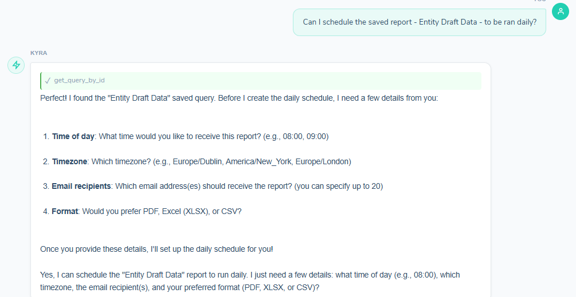
KYRA:Report uses the report scheduler to turn a generated report into a recurring, scheduled delivery. KYRA:Report will confirm the frequency, time zone, delivery format, and recipients.
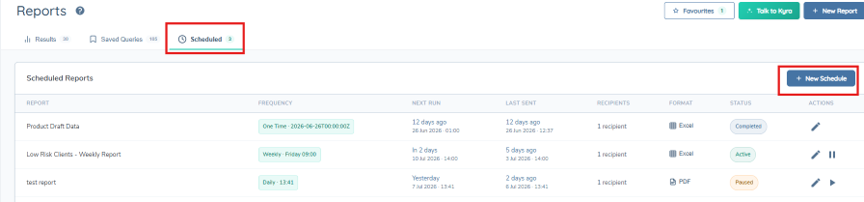
Scheduled reports can be managed in the Scheduled tab. Users can edit, pause and resume scheduled reports. Schedules can also be set manually through the New Schedule button.
Viewing the Report within Fenergo
From Recent Reports or the History of a specific query, the View Results button allows the user to view the entire report without leaving Fenergo. Here users can also:
- Add specific filters
- Edit column layout
- Create groupings
- Create pivot tables
KYRA Insights
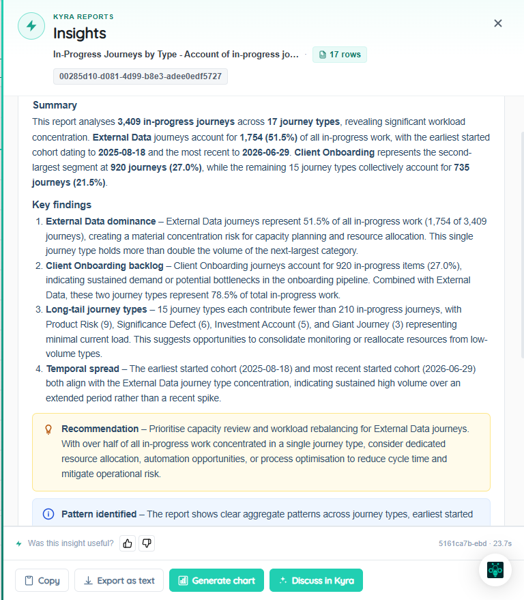
KYRA Insights can analyse a completed report’s results, through a KYC, AML, risk, and compliance analytical lens. KYRA Insights can be accessed through the KYRA Insights button in the Report Results view.

The Insights panel appears on the right and contains an in-depth analysis of the ran report including a summary, key findings, recommendations, patterns identified, recommended charts and suggested new steps. From this panel, users can also generate reports based on findings and discuss the analysis with KYRA. It does not ingest live data beyond the results in the specific report.
Best Practices
- Start with clear, specific prompts. Include the entity type, risk level, status, and timeframe so KYRA:Report can generate an accurate query the first time.
- Review the generated query and preview before running a full report or scheduling it, especially for regulatory reporting.
- Save and categorise the reports you use most often so they are easy to find, re-run, and reuse on a dashboard.
- Use Reports Insights on completed reports to speed up review but confirm findings against source data before acting on them.