KYRA:Policy User Guide
KYRA:Policy
KYRA:Policy automatically turns policy documents into structured, actionable policies. It analyses an uploaded PDF, extracts data and document requirements, and compares them against existing Fenergo Policy configuration — presenting the results in a structured, exportable format for analyst review.
Like all Fenergo Digital Agents, KYRA:Policy is designed with full explainability and human-in-the-loop governance. Every extracted requirement includes the Agent's reasoning, a confidence level, and a direct reference to the source document so analysts can validate results at any point.
KYRA:Policy offers:
- Automated Requirement Extraction — Analyses uploaded policy PDFs and extracts data, document, ownership, and related party requirements — classified by entity type, field type, and confidence level.
- Source Transparency — Every extracted requirement includes a confidence level, a natural language explanation of why it was identified, a page reference, and the supporting text snippet from the original document.
- Fenergo Policy Comparison — Compares extracted requirements against existing Fenergo Policy configuration with an AI-generated comparison summary for each requirement.
- Structured Export — Results from both the Extracted Requirements and Comparison screens can be exported to Excel for offline review, audit, or internal sign-off.
- History and Audit Trail — Maintains a complete record of every analysis run, with status tracking and user attribution.
Using KYRA:Policy
KYRA:Policy must be enabled for your Fenergo tenant before it can be used. Policy v2 is required, but enabling Policy v2 does not automatically enable the KYRA:Policy — it must be activated separately per tenant. KYRA:Policy can only be enabled on one tenant at a time. Users must also have the appropriate permissions to access the KYRA:Policy. Contact your Fenergo representative to have KYRA:Policy enabled on your tenant.
1. Upload a Policy Document
Navigate to KYRA:Policy from the Policy Configuration screen. KYRA:Policy opens as a chat-style interface and introduces itself:
"Hello! I'm KYRA:Policy. I can help you turn policy documents into structured, actionable policies. Upload your documents below to get started. Currently supports PDF format only."
Upload a PDF policy document using the upload area in the interface. The uploaded file is displayed as a card in the chat, confirming receipt before analysis begins.
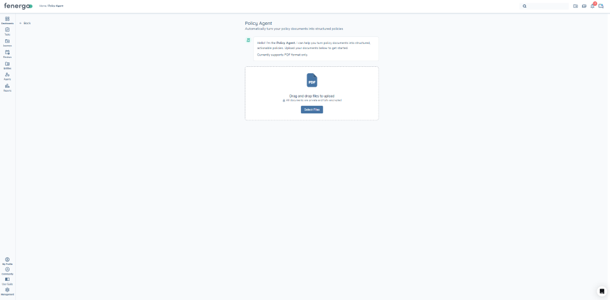
Only PDF format is supported. One document can be uploaded per analysis session. Documents must be 150 pages or fewer in length.
2. Monitor the Analysis
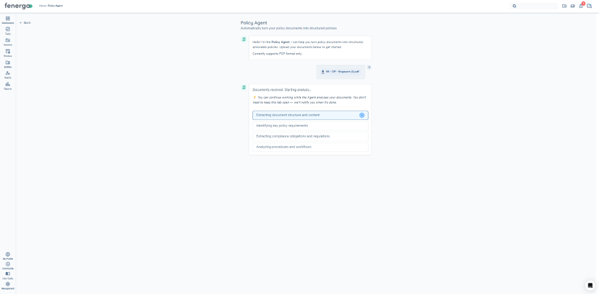
Once the document is uploaded, the Agent confirms receipt and begins analysis immediately:
"Documents received. Starting analysis…"
The interface displays a set of progress steps showing exactly what the Agent is doing in real time:
- Extracting document structure and content
- Identifying key policy requirements
- Extracting compliance obligations and regulations
- Analyzing procedures and workflows
The active step is highlighted as it runs. You do not need to keep the tab open — the Agent will notify you when the analysis is complete.
3. Review Extracted Policy Requirements
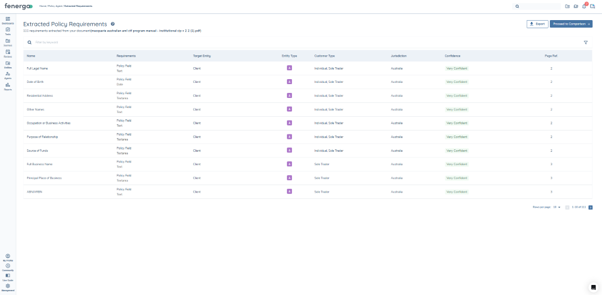
Once analysis is complete, the Extracted Policy Requirements screen displays the full list of requirements identified by the Agent. The screen shows a count of total requirements extracted along with the source document name. Each row represents a single requirement.
The following columns are displayed:
- Name — the requirement identified by the Agent.
- Requirements — the requirement type (e.g. Policy Field) and the field type (e.g. Text, Date).
- Target Entity — the entity the requirement targets, such as Client or Related Party.
- Entity Type — the type of legal entity the requirement applies to, such as Individual or Company.
- Customer Type — the customer classification associated with the requirement, such as Individual or Sole Trader.
- Jurisdiction — the applicable jurisdiction.
- Confidence — the Agent's confidence level: Very Confident, Confident, or Requires Review.
- Page Ref. — the page number in the source document where the requirement was found.
Use the Filter by keyword search bar or the filter icon to narrow results. Duplicate requirements identified across the document are automatically de-duplicated.
Requirement detail panel
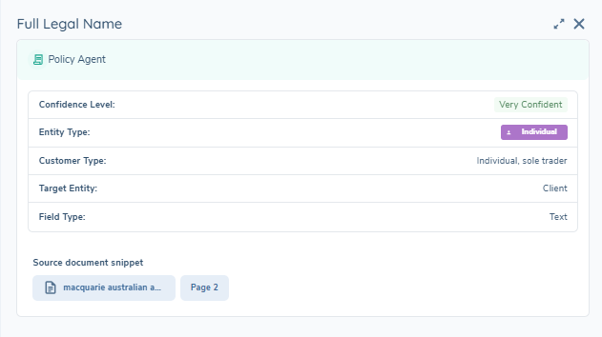
Select any row to open a side panel showing the full detail for that requirement: Confidence Level, Entity Type, Customer Type, Target Entity, Field Type, and a Source document snippet showing the document name and page reference.
Confidence levels
The Confidence column indicates how certain the Agent is about each extracted requirement:
- Very Confident — the requirement is unlikely to need correction.
- Confident — a quick check is recommended.
- Requires Review — the Agent has flagged uncertainty. These requirements should always be validated against the source document before proceeding.
Exporting extracted requirements
Select the Export button at the top right of the screen to download the full list as an Excel file. Select Proceed to Comparison to move to the next step.
4. Review the Policy Comparison
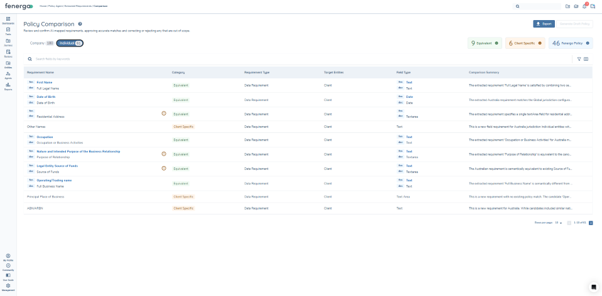
Select Proceed to Comparison from the Extracted Policy Requirements screen to compare extracted requirements against existing Fenergo Policy configuration. The screen presents each requirement alongside the relevant Fenergo configuration, with an AI-generated comparison summary for each row. Use the Company and Individual tabs to filter the view by entity type, or search by keyword using the search bar.
Each requirement is categorised as one of:
- Equivalent — the extracted requirement aligns with an existing Fenergo Policy requirement. Equivalent pairs show the Fenergo field (fen chip) alongside the document requirement (doc chip).
- Client Specific — present in the client policy but not in the existing Fenergo Policy configuration.
- Fenergo Policy — existing Fenergo Policy fields shown as read-only context. These rows can be filtered from the view using the filter options.
Comparison side panel
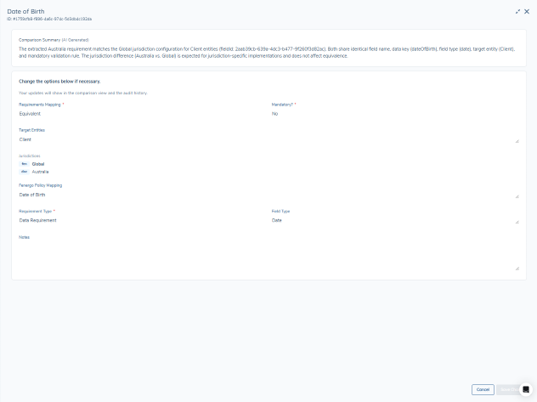
Select any requirement row to open the side panel. The panel displays the full requirement detail including the AI-generated Comparison Summary, Requirements Mapping, Mandatory status, Target Entities, Jurisdictions, Fenergo Policy Mapping, Requirement Type, and Field Type. This is currently a read-only view.
Exporting the comparison
Select the Export button at the top of the Comparison screen to download the results as an Excel file. The export includes requirement name, category, classification, field type, and AI comparison summary.
History of KYRA:Policy Operations
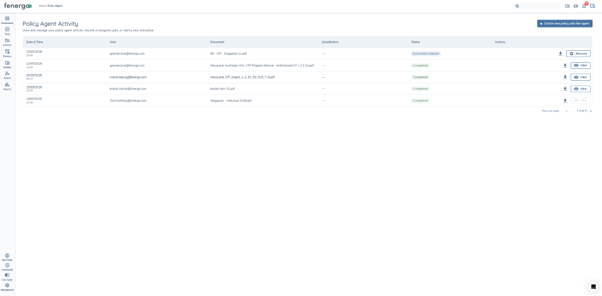
The KYRA:Policy grid on the Policy Configuration screen provides a complete record of all analyses run for the current policy or jurisdiction.
Each entry in the grid shows:
- Date/Time — when the operation was started.
- User — who initiated the analysis.
- Document — the name of the uploaded policy document.
- Jurisdiction — the jurisdiction associated with the analysis.
- Status — In Progress or Complete.
- Actions — Resume to continue an in-progress analysis, or View to open a completed analysis.
What KYRA:Policy Does Not Do
To ensure clarity of scope, KYRA:Policy currently does not:
- Support multiple document uploads simultaneously within a single analysis session.
- Support file formats other than PDF.
- Process documents exceeding 150 pages in length.
- Interpret complex conditional logic structures within policy documents.
- Interpret decision trees or advanced policy diagrams.
- Automatically compare two separately uploaded client policy versions.
- Maintain a persistent version history of uploaded documents — each upload is analysed independently.
Technical Details
Underlying technology. KYRA:Policy is built on Fenergo's Digital Agents platform, integrating a Large Language Model (LLM) with Fenergo's policy engine and CLM data model. The pipeline covers document ingestion, requirement extraction and classification, and Fenergo Policy comparison.
Confidence scoring. Each extracted requirement is assigned a confidence level based on the clarity of the source text, the consistency of the extraction, and the specificity of the requirement. Confidence levels guide analyst review — requirements marked Requires Review should always be validated against the source document.
Data handling and privacy. Uploaded documents and extracted requirements are processed in accordance with Fenergo's data privacy and security controls. All Agent decisions are logged within Fenergo's standard audit infrastructure.