Digital ID&V
What is ID&V
ID&V stands for Identification and Verification, two closely related concepts that play a critical role in client onboarding.
- Identification involves collecting information, typically a government-issued documentation such as a passport, that establishes the identity of a person or entity.
- Verification answers the question: Is this person who they claim to be?
The identification of clients and entities, along with the verification of their documentation, is a fundamental Know Your Customer (KYC) regulatory requirement and a key step in the client onboarding process for financial institutions.
Fenergo SaaS provides a native digital Identification & Verification (ID&V) solution. Through the Fenergo Portal, users submit a valid identity document and complete a selfie capture. A series of verification checks are then perfomred to confirm the individual's identity, including:
- Verifying the authenticity of the document.
- Ensuring the person in the selfie matches the individual in the document.
- Confirming that the captured personal details align with those of the document.
Completing ID&V in the Fenergo Portal
Fenergo SaaS ID&V solution requires a user to verify their identity via the Fenergo Portal. In verifying their Identity a user will need to complete the applicable steps.
-
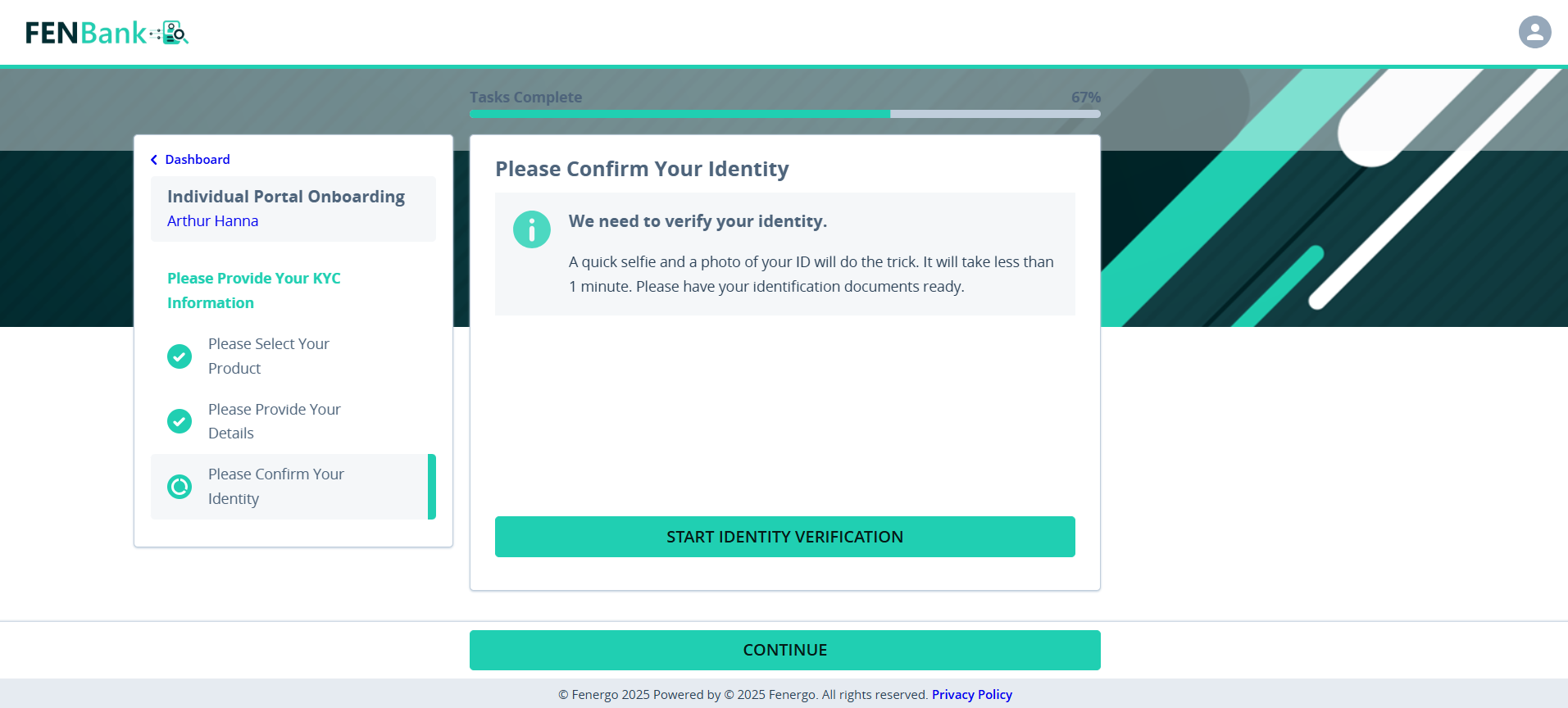
Start Identity Verification: When completing Identity Verification, the user is first displayed the Identity Verification Landing Page. On this task the user must select Start Identity Verification. It is not possible to continue the journey without completing ID&V.
-
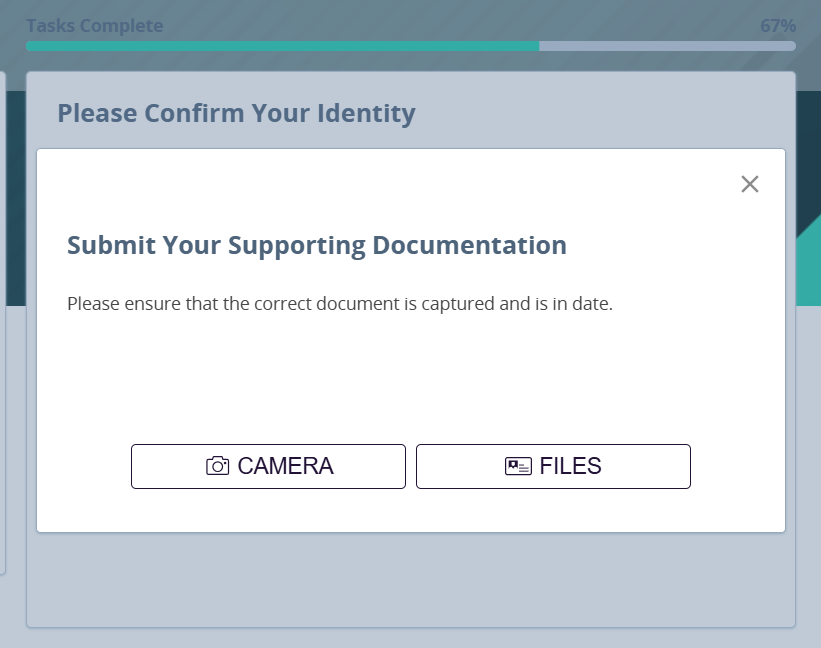
Document Capture: Having selected Start Identity Verification the user will then be displayed the Document Capture screen. On this screen the user must select the applicable method (Camera or Files) to capture their Identity Document. Having selected the document capture method, the user must then upload or capture a live image of the document. The method of document capture can be configured through the Identity Verification settings. Requiring users to capture a live image of their ID enhances the security of the identity verification process.
-
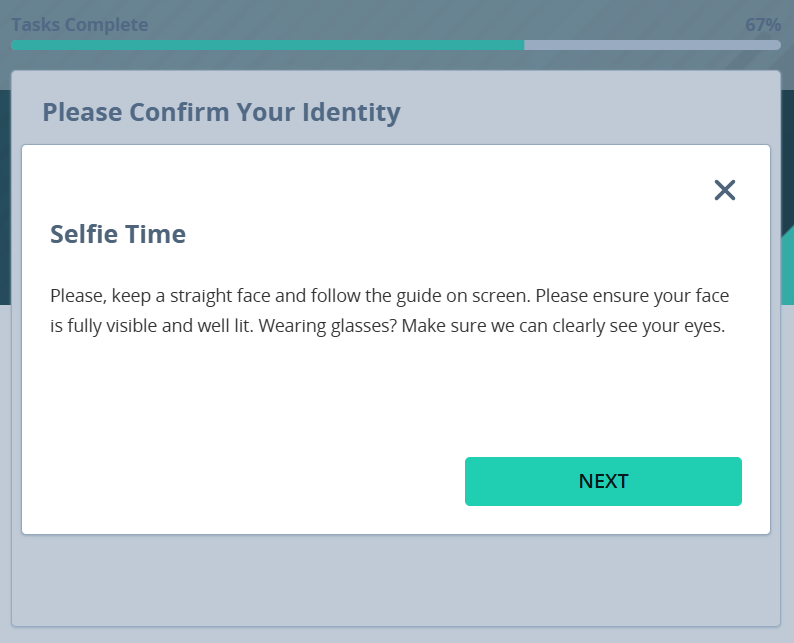
Selfie Start Screen: Having upload or captured a live image of the document the user will then be displayed the Selfie Start Screen. This page includes tips on how to capture the selfie. The user must select Next to launch the Selfie capture and in doing so it will launch the selfie capture window where the user will be instructed to capture their selfie via the camera available.
-
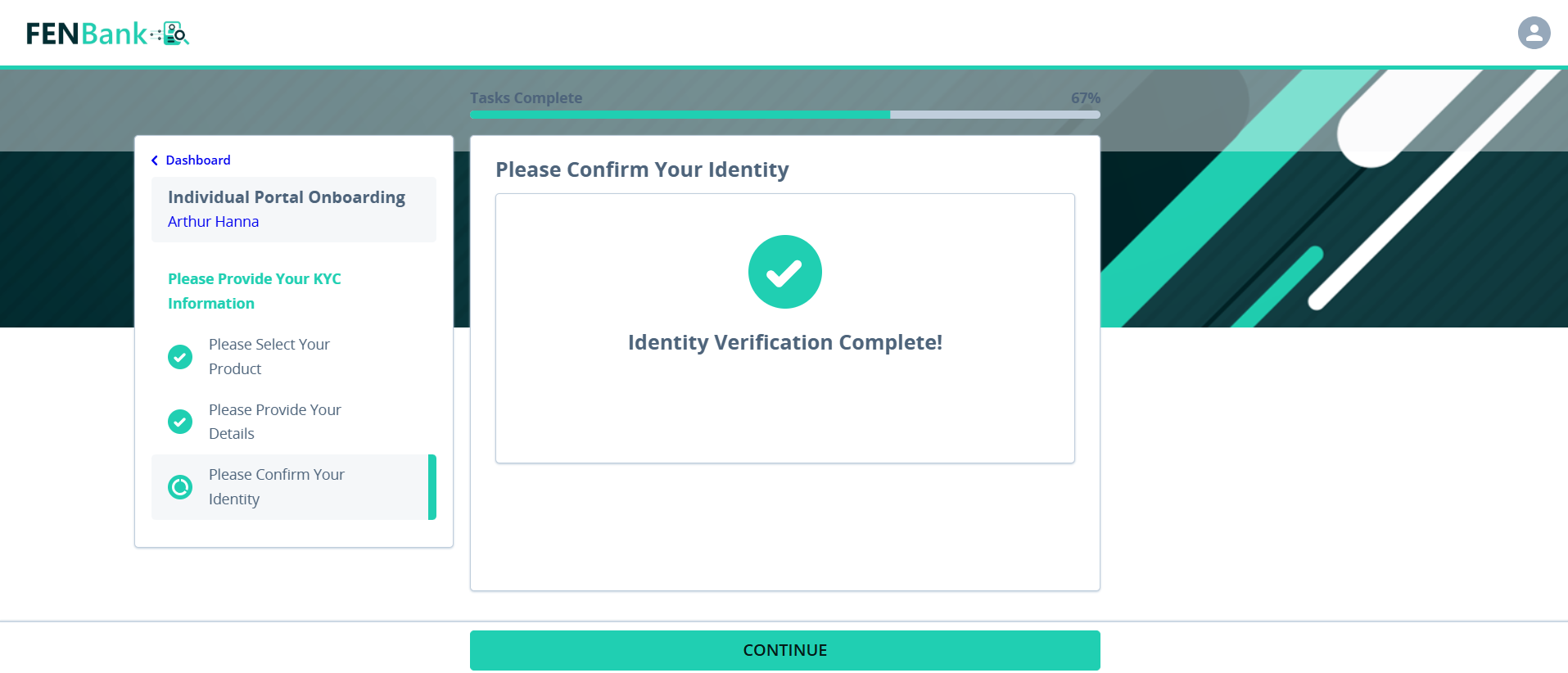
Identity Verification Complete: On completion of Identity Verification, the user will be displayed Identity Verification Complete and on selecting Continue the task will be completed. When completing ID&V the steps to be taken by the user and the title and messaging displayed are all dependent on the Identity Verification configuration applied.
Retry of Identity Verification
On completing the selfie, the document capture and identity are then verified by Fenergo SaaS. If any of the document verification checks fail the user will be asked to retry identity verification.
The number of retry attempts is dependent on the identity verification configuration. Once the max attempts is reached, if identity verification fails on the last attempt, the user will be presented with Identity Verification Complete screen and will then be able to complete the task. The results of the last completed attempt will be available from the Individual ID&V Review task in Fenergo SaaS.
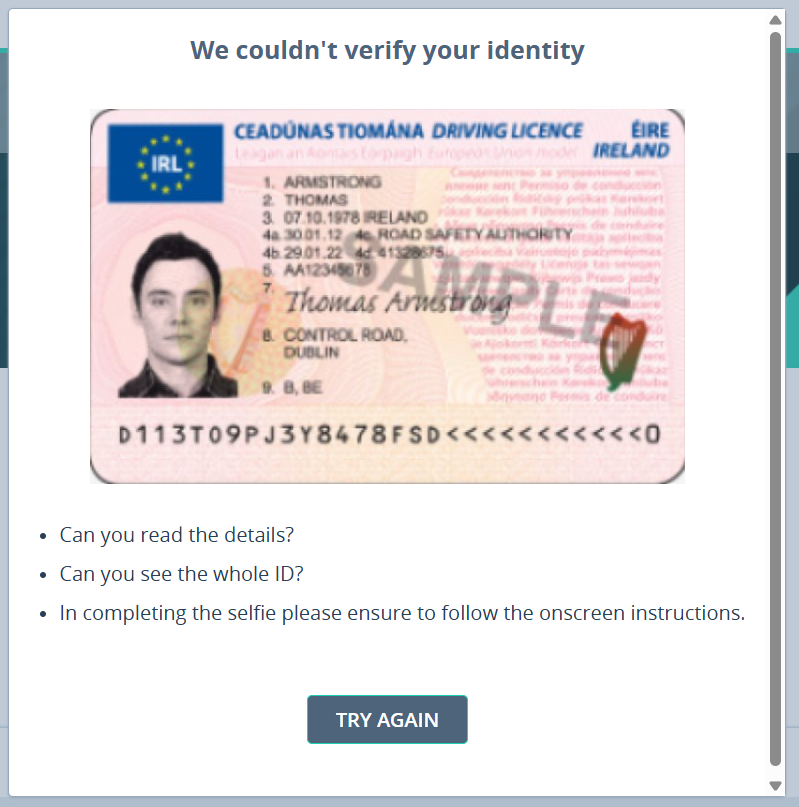
It is not possible for a user to recomplete / reaction ID&V once it has been fully processed. If the portal task is reopened it will show the Identity Verification Complete page.
Image Capture Requirements
These guidelines help portal users capture images that pass document checks and maximize OCR accuracy during ID&V. They apply to all capture methods (camera or file upload) and directly influence the Image Quality Processing and related checks surfaced in the ID&V Review task.
Minimum Specs & Targets
- Resolution: at least Full HD (1920×1080) with autofocus enabled.
- Document coverage: document should occupy 70–80% of the image frame; all four edges visible.
- Tilt/angle: no more than ±10° in either horizontal or vertical axis.
- Margins: surrounding background space ≤20–30% of the image; avoid both excessive and tiny margins.
- Contrast: document must clearly contrast with the background (e.g., light document on dark background).
Capture Do’s & Don’ts
Lighting
- Do: use bright, even, diffuse light; face a window or use overhead ambient light.
- Don’t: capture images that are too dark/bright; avoid using flash (it creates glare).
Reflections & Glare
- Do: adjust the light source angle (not the document) to remove hot spots.
- Don’t: capture with visible reflections, glares, or shiny highlights on security features.
Focus & Sharpness
- Do: let the camera autofocus and hold still for 1–2 seconds; re-focus if any area looks soft.
- Don’t: submit images with motion blur, soft corners, or out-of-focus text.
Angle & Alignment
- Do: hold the camera parallel to the document; keep edges straight and parallel to the frame.
- Don’t: tilt or skew beyond 10°, or capture at an oblique angle that causes perspective distortion.
Framing & Margins
- Do: fill 70–80% of the frame with the document; keep all edges fully visible.
- Don’t: crop off corners/edges or leave excessive empty background.
Contrast & Background
- Do: place the document on a plain, contrasting surface (e.g., dark desk for light IDs).
- Don’t: use patterned, glossy, or same-color backgrounds that reduce legibility.
Extraneous Objects
- Do: keep hands/objects away from text, MRZ, portrait, holograms, and barcodes.
- Don’t: cover data with fingers, sleeves, clips, or sticky notes.
Distortion (Passports/Booklets)
- Do: flatten the page; keep the spine open enough to avoid curvature; ensure all fields are visible.
- Don’t: capture pages that curl, bow, or clip details near the gutter.
Reviewing the ID&V Outcome
The submitted ID&V and its results are surfaced in Fenergo SaaS in the Individual ID&V Review task. This task consists of several cards that presents the detail of the ID&V outcome to the user to enable them to either approve or reject the ID&V outcome.
The following cards and details are displayed in the task:
Document Results & Face Match
This card contains the following elements;
- Document Images: Front side of the ID, isolated portrait of the individual from the document, and signature (if available).
- Facial Comparison and Percentage Result: Images used for facial comparison, isolated portrait of the individual, and the overall percentage match.
- Reviewer Status: The overall status of the application as actioned by the reviewer based on the ID&V results.
- Pending Review (Not yet actioned)
- Approved
- Rejected
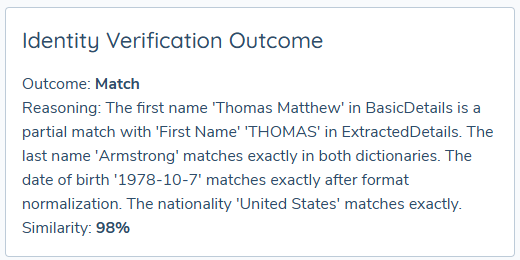
Results
This card contains the following elements;
- ID&V Status: Calculated status dependent on the checks having passed or failed. All checks must pass for it to be a success. This includes the Identity Verification Outcome.
- Attempted on Date: Date and time as to when the submitted and processed ID&V was actioned.
- Task Started Date: Date as to when the ID&V task was started by the user in the Fenergo Portal
- ID&V Results: The ID&V Results provides a summary of the key verification steps performed during the identity verification process. Each check contributes to confirming the authenticity of the submitted identity document and the legitimacy of the person presenting it. The checklist includes the following components
- Facial Comparison
- Matches the user's captured selfie with the photo on the submitted identity document. This biometric verification ensures that the person presenting the document is the rightful owner.
- Document Liveness Check
- The Document Liveness Check ensures that the submitted identity document is a physical, authentic document and not a manipulated image or photocopy.
- Image Quality Processing
- Evaluates the submitted images for clarity, brightness, and framing to ensure they meet verification standards.
- Document Security Checks
- Ensures the ID includes required security features, such as holograms, watermarks, or embedded patterns, helping to prevent the acceptance of fraudulent documents.
- Text Fields
- Assesses whether the text on the submitted document is clear and legible. This is critical for extracting personal information accurately and verifying document authenticity.
- MRZ (Machine Readable Zone) Verification
- Verifies the presence and readability of the Machine Readable Zone on applicable documents, such as passports or national IDs. This zone provides structured data that can be validated against expected formats and cross-checked for authenticity.
- Document Type Identified
- Determines the type of identity document submitted (e.g. passport, national ID, driver’s licence). This classification helps ensure the document meets the expected format and regulatory requirements for verification.
- Document Security Checks
- Ensures the ID includes required security features, such as holograms, watermarks, or embedded patterns, helping to prevent the acceptance of fraudulent documents.
- Document Not Expired
- Verifies whether the submitted identity document is still valid and in date. If the document is expired the check will fail.
- Number of Attempts: This refers to the number of times taken by a user to complete the identity verification. If any of the ID&V checks fail the user will be asked to retry ID&V. The number of retries allowed is dependent on the Max Attempts defined in the ID&V configuration
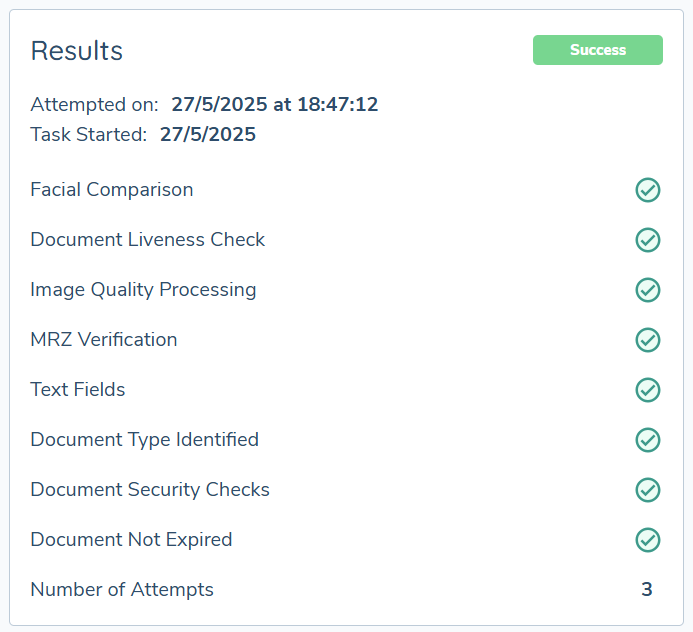
Identity Verification Outcome
Identity Verification Outcome is determined by AI and is designed specifically to assess the details captured for an individual under the Basic Details category against those extracted from the submitted document. In completing the assessment, it will return the following information:
- Outcome: This indicates whether the verification was a Match, Partial Match, or No Match.
- Reasoning: A breakdown of why the outcome was reached. This may include a field-by-field comparisons such as last name, first name, date of birth, and nationality where there is a match. Discrepancies or partial matches are highlighted to explain why a full match was not possible.
- Similarity: A percentage score that quantifies how similar the Basic Details are to the Extracted Details.
- If the outcome is a Partial Match or No Match, the overall ID&V Status will be set as Failed.
- Identity Verification Outcome is not assessed as part of the maximum number of retries allowed for document submission.
Reviewer Summary
When approving or rejecting an ID&V request, the user must select an approval reason and may optionally provide a comment. The Reviewer Summary Panel displays the details of the approval or rejection action, including:
- Email of the reviewer
- Approval or rejection status
- Date the action was taken
- Selected reason
- Any comments provided
Once approved or rejected the task is completed, and the Reviewer Summary is populated with this information. If the task is later reopened, the original commentary will still be retained. When the user completes the reopened task with an approval or rejection, their new commentary will be added to the top of the summary, preserving the history of previous entries.
Similarly, if multiple review tasks are completed (e.g., in a multi-level approval flow), each subsequent approval or rejection will be added to the top of the summary, allowing users to view all prior comments and decisions in reverse chronological order.
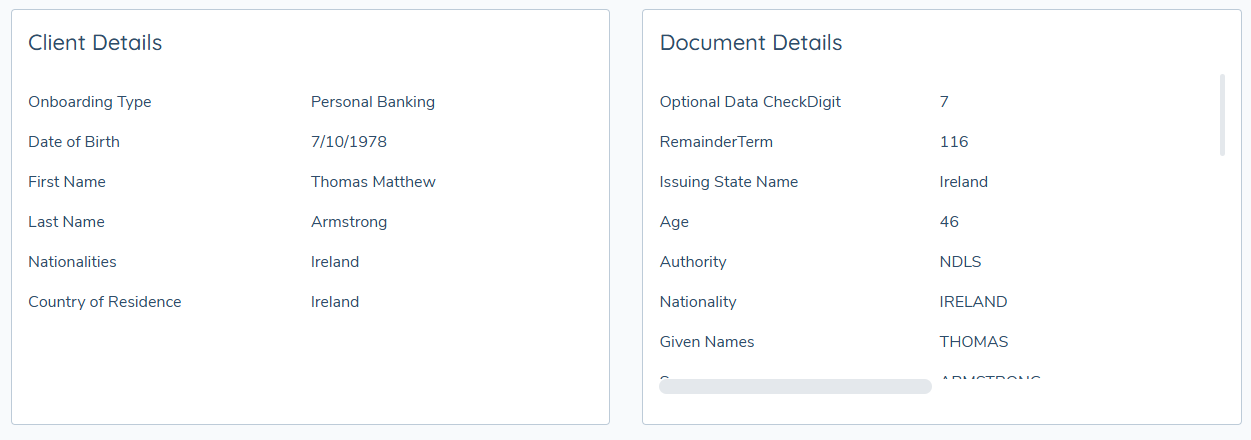
Basic Details
The basic details section displays the values as captured under the basic details section for the entity.
This does not currently include data groups captured under basic details.
Document Details
This displays the text as read from the document that was submitted including the document type if available.
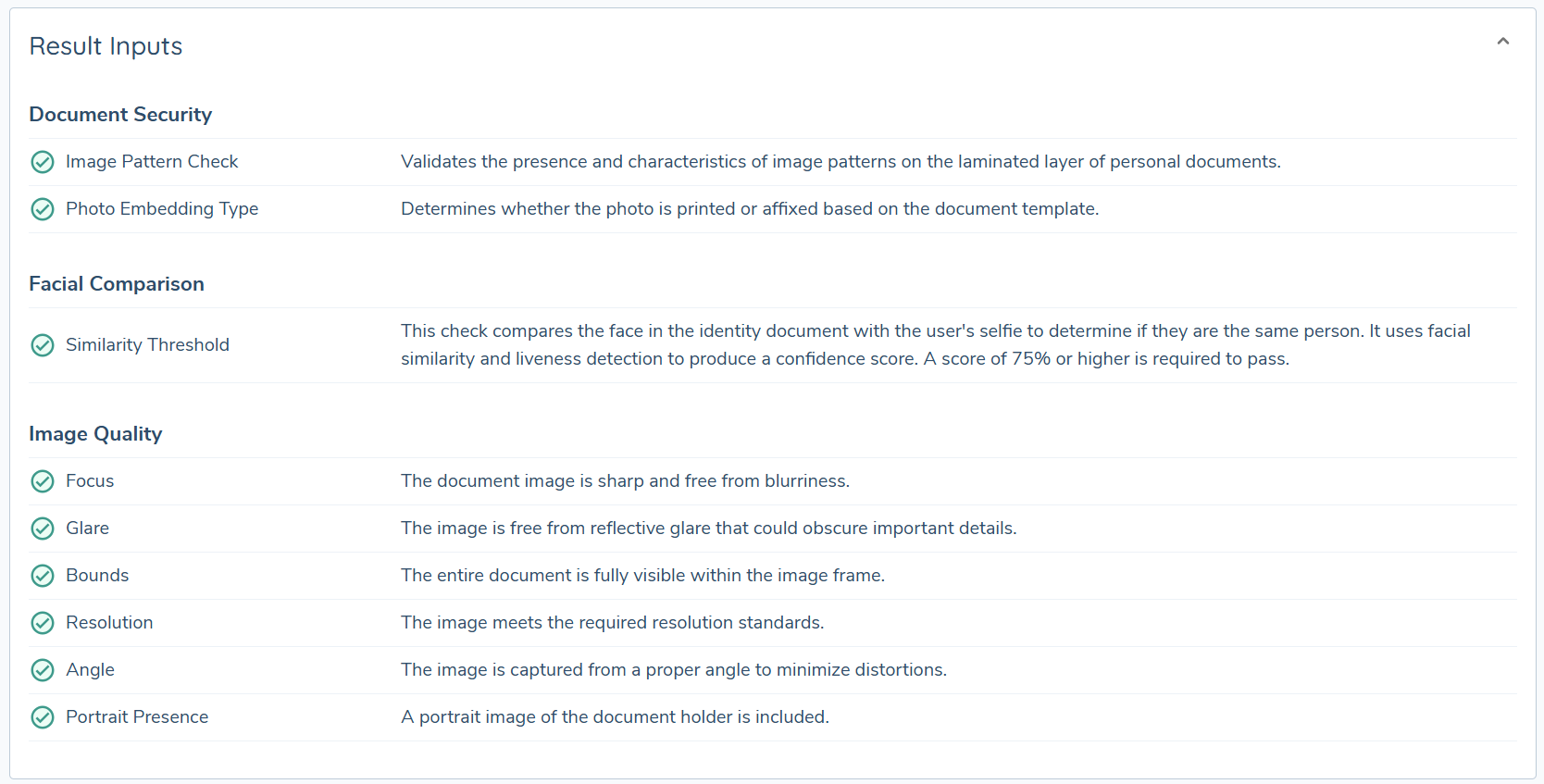
Result Inputs
The card displays a list of checks grouped under the heading of the parent-related checks, as shown in the Results Card.
Approving or Rejecting ID&V
From the ID&V task the user can approve or reject the ID&V application. To do this complete the following steps.
- Click on either Reject or Approve. This will open either the approve or reject window
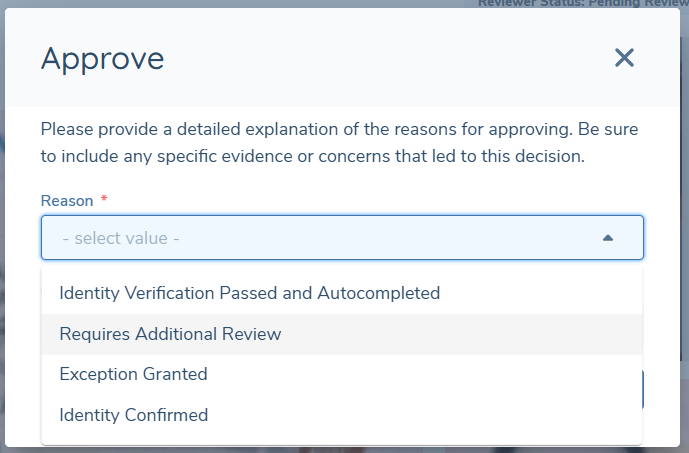
- Select the Reason and capture a comment if required.
- Dependent on the window open select Reject or Approve
This will complete the task. Approval or rejection may only be completed when the task is in progress.
Considerations when using ID&V
- ID&V results are not shared outside of the journey.
- The ID&V journey in which ID&V is actioned must also include the ID&V review task.
- ID&V in the portal cannot be re-actioned. If the portal task is reopened the user will be displayed the completed ID&V screen.
- When a data deletion job is run for an entity any related ID&V data will also be deleted.
ID&V Review - Task Autocompletion
Autocompletion is supported for the ID&V review task, enabling the system to automatically complete the task when specific conditions are met.
Condition 1: All checks pass, and the verification outcome is a match
- If all applied verification checks pass, and the overall identity verification outcome is a match, the task will be automatically completed.
- The overall result will be recorded as Passed with the Reviewer Status of Approved, and the Reviewer Summary will include the system-generated comment: "Identity Verified".
Condition 2: Any check fails, including if the verification outcome is a possible match or no match
- If any of the applied verification checks fail, including if the the overall outcome is either Possible Match or No Match, the task will also be autocompleted.
- The overall result will be recorded as Failed with the Reviewer Status of Rejected, and the Reviewer Summary will include the system-generated comment: "Unable to Verify Identity".
Autocompleted tasks remain fully accessible and can be opened from the journey view like any other task. Just like manual completions, it is possible to trigger additional tasks based on the Reason selected (for either approval or rejection) during autocompletion.
Configuring Digital ID&V
The following outlines the required and available configuration options needed to implement the Fenergo SaaS Digital ID&V solution.
Identity Verification Configurations
To enabled ID&V, an Identity Verification Configuration must be configured. To view existing Identity Verification Configurations:
- Under management navigate to Digital ID&V.
- Select Identity Verification Configuration.
This will open the Identity Verification Configuration page, displaying all configurations in a table with the following columns:
- Name – The name of the Identity Verification Configuration.
- Status – Indicates whether the configuration is active or inactive.
- Last Published On – The date the configuration was last published.
- Version Notes – Additional notes related to this configuration version.
It is possible to expand a row to view historical versions of a configuration.
Viewing an Existing Identity Verification Configuration
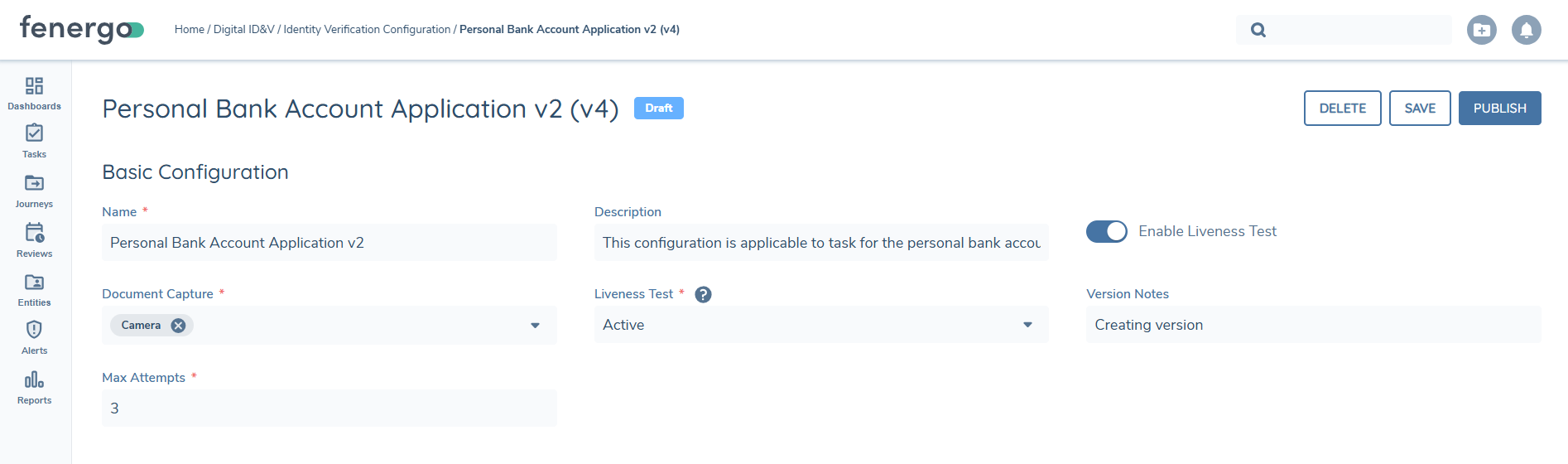
To view an existing configuration, click on its name. This will open the specific configuration details page, which includes the following fields and options:
- Name – The name assigned to the Identity Verification Configuration. This value be displayed when selecting the specific identity verification at task configurations.
- Description – A description of the configuration settings applied.
- Enable Liveness Test – If enabled, users must complete a selfie as part of the identity verification process.
- Liveness Test – Available when Enable Liveness Test is enabled. Options include:
- Active – Captures a selfie and requires the user to follow on-screen prompts to turn their head.
- Passive – Requires the user to take a selfie.
- Document Capture – Specifies the method of document capture:
- Upload – Allows users to upload an image of their document.
- Camera – Requires users to capture a live image of their document.
- Max Attempts – The maximum number of attempts a user is allowed to complete ID&V. An attempt includes both document verification and the comparison of the document image to the captured selfie.
- Version Notes – Notes related to the current configuration version.
Page Configuration
Page configuration allows customisation of the messaging displayed to portal users during the ID&V process. The following pages can be configured:
- Landing Page – The first page displayed to portal users. This page contains the Start Identity Verification button, which initiates the ID&V process.
- Selfie Start Screen – Displays instructions for users before they capture a selfie.
- Document Capture – Displays instructions for document submission and specifies whether users must upload a document or take a live capture.
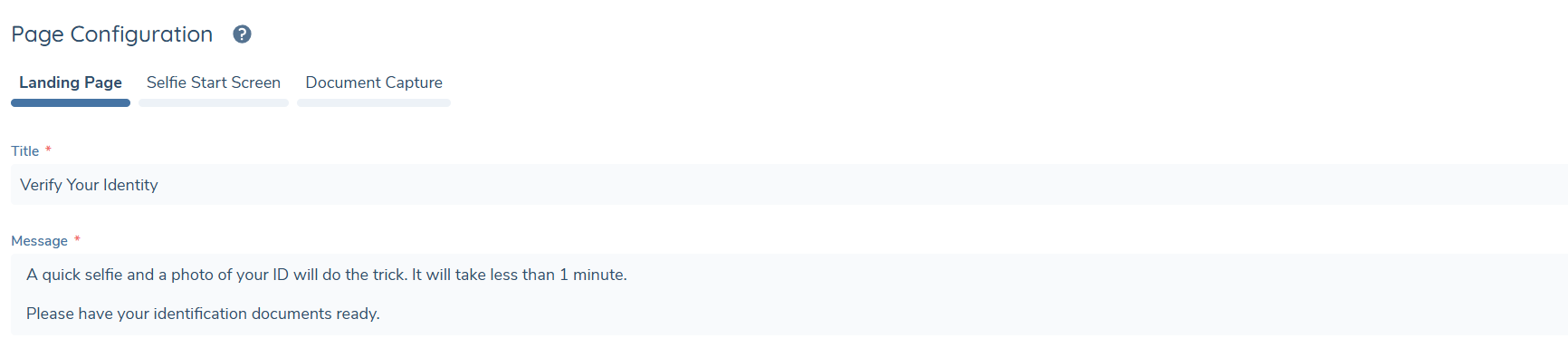
Page / messaging configuration supports only the capture and display of plain text. Additional formatting or images are not supported.
Editing an Existing Configuration
To edit an existing configuration:
- Open the configuration.
- Click New Draft.
If a draft version already exists, a new draft cannot be created. If changes are made but should not be published, the draft version can be deleted.
Publishing Changes
Once the necessary updates have been made, click Publish to apply the changes. Published changes will automatically take effect for any ongoing journeys or any new journeys created after the publication date.
Adding a new Identity Verification Configuration
To add a new Identity Verification Configuration:
- Click Add on the Identity Verification Configuration page.
Alternatively, an existing configuration can be duplicated by clicking Copy on the right-hand side of the selected configuration in the table view. This will create a new draft with the same settings, allowing quick modifications as needed.
Archive
It is possible to archive a published version of an Identity Verification Configuration.
- If the latest version is archived, the system will automatically revert to the last published version for portal journeys.
It is not currently possible to delete a verified configuration.
Configuring ID&V as Part of a Journey
To implement ID&V within a journey, tasks must be added / configured for both a user to complete identity verification in the Fenergo portal and for a user to review the results in Fenergo SaaS.
The below tasks have been added to the task type dropdown and are available to select when editing a journey.
- Individual Identity Verification – Fenergo Portal task. This is the task to be completed by the portal user. In configuring the task, the applicable identity verification configuration must be selected. This will govern what actions the user must complete when completing ID&V and the messaging displayed to the user.
- Individual ID&V Review – Surfaces the results of the completed ID&V outcome in Fenergo SaaS. From this task the user may review the outcome and may approve or reject the ID&V results.
Identity verification results are not surfaced from one journey to the next. The review task must be included in the same journey in which ID&V is actioned. This is to ensure that only users with access to the journey have access to the results of identity verification.
Approval & Rejection Reasons
On approving or rejecting ID&V the user must select the applicable rejection reason.
In the ID&V Review task, reason is displayed and captured as a single select dropdown. Separate reference list must be configured for Rejection and Approval.
The reference data lists must be named as the following:
- Identity Verification Approval Reason – This list should contain the list of possible values that user should select when approving ID&V.
- Identity Verificaiton Rejection Reason – This list should contain the list of possible values that user should select when rejecting ID&V.
Configuring the Datakey in Policy
When completing the ID&V review task, a user must select either an approval or rejection reason. This selected value is saved to the entity and can be used to trigger additional tasks in the journey.
To enable this functionality, two specific data fields must be configured in the Global Policy:
- ID&V Rejection Field A field must be created with the Database Field Name: idVRejection
- ID&V Approval Field A field must be created with the Database Field Name: idVApproval
Both fields must be configured as Select Dropdowns and must reference the appropriate lookup lists:
- The approval field should reference the Verification Approval Reason lookup.
- The rejection field should reference the Identity Verification Rejection Reason lookup.
Once configured, the selected reason will be automatically saved to the entity upon completion of the ID&V review task. This enables the value to be used as a trigger for subsequent tasks or decisions within the journey.
ID&V Task Autocompletion
Autocompletion is supported for the Identity Verification (ID&V) review task, allowing the system to automatically complete the task when specific criteria are met.
To enable autocompletion, the following configuration steps must be completed:
1. Configure Reference Data IDs
Before enabling the feature, you must define the appropriate Reference Data IDs for both approval and rejection outcomes related to autocompletion.
- Approval Reason In the Identity Verification Approval Reason reference data list, add a list item with the Reference Data ID: IDVPassedAndAutocompleted You can set the Reference Data Value to any label appropriate for your workflow - this will be displayed in the task when the system auto-approves the verification.
- Rejection Reason In the Identity Verification Rejection Reason reference data list, add a list item with the Reference Data ID: IDVFailedAndAutocompleted As with the approval reason, you can configure the Reference Data Value to suit your needs. This will be displayed in the task when the system auto-rejects the verification.
2. Enable the Autocompletion Toggle
Once the required reference data items have been configured, enable the Autocompletion toggle within the ID&V review task settings wherever autocompletion is intended to be used.