Audit in Fenergo
The Audit domain contains all of the data that the other domains (Entity, Journey etc) have identified as being required for auditing purposes.
At present Audit functionality is implemented at both the Entity and Journey level and also at Screening Task Level. To view the Audit trail, the user must have the required Permissions & relevant Access Layers.
- Entity Level Audit: If the user has the required permissions, the Audit button will be visible and can be accessed from the 'Entity Profile' page. Upon clicking the Audit button, the Audit drawer is exposed and includes three tabs: "Data Changes", "Product" and "Access Log". Note: At the time of writing (July '23), in line with the deployment of the new Entity Profile, the "Product" tab will be included.
- The "Data Changes" tab displays the up to date 'Verified' and 'Draft' Audit data for Entity Related data, such as 'LE Name', 'FirstName', 'LastName', for the entity in profile.
- The "Product" tab displays the up to date 'Verified' and 'Draft' Audit data for Product related data, such as 'Product Type', 'Product Family', for those Products associated to the Entity in Profile. Users with the required Product Access Permissions will be able to view this tab.
- The "RP Associations" tab displays the audit trail for Entity to Entity association records (Related Parties) for the entity in profile, including additions, removals, and relationship type changes.
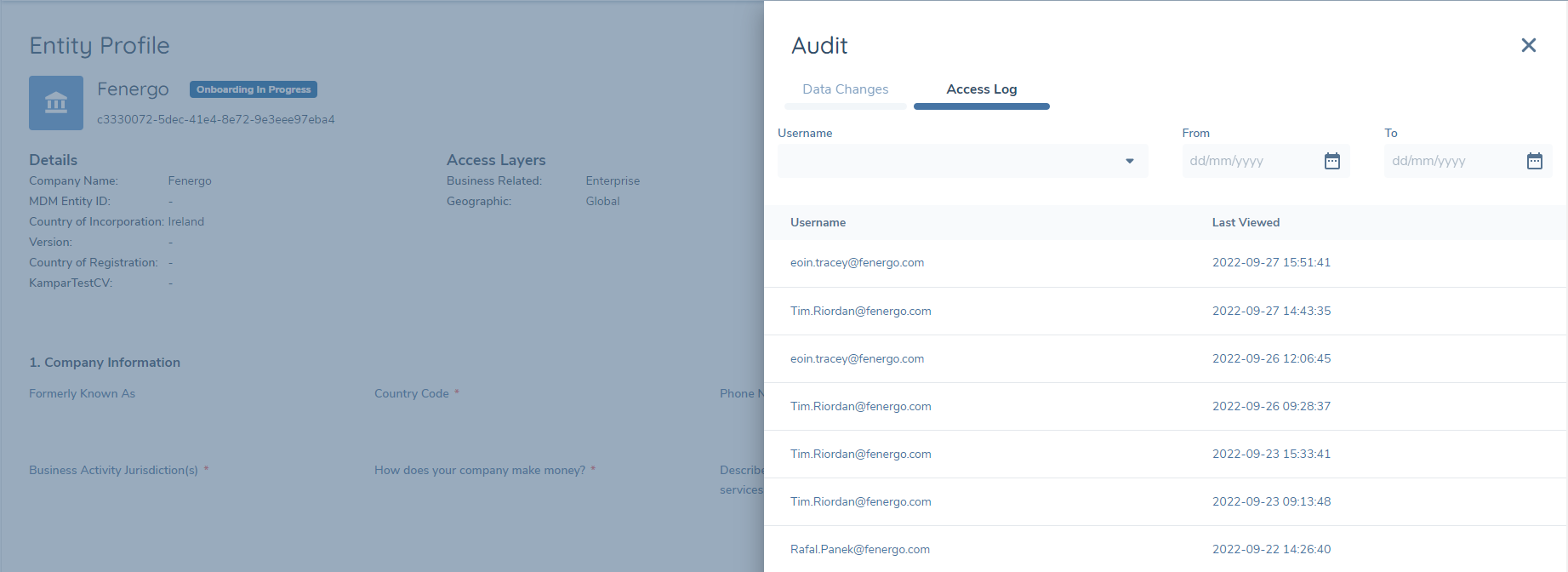
- The "Access Log" tab displays records of users who have visited the Entity Profile page.
- The "Sensitive Data Log" tab displays records of user requests to view masked sensitive data field values.
- The "Naratives" tab displays records of changes made to Naratives on the entity profile.
- Journey Level Audit: This includes a journey specific view of audit events related to:
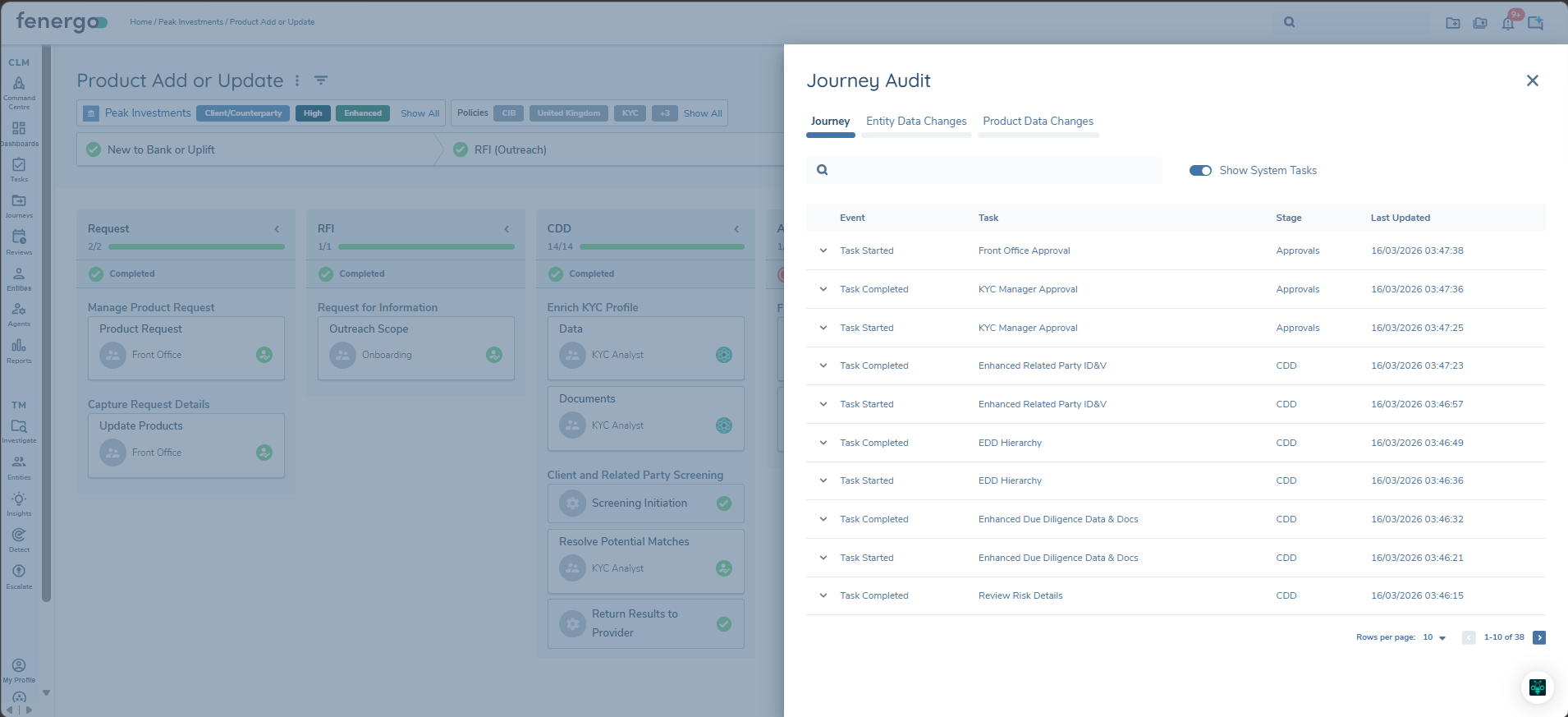
- The "Journey" tabs displays events such as when the journey was created or completed, and also the tasks and statuses within that journey. With the required permissions, the user can access Journey Level Audit from the Journey Hub page.
- The "Entity Data Changes" tab displays events from changes made to the root entity fields within the current journey - this focuses accutely on the Entity draft.
- The "Journey Data Changes" tab displays events from changes made to policy fields configured with "Journey Level Data" within the current journey.
- The "Product Data Changes" tab displays events from field level changes made to Product drafts within in the current journey.
- Task Level Audit: Currently available for the Screening domain only and captures changes at task level to 'Match Status', 'Match Type' and 'Comments'. With the required permissions, the user can access Screening Task Level Audit from the Screening Results page.
Human vs System Activity
The audit trail across the application captures both user-initiated actions and system-generated events. When an action is performed by a human user (e.g. completing a task), the GUID of that user will be captured. In our UI, we will then render the username attached to that ID for a better user-experience. This will be contextually displayed based on where you are viewing this audit entry. As an example within Journey Audit, this will display as "Changed By".
In the event that an action is performed automatically by the application - such as a system task like "Verify Entity" running, a conditional value being applied or a task being dynamically assigned to a team - the "Changed By" will show as "System". This is so that we can accurately capture the actions taken by a user versus those taken by the system.
In some cases, the "Changed By" may be shown as "Unknown". "Unknown" is used for scenarios where attribution metadata is not available or is not recorded. An example of this may be in the case of an integration established by a client, where no user ID is ever passed. These "Unknown" entries are valid and expected. They do not indicate a fault or missing data.
Please note that if you are adopting the Fenergo Digital Agents, the relevant action will always be captured by the respective agent. For example, if a Screening Hit was marked as a Non-Match, the Screening Audit will show that action as having been done by "KYRA:Screen".
Configuring the Audit Fenergo Feature
Audit Permissions
Configuring Audit Permissions
To enable Audit permissions the user must have selected 'Audit Access & Search', in the 'Security Configuration' Screen, for their relevant Teams.
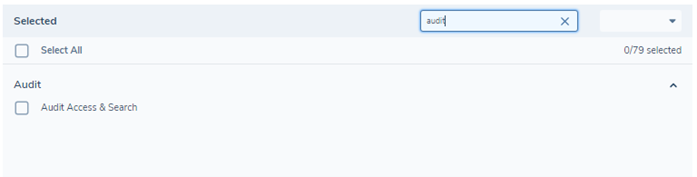
If the above permissions are not selected the user will not see the Audit Icon Button on the Right Hand Side of the Entity Profile Page.
If the Audit permissions have previously been selected, and are then de-selected without the Security Configuration page being refreshed, the Audit Icon Button will remain visible, but an error message will appear and no audit data will be shown when the button is clicked.
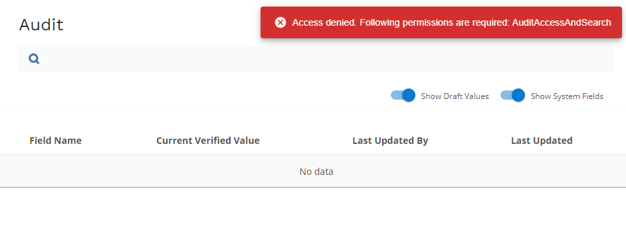
If the User logs out and back in again the Audit Icon button will not be visible until the Audit permissions are selected and saved again.
Access Layers
In order for a user to view Audit entries, they must also have the relevant Access Layers. (See the Access Layers user guide for more information on how to configure Access Layers)
If the users Access Layer configuration does not match the Entity or Journey they are trying to view the Audit trail for, they will not be able to see the Audit trail until their Access Layers match.
Security Configuration Level Audit
The Audit trail is now available to view from a Team's 'Security Configuration' screen. It returns data from the Audit Database that has been captured as an Audit event by the Security Configuration domain.
Given the user has the necessary Permissions and Access Layers, the Audit button will appear on the right-hand side of a Team's Security Configuration Screen.
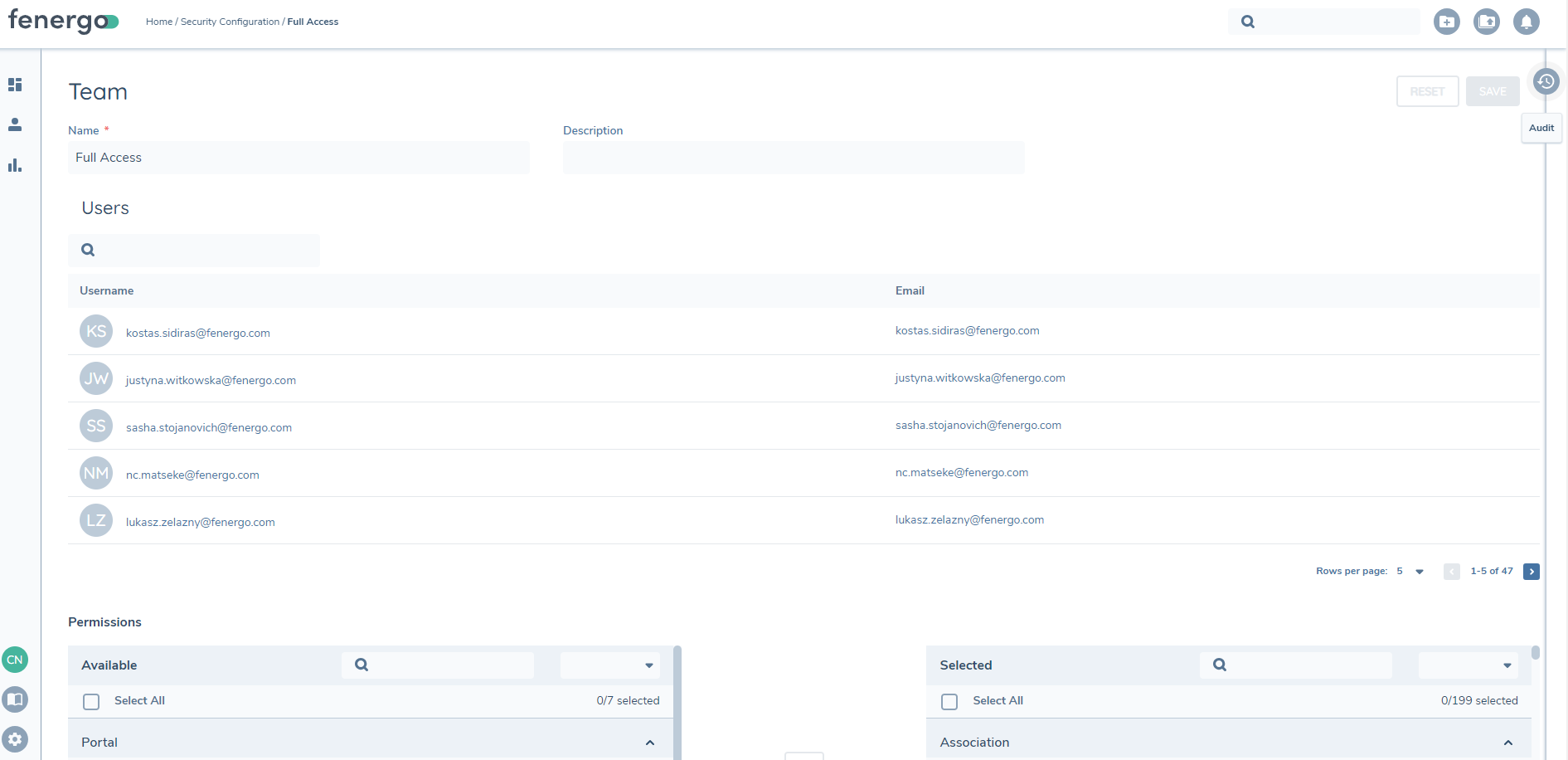
Functionality:
To view the audited events within a Team's Security Configuration, click on the Audit icon button to expose the Audit Drawer. The audited event types here are:
- Team Created
- Team Updated
- User Added
- User Removed
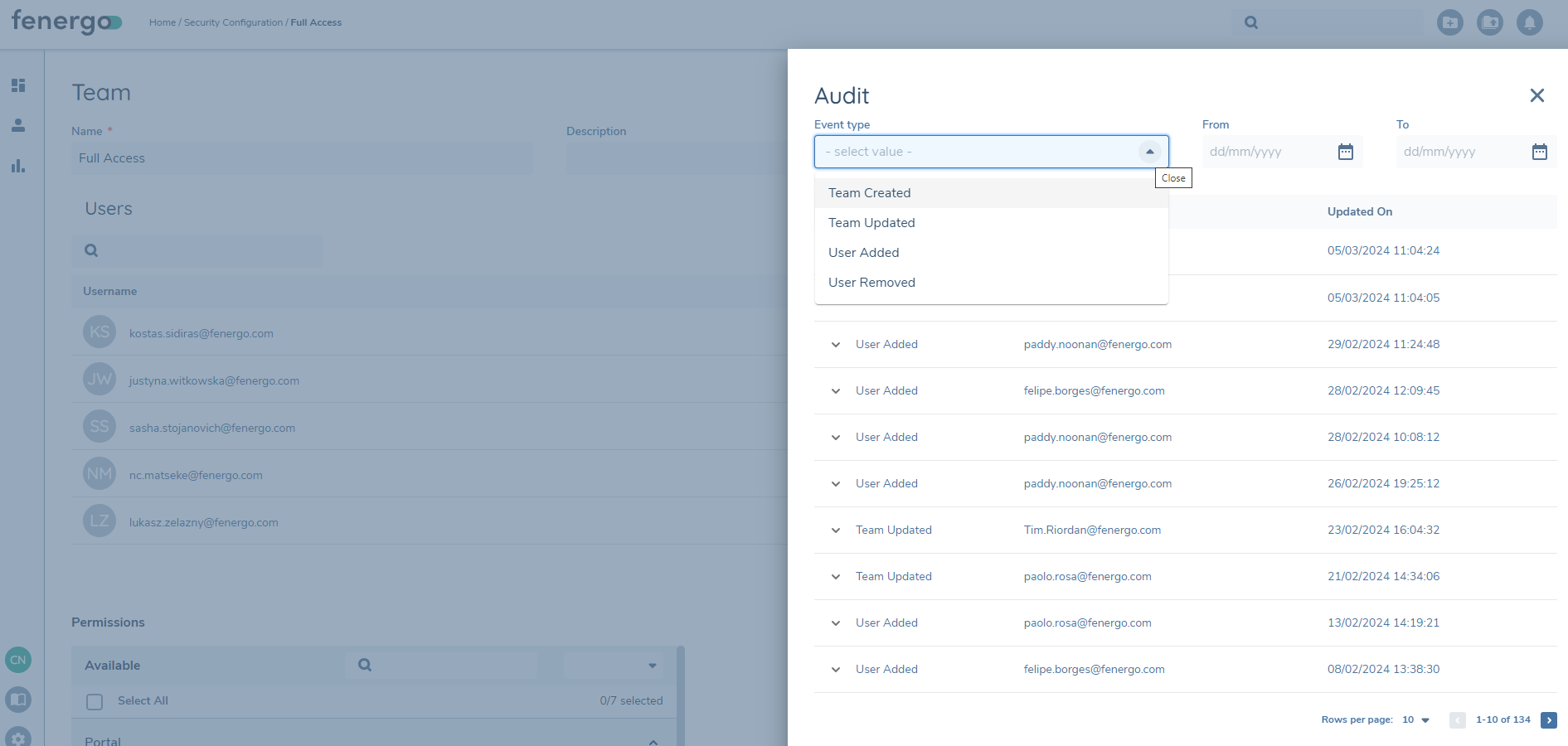
The captured data for a Team will be visible from the Audit drawer and displayed as follows:
- Event: The name of the event that the audit is captured for. Eg. 'Team Created'
- Changed by: The name of the user the change was made by
- Updated on: The date and time when the update was made
Sorting is available for each of the displayed columns, by clicking on the hidden arrow to the right of each column name.
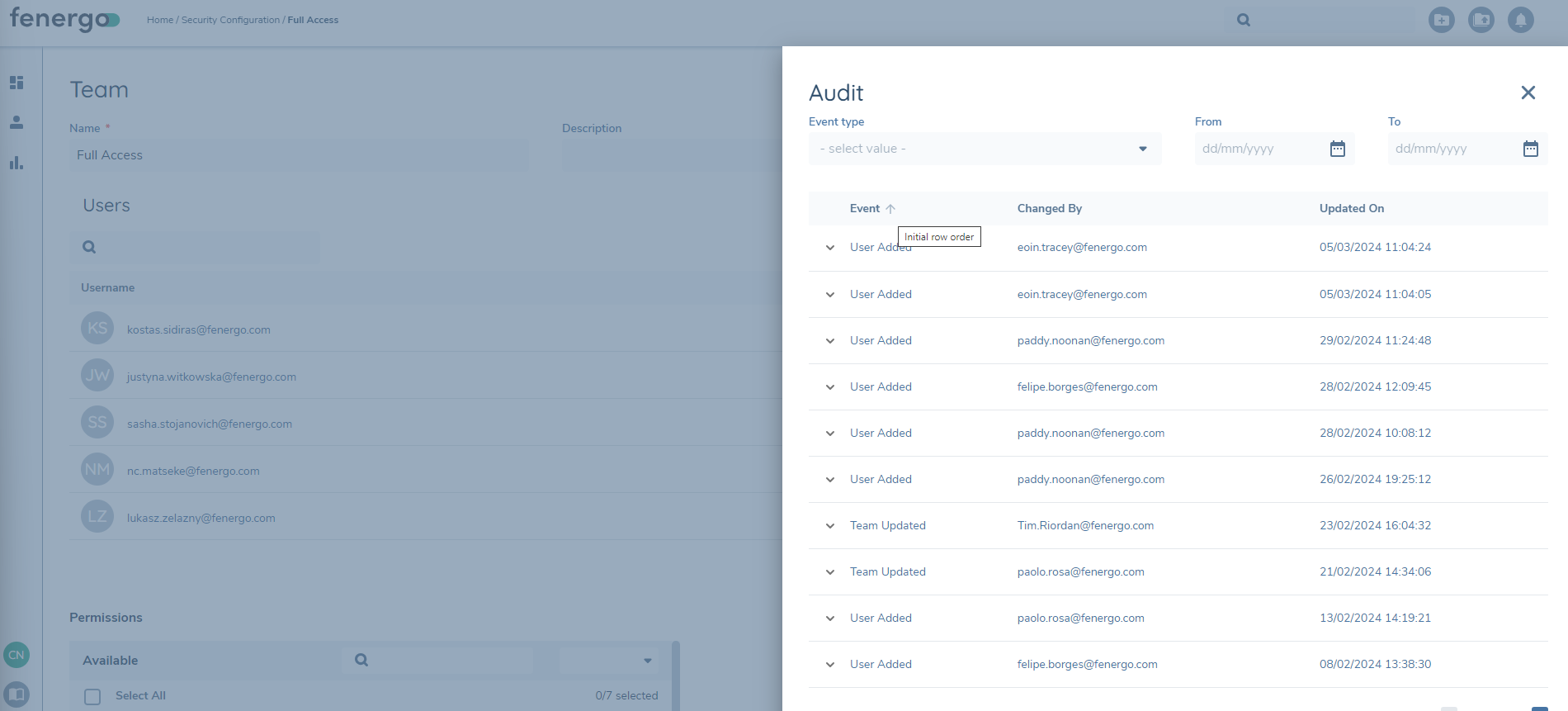
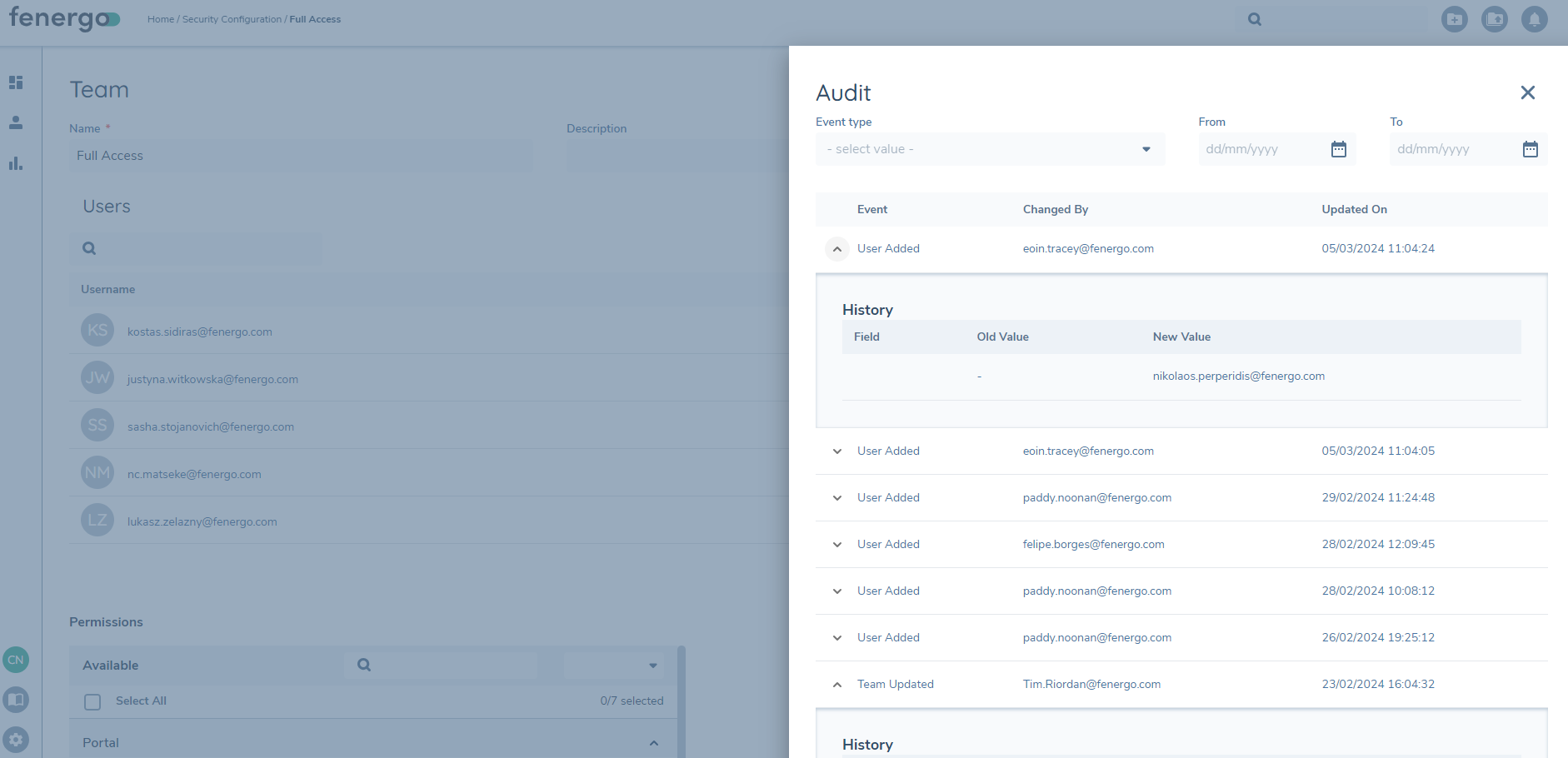
To view the Audit History of a Security Configuration event for a Team, the user must click the chevron presented to the left of each event name to expose the 'History' card.
The History card for each event will present the captured data for every event:
- Field: The captured field value as determined by the Security Configuration domain
- Old Value: The value for that field before the change was made
- New Value: The value for the field after the change was made
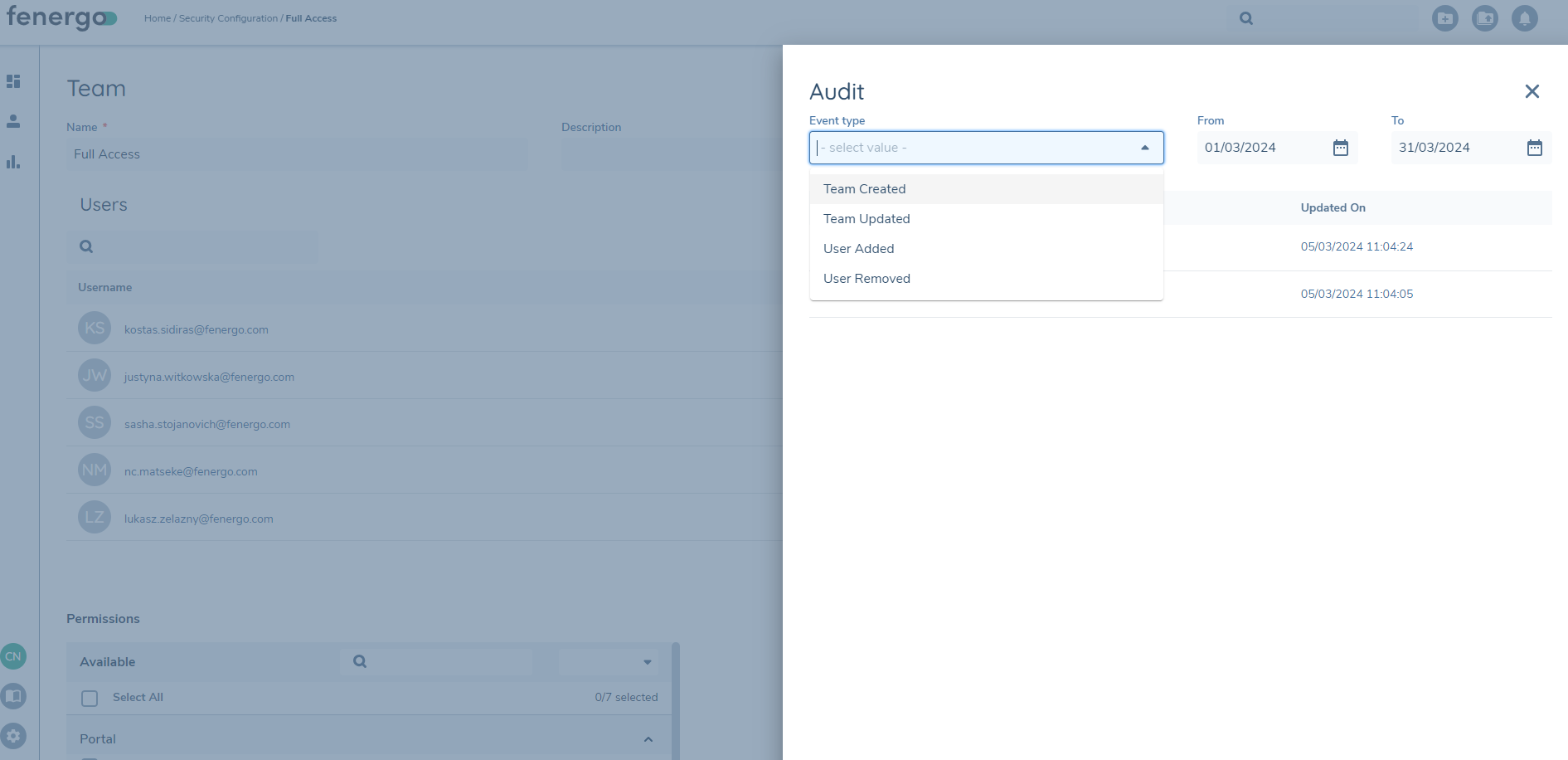
Users can also filter searches within the audit for Security Configuration. With this, users can easily locate specific information based on Event Types and Date Ranges. The user can input "From" and "To" dates to narrow down the search results in the Audit drawer. They can also select an Event type, further refining their search.
User Management Level Audit
The Audit trail is now available to view from the 'User Management' Configuration screen. It returns data from the Audit Database that has been captured as an Audit event by the User Management domain. Audit in the user details will show details of user creation and all updates made to the user profile. Given the user has the necessary Permissions and Access Layers, the Audit button will appear on the right-hand side of the User Management configuration screen once they click the 'Edit Teams & Access Layers' button.
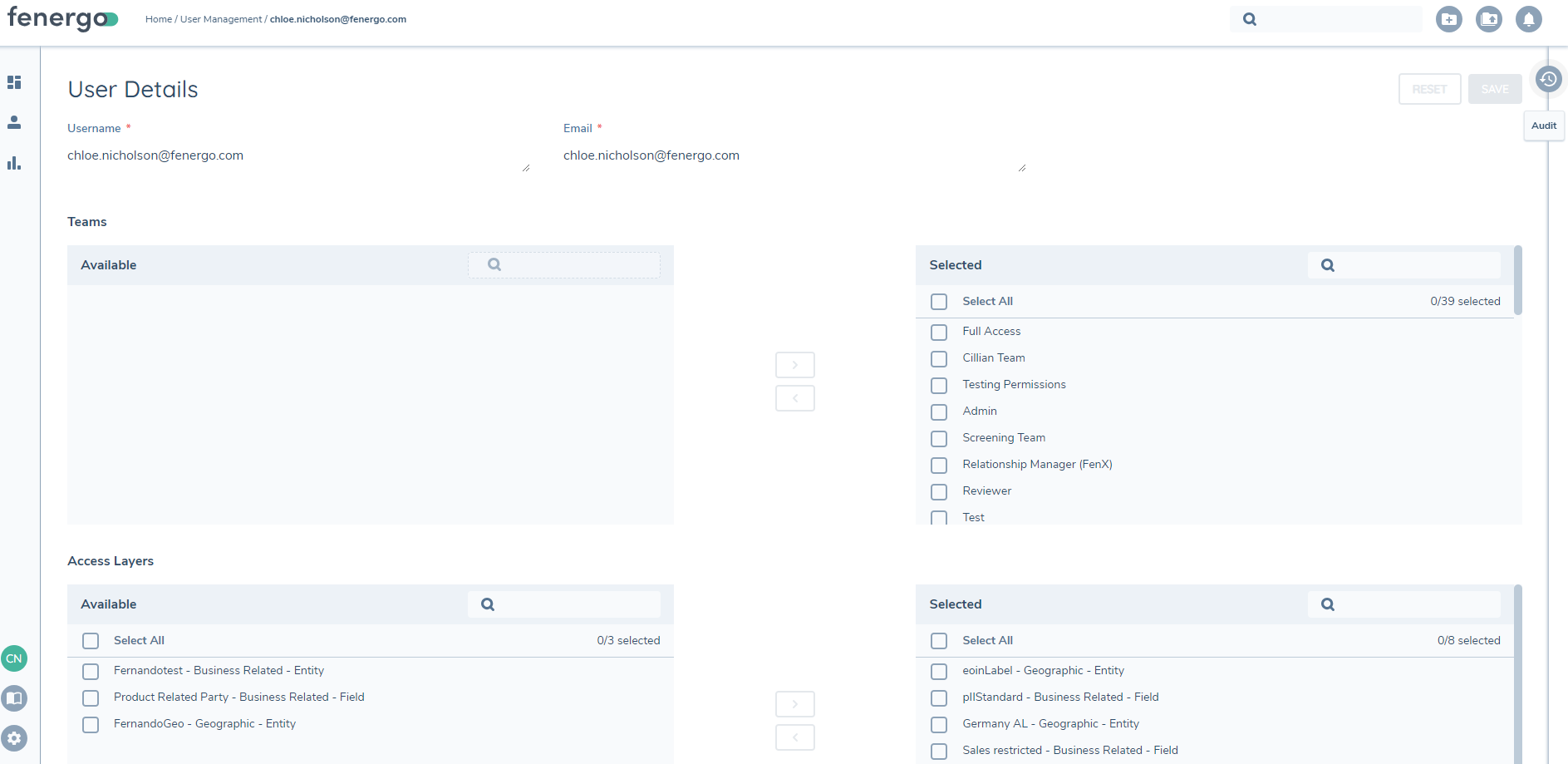
Functionality:
To view the audited events within a User Management configuration, click on the Audit icon button to expose the Audit drawer. The audited event types here are:
- Team Added
- Team Removed
- Access Layer Added
- Access Layer Removed
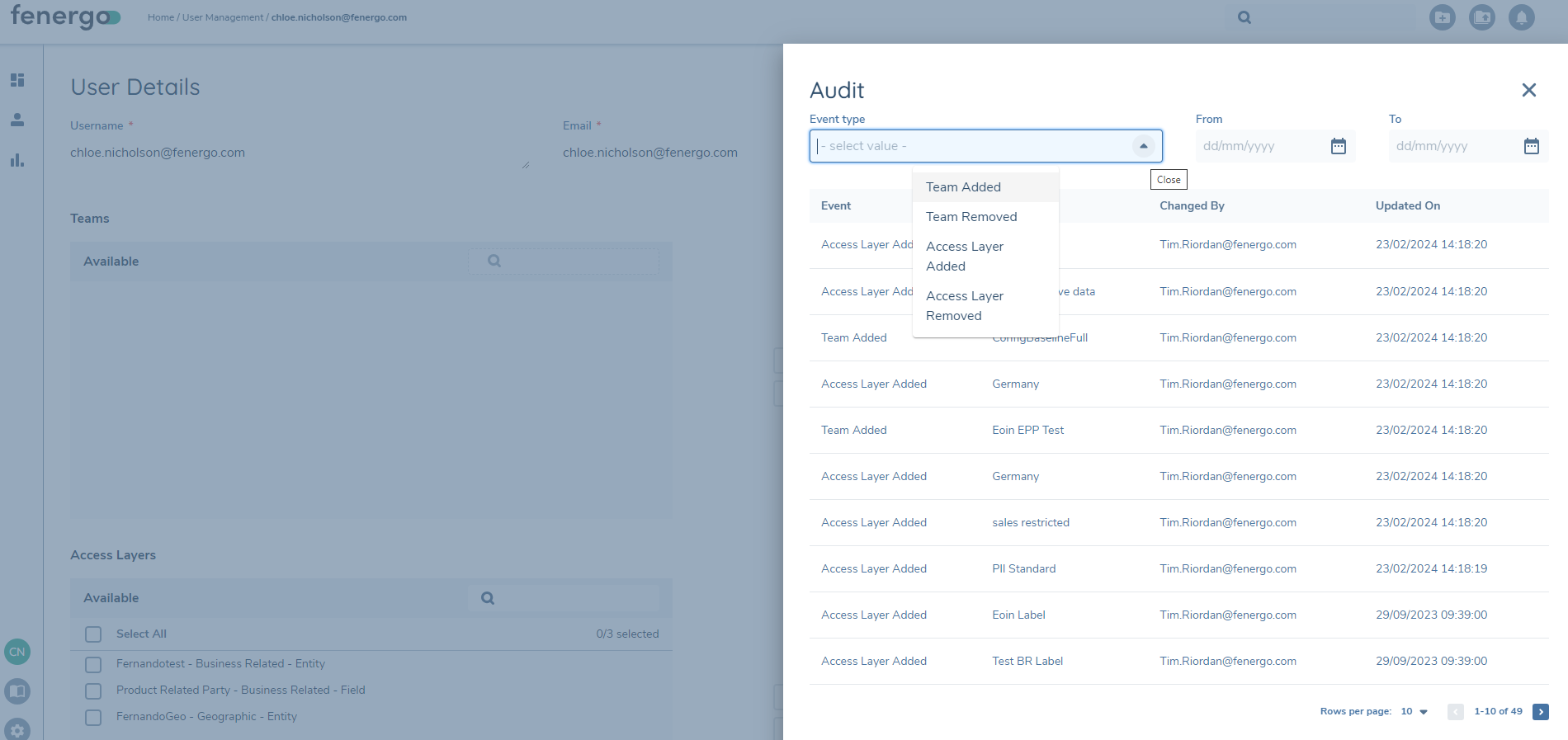
The captured data for a user will be visible from the Audit Drawer and displayed as follows:
- Event: The name of the event that the audit is captured for. Eg. 'Team Added'
- Value: The name of the Team or Access Layer
- Changed by: The name of the user the change was made by
Sorting is available for each of the displayed columns, by clicking on the hidden arrow to the right of each column name.
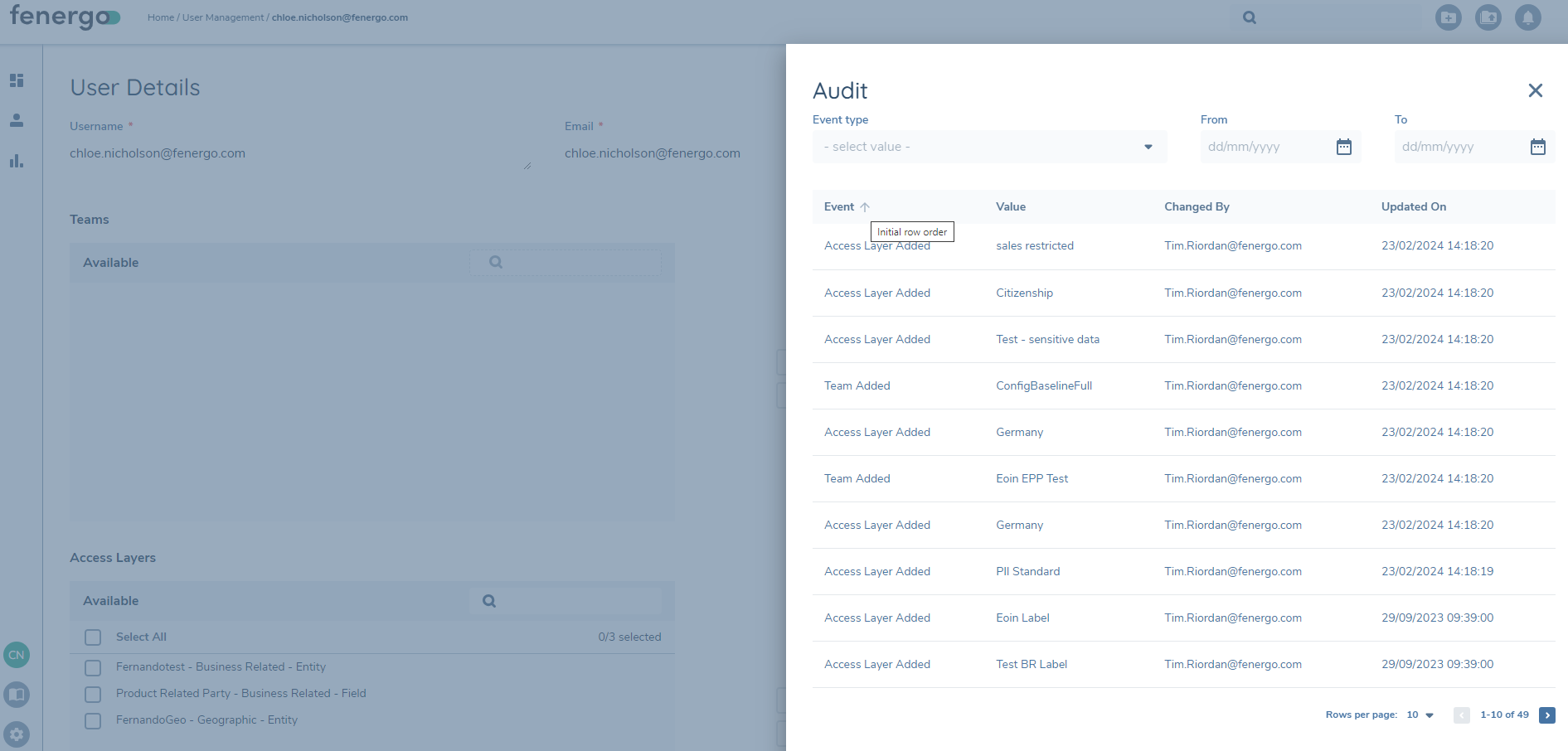
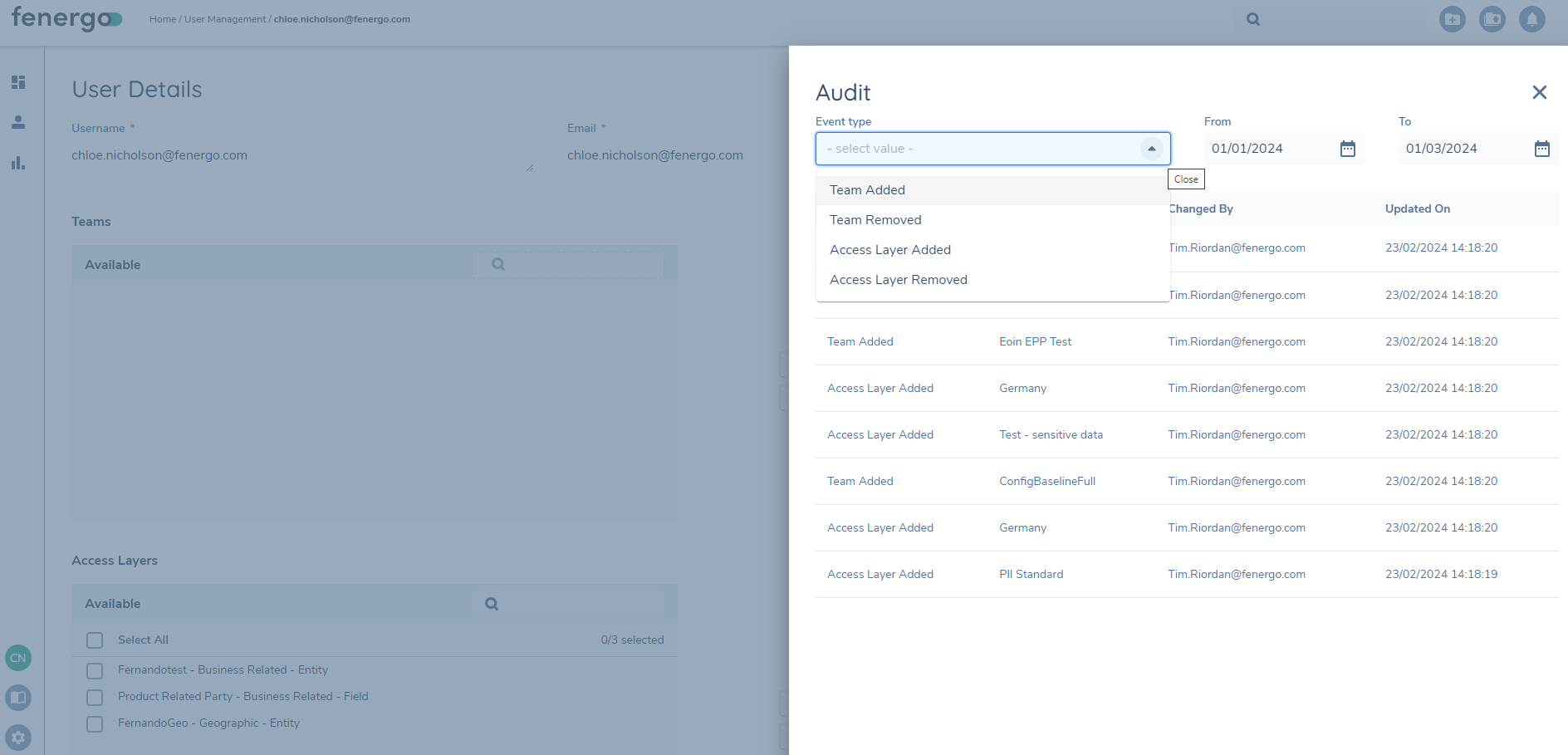
Users can also filter searches within the audit for User Management configuration. With this, users can easily locate specific information based on Event types and Date Ranges. The user can input "From" and "To" dates to narrow down the search results in the Audit drawer. They can also select an Event type, further refining their search.
Entity Level Audit
The Audit trail is available to view from the 'Entity Profile' Page. It returns data from the Audit Database, that has been captured as an Audit event by the Entity domain.
Data that has been captured as an Audit Event and stored in the Audit database will be available to view in the Audit trail. Additionally, Fenergo SaaS will Audit the Users who have clicked onto an Entity Profile Page.
After creating a Legal Entity, provided the User has the correct Permissions and Access Layers configuration, the Audit Icon button will appear, tagged to the right hand side of the Screen, on the 'Entity Profile' Page.
Functionality:
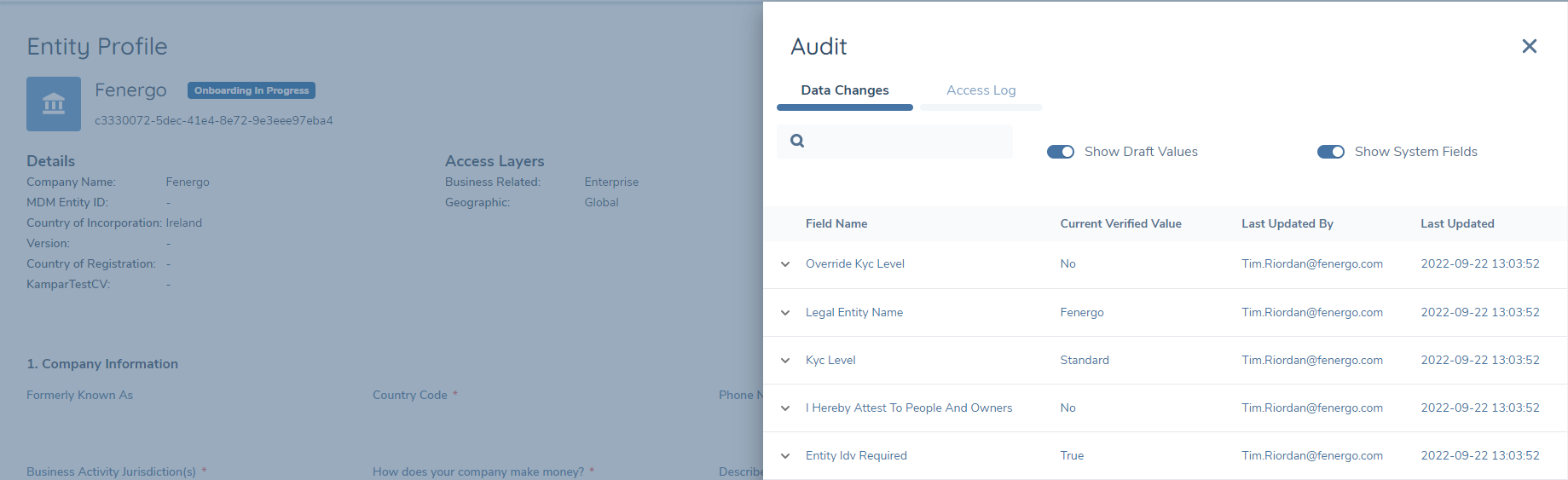
To view the Audit trail, click on the Audit Icon button to expose the Audit drawer. The drawer extends from the side of the page, and the underlying 'Entity Profile' page is darkened out.
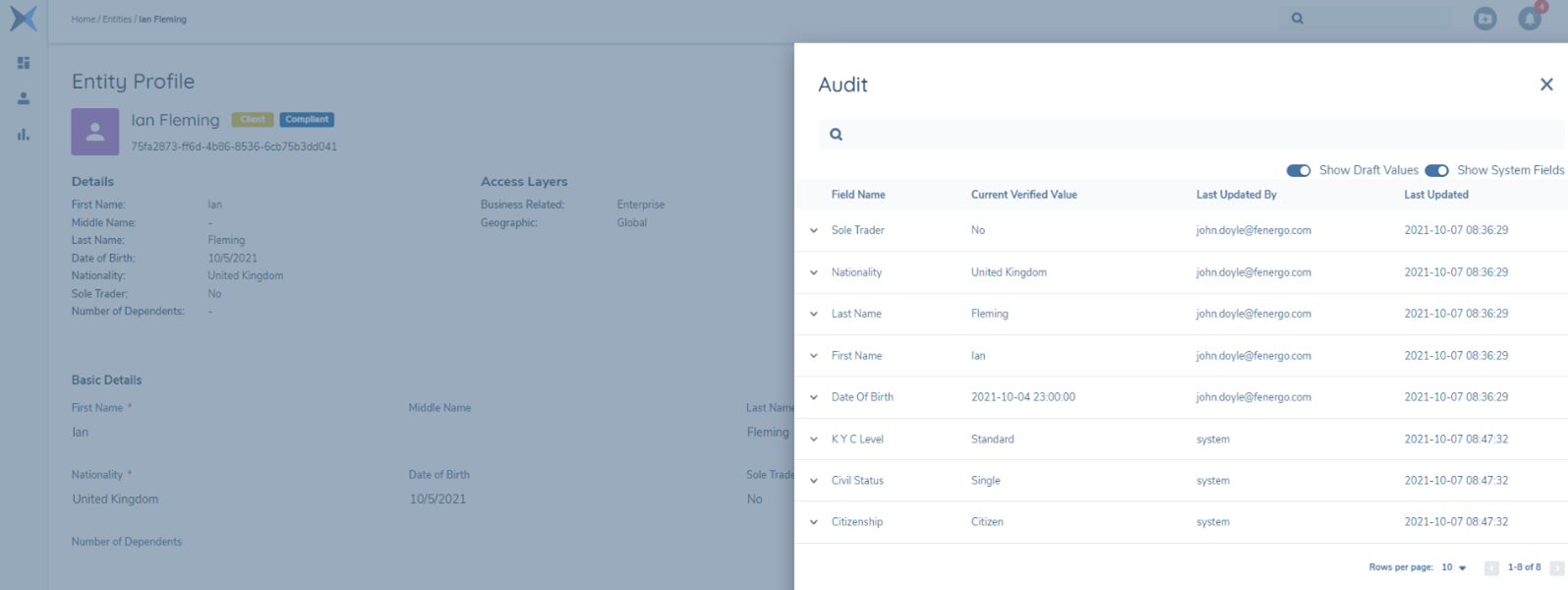
The captured Audit data for the newly created entity will be visible in the "Data Changes" tab and is displayed as follows
- 'Field Name': The name of the field that the audit record is captured for, eg First Name.
- 'Current Verified Value': The current verified value for that field (non draft).
- 'Last Updated By': The username (email address) of the person who last updated the field. Can also be 'System'.
- 'Last Updated': The date & time when the last update was made (yyyy-mm-dd)
Sorting is available for each of the diplayed columns, by clicking on the hidden arrow to the right of each column name. To view the Audit History for any field, the user must click on the down arrow to the left of each field name to expose the 'History' Card.
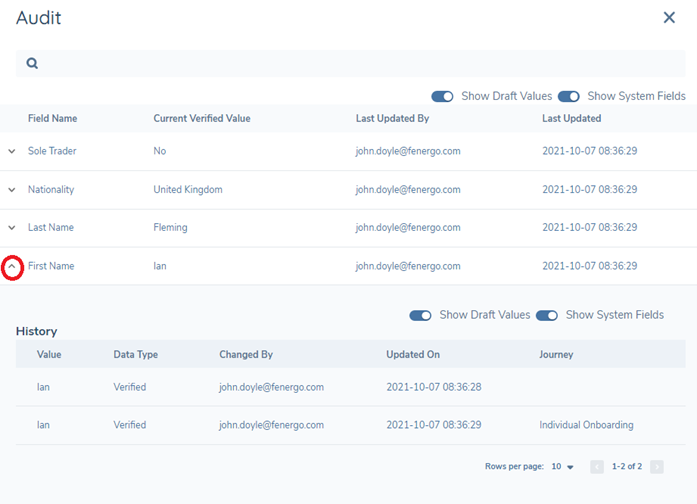
The History Card for each field will display the captured audit data for those fields
- 'Value': The captured field value
- 'Data Type': the type of data, can be 'Draft' or 'Verified'
- 'Changed By': The person who made the change, can also be 'System'
- 'Updated On': When the change was made (yyyy-mm-dd)
- 'Journey': The journey where the change was made (empty if change was made outside of a journey)
Note: Journey names displayed in the Audit Drawer are presented as hyperlinks. Selecting a Journey name opens the corresponding Journey Hub, where the full context of the change can be reviewed.
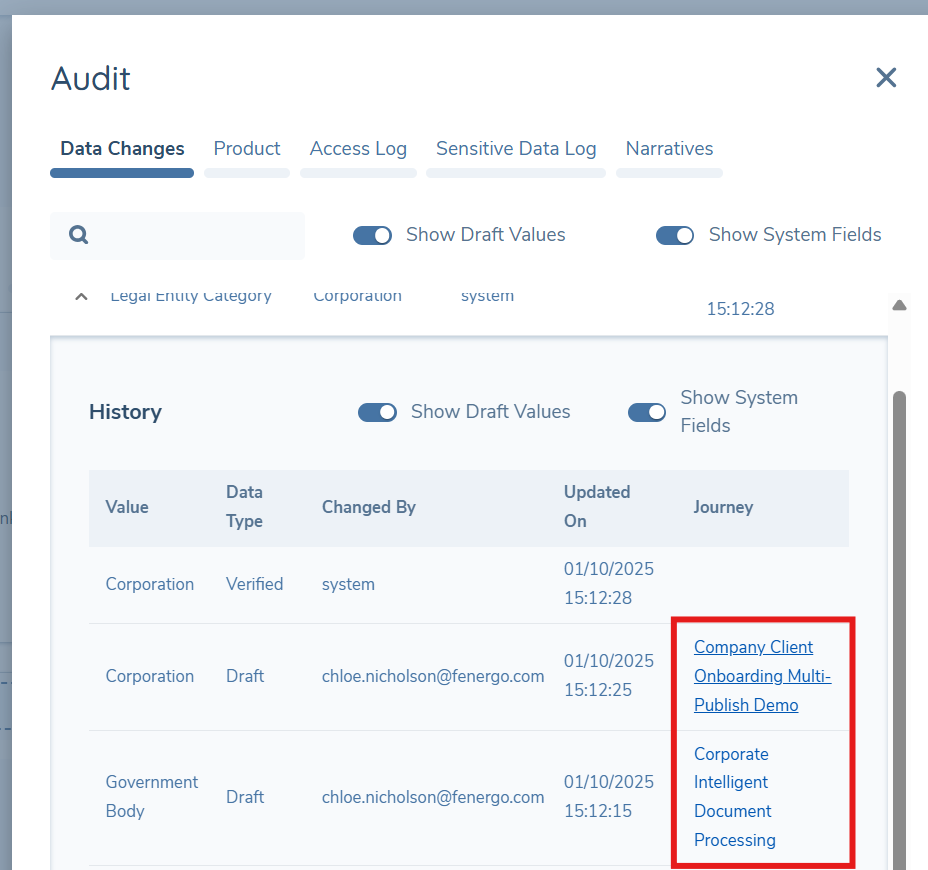
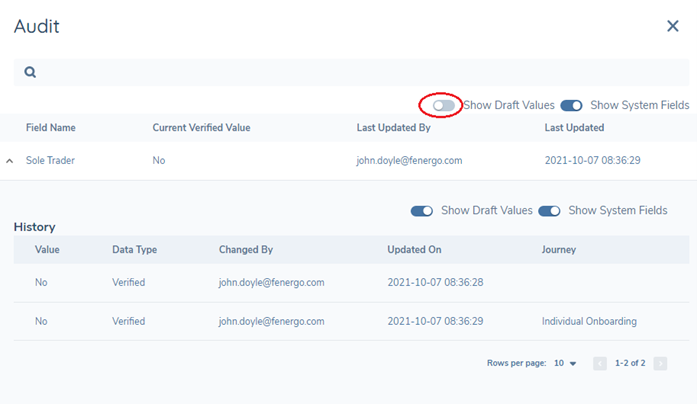
Show Draft Values:
To show or hide 'Draft' values from the audit display the user can toggle the 'Show Draft Values' toggle switch. Fig 5 shows a Draft value for the 'First Name' field.
To hide the Draft value, the 'Show Draft Values' switch is toggled off (Fig 6 ).
Show System Fields:
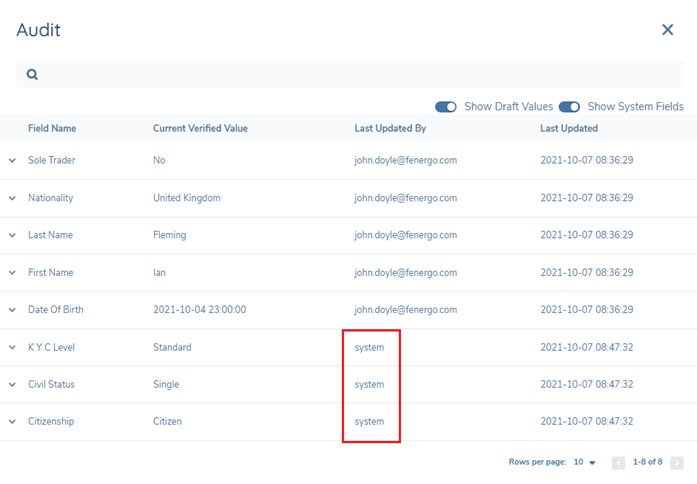
To show or hide System Fields from the audit display the user can toggle the 'Show System Fields' toggle switch. Fig 7 shows the System Fields in the audit display.
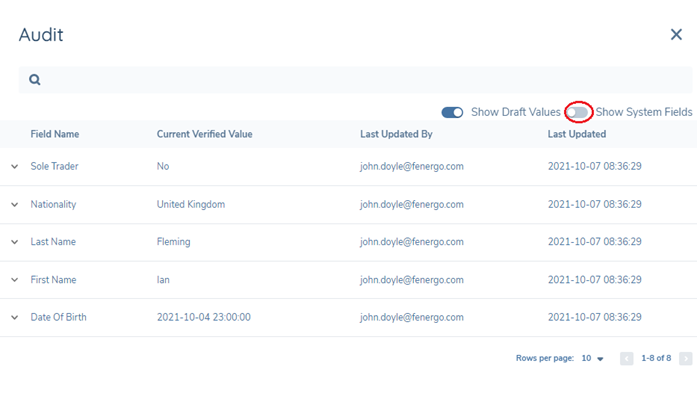
To hide the System Fields the 'Show System Fields' switch is toggled off (Fig 8 ).
Audit Entity Data Search:
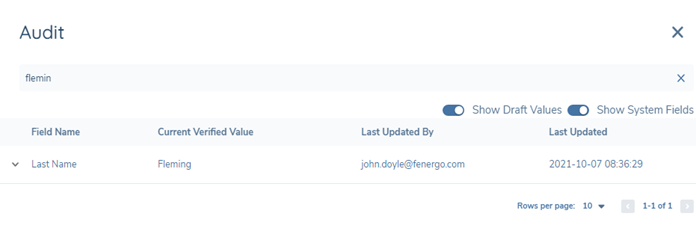
To search for specific data in the returned audit records, the User can use the search functionality located at the top of the Audit display. The user can search by 'Field Name', 'Current Value', 'Last Updated by' or 'Last Updated'. Partial matching is supported.
Product
Where the Product domain is enabled in a tenant and the user has Product Access permissions, an additional "Product" tab will appear in the Entity Audit drawer. This will return data for products associated with the entity in profile from the Audit Database, that has been captured as an Audit event by the Product domain.
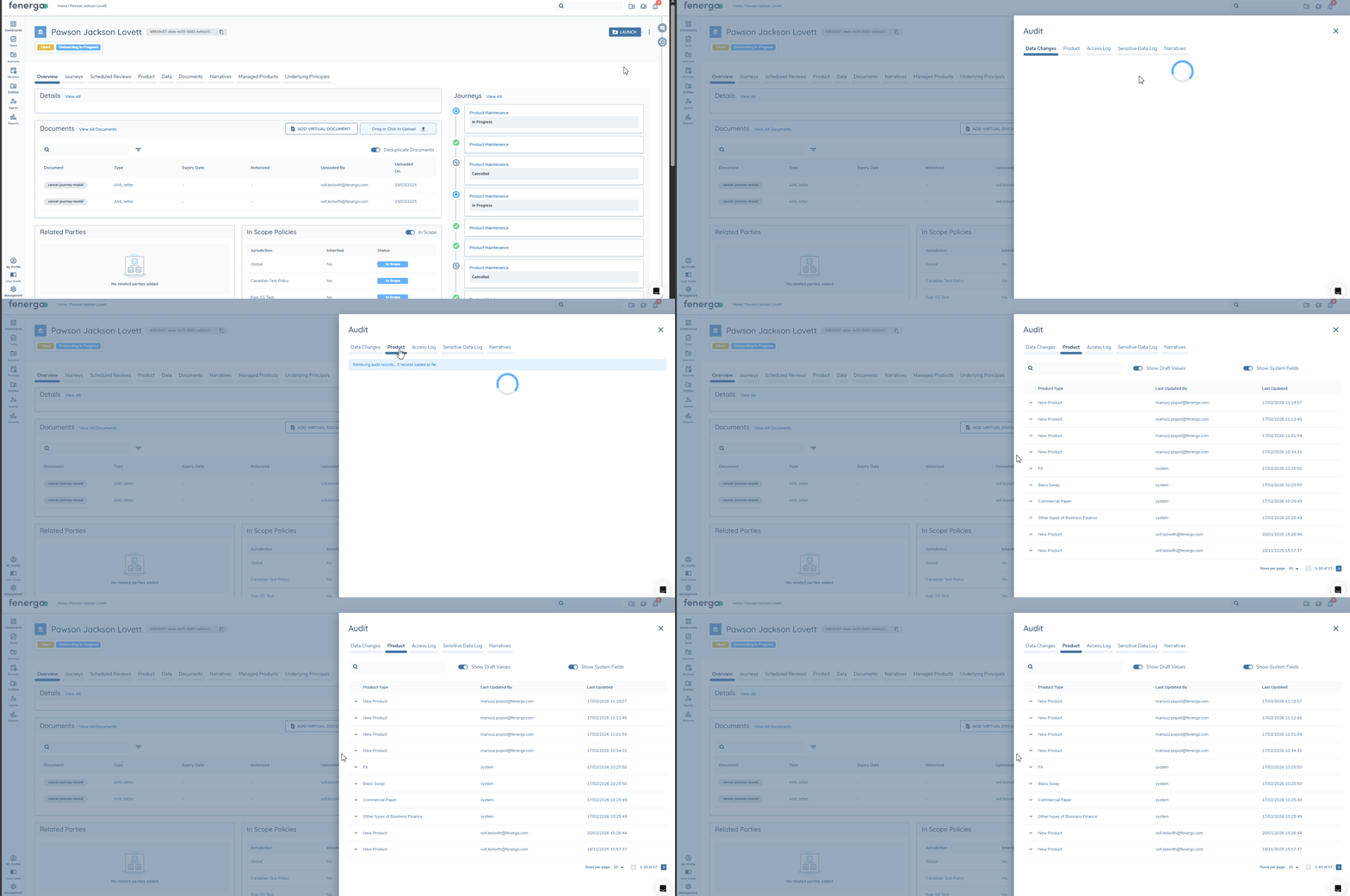
To ensure that Product Access Layers and Product Field Access Layers are duely enforced in Product Audit, we will capture all product associations, determine which AL are required and return a data that is compliant with the requesting users assigned Product and Product Field Access Layers. For most entities, Product Audit data should be quickly visible, but for those with higher product and journey volumes (meaning more product drafts), you may encounter a waiting period while this process runs to securely load Product Audit data.
As products are associated with an entity and updated within a journey, the corresponding audit data will appear in the "Product" audit tab. The functionality of this follows the pattern of the "Data Changes" tab but with one additional layer. Upon selecting the "Product" tab, the user will be presented with those associated products, and displays as follows:
- 'Product Type': The product that the audit record is captured for.
- 'Last Updated By': The username (email address) of the person who last updated the product. Can also be 'System'.
- 'Last Updated': The date & time when the last update was made (yyyy-mm-dd).
Sorting is available for each of the displayed columns, by clicking on the hidden arrow to the right of each column name.
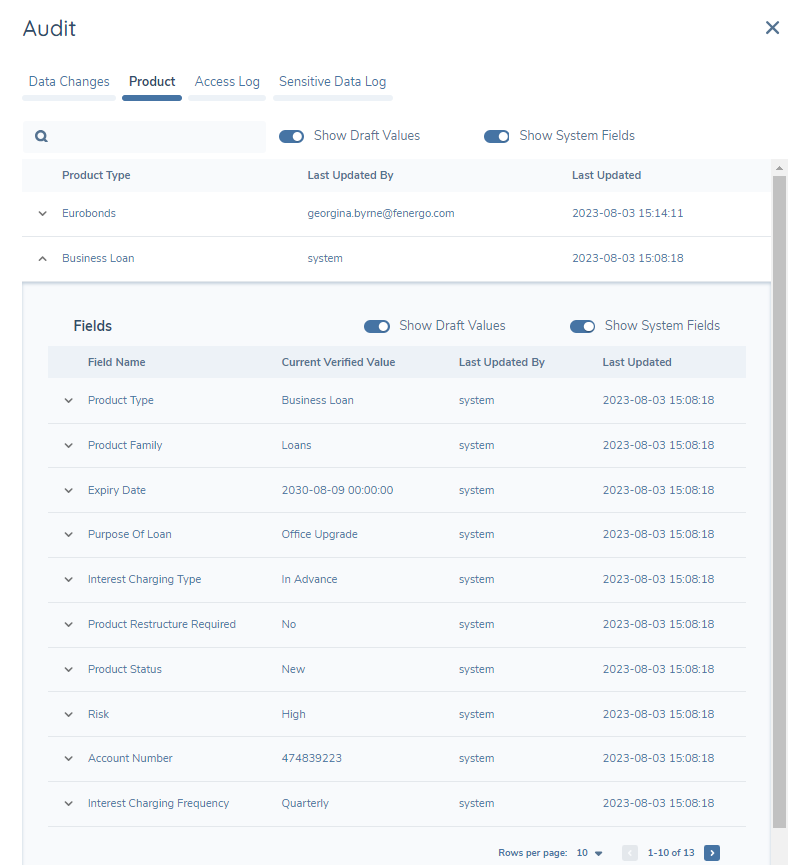
By selecting the down arrow to the left of the Product Type, the user is able to view the Audit data associated to that product. From here the Audit data will follow the same pattern as "Data Changes" for the entity. Once the down arrow is selected, the user will be presented with 'Field Changes' as follows, with sorting also available:
- 'Field Name': The name of the field that the audit record is captured for, eg Product Type.
- 'Current Verified Value': The current verified value for that field (non draft).
- 'Last Updated By': The username (email address) of the person who last updated the field. Can also be 'System'.
- 'Last Updated': The date & time when the last update was made (yyyy-mm-dd)
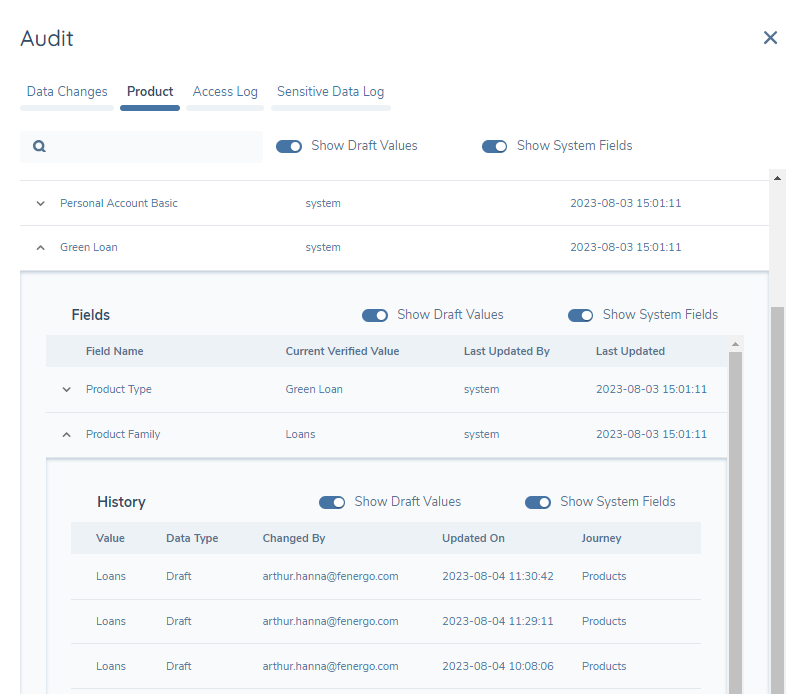
The Audit History for each field can be viewed by selecting the down arrow to the left of the field name to expose the 'History' card. The History Card for each field will display the captured audit data for those fields
- 'Value': The captured field value
- 'Type': the type of data, can be 'Draft' or 'Verified'
- 'Changed By': The person who made the change, can also be 'System'
- 'Updated On': When the change was made (yyyy-mm-dd)
- 'Journey': The journey where the change was made (empty if change was made outside of a journey)
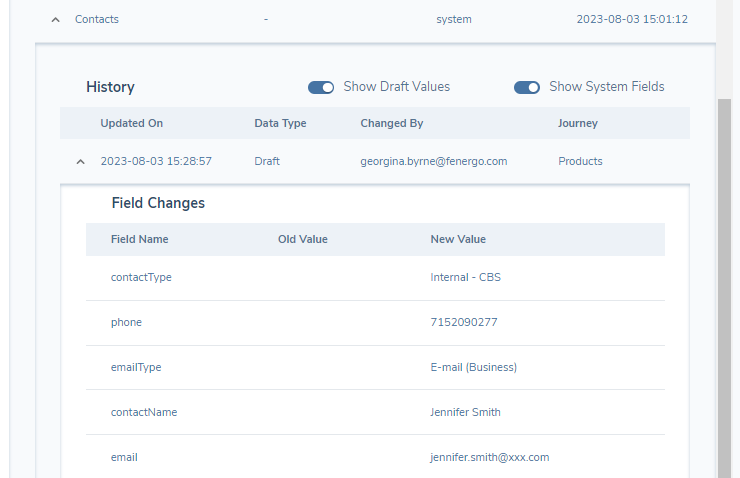
Where the History Card is for a data group the audit data captured will be:
- 'Updated On': When the change was made (yyyy-mm-dd)
- 'Type': the type of data, can be 'Draft' or 'Verified'
- 'Updated On': When the change was made (yyyy-mm-dd)
- 'Journey': The journey where the change was made (empty if change was made outside of a journey)
There will be an additional drop down arrow here to display the field changes for the data group entry:
- 'Value': The name of the field that the audit record is captured for, eg Product Type.
- 'Old Value': The previous verified value, if it existed
- 'New Value': The captured field value
Audit Product Data Search is available within the "Product" audit tab and aligns to the functionality of the Audit Entity Data Search. Similarly, the "Show Draft Values" and "Show System Fields" toggles are also available and align to the functionality mentioned above for Entity Data.
RP Associations
The "RP Associations" tab displays the audit trail for Entity to Entity association records (Related Parties) held against the entity in profile, including when a relationship is added, removed, or replaced (as happens when a relationship type is changed).
RP Associations audit data is also available in Advanced Reporting via the existing audit_relatedparties table.
Functionality:
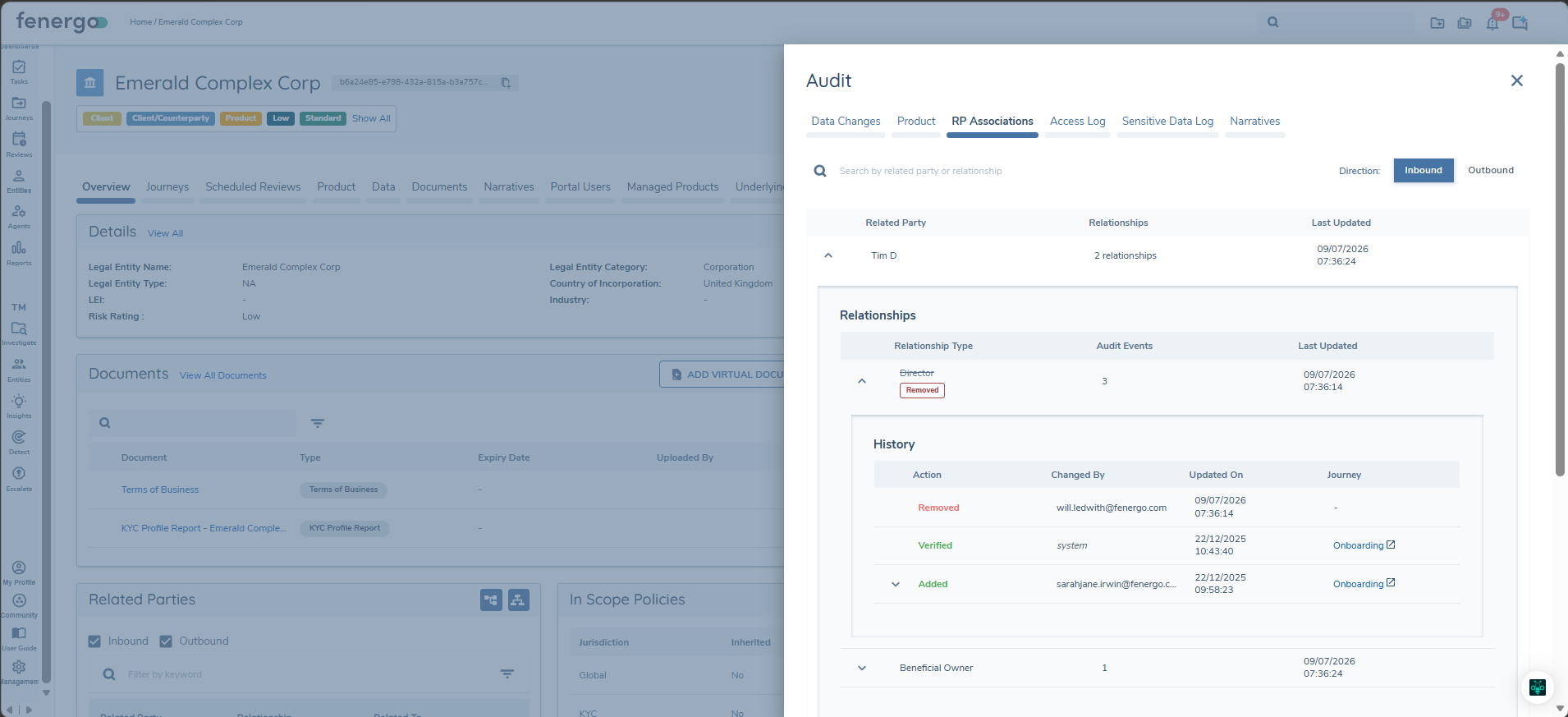
Upon selecting the "RP Associations" tab, the user is presented with the Related Parties associated with the entity in profile, and displays as follows:
- 'Related Party': The name of the Related Party the association is with.
- 'Relationships': The number of relationships recorded against that Related Party.
- 'Last Updated': The date & time when the last update was made.
A Direction toggle allows the user to switch between "Inbound" and "Outbound" relationships (see Understanding Association Structures for more on Inbound vs Outbound relationships). A search field is also available to search by Related Party or relationship.
By selecting the down arrow to the left of a Related Party, the user can view the individual relationships recorded for that Related Party:
- 'Relationship Type': The relationship between the entity and the Related Party, eg 'Beneficial Owner'.
- 'Audit Events': The number of audit events recorded for that relationship.
- 'Last Updated': The date & time when the last update was made.
Expanding a relationship exposes its 'History', following the same before/after pattern as other Audit tabs:
- 'Action': The type of change recorded, such as 'Added'.
- 'Changed By': The username (email address) of the person who made the change. Can also be 'System'.
- 'Updated On': The date & time when the change was made.
- 'Journey': The journey where the change was made (empty if the change was made outside of a journey).
Expanding a History entry displays the field-level detail captured for that change:
- 'Field': The name of the field the audit record is captured for, eg 'Ownership'.
- 'Value': The captured field value. For changes to an existing relationship, 'Old Value' and 'New Value' are shown instead.
Access Log
The "Access Log" Tab provides an audit record of the list of Users who have viewed the Entity Profile Page, and a timestamp of when this event occurred. The tab contains two columns: "Username" and "Last Viewed". There are filters available in the form of a "Username" dropdown, which will display all of the Users within the Tenant, and date-picker fields of "From" and "To" that allow a User to select the date range the read events should be returned from.
The "Access Log" events have an indefinite retention period. Finally, there is deduplication logic with regards to the recording of multiple visits to an Entity Profile Page from the same User within a short time-span. This is to prevent the creation of irrelevant, duplicate data in the "Access Log" tab. Fenergo SaaS will only record a single event if a User visits an Entity Profile Page multiple times in succession, up to a 30 minute limit. For example: John Doe (User) visits the Entity Profile Page of "Tesco LTD" at 11:11:24, 11:23:54, 11:26:41, 11:32:10 and 12:04:32. Only the Read Events of "11:11:24" and "12:04:32" will be recorded.
Journey Level Audit
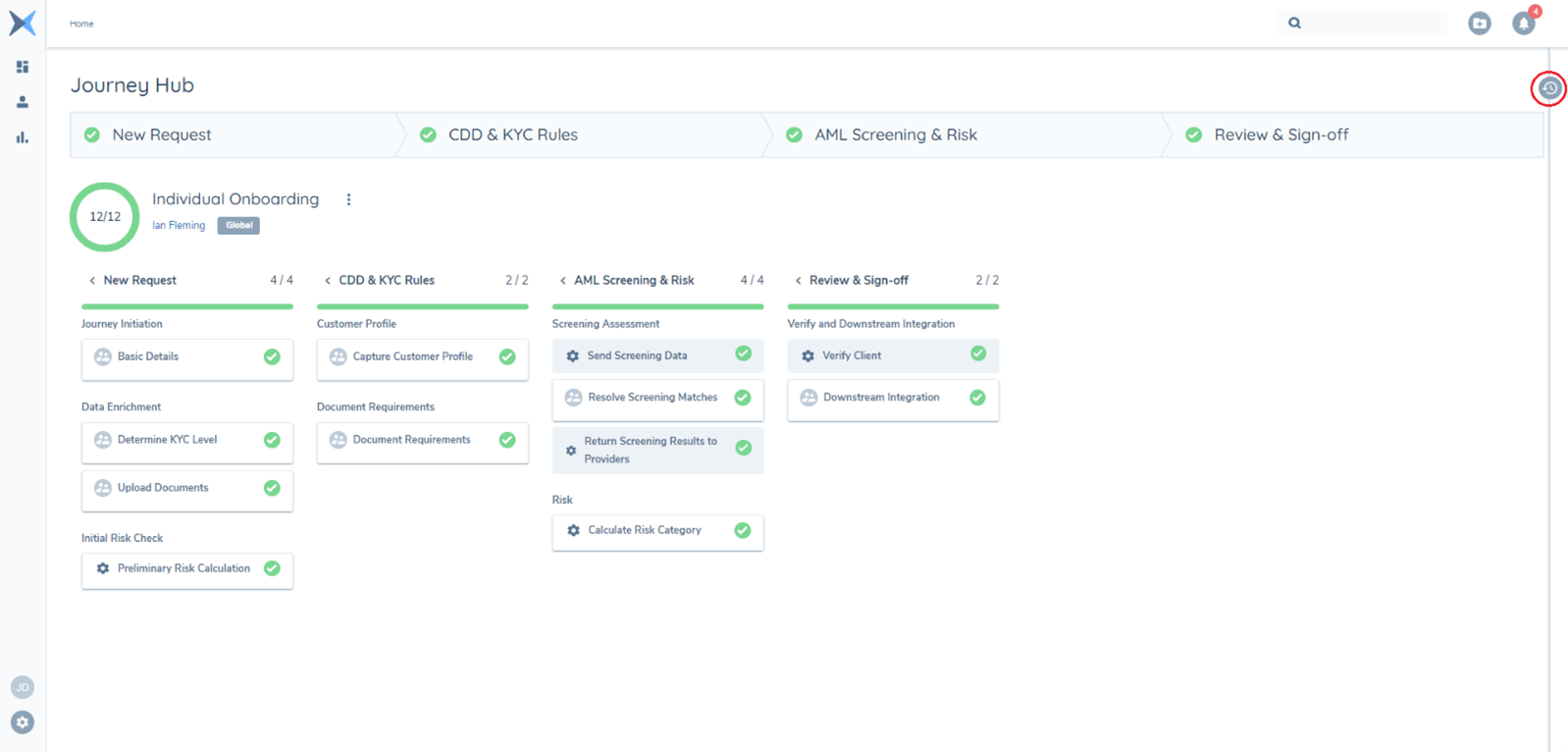
A journey specific view of Audit is available from the 'Journey Hub' Page. It presents audit data in the context of the current journey.
Functionality:
To view the Journey Audit, clicking on the Audit Icon button extends the audit drawer from the side of the page.
The drawer is organised into tabs:
- 'Journey': lifecycle events for the journey in profile (task started, task completed, journey reopened, etc.).
- 'Entity Data Changes': entity field-level draft changes made within this journey.
- 'Journey Data Changes': changes to journey level data fields captured within this journey.
- 'Product Data Changes': product field-level draft changes made within this journey. Only visible where the Product domain is enabled in the tenant.
This view enables users to see what specific data changes were made in this journey, when and by whom. All data-change tabs are scoped to the journey in profile — draft changes made in other journeys or verified since journey launch are not displayed here (EPP Audit is the best holistic view).
Journey tab
The 'Journey' tab displays the lifecycle events for the journey in profile, as follows:
- 'Event': The name of the event that the audit record is captured for, eg 'Task Completed'.
- 'Task': The Task at which the audit record was captured at, eg 'Basic Details'.
- 'Stage': The Stage at which the audit record was captured at, eg 'New Request'.
- 'Last Updated': The date & time when the last update was made.
Sorting is available for each of the displayed columns, by clicking on the hidden arrow to the right of each column name.
To view the Audit History for any journey event, the user must click on the down arrow to the left of each event name to expose the 'History' Card.
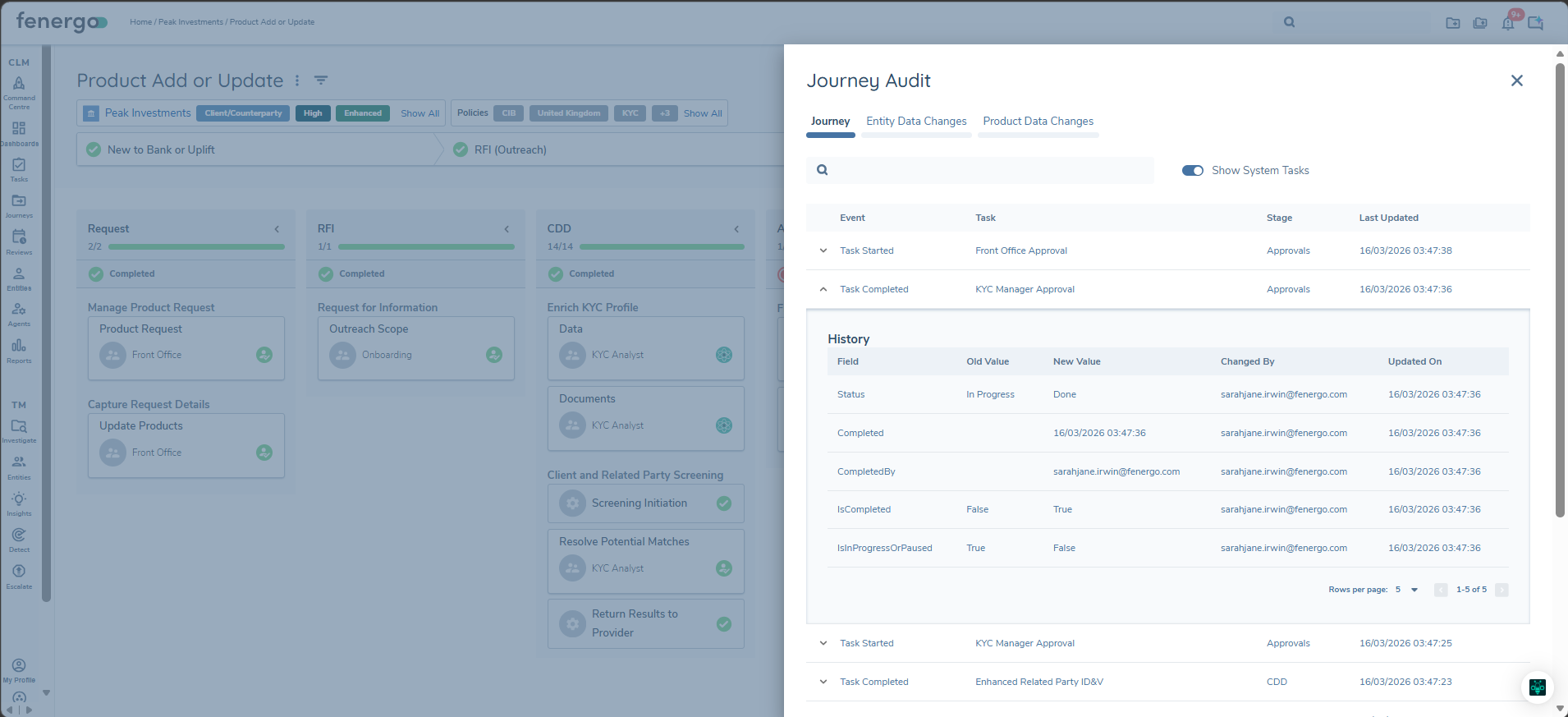
The History Card for each event will display the captured audit data for that event:
- 'Field': The captured field value as determined by the journey domain.
- 'Old Value': The value for that field before a change was made.
- 'New Value': The value for that field after the change was made.
- 'Changed By': Who made the change, can be a User or 'System' change.
- 'Updated On': When the change was made (yyyy-mm-dd).
Show System Tasks:
To show or hide System Tasks from the 'Journey' tab, the user can toggle the 'Show System Tasks' switch.
Entity Data Changes tab
The 'Entity Data Changes' tab displays the entity field-level draft changes that have been made within this journey. Each row represents a field that has had one or more draft events recorded against the journey:
- 'Field Name': The name of the field that the audit record is captured for, eg 'Country of Incorporation'.
- 'Current Draft Value': The most recent draft value set for that field within this journey.
- 'Last Updated By': The username (email address) of the person who last updated the field. Can also be 'System'.
- 'Last Updated': The date & time when the last update was made (yyyy-mm-dd).
Sorting is available for each of the displayed columns. To view the full History for any field within this journey, the user must click on the down arrow to the left of each field name to expose the 'History' Card.
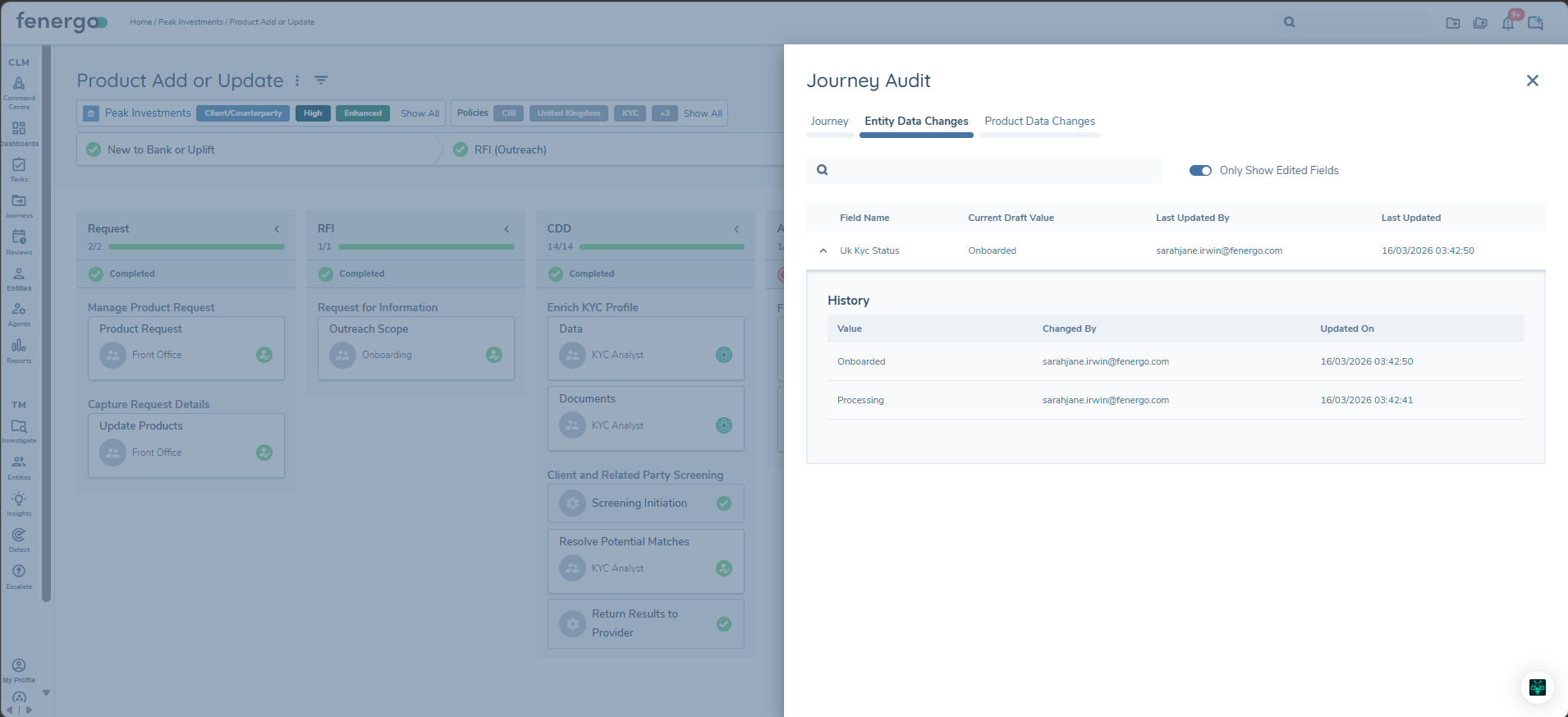
The History Card displays every draft event captured for that field within this journey, including the initial draft creation:
- 'Value': The captured draft value.
- 'Changed By': The person who made the change, can also be 'System'.
- 'Updated On': When the change was made (yyyy-mm-dd).
The 'Data Type' and 'Journey' columns shown in the Entity Profile Audit Drawer's History Card are not displayed here, as every entry in the journey-scoped view is, by definition, a draft event recorded against the journey in profile.
Only show edited fields:
The 'Entity Data Changes' tab includes a single toggle labelled 'Only show edited fields', enabled by default. When a draft is created an audit event is created for every field value captured against the user who triggerd the creation of that draft. This toggle excludes fields whose only audit event in this journey is from the initial draft creation, so the reviewer sees only those fields that have actually been edited during the journey.
When disabled, all fields with any draft activity in this journey are shown.
The History view inside each field always displays every draft event regardless of the toggle state, so the full progression of a field's value can be reviewed (including the initial state at draft creation).
Journey Data Changes tab
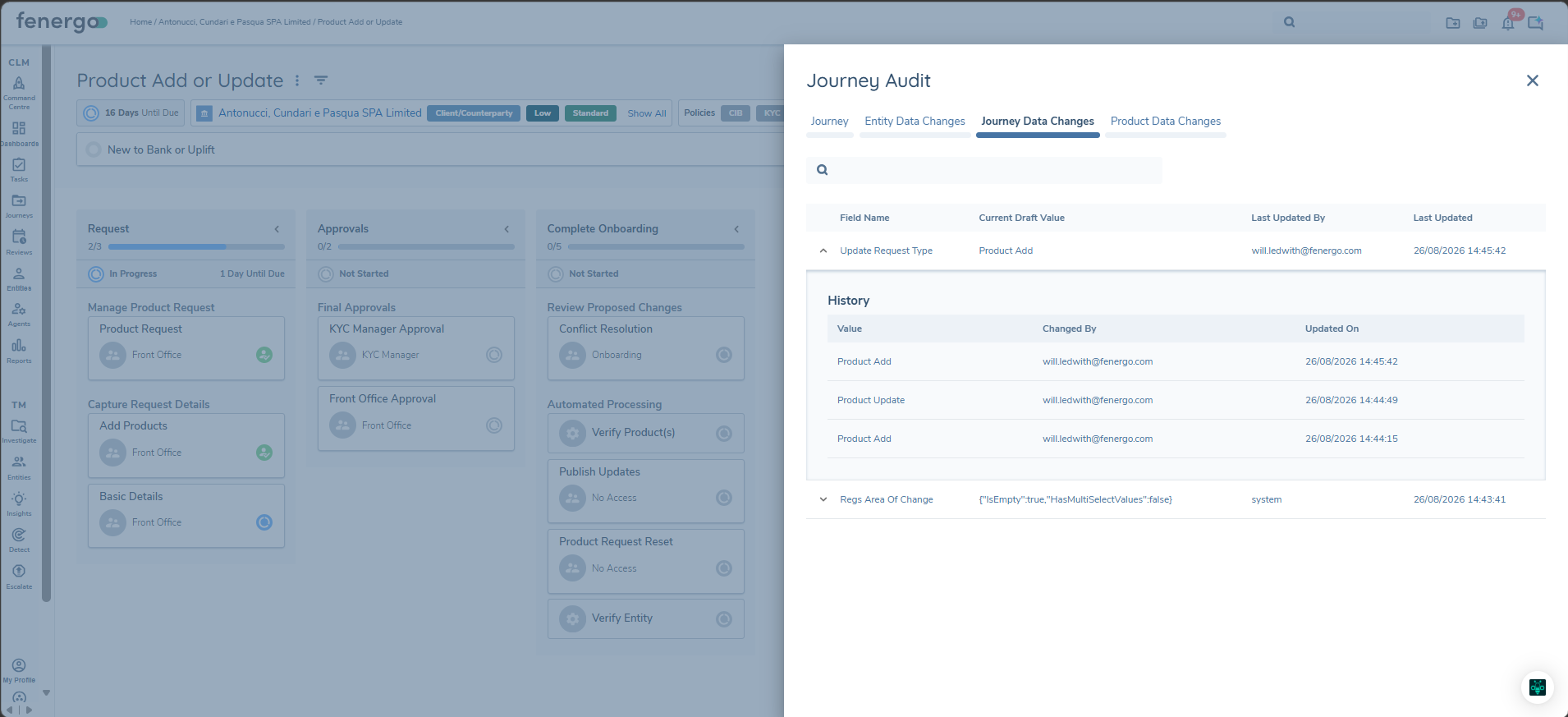
The 'Journey Data Changes' tab displays the changes made to journey level data fields within this journey. Journey level data is captured by data tasks in the journey itself rather than against the entity record, so it is typically used for confirmations, quality control outcomes and journey-specific notes.
This tab shows journey level data only. Changes made to entity fields during the same journey are shown on the 'Entity Data Changes' tab.
Each row represents a journey level data field that has been changed within this journey:
- 'Field Name': The name of the journey level data field that the audit record is captured for, eg 'Jld Multi Select'.
- 'Current Draft Value': The most recent value set for that field within this journey.
- 'Last Updated By': The username (email address) of the person who last updated the field. Can also be 'System'.
- 'Last Updated': The date & time when the last update was made (yyyy-mm-dd).
Sorting is available on the 'Field Name' and 'Last Updated' columns. To view the full History for any field within this journey, the user must click on the expand icon to the left of each field name to expose the 'History' Card.
The History Card displays every change captured for that field within this journey:
- 'Value': The value applied by that change.
- 'Changed By': The person who made the change, can also be 'System'.
- 'Updated On': When the change was made (yyyy-mm-dd).
History entries are listed most recent first, so the previous value for any entry is the entry directly below it.
Availability for existing journeys:
Journey level data audit records are captured from the point at which this feature is enabled in the tenant. Changes made to journey level data before that point were not recorded, and cannot be displayed retrospectively.
This differs from the 'Entity Data Changes' and 'Product Data Changes' tabs, which draw on entity and product draft audit records that were already being captured before those tabs were introduced. In practice, a journey that completed before the feature was enabled will show the empty state on this tab, and a journey that was already in flight will show only those changes made after the feature was enabled.
Product Data Changes tab
The 'Product Data Changes' tab displays product field-level draft changes that have been made within this journey. This tab is only present where the Product domain is enabled in the tenant.
The tab follows a three-level structure consistent with the Entity Profile Audit Drawer's Product tab. The top-level rows list each Product that has at least one field passing the current toggle filter:
- 'Product Type': The product that the audit record is captured for, eg 'Equities'.
- 'Last Updated By': The username (email address) of the person who last updated the product. Can also be 'System'.
- 'Last Updated': The date & time when the last update was made (yyyy-mm-dd).
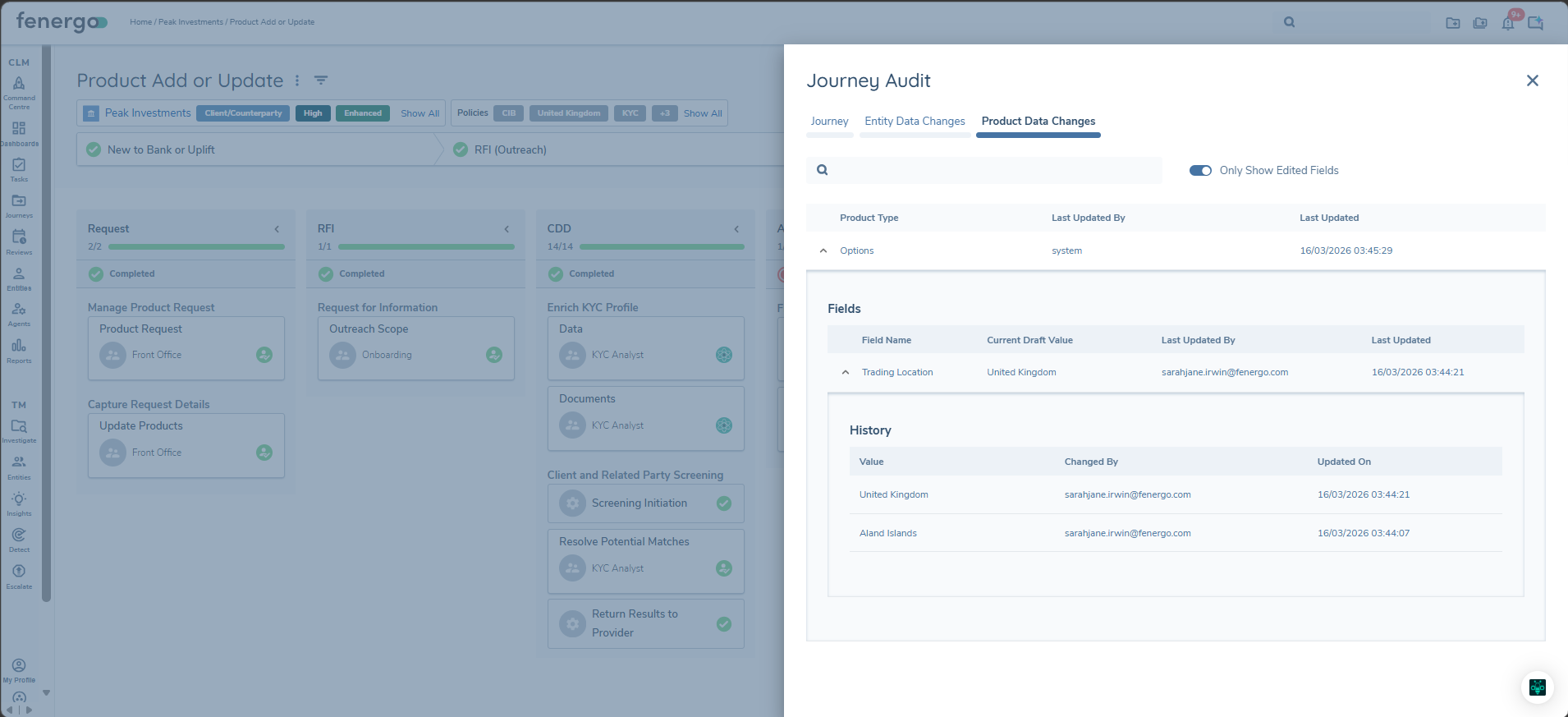
By clicking the expand icon, the user is presented with the Fields list for that product, with the same columns as the 'Entity Data Changes' tab:
- 'Field Name': The name of the field that the audit record is captured for, eg 'Selling Location'.
- 'Current Draft Value': The most recent draft value set for that attribute within this journey.
- 'Last Updated By': The username (email address) of the person who last updated the field. Can also be 'System'.
- 'Last Updated': The date & time when the last update was made (yyyy-mm-dd).
Field level can be further expanded to display the History Card, showing every draft event for that attribute within this journey: Value, Changed By, Updated On.
The 'Only show edited fields' toggle, 'Audit Search', sorting, pagination, and empty states behave consistently with the 'Entity Data Changes' tab.
Task Level Audit
Functionality:
The latest release supports Task level Audit in the Screening domain only. Task level audit can be accessed by clicking on the Audit Icon while inside the Screening Results Task.
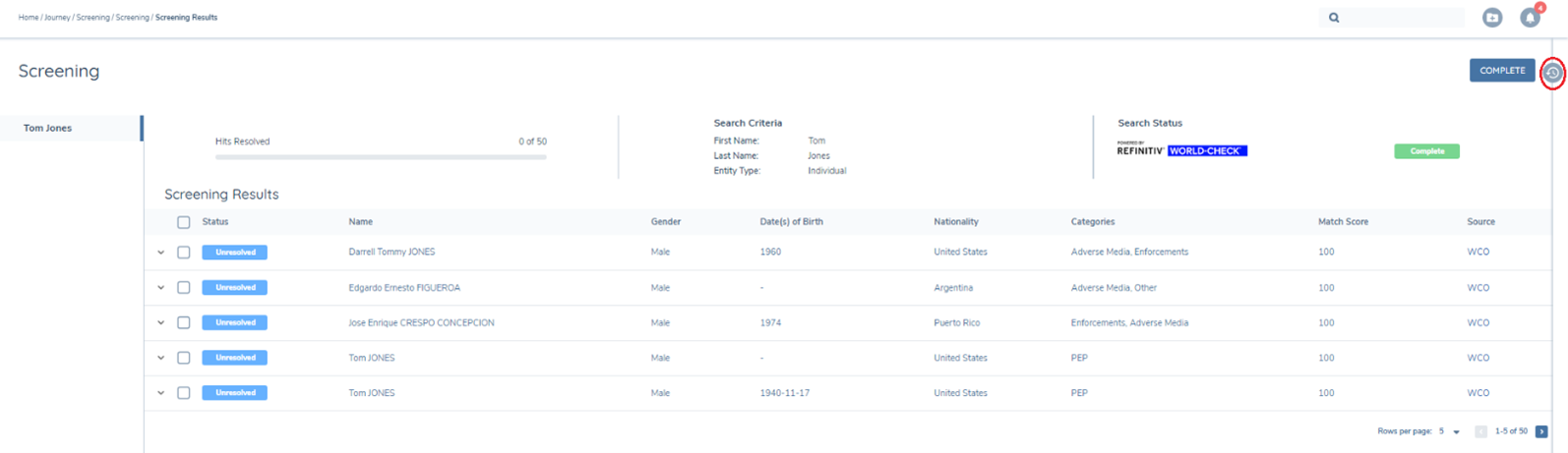
When the Audit Icon is clicked, the Audit drawer opens out. There will be no audit details captured until a Match update has been actioned by the user.
When the user has resolved a Match the Audit display will show the 'MatchesUpdated' Event Type and other high level audit information such as the 'Legal Entity Name', 'Last Updated By' and 'Last Updated' columns.
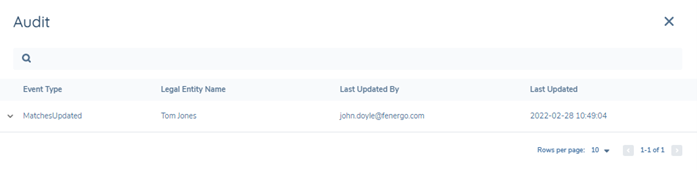
The User then has the option to view further audit information by clicking on the dropdown icon beside the 'MatchesUpdated' event.
For an Individual this will expose information such as the 'Match Name', 'The Entity Type', 'Date(s) of Birth' 'Nationality' and 'Source'. For a Company, the 'Date(s) of Birth' and 'Nationality' fields will not be populated.
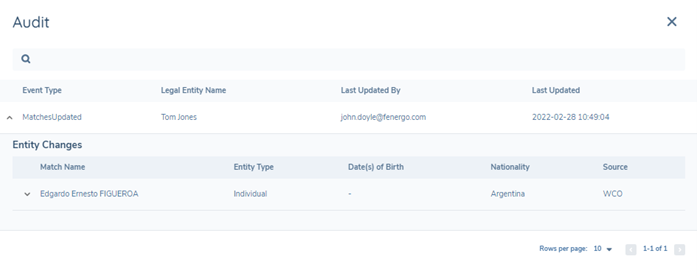
The User can further explore the audit trace by clicking the dropdown beside the 'Match Name'. This will expose the User actions associated with resolving the Match. It shows the 'Field' name, the 'Old Value' and 'New Value'.
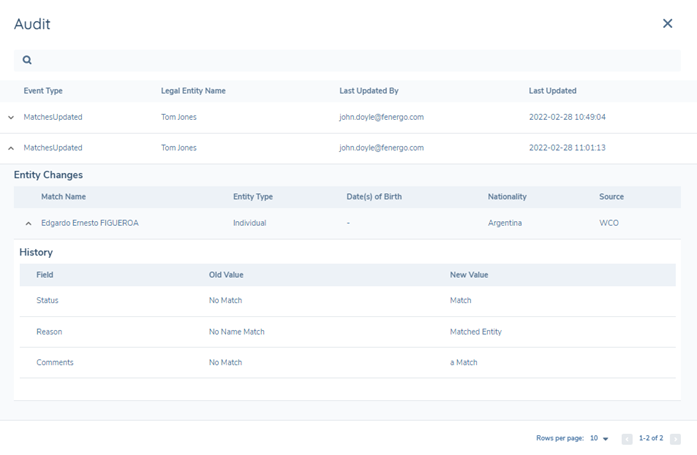
Screening Task Level Audit is available for both the main Entity and any Related Parties that are captured in the Screening task. Search functionality exists at the top of the Audit screen, similar to Entity and Journey level.