Conflict Resolution and Proposed Changes
Overview Conflict Resolution
The conflict resolution feature in Fenergo SaaS allows users to manage entity data in their current journey when the entity data has been changed and verified in a journey outside of the current journey.
What is Conflict Resolution?
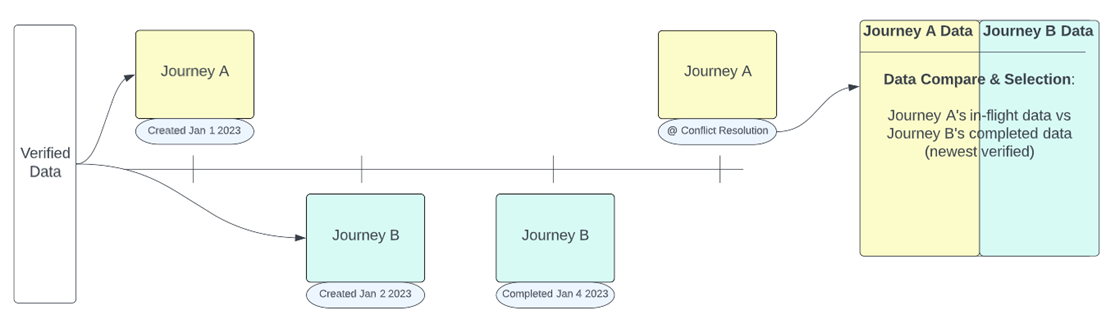
After a journey is started in Fenergo SaaS, there is a chance that another user in the system will update and interact with a legal entity via a subsequent Journey. This second user may complete and verify their journey before the original journey is completed. The Conflict Resolution task allows the user to review the updated verified data, alongside any data they have entered in their journey. It compares the Draft Entity Data collected in the current Journey, to the latest Verified Data on the entity. Where configured in the task, this same principle also applies to Related Party entity data, where it has been updated in the current journey, and also updated and verified in a subsequent journey. Where Product is enabled, and the task configured, it is also possible to review any updated verified product data, alongside the product data captured in the current journey.
Conflict Resolution only works when the Data has been updated and verified in a subsequent journey, and there is conflicting Data in the current journey. Where there are no conflicts detected, the task auto-completes.
How To Use Conflict Resolution
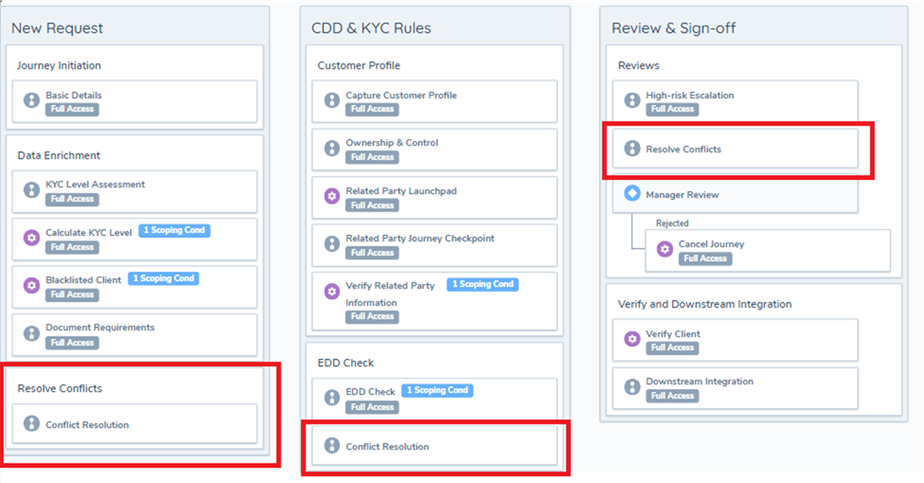
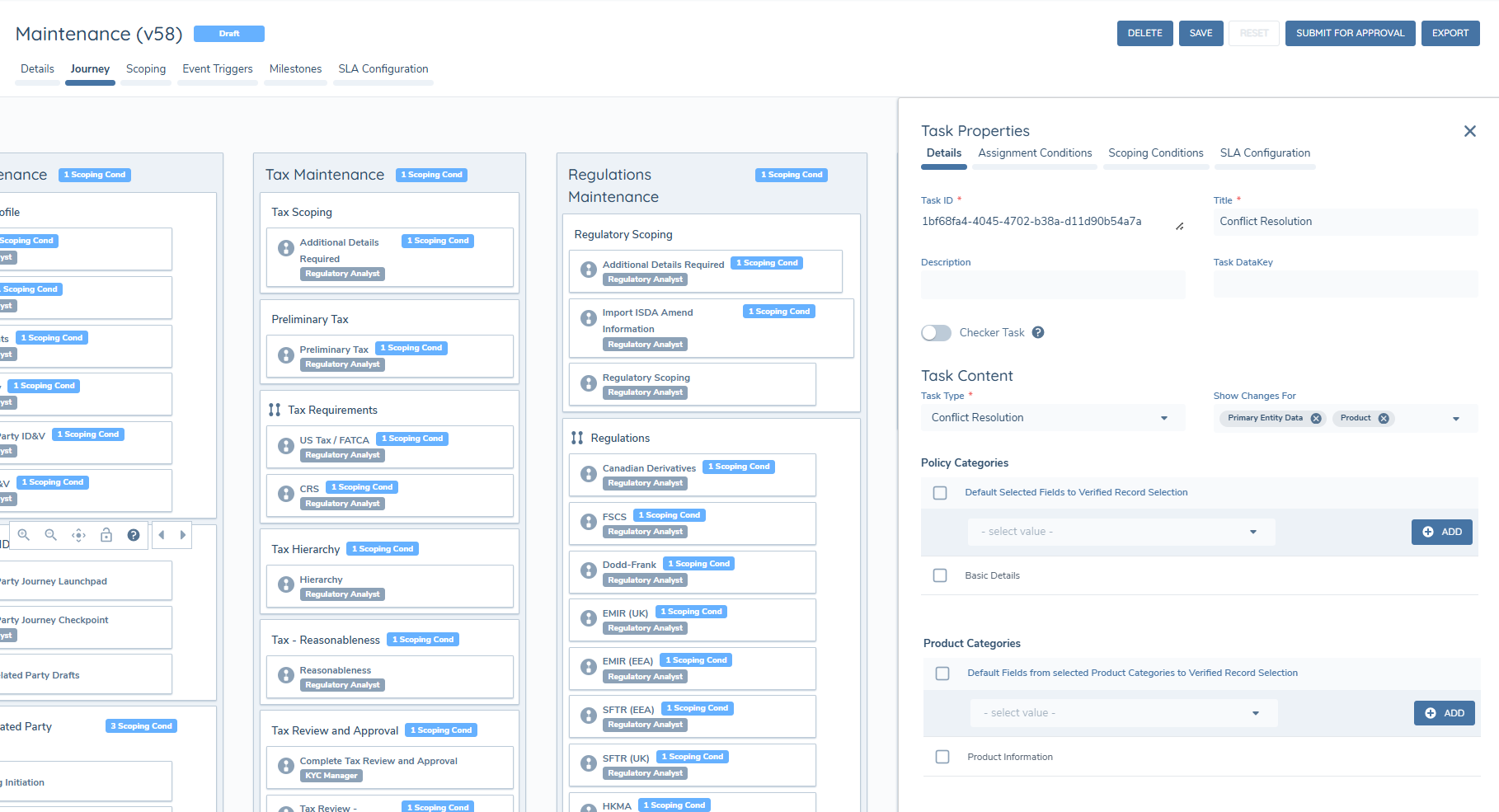
Inside Journey Builder, the task can be found underneath the Policy Requirement Tasks. The task can be placed multiple times inside a journey whenever necessary.
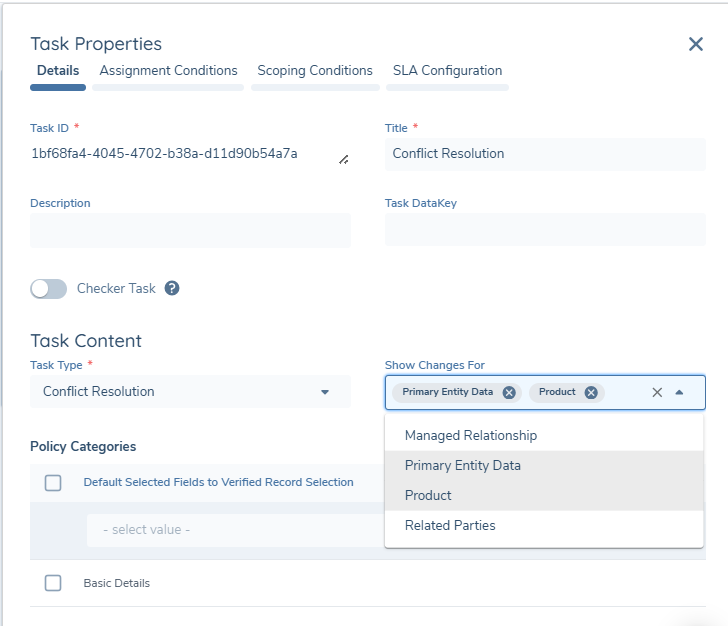
The task configuration multi-select option - "Show Changes For" - will determine the scope of conflict resolution within the task. Configurators can select all, one, or a combination of the options below for inclusion within the task:
- Primary Entity Data - When selected and conflicts are detected, you will see the 'Data Fields' tab along with tabs for any data group changes (where applicable) in relation to the main entity in the context of the current journey. This is the default selection.
- Product - When selected you will see the 'Products' tab which displays the conflicts for the products associated with the main entity in journey. This option is only available when Product is enabled within the tenant.
- Related Parties - When selected and conflicts are detected, you will see the 'Related Parties' tab which displays the entity data conflicts for the related parties associated with the main entity in journey.
- Managed Relationship - When selected, you will see the 'Managed Relationship' tab, which displays the conflicts for the Managed Relationships associated with the main entity in the journey. Note: this will only display for Underlying Principals and not Agents. This option is only available when Agency feature is enabled within the tenant.
- Accounts - When selected, you will see the 'Investment Account' and 'Bank Account' tabs which display the data conflicts for accounts captured against the main entity.
All tabs triggered within the task must have a complete Green Tick in order to complete the task.
The user will need to have permissions for Conflict Resolution assigned to their designated team(s) in order to interact with this task, further information on these permissions can be found later in this guide.
Primary Entity Data Conflicts
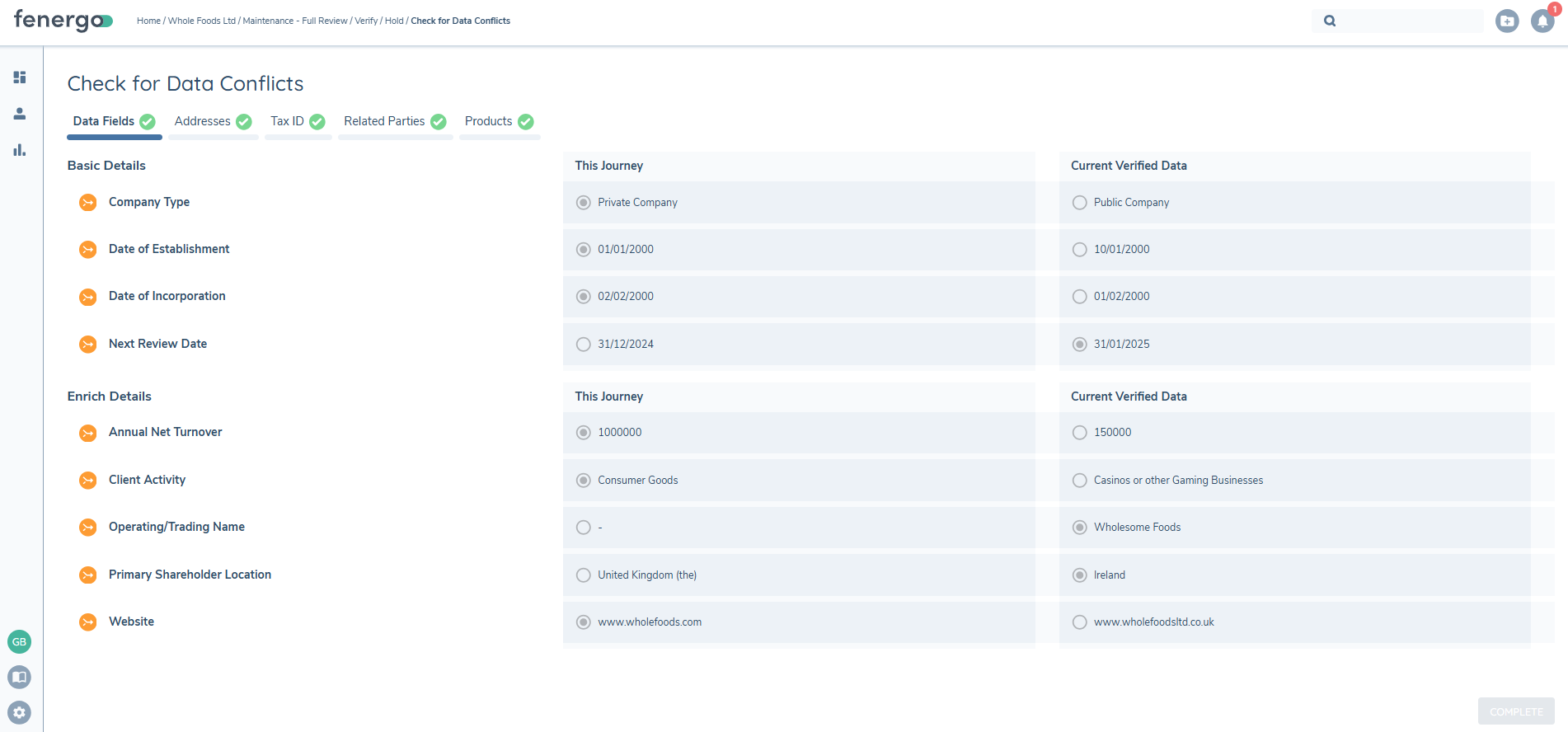
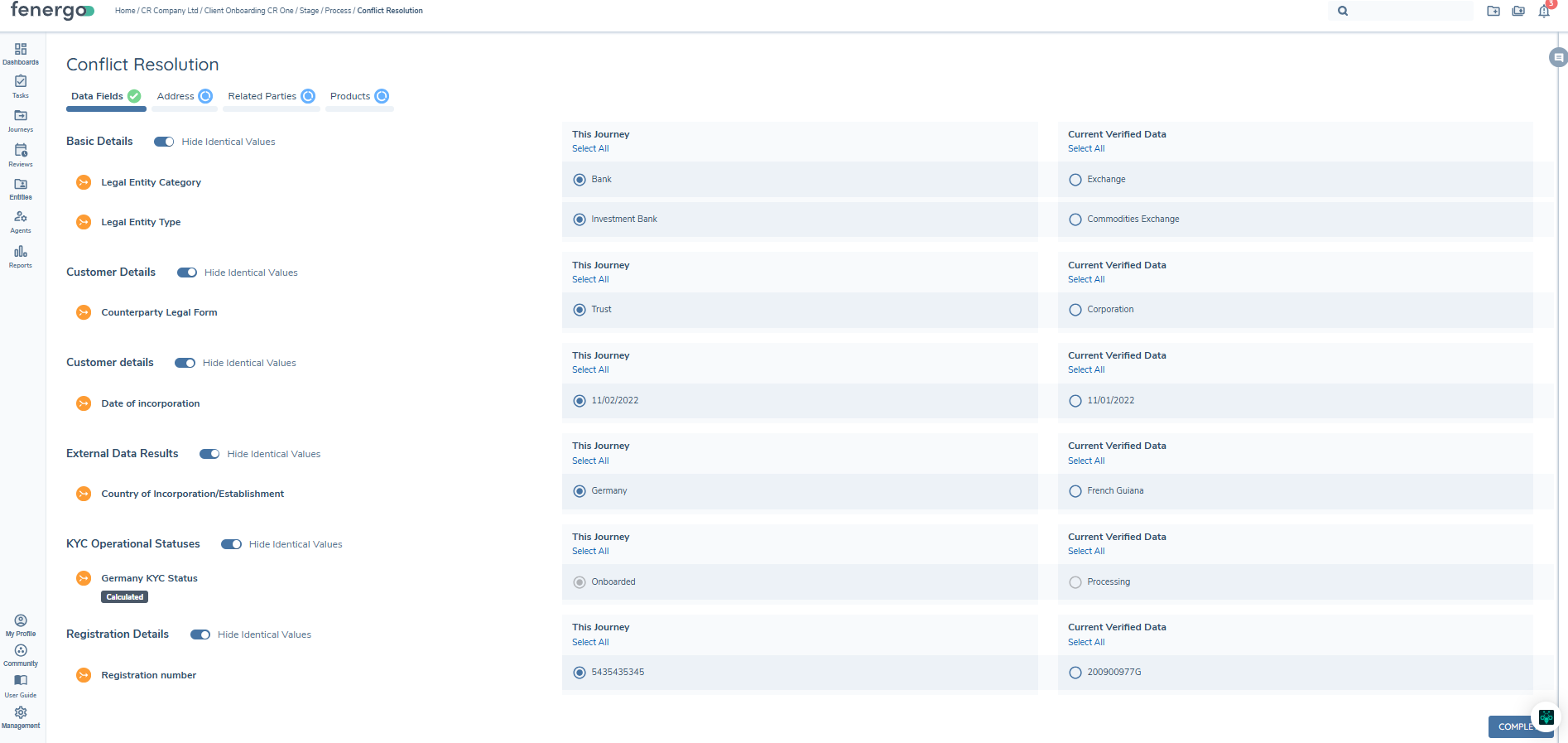
In the Data Fields tab, the fields that have conflicting values are displayed with an orange UI icon to alert the user that a decision needs to be made. Values that are identical, in both the Draft and verified data, are hidden by default. If there is no value previously entered in the field, the field will not appear as there is no comparison to be made.
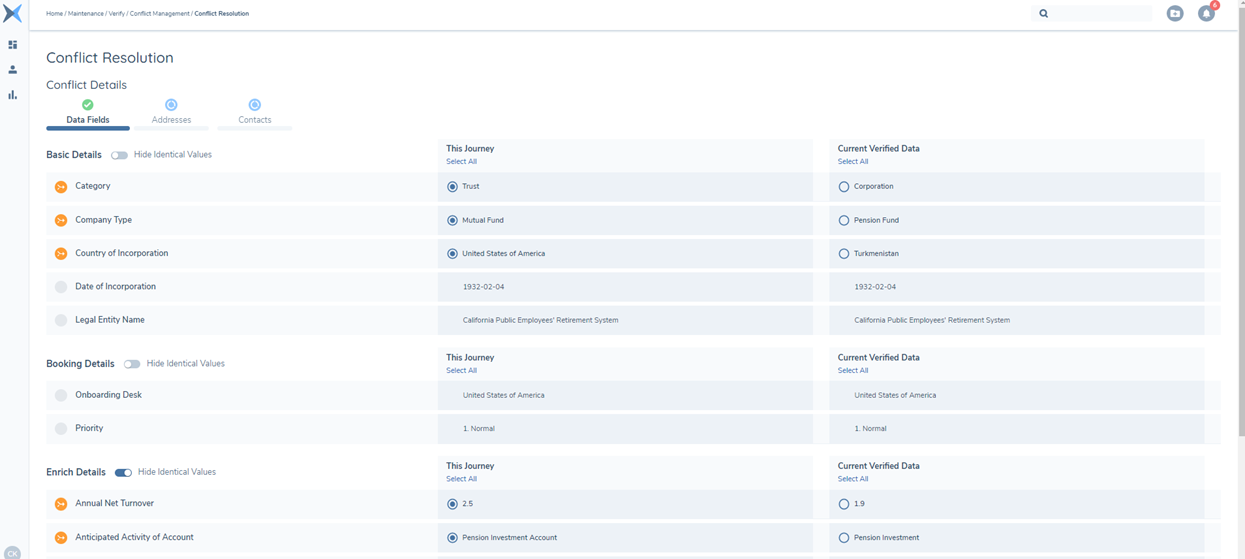
When configuring the task in Journey Builder, you have the option to select some policy categories. Whilst you will always see conflicts regardless of the policy categories, the entity fields which belong to the categories you select in this task configuration will default selection in the task to the "Current Verified Data", whereas all other fields will default to "This Journey" in the task. If the category field is left empty, all fields will default to "This Journey" since this is the standard selection. A user with Edit permissions in the task will always be able to select the value from the other column.
Data Groups are broken down into two sections on screen, the current Entity Draft in the top section, and the Verified Data in the bottom. The user can pick any combination of these from across both sections to combine. This will form the new Data Group on the Entity when the Journey has been completed.
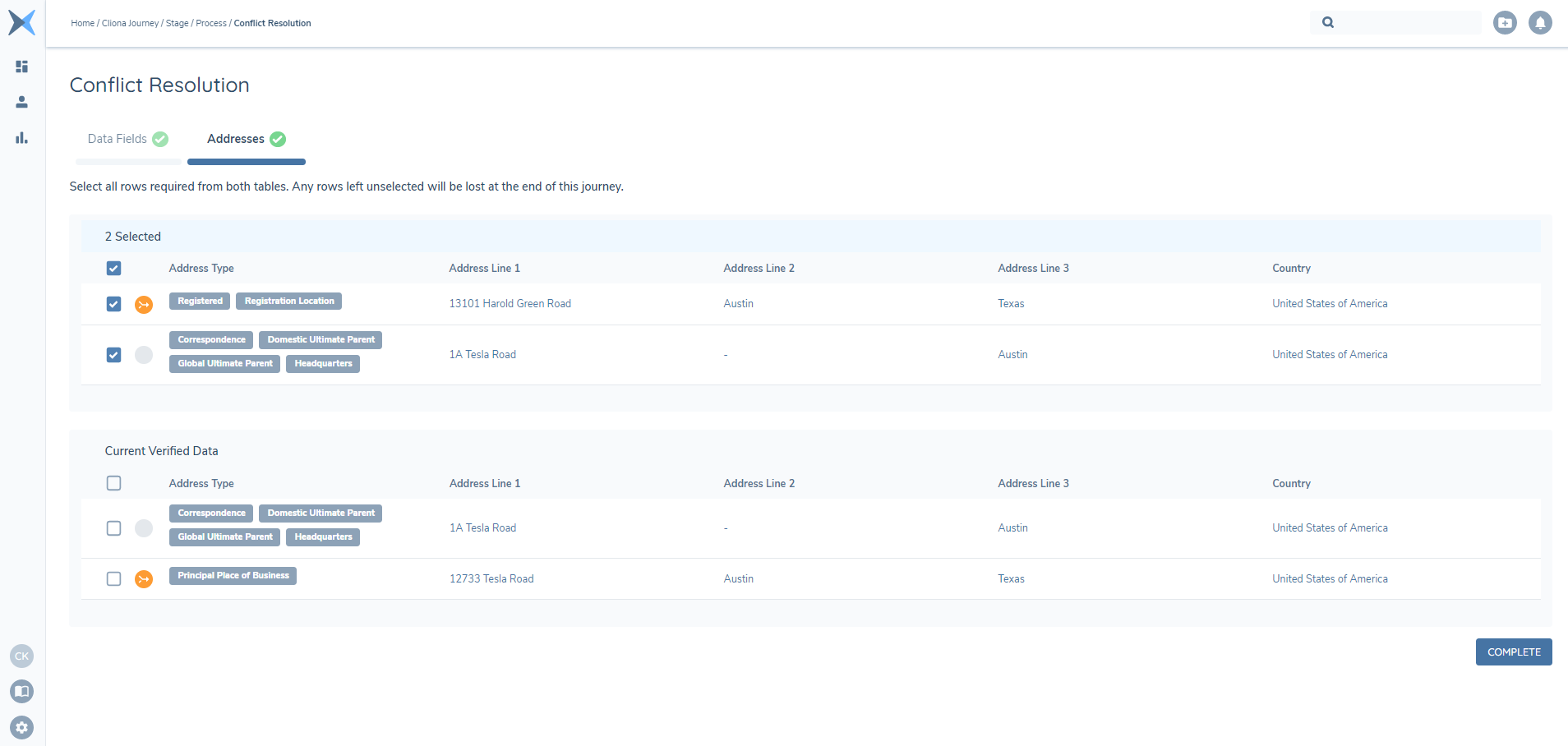
For a given data group, so long as it has been populated with values in the past, even if no conflicts have been detected in the current journey, the tab for this data group will still appear in the Conflict Resolution task.
Product Conflicts
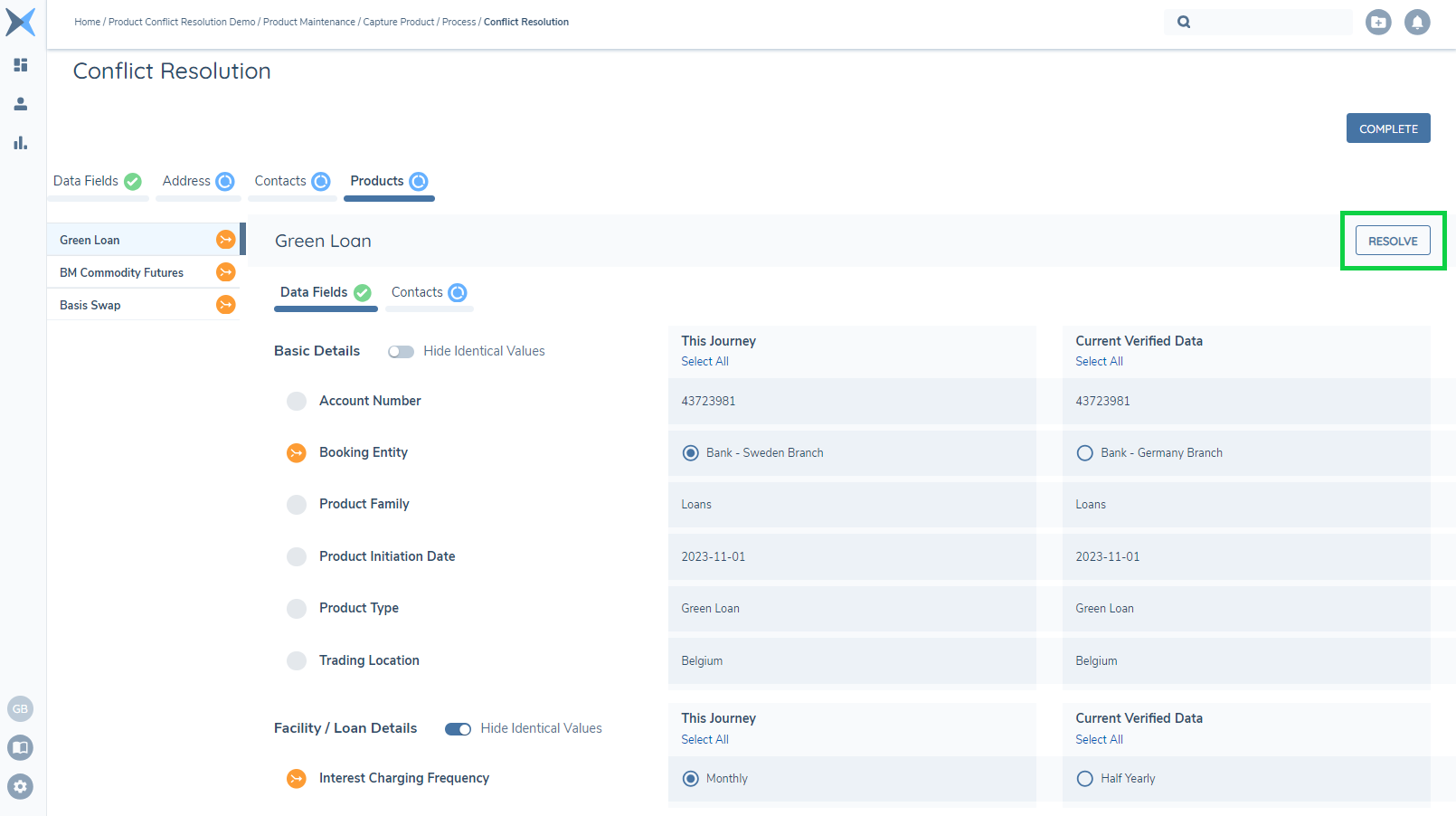
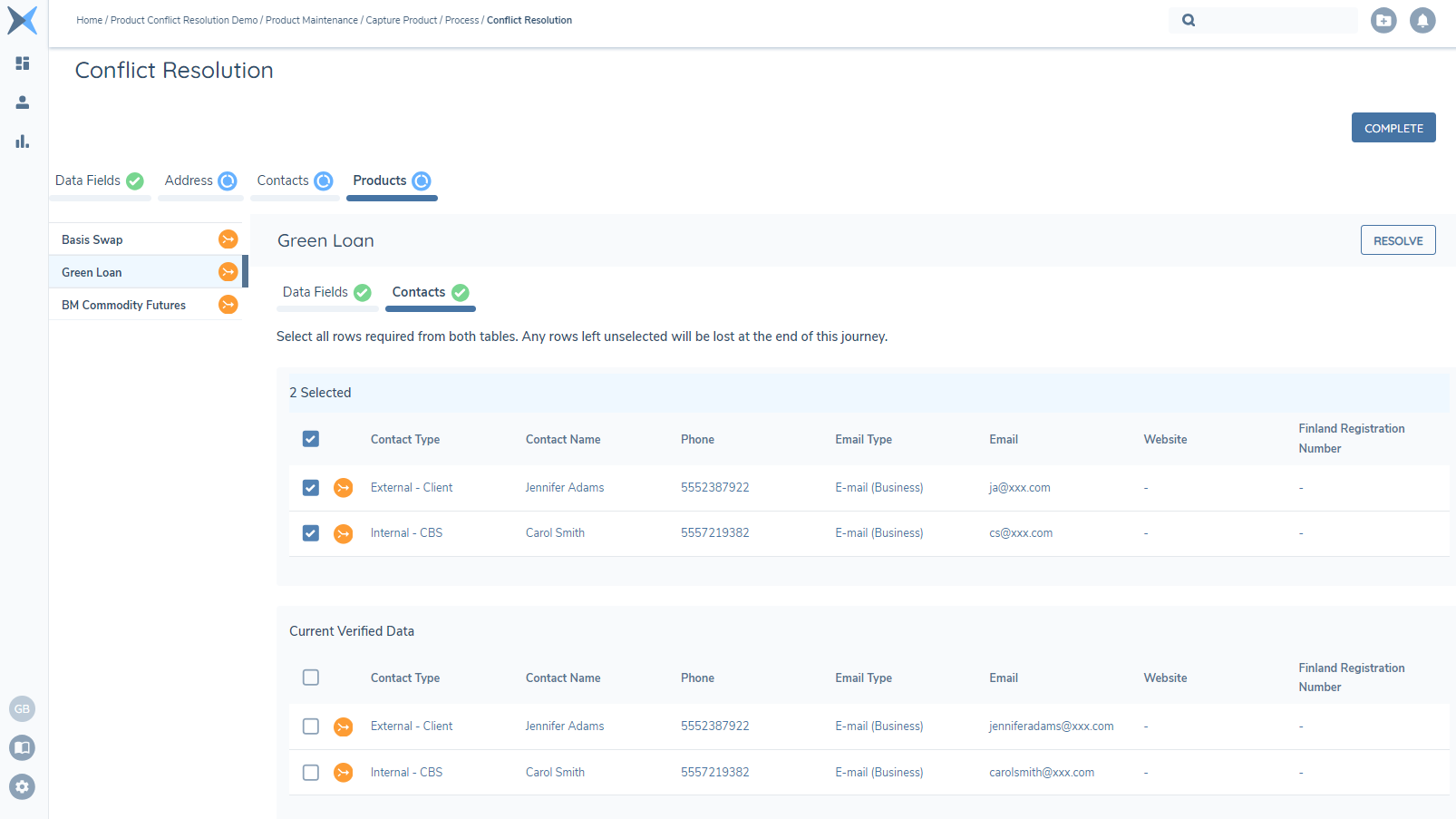
The Products tab is composed of a number of vertical tabs representing each product where a conflict has been detected and the products are represented with the orange conflict UI icon. Aligning to the Entity Data pattern, the detail for each product is presented in a tabbed format with a 'Data Fields' tab, and any additional tabs for Data Groups associated to the product. Within the Data Fields tab, those fields that have conflicting values are displayed with the orange conflict UI icon and fields that are identical are hidden by default. Two columns display the values - "This Journey" and "Current Verified Data".
Data Group tabs follow the pattern of entity data and are broken down into two sections with the current journey draft values in the top section and the verified values in the bottom. Where the data group has not been updated in the current journey, then there are no selections to be made and the tab is not editable.
When configuring the task in Journey Builder, you also have the option to select some Product Categories. Whilst you will always see conflicts regardless of the Product Categories, the product fields which belong to the categories you select in this task configuration will default selection in the task to the "Current Verified Data", whereas all other product fields will default to "This Journey" in the task. If no Product Categories are selected, all product fields will default to "This Journey" since this is the standard selection. A user with Edit permissions in the task will always be able to select the value from the other column.
Where Product Access Layers are in use, products and conflicted product fields that a user is not entitled to see will be hidden from the Conflict Resolution task. Hidden conflicts are resolved automatically using the same defaulting rules as visible conflicts — the user does not need to interact with them, is not blocked from completing the task, and is not shown any message, count, or icon indicating that conflicts are hidden.
Should no conflicts be detected, the Products tab displays a 'No Conflicts' message.
Where the Products tab differs to Entity data is that the conflicts detected for each product must be resolved. Visiting the tab does not constitute a resolution and users must complete the action via the RESOLVE button. Each product represented must be reviewed and once all product conflicts have been resolved, a 'No Conflicts' message appears and the Products tab will show the green tick icon. This allows for the completion of the task, once the entity data conflicts have also been resolved.
Related Parties Conflicts
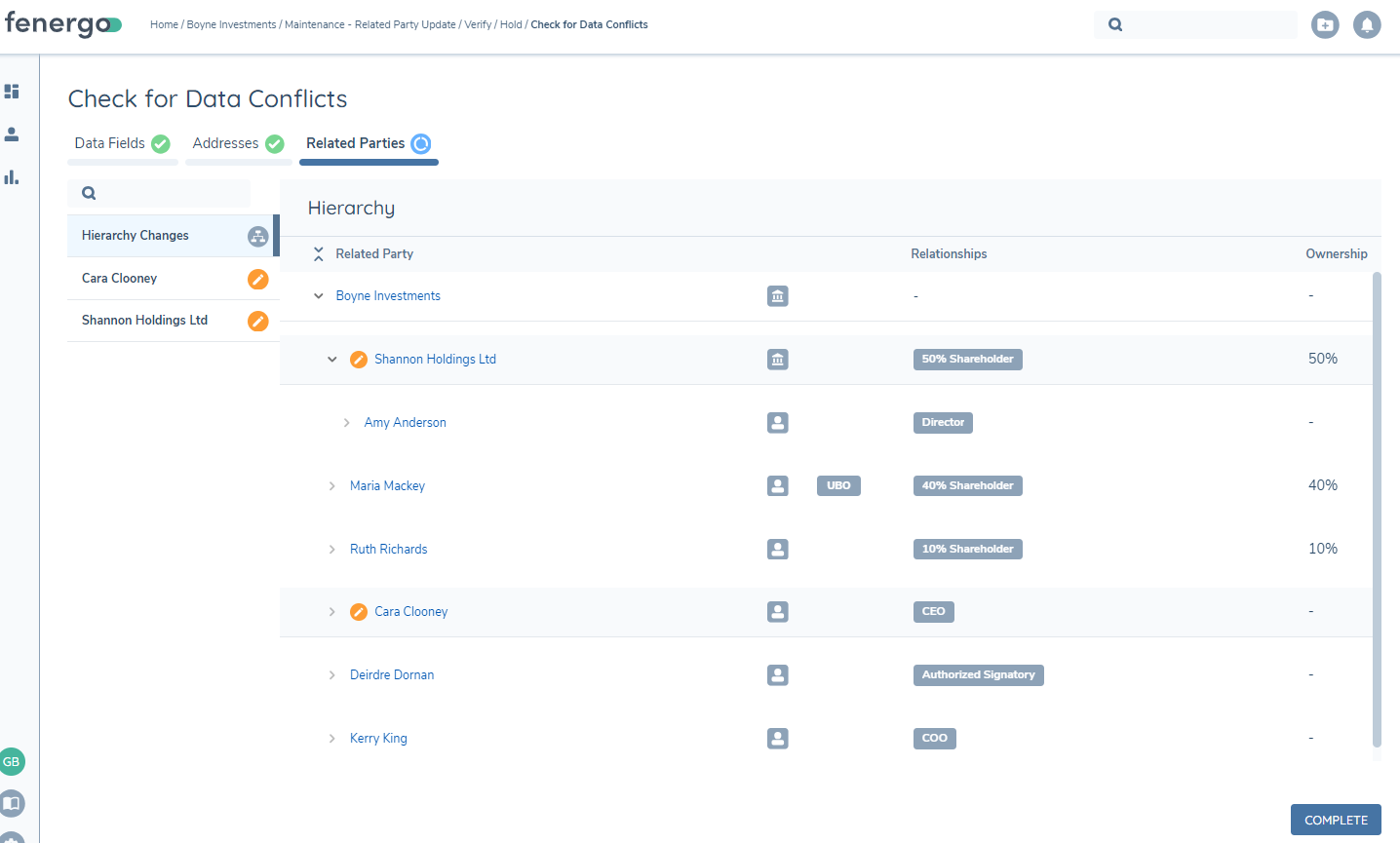
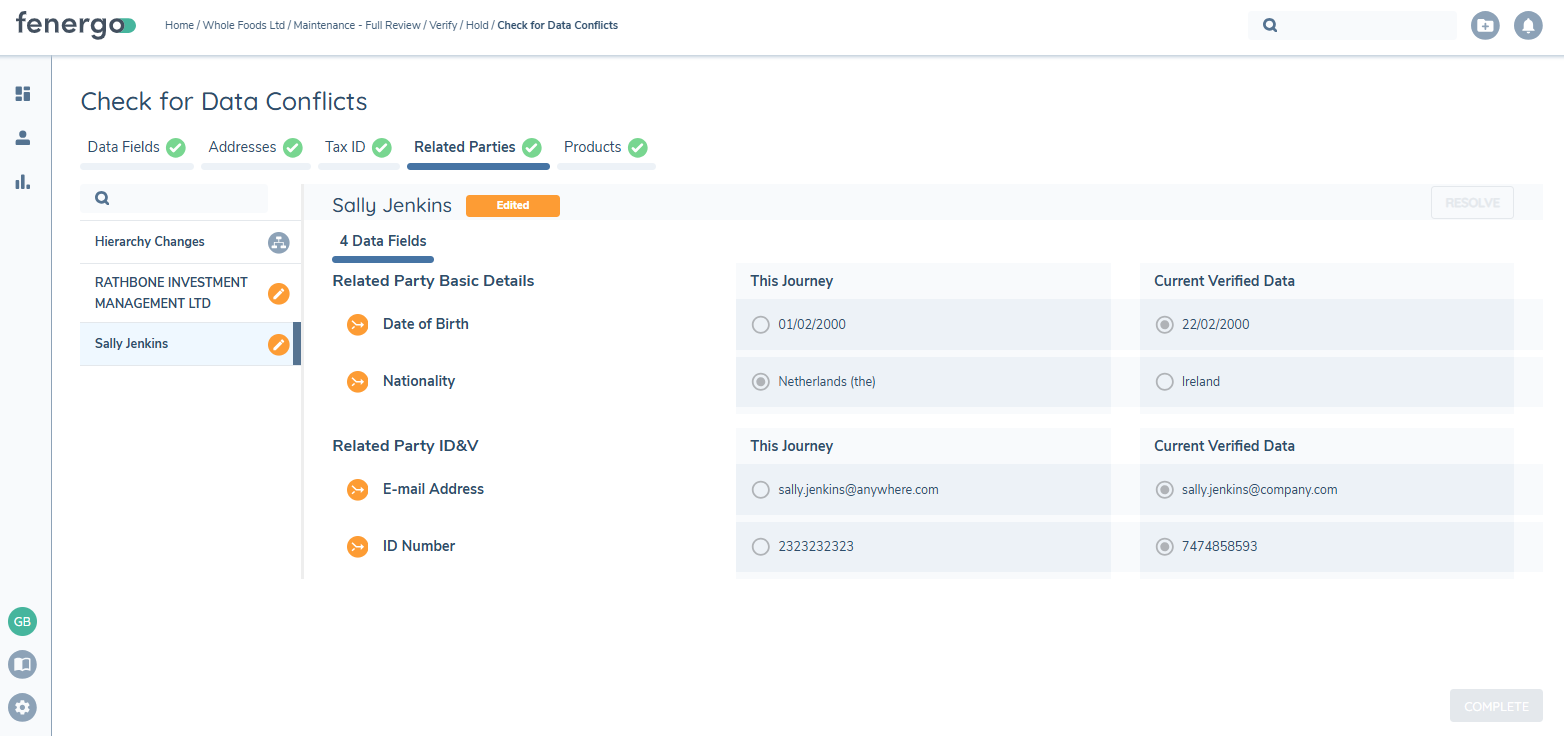
The Related Parties tab is composed of a number of vertical tabs - the Hierarchy Changes tab, which is always present and is the default view, as well as a tab for each entity in the hierarchy which has undergone entity data changes in the current journey, and for which a data conflict has been detected from a subsequent completed journey. When configured in the task, the Related Parties tab will always display when the task is triggered. Where no related party entity data conflicts have been detected, only the Hierarchy Changes tab will be displayed.
For those related parties for whom an entity data conflict has been detected the orange edit UI icon will display to the left of the entity name within the Hierarchy Changes tab. Clicking on the related party name within this tab will navigate the user to the corresponding vertical tab for that related party, where the entity data conflicts can be viewed and resolved.
The search bar at the top of the vertical tabs allows you to search the tabs for a specific entity name. When performing a search, any vertical tabs that do not meet the search criteria will be hidden, however the Hierarchy Changes tab will always be visible.
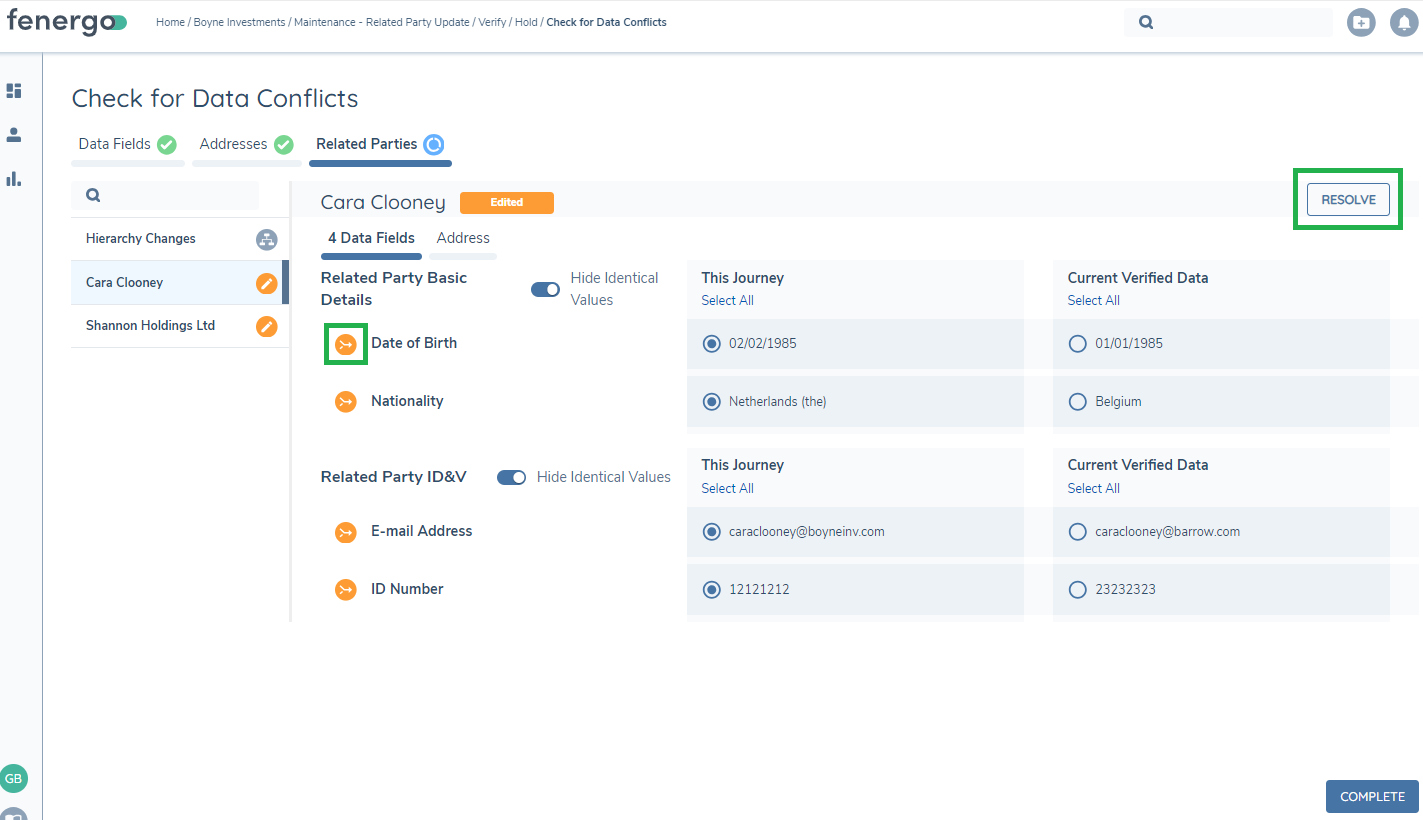
Selecting the related party in the vertical tab will display the corresponding entity data where conflicts have been detected. Aligning to existing patterns, data is displayed within a 'Data Fields' tab, and the tab is prefixed with the number of data fields where conflicts have been detected. Each field that has conflicting values will be grouped by category and are displayed with the orange conflict UI icon. Fields that are identical are hidden by default but can be viewed using the 'Hide Identical Values' toggle. Two columns will display the values -"This Journey" and "Current Verified Data" - and values will default to "This Journey".
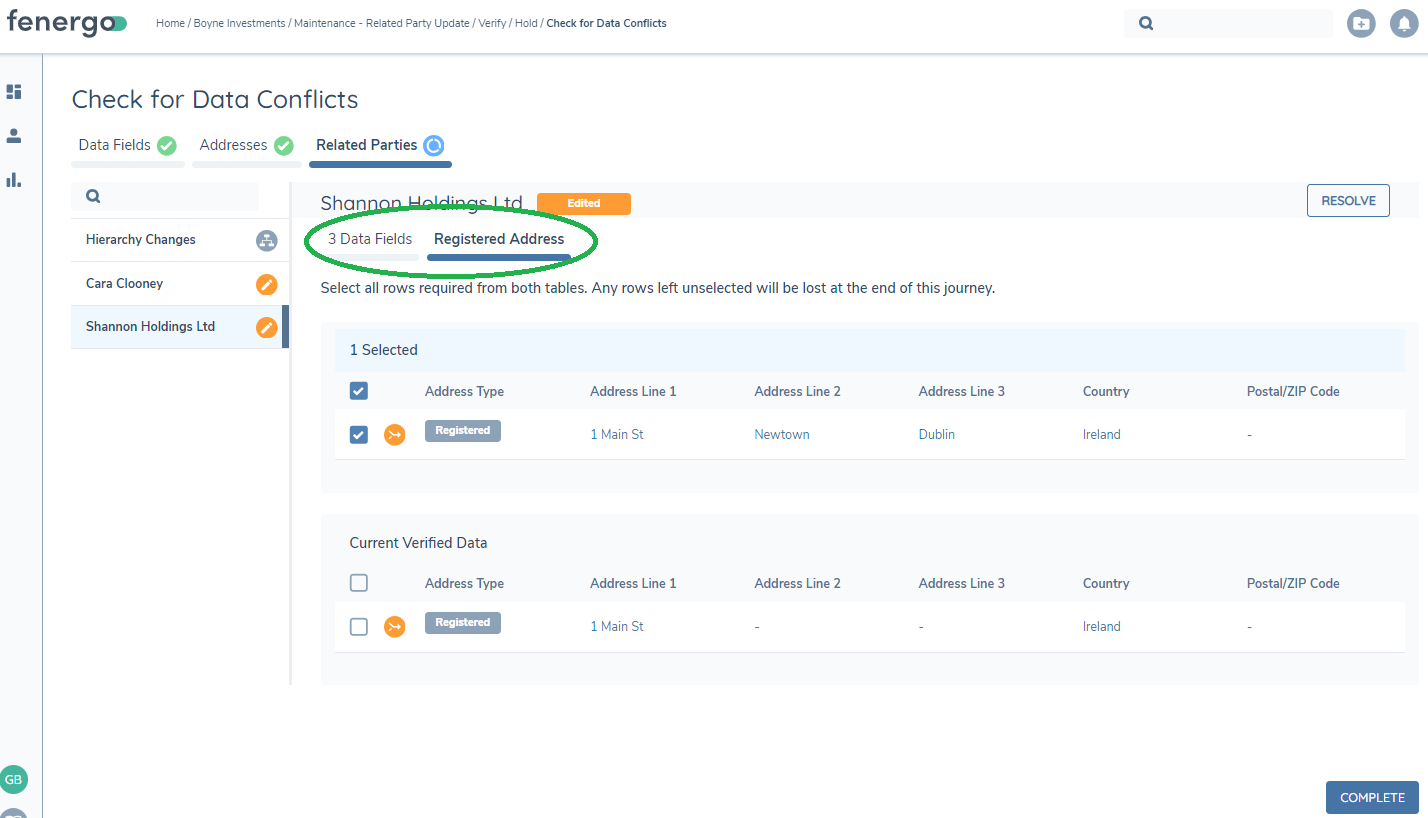
Data Groups associated with the related party will display in additional tabs and like for primary entity data, they are split into two sections rather than columns, with "This Journey" in the top section and "Current Verified Data" in the bottom section. As with primary entity data groups, when a data group has been populated with values in the past, the data groups will appear even when no conflicts have been detected. Similar to 'Data Fields', the data group values will default to "This Journey".
As with Product conflicts in the Conflict Resolution task, the entity data conflicts detected for Related Parties must be resolved in order to complete the task. Users have the ability to review each conflict and must decide which value should be carried forward in the journey by confirming their decision using the RESOLVE button. On completion of the action, the related party will no longer appear in the vertical tabs and the Hierarchy Changes tab will update to reflect the conflict no longer exists.
Visiting the Related Parties tab within the task does not constitute a resolution and the Related Parties tab will only achieve its complete Green Tick status once all related party conflicts have been resolved. Every time the task is loaded, the conflict check will run so new conflicts may be detected should the task remain in progress for a period of time.
It is possible for a related party to be a client in its own right, however those client data fields may not be relevant in the context of this journey where the entity is a related party. Therefore, in order to keep fields displayed in the context of a related party, only the data fields with a Target Entity of 'Related Party' will be displayed and as above, these fields default to the "This Journey" values. Using a Target Entity of 'Related Party' also means that data updated in any Related Party Launchpad journeys will also be included when they are merged back to the current journey, and therefore included in the conflict detection. Fields for any other target entity will not be displayed in the Related Party tab but they are taken into account and are automatically defaulted to "Current Verified Data" values. This will prevent users from changing data that is not relevant to the journey in context.
In the scenario where the related party is edited in the current journey but no changes are made to the related party entity data, and in a parallel journey changes are made where related party is the client in journey, a conflict can be detected but there are no related party entity data conflicts to display and therefore the related party within the Related Parties tab of the task shows no conflicting values to resolve. The user will be required to click RESOLVE on the Related Party and this ensures the values are persisted for fields edited in the parallel journey where those fields do not have a target entity of 'Related Party'.
There may be scenarios where the root/primary entity in journey has an indirect association to itself, and where entity data conflicts have been detected in this instance, the primary entity will be listed in the vertical tabs within the Related Parties task, but the data conflicts will not be presented here. Instead the user is presented with a message advising the data conflicts have been included in the data tabs for the primary entity, and this means that those conflicts are included in the 'Data Fields' and Data Groups tabs for the primary entity in the task. In this case, resolution of the conflicts will occur within these tabs rather than within the Related Parties tab.
Should a situation occur where a draft is created for a related party in the current journey, and a draft is also created in another journey(s) but no data changes are made in either journey, then a conflict will be detected but there are no data conflicts to display. In this scenario the user is presented with the below message and must click RESOLVE in order to complete the task.

Managed Relationship Conflicts
The Managed Relationship tab is composed of a number of vertical tabs representing each Managed Relationship where a conflict has been detected. The Managed Relationships are represented with the orange conflict UI icon. Aligning to the Entity Data pattern, the detail for each Managed Relationship is presented in a tabbed format with a 'Data Fields' tab, and additional tabs for Data Groups associated to the Managed Relationship. Within the Data Fields tab, those fields that have conflicting values are displayed with the orange conflict UI icon and fields that are identical are hidden by default. Two columns display the values - "This Journey" and "Current Verified Data".
Data Group tabs follow the pattern of entity data and are broken down into two sections with the current journey draft values in the top section and the verified values in the bottom. Where the data group has not been updated in the current journey, then there are no selections to be made and the tab is not editable.
Selections will default to "This Journey" for Managed Relationship conflicts.
Should no conflicts be detected, the Managed Relationship tab displays a 'No Conflicts' message.
Where the Managed Relationship tab differs to Entity data is that the conflicts detected for each Managed Relationship must be resolved. Visiting the tab does not constitute a resolution and users must complete the action via the RESOLVE button. Each Managed Relationship represented must be reviewed and once all Managed Relationship conflicts have been resolved, a 'No Conflicts' message appears and the Managed Relationship tab will show the green tick icon. This allows for the completion of the task, once the entity data conflicts have also been resolved.
Account Conflicts
Investment acount data conflicts and bank account data conflicts appear in their own tab. The tabs are comprised of a number of vertical tabs representing each account where a conflict has been detected. The data fields that have conflicting values are displayed with the orange conflict UI icon and fields that are identical are hidden by default. Two columns display the values - "This Journey" and "Current Verified Data". Both data field and data group conflicts are displayed on the same page.
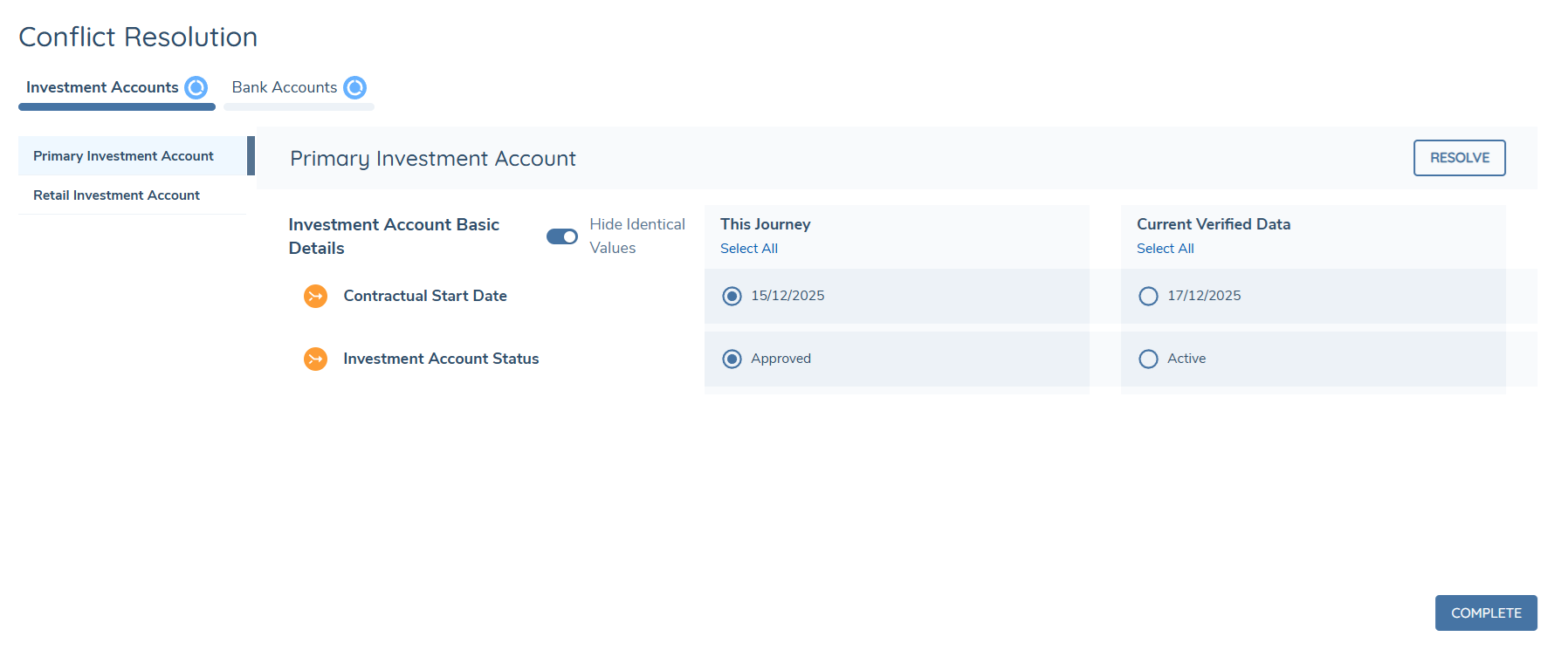
Selections will default to "This Journey" for account conflicts.
Conflicts relating to an Investment Account that has been offboarded in another journey are resolved automatically in favour of the "Current Verified Data" held at the point of offboarding. These conflicts require no user action, do not block task completion, and are not represented by a message, count or icon. Any remaining actionable conflicts continue to be handled as described below. For more detail on this behaviour, see Handling Investment Account Offboarding in Concurrent Journeys in the Investment Account Management guide.
Should no conflicts be detected, the account tabs display a "No Conflicts" message.
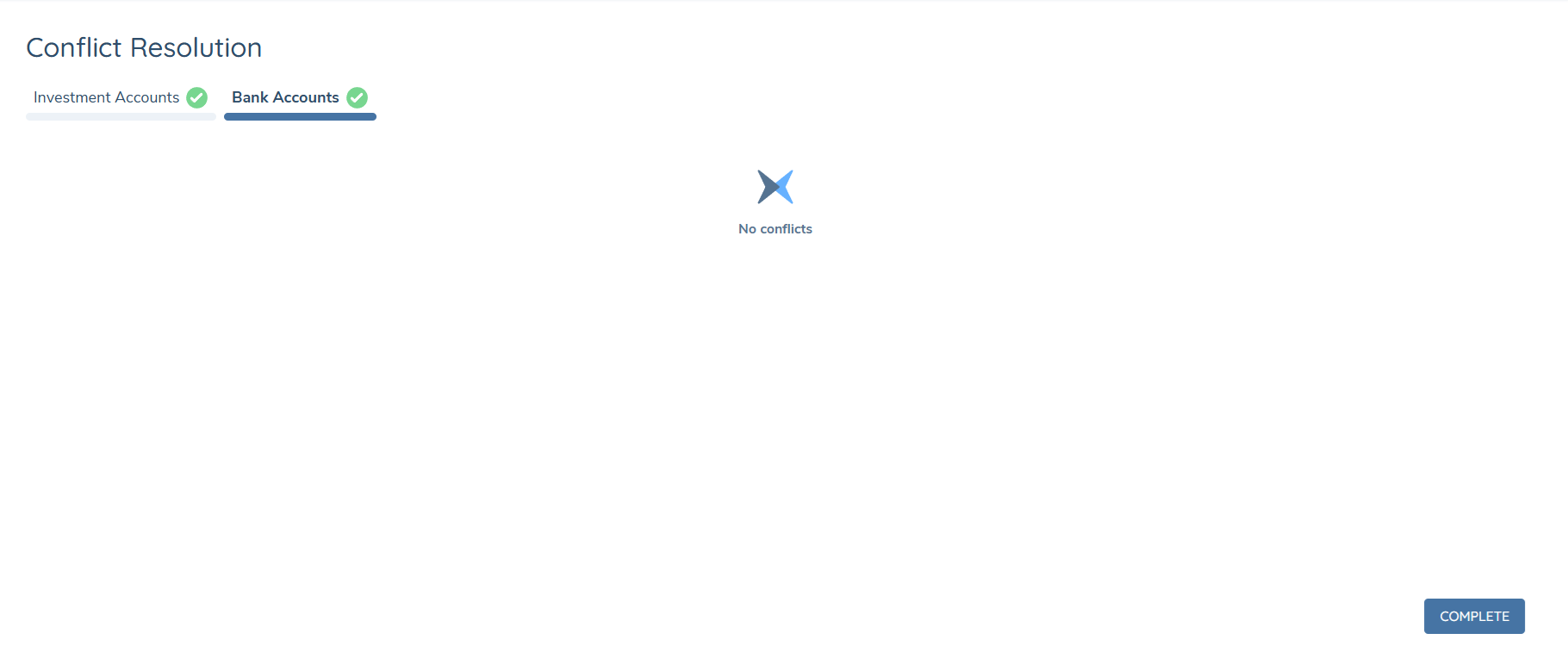
Visiting the tab does not constitute a resolution and users must complete the action via the RESOLVE button. Each account represented must be reviewed and once all account conflicts have been resolved, a "No Conflicts" message appears and the account tab will show the green tick icon.
If conflicts are detected on accounts to which the user does not have the applicable access layers, the user will be blocked from completing the task. When the user attempts to complete the task they will see the message: "Task cannot be completed until conflicts for all access layers have been resolved. Please review internally in order to proceed."
If the user has the applicable search access layer to an account, but not the applicable entity access layer, they will see the name of the account listed but they will not be able to see or resolve the conflicts and will be blocked from completing the task.
Conflict Resolution Review
Once the Conflict Resolution task has been completed in a journey, users can view the completed task to review the selections/decisions made when resolving conflicts, as these are the values persisted after task completion. Maintaining consistency with the active task, each data conflict that was triggered is grouped by their category, with data values in the respective 'This Journey' and 'Current Verified Data' columns, and is read only.
Similar to the active task, users can navigate between the Primary Entity tabs and the Related Party and Products tabs should they be configured and triggered within the task. The Related Parties tab allows navigation between the Hierarchy Changes tab and each related party for whom there were conflicts resolved. Following the pattern of the active task, data displays in the Data Fields tabs and Data Groups tab if applicable.
Radio button selection for each conflicting data value will be to the value that was selected when the user either RESOLVED the conflict in terms of Related Party entity data conflicts, or selected COMPLETE for the Primary entity data conflicts. Please note that Product data conflicts are not currently available for review within the completed task.
- If the Conflict Resolution task auto-completes where no conflicts are detected, upon selecting the task a message will display to say there are no saved conflicts.
- If conflicts were resolved and the completed Conflict Resolution task is re-opened, where it auto-completes when triggered again, meaning no new conflicts have been detected, upon selection of the task the view of the previously saved conflicts will be displayed.
- If conflicts were resolved and the completed Conflict Resolution task is re-opened, where new conflicts are detected when the task is triggered again, and these conflicts are resolved, upon selection of the completed task the original view of conflicts resolved will no longer display. The view will be of the latest conflicts resolved.
The completed task will display the conflicting data where conflicts were resolved, and so the 'Hide Identical Values' toggle will not be visible.
Please note, sensitive data fields are not currently displayed in the review of the completed Conflict Resolution task but their values are persisted in the entity draft within the journey.
Conflict Resolution Hide Panels
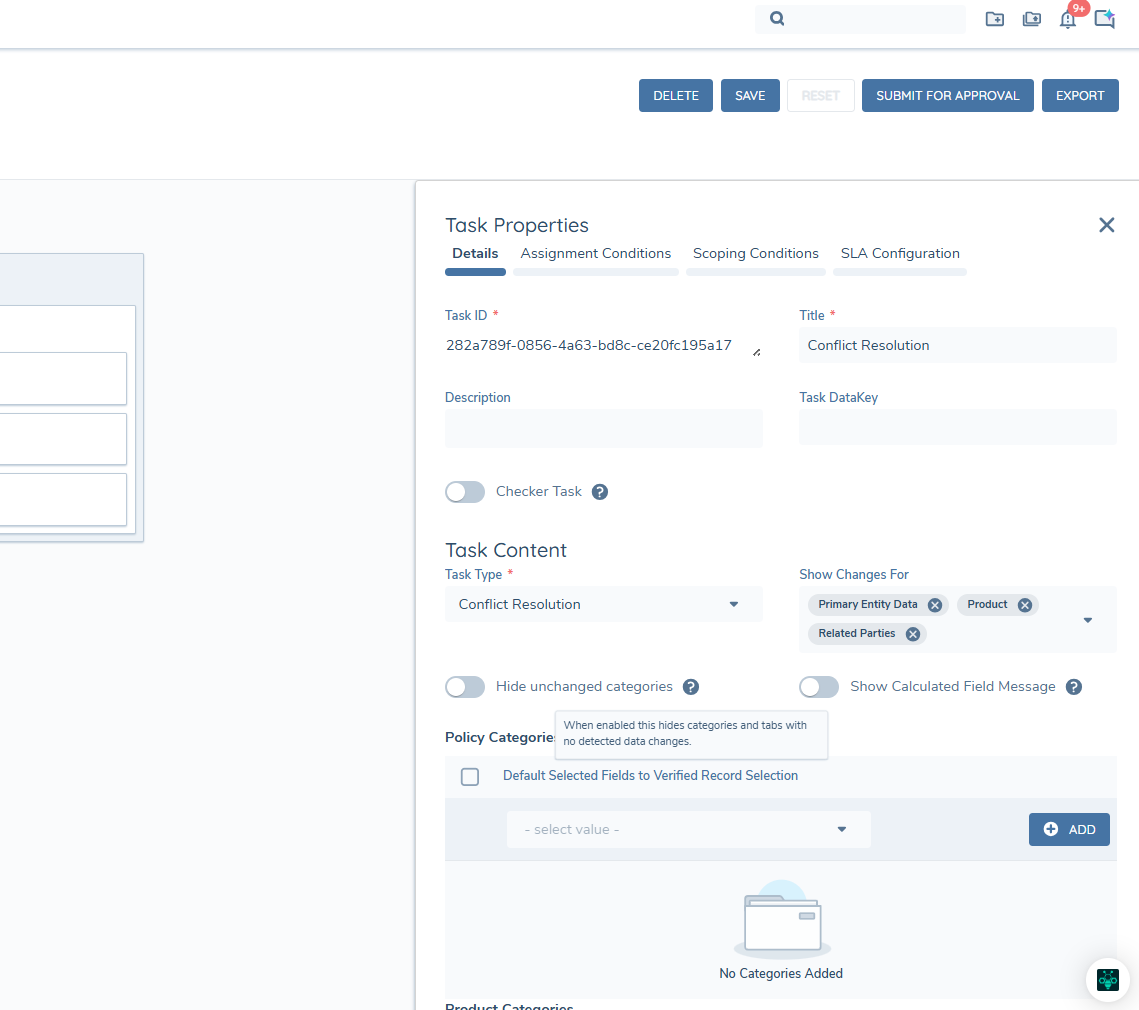
Within Task Properties a toggle labeled “Hide unchanged categories” will manage the visibility of panels that contain no field changes. If this toggle is switched on for the Conflict Resolution task, then any categories where all fields within have no conflicting changes (IE the same in Verified and Draft value) will not be displayed on the task. This will reduce the number of categories visible on the Conflict Resolution task.
Conflict Resolution Calculated Fields
Within Task Properties, a toggle labelled “Show Calculated Field Message” will manage the visibility of a calculated chip on fields with conditional value rules being met on the Conflict Resolution Task. When this toggle is turned on, any field that is meeting a conditional value rule – and is a change to the verified value – will display as read only on the task and have a calculated chip next to the field name.
The calculated chip applies to data at the entity level only.
Overview Proposed Changes
The Proposed Changes task allows the user to review changes introduced over the course of a journey before they become verified. It works by comparing verified data from the beginning of the journey to the draft data record when the Proposed Changes task is opened. Users can accept the journey changes or choose to revert to verified values, as required.
How to use Proposed Changes
Inside the journey builder, the 'Proposed Changes' task can be found within 'Policy Requirements Tasks'.
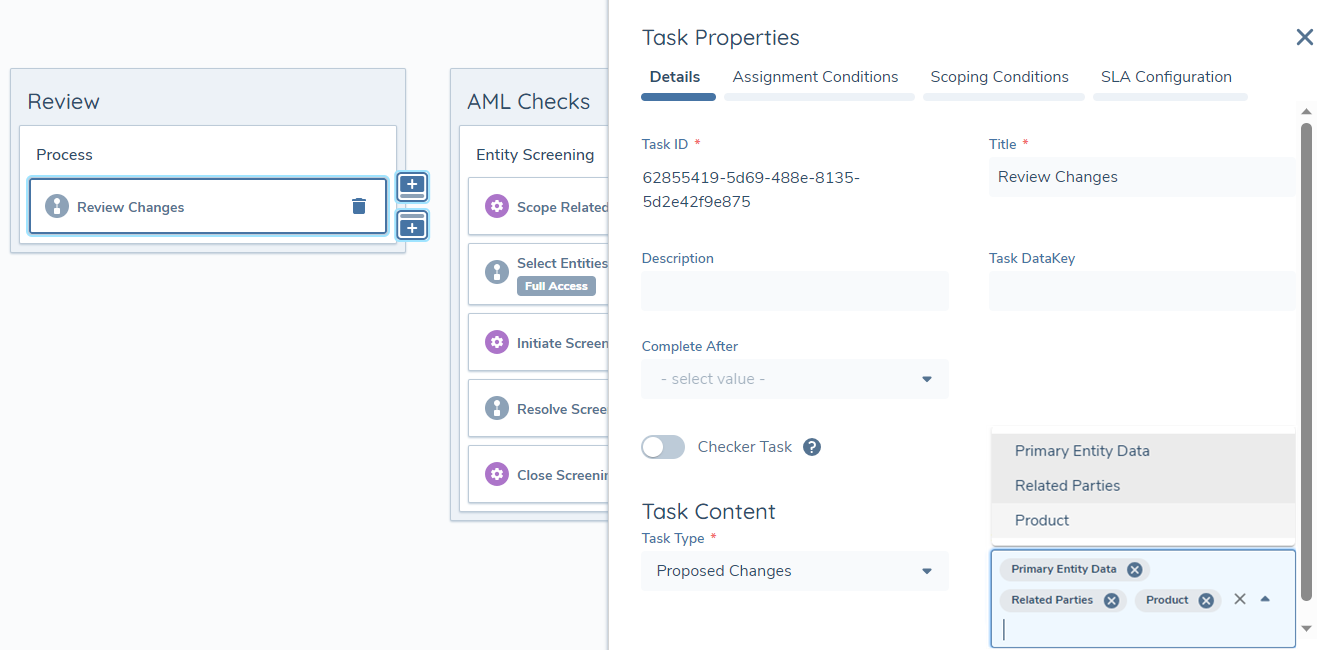
With the introduction of Related Parties and Products to Proposed Changes, 'Show Changes For' task configuration option has been added. This multi-select field will allow you to configure whether the Proposed Changes task should display changes for the below:
- Primary Entity Data - This is the default option. When selected you will see the Data Fields tab along with tabs for any data group changes (where applicable) in relation to the main entity in the context of the current journey
- Related Parties - When selected you will see the Related Parties tab which displays the changes made to the main entity's hierarchy of entity associations
- Product - When selected you will see the Products tab which displays edits made to each product within its own vertical tab
- Accounts - When selected you will see the Investment Accounts and Bank Accounts tabs which display edits made to each account within its own vertical tab
Refer to the 'Permissions' section below for the new permissions required to access and complete the task.
Primary Entity Data Changes
In the Data Fields tab, the fields that have different values since the start of the journey are displayed with an orange UI icon to alert a user that a decision may need to be made. Values that are identical, in both the previous and current data, are hidden by default. If there is no value entered in the field before, the field will not appear as there is no comparison to be made.
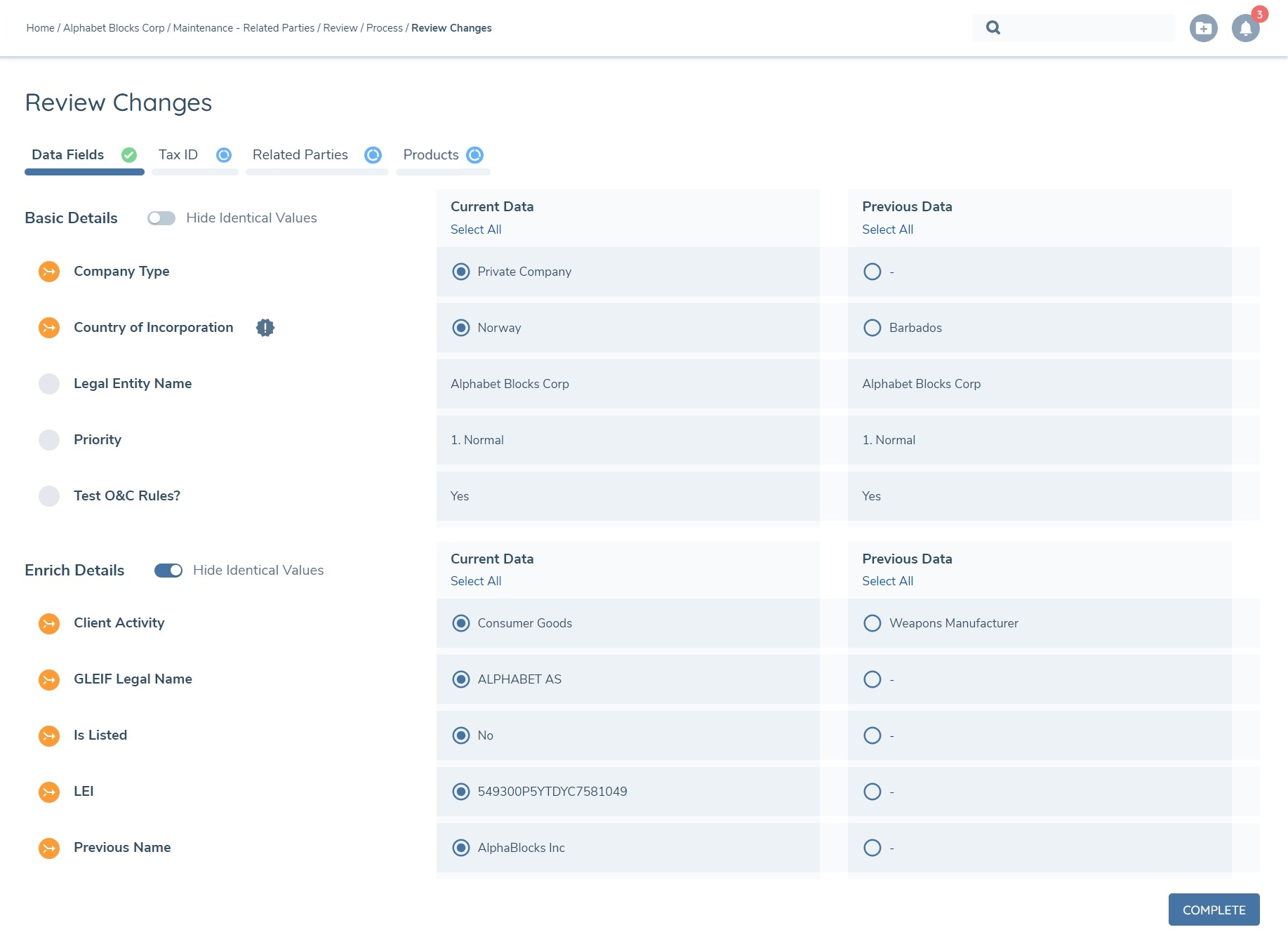
Data groups are broken down into two sections on screen, the current entity draft in the top section, and the verified data in the bottom. The user can pick any combination of these from across both sections to combine. This will form the new data group on the entity when the journey has been completed.
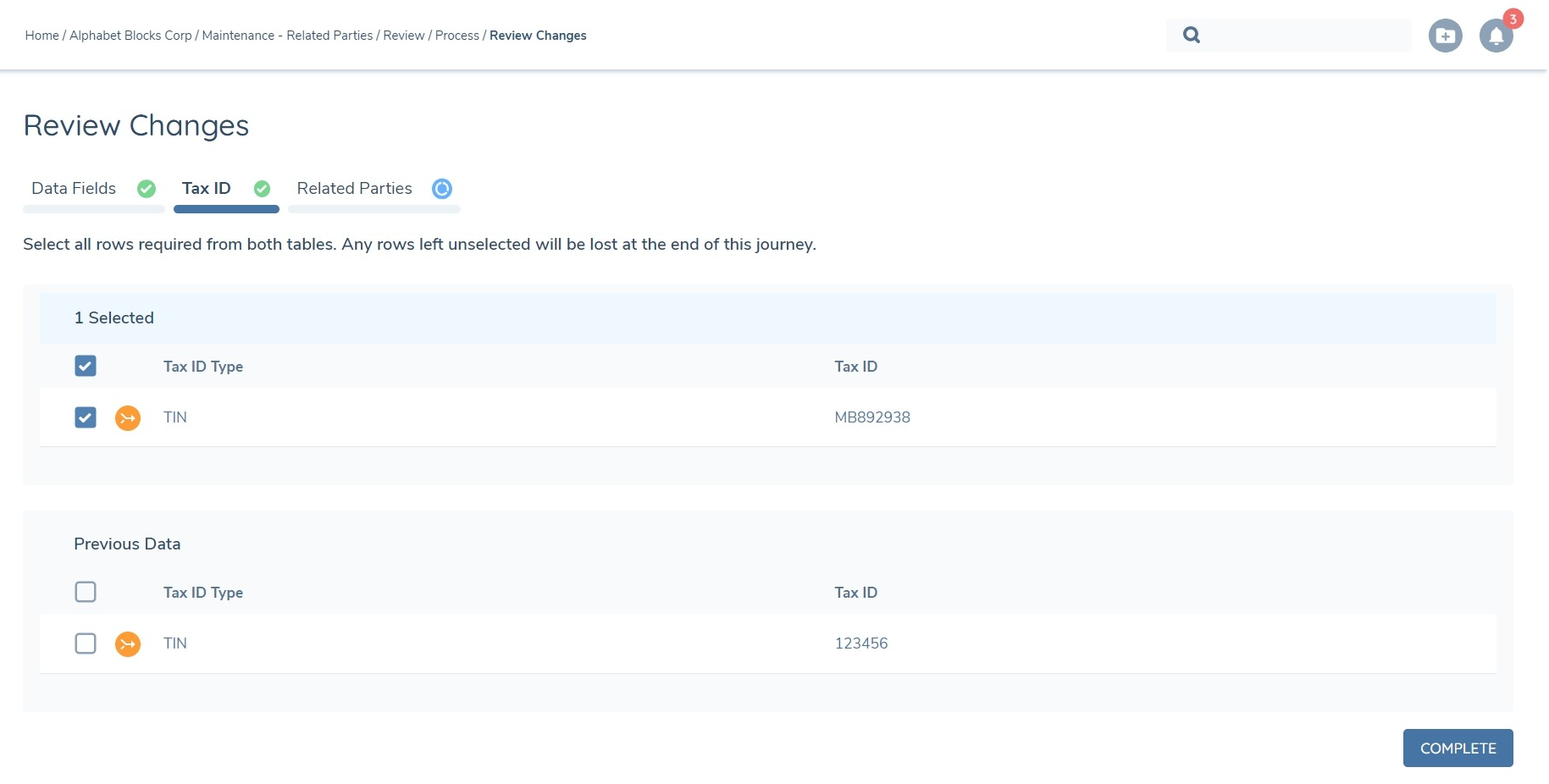
For a given data group, so long as it has been populated with values in the past, even if no changes have been made in the current journey, the tab for this data group will still appear in the Proposed Changes task. However, if the data group has not been edited in the current journey, then it will not be editable in the task - the current values for the data group will still persist when the task is completed.
Related Parties Changes
The Related Parties tab is composed of a number of vertical tabs - the Hierarchy Changes tab, which is always present and is the default view, as well as a tab for each entity in the hierarchy which has undergone changes in the current journey only, whether this is changes to associations where this entity is the source, or changes to this entity's data.
The search bar at the top of the vertical tabs allows you to search the tabs for a specific entity name. Similarly, the filter option allows you to filter the vertical tabs based on the change type for that entity i.e. add, edit or delete. When searching or filtering, any vertical tabs which do not meet the search or filter criteria will be hidden, however the Hierarchy Changes tab will always be visible.
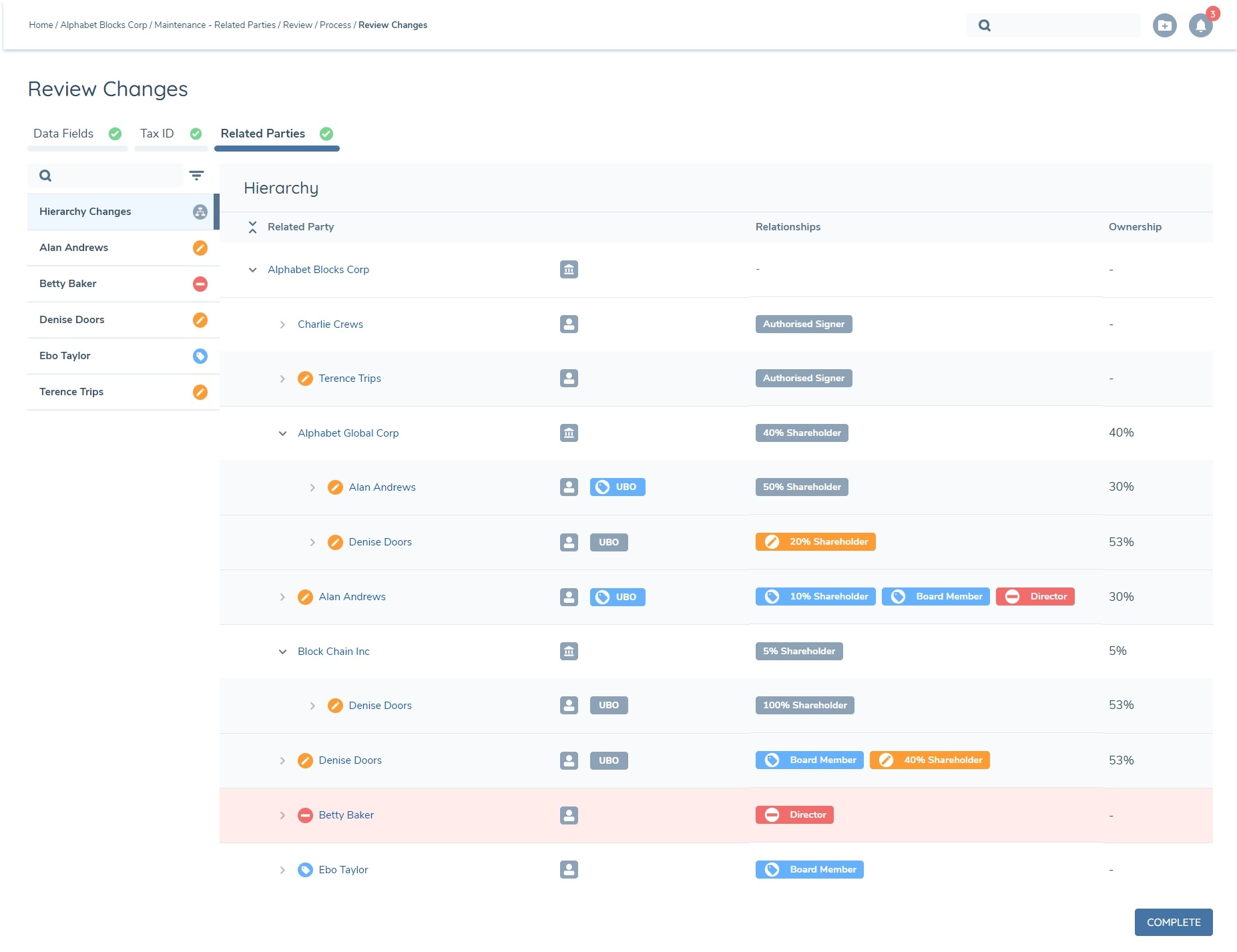
Hierarchy Changes:
The Hierarchy Changes vertical tab displays the latest hierarchy in the journey, but visually indicates through colours and icons which associations have been added, edited and deleted, as well as which entities have been updated.
Each type of association is represented in the Relationships column with a chip. The below table breaks down the meaning of the icons and colours on the chips in this column:
| Chip/Icon | Description |
|---|---|
 | This association has not been changed in this journey |
 | This association has been added in this journey |
 | This association has been edited in this journey |
 | This association has been deleted in this journey |
There is also an icon displayed next to each related party name. The table below breaks down the meaning of these icons:
| Icon | Description |
|---|---|
 | This is a new entity which has been added to the hierarchy in this journey |
 | This is an existing entity whose entity data has been updated or had some associations added, edited or removed in this journey |
 | This entity has been removed from the hierarchy in this journey |
Clicking on the name of a related party in the hierarchy tree which has undergone changes will navigate you directly to that related party's vertical tab where you can see specific details about the changes made.
Changes for each related party:
A vertical tab will appear on the left with the name of any related party in the hierarchy where:
- an association in the hierarchy where this related party is the source entity of the association has been added, edited or deleted in the current journey AND/OR
- this related party's entity data has been updated in the current journey
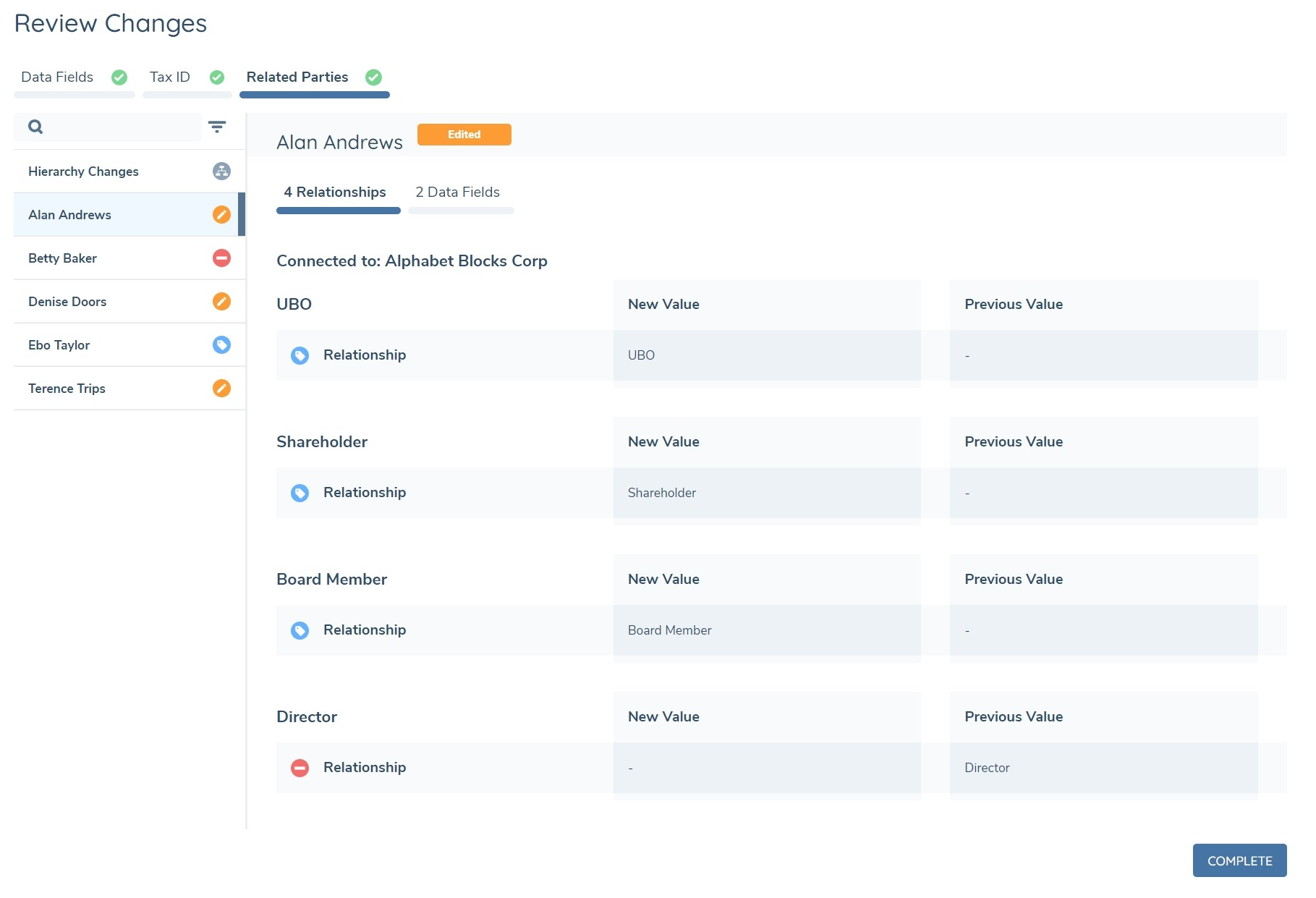
The icon on this tab will be the same as displayed against the name of the related party in the hierarchy tree.
Clicking on this tab will allow you to view specific details about what has changed for this entity.
The Relationships tab will display only associations which have changed and the number which prefixes the tab indicates the number of associations that have changed. If no associations have changed, this tab will be hidden.
- An association which has been added will be represented with the type of association in the New Value column and a "-" in the Previous Value column.
- An association which has been removed will be the reverse, i.e. a "-" in the New Value column and the type of association in the Previous Value column.
- An association which has been edited will display the relationship metadata fields that have been updated, showing the current value in the New Value column and the original value in the Previous Value column.
In a complex hierarchy, the related party may be associated to a number of different target entities and these associations may have changed. Therefore the changed associations in this tab will be grouped by the target entity, as indicated by the "Connected to: ..." heading for each group of associations. These groups are ordered alphabetically by name of target entity.
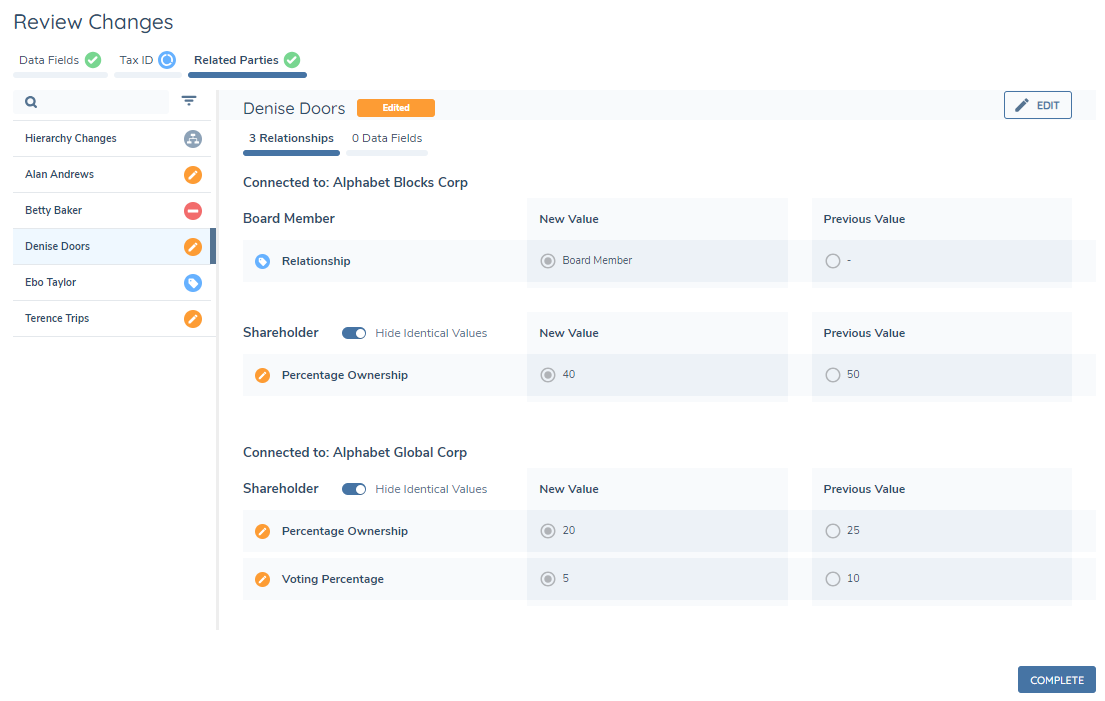
For example, three associations where Denise Doors is the source entity have changed. Two of these associations are where Alphabet Blocks Corp is the target entity - where the Board Member association has been added and the Shareholder association has been edited. The other associations is where Alphabet Global Corp is the target entity - where the Shareholder association has been edited.
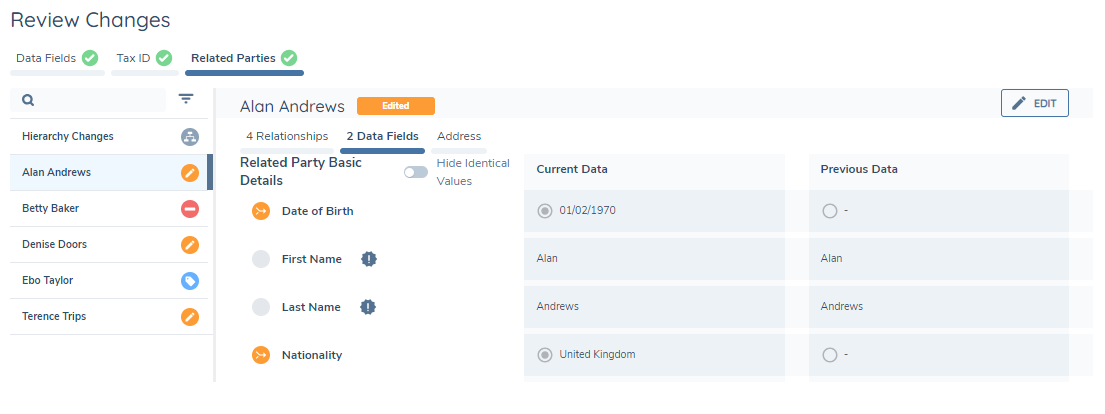
The Data Fields tab is also prefixed with the number of data fields that have been updated for the related party. In some cases this will show 0 - this is because we intially infer that there are entity data changes for a related party when an entity draft for this related party exists in the journey, however when a user navigates to the tab, we perform a field by field comparison to see if there are any actual changes, and in some cases there are none.
The Data Fields tab otherwise operates in the same way as for the primary entity data.
The same applies to Data Groups - like for the primary entity data, these are broken down into two sections on screen, the current entity draft in the top section, and the original verified data in the bottom.
Edit of changes:
As the Proposed Changes task is a review of the data updated within the journey, should the user not wish to proceed with changes made, that is, the 'New Value' for associations or the 'Current Data' value for entity data changes, the user must select the EDIT button for the selected Related Party in the vertical tab. This will enable the radio buttons and allow the user to make changes to the default selections. Once changes have been made to revert the related party details, the user must select SAVE to commit those changes. Please note that the EDIT button will be available for those users with the Proposed Changes Edit permission.
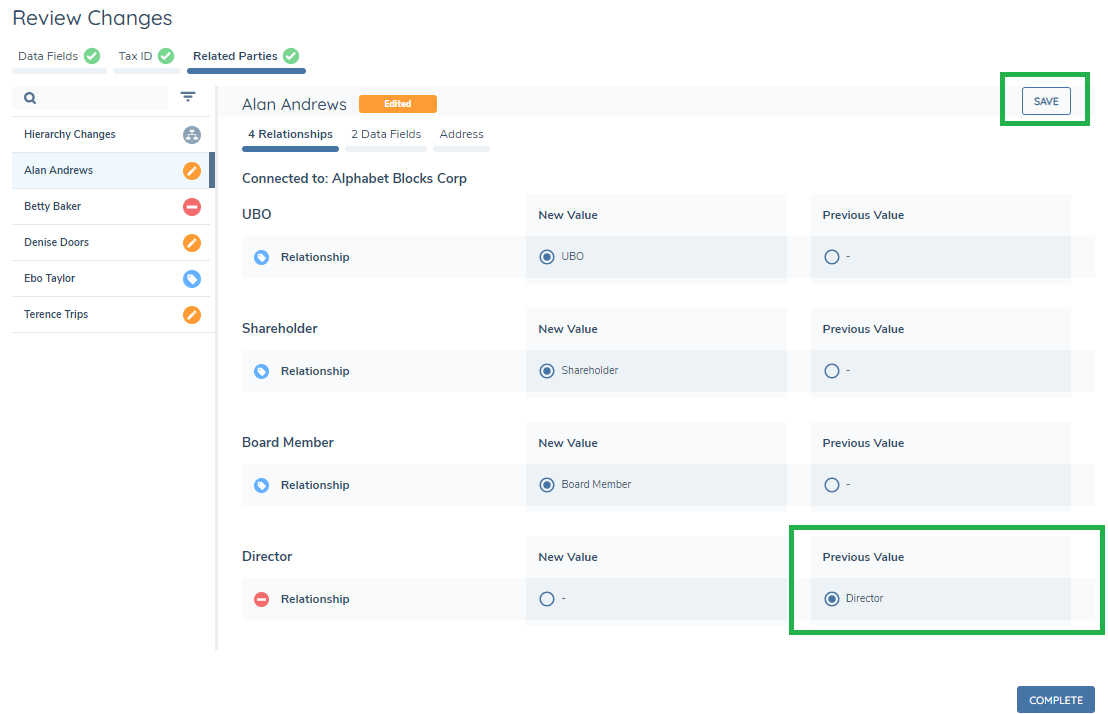
- Where an entity was added within the journey, should the user revert the selection to remove the association, on save the user will receive a prompt to confirm the action will remove the related party from the hierarchy. On confirmation of the change, the related party will no longer appear in the vertical tab, the Hierarchy Changes tab will update to reflect that the association no longer exists, and the entity data changes in the entity draft will not continue to verification.
- Where an existing entity is removed within the journey, should the user revert the selection to restore the association, on save the related party will no longer appear in the vertical tab and the Hierarchy Changes tab will update to reflect that the association exists but is no longer tagged with the delete icon.
- Where an existing entity has been edited within the journey, should the user revert the association or entity data, on save the values will update but the related party will remain listed in the vertical tab, and the Hierarchy Changes tab will retain the conflict icon, as the edit created an entity draft.
- Where it's permitted and a user selects to revert to a NULL value ("-") in either the 'Relationships' or 'Data Fields' tabs, on save the entry will no longer be displayed as the value is removed. Aligning to the pattern in other tabs within this task, when a user reverts to 'Previous Value', on save the entry will be appear behind the 'Hide Identical Values' toggle.
Of note, should the root entity have an indirect association to itself, then the root entity will always be listed within the vertical tabs given an entity draft exists. Any Related Party entity data updates for the root entity will not be listed within the 'Related Parties' tab, and will instead be included in the entity data 'Data Fields' and/or Data Group tabs.
Also, aligning with the existing pattern, should any related party fields exist in multiple categories, the first category alphabetically will display the field within the 'Related Parties' tab.
Product Changes
The Products tab is displayed when the task is configured to include it under 'Show Changes For'. Products will be displayed within the task when they have been edited in the current journey (i.e. a verified product record exists and was edited to create a new product draft with changes to product data). Each Product will display changes within its own vertical tab.
Consistent with other areas of Proposed Changes, the orange merge icon will indicate when change at the Product and attribute levels. Data points that have not changed will be collapsed under 'Hide Identical Values toggle' at the category level and displaying with a solid grey circle icon if expanded.
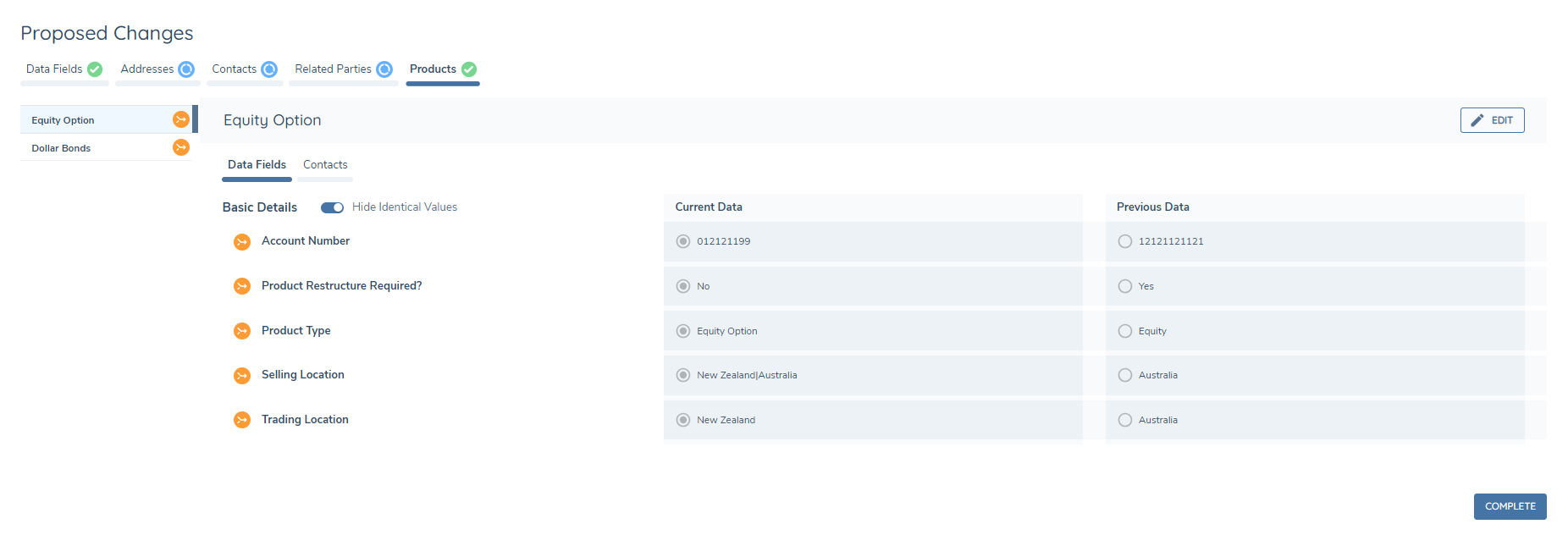
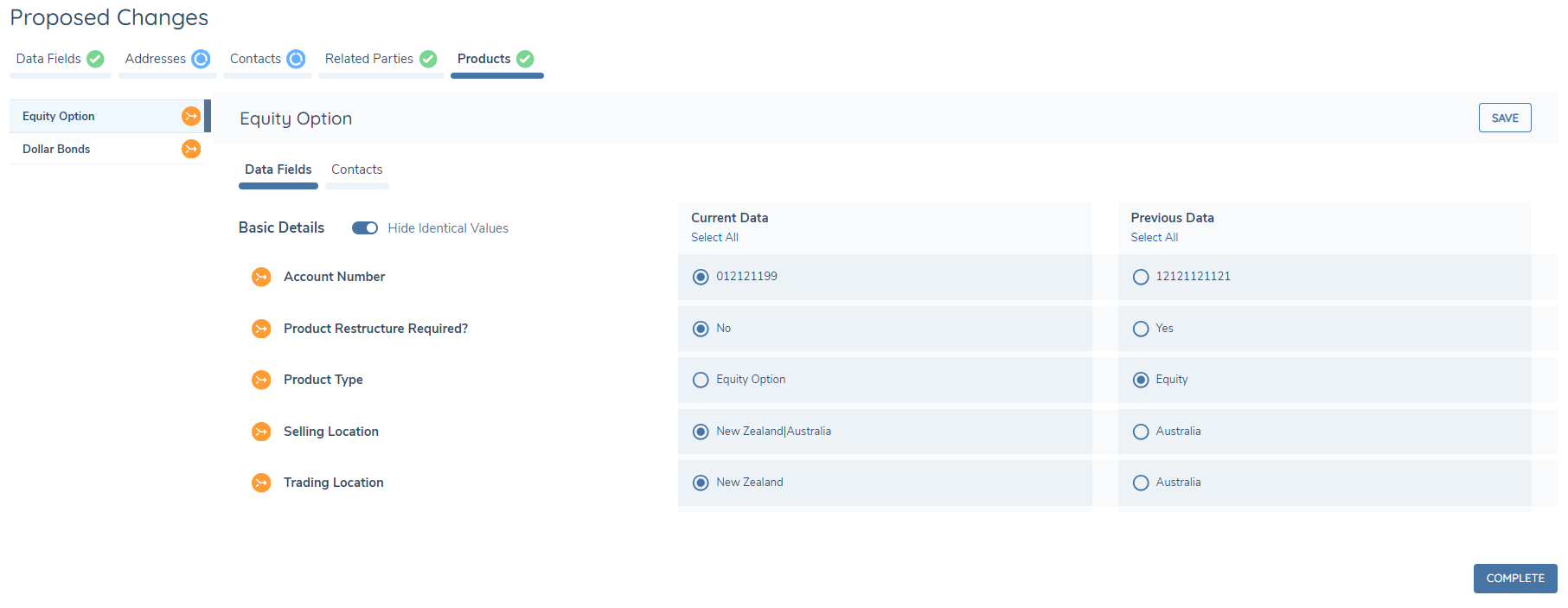
As with existing tabs, the Products tab must have been selected to enable task completion. Once selected, Product Data is displayed within the 'Data Fields' sub-tab with separate tabs for any data groups within the selected Product. The 'Current Data' column will be selected for all changes by default, meaning that the changes made in the current journey will overwrite the existing verified record ('Previous Data'). If any Products contain changes that should not proceed, the user can change the selection via the 'Edit' button, which will enable radio button selection to 'Previous Data' to persist the current verified value, disregarding changes made in the journey.
Materiality in Conflict Resolution & Proposed Changes
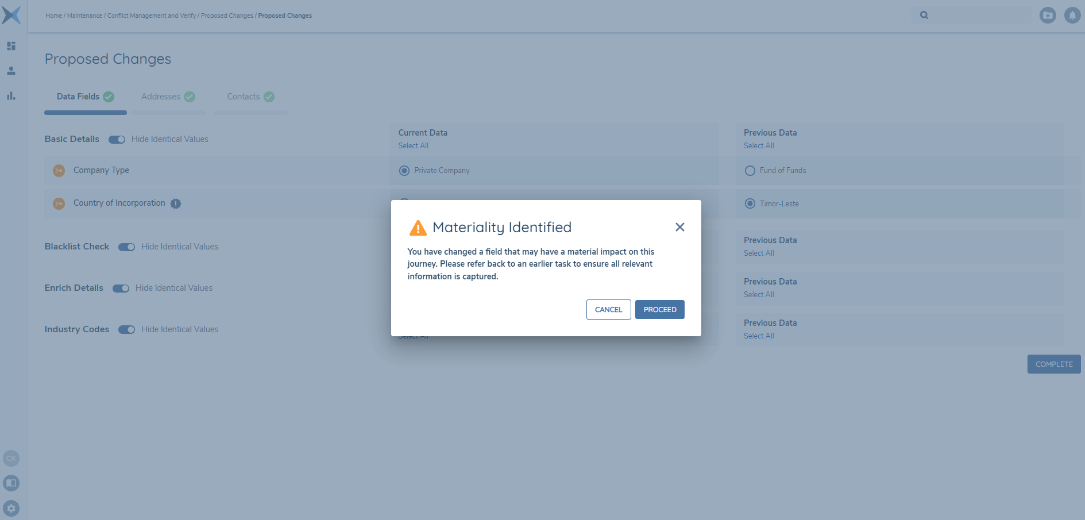
The materiality icon is displayed to alert the user that the field has been marked as material in the policy. If they change the value in this field, they are advised to refer their journey back.
Account Changes
The Investment Accounts and Bank Accounts tabs are displayed when the task is configured to include them under 'Show Changes For'. Accounts will be displayed within the task when they have been edited in the current journey (i.e. a verified account record exists and was edited to create a new account draft with changes to account data). Each account is presented with a field-level comparison between the verified baseline and the current journey draft. As with existing tabs, the Investment Accounts and Bank Accounts tabs must have been selected to enable task completion. Once selected, Account Data is displayed within the Data Fields sub-tab. Changes to Related Parties and Bank Accounts linked to Investment Accounts will be displayed in their own sub-tabs within the Investment Accounts tab. The 'Current Data' column will be selected for all changes by default, meaning that the changes made in the current journey will overwrite the existing verified record ('Previous Data'). If any accounts contain changes that should not proceed, the user can change the selection via the 'Edit' button, which will enable radio button selection to 'Previous Data' to persist the current verified value, disregarding changes made in the journey.
Changes to Bank Account data do not appear in the Bank Accounts sub-tab of the Investment Accounts tab, those changes are displayed in the stand-alone Bank Accounts tab. A Bank Account change in the Investment Accounts tab refers to a change in the linkage of Bank Accounts to an Investment Account.
When should you use each task?
Conflict Resolution can be used at the end of every journey before the user has verified the data back to the entity. This will ensure before you have verified the data, you are not overwriting any other verified data that has occurred since you started your journey. The task compares the data from the verified record against the current draft data.
For both Conflict Resolution and Proposed Changes, all policy categories in scope in the journey will be brought in for comparison
Proposed Changes can be used to see all data that has been changed over the course of a journey before agreeing to verifying. It works by comparing the data at the beginning of the journey to the current draft data.
It can be used as a manager review before entity verification. This task has more value in a maintenance style case, as typically we see more data changing in a maintenance case than in an onboarding case.
Using conflict resolution & proposed changes
The tasks can be used together in the same journey as they cover different needs. These tasks can be placed independently or together throughout the journey as many times as a user needs.
The key difference between the tasks is that Conflict Resolution will automatically close if there are no conflicts identified, while Proposed Changes will always trigger for review.
Conflict Resolution tasks cannot be viewed after they have been completed because they are evaluated at a point in time and we do not store the outcome of the resolution. Audit allows a user to see what values have been changed where.
On the other hand, it is possible to navigate to a completed Proposed Changes task either when a journey is still in progress, or when it has been completed.
- When a journey is still in progress, navigating to a completed Proposed Changes task will display the current set of changes i.e. not the changes that were true at the time the task was completed.
- When a journey is completed, navigating to a completed Proposed Changes task will display the changes that were true at the time the journey was completed. For Related Party Proposed Changes, this functionality will only apply for journeys completed after the end of October 2023.
Permissions
Conflict Resolution Permissions
- Conflict Resolution Access - Users with this entity permission will be able to open the conflict resolution task that is in a journey.
- Conflict Resolution Edit - Users with this permission will be able to use the radio buttons in the data conflict task to select which data they want to take into the entity draft. Users will need to have the conflict resolution access permission to use this one.
- Users will also need the entity data edit permission to edit on this task changes in this task will potentially edit the entity data record.
- Product Conflict Resolution Access - Users with this permission will be able to view the product conflicts within the Products tab of the conflict resolution task in journey.
- Product Conflict Resolution Edit - Users with this permission will be able to use the radio buttons in the Products tab of the conflict resolution task to select which data they want to take into the product draft. Users will need to have the Product Conflict Resolution Access permission to use this one.
- Users will also need the Product edit permission to edit on this task changes in this task will potentially edit the Product data record.
Proposed Changes Permissions
- Proposed Changes Access - Users with this permission will be able to open the proposed changes task to view and save the changes.
- Proposed Changes Edit - Users with this permission will be able to open the task to view the changes, as well as use the radio buttons to select with data they would like to choose. They can
then save the changes completing the task. Users will need the Proposed Changes Access permission also to use this.
- Users will also need the entity data edit permission to edit on this task changes in this task will potentially edit the entity data record.
- Product Proposed Changes Access - Users with this permission will be able to view changes within the Products tab of the Proposed Changes task in journey.
- Product Proposed Changes Edit - Users with this permission will be able to edit products in the Products tab of the Proposed Changes task and use the radio buttons to select which data they want to take into the verified product. Users will also need to have the Product Proposed Changes Access permission to use this one.
- Users will also need the Product edit permission to edit on this task changes in this task will potentially edit the Product data record.