Review & Approvals
Overview
The Review & Approvals Task allows users to review, compare, comment on, and approve entity, product, document, related party, risk, bank account, and investment account information within a journey.
It provides a collaborative, auditable environment for cross-team review and sign-off, reducing reliance on external communication channels and maintaining full traceability within Fenergo.
The feature supports multiple configurable review types - including Entity Data, Documents, Related Parties, Products, Risk Assessments, Bank Accounts, and Investment Accounts - and enables real-time commenting, tagging, and approvals based on configured rules and profiles.
The Problem It Solves
Historically, reviews and approvals were often performed outside Fenergo (e.g. via email or offline documents). This created several issues:
- Limited or fragmented auditability of who approved what, when, and why
- Lost context across long email threads and multiple stakeholders
- Inconsistent decision logic applied by different teams or jurisdictions
- Slow approvals due to manual routing, unclear ownership, and lack of structured workflows
The Review & Approvals Task addresses these pain points:
- Capturing every decision, comment, and supporting snapshot inside Fenergo.
- Providing a single place for collaboration between users & teams within Fenergo.
- Enforcing configurable approval and escalation rules.
- Supporting straight-through processing (STP) via optional auto-approvals and random sampling.
Key Benefits
- Centralised collaboration: Brings different stakeholders and teams into a single review task.
- In-platform communication: Eliminates email-based review threads by embedding comments and topics directly into the task.
- Data comparison: Provides a clear view of new, changed, and unchanged data at field level.
- Traceable approvals: Every outcome is captured with versioning, timestamps, and decision details.
- Configurable workflow control: Approval outcomes can drive escalation, notifications, and next-stage tasks.
- Profile-based visibility: Different teams see only the sections and data relevant to them.
Key Functional Areas
The Review & Approvals Task introduces several core capabilities:
-
Data Comparison
- Displays field-level differences between draft (in-flight) and verified data.
- Marks each field or record as New, Changed, or Unchanged.
- Supports comparison for entity data, related parties, products, bank accounts, and investment accounts.
- Supports visibility of journey-level data fields alongside other values within their configured requirement category. When applicable, this data will carry a permanent status of Journey Information.
-
Commenting & Topics
- Threaded comments on individual fields, data group records, and documents.
- Mentions for users (@username) and teams (#teamname).
- Configurable topics (e.g. AML Red Flag, FCC Review, Outstanding Issues).
- Comments can be edited, deleted (by their author), and resolved.
- Optional enforcement that all comments must be resolved before task completion.
-
Approval Options & Escalations
- Configurable decision set: Approve, Reject, Revise, Refer.
- Each decision records an outcome, reason, and notes.
- Outcomes can be used to drive multi-level approvals, escalations, or downstream tasks.
- Reject and Revise outcomes support an optional Reopen Earlier Task capability, allowing reviewers to select a prior task to send back to directly from the decision UI, with the Reopen Comment delivered into the reopened task's comments sidebar.
-
Automation & Random Sampling
- Supports auto-completion based on configured sampling probabilities.
- Enables audit-compliant sampling for STP, while still retaining full traceability.
-
Snapshots & Audit Trail
- Captures a snapshot of all reviewed data at the moment of task completion.
- Ensures historical decisions can be re-evaluated even if live data changes later. This applies to Entity Data, Related Parties, Products, Documents, and Risk Details. Bank Accounts and Investment Accounts currently display live data instead (no snapshotting).
Permissions
To use the Review & Approvals Task, users require a combination of operational and configuration permissions per the use case being solved.
Operational Permissions
These permissions apply to users who work on Review & Approvals Tasks as part of their daily role.
| Permission | Description |
|---|---|
| Review & Approval Access | View the task and any associated data points or comments/topics |
| Review & Approval Comment | Add comments or topics within the task |
| Review & Approval Resolve Comments | Resolve or close comment threads and topics |
| Review & Approval Decision | Record task decisions to close the task (Approve, Reject etc) |
Note: Without Review & Approval Access, a user cannot see the task comments or topics at all. These four permissions apply consistently across all panels, including Bank Accounts and Investment Accounts - no additional permissions are required to review these account types.
Configuration Permissions
These permissions are intended for configurators, administrators, or power users responsible for setting up Review & Approvals Profiles which will then be used to drive the desired task behaviour.
| Permission | Description |
|---|---|
| Review & Approval Configuration Access | Access and view Review & Approvals configuration |
| Review & Approval Configuration Create | Create new Review & Approvals Profiles |
| Review & Approval Configuration Edit | Edit existing Review & Approvals Profiles — including creating and updating drafts |
| Review & Approval Configuration Approve | Approve and publish a submitted draft version of a Review & Approvals Profile |
| Review & Approval Configuration Archive | Archive a published version of a Review & Approvals Profile |
| Review & Approval Configuration Delete | Delete existing Review & Approvals Profiles |
Permission-Based Visibility of Sections
Having access to the Review & Approval Task does not guarantee visibility of all sections within it (e.g. Entity Data, Documents, Related Parties, Products, and other left-hand navigation items). Each section's visibility is additionally governed by the user's underlying data permissions:
- If a user has access to the Review & Approval Task but lacks permission for a specific data area, that section will be hidden from their view.
- Example: A user has access to the Review & Approval Task, which includes a Related Parties section. However, the user does not have ID&V (Identification and Verification) Access. As a result, the Related Parties section will be hidden for that user.
For Bank Accounts and Investment Accounts specifically, visibility of individual accounts is also governed by Access Layers rather than a single permission - see Access Layers.
Configuration of Review & Approvals Profiles
Configuration is managed in the Review and Approvals Configuration section under the Journey configuration area. This is where you define:
- What each Profile can see
- Which sections (Entity Data, Products, etc.) are in scope
- How approval decisions should be captured
- Whether comments must be resolved before task completion
These profiles are then tied against the "Review & Approval" Task Type within Journey Builder. Here, further functionality such as auto-sampling, team assignment and SLA assignment can be applied. The Journey Builder configuration will also cover the triggering of additional tasks based on the action taken within the Review & Approval task.
Profile Configuration
In order to configure a Review & Approval Profile, there is a mandatory, eponymous lookup that must be created within Reference Data. This lookup will drive the available options within the "Profile" dropdown on this screen. To configure this:
- Navigate to your Reference Data list
- Create a new lookup called "Review & Approvals Profiles"
- Add your required values
- Publish your lookup
- The "Profiles" dropdown in "Review & Approvals" will then display the configured lookup's values
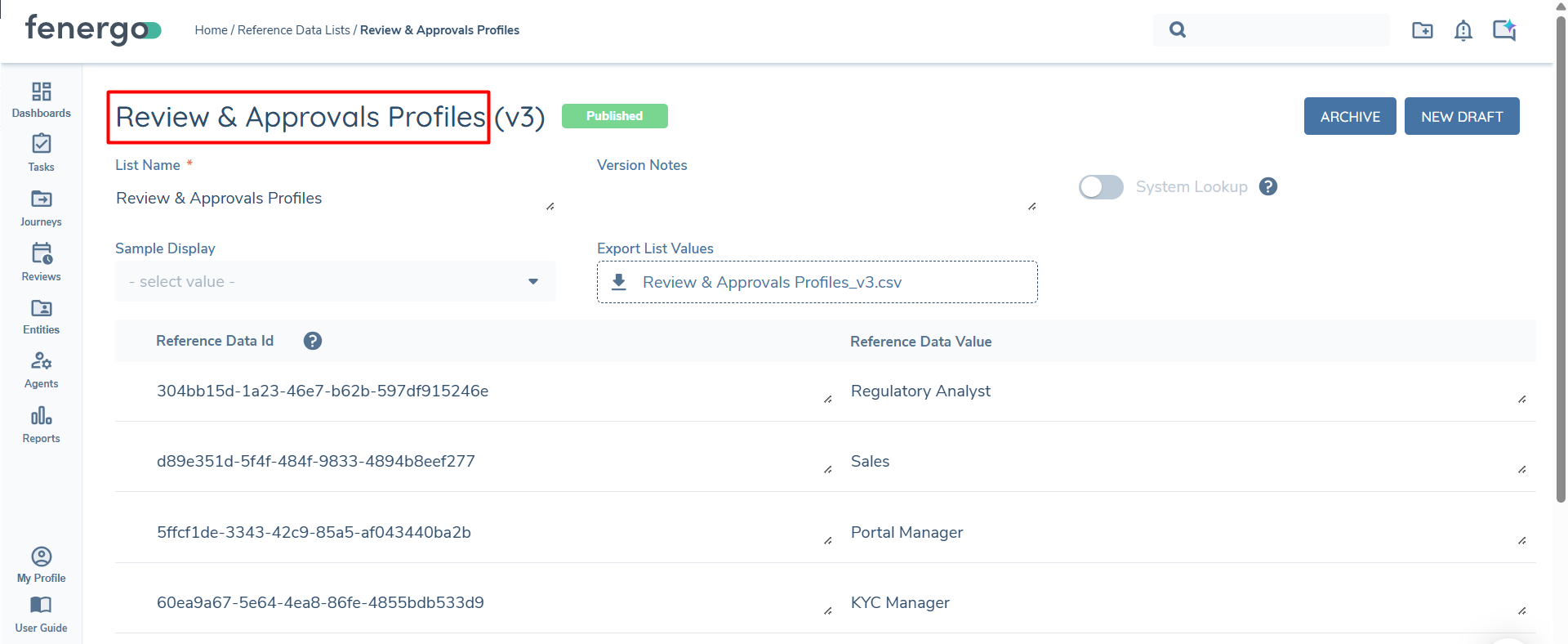
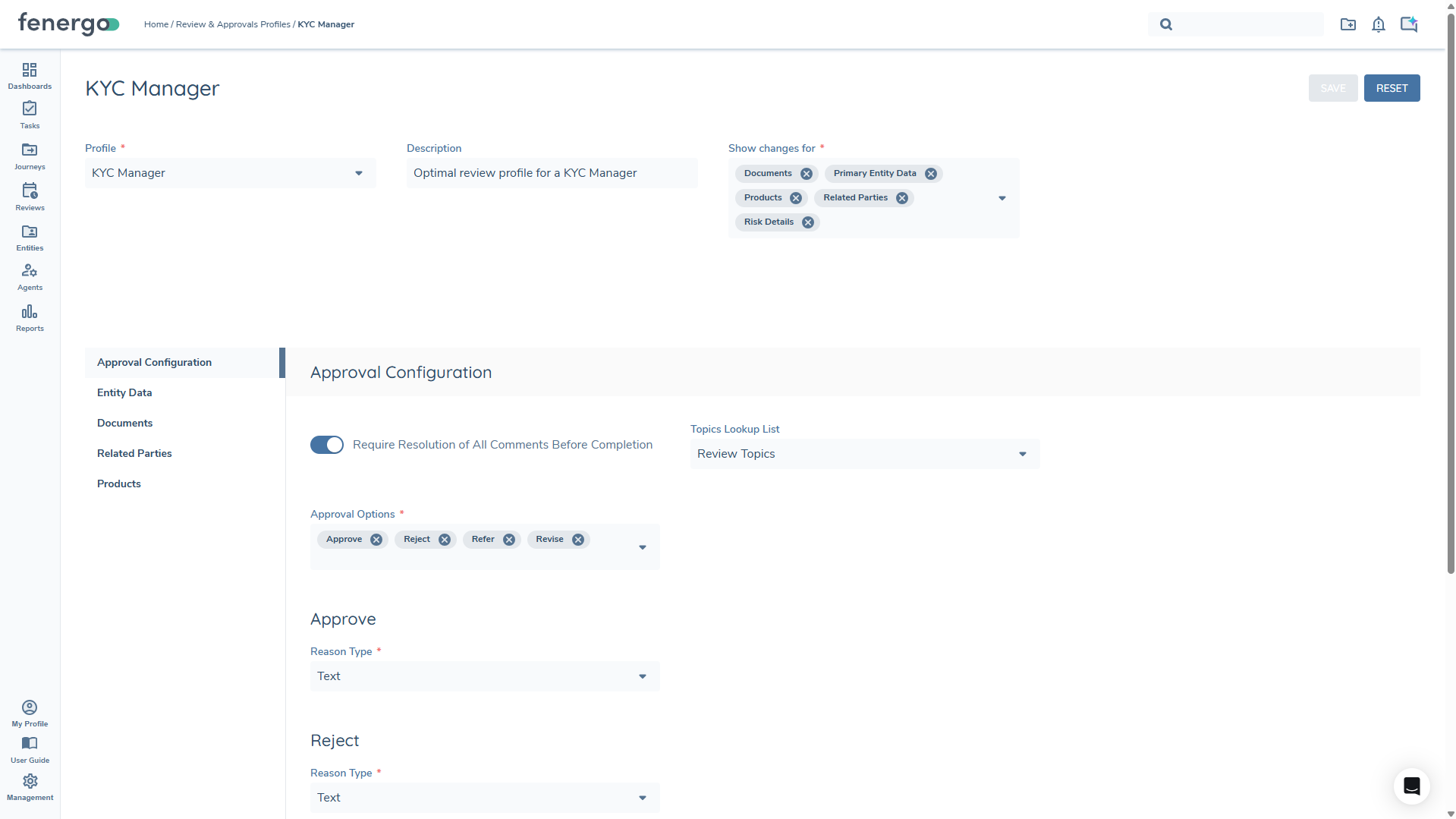
Profiles are central to how Review & Approvals behaves. They determine who sees what, ensuring each team or role only interacts with relevant data within the task. This is controlled by the "Show changes for" multi-select dropdown.
A profile can be configured to include:
-
Entity Data Categories
- This can be used to control which entity data sections (e.g. Basic Details, AML, Tax, etc.) are visible.
-
Document Categories
- Define which document types or categories are presented for review (e.g. KYC documents, Sanctions documents).
-
Related Party Categories and Scoping Rules
- Specify which related party types or roles (e.g. UBOs, Directors, Guarantors) are included.
- Apply scoping rules to filter related parties via the logic engine.
-
Product Categories and Scoping Rules
- Choose which product types appear in the Products panel.
- Apply scoping rules to limit products based on risk, geography, product family, etc.
-
Bank Account Categories
- When selected, "Bank Accounts" appears as its own standalone item in the left-hand configuration column.
- Opens a configuration panel with a mandatory "Data and Document Policy Categories" field - at least one category must be selected (e.g. Bank Account Basic Details), or the profile cannot be saved.
-
Investment Account Categories
- When selected, "Investment Accounts" appears as its own standalone item in the left-hand configuration column.
- Opens a configuration panel with a mandatory "Data and Document Policy Categories" field (e.g. Investment Account Basic Details, Investment Details).
-
Topics Lookup List
- Configure the list of available topics for comment grouping (e.g. "AML Red Flag", "KYC Review", "FCC Review").
- This list helps to standardise how discussions are categorised across the organisation.
-
Risk Details
- If selected, a Risk Details Configuration section becomes available within the profile. From here, configurators can select which Risk Sub-tabs are displayed in the task:
- Entity Risk — displays the output of an Entity Risk Assessment task run earlier in the journey. Selected by default.
- Product Risk — displays the output of a Product Risk Assessment task run earlier in the journey.
- Related Party Risk — displays the output of a Related Party Risk Assessment task run earlier in the journey.
- Each sub-tab is independently selectable. See Risk Details Panel for full details on how sub-tab data is sourced and scoped.
- If selected, a Risk Details Configuration section becomes available within the profile. From here, configurators can select which Risk Sub-tabs are displayed in the task:
-
Approval and Reasoning Configuration
- Tailor the available decision options, reason lists, and mandatory fields for each decision.
Within "Approval Configuration", there are several other configuration options available. The first is "Require Resolution of All Comments Before Completion". As the name suggests, this ensures that every comment made is resolved before the task may be completed. After this is the "Topics" lookup list. Within the Review & Approvals task, there can be comments that are made at an overall level, rather than at a lower-level data point. To guide this conversation, configurators can pick a lookup that will drive the available topics to be discussed within a task. This can be any lookup within your tenant.
Finally, the "Approval Options" available to a user must be selected. This is as follows:
- Define the decision set (Approve, Reject, Revise, Refer).
- This will drive the available buttons within the task regarding task closure.
- Configure the Reason input type for decisions, such as:
- Text (free-form reason)
- Lookup (standardised reasons maintained via reference data)
- Linked Lookup (contextual reasons linked to other configuration)
Reopen Earlier Task
For Reject and Revise outcome cards, an optional Reopen Earlier Task toggle is available. When enabled for a given outcome, reviewers who select that outcome at runtime are presented with a task selection dropdown and a mandatory Reopen Comment field, allowing them to route work back to a specific prior task in the journey without leaving the R&A task.
- The toggle is configured independently per outcome — enabling it for Reject does not affect Revise, and vice versa.
- The toggle is only available on outcome cards that have been added to the profile's Approval Options. It does not appear on Approve or Refer cards.
- The reopen UI is team-gated: it is only visible to reviewers who are members of the team configured on the R&A Profile. Reviewers outside that team may still select and complete the outcome, but no reopen is triggered.
Profile Versioning
Review & Approvals V2 Profiles support a version control model, ensuring that configuration changes are deliberate, attributable, and never disruptive to journey cases already in progress.
Draft and published states
Each profile maintains two states: a mutable Draft and a read-only Published version. All configuration changes are made in the draft. Changes in a draft do not affect live journeys until the draft is published.
When a journey case is initiated, it is bound to the profile version that was published at that moment. That binding is permanent for the lifetime of the case — subsequent profile changes, including new published versions, have no effect on any case already in progress.
Publishing a draft (maker-checker)
Publishing requires a two-step approval process. An editor with the Edit/Create permission prepares the draft and submits it for approval. A separate administrator with the Approve permission then reviews and either approves — publishing a new version — or rejects. Rejected versions are retained in the version history and can be used as the basis for a new draft. Publication never happens automatically on save.
An optional version note can be added at submission time, which is recorded in the version history to provide context for the change.
Version history and archive
The Profile page displays an expandable version-history grid. The main row shows the currently active published version; expanding it surfaces drafts, pending-approval versions, rejected versions, and all prior published versions — each with a sequential version number, author, and timestamp. Any historical or rejected version can be opened in read-only view.
Published versions can be archived by administrators with the Archive permission. Archiving a version removes it from use for new journey initiations; the most recent non-archived published version automatically becomes the active version. Archiving does not affect cases already in progress — these remain bound to their version regardless. The system prevents any archive action that would leave a profile with no active published version.
Profile versioning and Configuration Exchange
Review & Approvals V2 Profiles are supported as a configuration type in Configuration Exchange, allowing administrators to promote profiles through the standard SDLC path — from development environments to UAT to production — without manual recreation in each environment.
Review & Approvals V2 Profiles are selectable in the Bulk Selection modal under the Review & Approval Configuration section. The Configuration As-Of date applies: the version of the profile published on or before the specified date is imported. Dependencies — including lookup lists and scoping rules — are automatically calculated and can be promoted in the same import.
The Import in a Published State toggle applies to Review & Approvals V2 Profiles. When enabled, the profile is imported directly as a published instance; when disabled, it is imported as a new draft, requiring the standard maker-checker approval before it becomes active in the target tenant. If the source version already exists and is active in the target, the import records a No Change status and no new version is created. A version note is automatically added to any profile version created through a Configuration Exchange import, referencing the source tenant, source version number, and Import Record Name.
For general Configuration Exchange guidance, see Configuration Exchange.
Task Configuration
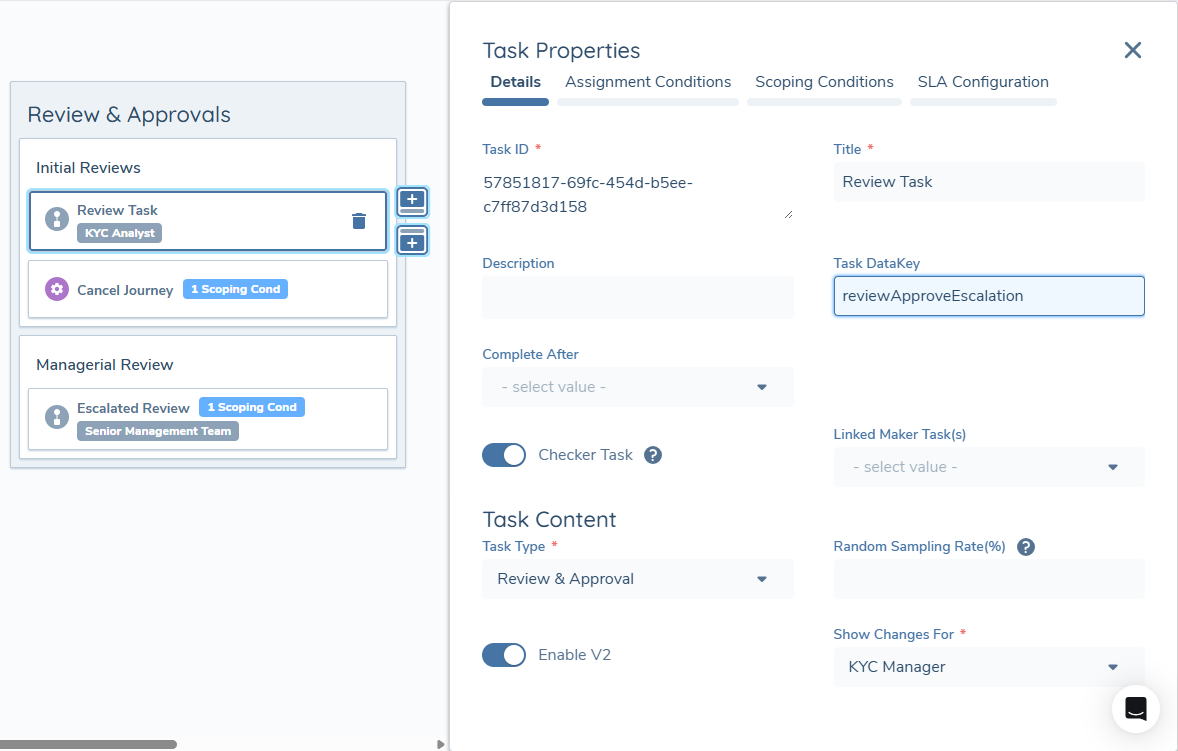
Once the profile configuration has been completed, you can now assign the appropriate profile to the "Review & Approval" task type in Journey Builder. Once this task is selected, turn on the Enable V2 toggle. A new mandatory dropdown will be displayed, entitled "Show Changes For". This will display all configured Review & Approvals Profiles configured in your tenant.
Any other task behaviour - things like Team Assignment, SLA Assignment or conditionality around the task triggering or not - can be configured as normal at this point.
There exists a V1 of this task, which requires different mandatory information. This will be covered at the end of this user guide.
Conditional Logic and Escalations
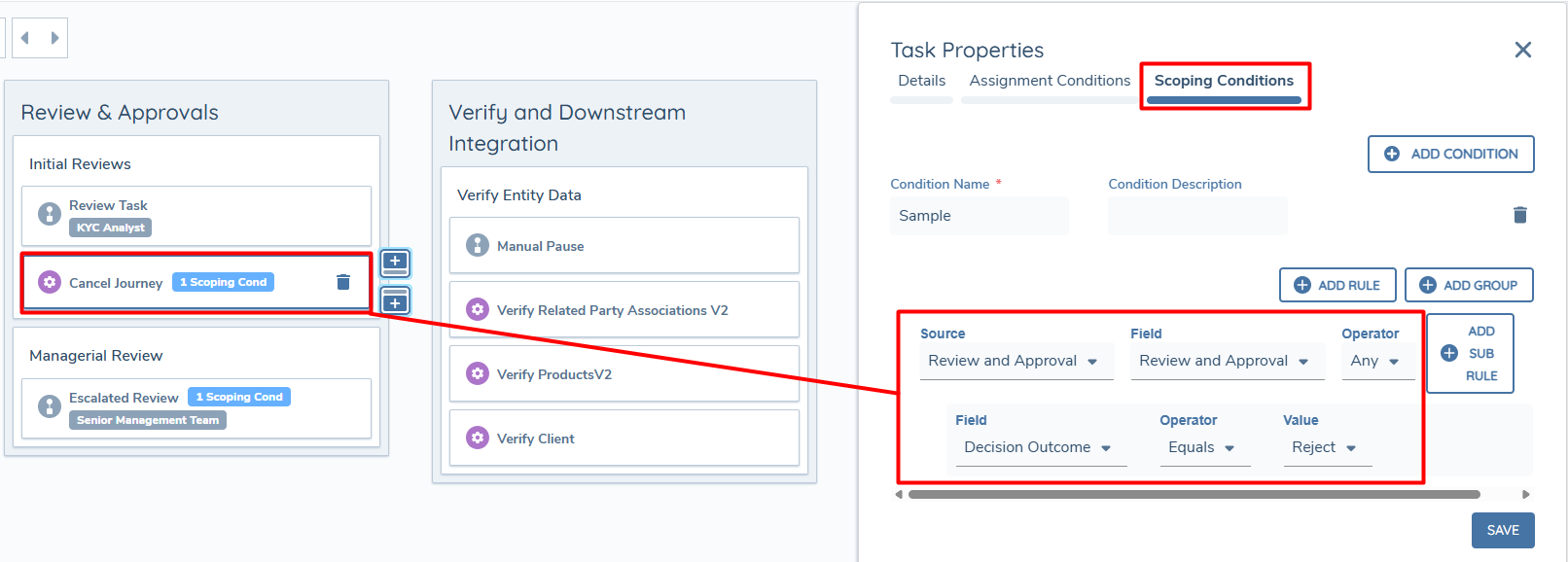
Review & Approvals outcomes can be used to shape and direct journey behaviour through Scoping Rules in Journey Builder. By using the results of an approval task - such as Approve, Reject, Revise, or Refer - you can influence how the journey progresses, ensuring that each case follows the appropriate operational pathway based on the actions taken in a previous Review & Approval Task.
To configure this, navigate to the object (Task, Process or Stage) that should trigger as a result of this review and open the Scoping Conditions section. From there, create a condition that uses Review and Approval as the Source and select the desired "Decision Outcome". These outcomes become the key decision points that drive what happens next in the journey.
Once the condition is set, define the Action that should occur when that outcome is reached. This may involve triggering an escalation to a more senior approver, generating a follow-up task, transitioning the journey into a new stage, or even completing it entirely. By aligning each action with a specific outcome, the workflow becomes responsive and controlled, ensuring that the right individuals and steps are engaged at the right time.
Automation and Random Sampling
The Review & Approvals Task supports automated completion through a configurable sampling rate, allowing organisations to blend straight-through processing with targeted manual oversight. By adjusting this sampling rate, you can determine the proportion of tasks that require human review versus those that the system will complete automatically.
For example, a sampling rate of 1 is interpreted as 1 out of every 100 tasks being routed for manual review. Under this configuration, approximately 1% of tasks are directed to a Review & Approvals step, while the remaining 99% are automatically completed by the system. This ensures that a small, controlled subset of cases receives manual scrutiny without creating unnecessary operational workload.
When a task is auto-completed, the system records an automatic approval and applies a standard reason such as "Not Sampled". Even though the task is completed without human intervention, all relevant data is still captured in the audit trail to support reporting, quality assurance, and regulatory reviews.
This approach provides a balanced mechanism for implementing regulatory-compliant random sampling while keeping operational overhead manageable and ensuring that oversight remains both targeted and effective. The functionality is not mandatory.
Task Structure and Panels
The Review & Approvals Task is composed of multiple review panels, each providing a different view of data and context.
| Panel | Description |
|---|---|
| Entity Data | Compares draft vs verified data |
| Documents | Review documents and document requirements |
| Related Parties | See associations with change markers |
| Products | View product attributes, product-specific associations, and the lifecycle status of each product |
| Bank Accounts | Review bank accounts with New/Changed indicators and a field-level Details view |
| Investment Accounts | Review investment accounts with New/Changed indicators and drill-in to account sub-sections |
| Risk Details | Displays journey-scoped risk assessment results across configurable sub-tabs: Entity Risk, Product Risk, and Related Party Risk |
| Topics | Comment threads grouped by a topic |
Each panel behaves according to the Profile in use, so different users may see different subsets of panels or data within them.
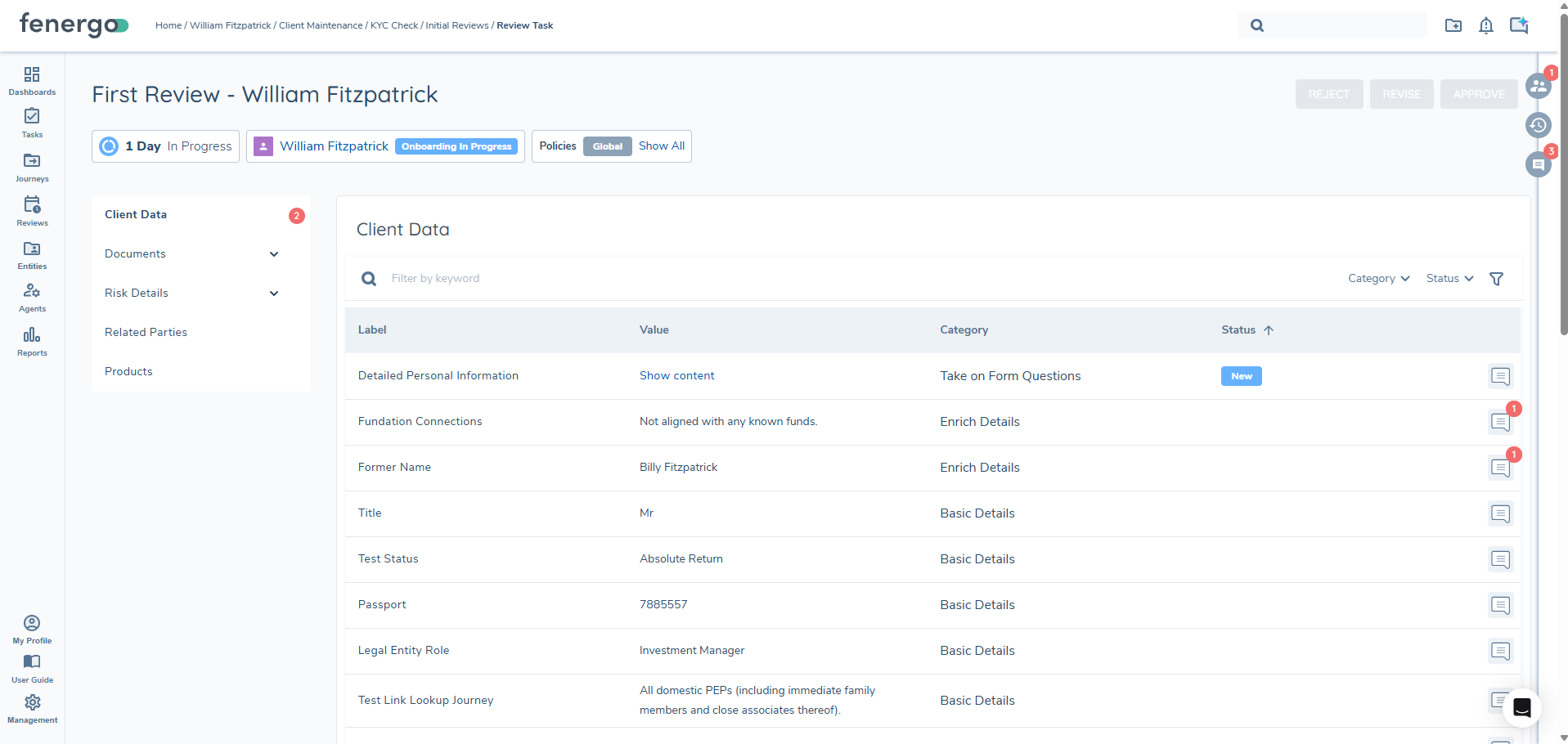
For fields of type "Rich Text Area", the content can be accessed by selecting the "Show Content" hyperlink. The information contained within your Rich Text Area field type will then display.
Bank Accounts Panel
When "Bank Accounts" is enabled on the profile, a Bank Accounts panel is available in the task's left-hand navigation.
The panel displays a list of bank accounts, with columns driven by the Data and Document Policy Categories configured on the profile (e.g. Bank Account Basic Details). Keyword filtering and pagination are available.
Each account in the list shows a change indicator:
- New - the bank account was added since the last verified state.
- Changed - one or more flat fields on the bank account have been modified since the last verified state.
- No indicator is shown for an unchanged account or a deleted Bank account.
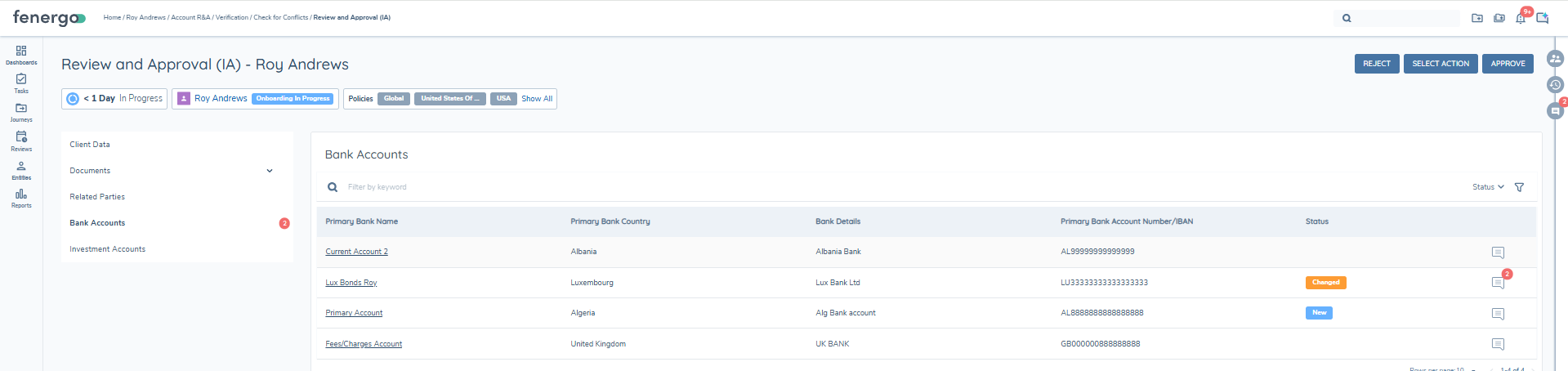
Selecting a bank account opens its Details view directly. The Details view shows the fields and data groups covered by the configured Policy Categories.
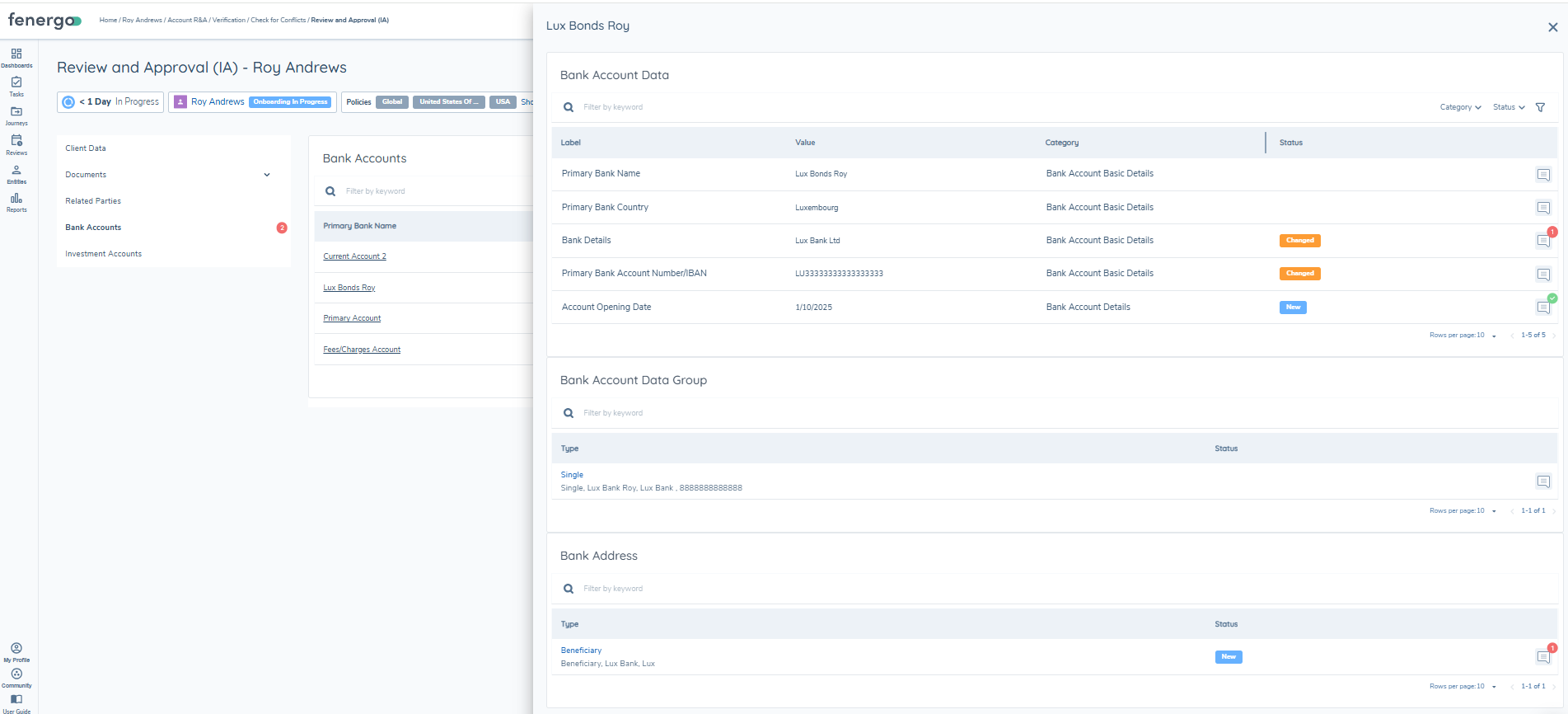
Commenting and permissions behave the same way as for any other panel in the task - see Permissions and Comments and Topics.
Risk Details Panel
When Risk Details is enabled on the profile, the task displays a Risk Details panel containing the configured risk sub-tabs. Each sub-tab surfaces the output of the most recently completed risk assessment task of that type within the same journey instance. If a journey contains multiple risk assessment tasks of the same type, only the output of the most recently completed one is displayed in the corresponding sub-tab.
Risk sub-tab results are always scoped to the current journey. Historic risk assessment data from previous journeys is never displayed, regardless of how recently it was calculated. This ensures that the risk output a reviewer sees reflects the entity's current in-journey state. The results displayed are those produced by the most recently completed risk assessment task of that type that ran during this journey — meaning any changes made to entity, related party, or product data within the journey will be captured in the risk output, provided the risk assessment task ran after those changes were made.
If no applicable risk assessment task precedes the Review & Approvals task in the journey, the corresponding sub-tab will contain no data. This applies even if risk assessments from previous journeys exist on the entity.
Product Risk Sub-tab
The Product Risk sub-tab reflects the scope of the Product Risk Assessment task configured earlier in the journey:
- If the Product Risk Assessment task has Only Assess Products Created/Updated Within Journey enabled, the Product Risk sub-tab shows results only for those products — those created or modified in the current journey that had a risk assessment run against them. Products with a verified (Onboarded) status at the start of the journey are excluded.
- If that toggle is disabled, the Product Risk Assessment task reassesses all products on the entity — including those that were already onboarded before the journey began — and the Product Risk sub-tab shows the results of that full reassessment.
Investment Accounts Panel
When "Investment Accounts" is enabled on the profile, an Investment Accounts panel is available in the task's left-hand navigation.
The panel displays a list of the client's investment accounts, showing Name, Status, Fund, and Share Class. Keyword filtering, Type, Status, and Fund filter controls, and pagination are all available.
Each account in the list shows a change indicator:
- New - the investment account was added since the last verified state.
- Changed - the investment account record has been modified since the last verified state.
- No indicator is shown for an unchanged investment account.
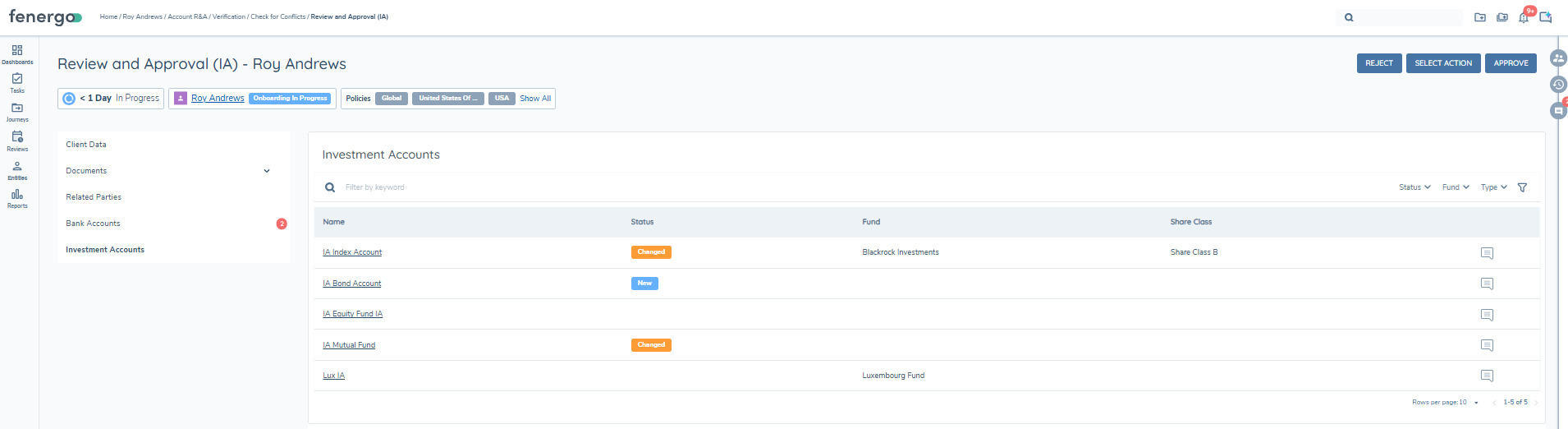
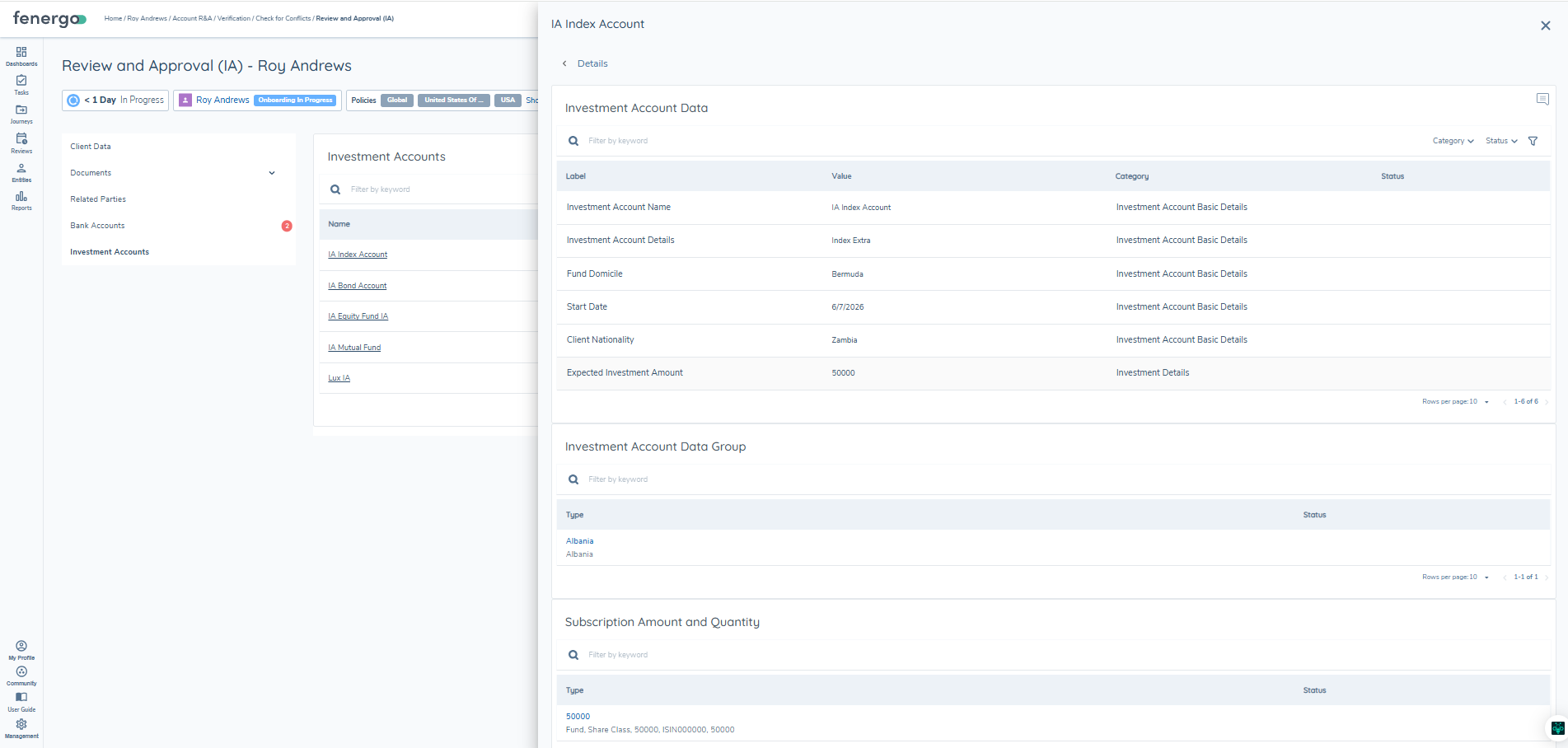
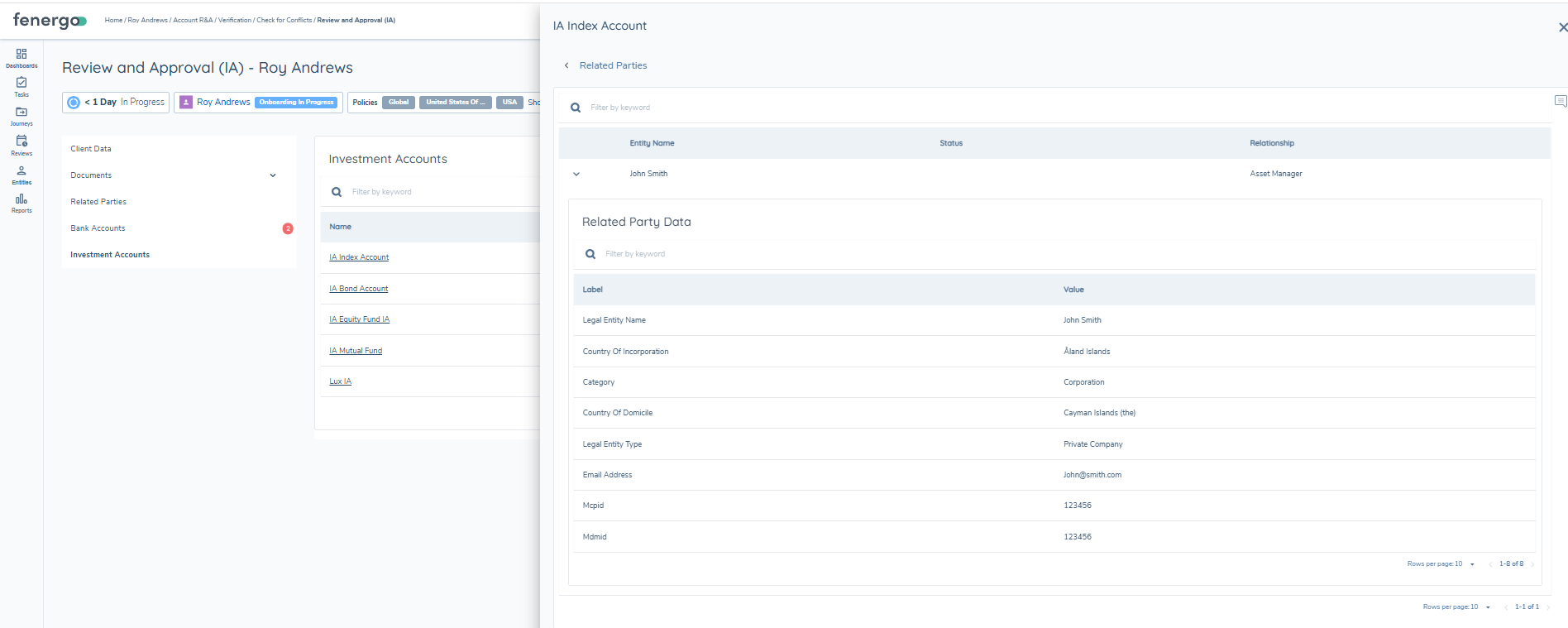
Selecting an investment account opens a side panel showing the account name and the following sub-sections:
| Sub-section | Description |
|---|---|
| Details | Investment Account fields and data groups from the categories configured on the profile, with keyword filtering and pagination |
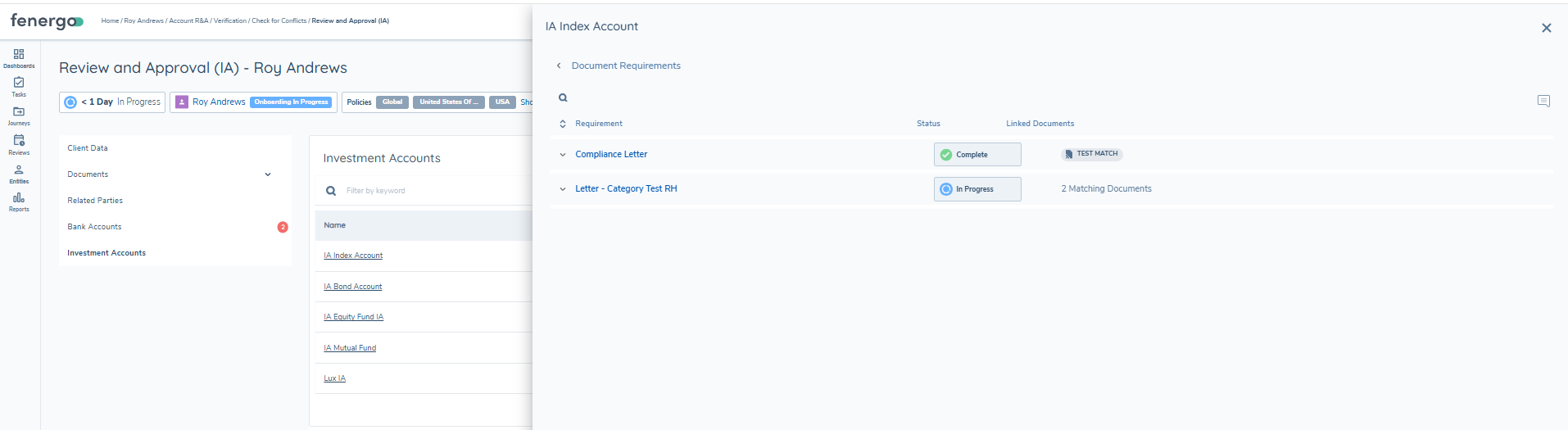
| Document Requirements | Document requirements from the document categories configured on the profile |
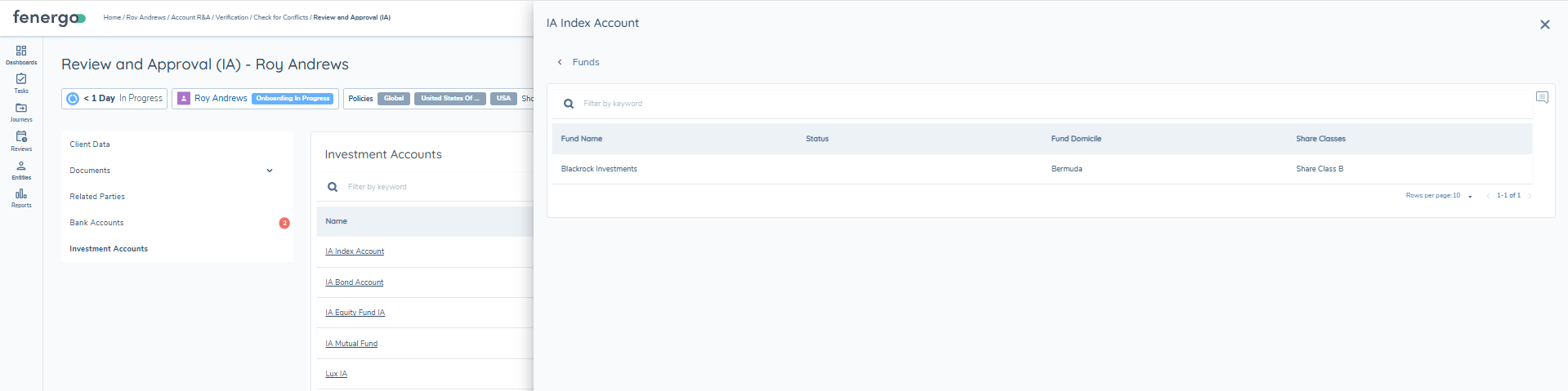
| Funds | Table of the linked Fund's Name, Domicile, and Share Class |
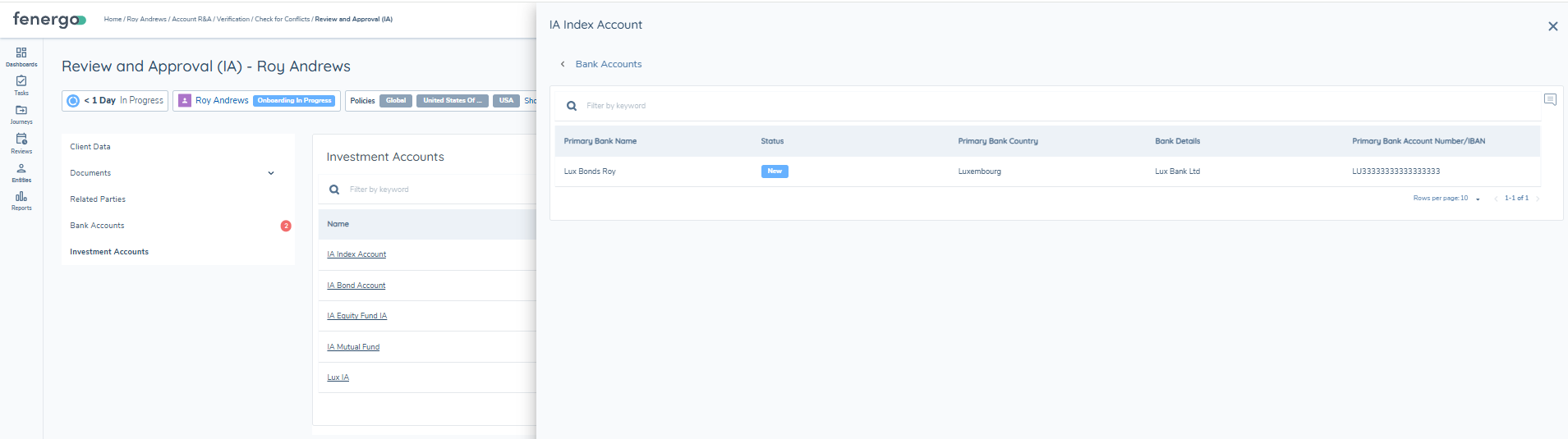
| Bank Accounts | Table of bank accounts linked to the investment account |
| Related Parties | Related parties linked to the investment account, with expandable rows |
Details
Only fields and data groups belonging to the profile's configured categories are displayed. Data groups display as distinct, read-only groupings; if a data group has no records, it is omitted from view rather than shown with an empty-state message.
Document Requirements
Only document requirements belonging to the profile's configured document categories are displayed. Which document requirements are eligible to appear here in the first place is ultimately determined by the Policy Categories configured on the Investment Account task in the Journey Schema - the profile's category selection then further filters within that set. If no document requirements remain after filtering, the following message is shown: "No document requirements have been added yet."
Funds
A table showing the linked Fund's Name, Domicile, and Share Class.
Bank Accounts
A table of the bank accounts linked to the investment account. Columns are driven by the same Bank Account Basic Details category used by the standalone Bank Accounts Panel. Keyword filtering and pagination are available. A newly linked bank account is shown with a New status; no other indicator is shown at this sub-section level, including for a bank account whose own fields have been changed.
Related Parties
Shows each linked related party's Entity Name, Status, and Relationship. Each row can be expanded to reveal the related party's detail fields, and keyword filtering is available. A newly linked related party is shown with a New status; there is no Changed status for related parties, and no indicator is shown for an unchanged or unlinked related party.
Access Layers
For Bank Accounts and Investment Accounts, visibility of an individual account within the Review & Approvals Task is additionally controlled by the reviewer's assigned Entity and Search access layers for that account. No new permissions are introduced for this - access layer assignment and configuration is covered in the Investment Account Management guide.
| Access layer held | Result |
|---|---|
| Entity access layer | Full visibility - the account is displayed and all information is visible across the account's sub-sections (or Details view, for Bank Accounts) |
| Search access layer only (no Entity) | The account name is visible in the list, but all other data is hidden and the reviewer cannot drill in to view any further information |
| Neither Entity nor Search | The account is completely hidden from the list, with no indication to the reviewer that it exists |
Comments and Topics
Comments allow users to collaborate and capture rationale directly against the data being reviewed, ensuring discussions remain contextual and transparent. Each comment is tied to a specific element - whether that be a field, a data group record, or a document - so users can engage in focused dialogue where the information actually sits. These comments are organised into threaded discussions, with each thread supporting multiple replies to facilitate clear, structured back-and-forth exchanges.
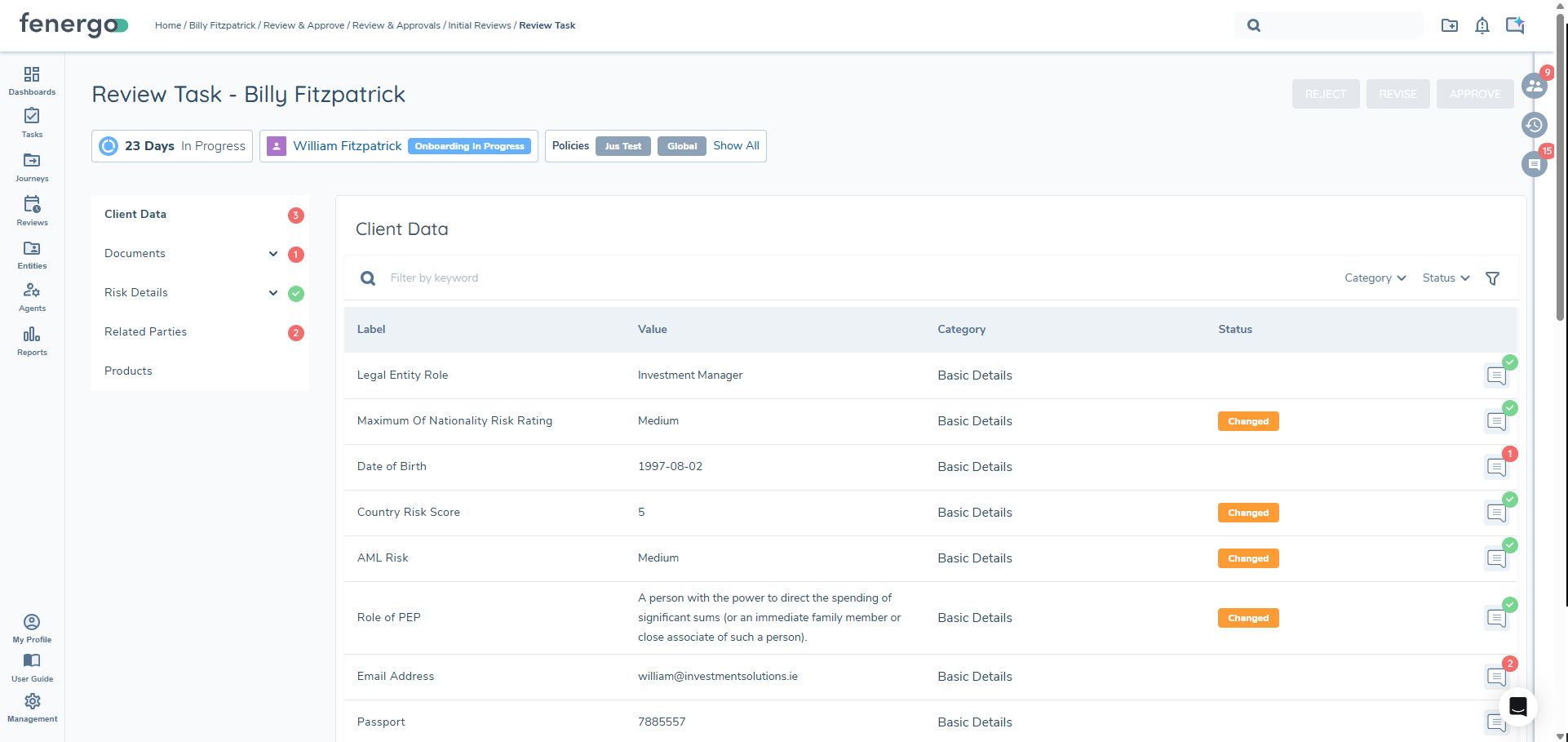
The commenting framework also supports mentions, enabling users to notify individuals or entire teams by using @username or #teamname. This ensures the right people are brought into the conversation promptly and can contribute without delay. Users retain control over their own contributions by being able to edit comments to correct or clarify statements, or delete them if they were added in error. This is dependent on the permissions assigned to them. Once a discussion reaches its conclusion, comments can be marked as resolved. Resolved threads remain visible for audit purposes but are clearly flagged as closed.
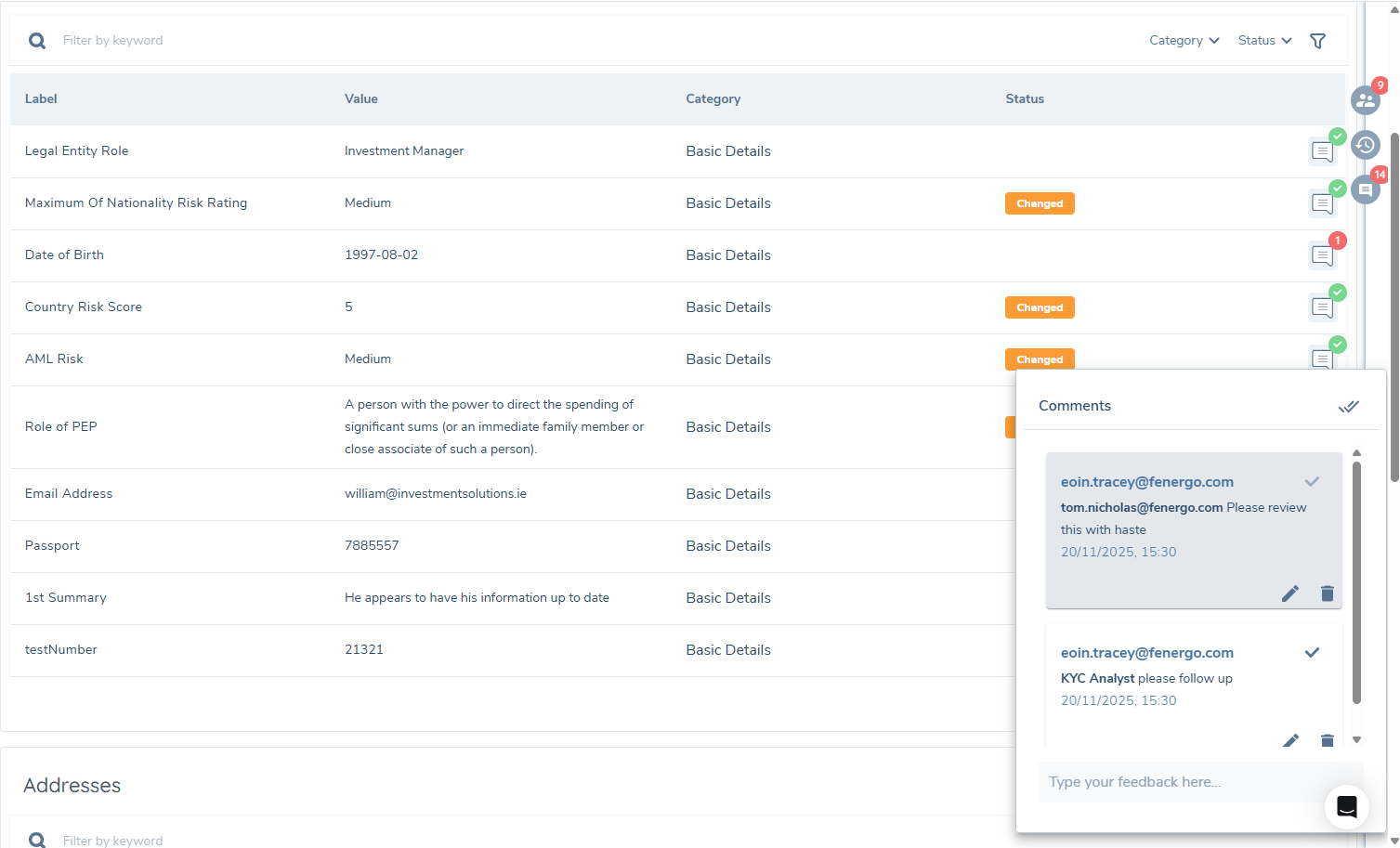
Topics provide an additional layer of structure by allowing comments to be organised around defined themes or workstreams. Each task begins with a default topic, such as "General". Beyond this, users can select from a configurable list of topics defined per profile, and, where permitted, they may create custom ad-hoc topics to support more specific discussions. Topics that contain no comments can be removed, while those with active commentary are preserved to maintain audit integrity. If enabled in the configuration of the profile, further validation can also be applied so that a task cannot be completed while any comment or topic still contains unresolved comments, ensuring that all outstanding issues are addressed before the process moves forward.
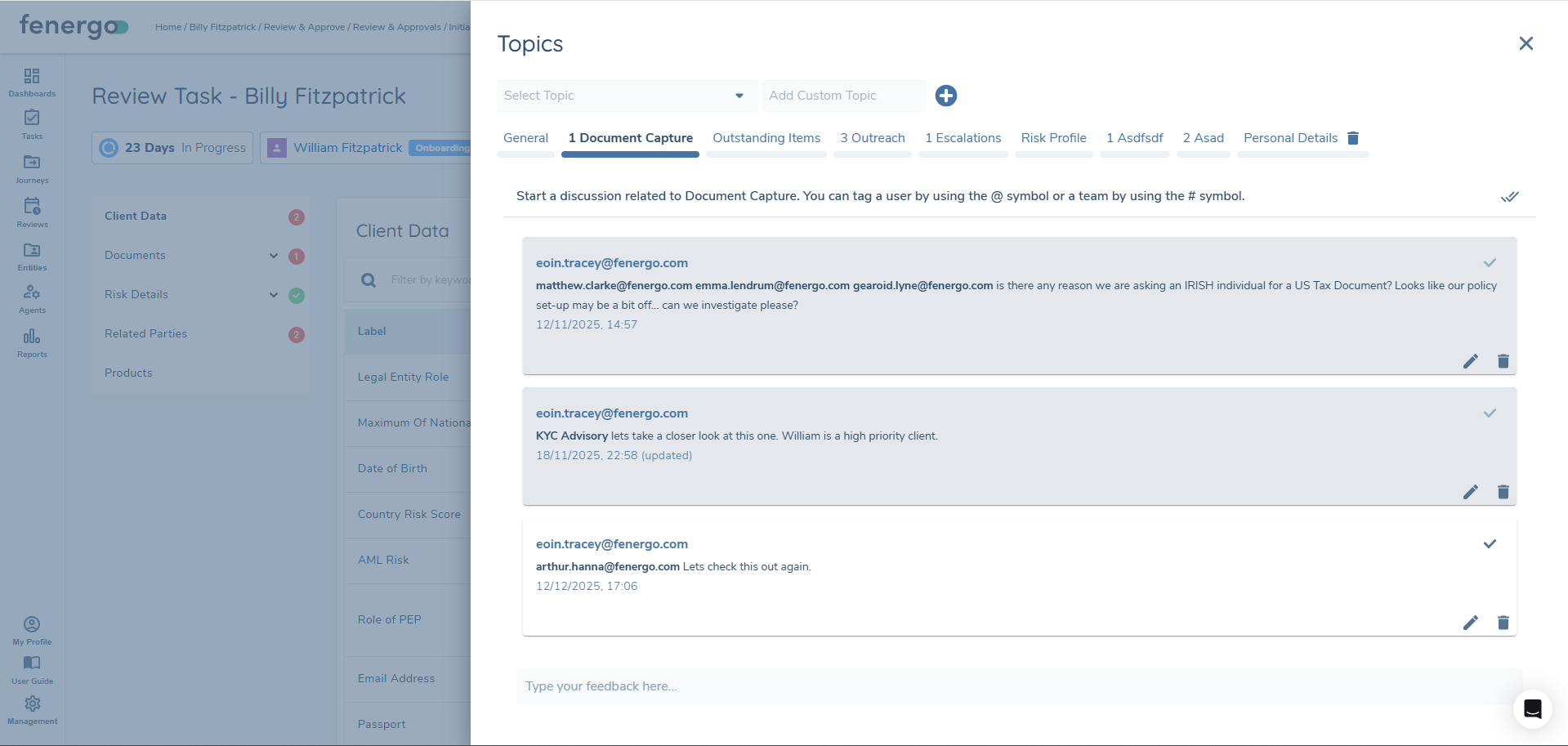
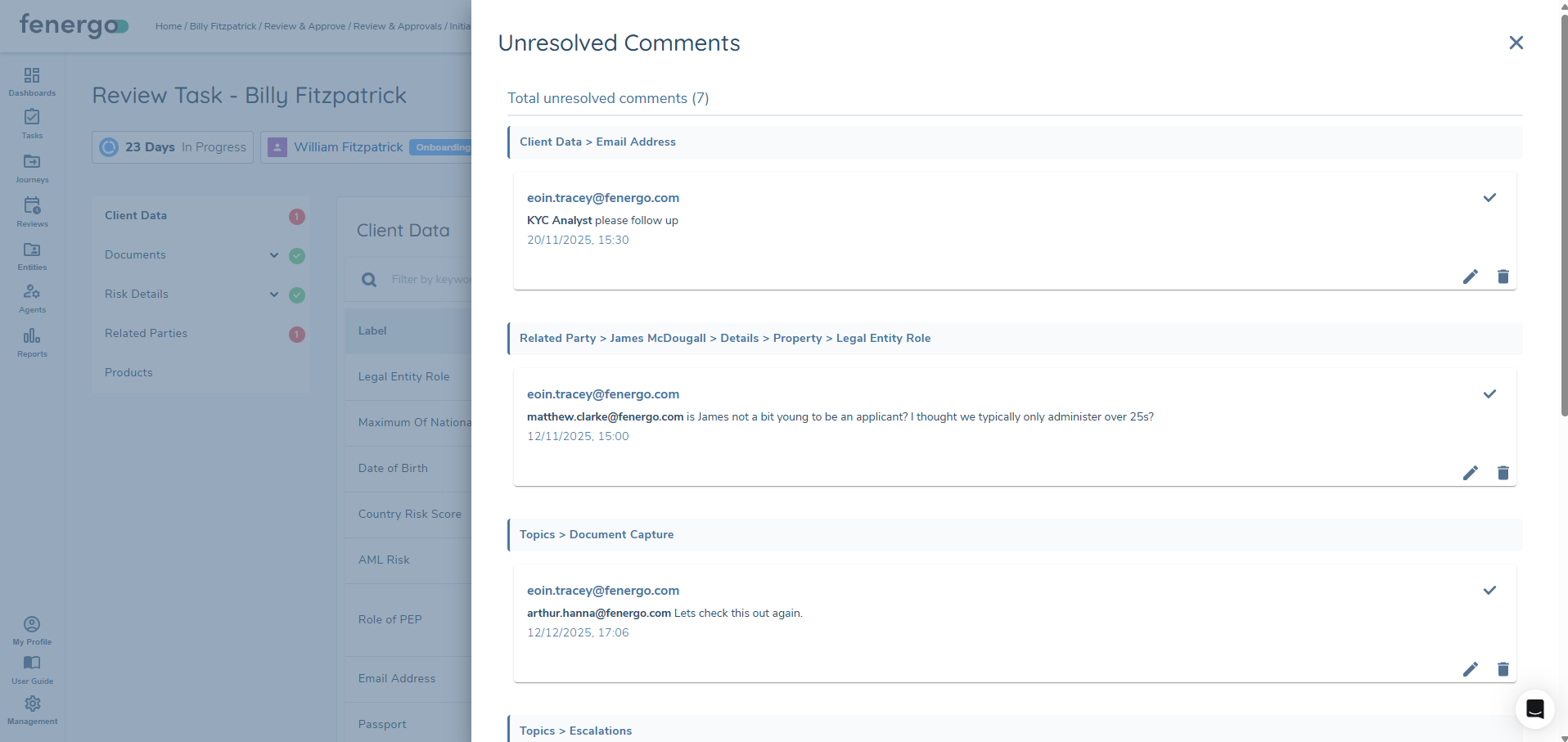
Any outstanding, unresolved comments or topics can be accessed through the final icon visible within the task. This ensures that any missing comments or topics can be found quickly, without having to navigate through every page visible within the task. Each Unresolved Comment will be headed with where that comment was placed - for example "Client Data - Date of Birth":
Decision Options and Decision History
When completing a Review & Approvals Task, the user must choose a single decision outcome from a configurable list. These outcomes typically include Approve, Reject, Revise, and Refer, each carrying a distinct operational meaning. Approve confirms that the data has been reviewed and accepted. Reject and Refer are both used as trigger conditions in journey routing - neither one itself prevents draft data from being published; a downstream Cancel Journey task is required for that. Reject can be used to trigger any other type of task, or another downstream stage or process. Refer's primary use case is to escalate the review by triggering a second Review & Approvals V2 task, or to route the journey to another downstream task, stage, or process.
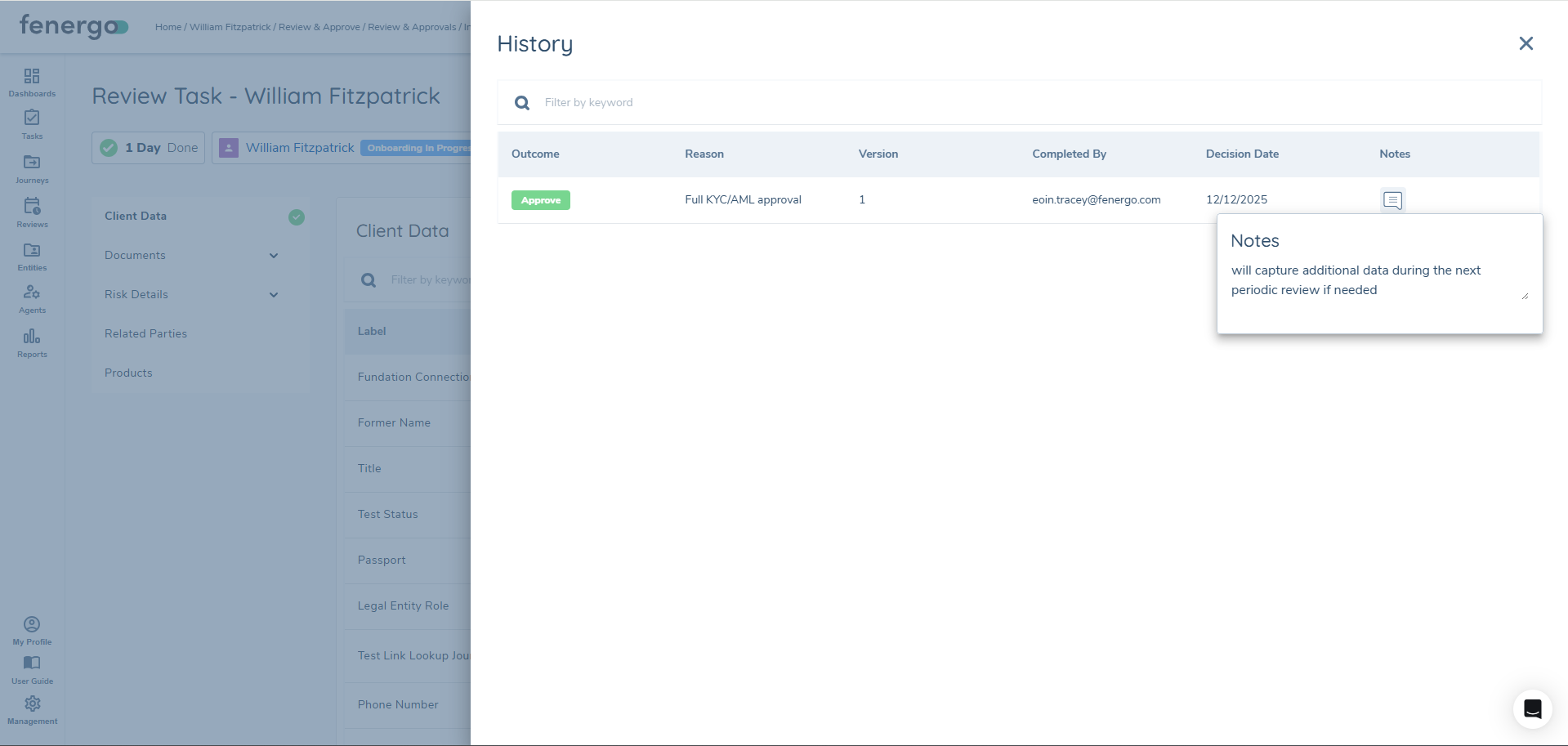
For every decision taken, the system captures a structured set of data to ensure clarity and traceability. This includes the selected outcome itself, along with a reason - either entered as free text, chosen from a dropdown of standardised lookup values, or selected from a contextual linked list. Users may also add supporting notes to provide additional narrative detail or justification. Each decision is versioned and timestamped to maintain a complete and reliable audit trail.
All of this information is consolidated within the Decision History. Each time a decision is made, the system records both the latest version and all historical versions, ensuring that no previous decisions are overwritten or lost. The Decision History displays the decision outcome, any reasons or notes provided, the user who made the decision, and the exact date and time it was recorded. This creates a transparent and sequential record, enabling auditors, reviewers, or remediation teams to fully reconstruct how the current state was reached and understand the rationale behind each decision along the way.
Each time a Review & Approvals Task is completed, the system captures a snapshot of all data that was included in the review. This snapshot covers entity information, related parties, products, and any other sections configured as in scope for the profile. Bank Accounts and Investment Accounts are the exception: they currently display live data rather than a point-in-time snapshot. For every other in-scope section, this preserves the full context of the review exactly as it existed at the moment the decision was made.
For these snapshotted sections, the data represents the precise state at the point of approval or any other decision outcome. It remains accessible for downstream investigations, regulatory assessments, and internal audits, providing a reliable reference point even if the live data has since been amended, corrected, or enriched, so that reviewers and auditors can reconstruct what was seen and assessed during the original review. This does not apply to Bank Accounts and Investment Accounts - since these two sections always display live data, what a reviewer sees for them later may differ from what was true at the time of the original decision.
When combined with the Decision History and any associated comment threads, these snapshots contribute to a robust audit trail for the review and approval process, offering transparency into what was reviewed, who reviewed it, what decision was taken, and why - supporting regulatory compliance, operational oversight, and long-term assurance.
Reopen Earlier Task at Runtime
When the Reopen Earlier Task option is enabled on the R&A Profile for a Reject or Revise outcome, selecting that outcome at runtime reveals additional controls within the decision UI:
- Task selection dropdown — lists all completed, non-system tasks that precede the R&A task in the journey. The reviewer must actively select a task; no task is pre-selected.
- Reopen Comment field — a mandatory text area, clearly labelled separately from the standard decision comment field, where the reviewer enters the reason for sending work back.
On clicking Confirm, the following occurs in sequence:
- The selected task is reopened.
- All tasks between the selected task and the R&A task receive a Task Reset event and return to an incomplete state.
- The R&A task returns to its pre-initiation state.
- The Reopen Comment is injected into the comments sidebar of the reopened task, visible to anyone with access to that task, with the reviewer's username displayed alongside it and an auto-generated prefix identifying the decision outcome and the task that was reopened — so the assignee can immediately see why the task was sent back and what needs to be corrected, without leaving the task or navigating to the Journey Audit.
- The decision — including the outcome, the task selected, and the Reopen Comment — is recorded in the Decision History and remains visible when the journey returns to the R&A task.
Data preservation: All data on the reopened task and any intermediary tasks is retained exactly as it was when those tasks were originally completed. Assignees return to the task in its prior state and can make targeted corrections without rebuilding entries from scratch.
If the task is reopened, then this snapshot will be wiped and replaced with the latest data available from that new instance of the task.
Important Notes
When working with the Review & Approvals Task, there are several limitations to keep in mind to ensure correct configuration. Review & Approvals V2 Profiles are supported in Configuration Exchange. Product scoping rules attached to a profile are included as a non-blocking dependency — they can be promoted alongside the profile in the same import, but their absence will not block the import from completing.
Risk Sub-tabs in the Risk Details panel display the output of the most recently completed risk assessment task of each configured type within the current journey. If a journey contains multiple risk assessment tasks of the same type, only the most recently completed one's output is shown. If no applicable risk assessment task has been completed within the journey, the corresponding sub-tab will be empty.
Both V1 and V2 task implementations remain available, with V1 relying on data-key–based configuration and V2 operating on profile-based configuration. Although V1 tasks are still supported for legacy scenarios, new journeys should be built using the V2 approach to take advantage of the full set of current capabilities and enhancements.
Currently there is no snapshotting of Bank Account or Investment Account data within the Review & Approvals Task. Therefore, when returning to a completed task, the Bank Accounts and Investment Accounts panels will always show the most recent, live data.
Review & Approvals V1
The Review & Approvals feature allows the following tasks to be viewed in a read-only format in a consolidated view:
- Data
- Related Parties
- Documents
- Risk
The data can be reviewed, after which the task can then be completed.
Review & Approvals V1 Configuration
Ensure you have the required Review & Approvals permissions assigned to your profile before configuring. Configuring the Review & Approvals task is solely from the Journey Builder.
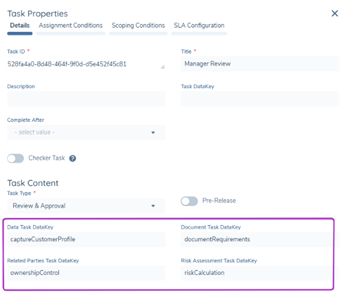
This configuration will only be available if the "Enable V2" toggle is disabled.
Once the Review & Approval task has been selected, four Task DataKey fields will be visible. Assign the Task DataKey of the Task that is desired to be reviewed in the Review & Approval task. Only one Task DataKey can be used. Multiple Review & Approvals tasks can be configured in a single journey with different DataKeys.
Review & Approval V1 Task View
Once the Review & Approval task has been configured, the in-task view will look as follows:
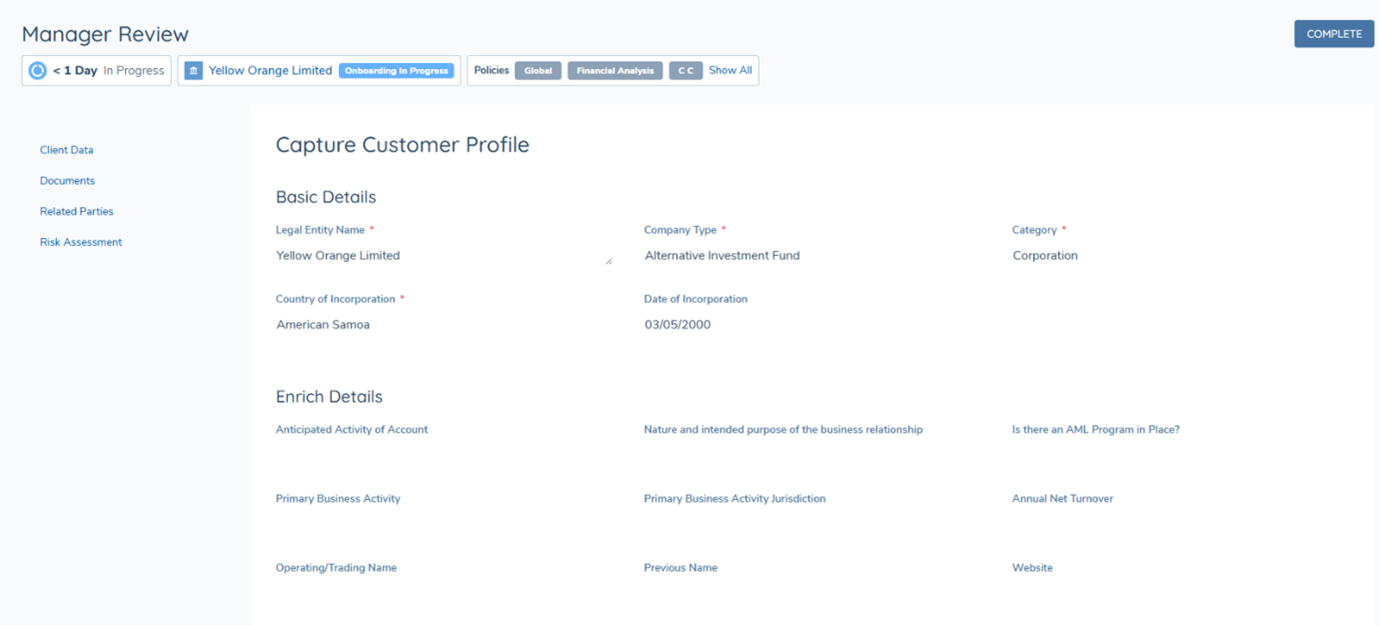
The left-hand pane is used to traverse between the four available tasks for review. The right-hand side will show all available data in an entirely read-only view. Once the review has been completed, the task can be completed via the Complete button at the top right-hand corner.