Configurable Statuses
In Fenergo SaaS, there exist several pre-defined "Statuses" or Chips. The logic for these is hard-coded and is based on the following:
- Client = Completed Client Onboarding Journey.
- Onboarding in Progress = In-progress Client Onboarding Journey.
- Compliant = "Client", with no Maintenance Journeys in-progress,
- Maintenance in Progress = "Client", with a Maintenance Journey in-progress.
- Pending Offboarding = Offboarding of the Global Policy is in progress (Client Offboarding Journey Type in-progress).
- Client Offboarded = Completed Offboarding of the Global Policy (Client Offboarding Journey Type completed).
- Review in Progress = In-progress Periodic Review Journey Type.
- Sanctions = Screening Category of "Sanctions" = "Yes".
- PEP = if PEP match = "Yes" in Screening.
Configurable Statuses as a feature looks to allow a Client to implement similar Chips, and will allow the Client to dictate:
- The label, tooltip value of these Chips
- The conditions under which these Chips appear
- The display location of these Chips (Journey Hub or Entity Profile)
- The colouring of these Chips
Once configured, these Configurable Statuses or Chips can then be used to drive Conditionality within the application, or be reported against directly via a Reporting Solution. Configurable Statuses will both be stored within Entity Data, meaning they can be leveraged within the Fenergo SaaS Logic Engine, as well as being represented visually in the UI. This means that when configured, a User can easily understand the current state of an Entity through the Configurable Statuses displayed. As an example, a Client could configure Configurable Statuses that denote an Entity's External Identifiers, the latest changes to their Entity Record, their Approval Status and the Currency they trade in.
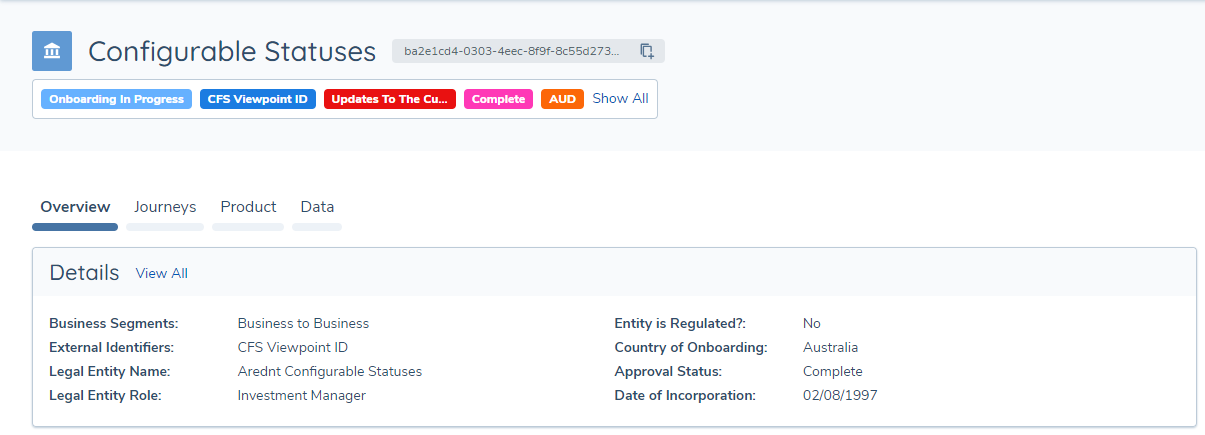
Visualisation of Configurable Statuses
Configurable Statuses, when returned from the Policy, will display on either the Entity Profile or Journey Hub based on the configuration. The styling, order, display location and tooltip (if provided) are all returned from the Policy or Policies configured. The value of the Configurable Status is returned from entity-data. In simple terms, this means that the visualisation of the Configurable Status is provided from the Policy configured, whereas the value displayed on the Configurable Status comes from the Verified Data of the Entity (Entity Profile) / In-Flight Data of the Journey (Journey Hub).
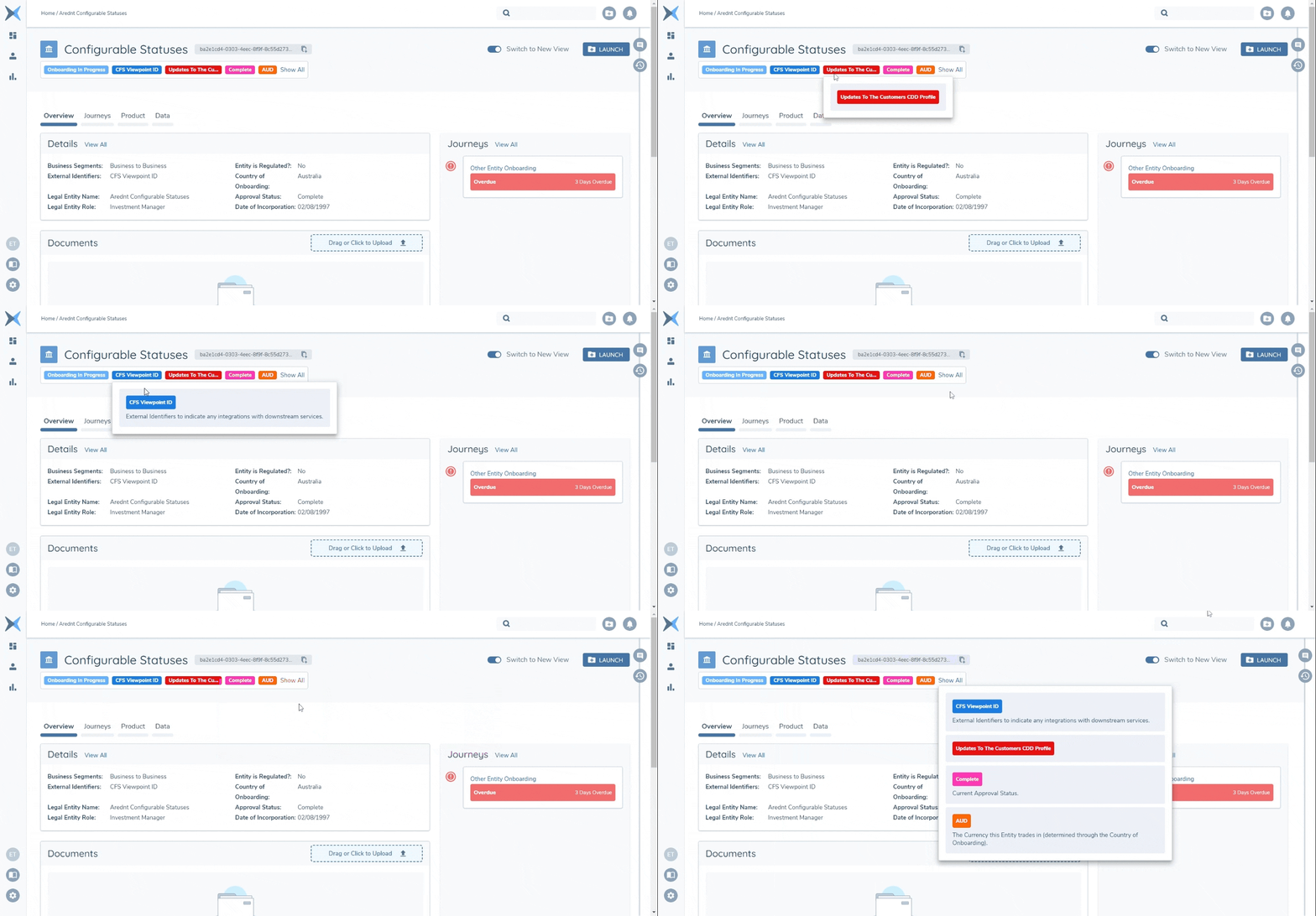
The existing hard-coded Statuses mentioned at the beginning of this User Guide will always display first. After these have displayed, the Configurable Statuses (as per their field order configured) will display afterwards. Each Configurable Status will have its value truncated if exceeding 20 characters, and the full text of the value can be found by hovering over the value. Hovering over a Configurable Status will also reveal its tooltip description, if configured. A User can also click the "Show All" text to reveal all Configurable Statuses at once:
The Entity Profile will display up to eight Status Chips in total, and this number is a sum total of both the existing Statuses & Configurable Statuses. After eight have been displayed, a User can reveal the remaining Configurable Statuses by hovering over the Icon below. This icon will only reveal itself if there are Configurable Statuses being hidden. In other words, if there are eight or less Statuses returned, this icon will not be displayed. Finally, this icon will update incrementally based on the number of Configurable Statuses being hidden:
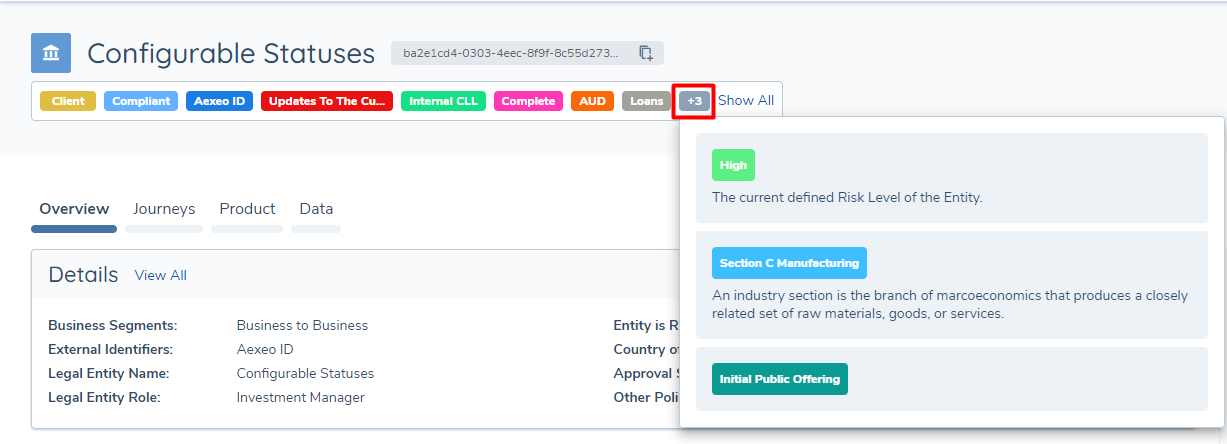
The view of Configurable Statuses is slightly different on the Journey. Here, there is a maximum of three Configurable Statuses displayed by default. This is to accommodate the Journey Hub in the scenario where there are multiple Policies and SLA information also being displayed. Similar to above, a User can hover over either the "+2" icon to reveal the remaining Configurable Statuses, or select the "Show All" text to reveal all Configurable Statuses.
Key Considerations
- As they are configured in Policy, Configurable Statuses can be configured & utilised as any other Data Requirement would be. This means the value of a "Status" field type can be reported against, can be used to drive conditionality within Fenergo SaaS or can be sent downstream to external systems.
- Configurable Statuses are created in Policy using the field type of "Status". There exists a similarly named field type called "Legacy Status", which serves a different purpose. The "Legacy Status" field type was a precursor to "Conditional Values", and is roadmapped to be deprecated. For the purposes of Configurable Statuses, please ignore the "Legacy Status" field type, and only use the "Status" field type (statusV2 in the API).
- Configurable Statuses are configured as a Data Requirement, meaning the colour of the Status represented in the UI will remain the same, regardless of its value. Configurable Status colouring based on the datakey's value is a future piece of work the Fenergo SaaS team plan to pick up, based on Client Adoption of Configurable Statuses.
- Configurable Statuses allow a Client to introduce new statuses into the application, that can be used to drive system behaviour as well as be represented visually in the UI. These are separate to the existing statuses mentioned at the beginning of this User Guide. If a Client wishes to move away from the pre-defined hard-coded Statuses in the application, they can be hidden through Entity Profile Configuration. For more information, refer to Using the Legal Entity Profile Page.
Configuration
In order to utilise Configurable Statuses, a User will be required to update their Policy Configuration. A User can then select the new field type of "Status", which is available under the "Data Field Type" property. Selecting this new field type will bring three new fields into display.
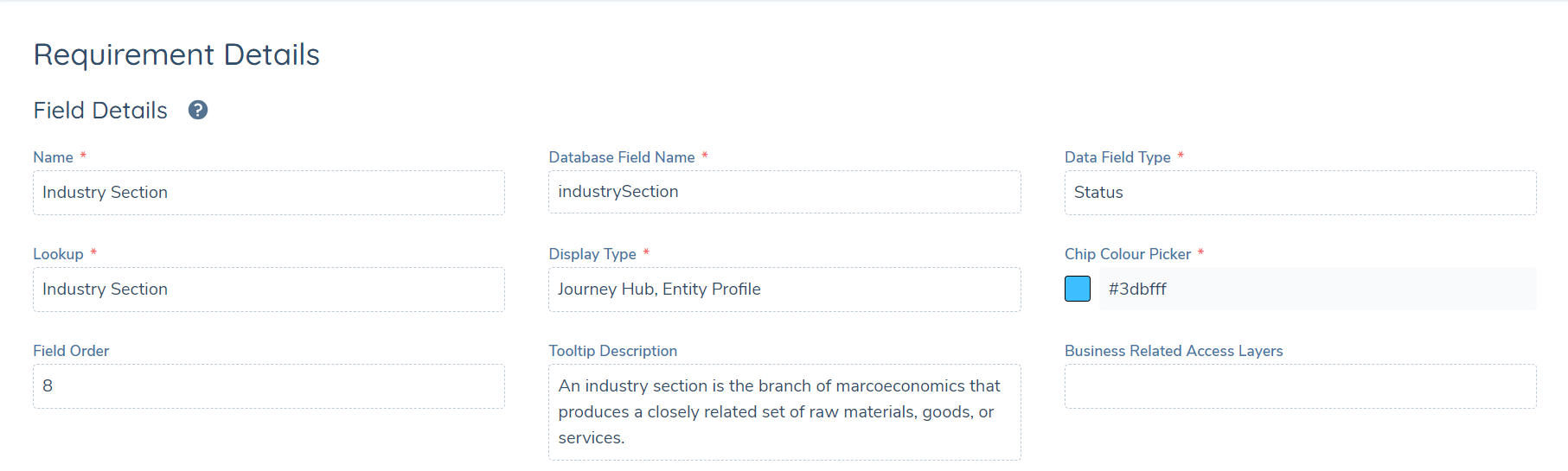
The first property is Lookup. Configurable Statuses will always be tied to a reference data list. This is an intentional decision, as it will mean that an end-user is restricted to an acceptable list of values when populating a "Status" field. This removes any fear of erroneous data entry. In the screenshot below, the "Industry Section" field us tied to the eponymous lookup. This means that all possible values for this field will come from the selected lookup.
The next property is Display Type. This determines the location of where this Configurable Status should be represented in the UI. A User can select options of "Journey Hub" or "Entity Profile", or both, in a multiselect format.
The final property associated with the "Status" field type is the Chip Colour Picker. This allows a User to determine the colour of the chip that should be represented in the UI on the Journey Hub or Entity Profile.
After the mandatory properties have been configured, a User can populate the Field Order. The Field Order here is used to determine the correct ordering of Configurable Statuses, when there are multiple status field types being returned. This is determined by taking all of the Configurable Statuses returned and then displaying them relative to one another, based on the configured field order.
A User can configure a tooltip description. This operates similar to other tooltips in the application. A User can provide a description that will provide context Configurable Status that has been provided. This means that an end-user can be provided some information related to Configurable Status. This allows that end-user to easily contextualise both the value of the chip and the context under which this value was set.
Finally, a User can enable the 'Indexable' toggle. Enabling this toggle allows the configured status chip to appear in global search.
The remaining configuration is similar to any other Data Requirement. A user selects the entity type the Configurable Status should be mapped against, the category under which this field should be displayed as well as the Target Entity type.
In terms of validation, there are two options a User can select for the "Status" field type. The field can be made mandatory or can be made read only. Setting a "Status" field type as read-only provides customisation, as a Client can dictate whether a Configurable Status can only be set through conditional values, or whether that field can be set through standard User input. Setting the field as read-only coupled with Conditional Values would mean that a "Status" field type is not something that can be set by a User, but rather is something set through pre-defined Conditions. For example, a Conditional Value of "Euro" on a "Status" field type of "currency", when the "Country of Incorporation" = "Ireland".
Once the User has configured their desired "Status" field types they can then publish the Policy. Under the same process as any other Policy Update, this will mean that the new Journeys created in the tenant will take in the latest version of the Policy. This is an important call out within the context of Configurable Statuses, as it means that only new journeys being created will take in the latest version of the Policy containing the "Configurable Statuses" configuration. When these new Journeys are Verified, the "Configurable Statuses" can then be displayed on the Entity Profile.