Configuration Exchange
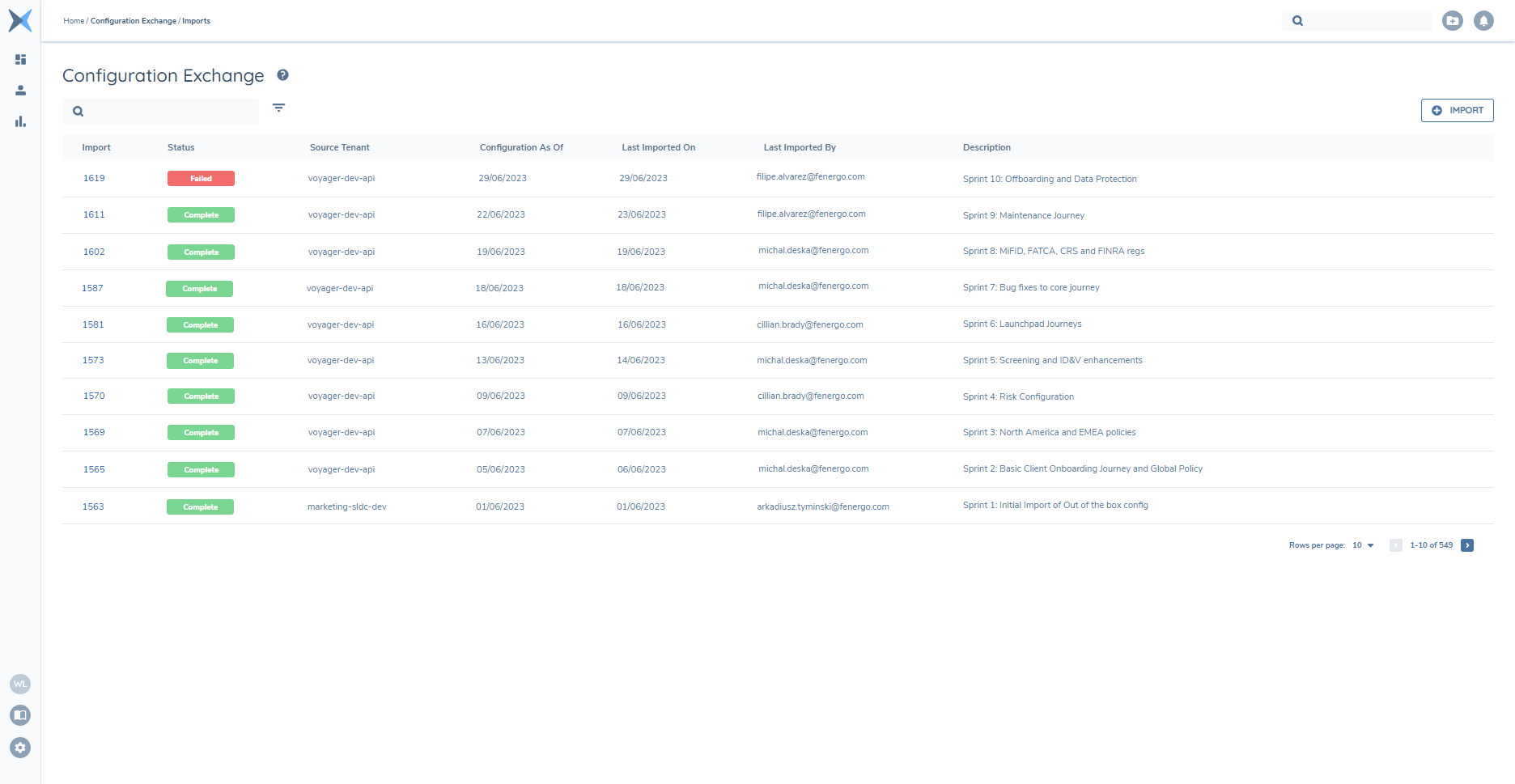
Configuration Exchange enables configuration to be imported from one tenant to another, allowing the flexibility to select from current or past versions of Configuration Items. Fenergo SaaS clients are expected to make configuration changes within a lower tenant (e.g. Dev tenant) and promote those changes to higher tenants (e.g. Dev->UAT->Pre-Prod->Prod) after rigorous acceptance testing.
Processed imports are stored for historic reference, enabling transparency of what was imported to the tenant when, by whom and the status of processed items. When an import creates new versions of Policy, Journey, Risk or Reference Data configuration, it will include a Version Note that references the Source Tenant, Source version and Import Record Name for transparency and traceability.
When a user creates a new import, they are authenticated to access configuration from the source tenant, which is then cached and ready for the user to select. It's easy to select configuration in bulk and users are able to focus on the latest configuration or configuration from a past milestone (such as the completion of a previous sprint).
Permissions
In general, configuration exchange users are expected to have all permissions required to read the Source tenant Configuration that they wish to import and edit/publish permissions for the same in the target tenant. Users will not see any domains they are not entitled to.
- Configuration Exchange Access permission is required to display "Imports" on the users left navigation menu. This will also allow users to view Import Records, even if they cannot create them.
- Configuration Exchange Edit permission is required to be able to click the '+Import' button within the Configuration Exchange screen.
- Configuration Exchange Publish permission is required to opt to 'Import in a Published State'.
- [Domain] Access permissions are required in the Source tenant in order to view and select configuration to be imported - for example "Policy Access". Users can only select configuration from Domains they have access to.
- [Domain] Edit permissions are required in the Target tenant in order to view and select configuration to be imported. If lacking this permission, you cannot create drafts in the target tenant so associated configuration items will be hidden.
- [Domain] Approve permissions are required in the Target tenant in order to automatically 'Publish' drafts (via 'Import in a Published State' toggle). If entitled to edit, but lacking 'Approve' permission, using 'Import in a Published State' will result in configuration not being imported and errors being displayed in the import log.
Creating a new Import
The user will login to the tenant they wish to import configuration INTO (the “Target Tenant”) and then navigate to the Configuration Exchange 'Imports' feature from the Left-Hand Navigation pop-over. The +Import button launches a new import session.

Cross Tenant
This path allows configuration to be imported from the specified Source tenant within the same environment as the Target tenant - just enter the tenant name.

The system will utilise your existing login to this environment, so you only need to specify the name of the tenant that you wish to import configuration FROM (the “Source Tenant”).
Cross Environment
This path allows configuration to be imported from the specified Source tenant in a different environment to the Target tenant. For example, if a client has tenants in multiple environments and a user wanted to import configuration from their source tenant in EMEA1 to the target tenant in NA1, the user would login to the client tenant in the NA1, and create a new import using the 'Cross Environment' tab to specify the 'EMEA1' Environment and provide the source Tenant's name.

Authenticating in the Source Environment requires will navigate users to that environments login page when they click on the 'Login to Source' button. If you were already authenticated in that environment, you may be taken directly to the Import screen instead.
Note: this does require a 'Configuration Environment' to have been established between the two tenatns/environments - see FAQ for more details.
Key Elements of an Import Record
Configuration As-Of
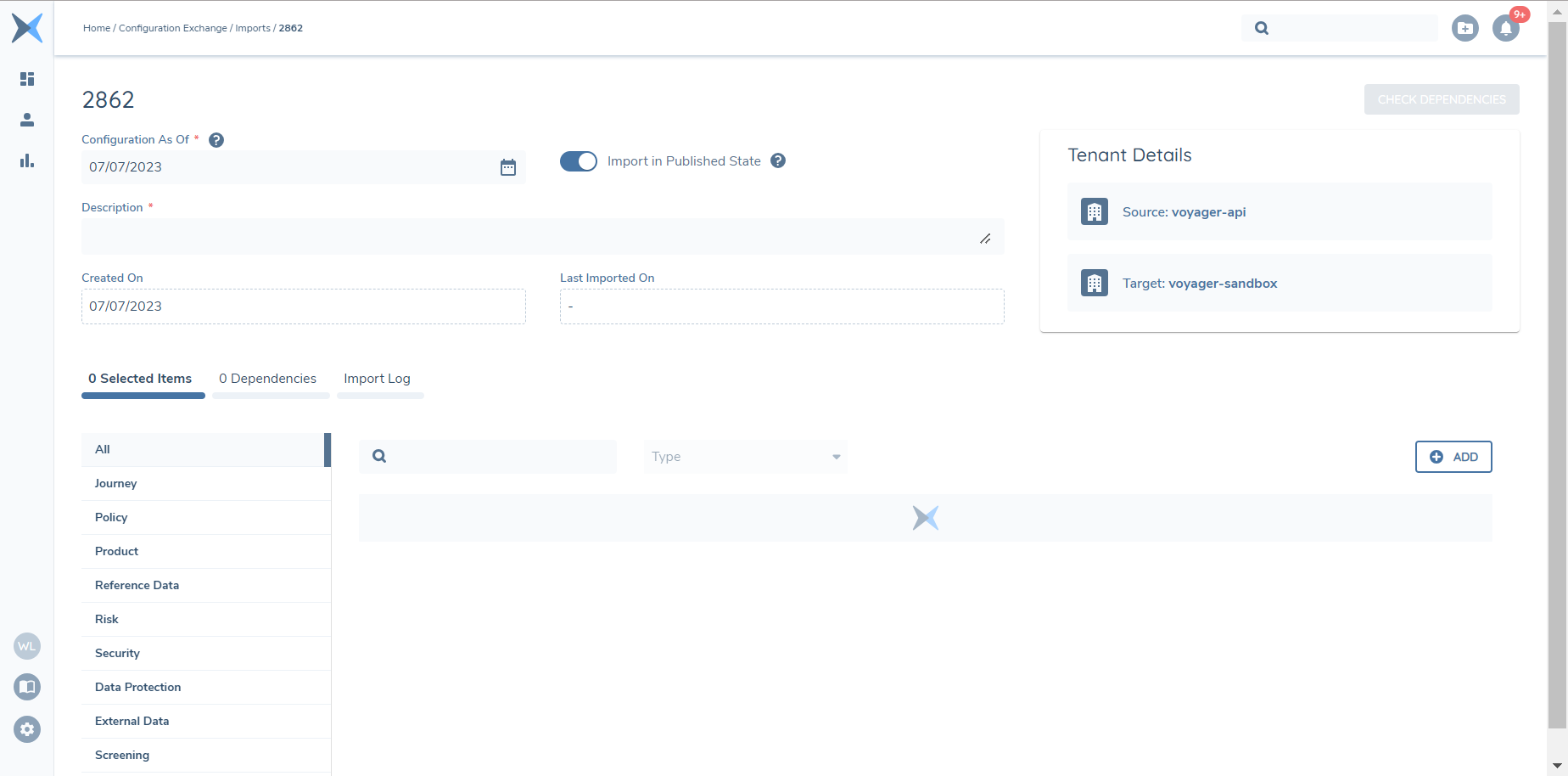
You can import current or past versions of your selected configuration items. To make this easy, the system will calculate the latest available version of your selected Configuration Items (and their Dependencies) on the date provided. This field will default to the current date (relative to your time zone). If you wanted to import past versions, for example, the latest configuration available from Sprint 13, then you simply change the field value to the sprint closure date.
Changing this date after you've selected Configuration Items will recalculate each item's default version and may result in some items displaying 'Invalid Selection' status if they did not exist on the date provided. The 'Configuration As-of' date can be updated or Selected Items with this status can be removed.
Import in a Published State
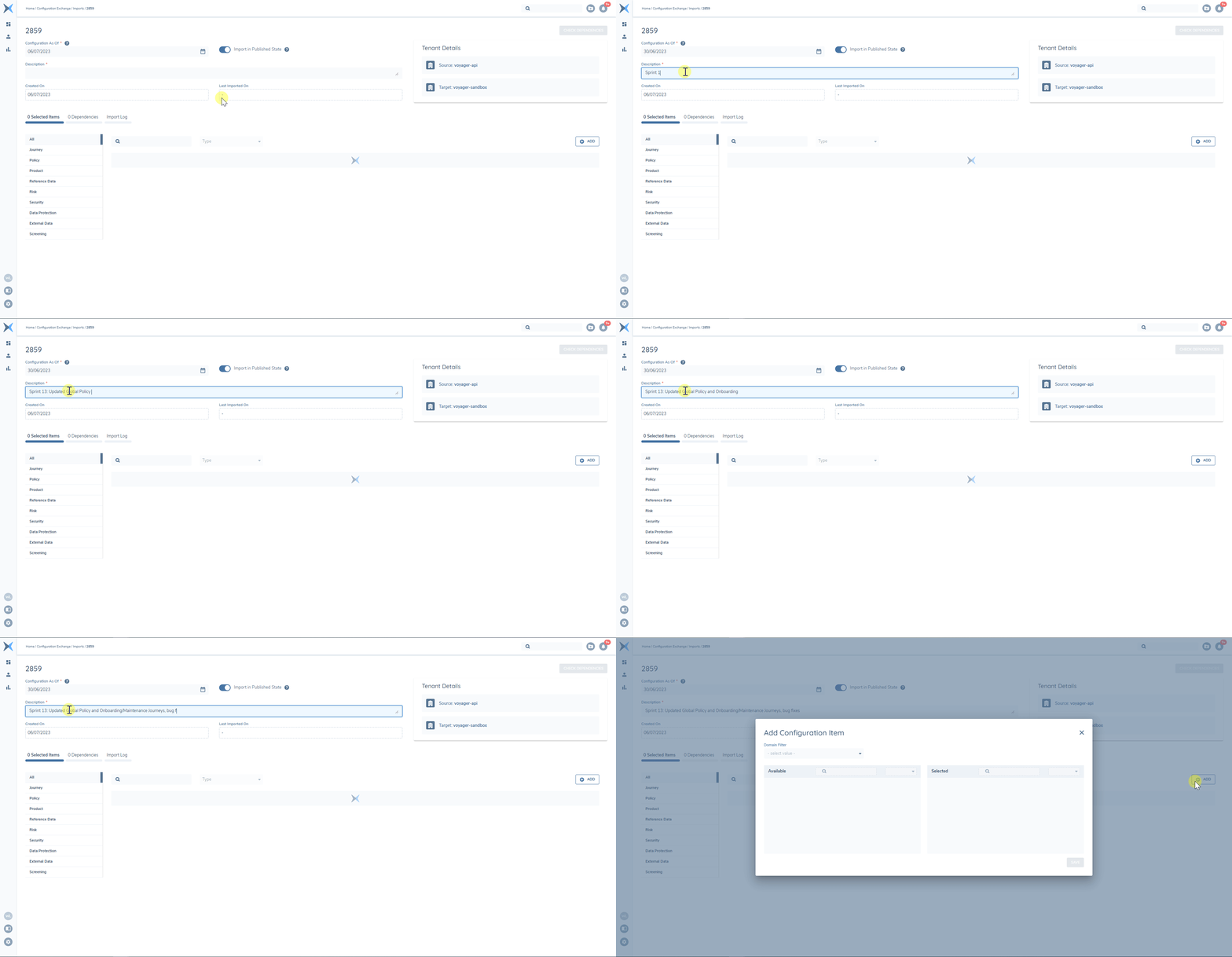
This toggle controls whether versioned configuration items will be imported to the target tenant as a new draft instance or a newly published instance. Use this to avoid manually publishing configuration unless you require that flexibility. The behaviour applies to configuration that you select, but related items will always be imported and published (please see the "Related Items (dependencies)" section of this user guide).
Description
Use this field to provide context on the import for anyone that might view it at a later. The Description is searchable from Configuration Exchange landing page, so it could reference sprint or requirement numbers, configuration features/milestones etc.
Selected Items Tab
Within this tab, you can add new configuration items to import and view your selections. There are vertical tabs that allow you to view all selections together ('All' vertical tab) or focus on specific domains (Journey, Policy, Reference Data, Products, Risk, Security, Data Protection, External Data, Screening). Vertical Tabs will be hidden if you don't have entitlements to import configuration from these domains.
Dependencies Tab
Within this tab, you can view system calculated Dependencies related to your selections. There are vertical tabs that allow you to view all dependencies together ('All' vertical tab) or to focus on specific domains (Policy, Reference Data, Risk, Security). See 'Dependencies' section below for more details on how they are calculated and what they do.
Bulk Selection modal
Clicking the 'Add' button from any Vertical Tab in the Configuration Items tab will present the Bulk Selection Modal. The Domain field is used to guide which domains you want to select configuration items from and will display all domains that you're entitled to. If you access this modal from the 'All' tab, the Domain field will be blank, otherwise, it will default to the domain associated with the tab you accessed it from. You can select 1 or multiple domains.
There are two blocks within the modal - 'Available' and 'Selected'. Within both blocks, you can refine your view of their contents using Search to filter by 'Name' or the 'Type' filter allows you to isolate one specific configuration type (such as Journey Schema). You will only see configuration items that were available on the provided 'Configuration As-Of' date. From the 'Available' items you can select one, many or all displayed and then use the arrow to move them to the 'Selected' side. Any items that you have selected will no longer be available. The same process can be used to return selected items to the 'Available' side.
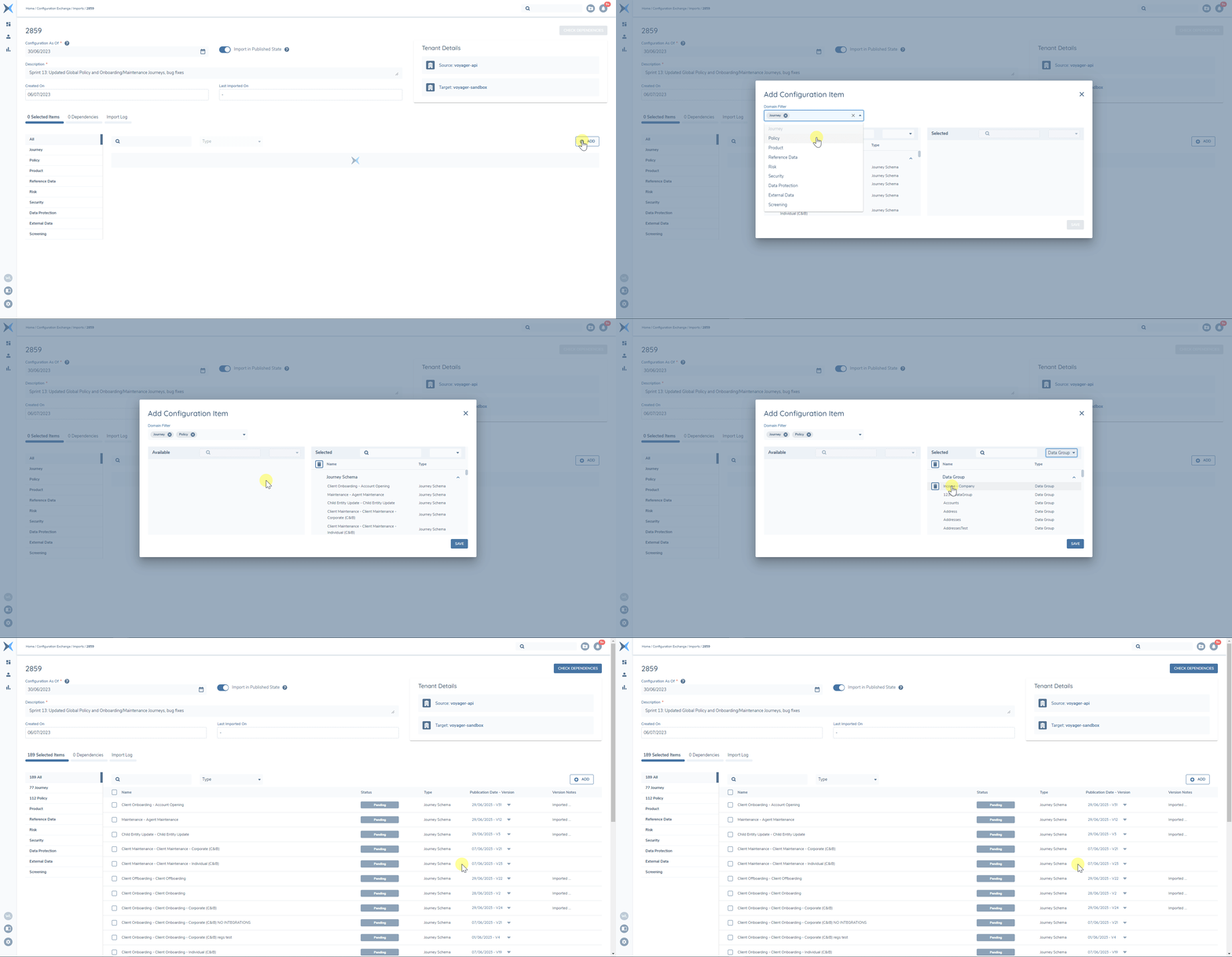
When you have made your selections, click 'Save' and you will return to the Configuration Items tab and where you can validate your selections. Within any vertical tab, you can filter using the 'Search' field, which matches against all columns in the table (Name, Type, Status etc.)
Calculations Domain
When the Domain field includes “Calculation Configuration”, all published Formulas for Calculated Number, Date and Time Periods available on the Configuration As-Of date will display in the 'Available' side of the bulk selection modal. When importing Policies or Requirements that have calculated fields, the according formulas will also be migrated as dependencies.
Journey Domain
When the Domain field includes 'Journey', all published Journey Schemas and Journey Schedules available on the Configuration As-Of date will display in the 'Available' side of the bulk selection modal. Journey Schema names will include a Journey Type prefix (Client Onboarding - Private Wealth Individual). Please refer to the 'Dependencies' section for more information on how Journey Schema dependencies are handled.
Related Party Scoping Rules are also available as a selectable type within the Journey domain. When the Type filter is set to 'Related Party Scoping Rule', all published Related Party Scoping Rules available on the Configuration As-Of date will display in the Available side of the modal.
- Importing Related Party Scoping Rules is import-only — they cannot be exported individually through Configuration Exchange.
- Imported rules are always brought in as Published and are immediately available for selection in Journey Builder. The "Import in a Published State" toggle has no effect on Related Party Scoping Rules.
- A new version is created in the target tenant on each import. A traceable Version Note is automatically generated: "Imported from [Source Tenant Name] (Version [x]) via Configuration Exchange Record: [Import Record Name]."
- If a draft version of an RPSR already exists in the target tenant, the import is skipped and logged as "No Change."
- Dependencies (Relationship types, Entity Types, Association Types, Requirement Categories) are automatically detected, validated, and imported before the RPSR. Missing dependencies are auto-imported and published.
- When a Journey Schema and its referenced Related Party Scoping Rules are included in the same import record, task references within imported Journey Schemas are automatically remapped to the newly imported RPSR IDs.
Related Party Scoping Rules in Configuration Exchange are controlled by the environment feature toggle "Enable RPSR Import". When this toggle is OFF, Related Party Scoping Rules will not appear in the Bulk Selection modal.
Permissions: Users require Configuration Exchange Access, Configuration Exchange Edit, and Configuration Exchange Publish (as RPSRs always import in published state). Journey Access / Edit / Approve is required in source and target tenants per the standard import flow.
Journey Schedules are triggered by indexable fields. When importing a journey schedule, the target tenant must have those same fields present and set to 'indexable' - this will be validated before import. If the target tenant doesn't meet this condition, the policy can be imported with the selected journey schedule(s) and net-new fields will be indexed automatically. If indexing is ongoing for a period, you may be asked to import the journey schedules when indexing has been completed.
Policy Domain
When the Domain field includes 'Policy', all published Policies, Data Groups and Shared Data Templates available on the Configuration As-Of date will display in the 'Available' side of the bulk selection modal. Policy names will display a Jurisdiction prefix (Canada - Fenergo SaaS Comprehensive Standard Policy). Please refer to the 'Dependencies' section for more information on how Policy and data group dependencies are handled. If importing Shared Data Templates, refer to Using Shared Data.
Product Domain
When the Domain field includes 'Product', all Product Requirement Sets available on the Configuration As-Of date will display in the 'Available' side of the bulk selection modal.
Deal Domain
When the Domain field includes 'Deals', all Deal Requirements available on the Configuration As-Of date will display in the 'Available' side of the bulk selection modal.
Financial Analysis Domain
When the Domain field includes 'Financial Analysis', all Financial Analysis configurations available on the Configuration As-Of date will display in the 'Available' side of the bulk selection modal.
Reference Data Domain
When the Domain field includes 'Reference Data', all published Lookup Lists and Lookup Links available on the Configuration As-Of date will display in the 'Available' side of the bulk selection modal. Please refer to the 'Dependencies' section for more information on how Lookup Link dependencies are handled.
Risk Domain
When the Domain field includes 'Risk', all published Risk Models, Risk Configuration Models and Risk Threshold Models available on the Configuration As-Of date will display in the 'Available' side of the bulk selection modal. Risk Scoping Rules are not versioned, so the latest version from the Source tenant will also be available.
Please note that Risk Scoping Rules are tenant-specific, so they will need to be re-saved in your tenant once imported. For more information on scoping rules, please see the Risk User Guide.
Security Domain
When the Domain field includes 'Security', all Teams and Access Layers currently available in the source tenant will display in the 'Available' side of the bulk selection modal. Since these elements are not versioned, they are agnostic of the Configuration As-Of date value and will simply update an existing instance or create a net-new instance.
Data Protection Domain
When the Domain field includes 'Data Protection, all Data Protection Regimes currently available in the source tenant will display in the 'Available' side of the bulk selection modal. Since these elements are not versioned, they are agnostic of the Configuration As-Of date value and will simply update an existing instance or create a net-new instance.
Data Protection Regimes reference a specific Policy by linking the "Related Jurisdiction" value in the Data Protection Regime to the "Jurisdiction" value in a given Policy. When a Data Protection Regime is selected for import and the Policy does not exist in the target tenant, the import will fail. An error message will notify the User that the target tenant does not contain the mapped Policy and will also provide the User with the name of the Policy that has failed to import. To rectify this, a User needs to import the Policy first or together with the Data Protection Regime.
External Data Domain
When the Domain field includes 'External Data', Mappings (between source tenant External Data Provider and policy configuration) will display in the 'Available' side of the bulk selection modal. Since Mappings are not versioned, they are agnostic of the Configuration As-Of date value and will simply update an existing instance or create a net-new instance.
When you select mappings, the Source Tenant and Target Tenant Data Providers should be selected (and the same). They must be 'enabled' to be displayed, meaning the API key must be active and some mappings must exist to then enable the data provider. This means that manual setup to a minimum level is required in each tenant, but Configuration Exchange can be used to keep them in-sync once they are setup.
Screening Domain
When the Domain field includes 'Screening', the following configuration types are available:
- Screening Scoping Rules — all published Scoping Rule Sets available on the Configuration As-Of date.
- Screening Provider Configuration — Secondary Identifiers and Configuration Sets for the supported screening providers (World-Check One, Grid, and LexisNexis).
Screening Provider Configuration appears as a sub-type within the Screening domain. Within this type you can select:
- Secondary Identifiers — the attribute mappings (e.g. Full Name, Date of Birth, ISO Country Code) configured for each provider.
- Configuration Sets — the operational parameters and settings controlling how Fenergo SaaS interacts with each provider, such as Group IDs, Firm IDs, Ongoing Screening settings, and resolution mappings.
Provider configurations are not versioned. Importing Screening Provider Configuration always applies the latest active setup from the source tenant. Credentials (API keys, usernames, passwords) are automatically excluded from exports and will never be transferred across environments.
Dependencies: When Screening Provider Configuration is selected for import, the system automatically detects and imports any required dependencies — including Country Reference Data Lists (ISO Alpha-2 / Alpha-3), Linked Lookups (e.g. Screening Resolution Status, Screening Resolution Reason), and provider-specific lookup values — before applying the provider configuration. These dependencies are marked as Auto-Included in the Dependencies tab and cannot be deselected.
Import Log: The Import Log displays provider name, configuration type, and import status (Imported / No Change / Failed) for each item. Where a dependency is auto-included, its source provider is noted in the Import Log.
Permissions: To view and import Screening Provider Configuration, users require Configuration Exchange Access and Configuration Exchange Edit, plus Screening Configuration Access and Screening Configuration Edit in the target tenant. No new permissions are required.
If a provider is not yet enabled in the target tenant, the configuration is imported in a Disabled state and a warning is recorded in the Import Log.
Feature Settings Domain
Toggles can be used to turn the following capabilities on or off in a tenant:
- Sensitive Data (Security -> Security Configuration)
- Dynamic Access Layer Assignment (Security -> Dynamic Assignment Configuration)
- Related Party Access Layer Inheritance (Security -> Related Party Access Layer Inheritance)
- Automatic Offboarding When Policy Conditions Are No Longer Met (Policy -> Data Protection).
These toggles can be manually updated, but can now also be selected as part of a Configuration Exchange Import under 'Feature Settings'. When these toggles are imported, their state in the source tenant will be applied to the target tenant (whether on or off). As with any other configuration, the behaviour of these toggles should be validated in lower tenants before importing to higher tenants.
Document Generation Domain
When the Domain field includes Document Generation, all Document Generation configurations including Component Library and Templates available on the Configuration As-Of date will display in the 'Available' side of the bulk selection modal.
Version Override
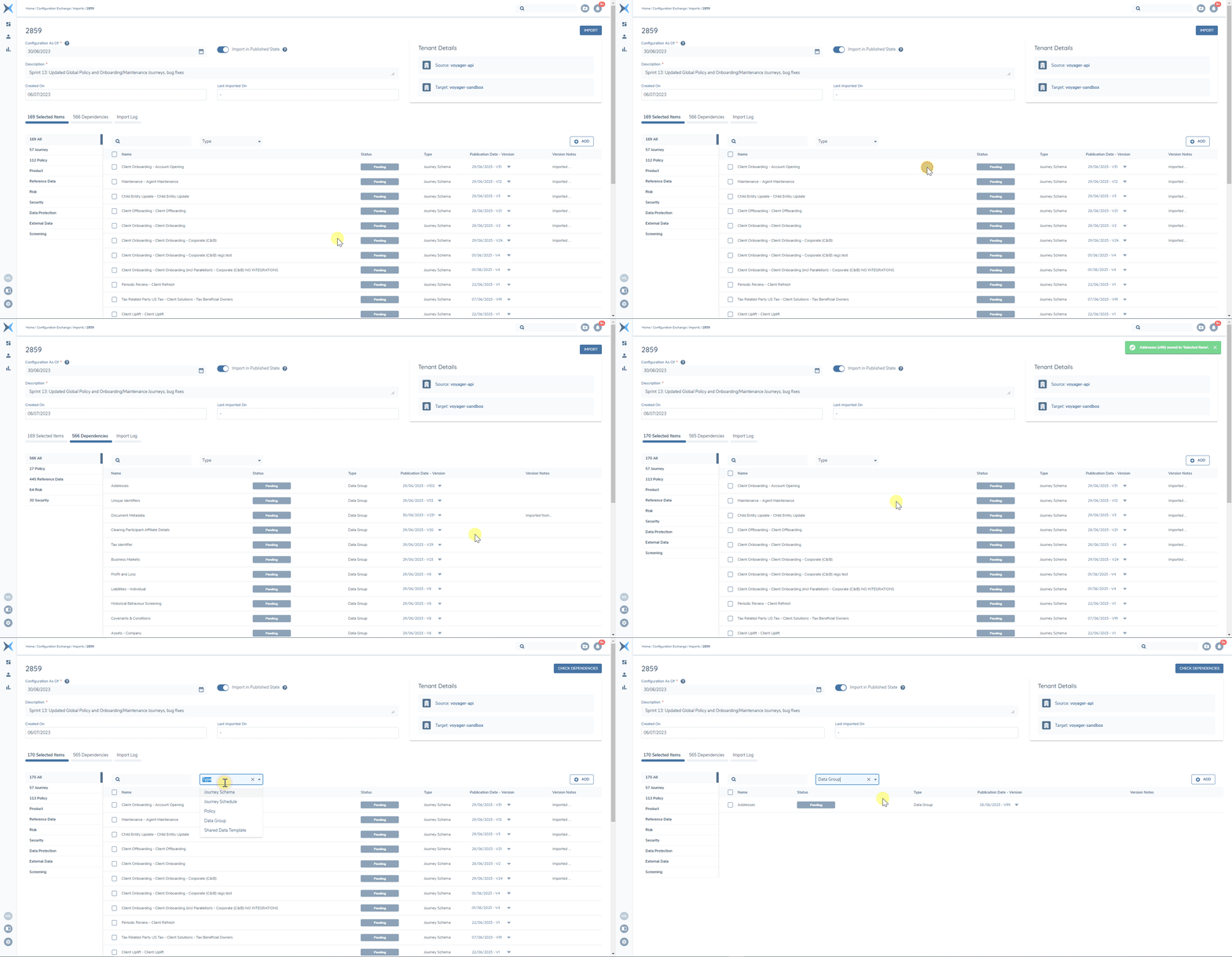
Versioned Configuration Items will display their default Publication Date - Version (system calculated as the latest version available on the CAO date and adjusted to your time zone). If you don't want to import the latest available version, you can select an older version instead. When you update the version of a Selected Item that has Dependencies, you will need to Check Dependencies for the selected version. If you change the version of a Dependency itself, this will now move the the Dependency to the Selected Items tab, as the user has overridden the default version.
Dependencies
A 'Dependency' directly referenced by another item and is required for it to operate correctly. For example if a policy has a Datagroup element, it will link to a specific Datagroup that is required for that policy element to work. The policy captures the ID of the data group and we'll use that to know that we need to import the data group with the policy. For further examples, a full list of these 'Dependencies' is available below.
Once you have finished adding 'Selected Items', clicking the 'Check Dependencies' button will calculate Dependencies for your selections. After ~10 seconds or so, the 'Dependencies' tab will display these items. Versioned Dependencies will default to the latest published version available on the 'Configuration As Of' date, but can be individually overridden via the Dependencies tab. Versioned Dependency Items will always be published, even if the toggle to import in a published state is set to the 'off' position.
Selected Journey Schema
- Teams
- Risk Configuration
- SLA Configuration
- *Journey Type list
- *Cancellation Reason list

Selected Policy
- Data Groups
- Lookup Links
- Lookup Lists
- *Requirement Category list
- *Document Type List (if present)
- *Document metadata data group (if present)
- *Target Entity List
- *Requirement Classification list (if present)
- *Relationships List
- *Screening Resolution Reason List
- *Screening Resolution Status List

Selected Product Requirement Set
- Data Groups
- Lookup Links
- Lookup Lists
- *Product Requirement Category list

Data Group (Selected or Dependency)
- Lookup Links
- Lookup List

Lookup Link (Selected or Dependency)
- Lookup List (version will align with the CAO date, not the Lookup Link versions - you may encounter errors if values in the lookup link are not found in the lists)
Indirect dependencies will be automatically imported to simplify the Import process, especially for new tenant setup.
Selected Items (such as Policies, Product Requirement Sets and Journey Schemas) may contain logic engine references that drive conditionality (Scoping Conditions, Assignment Conditions, Conditional Values etc). These can reference external elements - i.e. a policy or elements within it could be triggered an element from a Product Requirement Set or a different Policy Jurisdiction.
Logic engine references are NOT automatically imported under ‘Dependencies’
Fenergo SaaS needs to allow users the flexibility to configure iteratively and determine what they are ready to Import Vs forcing all referenced configurations to be imported together (which could feel more like waterfall delivery). Logic Engine conditions can only work when referenced elements are present in the tenant - i.e. you cannot trigger an outcome if you cannot capture the triggering input. Testing should validate that the behaviour of the configuration meets expectations to move forward.
Import Log
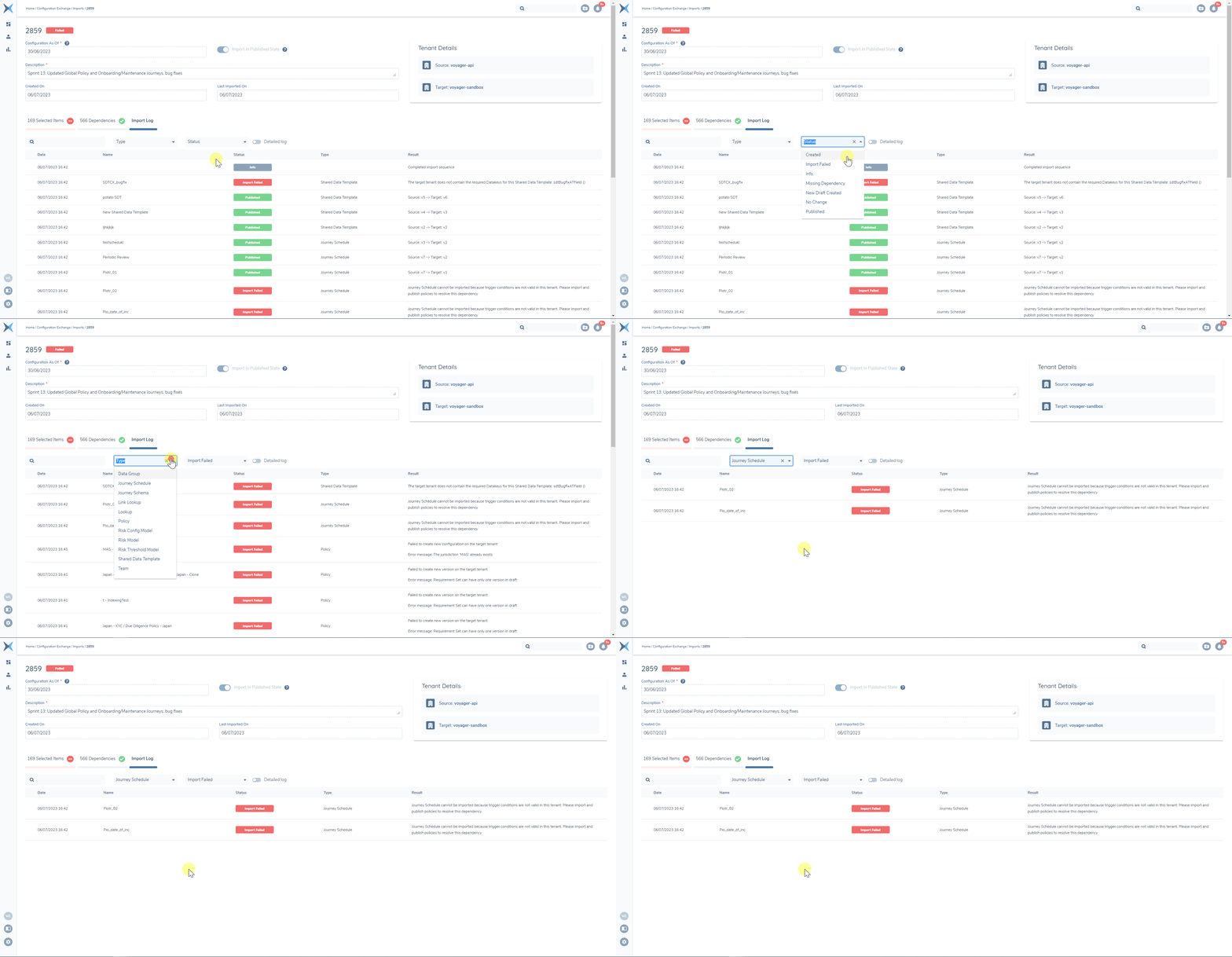
When you've selected Configuration Items and clicked the 'Import' button, the system will present the Import Log and display status updates as the process progresses. Once completed, you can scroll to explore these updates or use Search/Filter capabilities to look for specific items such as "Import Failed" status.
'No Change' status results from attempting to re-import Source tenant versions that have been imported before and remain active in the target tenant. To avoid creating unnecessary new versions, we display 'No Change' status and skip their import.
For Risk domain items, we can also use a deep comparison between source and target versions to compare net-new versions - if they are identical then we will also apply 'No Change' status. For non-versioned configuration (such as Teams, Access Layers etc), we cannot tell if the configuration is changed or not - if it's imported as a dependency and matches to an existing instance in the target tenant, it will not be imported and we will display 'No Change' status.
To force it to be imported, the item just needs to be manually selected.
To reduce noise in the log, it will automatically consolidate results for the same item and display 1 row. For example, 'Country' Lookup list has a row for 'New Draft Created' and 'Published' statuses, so we will only display 'Published' in the consolidated view. You can use the 'Detailed Log' toggle to show the full log.
New Tenant setup - Recommended Sequencing
Recent enhancements mitigate the need for any special sequencing or additional selections when importing to a green-field tenant. The feature will automatically import selected items in the correct order and pull in direct and indirect dependencies (see above).
FAQ
What is a target tenant?
Target tenant original tenant that you logged into and the one that you want to import the configuration into.
What is a source tenant?
The Source tenant is the tenant you want to retrieve the configuration from (the one you logged into after navigating to Configuration Exchange)
Why am I seeing a red error message when I try to log in?
Please ensure that you have permissions on the tenant that you are trying to log into.
Why am I unable to access some Domains?
Vertical Tabs and Domain values are automatically hidden if you don't have the permissions required to Access the domain's configuration in the Source Tenant and to Edit the Domains configuration in the Target Tenant.
Why can't I select the environment I want for Cross-Environment Configuration Exchange?
A 'Configuration Environment' needs to be created between the two environments to enable cross-environment configuration exchange. If the environment you're looking for is not there, it suggests this hasn't happened. The Project team should handle this request. Once established, all Configuration Exchange users in the tenant will have access to this environment value.
Why is my external data mapping import failing?
There is likely a mismatch in the lookup values between your source and target tenants. Please ensure that these match and then try again.
I want to import configuration as draft, so why are a lot of items are still getting published?
Related Items that are dependencies for one or more of the items you have selected need to be published. This is necessary for related items to be associated with the draft configuration items you're importing.
Why can't I pick a version that's newer than the Configuration As-Of Date?
Currently, when you can select versions up to and including the Configuration As-Of date value. We're working on a further enhancement that will allow users to override to a future version (relative to the CAO date) to increase flexibility. For now, you could either pick a more recent date, or do a separate Import for the items that require a more recent version.
Why can't I find the draft Import that I started earlier?
Currently, when you create a new Import Record, we will save it and give it a name, but if you don't proceed with the import at the time, the record will not be available later - we only display Import Records with 'Complete' or 'Failed' status because Imports tend to be a real-time activity.
Why aren't Import Names consecutive? Where are the missing Import Records?
As above, the gaps in numbers would be caused by Imports being created but abandoned before clicking 'Import'.
Why do I have to provide an import 'Description'?
While you know what you're importing and why, we want to add context for future users that may view the import record later and may not otherwise understand why those selections were made.
Why do some import records have a blank 'Last Imported On' date?
Some imports are processed without actually importing any items. When items have 'No Change' or 'Import Failed' status, they have not been imported. When no items are imported the Last Imported On date will be blank.