Digital Subscriptions Configuration Guide
This configuration guide focuses solely on the task setup of the Automated Document Generation and eSignature Documents tasks required to support Digital Subscriptions. For more information on these tasks not specific to Digital Subscriptions please refer to Document Generation and eSignature documentation.
External Stage
The Automated Document Generation and eSignature Documents tasks can be configured within the external stage of the journey. When the Automated Document Generation task is placed in an external stage, the generated document is populated with data captured by the portal user during their external-stage tasks.
Any Related Party data captured in a portal journey cannot be surfaced in a generated document.
Alternatively, the external stage can be split into two external stages. In this model, the first outreach is used to capture data from the portal user. This data is then reviewed and approved by the internal Fenergo user before the subscription document is generated. Once the document has been generated, a second outreach is initiated, allowing the portal user to view the subscription document and send it for electronic signature to the relevant recipients and/or sign it themselves.
Automatic Attachment of Generated Documents
To ensure that generated subscription documents are automatically linked to the eSignature document requirement, the Automated Document Generation task must be positioned before the eSignature Documents task in the journey builder.
Part 1 – eSignature Document Requirement
Generated documents must be configured to automatically link to an eSignature document requirement, as portal users cannot upload documents to eSignature document requirements manually. If this configuration is not in place, the portal user is unable to complete the eSignature task. The task requires all documents to be present and signed before it can be completed.
To ensure that a generated document will automatically link to the corresponding requirement in the eSignature task, follow these steps:
- Navigate to eSignature Document Requirements in Policy.
- Create a new document requirement.
- Complete all mandatory fields for the requirement.
- In the Acceptable Types grid, select Add.
- Choose the appropriate document type.
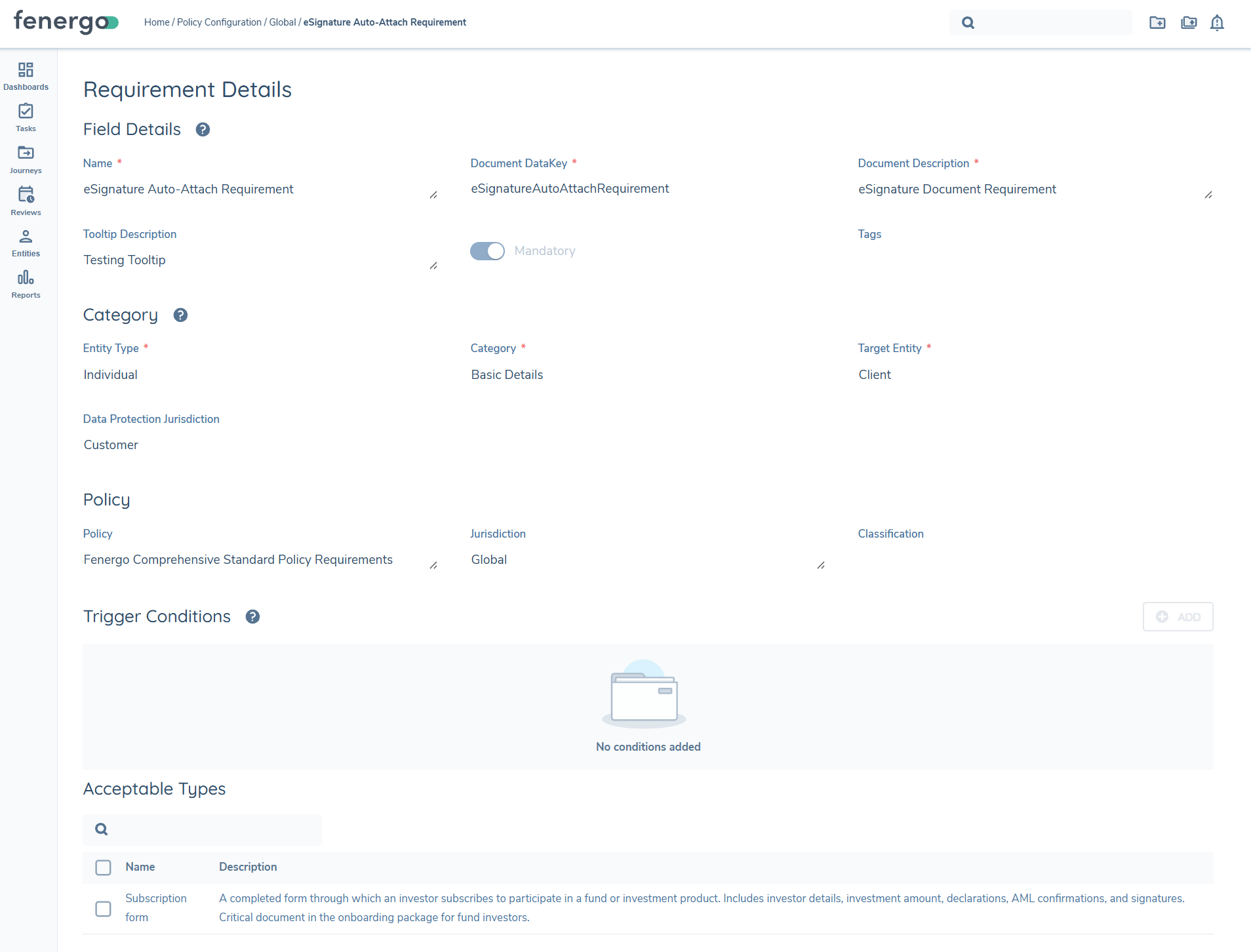
The category selected in the requirement must be the same category in eSignature Documents task properties.
Part 2 – Document Template
- Navigate to the applicable document template.
- Select the same document type in the document type dropdown as the acceptable type you selected in the eSignature document requirement.
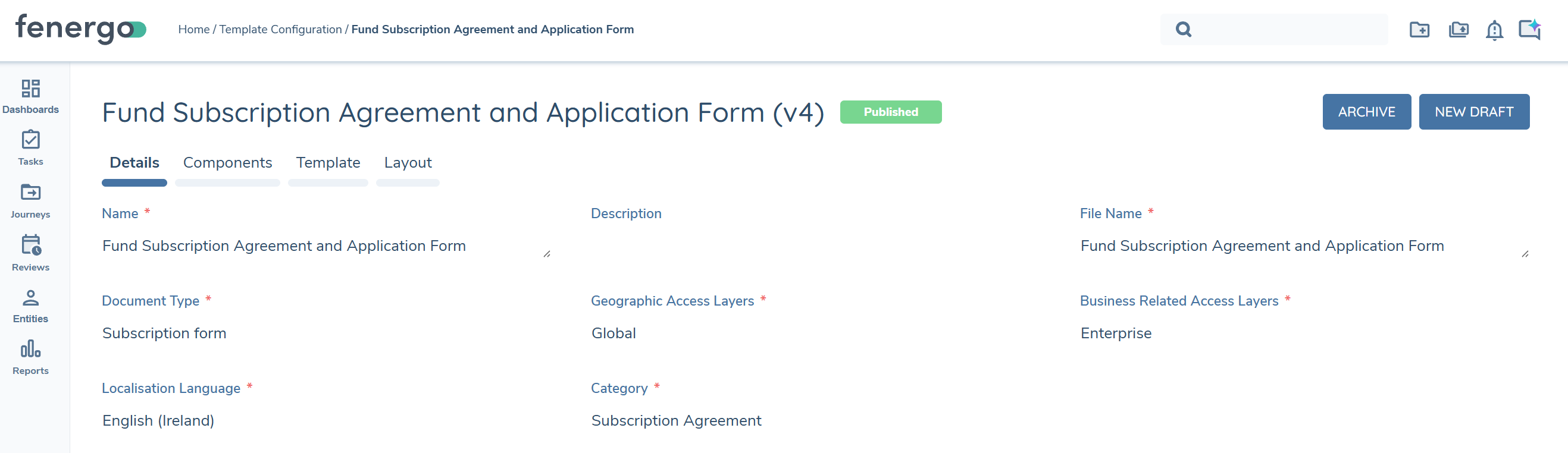
The category selected in the template must be the same category in Automated Document Generation task properties.
With this configuration in place, the generated document is automatically linked to the corresponding eSignature document requirement when the eSignature task is opened.
Portal users cannot remove the generated document from the requirement or upload additional documents. For this reason, it is essential that the document is correctly generated and linked automatically through configuration.
Filter the Recipient List
In the portal eSignature task, the recipient list is automatically populated with Related Parties of the main entity, provided have an email address captured. The portal user is also included in the recipient list if they are captured as a Related Party of the main entity, or if they are the individual investor themselves with an email address recorded.
Any Related Party that does not have an email address captured against them will not be surfaced in the recipient list in the eSignature task.
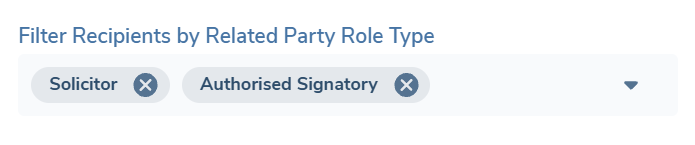
To restrict the recipient list to specific role types, complete the following steps:
- Navigate to the eSignature Documents task properties.
- Select the applicable role type(s) from the Filter Recipients by Related Party Role Type multi-select dropdown.
Signature Type Configuration
It is possible to use primary entity data to drive the signature type assigned to recipients in the eSignature task.
To do so, complete the following steps:
- Navigate to 'Signature Type Configuration' under 'eSignature' in the Management Panel.
- Capture a name.
- Select the default signature type from the select dropdown menu (this will be applied when the entity does not meet the conditions for any other signature type).
- Click ADD.
- Select the signature type which will be applied when the rule is met.
- Add the applicable field, operator and value that will trigger the selected signature type.
- Click SAVE once you have completed capturing rules for each applicable signature type.
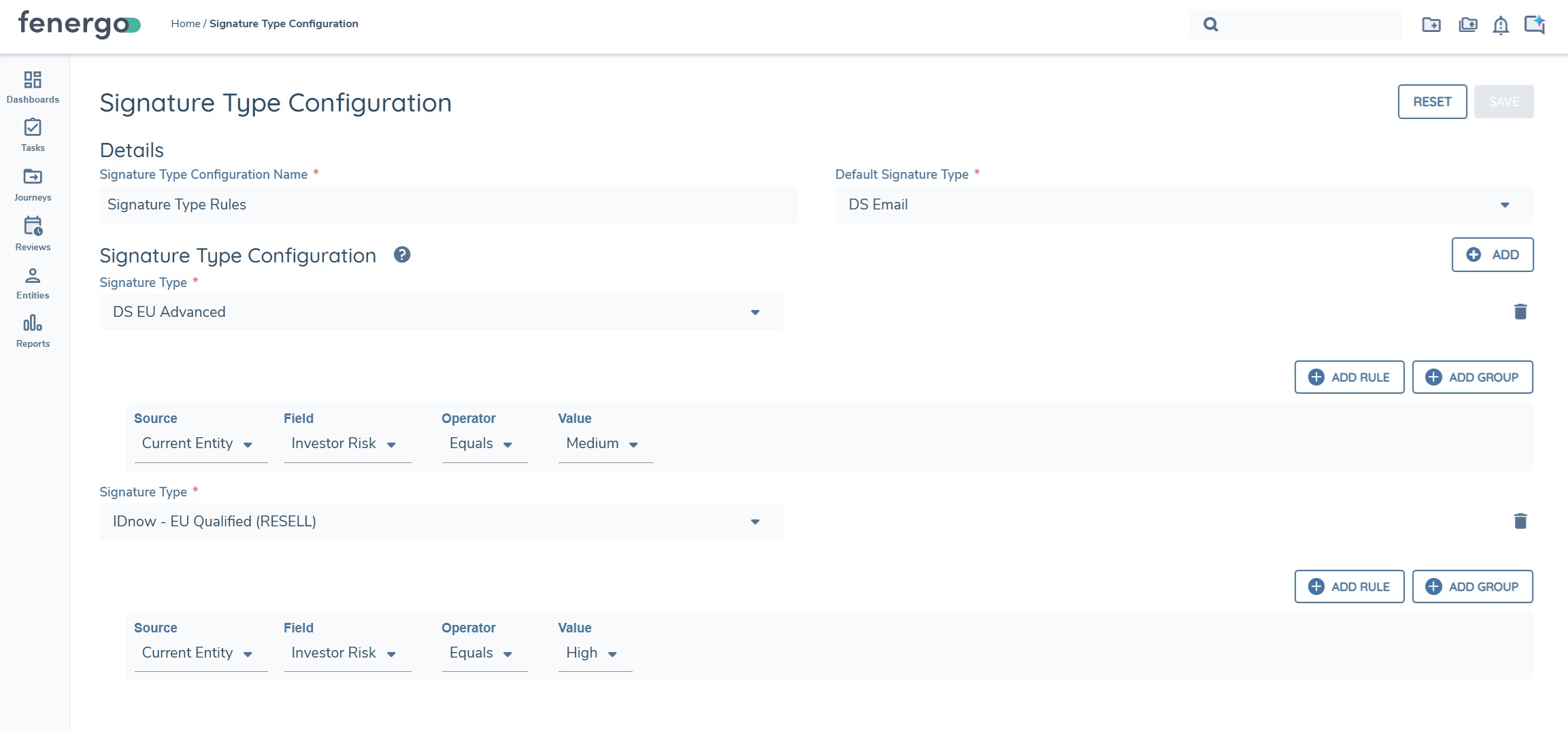
Once the above has been completed, the rules must be linked to the task by enabling the 'Signature Type Configuration' toggle in task properties. The rules will only come into effect in eSignature tasks which have this toggle enabled.
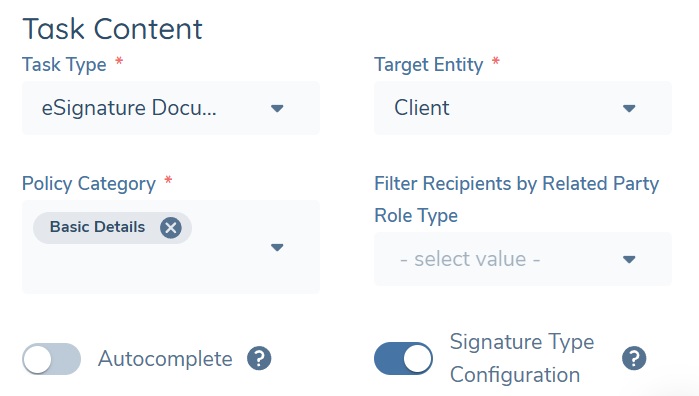
When the Signature Type Configuration toggle is enabled in eSignature task properties, the signature type will be automatically applied to each recipient in the eSignature task. It will not be possible for the user to manually change the signature type assigned to recipients. All recipients will have the same signature type assigned to them, as it is determined by primary entity data.
Autocompletion of the eSignature Documents task
To enable autocompletion of the eSignature task, enable the Autocomplete toggle in eSignature Documents task properties.
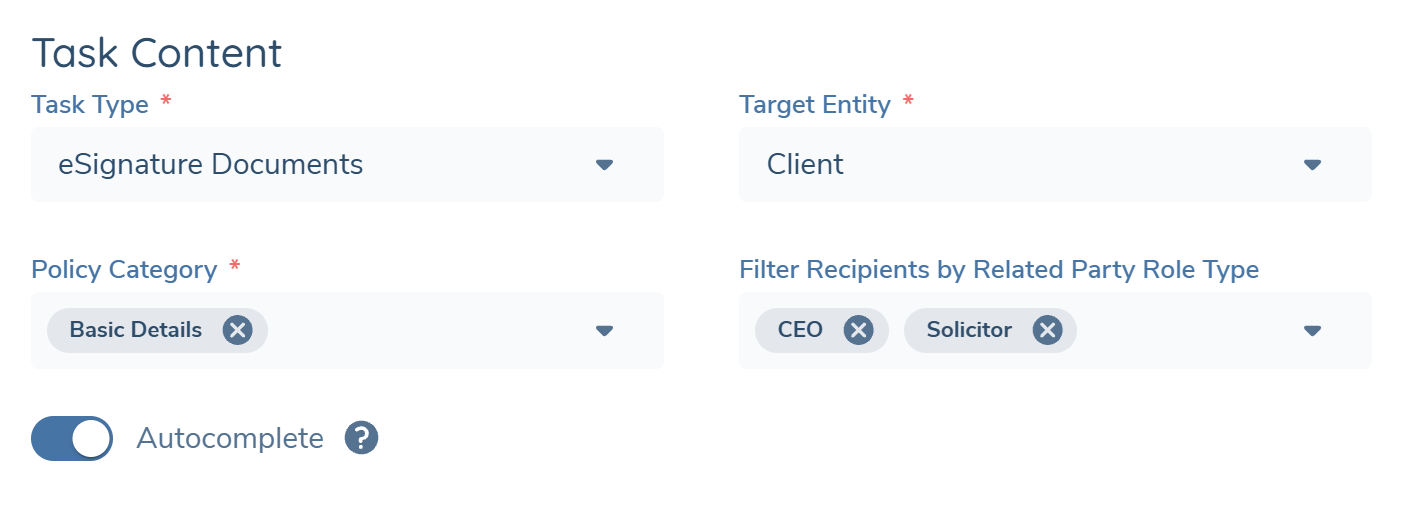
When enabled, the task will autocomplete once all documents have been signed by all recipients.
Dependencies
To facilitate a fully digital subscription flow, the following is required: