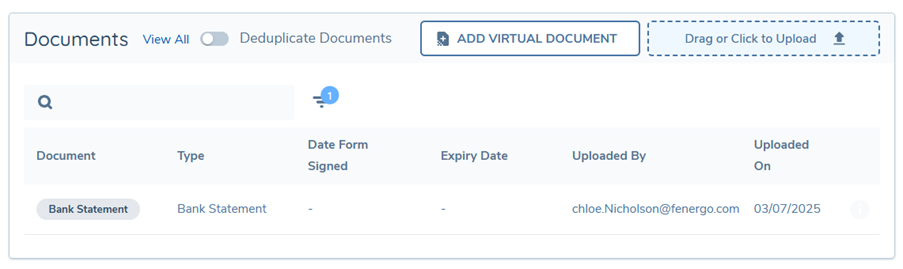
Document Assignment
Previously in Fenergo, document sharing across multiple entities within a tenant was limited to the use of Entity Groups. This approach presented several key limitations:
- Documents could only be shared via predefined Shared Data Templates
- No flexibility in selecting specific documents for sharing
- Users could not control which entities received which documents
- Documents were only cloned at the end of a journey-not actively shared during it
- Documents were treated strictly as data requirements, not reusable or shared assets
To address these limitations, Fenergo has introduced a new Document Assignment task type, which enables greater control and flexibility over document sharing across entities during the onboarding process.
Key Features
- Manually assign documents to any onboarded entity within the same tenant
- Decouple document sharing from Shared Data Templates and Entity Groups
- Share documents dynamically during the journey lifecycle - not just at completion
- Treat documents as flexible, shareable assets rather than static requirements
This functionality gives users more control and flexibility, enhancing onboarding efficiency and streamlining document collaboration across entities.
Key Benefits
- Dynamic Sharing – Assign documents at any stage of the journey
- Entity-Specific Control – Share documents on a per-entity basis
- Operational Efficiency – Eliminate duplicate document uploads
- Improved Compliance – Ensure accurate and timely sharing of regulated documents
Permissions
To access and use the Document Assignment modal, users must have the following permissions:
- Document Management Create
- Document Management Access
- Document Management Edit
Without these permissions, users will not see or be able to interact with the Document Assignment task.
Viewing the Document Assignment Task in Journey Hub:
To view the Document Assignment task in Journey Hub, users must have the appropriate permissions and the task must be properly configured in the journey using Journey Builder. When these conditions are met, the task will be visible and accessible within the Journey Hub.
For the Document Assignment functionality to work as intended, the journey must also include a Related Parties Onboarding flow. This flow establishes the necessary relationships between entities and should typically be configured to run before the Document Assignment task.
In addition, during journey configuration, you must include the Process Document Assignment task. This is an automated service task that should be placed after the manual Document Assignment task. It ensures that once the document assignments are confirmed, the documents are automatically and correctly shared with the selected entities. Upon completion of this service task, the assigned documents will instantly appear on the corresponding entities’ profile pages.
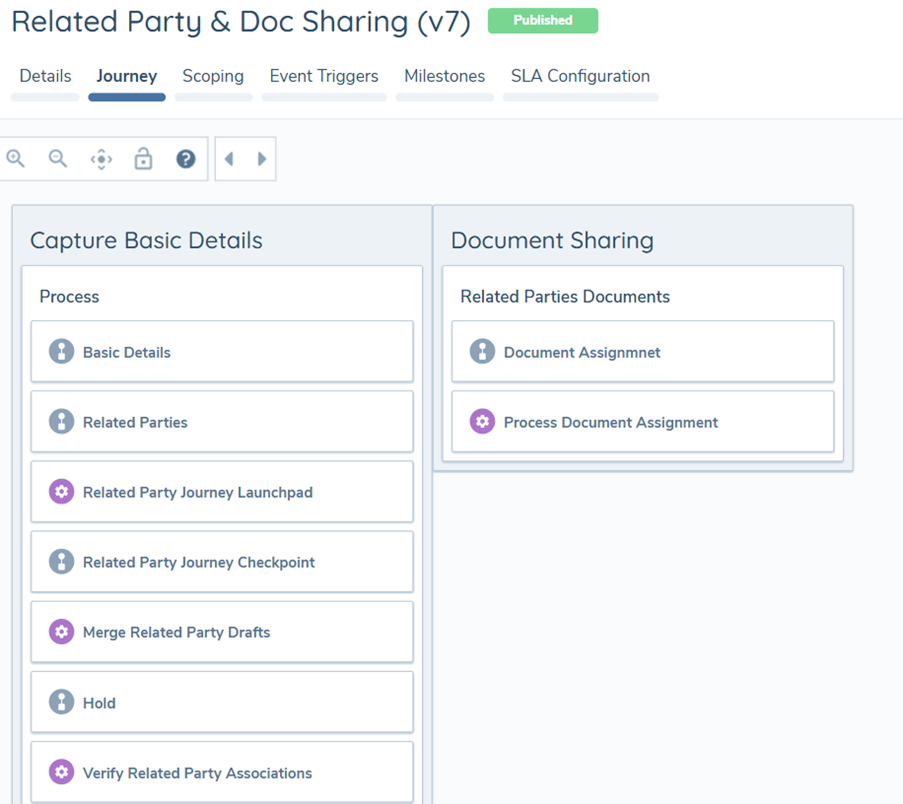
Accessing the Task
When you open the Document Assignment task, you'll see a list of any predefined documents already uploaded. You can also upload new documents directly by:
- Clicking the upload button, or
- Dragging and dropping files into the dropbox
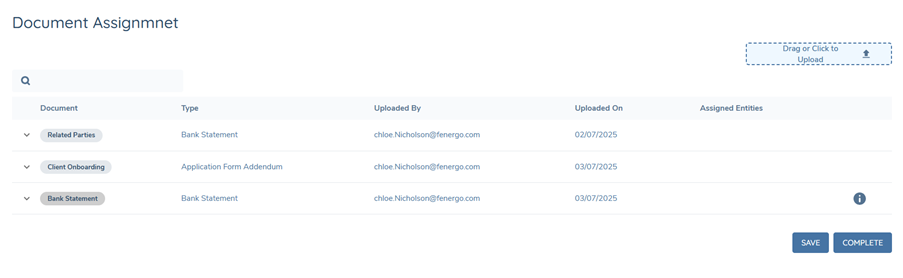
Once a document is uploaded and the required details are filled in on the Document Upload modal, it will appear in the document list. The document table displays the following information:
- Document name
- Document type
- Uploaded by
- Upload date
- Assigned entities
Assigning Documents to Entities
- Next to each document, a chevron dropdown allows you to view and select from all entities linked to the parent entity (via the Related Parties flow). You can manually choose which entities to share each document with.
- When you select an entity, it will immediately appear in the Assigned Entities list for that document.
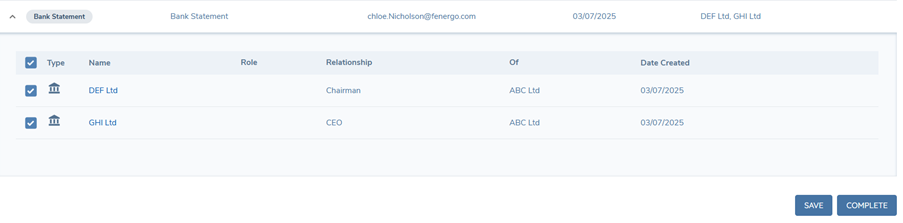
- Once the task is marked as Complete, the selected documents are shared in real time with the assigned entities. These entities can then access the documents from their Entity Profile Page.