Document Management Datakeys and Document Persistence
Adding Document Requirement Datakeys
The purpose of the Document datakey is to allow for the same Document to be shared across different Document Requirements that may be configured in Policy, Product, and other areas of Fenergo SaaS. This allows clients to configure mandatory & non-mandatory versions of the same Document Requirement.
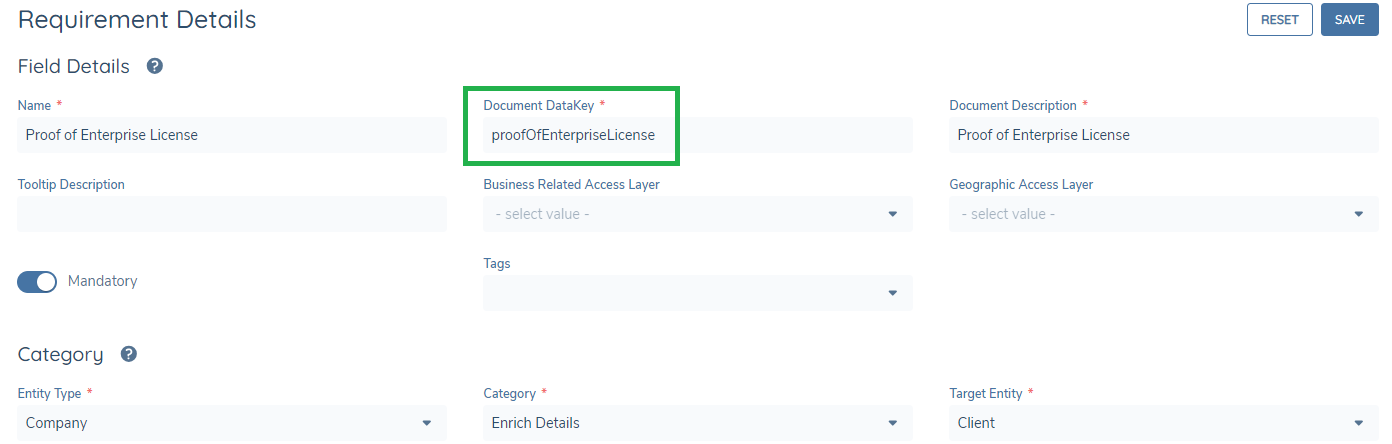
The purpose of this field is to allow for the same Document to be shared across different Document Requirements. An example scenario of this is if Clients wish to have mandatory & non-mandatory versions of the same Document Requirements.
Configuring Document Management Datakeys and Document Persistence
Document Persistence
Within Journey Builder, Configurators have the ability to set Documents to Persist throughout Journeys.
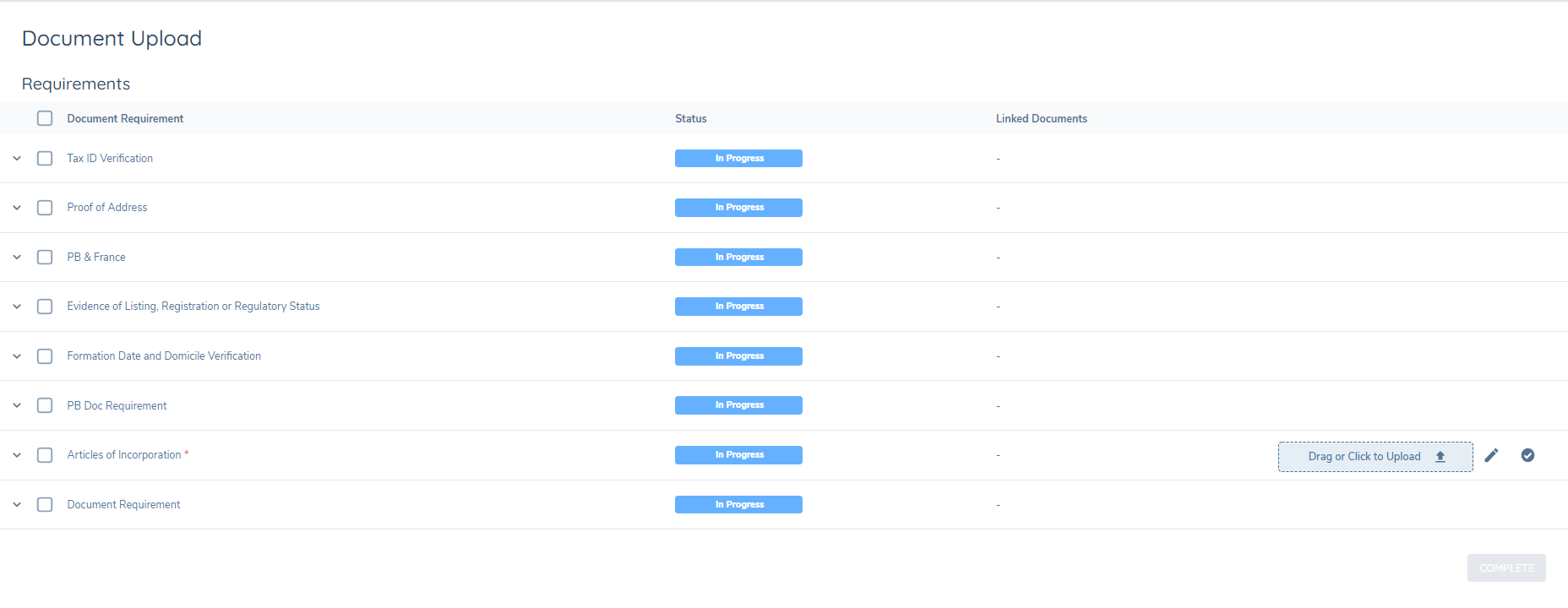
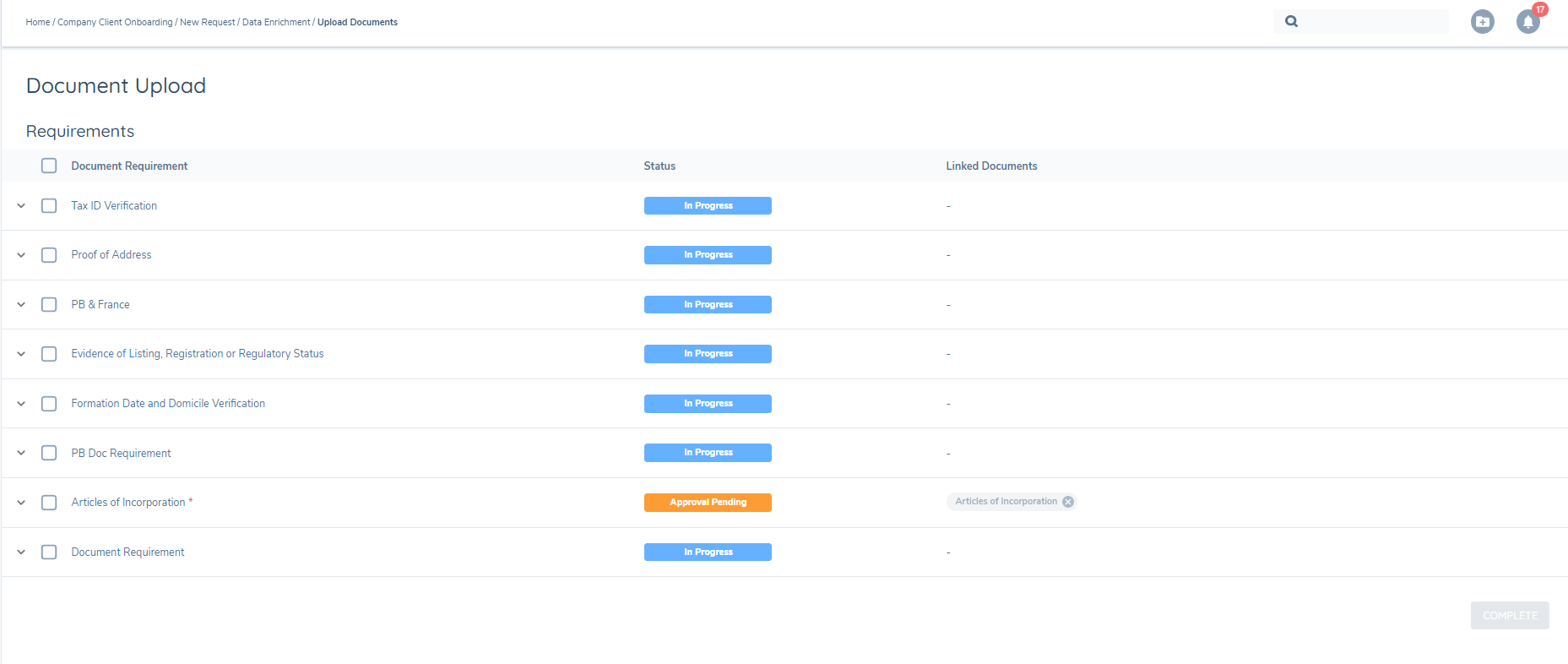
This means that if a Document has been linked to a Document Requirement in a previous Journey, it will be displayed in the current Journey that a user is in providing that Document Persistence has been enabled and that the conditions for the Document Requirement triggering have been met. The Document Datakey in Policy is used to identify Documents have been uploaded to the same Document Requirement across Journeys. When Document Persistence is enabled, the Fenergo SaaS application will check Document Requirements that have been triggered for Document Datakeys and will then display any Documents uploaded to this Datakey.
However, should there be existing Document Requirements that do not have any Document Datakeys, a secondary check is performed and if no Document Datakey is present, the Fenergo SaaS application will check for an exact match of a Document Requirement name.
Documents which persist from a previous journey will render the Document Requirement in "Approval Pending" state and will need to be reviewed and approved for the current journey.
If the Document Requirement name is changed between Journeys and if there is no Document Requirement Datakey present, then Document Persistence will not work.
Configuration:
Within Journey Builder navigate to the Documents task or DocumentsV2 task in the Journey that is being configured. In the Task Properties panel, users will see a toggle 'Persist Documents'.
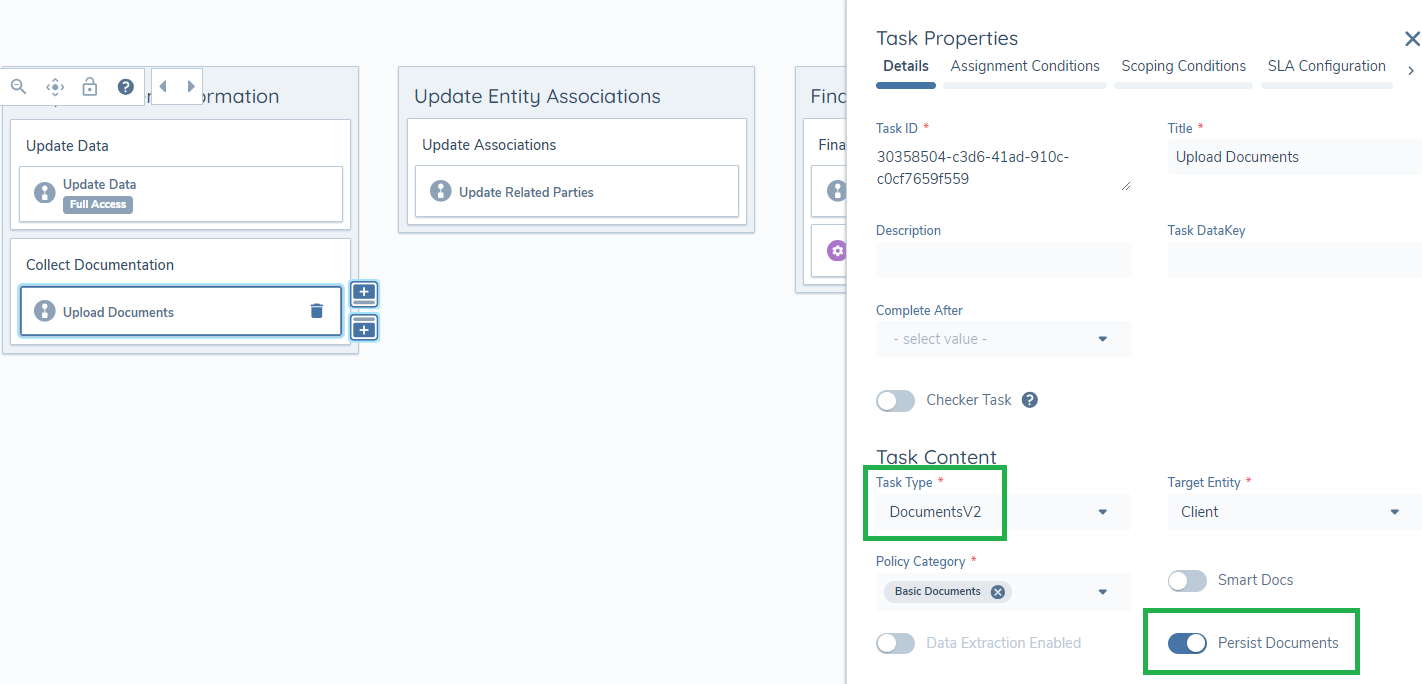
Once the toggle is enabled and the changes in Journey Builder are saved and the Journey has been approved, users will see the changes applied the next time an instance of the journey is launched and a Document uploaded to a Document Requirement.
It is important to note that where Document Persistence has been enabled in the Documents or DocumentsV2 task, Document Persistence will only run once the task is initialised (becomes 'In Progress'). The Documents task first goes into a state of Processing before it becomes available ('In Progress'). Documents can be linked to requirements when the task is not in progress, and they will remain linked even after the task becomes in progress and documents are persisted.
Documents in the context of a client will persist once the Verify Entity task has completed for the journey in question.
Document persistence runs at the per task level. This means that whenever a task with document persistence enabled goes to 'In Progress', all documents that were due to be persisted at the start of the journey will be persisted again. It is important to keep this in mind when configuring journeys. If a journey is configured with multiple document tasks that have persistence enabled, then persisted documents that were removed in a previous task will reappear in a future task.
Document Persistence for Related Parties
Document Persistence is also available in the Related Parties task, where the Documents modal is utilised to satisfy Related Party Document Requirements. The functionality aligns to that of clients as outlined above. Please see the Related Parties Guides for additional information.
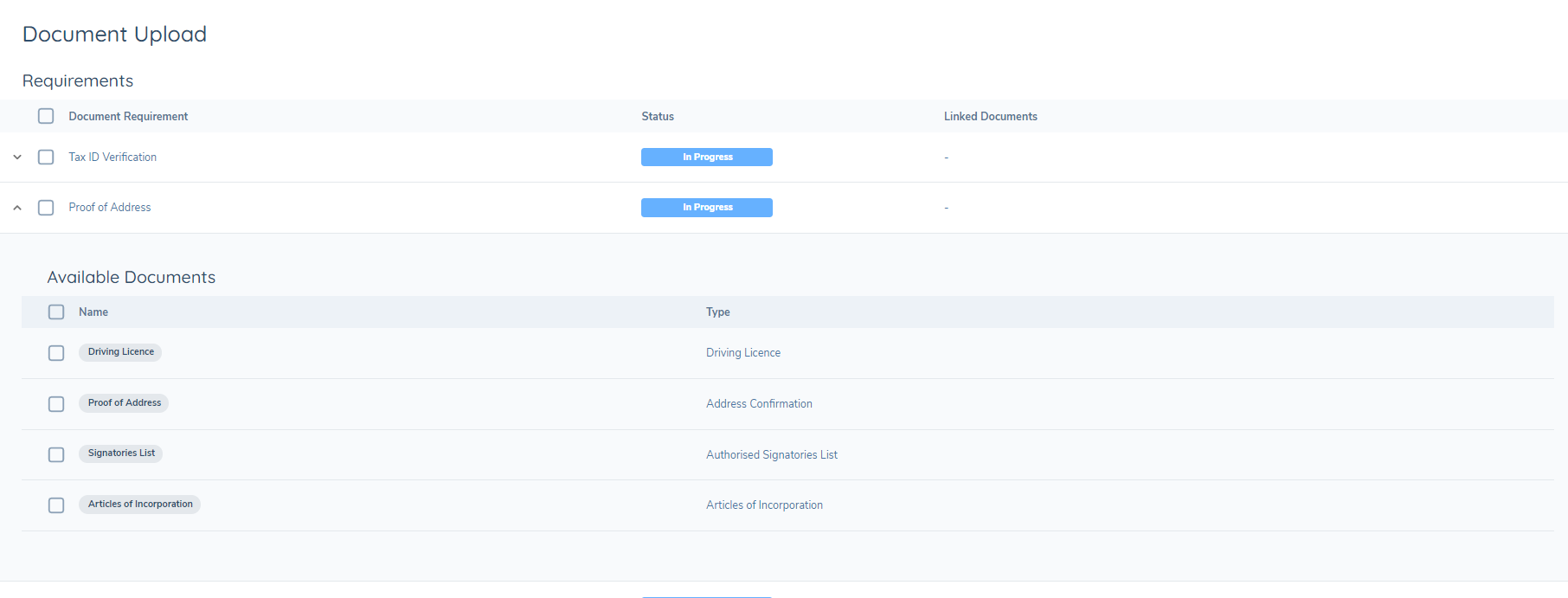
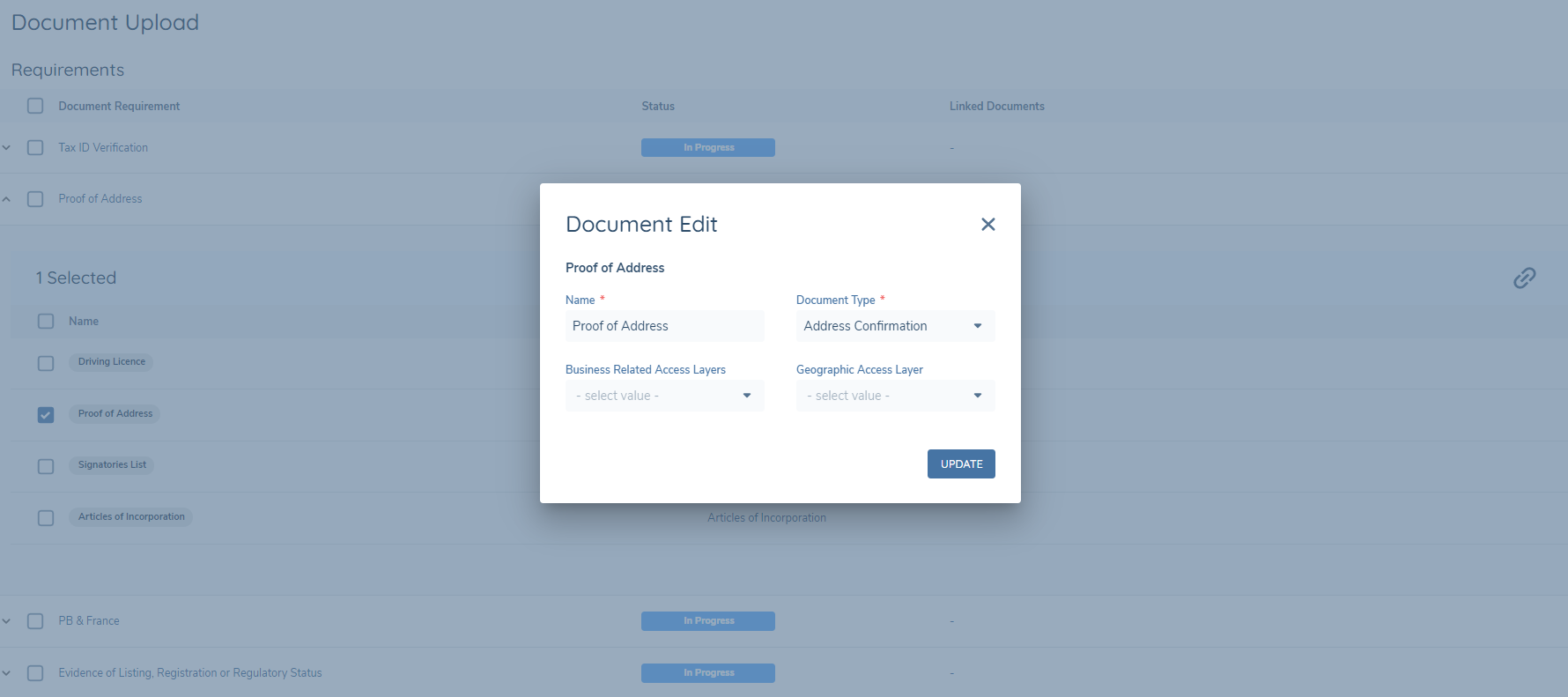
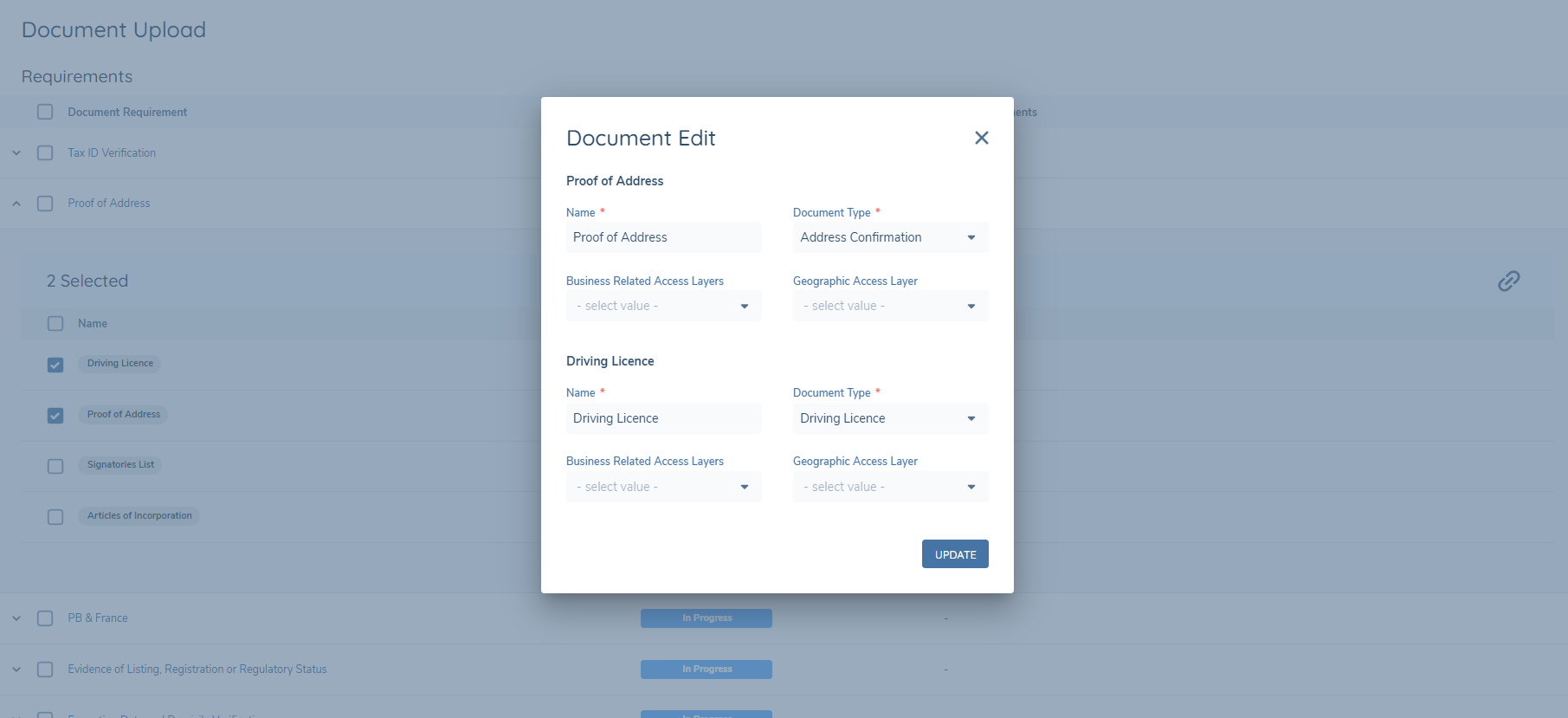
Preventing Persistence of Expired Documents
Fenergo provides the ability to prevent expired documents from persisting in a task. This ensures that only valid, in-date documentation is persisted, supporting regulatory compliance.
The date used to determine the expiry needs to be configured via the 'Document Metadata' configuration. Please refer to the Document Management V2 Configuration guide for the configuration of this functionality.
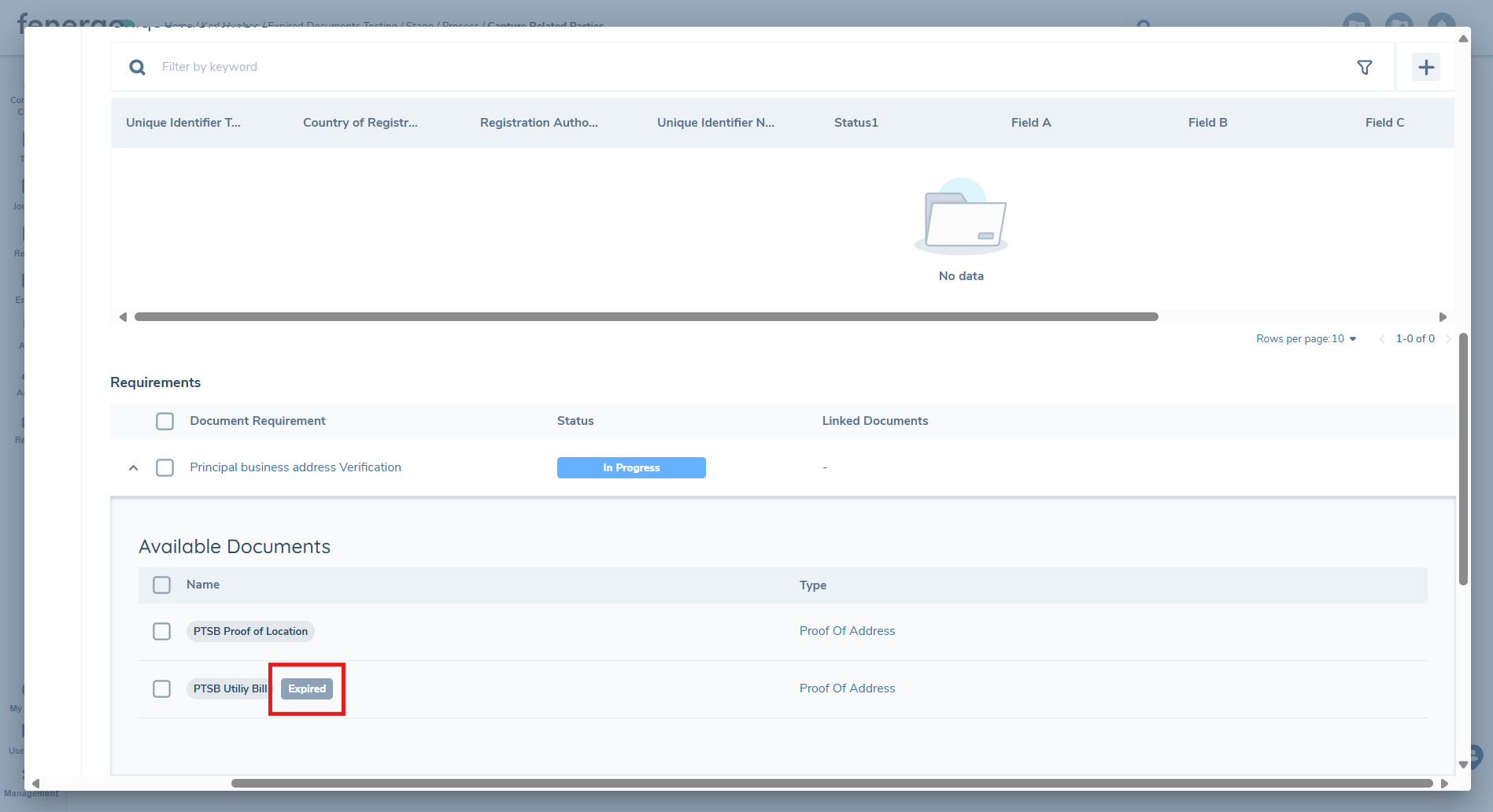
Once enabled, the system will evaluate the configured expiry date for any document that is being persisted within a task. If the documents expiry date is in the past, the system will not persist the document. The document will still display in the 'Matching Documents' tab in a Document v2 task, or in the 'Acceptable Documents' in Documents V1 task, or where the Document components are used such as the Related Parties task. An 'Expired' chip will display beside the document to highlight the expiration. Users will not be prevented from re-linking the expired document but the 'Expired' chip will be retained.

Document Auto linking
Within Journey Builder, a toggle exists on specific document tasks so that configurators can set Documents to auto-link to a requirement when the task is generated. This applies at the entity level on the Documents V2 and Data and Document (Doc V2) task types, and for related parties on the Hierarchy Capture and Related Party Data & Documents task types.
The auto-linking process will take place after Document Persistence (if enabled). If a document exists on the Entity Profile Page for an entity, then when the task is generated, a process runs to check all documents from the entity profile to see if they match the acceptable document type of any document requirements from the task.
The auto-linking process will only occur while the task is processing. If the task has already been opened when the document is added to the entity profile, the document will not be auto-linked.
Any documents that have an expiry date or are archived will not be considered for auto-linking. Documents will only link to requirements where a 1:1 relationship exists to a document requirement. If a document requirement has more than 1 matching document type, then no document will be auto-linked.