Using Virtual Documents
This guide aims to describe what Virtual Documents are and outline the areas within the application that they can be used.
What are Virtual Documents?
Normally when a file is uploaded in Fenergo SaaS, a document model is created, which represents an instance of that file. This document model can be linked to an entity, a journey, a document requirement, and so on within the system, and it can also store the properties or document metadata which describe the file.
Virtual documents are document models which represent a file. They can be linked to entities, journeys and document requirements, however unlike standard document models, this file that it represents is not stored in Fenergo Saas, but it can be stored anywhere outside of Fenergo SaaS.
For each API endpoint that allows you to create, update or delete a document model, there is an equivalent endpoint that allows you to create, update or delete a virtual document model.
Working With Virtual Documents
Virtual documents can be used in almost every part of the application where standard documents can be used. This section of the guide outlines the task types in which virtual documents can be created and maintained, including some areas of the application which use v1 document components within the task.
Where Can I Create or View Virtual Documents?
Virtual Documents can be created, maintained or viewed within the following tasks or areas of the application:
- Entity Profile Page
- Documents v2
- Data & Documents v2
- Related Parties
It is also possible to use and maintain virtual documents in the relevant tasks within the following domains:
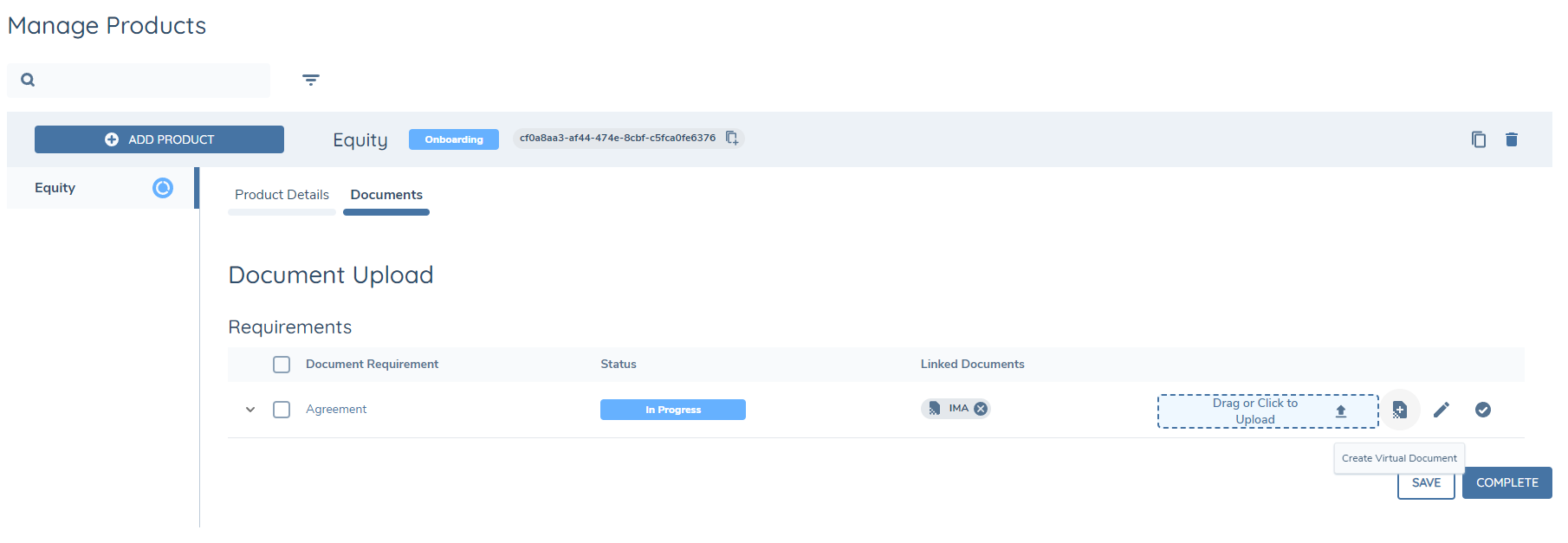
- Products
- Deals
- Investment Accounts
- Agency
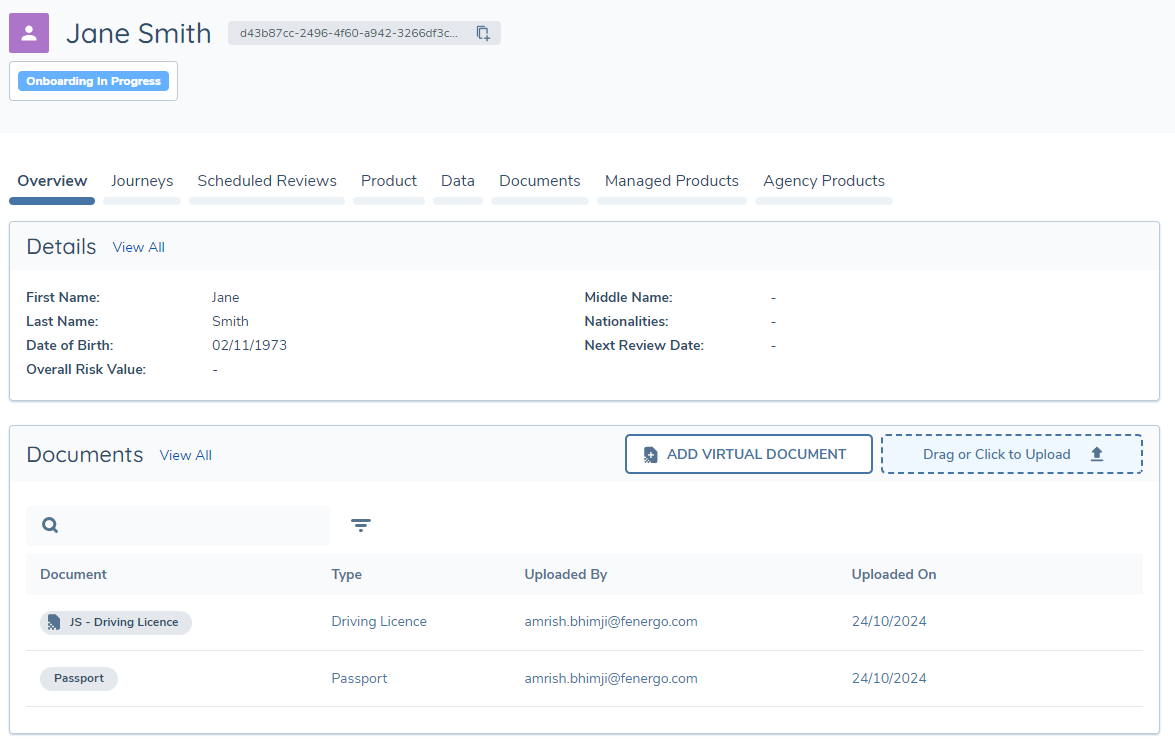
Some of the tasks listed above utilise the version 1 documents components so there may be some visual differences to the instructions and screenshots outlined below, which focus on the version 2 components, however the general principles remain the same and will be akin to how standard documents are created and updated.
Creating Virtual Documents
Virtual documents can be created in a very similar way to standard documents that are uploaded. In the Documents V2 task for example, you may either create a virtual document generically and then be guided as to which requirements can be satisfied based on the document type you select, or you can create a virtual document against a specific document requirement and be shown a filtered list of document types based on the acceptable types for that requirement.
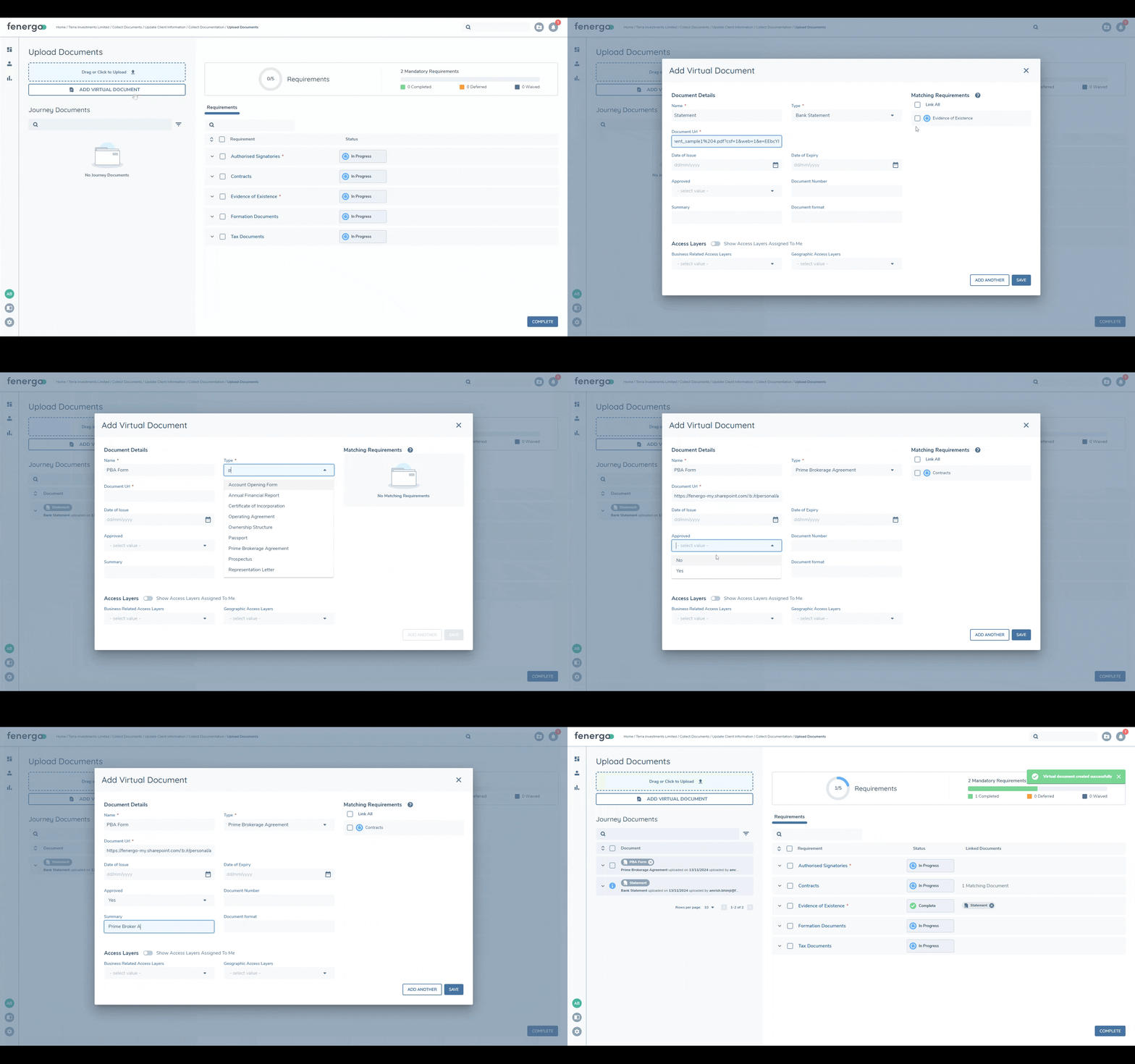
In either case after clicking on the Add Virtual Document button, the Add Virtual Document modal will open and you will be prompted to populate the following mandatory fields for the document you want to create:
- Name - the friendly name of the document/file
- Type - the document type classification
- Document Url - the link to the location of where the file is stored. This link must begin with "https://" else it will not be possible to navigate to the document once created.
As with standard documents, you will also be able to add document metadata fields and set access layers as per your tenant's configuration. Additionally you may be presented with matching requirements that you can link the document to.
You then have the option to either Save, which will close the modal and create the virtual document or Add Another, which will create the virtual document and then open a new modal to allow you to quickly process another virtual document.
Viewing Virtual Documents
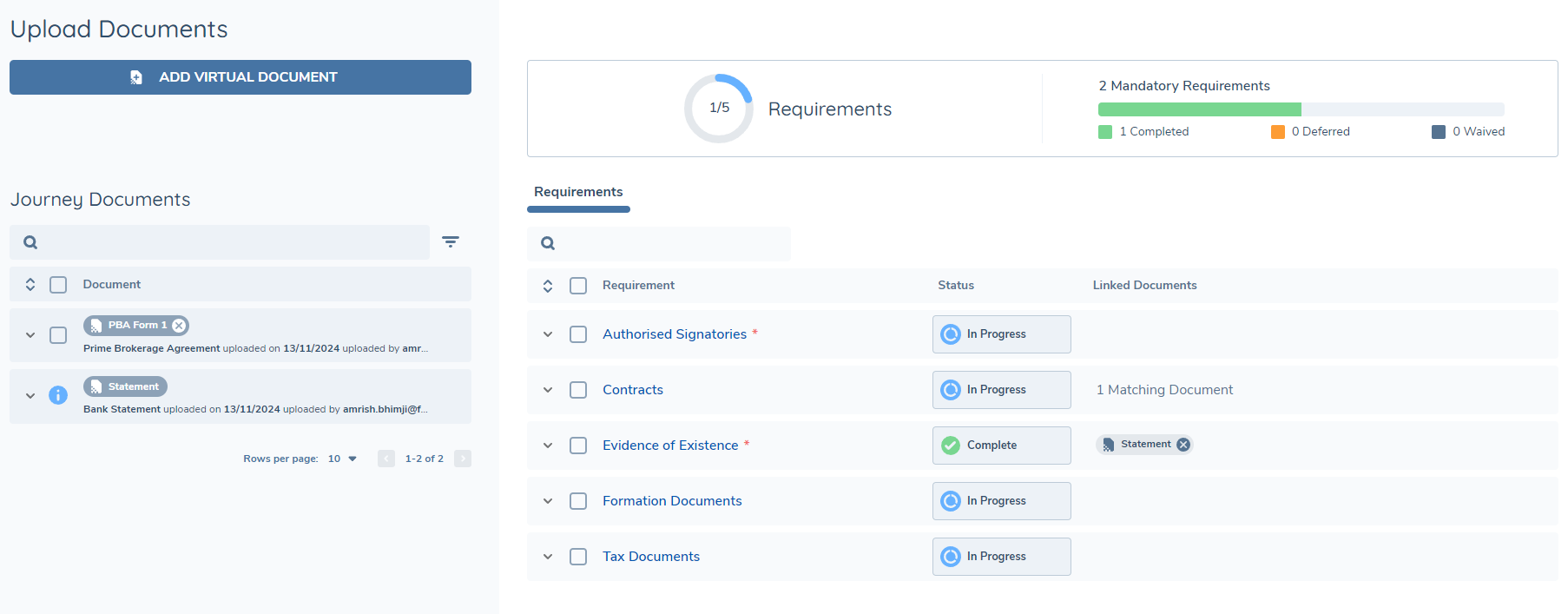
Once a virtual document has been created, a chip representing this document appears in the relevant grids. To distinguish a virtual document from a standard document, the virtual document chip includes a unique icon before the filename.
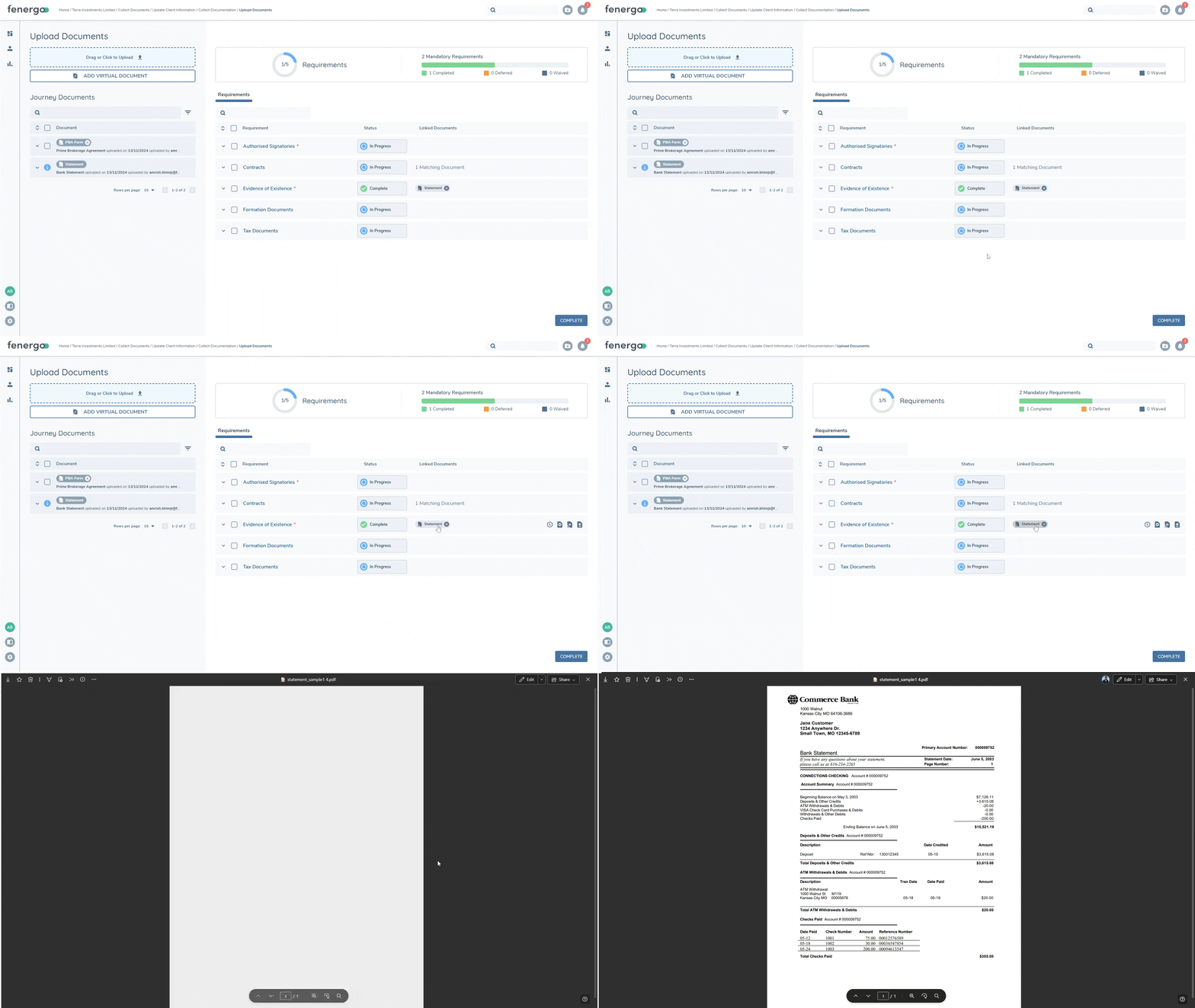
Clicking on the document chip will navigate you to the Url that was set when creating the virtual document in a new browser tab.
If the Document Url does not begin with "https://" an error message will be displayed and it will not be possible to access the document.
Editing and Deleting Virtual Documents
Virtual Documents can be edited and/or deleted in the same way as standard documents.
If the virtual document appears in the Journey Documents grid and is unlinked to any requirement, hover over the row to see the pencil icon. If the virtual document is linked to a requirement, navigate to the Linked Documents tab below the requirement and you may edit one or more documents in the same way.
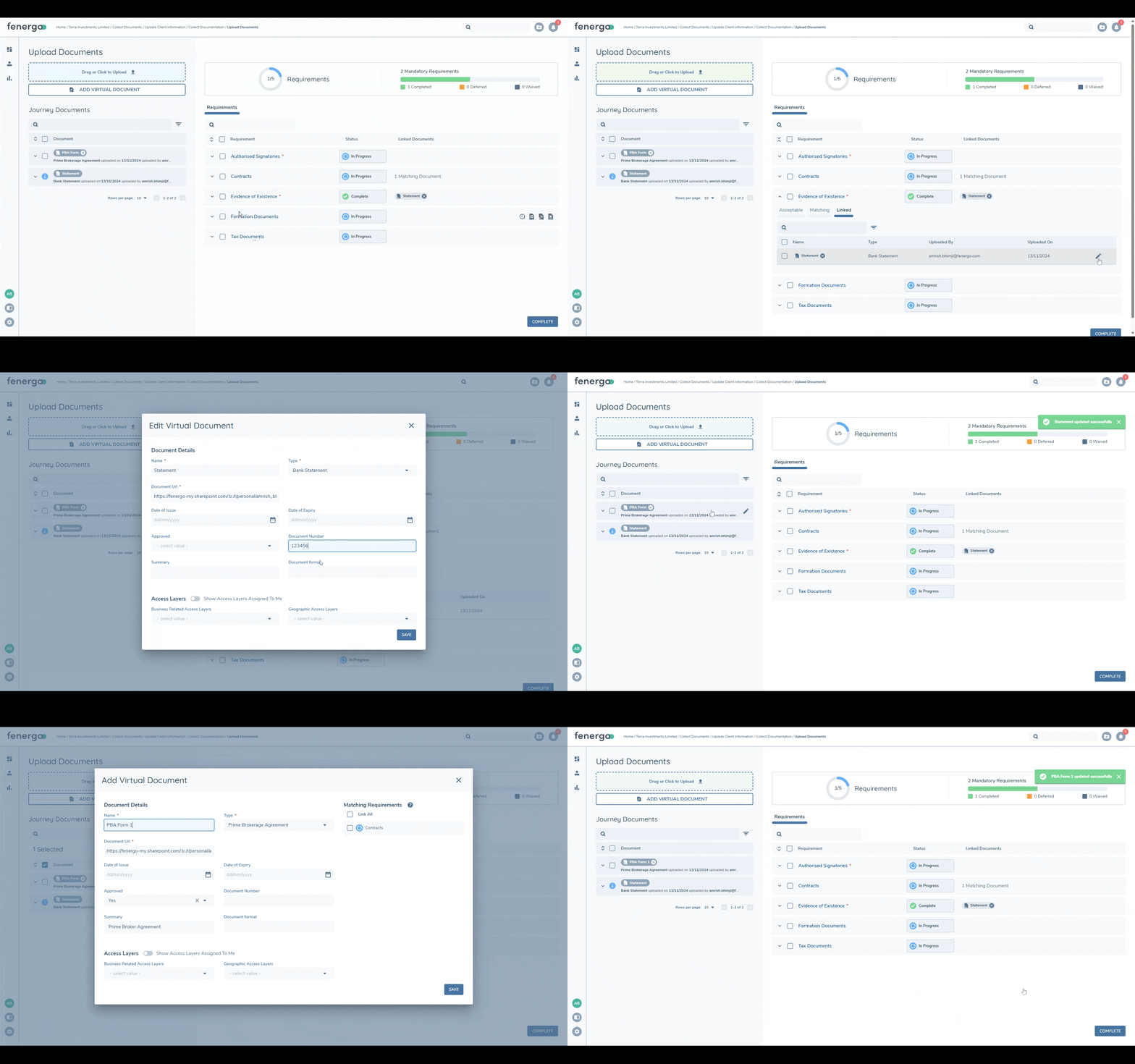
Similarly, unlinked virtual documents can be deleted by clicking the 'x' icon on a document chip from the Journey Documents grid directly, or by clicking the 'x' icon on any document chip linked to a requirement on the Requirements grid or the Linked Documents tab beneath a requirement.
Deduplication Logic
When there are multiple document models which represent a single uploaded document, for example, if a single document is used across multiple requirements or different journeys, we typically deduplicate these document models by the documentKey, which uniquely identifies the stored document represented by these models.
Whilst virtual documents do not have or require a documentKey, they can be reused within the system, so instead we deduplicate these by the documentUrl property. When deduplicating in this way we always display the last updated virtual document model. The key consequence to note is that a document URL for a virtual document should uniquely represent a single document.
Permissions
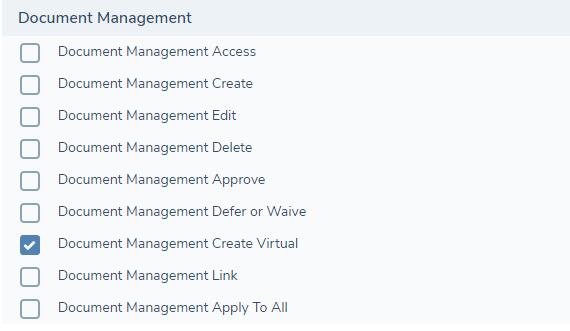
A new permission called Document Management Create Virtual has been introduced to allow users to create virtual documents. Only users with this permission are able to see the new "Add Virtual Document" button in the relevant tasks and screens. Users with Document Management Edit are able to edit the properties of both virtual and standard documents, and users with Document Management Access are able to view both virtual and standard documents.
If a user has access to create both standard documents and virtual documents, in the relevant tasks they will see both buttons available to them.
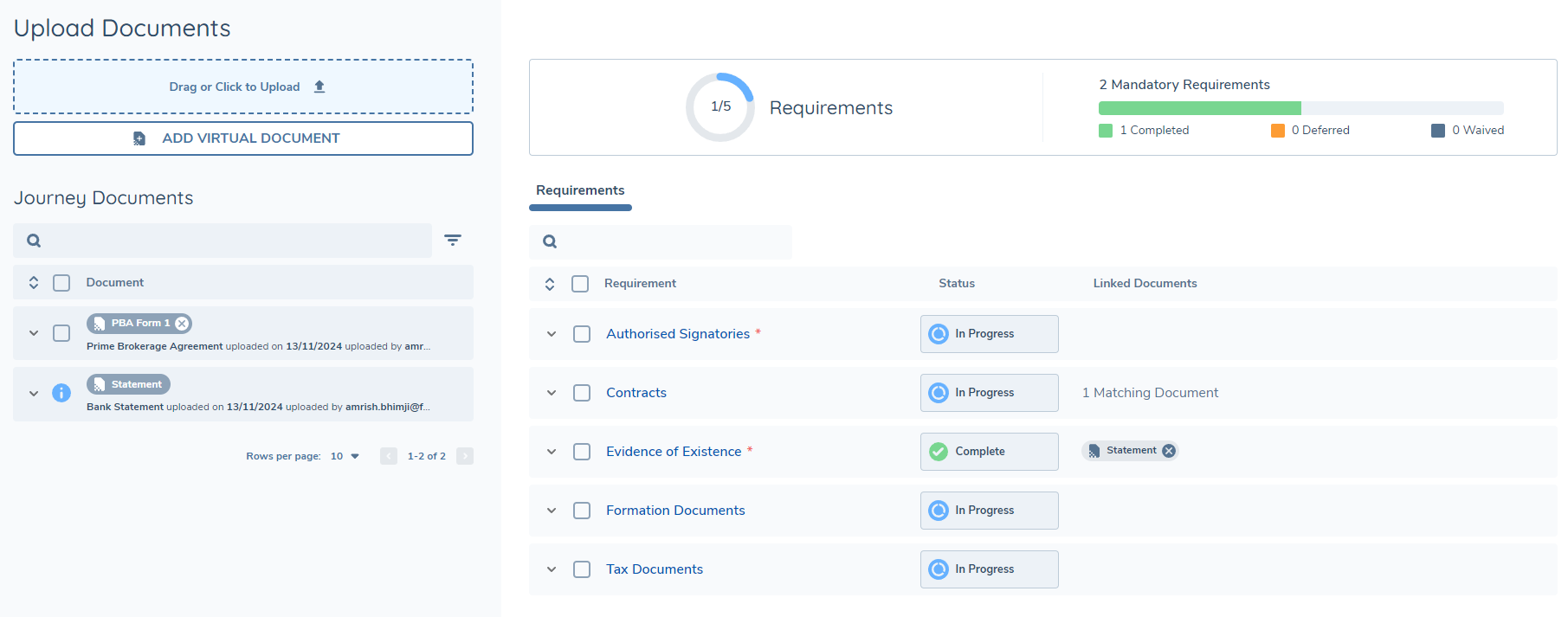
If a user has access to only virtual documents, they will no longer see a dropzone and instead only a button to add a virtual document.