Automating the Related Party Checkpoint Task
The Related Party Checkpoint task can be configured to complete automatically, removing the need for manual intervention in scenarios where no related party journeys are required or where all launched journeys have reached a terminal state.
This is controlled through the Automation tab on the Related Party Checkpoint task in Journey Builder, using the existing system autocompletion framework.
Configuring the Automation Tab in Journey Builder
Ensure your journey schema includes the Related Party Checkpoint task in the correct sequence: Related Parties → Related Party Journey Launchpad → Related Party Checkpoint → Merge Related Party Drafts → Verify Related Party Associations v2.
-
Open Journey Builder and navigate to the relevant journey template.
-
Select the Related Party Checkpoint task to open its properties panel.
-
Click the Automation tab.
-
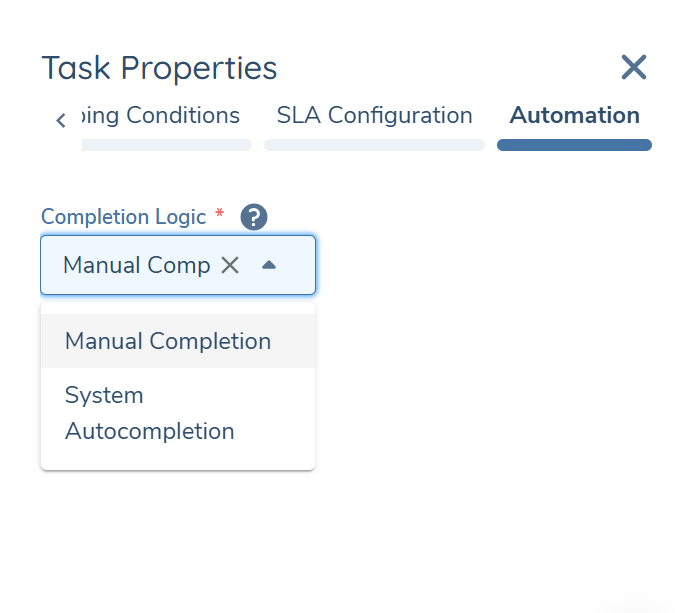
In the Completion Logic dropdown, select your preferred option:
Option Behaviour Manual Completion (default) The task must be completed manually by a user. The system will not act on this task. System Autocompletion The system will automatically complete the task when eligibility conditions are met. -
Save the journey template.
Note: The Completion Logic dropdown defaults to Manual Completion for all new and existing Related Party Checkpoint task configurations. Existing journey templates will not be affected unless an administrator actively changes this setting.
How System Autocompletion Works
When System Autocompletion is selected, the system evaluates the Related Party Checkpoint task under two conditions:
Zero-launch scenario
If no related party journeys have been launched when the checkpoint task becomes active, the system detects that there is nothing to validate and automatically completes the task immediately.
All-journeys-terminal scenario
If one or more related party journeys have been launched, the system monitors their statuses. When all launched journeys reach a Completed or Cancelled state, the system automatically completes the checkpoint task.
Important: The system will not complete the checkpoint task if any launched related party journey remains in a non-terminal state (In Progress, Pending, or Error). The task holds until all launched journeys reach a terminal state.
Task View Behaviour
System Autocompletion configured
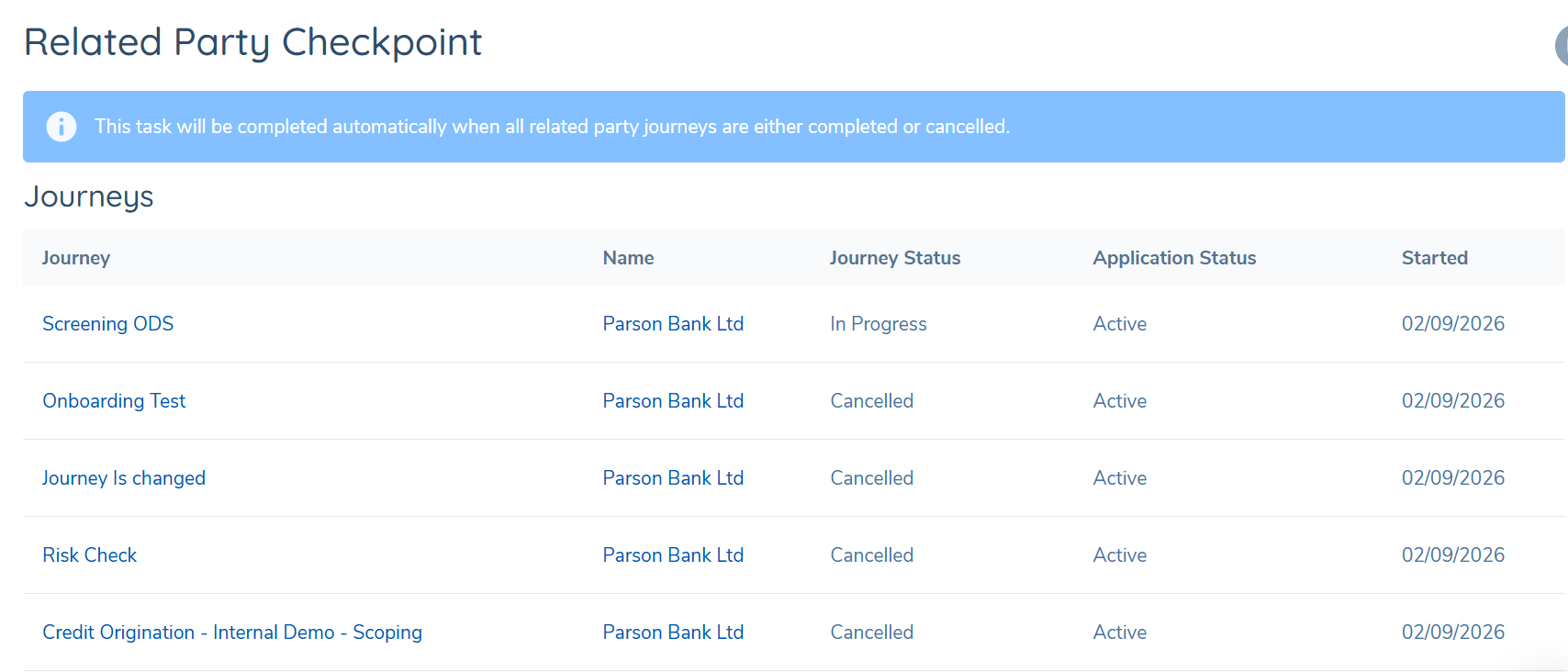
When a Related Party Checkpoint task is in progress and Completion Logic is set to System Autocompletion, the task view displays the following:
- The Complete button is disabled — the task cannot be manually completed while System Autocompletion is active.
- An informational banner is displayed: "This task will be completed automatically when all related party journeys are either completed or cancelled."
- The list of related party journeys is displayed as normal.
Manual Completion configured
When Completion Logic is set to Manual Completion:
- The Complete button is active as normal.
- No banner is shown.
- The list of related party journeys is displayed as normal.
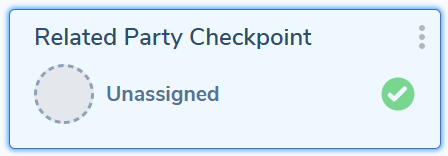
On auto-completion
Audit and System Attribution
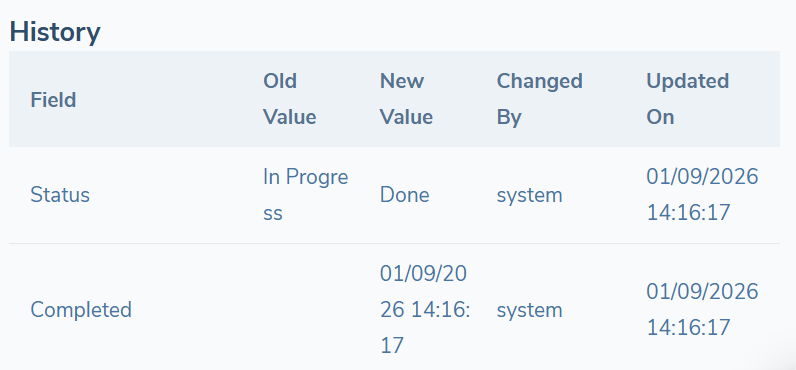
All system auto-completions are fully audited. In the task history, completion is attributed to system rather than an individual user. The audit record captures the system identity, timestamp, and completion rationale.