Rich Text Editor
Previously, Clients have multiple field types that they can utilise in their data capture, but they will always capture a simple value: a "Date of Birth", a "First Name" or a "Risk Level" for example. The introduction of the Rich Text Editor is to allow Clients to provide detailed feedback, that acts as contextual information outlining the decisions made during a Journey. This includes the usage of stylised text, image insertion, file uploads or hyperlinked text.
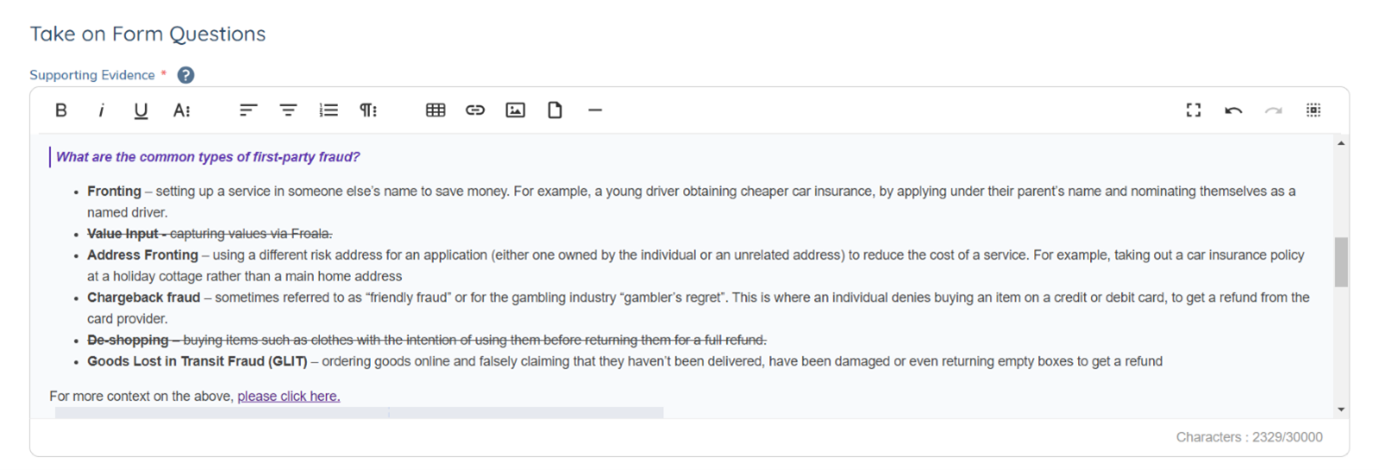
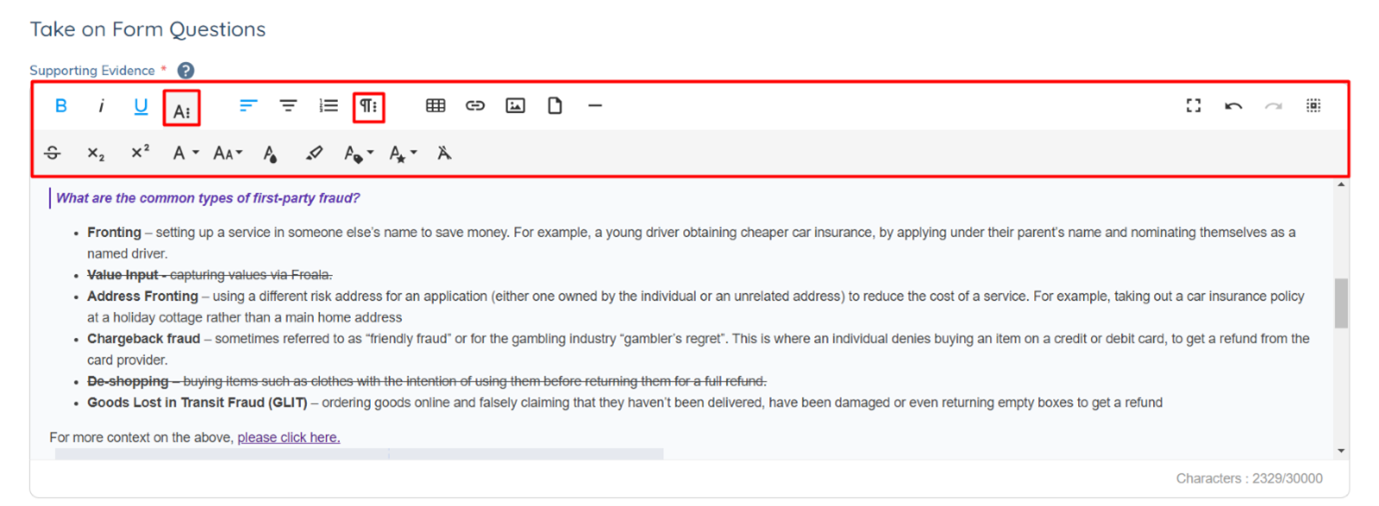
The Rich Text Editor makes use of the Froala component to achieve this. As mentioned, this component allows Users to format text, insert links, align text, bullet point and number lists, create tables, insert links, upload files and attach images. The full functionality of what the Rich Text Editor can be found by navigating through the toolbar. Icons highlighted in red below act as menu options to reveal more functionality for text formatting or paragraph styling:
Available Features and Shortcuts
The functionality offered by the Rich Text Editor is akin to any other Rich Text Editor that the User may have used in other applications, such as Microsoft Word. Shortcuts are available upon hovering over the individual icon such as bolding or underlined text:
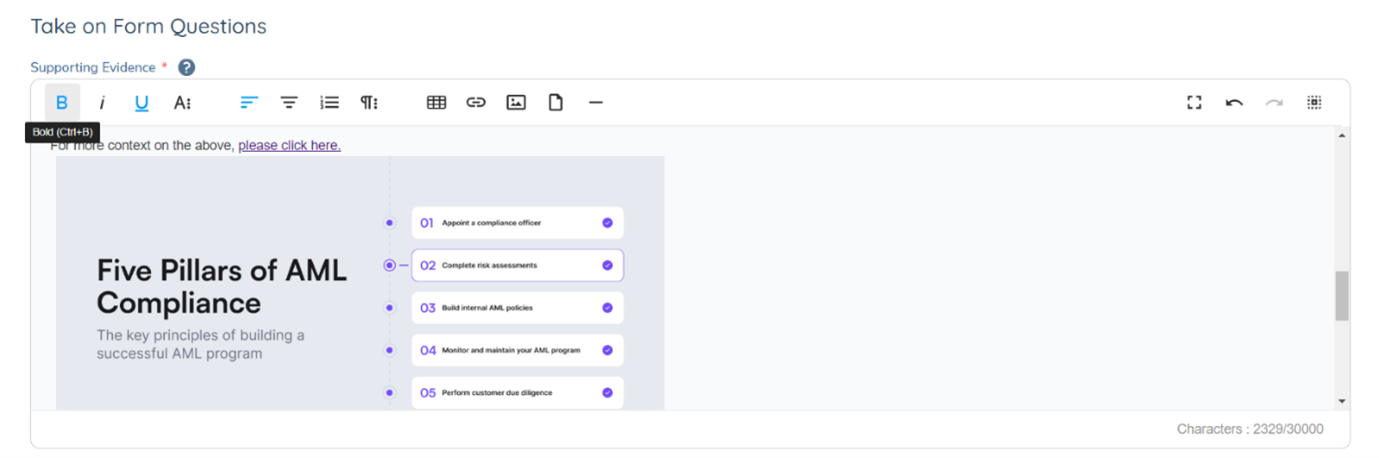
A full list of available shortcuts offered through Froala can be found Frola Shortcuts.
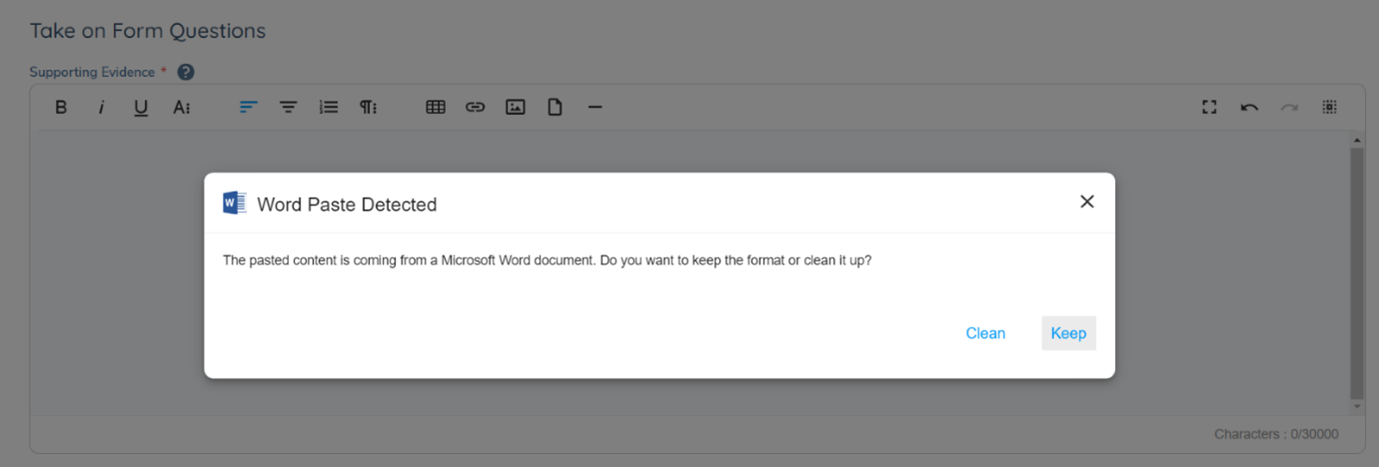
Users can copy and paste information from other sources like Microsoft Word or Excel into the Rich Text Editor. When this is done, Users will have the option to either " Clean" the format, or " Keep" the format as defined from the external source.
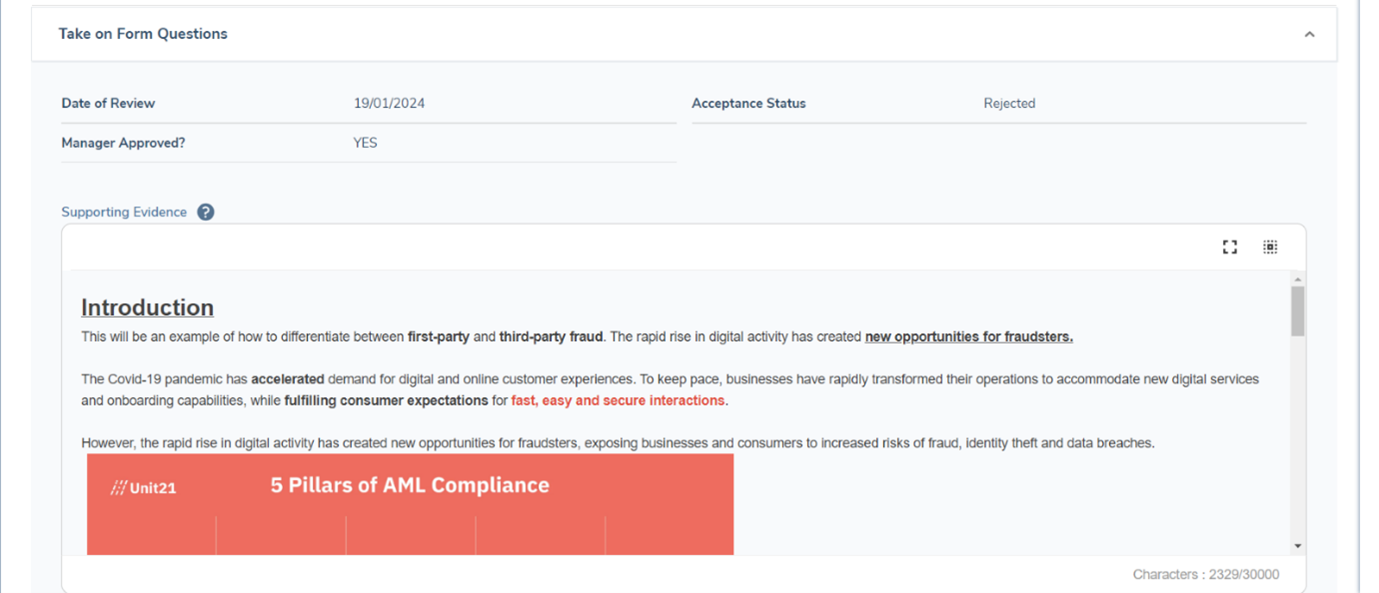
The Rich Text Editor can be viewed in both a Read-Only state - such as a completed task, the Entity Profile or through configuration - or in an Editable state, such as in a User-interactable Task. In both contexts, there will always be two actions available to a User in the top right hand of the toolbar. These will be Select All & Full Screen. The full screen capability allows Users to get a full-screen view of the information that has been captured. This gives a User greater visibility of the information that has been captured within the component.
Accessibility
For accessibility reasons, Users can select 'Alt + F-10' as a shortcut to access the toolbar directly, and then will be able to use their keyboard's arrow keys to select the individual action they wish to take, such as left-aligning their content. Please see Froala Editor Accessibility for more information on Froala's support of any accessibility requirements.
Rich Text Editors in Data Groups
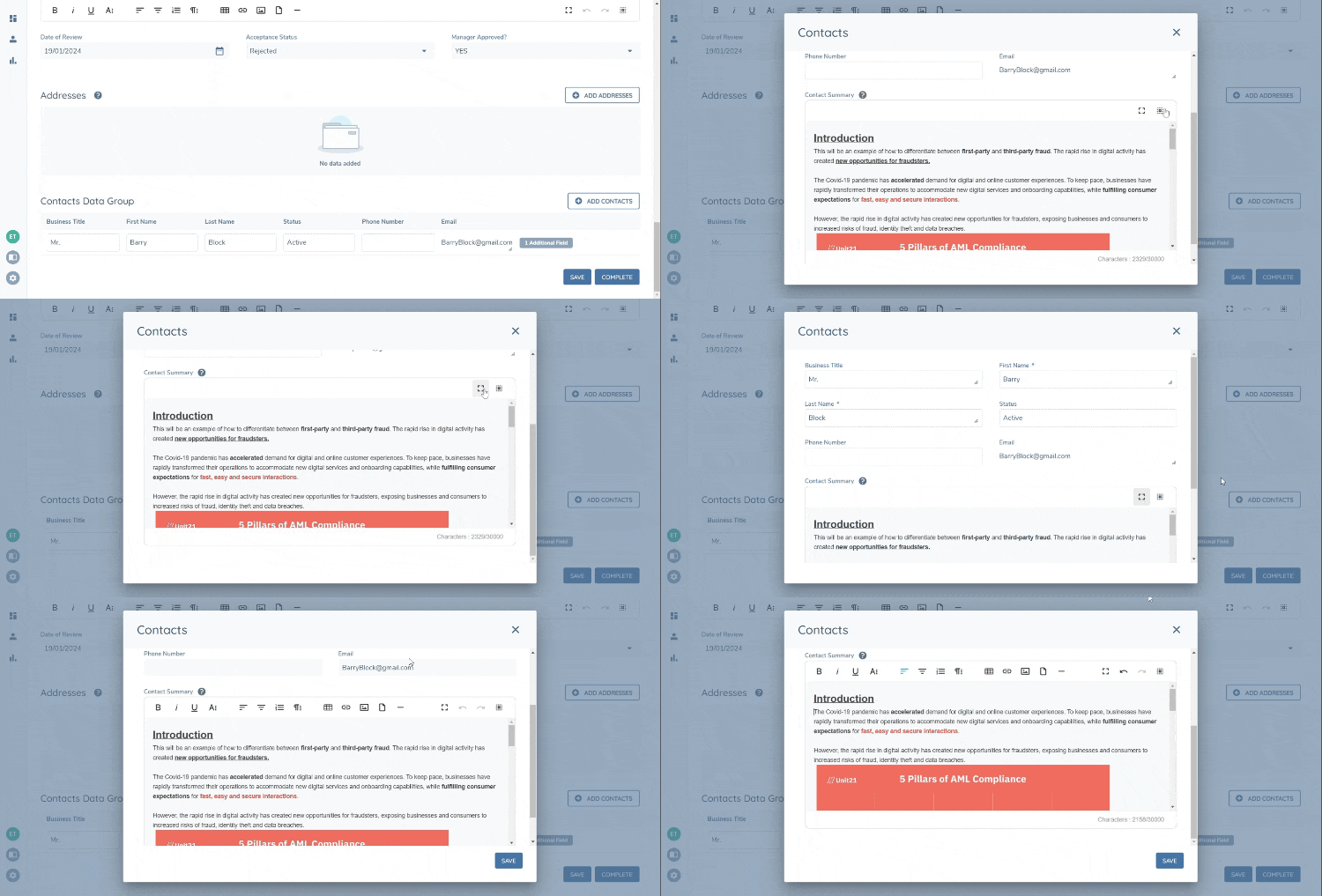
When a Rich Text Editor has been configured in a Data Group, the requirement of the Rich Text Editor will appear in the "X Additional Field[s]" button. Users can select this to see their defined Rich Text Editor present within the Data Group modal.
Key Considerations
The contents of a Rich Text Editor field, any images attached, and any files uploaded will all be stored in Amazon S3. This is the same approach we take with the uploading of documents in our Documents domain.
When a Rich Text Editor field type is verified, that version of the data inputted is verified against the Record and will then present on future Journeys. This follows the same approach we have for other Field Types in Fenergo SaaS, meaning that a User will only ever see the latest data that has been verified from previous Journeys when navigating to future Journeys or the Entity Profile.
In our technical solution for this feature, a datakey is first configured in the Policy domain, and then the S3 file containing the contents of that requirement are stored against that datakey. In the Fenergo SaaS UI, we retrieve or update that S3 file directly. This means that a User reviewing the datakey configured as a Rich Text Editor, will not see the contents of the Rich Text Editor from the API, but instead will see the S3 file containing its contents.
This means that in the following contexts, the contents of the Rich Text Editor will not be displayed , but rather the S3 filename containing its contents will be displayed instead. This list includes:
- The Entity Profile's Audit record
- Any API referencing entity-data
- Proposed Changes & Conflict Resolution Tasks
- Advanced Reporting
The visibility of a Rich Text Editor's contents is visible from the Entity Profile, and in the following task types:
- Data
- Data and Documents
- Data Review Task
- Manage Deals Task
In all other contexts - including all other Task Types - the Rich Text Editor will not be displayed. A Rich Text Editor requirement should not be configured to appear in these task types, as they will not be supported in our UI.
Please note that Rich Text Editor fields are not supported to be used in either Bulk Upload or Data Migration.
Finally, please note that each Rich Text Editor file in S3 has a size limit of 50MB.
Configuring the Rich Text Editor
To configure the new "Rich Text Editor" Field Type, Clients can navigate to their Data Requirements in Policy or Deals. Additionally, Clients can also add a Rich Text Editor as a field within a Data Group. In these domains, Users will see a new field type available. Selecting this field type will remove the ability to configure "Conditional Values", and all other validation types except "Read-Only" and "Mandatory". The reason for this is that the Rich Text Editor supports file upload, image attachments and stylize fonts. As such, this means that we cannot validate its contents nor can we allow a client to determine conditional values to be set, in contrast to other available field types. The Rich Text Editor instead should be used to provide detailed, supplementary information outlining the reason behind decisions like a loan approval or a reviewal outcome.
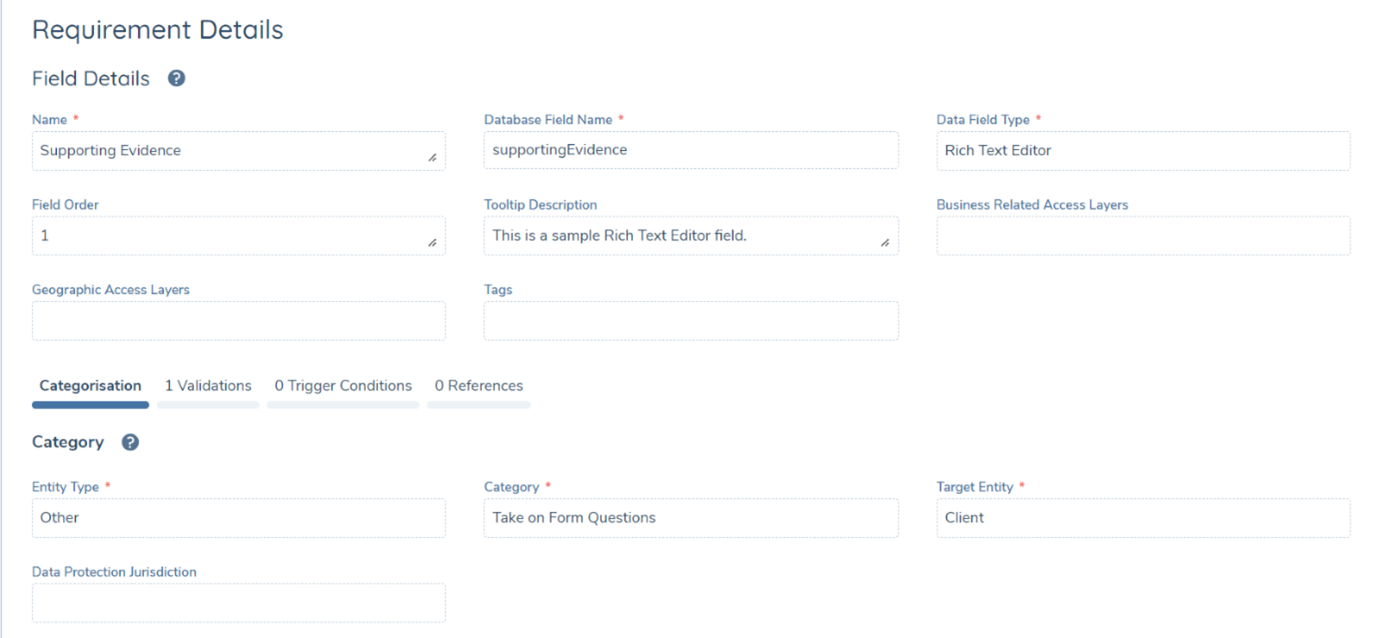
Once a User has set up their Rich Text Editor in their Data Group or Policy configuration, they can then publish the respective configuration and then utilise the Rich Text Editor in their Journeys. As a note, the interaction with a Rich Text Editor requires no new permissions to be prescribed to Users.