Significance Agent
The Significance Agent is a capability that allows the system to identify when a field has changed value and to then determine the significance of that change. This AI-powered feature allows the application to go beyond simple change-detection, by allowing the application to assess the level of change. The output of this significant change can then be leveraged in our Journeys to trigger dynamic logic.
Up to this point, we have been able to handle binary change detection. Using the existing "Is Changed" functionality within Journey Builder, the system has been able to identify if a field has a changed value or not. It has not been able to identify the level of this change. Through the Significance Agent, we can look deeper and consider the context of a field's change in value, and label it appropriately as a significant or insignificant event.
As an example, consider the changing of a value of an individual's "Place of Residence", where they have moved from Germany to France, and how the two functionalities recognise this:
- "Is Changed": The value is different than what it was before. Therefore a change has occurred and some action must be taken in the Journey to acknowledge this.
- Significance Agent: The prompt provided to the AI recognises that due to the geographic proximity, relatively similar economic standings and frequency of such a change, the outcome is marked as insignificant and therefore no action must be taken in the Journey.
Integrating the Significance Agent into your Journeys means that both the application and the users within your tenant can identify changes in field values, and where required, trigger the appropriate next steps.
Note: The Significance Agent must be specifically enabled on a Fenergo SaaS tenant by a Fenergo SaaS Administrator. If you are interested in this feature and don’t currently have it enabled, please speak to your Product Manager or Fenergo representative for more information.
In some tenants, this feature may be referred to as Significance Engine or Significance Agent. Both terms refer to the same functionality and capabilities. If you are interested to learn more about our agentic capabilities, please see the Fenergo Digital Agents section for more information.
Permissions
To configure the Significance Agent, specific permissions must be assigned to users. The following permissions are available:
- Significance Rule Access – Allows users to view the Significance Agent in the configuration menu.
- Significance Rule Edit – Allows users to create and update rules.
- Significance Rule Delete – Allows users to delete rules.
These three permissions are intended for configurators and administrators; operational users do not require them.
Configuration
Defining Rules
To configure the Significance Agent, users with the requisite permissions can navigate to the Significance Agent section under tenant management. Each rule requires the following properties:
- Name: The name of the rule.
- Description: A reference point explaining the rule's purpose. This is purely for the configurator's own use, and is intended so that a configurator can provide a synopsis on what this given rule seeks to do.
- Definition: The prompt that the configurator provides that will guide the AI in determining whether a change is significant or insignificant.
Example Definition: "If the riskLevel is low or medium, and moves to "High" - that should be marked as "Significant". If it is moved to Low or Medium, then this is "Insignificant"."
More information on writing these definitions is found later, in the "Writing Your Rules: Resources" section and onwards.
Supported Data Field Types
The Significance Agent supports the following field types:
- Dropdown/Select Fields: Ideal for assessing changes in predefined lists of values (i.e. select dropdown fields).
- Text Fields: For analyzing changes in text fields & text areas.
- Data Groups: For detecting changes within individual data group records.
Configuring the "Significance Agent Results" Task
To utilize the Significance Agent in your Journey, a "Significance Agent Results" Task must be added in the Journey Builder. This task type outputs the evaluation results of the Significance Agent, based on the rule you have selected that you wish to be utilised within this instance of the Task.
There are no limits to the number of Significance Agent Results tasks you have in your Journeys. However, each Task can only have one rule selected against it.
All existing Task logic - such as Task Assignment, Service Level Agreements and Trigger Conditions - will work with this Task.

Interacting with the "Significance Agent Results" Task
When the journey begins, a snapshot of all relevant data key values, as per the selected rule, is taken. Before the Task is given to a User, the application enters a "preprocessing" status, where the evaluation of the change occurs. Once the task moves to "In Progress", the task is now accessible. Opening the task, the system compares the initial values against their current values at the time of the task being generated, and produces the following output:
| Column | Description |
|---|---|
| Data Key | The field being evaluated. |
| Existing Value | Value at the start of the journey. |
| Current Value | Value at the time of the task processing. |
| Change Significance | Significance classification (Significant/Insignificant). |
Hovering over the value on the "Change Significance" field provides a tooltip explaining the AI's decision. This will be the rationale of why the AI made their decision, and will always be driven by the prompt ("Definition") within your rule. This is to ensure transparency at all times, so a user can understand why the AI made that decision.

If a user disagrees with the AI's output, this field will always be editable. This allows the user to change the output to "Significant" or "Insignificant" where required. This is to ensure there is always a manual user involvement within this task.
There are scenarios where either the data sent to the task, where the prompt itself is not refined enough - or some combination of both. In this scenario, the AI will be unable to make a proper assessment and return an "Undetermined" value. Hovering over the value here will inform the User on why the AI could not make a decision. This means the configurator should update the prompt to be more descriptive. In cases where "Undetermined" is returned, the user within the task must make a manual selection of "Significant" or "Insignificant".
Testing Your Rules & The Simulator
The Significance Agent Results task will always use the latest values for your selected fields and the latest information pertaining to your rule each time the task is reopened and re-evaluated. This will be useful when building out your rules, as it means you can do the following:
- Test a given rule in your tenant.
- View the outcomes provided by the AI.
- If necessary, navigate to your Significance Agent configuration and update the "Definition". Save your changes
- Reopen the Significance Agent Results task in your journey and allow the task to finish preprocessing.
- View the outcomes provided by the AI.
This can then be repeated as many times as required so that you may finetune your rules.
The above scenario will be useful for configurators who wish to interact directly with their journeys. For configurators who are rapidly prototyping and finetuning their rules, there is a separate testing route.
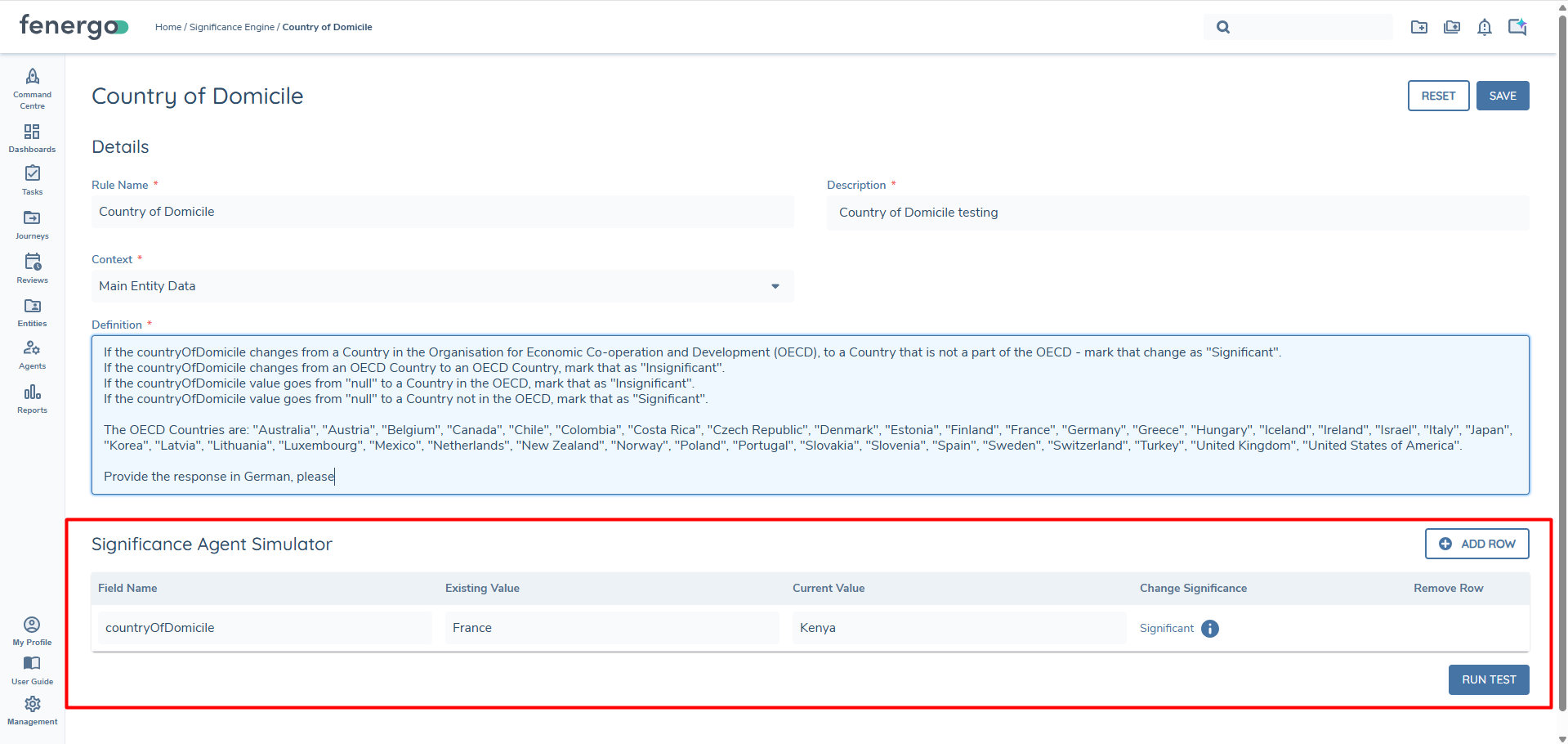
The Significance Agent Simulator allows users to test their rules directly within the rule configuration screen, removing the need to launch a journey or reopen Significance Engine tasks. It allows users to test their latest iteration of a rule in real-time, without requiring the need to save the configuration. This allows for experimentation during the ideation stage of writing your library of rules, without impacting any in-flight journey.
When users navigate to a Significance Rule, there will be a new section titled Agent Simulator now visible. To test their rule, users must provide the datakey from their rule within the Field Name column. Akin to the task itself, two additional fields must be provided to represent the hypothetical data change. The Existing Value column represents the value at the beginning of a journey, while the Current Value represents the value at the time the rule is evaluated. Users can add as many or as few rows as they wish, using the "ADD ROW" button available.
When the required values have been provided, selecting Run Test will evaluate the rule provided and the data sent in the simulator. The results are displayed in the Change Significance column for each field. This result will always be accompanied by a tooltip icon, which reveals the AI-generated explanation when hovered over.
The simulator will always run against the currently unsaved version of the rule, allowing configurators to test changes iteratively without needing to save between runs. This effectively means that the simulator will use directly whats on screen, and not what is currently saved.
The Agent Simulator reuses existing permissions with regards to the configurational permissions mentioned above, and therefore requires no additional access rights.
Using the Significance Agent in Journey Logic
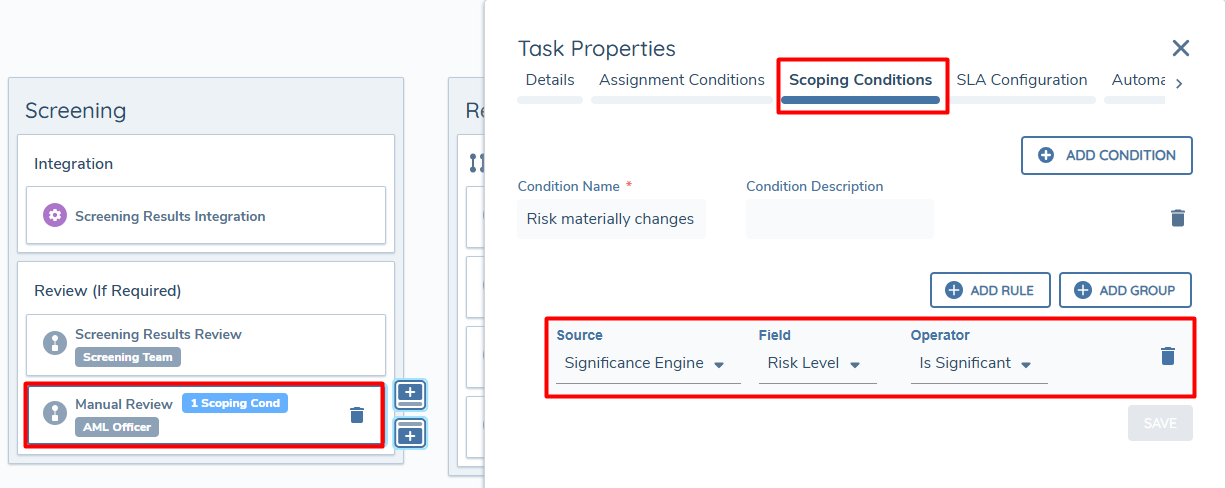
The Significance Agent integrates with Journey Builder through a new data source called Significance Agent. This allows users to add conditional logic based on the significance of changes against the datakeys returned in the task.
When Significance Agent is enabled on a tenant, and a configurator navigates to Journey Builder, a User will see a new available option within the logic engine when configuring Tasks, Processes or Stages. In the logic engine, under the "Source" dropdown, there will be an option titled "Significance Engine". When this is selected, a configurator will be able to pick the relevant datakey (field) and drive conditionality off of this datakey being significantly or insignificantly changed. For example, in the screenshot below, the "Manual Review" task is triggered based off the Risk Level significantly changing:
When a Data Group is selected on the "Field" property, an additional option must be selected of either "Any" or "All". This means that a configurator is basing this condition being satisfied on whether at least one data group record has significantly changed, or if all of the data group records have significantly changed. In the example below, a user might have four addresses captured, but the trigger condition is marked as true if any of those four address records have a data group field of "Country" that have significantly changed.

Key Considerations
- The Significance Agent can only reference Policy requirements of target entity type = "Client".
- The Significance Agent utilises prompts to generate the "Significant" or "Insignificant" outcome against a datakey. If there is a need to return outcomes against multiple datakeys, combine the prompts into a single rule.
- The Significance Agent is currently only able to return a result when the Task is finished preprocessing. Any logic when utilising the Significance Agent is tied to the Task itself, and the rule configured.
- Multiple Significance Agent Results tasks can be configured per Journey, allowing the utilisation of multiple rules for different instances of the tasks.
Agentic Capabilities
If using our Agentic offering for the Significance Agent, the following listed sections will be available for your usage.
Significance Agent Autonomy
The Significance Agent can be set-up to achieve the desired level of autonomy, meaning that the 'Significance Agent Results' task can be autocompleted when in a "Fully Autonomous" state.
To enable this, a configurator must first navigate to Central Agent Configuration. This requires the user to have the following permissions:
- *Agent Configuration Access" - to access the Central Agent Configuration
- *Agent Configuration Edit" - to create the necessary Agent Instance
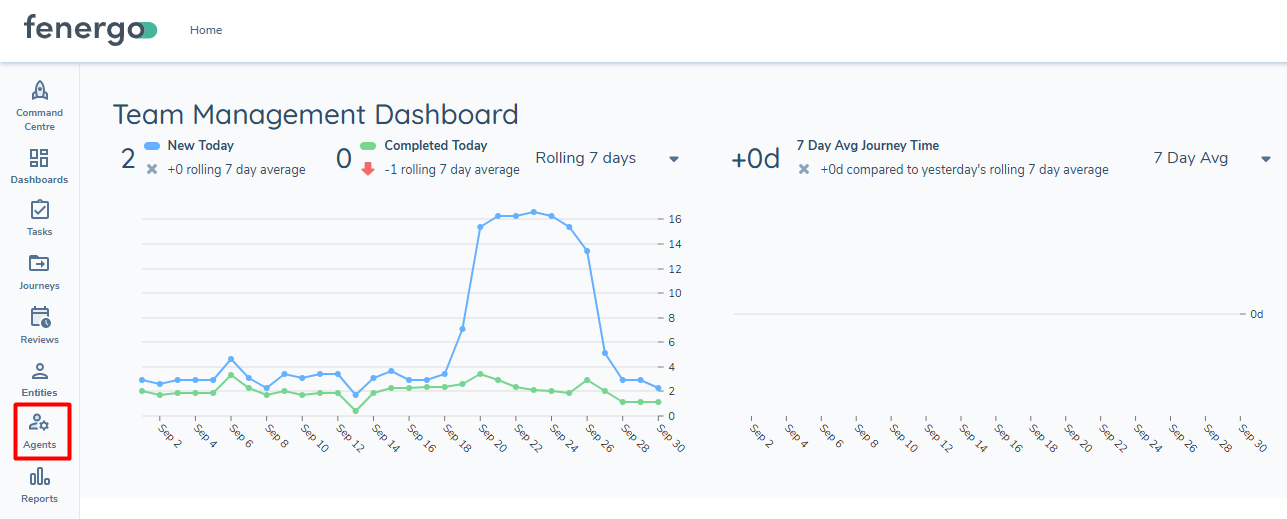
Once users have the requisite permissions, they will see the highlighted icon, granting them access to Central Agent Configuration:
In here, the user will see options to configure Agent Instances of the Screening Agent, Data Sourcing Agent or Significance Agent. In this case, a user can click into the Significance Agent to see any existing Instances, or create a net-new one by selecting "Add Instance".
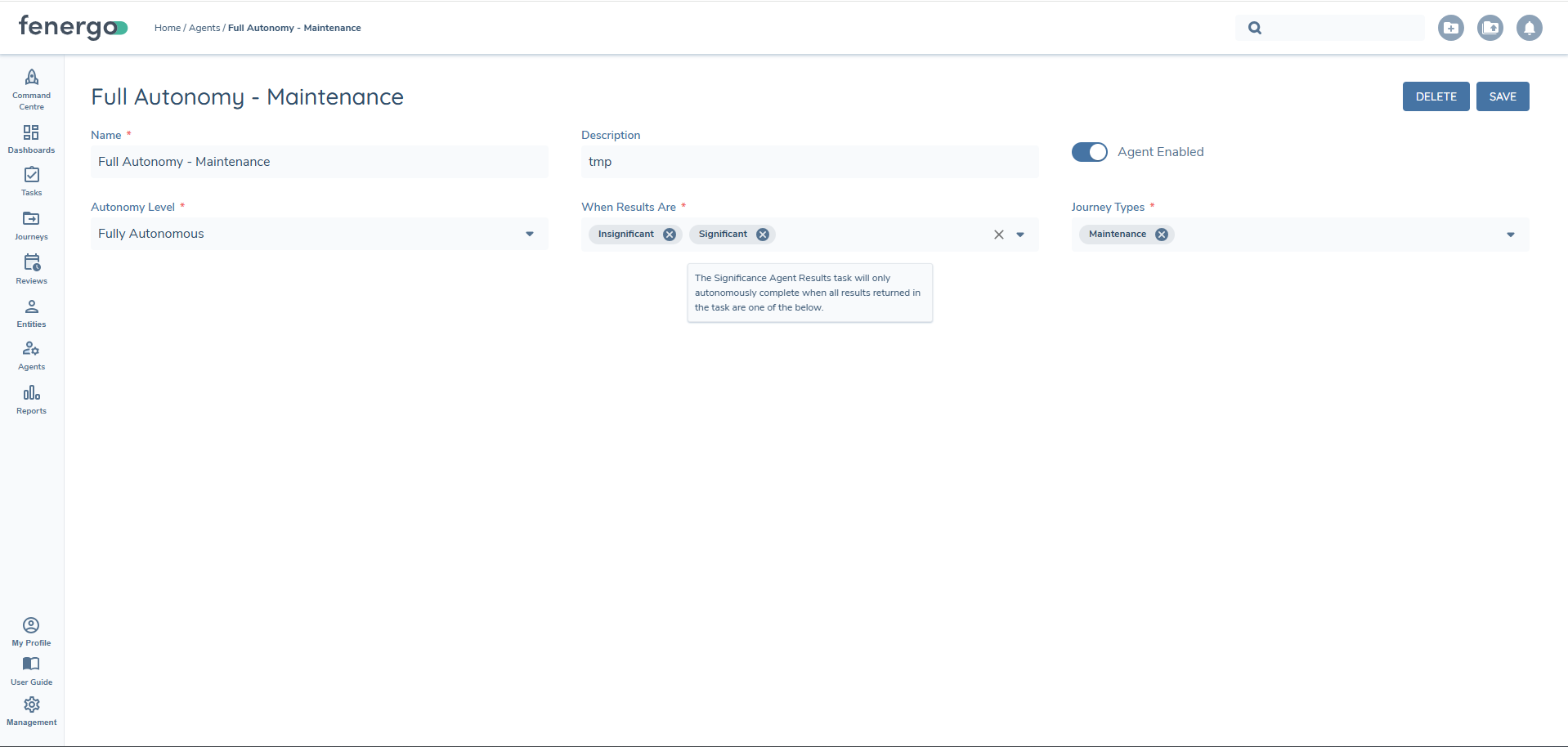
When creating an Agent Instance, the following properties must be set:
-
Name: Entering a user-defined name for the Agent.
-
Description: A brief description for illustrative purposes to capture information about the Agent for the business.
-
Agent Enabled: The active state of the Agent. Allows for an Agent to be temporarily disabled, if required, while retaining its configuration.
-
Autonomy Level: Options of "Manual", "Semi-Autonomous" or "Fully Autonomous".
-
When Results Are: This control allows control over when the Significance Agent can autocomplete the corresponding task. The options here can be a combination of "Insignificant" or "Significant". As an example, selecting "Insignificant" here would only allow the Agent to autocomplete the task if the Significance levels were "Insignificant". Any "Significant" or "Undetermined" results would require user-review & manual completion.
- This option is only required if "Fully Autonomous" was selected in the prior field. Please also note that anytime the Significance Agent returns a result of "Undetermined", the task must be manually completed.
-
Journey Types: A multi-select field, denoting in which Journey Types this Agent Instance should run in.
Writing Your Rules: Resources
For pre-written prompts, go to the Example Prompts section in this document.
This user guide does not cover everything about prompting an LLM, but here are some helpful resources:
- If you are a complete beginner, start here: Anthropic - Prompt Engineering Overview.
- Fenergo SaaS uses an LLM called Claude from Anthropic alongside AWS Bedrock to interpret and process prompts. For detailed information on Claude-specific functions, refer to the Claude documentation.
General Tips
As a configurator, here are some tips to keep in mind when writing your Significance Agent rules inside Fenergo SaaS:
- Write clear instructions and be as specific as possible to avoid misinterpretation.
- Specify the data keys you want to evaluate for significance. While the system to match UI fields to their back-end datakey in your definition (e.g. Country of Incorporation -> countryOfIncorporation) , you will experience better results when providing the datakey in your definition.
- Highlight specific changes that should be marked as “Significant” or “Insignificant.” Be sure to include all relevant permutations here, including "null" value scenarios.
- Ensure that requests in the prompt are not contradictory. Ensure that the rules are mutually exclusive where possible, and that there is a clear outcome in each scenario.
- Split complex prompts into smaller parts to reduce the likelihood of errors.
- For Data Groups, ensure that the format is written written as follows "dataRequirement.dataGroupFieldName". The Significant or Insignificant outcome is written against an individual data group field. Therefore, you need to specify in your definition the data group field that should be referenced. Examples: "address.country", "taxId.tin" or "contacts.email".
- Use consistent language throughout your definition to avoid ambiguity.
Example Prompts
Below is a guide of some out of the box prompts that can be used with significance Agent. Each prompt advises where you can replace the datakey and list of values (where appropriate) to align with your configured policy requirements.
Change in Risk Level
Use this to recognise when the risk level increases only. Decreases in the risk level can be marked as insignificant.
If the riskRating is null, "Low", or "Medium", and moves to "High" - mark that change as "Significant."
If the riskRating moves to “Low” or “Medium”, mark it as “Insignificant.”
Guidance: replace the riskRating input above with the datakey used for Risk in your tenant. Replace the values of "Low", "Medium" and "High" with your respective Risk Levels.
Country Change
Use this to detect changes against a field that captures the country of an entity, and that country's value changing. In this example, significant changes are marked as a country being selected that is not a part of the Organisation for Econominc Co-Operation and Developement (OECD)
If the countryOfOperations changes from a Country in the Organisation for Economic Co-operation and Development (OECD), to a Country that is not a part of the OECD - mark that change as "Significant".
If the countryOfOperations changes from an OECD Country to an OECD Country, mark that as "Insignificant".
If the countryOfOperations value goes from "null" to a Country in the OECD, mark that as "Insignificant".
If the countryOfOperations value goes from "null" to a Country not in the OECD, mark that as "Significant".

The OECD Countries are: "Australia", "Austria", "Belgium", "Canada", "Chile", "Colombia", "Costa Rica", "Czech Republic", "Denmark", "Estonia", "Finland", "France", "Germany", "Greece", "Hungary", "Iceland", "Ireland", "Israel", "Italy", "Japan", "Korea", "Latvia", "Lithuania", "Luxembourg", "Mexico", "Netherlands", "New Zealand", "Norway", "Poland", "Portugal", "Slovakia", "Slovenia", "Spain", "Sweden", "Switzerland", "Turkey", "United Kingdom", "United States of America".
Guidance: replace the countryOfOperations input above with the datakey used for detecting Country changes (e.g. countryOfIncorporation, nationality, countryOfResidence etc). Provide your equivalent of OECD countries in the format above.
Minor Text Field Change - Legal Entity Name Example
Use this to detect changes against fields that are likely to change when ingesting external data, such as the name of your entity, but ultimately represent the same entity in the real-world. For example, "Nike" and "Nike LTD" are likely the same customer, but naming conventions or mistyped information shouldn't be flagged as a significant change.
If legalEntityName changes value by up to four characters, mark that as "Insignificant". If it changes by more than four characters, mark that as "Significant"

If legalEntityName that contains an abbreviation changes but the rest of its legalEntityName remains unchanged - mark that change as "Insignificant".
If legalEntityName that contains an abbreviation does not change but the rest of its legalEntityName changes - mark that change as "Significant".
If legalEntityName that does not contain an abbreviation but legalEntityName now changes and includes an abbreviation - mark that change as "Significant".
If legalEntityName value goes from "null" to any value - mark that change as "Significant".

Common business abbreviations include:
"Inc.", "Ltd.", "LLC", "LLP", "PLC", "Corp.", "Co.", "GmbH", "SA", "Pty Ltd", "AG", "BV", "S.p.A.", "N.V.", "OÜ", "Sarl", "DBA", "T/A"
Guidance: replace the legalEntityName input above with any free text field that is liable to change when ingesting external data, or may change based on the user interacting with the journey. Provide your equivalent naming conventions for the common business abbreviations as needed.
Address Data Group Change - Focus on City and Country
Use this to detect changes to a record within your Address data group, where the change on the "address.city" for the record also uses the value of the "address.country" to recognise if a significant change has occurred.
For "address", return a value of "Significant" or "Insignificant" on the "address.city" field's value only for each data group record.
If the "address.country" value changes AND the "address.city" remains the same, mark the change as significant.
If the "address.country" value remains the same AND the "address.city" changes, mark the change as insignificant.
If the "address.country" value changes AND the "address.city" changes, mark the change as significant.
If the "address.country" value remains the same AND the "address.city" remains the same, mark the change as insignificant.
Guidance: replace the data group (address) or data group field name (address.city / address.country) - or both - as required. This prompt allows you to reference multiple data group fields within a record to assess the significance against a single data group field.
Contacts Data Group Change - Validate the Email Provided
Use this to detect changes to a contacts data group, where we should ensure that the "contacts.email" value for the record references the contact's first name and/or last name in some way.
If the contacts.email value does not include the values of "contacts.firstName" OR "contacts.lastName" in any way, mark that as significant.
All other changes, mark as insignificant.
Only return a "Significant" or "Insignificant" outcome for the field of contacts.email

Examples:
firstName is "Sarah", lastName is "Smith" - email is "sarah@gmail.com" = insignificant.
firstName is "Jack", lastName is "Kelly" - email is "j.kelly@gmail.com" = insignificant.
firstName is "Sarah", lastName is "Kelly" - email is "jack.smith@gmail.com" = significant.
Guidance: replace the data group (contacts) or data group field name (contacts.email / contacts.firstName / contacts.lastName) - or both - as required. This prompt allows you to reference multiple data group fields within a record to assess the significance against a single data group field.
Account Status Change
Use this to trigger the appropriate processes in your journeys, based on an entity's account status changing. In this example, the only concerning change would be a client's account status moving to "Suspended" or "Closed". Any other changes are inconsequential.
If the accountStatus changes from "Active" to "Suspended or "Closed, classify it as significant. Mark all other changes as insignificant."
Guidance: replace the "accountStatus" datakey with any other datakey of your choosing. This prompt is more singular, where we are only concerned with "Active" moving to either "Suspended" or "Closed".