How to Use the Fenergo SaaS Platform User Interface
The user interface of the Fenergo SaaS platform is designed to be as user-friendly and intuitive as possible. This is an area of ongoing development, and the Fenergo UI team will continue to refine and improve the UI as we continue to invest in and develop the platform. However, there are some core principles and use cases at the heart of the platform. This document will explore those to provide some insights into how they work and how users can interact with them.
Basic Principles of the UI
Cutting-Edge Web Technology
We've constructed the Fenergo User Interface using the finest modern web technology. Web-based applications have significantly evolved in recent years, to the point where they are virtually indistinguishable from their desktop counterparts in terms of functionality. Our platform employs technologies such as REACT and Javascript to deliver a Single Page Application where users can navigate without the feeling of waiting for separate web pages to load.
Asynchronous Requests
The pages on the Fenergo SaaS platform make background requests for data, which is then displayed on the UI once the data is retrieved. You'll often hear the Fenergo SaaS platform described as API First. This means that the functionality is initially created and offered as APIs. Our UI then acts as a lightweight wrapper around these APIs. If you were to inspect the network traffic behind a browser logged onto the Fenergo UI, you would see all the API calls being made to various functional domains to retrieve and set data.
Responsive Design
All the UI elements of the Fenergo platform are designed to be responsive. There was a time when web developers had to target very specific screen sizes and resolutions and could only offer an optimal user experience to users with those specific screen sizes. This was fine in a world where most people worked on a 15" monitor with a standard resolution, but the advent of mobile devices and better hardware has changed this. Instead of trying to set a standard that users need to meet, modern web platforms should adapt to the devices a user has at hand. So, responsive design allows the page to automatically adjust itself to the user's device.
The Fenergo SaaS platform conveys details that can often involve complex operational process flows. We recommend using a desktop-sized window for the best experience. Especially for configuration, the visualizations work better on a larger screen.
UI Components
Drawers
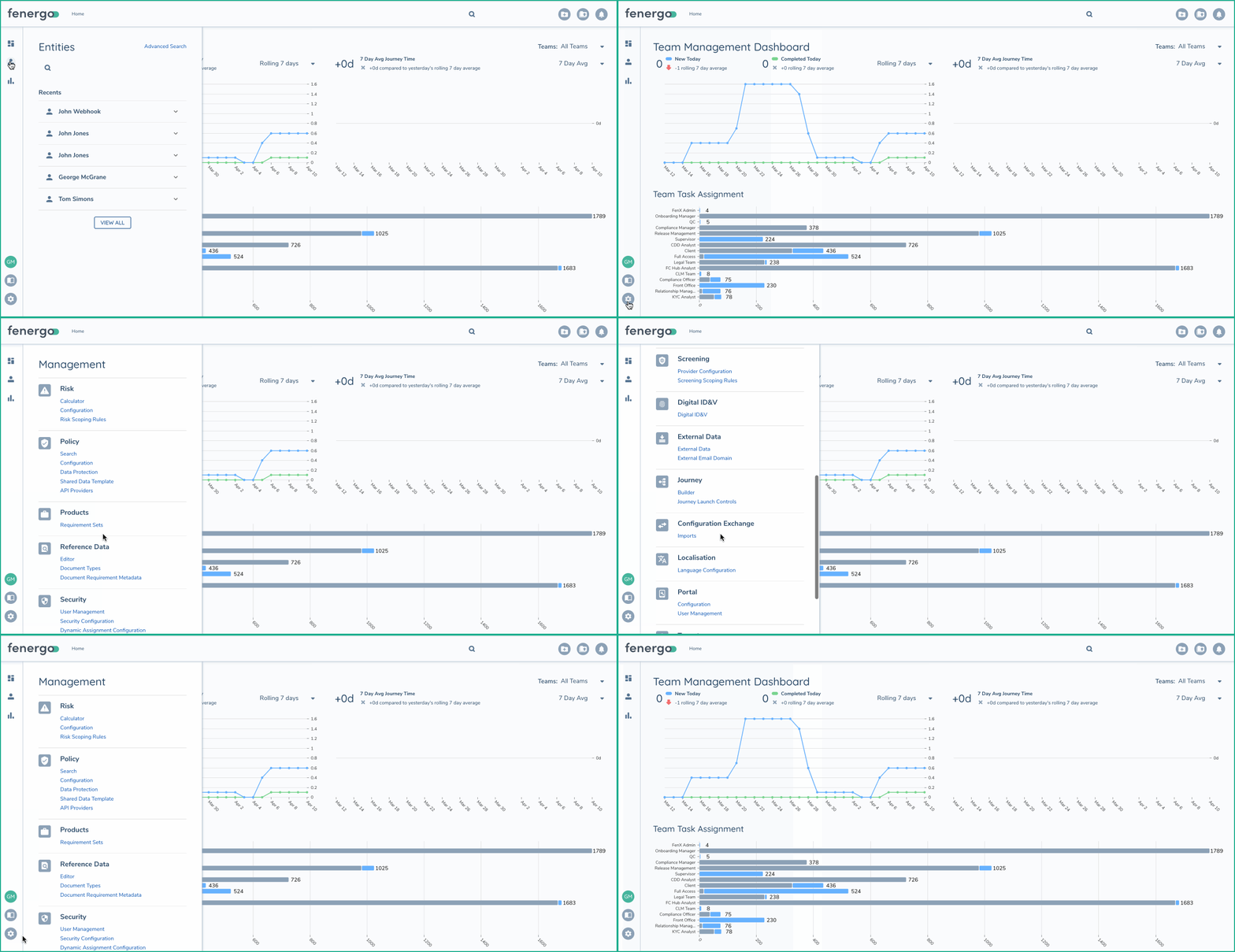
On the left side of the screen, we have various buttons and actions hidden in a drawer menu. When a button is selected, as illustrated below, the menu will appear as an overlay on the screen, allowing users to make a selection. We will refer to this menu throughout the documentation as a starting point for accessing the configuration or other functional areas of the platform. This sidebar drawer is what we're referring to.
Loading Animation
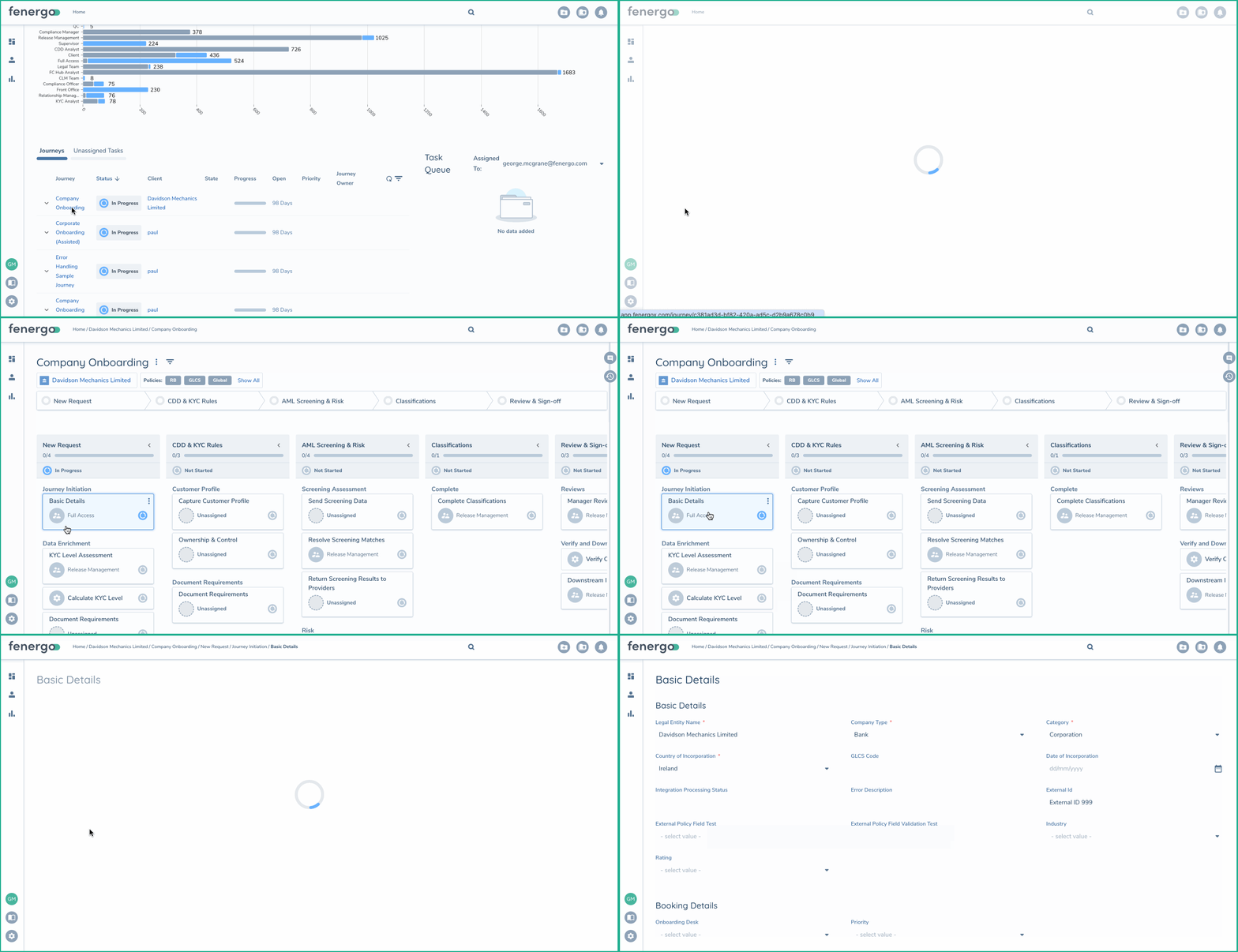
While you navigate from one screen to another, or as a screen is loading, the platform will show a loading animation across the entire page. None of the UI controls are available while this is displayed. Behind the scenes, API calls are retrieving data from various domains to display to the user. This is not indicative of a single page load time. Instead, there could be multiple APIs that the UI application has requested based on the choices made by the user. For example, a user selects a Journey from the home page and once loaded, then selects a task within that journey. The circular loading animation displays between these actions.
Pop Up Dialog Box
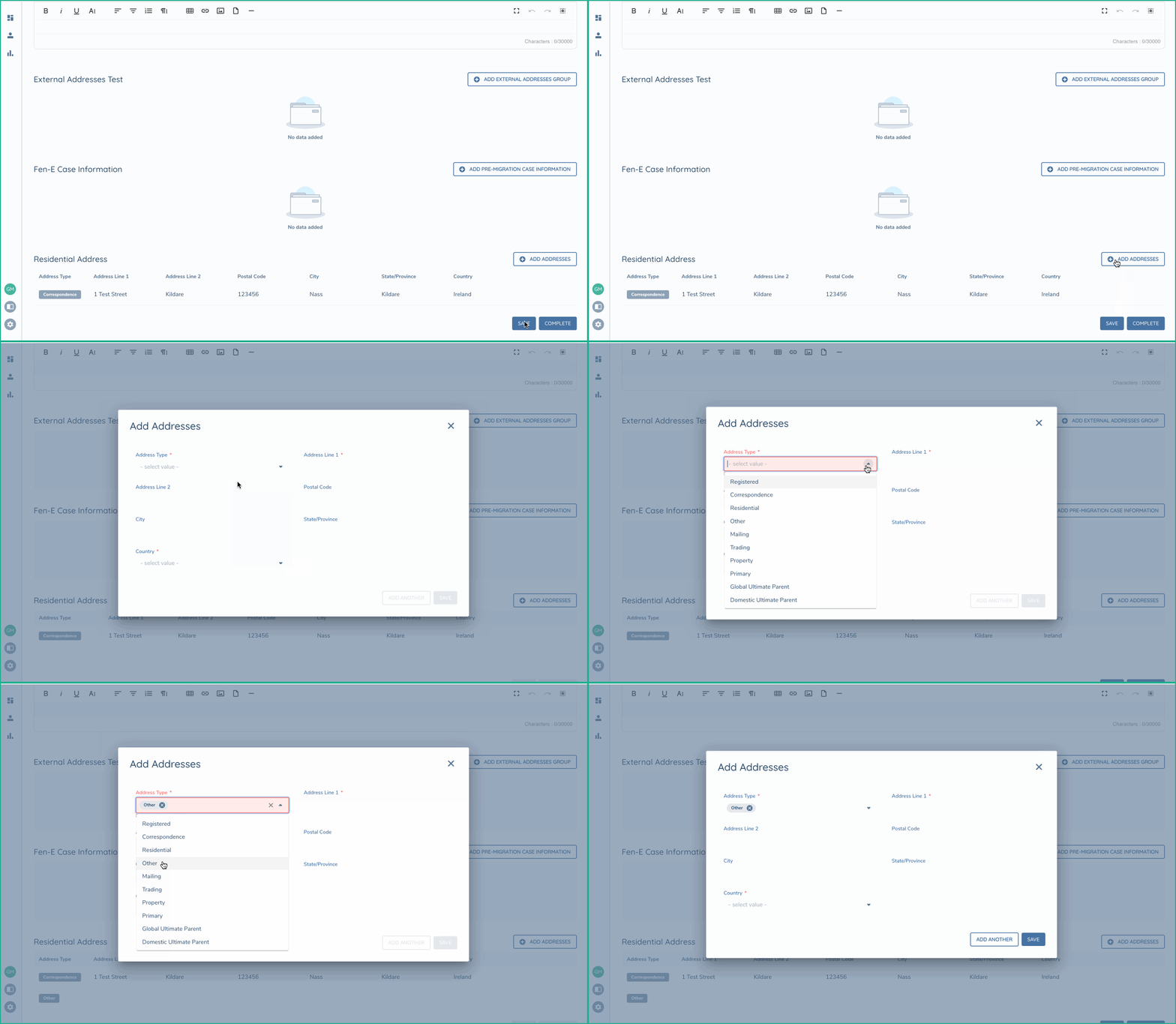
Some features require explicit and focused attention while capturing data in the UI. An example of this is the Address data group. When adding an address, a pop-up dialog box overlays the entire UI to ensure the data is captured correctly. The background is greyed out and inaccessible until the dialog is closed. This pattern is used throughout the UI to focus on specific actions within a task. You will see it for all data groups and other areas like related party and hierarchy management.
Drag and Drop
As part of the requirements gathering functionality, we offer a feature that allows users to drag and drop documents from a folder on their computer directly onto the webpage. Once the documents are dropped, a dialog box will automatically appear, allowing the documents to be categorized according to the actual requirements. This feature makes it easy for users to upload and categorize documents, enhancing the overall user experience.
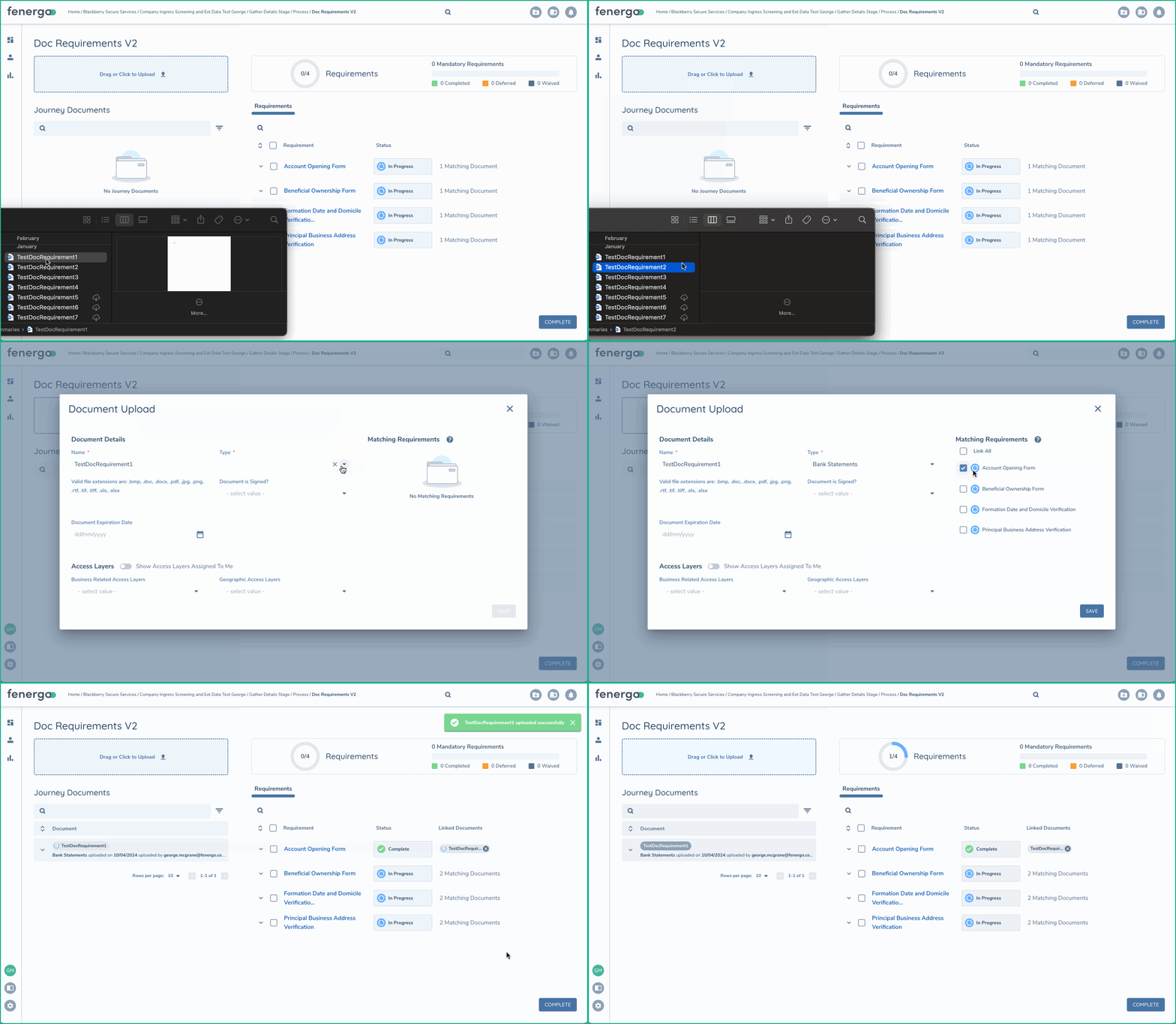

Fenergo has made significant investments in this area to simplify the process of fulfilling document requirements. Building on the UI functionality mentioned above, a STATIC LLM model is used to automatically classify the documents uploaded against the requirements for a Legal Entity. This means that when you upload a document, the system can automatically determine which requirement the document fulfills, streamlining the process and saving you time.
Rich Text Fields
You have the ability to configure one or more rich text fields on your policy (data model) and interact with them within tasks. You can paste content into these fields from popular desktop programs like Word, Excel, or Emails, and the original formatting will be preserved. This feature allows you to work with rich content alongside your Legal Entity Record. The content in these fields will be saved along with the data being saved against the legal entity.
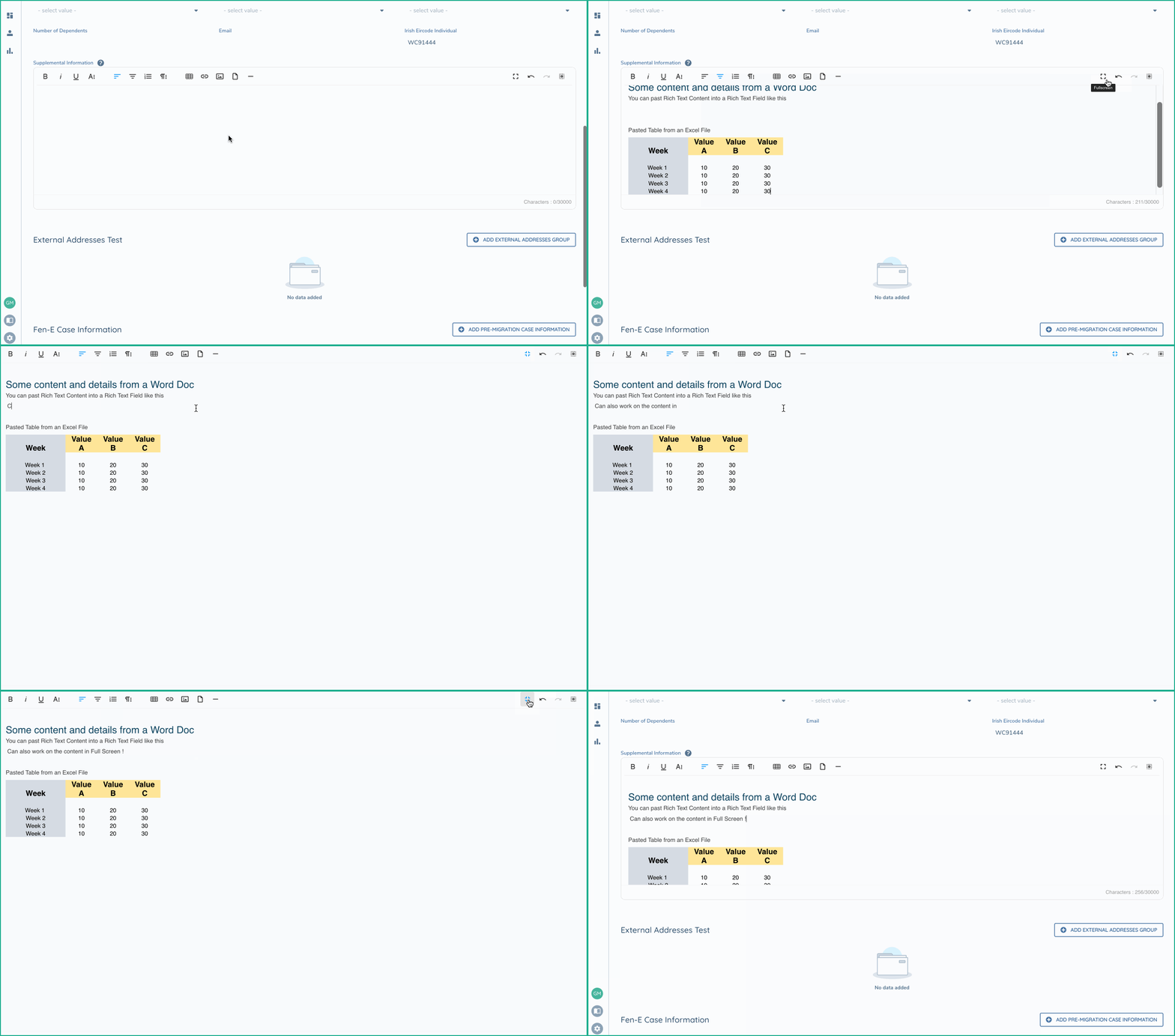
The Rich Text Content is not saved within the LE Record, instead, it is saved as a separate object and rendered in the UI alongside the LE Record.