Related Party Adapted Experience
The Related Party Adapted Experience helps streamline the sometimes complex process of related party management. The existing task incorporates multiple aspects of this process, such as building the hierarchy, data and document capture and ID&V evaluation, which can become challenging with larger hierarchies. The Related Party Adapted Experience separates the building of the hierarchy and the additional data and document capture into distinct functions with the introduction of the Hierarchy Capture task & the Related Party Data & Documents task. This user guide covers the functionality which is applicable to and introduced by these tasks.
Hierarchy Capture Task
The Hierarchy capture task will be where the building of the hierarchy will occur, guided by the unwrapping rules. This new task is to replace the existing Related parties task. The task displays all previously verified relationships and any new relationships created during the journey in a structured grid format.
Related Parties Table
The main client in context of the journey is always the first entry in the table, followed below by other entities which are either directly or indirectly associated to the main client. The grid displays the hierarchy of the client from a top-down perspective which the main client at the top i.e. if the main client has a shareholder, the entity which is the shareholder will be presented in the grid, however if the main client is a shareholder of another entity, the entity which has the main client as a shareholder will not be presented in the grid. Where there are sub-relationships between entities in the grid, the row will be expandable/collapsible to show/hide these relationships. In the top-right corner the expand/collapse all button allows all rows in the grid to expand or collapse with one click.
The table displays:
- The entity name - This is retrieved from the field with datakey "legalEntityName"
- An icon to distinguish an Individual from a Company or Other entity type Clicking on this icon will navigate you to the Entity Profile page for that entity
- Additional Chips E.g. Client, UBO
- Agent action - this column only displays when the agent has performed some action on the task ie. Data extraction from documents
- Relationships - Displays the relationship type of the related party entity. If an entity has multiple types of relationships, all relationships will be listed here
- The Ownership column will display the calculated proportional ownership for each entity in relation to the main client in context.
- The bulk action to the left of the table row allows for the selection of more than one entity.
For each row in the grid there are a set of icons which allow you to perform actions in relation to the related parties listed:

- The plus icon to add new relationships
- The pencil icon to edit existing relationships
- The bin icon to delete relationships

Ownership & Control Requirements
When the Hierarchy Capture task has been triggered within an active journey, where Unwrapping validation rules have been configured then those rules in-scope will be displayed in the 'Required related parties' table to the right of the related parties table. This will guide the user on how to ensure they are meeting policy requirements for determining the key entities and individuals who have ownership of or control over the client being vetted in the journey. This panel will be overlayed by the edit related party panel when a related party is selected from the related party table.
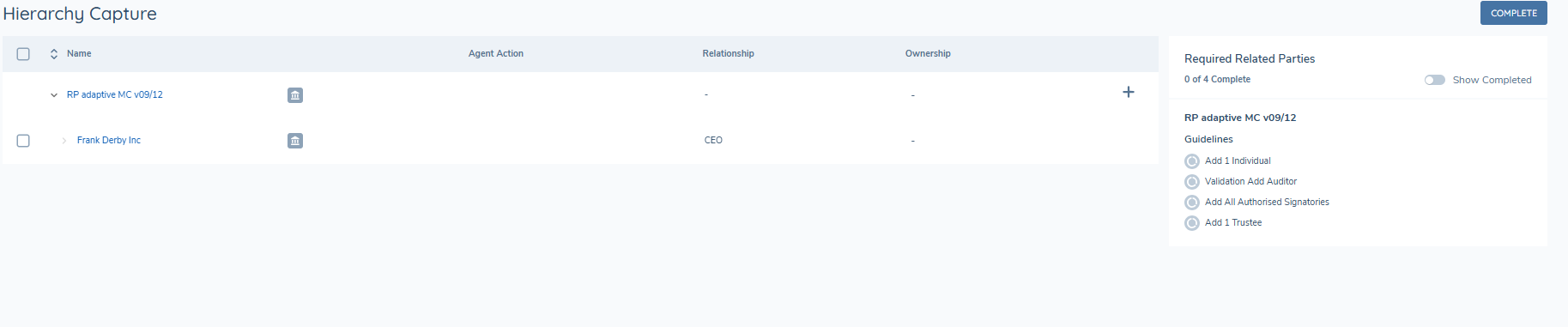
The requirements that are displayed can be configured in Policy and will be triggered based on the Categories assigned to the task in Journey Builder. If there are no in scope O&C requirements, you will not see the 'Required Related Parties' table.
There are two groupings of requirements, mandatory requirements will appear beneath the 'Required' heading, whilst optional requirements will appear beneath the 'Guidelines' heading.

Types of Requirement Chips
In the Related Parties task we will present the following types of requirement:
1. Manually Attested If the requirement has been configured with the Add All validation enabled, the requirement will include a toggle switch where the user must manually toggle this switch on in order to confirm that the requirement has been met. This is because these requirements will be open-ended where the system will not be able to determine when 'all' relevant parties have been added because 'all' is not definitive and therefore not calculable. If the requirement is configured with a Minimum Count enabled AND Add All enabled, then the user will be presented with an red error icon if they attempt to set the requirement as complete without meeting the parameters set out in the requirement. When the user toggles the requirement as complete, it will turn green.
2. Calculated requirements If the requirement has been configured with the Minimum Count validation enabled AND Add All validation disabled, the system will evaluate the hierarchy with each refresh and determine whether the parameters as set out in the requirement in Policy have been met. If yes, the requirement will turn green and be set to complete.
3. Guideline requirements If the requirement has been configured as optional then the system can calculate completeness but the user is not required to satisfy these requirements, they are just there to be captured where relevant.

Requirements will have their count maintained at the top of the table to track progress. Each triggered validation will have a status icon which will reflect whether the requirement has been met or not, this will be indicated by the green 'Complete' icon when the requirement is met, or by a white circle icon when the requirement is outstanding. You will also have the option to hide completed requirements by toggling on the 'Show completed' toggle, this will be on by default.

Adding New Related Parties
Related parties can be added to any entity in the table by click on the + icon against the entity you want to add a related party to, the standard entity types are supported:
- Individual
- Company
- Other
A panel will open up to the right of the window where you will be prompted to fill in the Related Party Search Criteria. This will define what the system uses to search for an existing entity and this category must be defined in policy. Beneath the Search Criteria the Relationship category will be displayed where you can select the type(s) of relationship that apply between the two entities you would like to associate. You may select multiple types at once if you wish, and as per policy configuration, additional metadata fields relevant to the relationship types selected will appear in this section.
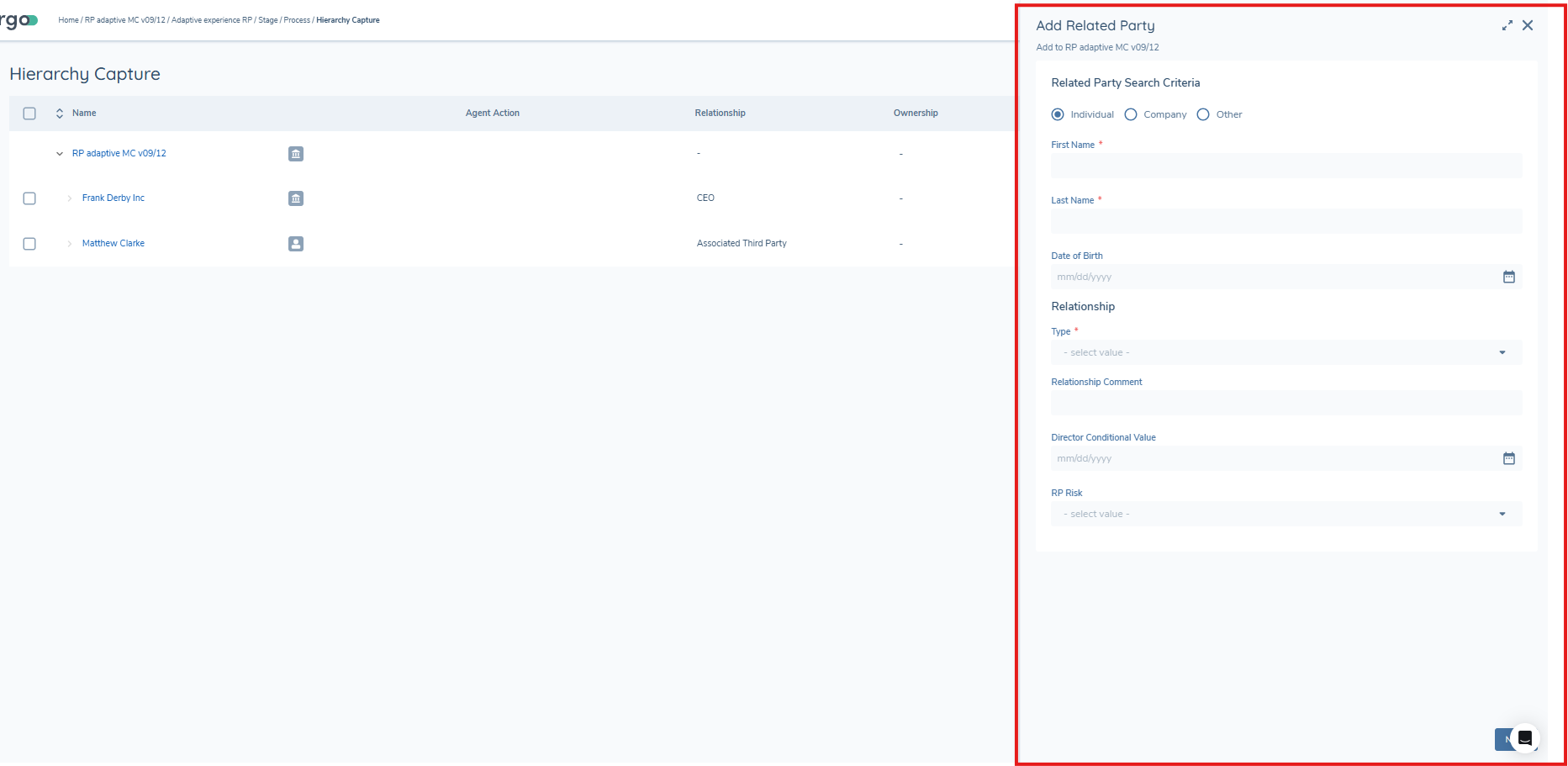
Once the mandatory search criteria has been populated, clicking NEXT will perform a search of the details captured. This task includes the ability to search within Fenergo, and if configured, also to search within an external data source.
Fenergo Duplicate Search
The first search that is run is the Fenergo duplicate check and if the search results return details which match the entity with which you would like to associate, you may choose to link to the selected existing entity or create a new entity.
When the entity in journey is an entity group, it is possible to restrict the entity search to only return matches from within the entity group members. Once the option is enabled in the Hierarchy Capture task in Journey Builder, users will only have the ability to create associations for the entity group to entities that are a verified member of the group.
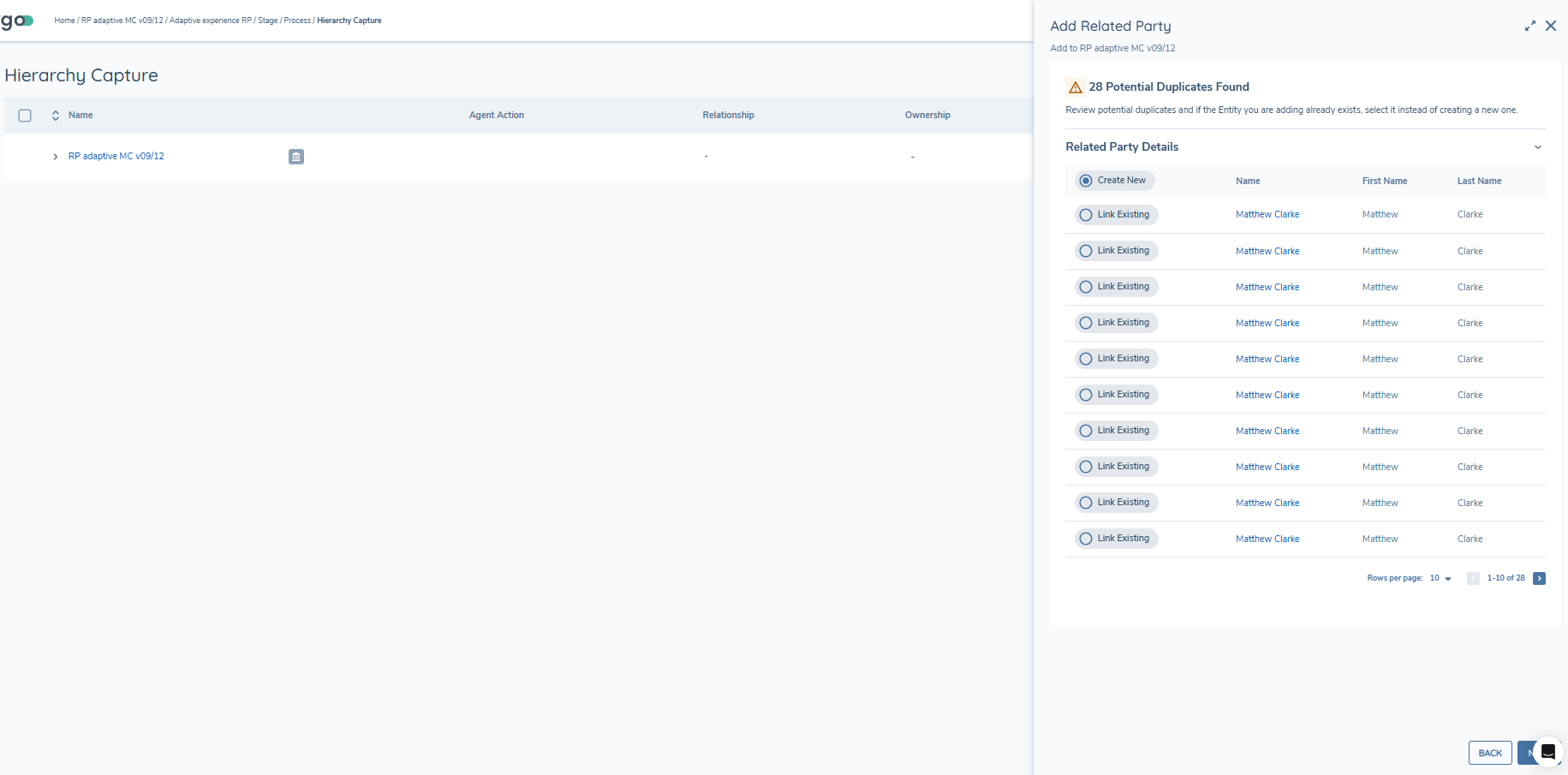
Where data groups have been configured as search scope on the task, additional input fields will appear in the search panel enabling you to search by key identifiers such as Address Details or Tax Identifiers without leaving the journey. Please see the Related Party Management guide for further detail on configuration.
External Data Source Duplicate Search
If configured, the second search that is run is the external data source duplicate check. This will run if you either gets no results in the Fenergo duplicate search and continue, or if the you choose to Create New after the Fenergo duplicate search has returned results. Similar to the Fenergo duplicate search, if the search results return details which match the entity which you would like to associate, you may choose to import this entity from the external source or create a new entity.
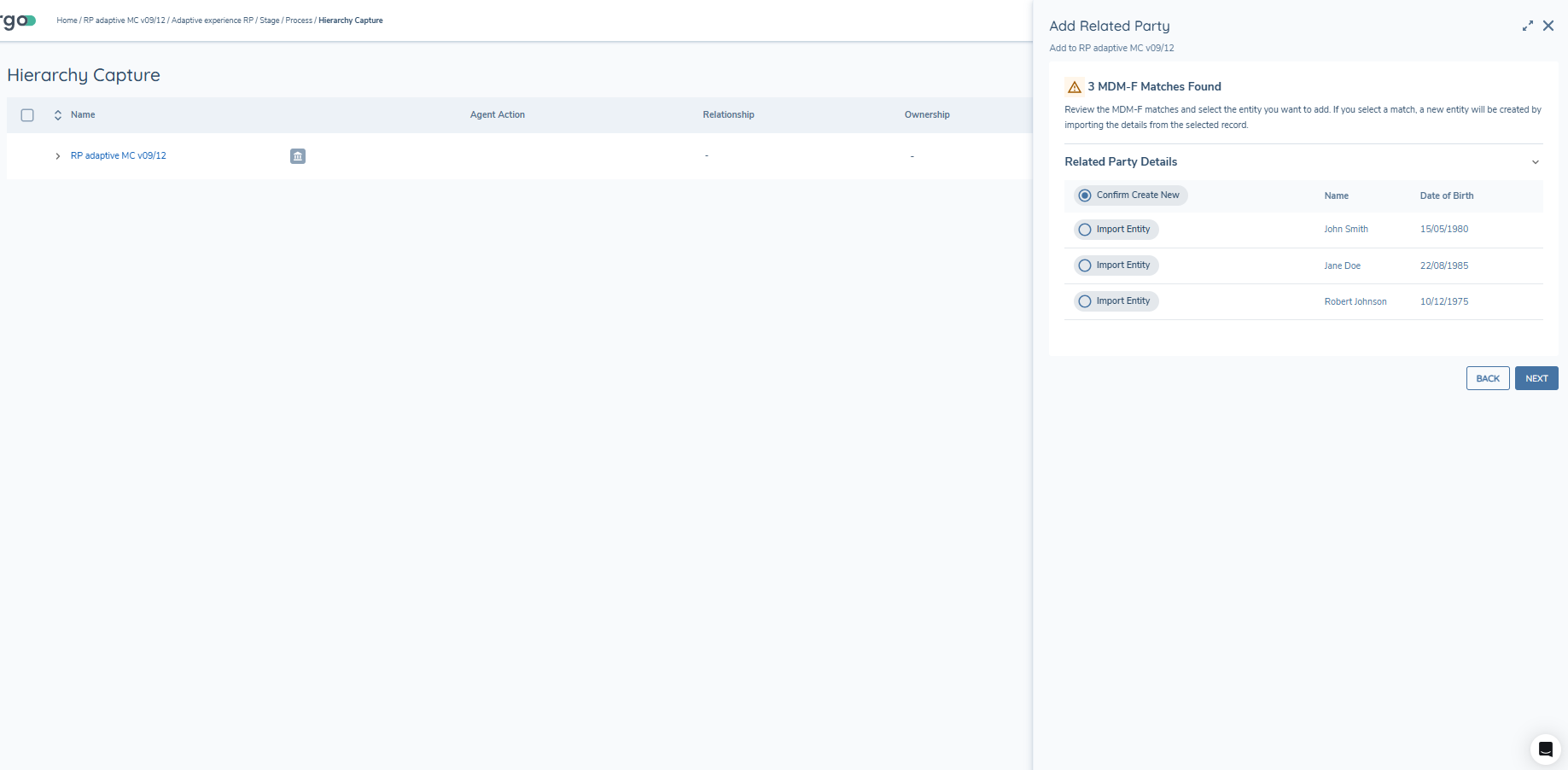
Related party Details
Once you have completed the required search(es) you will be brought to the 'Add Related Party' screen. From here the user can complete/edit additional data points & data groups where applicable. All mandatory requirements must be completed before the related party can be created or linked to the hierarchy. The details for capture at this point are determined by the categories configured on the task in Journey Builder.
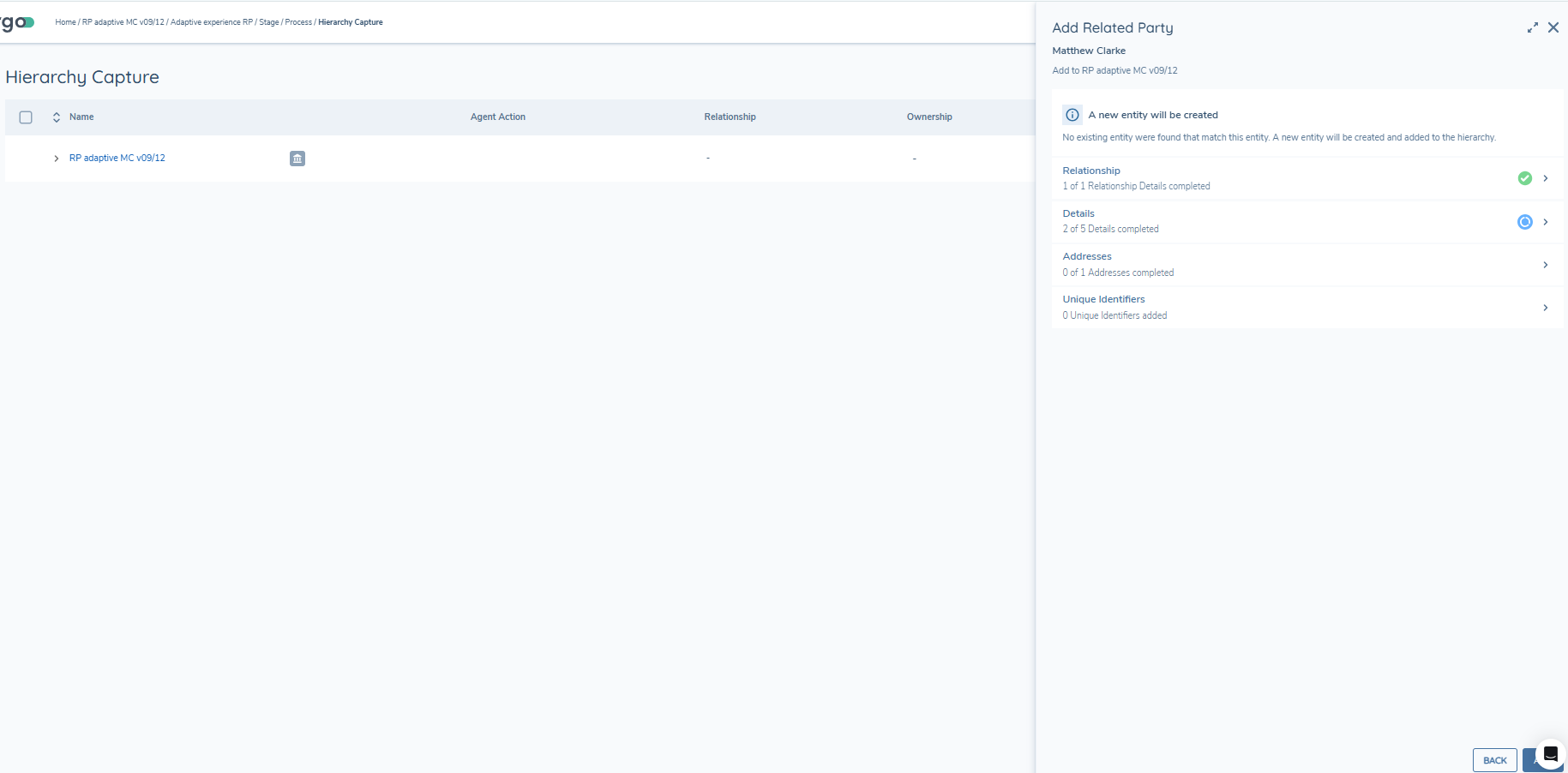
Editing Related Parties
Once a related party has been created, it is possible to edit/update the information for the related party. It is at this point that the user can:
- Update the Relationship details
- Update the Related party details
- Update any additionally configured policy categories
- Update datagroups
- Upload documentation
In order to edit a related party, click on the pencil icon which will open the Edit panel or alternatively click on the entity name in the Related Parties grid. Once changes have been made, click Save in order to store the changes made or click X to close the modal without saving any changes.
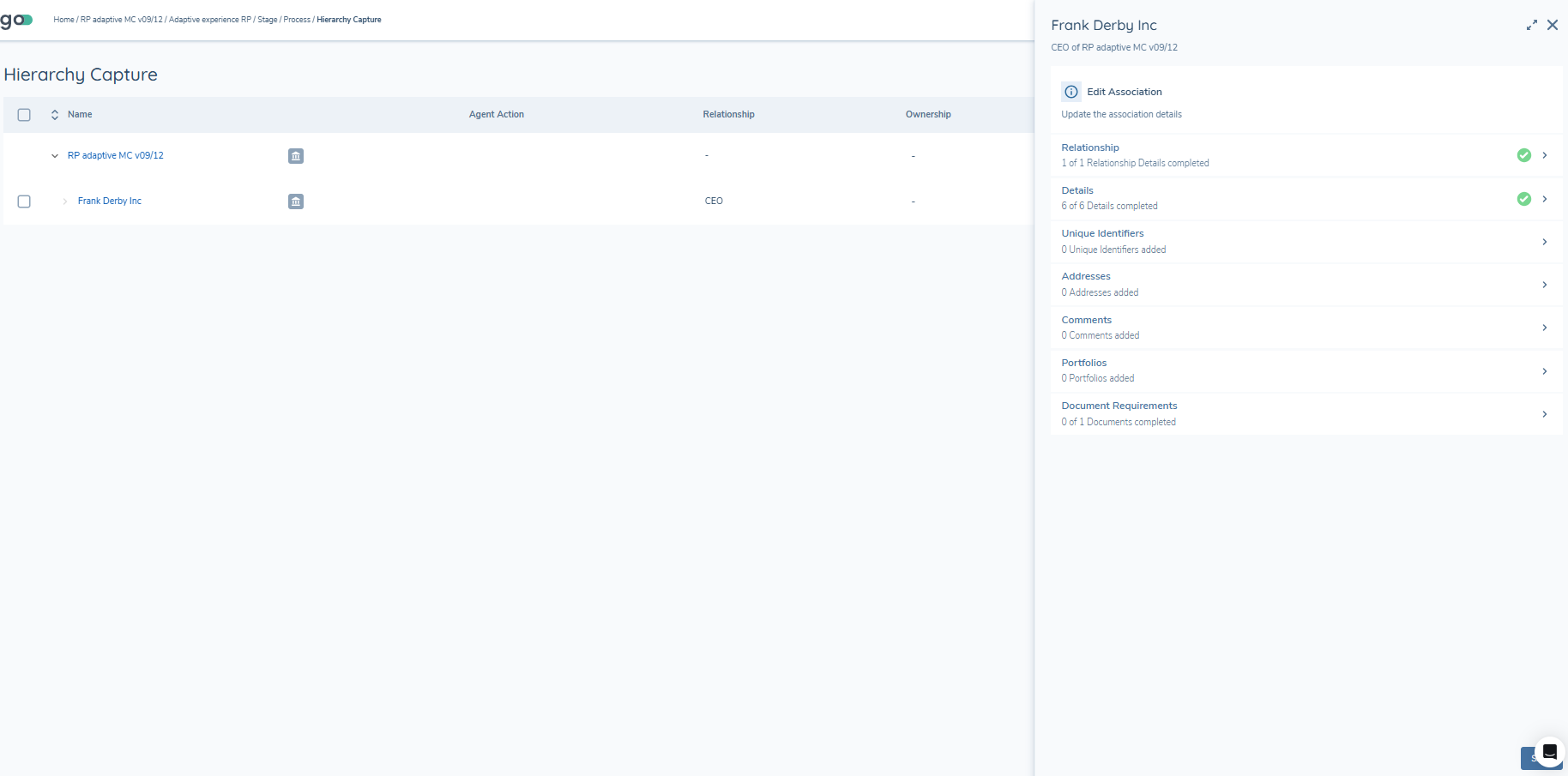
There are some points worth noting when it comes to editing relationships. In the background there is a subtle distinction between editing draft relationships versus verified relationships, whereas from a user perspective the pattern and process of editing is identical for both.
When editing a draft relationship i.e. a relationship which has been created within the current journey, e.g. adjusting the Ownership Percentage from 50% to 25% for a Shareholder, the change is made directly to the draft relationship.
When editing a verified relationship i.e. a relationship which was established and approved in another journey, a new draft relationship is created in the journey which will supercede the existing verified relationship.
Deleting Relationships
Relationships which have been established can be deleted in two ways.
1. By clicking on the bin icon on the associations grid This method will delete ALL draft associations between the two entities. You will be presented with a dialogue box to confirm your choice.
2. By clicking the pencil icon and opening the panel You can remove any selections in the Relationship Type field and click save – this method will delete any draft associations that have been de-selected. If all selections are removed, you will be presented with a dialogue box to confirm your choice.
Note: When deleting a verified association in a journey, it is initially flagged as being marked for deletion, and is only fully deleted once it is verified.
Bulk Deleting Relationships
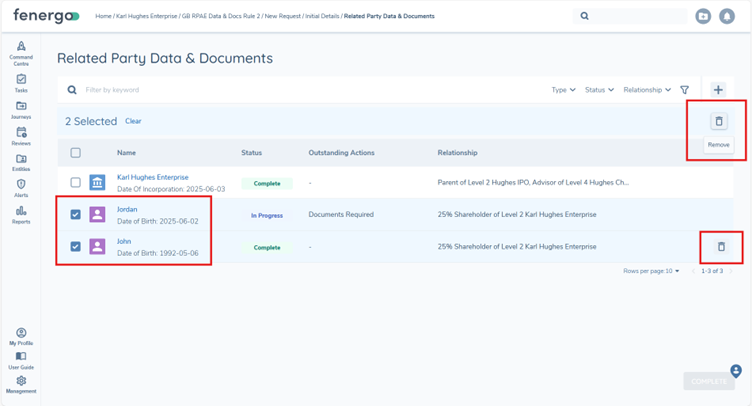
Within the Hierarchy Capture task in Fenergo, users also have the ability to delete multiple associations from the hierarchy in one action using the bulk delete option. Once the correct permissions are granted, upon viewing the hierarchy checkboxes are displayed to the left of each associated entity - excluding the root entity (the entity in journey), which cannot be deleted. Users can select one or more entities by ticking these checkboxes. Once a selection is made, a header appears at the top of the hierarchy grid displaying the number of entities selected. On the right-hand side of this header, a delete icon becomes available.
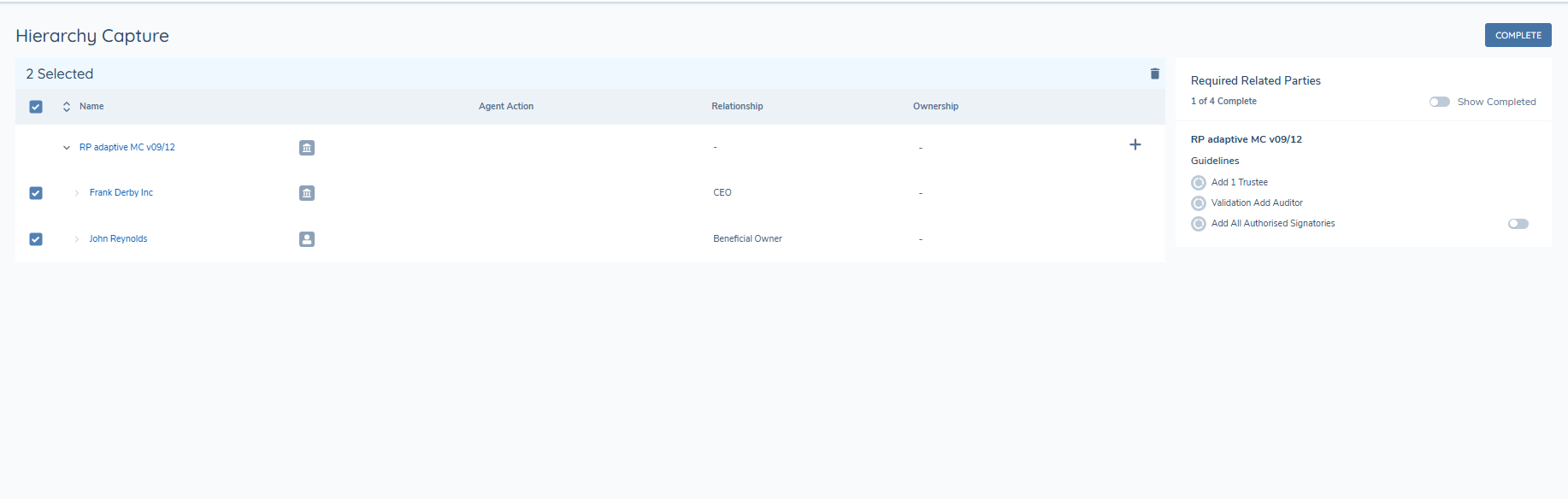
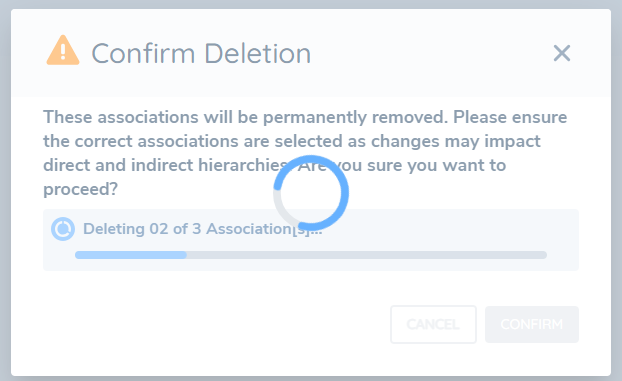
Clicking the delete icon triggers a confirmation modal. The modal displays a message informing the user that the selected associations will be permanently removed, and it highlights that these changes may affect both direct and indirect hierarchies. The modal clearly indicates the number of selected entities. Users can then confirm or cancel the deletion. Clicking Confirm removes the selected entities from the hierarchy in the UI and initiates the deletion process.
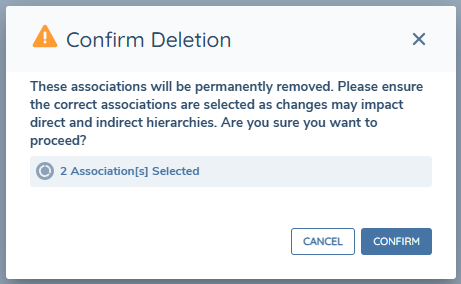
Upon confirmation, a progress modal is displayed to show the status of the bulk deletion. This modal provides feedback as each association is processed sequentially. A spinner or loading indicator is shown, and the UI updates in real time to reflect successful or failed deletions. If the page is manually refreshed during this process, the deletion operation may be interrupted.
Note: Similar to the individual deletion of associations, the actual bulk deletion of the associations takes effect upon completion of the Verify Related Party Associations V2 task.
To use the bulk delete functionality, users must have either the Association Delete or Association Edit & Delete permission. If neither of these permissions are granted, the bulk delete checkboxes and delete action will not be visible or accessible.
Selecting Ultimate Beneficial Owners (UBOs)
When editing relationships, it is possible to indicate and flag which related parties are deemed to be Ultimate Beneficial Owners of the main client in the context of the current journey. This is done by selecting the Ultimate Beneficial Owner chceckbox, which appears within the 'Relationship' section if the Entity Type is Individual, and then clicking Save.
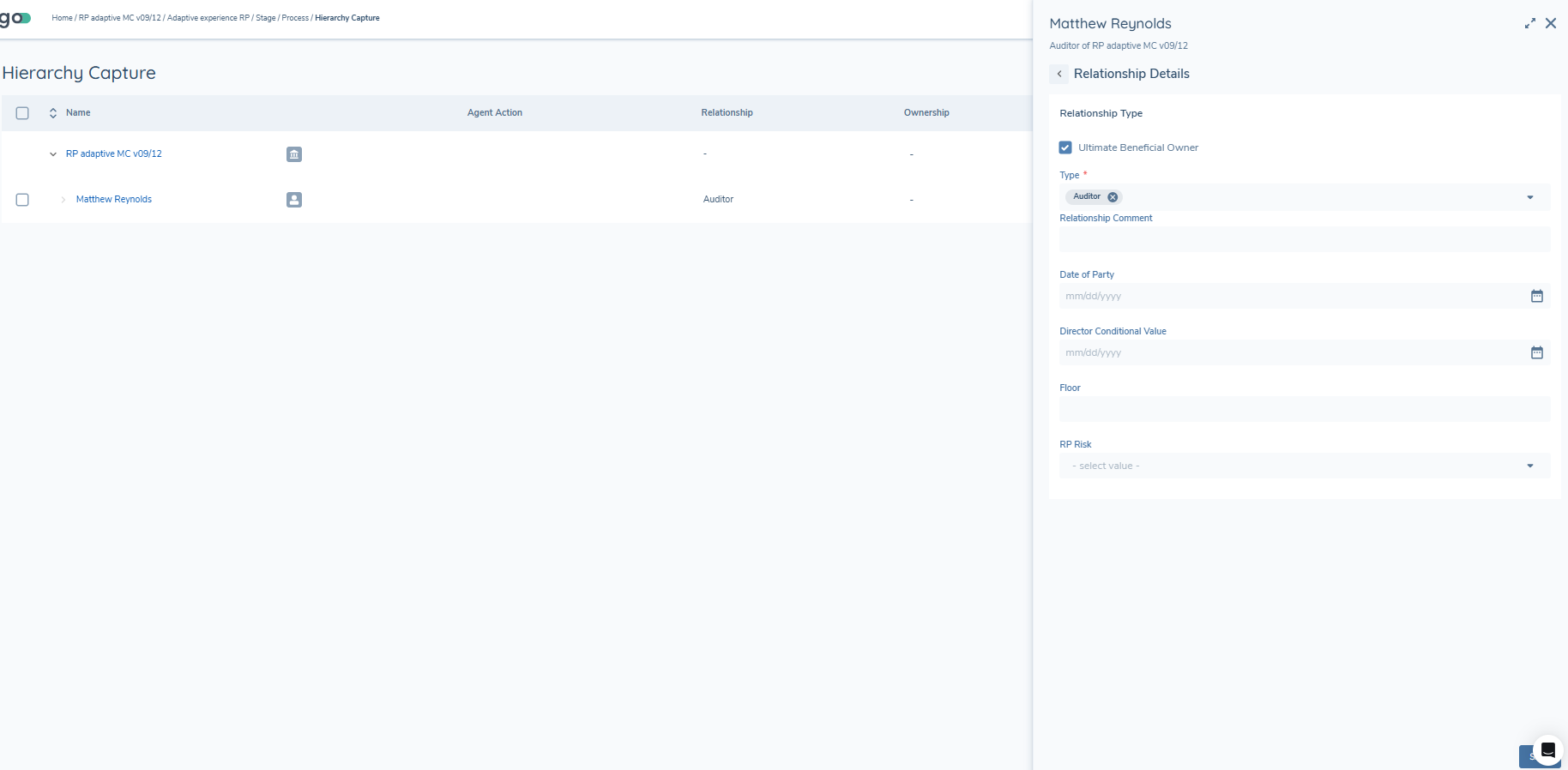
Note: The checkbox is only available to select after a related party entity has been created or linked in the Related Party Details panel. Once a related party has been flagged as a UBO, in the background, a direct association is created between the main client and the related party with relationship type of UBO. In the Related Parties table a UBO chip will appear against the related party in all of the rows.

If a related party has been flagged as a UBO already, if you are re-selecting the same related party to create a new relationship between another entity in the hierarchy, the UBO checkbox will be enabled automatically as soon as you link to that entity. Unchecking the UBO checkbox at this point will result in the related party no longer being flagged as a UBO.
Note: Flagging a related party as a UBO is only done in the context of the related party and the main client in the current journey. For example, in the above screenshot Matthew Reynolds has been flagged as a UBO of RP adaptive MC and assume this relationship has been verified. If RP adaptive MC was added as a Shareholder of a new client, the user would have to manually flag Matthew Reynolds as a UBO of the new client (if that was correct and appropriate).
Related Party Documents
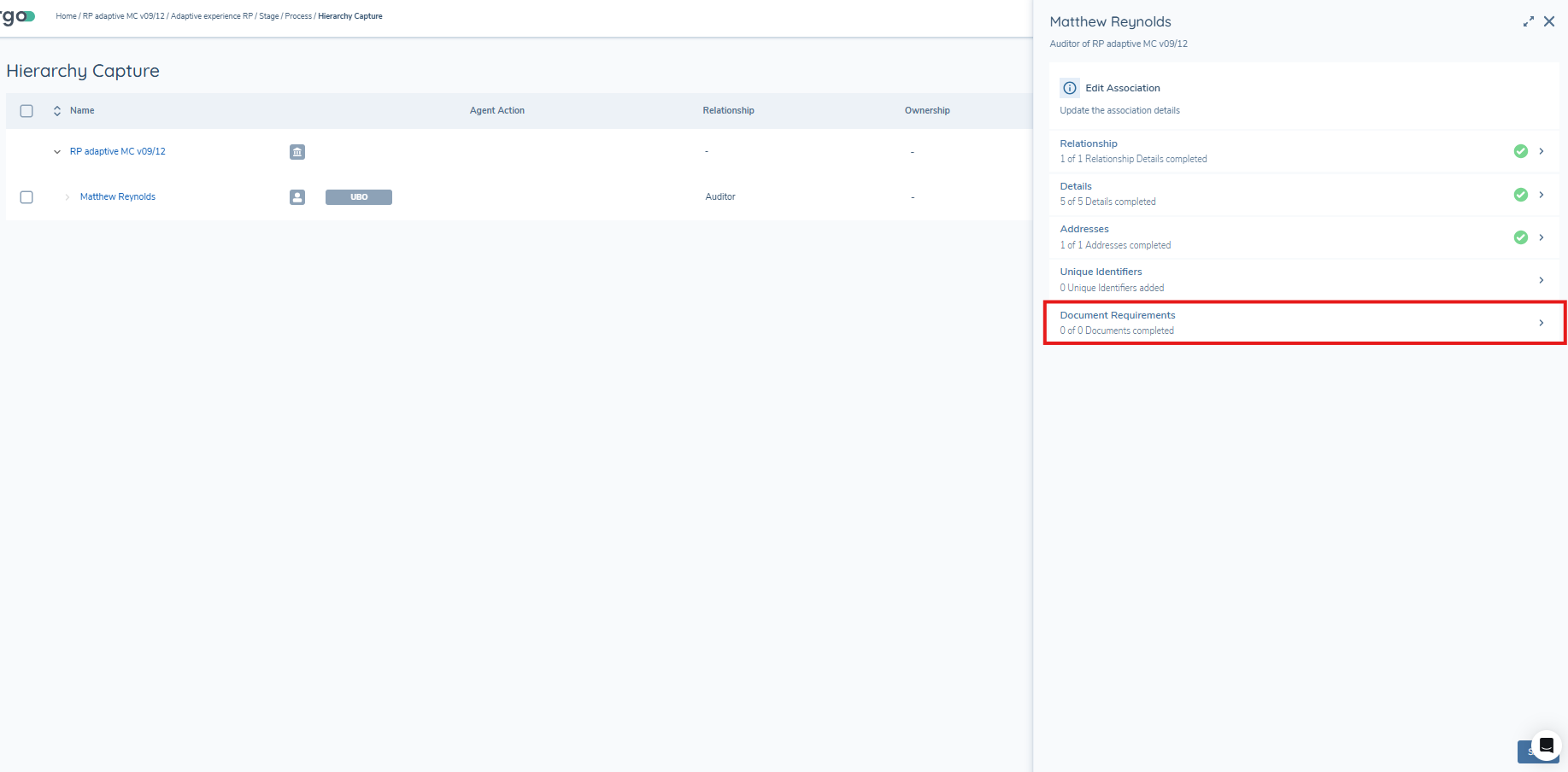
Once a related party has been linked or a new related party entity has been created, the Documents component will become visible and available when editing a related party. In the document grid, any document requirement with a policy category which corresponds to a policy category configured against the task AND a Target Entity of Related Party will be displayed.
This allows a user to upload documents against the related party which satisfy requirements such as proof of identity and proof of address. Document requirements can be configured in policy, and the component itself comes with all of the existing functionality that is available in any document upload task (V2), for example, a user may upload a document against multiple requirements, drag and drop documents, set a status against requirements and defer or waive requirements.
Related Party Document Persistence
Once enabled in the Hierarchy Capture task in Journey Builder, Related Party documents can persist from one journey to another.
The functionality for Related Party Document Persistence works the same as for client entities. This means that where a Document Requirement is configured for a client onboarding, and a Document Requirement is configured for a Related Party onboarding, when both requirements have the same Document Datakey then Document Persistence will apply when the requirement has been satisfied with Document Persistence enabled. Matching Document Datakeys are the driving factor, resulting in persistence of documents from client to related party, or vice versa.
It is important to note that Document Persistence for Related Parties will apply to direct associations only, and will only apply to Related Parties that are already in the hierarchy when the task becomes 'In Progress'.
Similar to the Documents task, Related Party Document Persistence will run when the Hierarchy Capture task is initialised, that is, moves to an 'In Progress' state. Should the task be reopened, the persistence rules will run again. This would mean that any documents that had been unlinked would become linked again, and any entity that was a new addition hierarchy when the task was first completed would have persistence applied, meaning additional documents could persist upon task re-open. Please see the Document Management Datakeys & Document Persistence guide for further information.
Documents for Related Parties that should persist from the current journey to subsequent journeys are collated on journey completion. It is important to note that documents will only persist for related parties from journeys that were completed around the time that the feature was enabled. The only exception to this is potentially documents that were uploaded in the context of the related party being a client, where the document requirements in the context of a client and related party share the same datakey.
Calculated Ownership
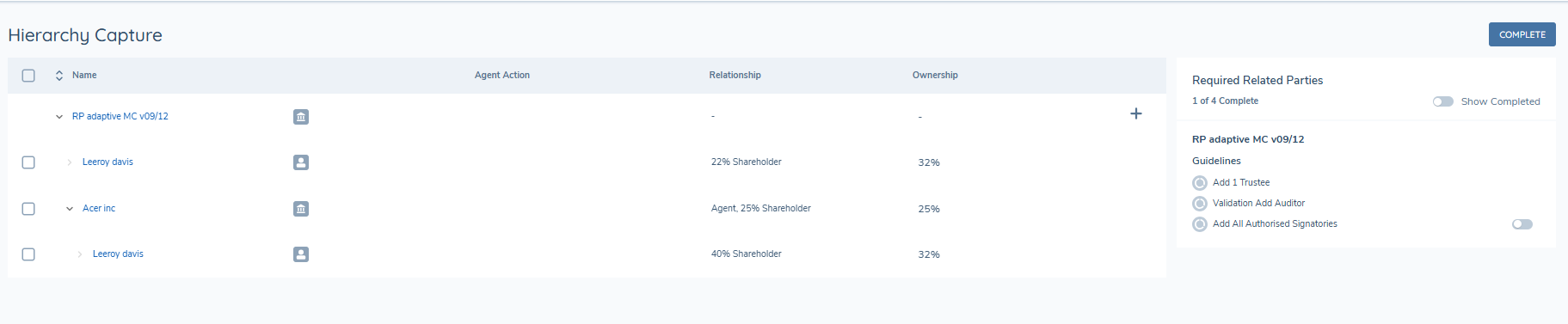
The Ownership column in the Related Parties grid will display a calculated value of the proportional percentage amount that the related party owns of the main client in the context of the journey. In the below example, Leeroy Davis owns 22% of the client directly, and by owning 40% of another entity which owns 25% of the client, he indirectly owns another 10% of the client. Therefore the Ownership column will reflect that Leeroy Davis owns 10% + 22% = 32% of RP adaptive MC.
Changing the ownership percentage of one entity may impact the calculated ownership of other entities, hence this calculation is updated each time the table is refreshed.
If there are instances of circular ownership or cross-ownership in the hierarchy the calculation will limit itself to one loop in order to prevent any issues caused by infinite loops.
Hierarchy Filter
The Hierarchy Filter is currently in Beta and is available on request for client lower level tenants.
In a standard Fenergo hierarchy, when an entity that has its own associated hierarchy is added to the structure, its full hierarchy is included. This means that entities indirectly related to the root entity in journey may be presented to users, even where their relevance to the current journey is limited. The Hierarchy Filter addresses this by allowing a configurable rule to be applied to the Hierarchy Capture task, reducing the number of indirect entities displayed and surfacing only those relevant to the entity in journey.
When a Related Party Scoping Rule has been applied to the Hierarchy Capture task, the hierarchy displayed to users is filtered based on the rule configured. Rather than presenting the full hierarchy, only those entities that meet the rule conditions — along with their necessary ancestor entities — are shown in the task. This allows organisations to control which related parties are surfaced to users within the context of a specific journey, based on factors such as entity ownership threshold or risk of the root entity.
The filter rule evaluation is applied when the task becomes active and pre-processing begins. Should the task be re-opened, the rule evaluation will be applied again. A future task in the current journey or a future journey would also run the evaluation again. Actions taken within the current task session — such as adding or editing entities — do not trigger a re-evaluation of the filter.
NOTE: Ownership and Control Requirements for Related Parties that are triggered by policy within the task will apply to the full unfiltered hierarchy, and not the filtered view. Care should be taken to ensure policy is configured to align with this when introducing a filter.
For configuration of the Hierarchy Filter, see Configuring the Hierarchy Filter.
How Entities are Evaluated
The Hierarchy Filter evaluates each entity in the hierarchy individually against the configured rule. Once an entity is determined to be in scope, the system determines where and how to display that entity within the hierarchy view, taking into account the following:
- Ancestor closure — an in-scope entity cannot be displayed without its parent entities also being visible. Where an in-scope entity's parent entities are not themselves in scope, those parents are surfaced to avoid orphaned entities in the display.
- Multiple occurrences — where an entity exists in more than one branch of the hierarchy, its display depends on the scope status of its parent entities in each branch. The examples below illustrate the different scenarios.
Actions Within the Task
While the filter rule is not re-evaluated during an active task session, certain actions taken by users interact with the filtered hierarchy in specific ways.
Editing ownership percentage — when the Ownership Percentage of an entity is updated, the proportional ownership is recalculated but no rule re-evaluation is triggered. If the updated value means the entity would no longer meet the rule, it remains displayed for the current task session. The updated value will be used in the next rule evaluation on a future task open or task re-open, when the filter rule is applied again.
Adding an entity with its own hierarchy — when a user manually adds an entity that has its own child hierarchy, the added entity is placed in the requested location and is not itself evaluated against the filter rule; it persists in the task view regardless of whether it would meet the rule. Children of the added entity that are not currently in scope are evaluated against the active rule at the point of addition. Children already in scope elsewhere within the hierarchy are not re-evaluated and are presented automatically. Upon task re-open or in a future task/journey, the added entity will be evaluated as part of the initial rule evaluation and may at that point be determined to be out of scope.
Editing an entity — editing the properties of an in-scope entity does not trigger a rule re-evaluation. If the change would mean the entity no longer meets the rule, it persists in the current task view. When the rule is evaluated on a future task/journey or on task re-open, it is at this point when the entity may no longer be displayed.
Removing an association — removing an association does not trigger a rule re-evaluation. If an entity has a single association to its parent in the current branch and that association is removed, the entity is removed from the task view. If the entity has multiple associations to its parent, it persists. Where the removed entity has children, those children are removed from the view unless they have associations to other entities still present in the hierarchy. If an entity and all of its associations are removed, it is removed from all instances within the client hierarchy in context.
Examples
The following examples illustrate how the Hierarchy Filter behaves across common hierarchy scenarios. In each example, the root entity in journey is Ruby Markets Inc., which is owned by multiple client entities. The rule applied in each case evaluates Beneficial Owner related party entities based on an effective ownership threshold and the risk rating of the entity in journey (root entity).
Hierarchy structure:
- Example 1: Ruby Markets Inc. is owned by Emerald Entity Corp, which is in turn owned by Sapphire Corp. These owners are also clients in their own right.
- Examples 2–4: Ruby Markets Inc. is owned by Emerald Entity Corp and Topaz Corp. Emerald Entity Corp is owned by Sapphire Corp; Topaz Corp is owned by Diamond Corp. These owners are also clients in their own right. Example 4 additionally includes Opal Corp (also owned by Ruby Markets Inc.) which is owned by Aqua Corp.
Example 1 — Standard filter: each entity appears once in the hierarchy
Rule: This rule is configured to scope in direct and Main Structure entities, and the condition for indirect entities is based on the Risk Rating of Ruby Markets Inc. being Medium Risk and entities of Beneficial Owner type with effective ownership greater than 25%.
This is the straightforward scenario where each entity appears only once across the hierarchy. Entities that meet the rule are displayed; entities that do not meet the rule are not displayed.
View of structure and rule applied:
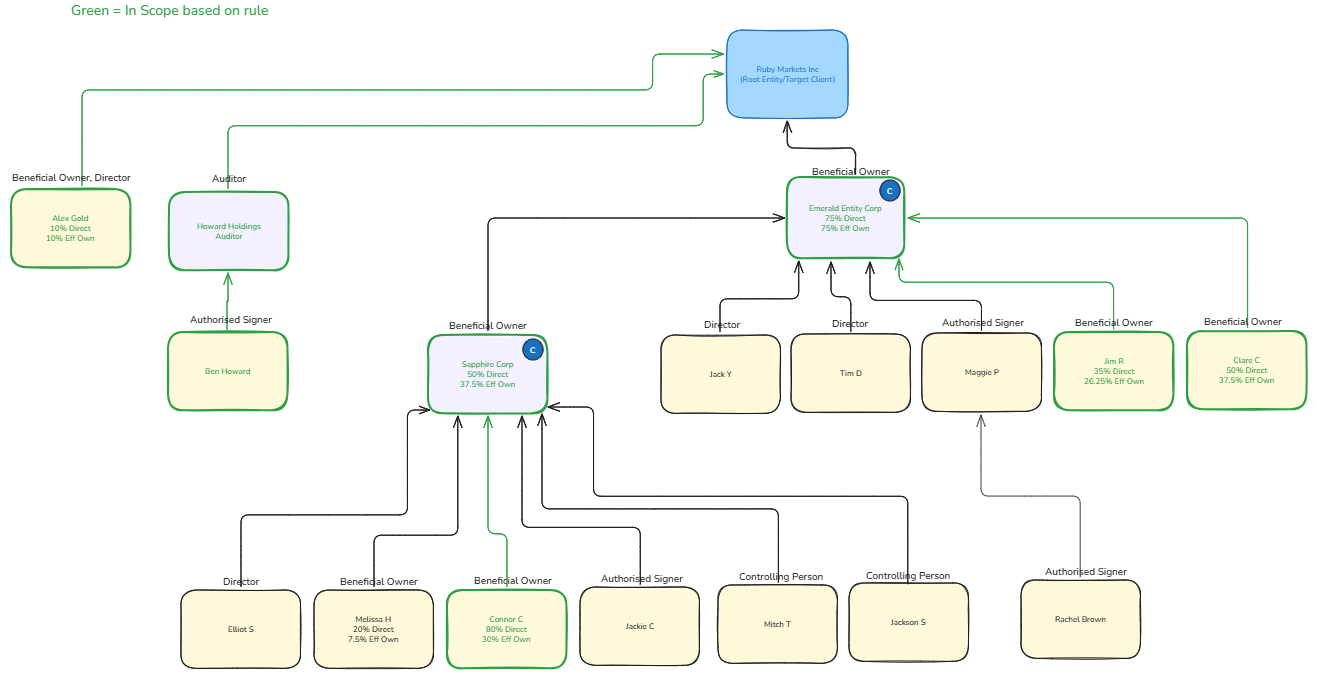
Hierarchy Capture Task with No Rule Applied:
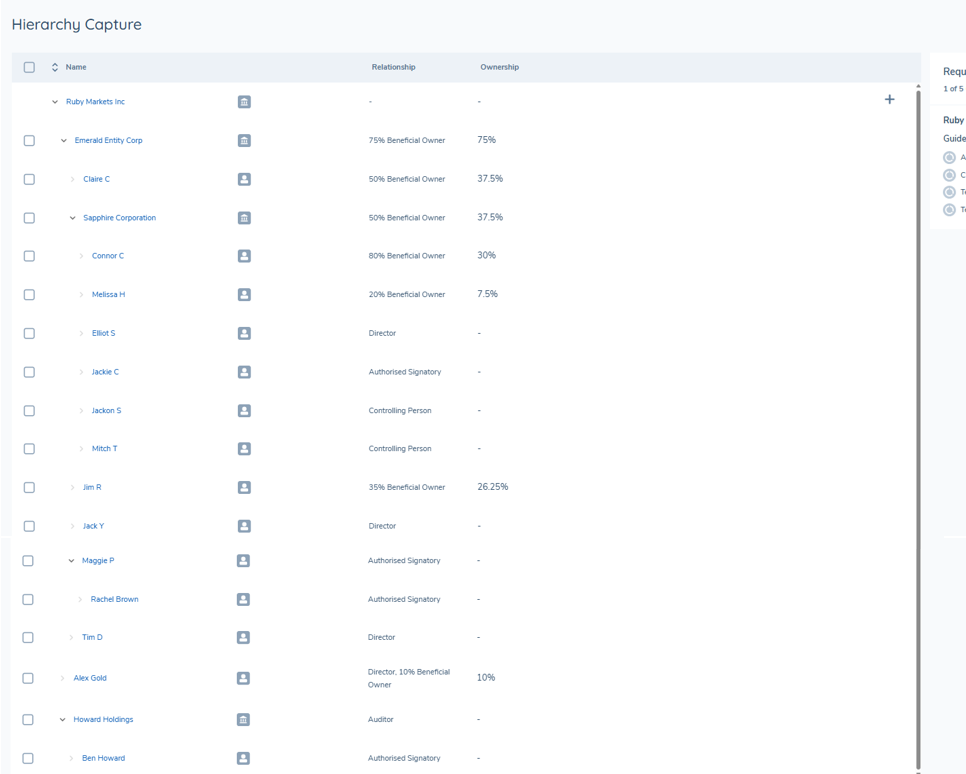
Hierarchy Capture Task display with Rule Applied:
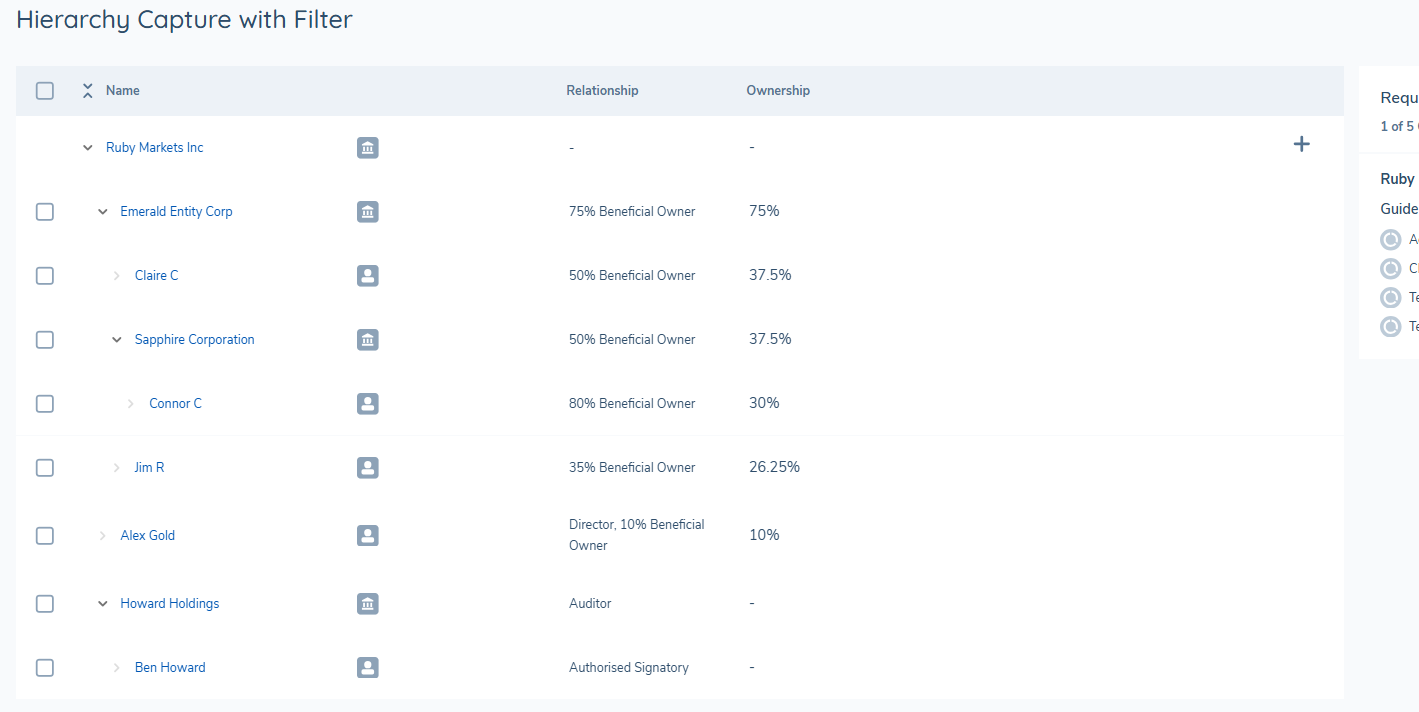
Example 2 — Entity exists in multiple branches; some branch parents are in scope
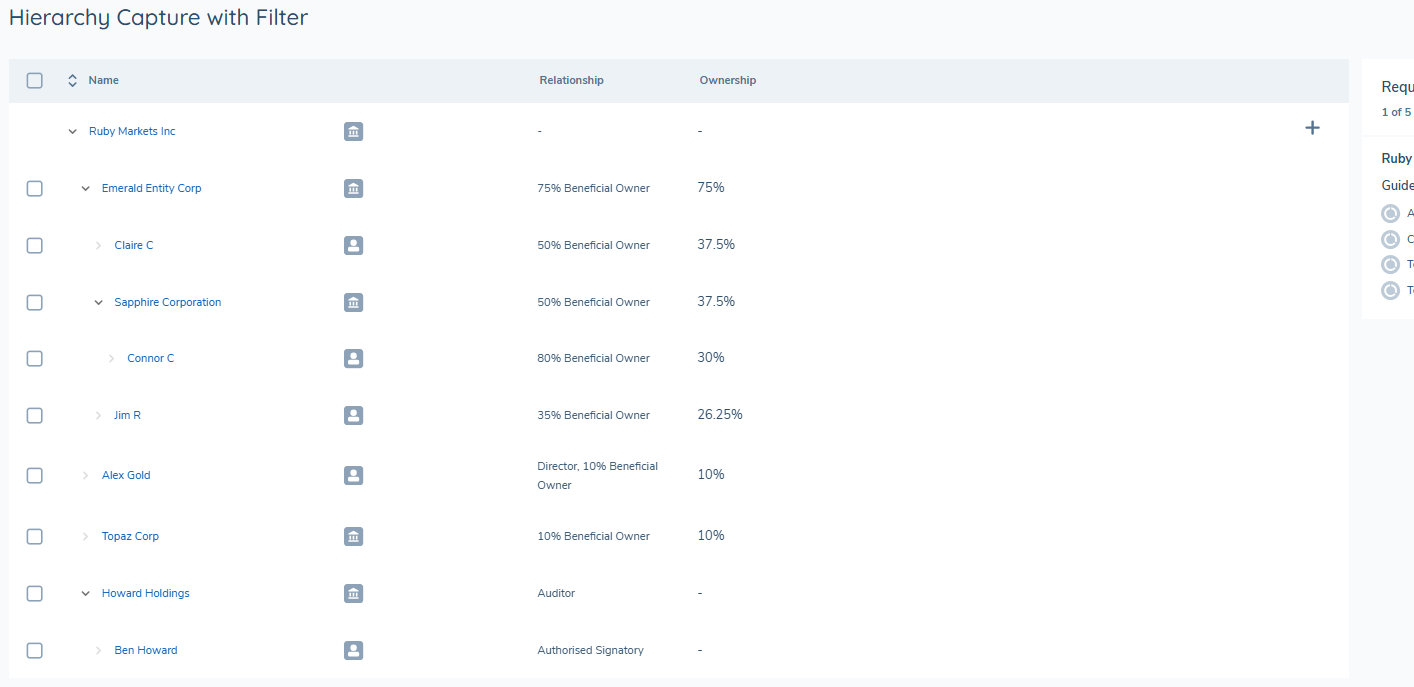
Rule: This rule is configured to scope in direct and Main Structure entities, and the condition for indirect entities is based on the Risk Rating of Ruby Markets Inc. being Medium Risk and entities of Beneficial Owner type with effective ownership greater than 25%.
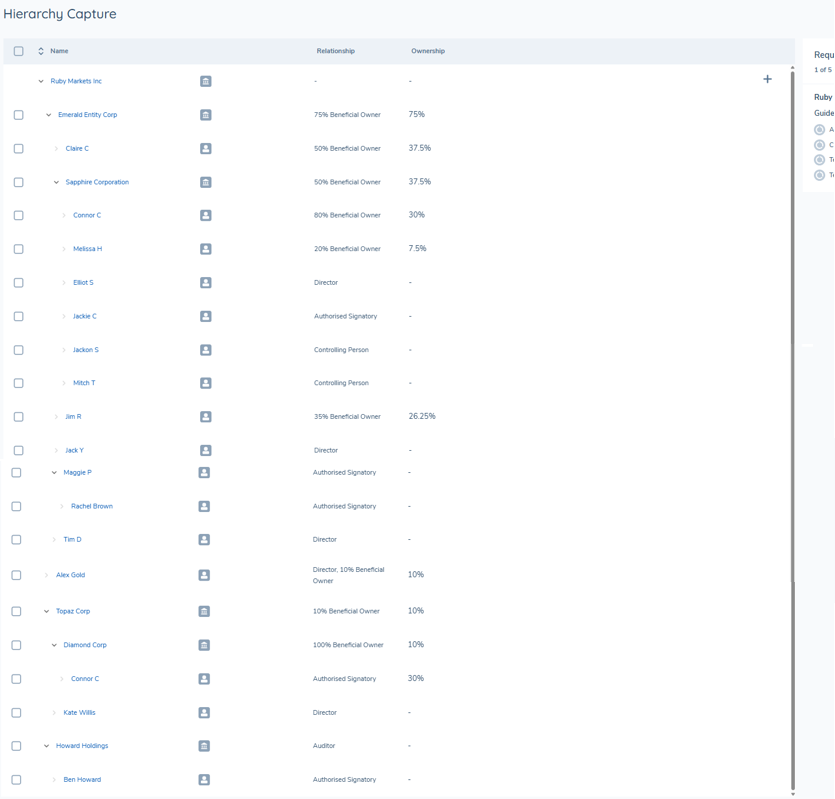
In this scenario, Connor C exists under both Sapphire Corp and Diamond Corp, and meets the rule — Connor C is in scope. However, Diamond Corp does not meet the rule. Because evaluation is performed at the entity level, Connor C is in scope, but is only displayed under branch parents that are themselves in scope. Connor C therefore displays under Sapphire Corp only.
View of structure and rule applied:
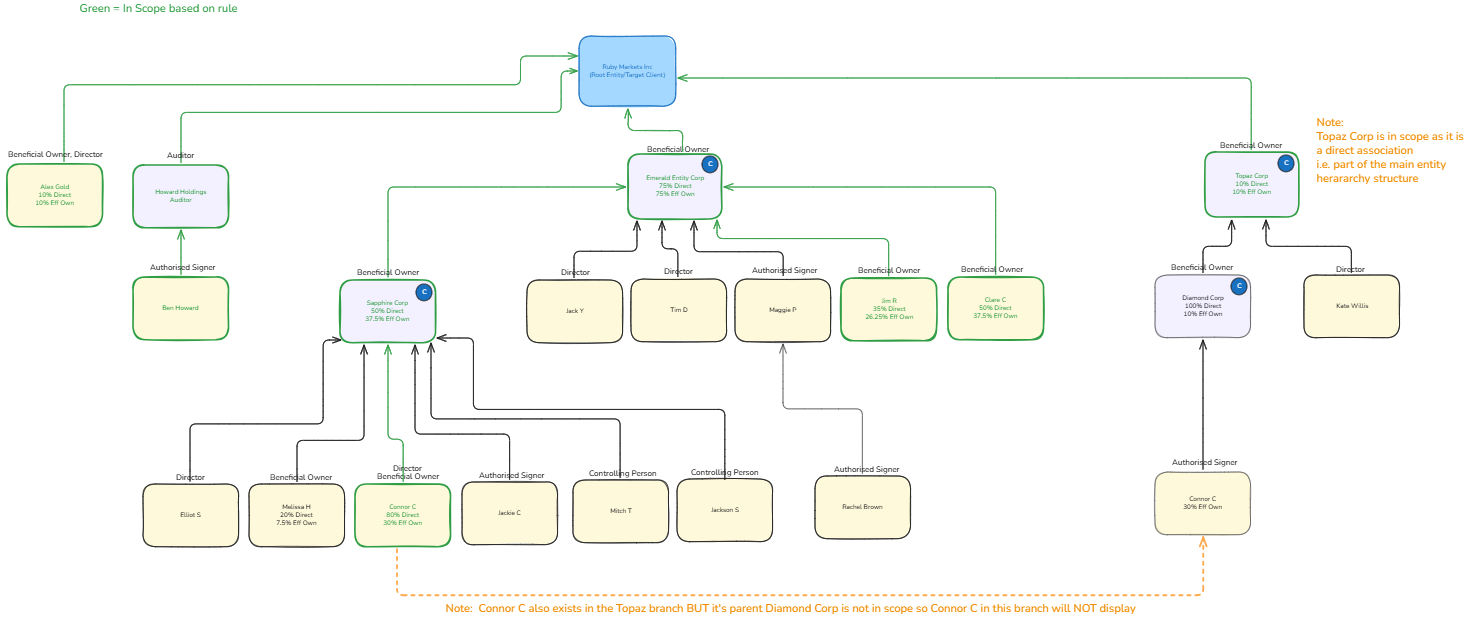
Hierarchy Capture Task with No Rule Applied:
Hierarchy Capture Task display with Rule Applied:
Example 3 — Entity exists in multiple branches; all branch parents are in scope
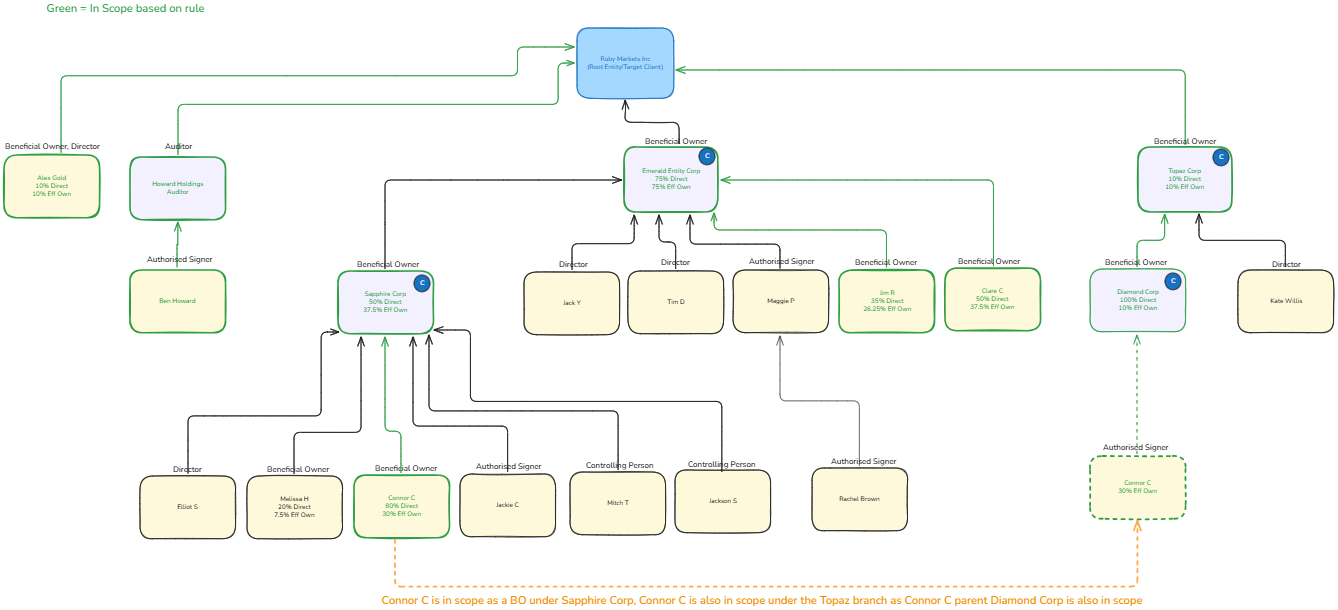
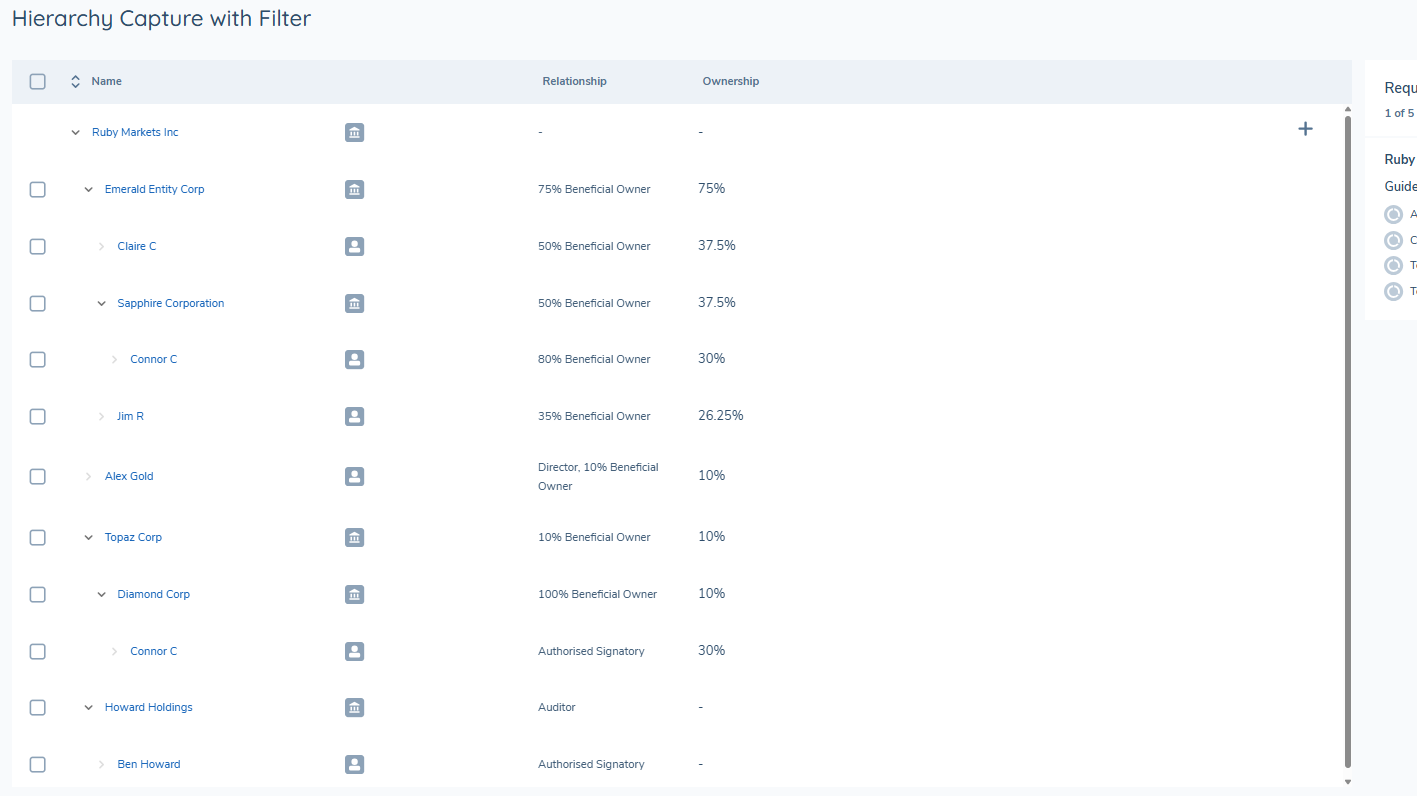
Rule: This rule is configured to scope in direct and Main Structure entities, and the condition for indirect entities is based on the Risk Rating of Ruby Markets Inc. being High Risk and entities of Beneficial Owner type with effective ownership greater than 10%.
In this scenario, Connor C exists under both Sapphire Corp and Diamond Corp, and both parent entities are in scope based on the rule. Connor C is displayed under both Sapphire Corp and Diamond Corp. The display under Diamond Corp is not dependent on the relationship type Connor C holds in that branch — once an entity is determined to be in scope at the entity level, it is displayed under every in-scope parent regardless of the relationship type in that branch.
View of structure and rule applied:
See example 2 for the hierarchy with no rule applied.
Hierarchy Capture Task display with Rule Applied:
Example 4 — Entity exists in multiple branches; no branch parents are in scope (ancestor closure)
Rule: This rule is configured to scope in direct and Main Structure entities, and the condition for indirect entities is based on the Risk Rating of Ruby Markets Inc. being Medium Risk and entities of Beneficial Owner type with effective ownership greater than 25%.
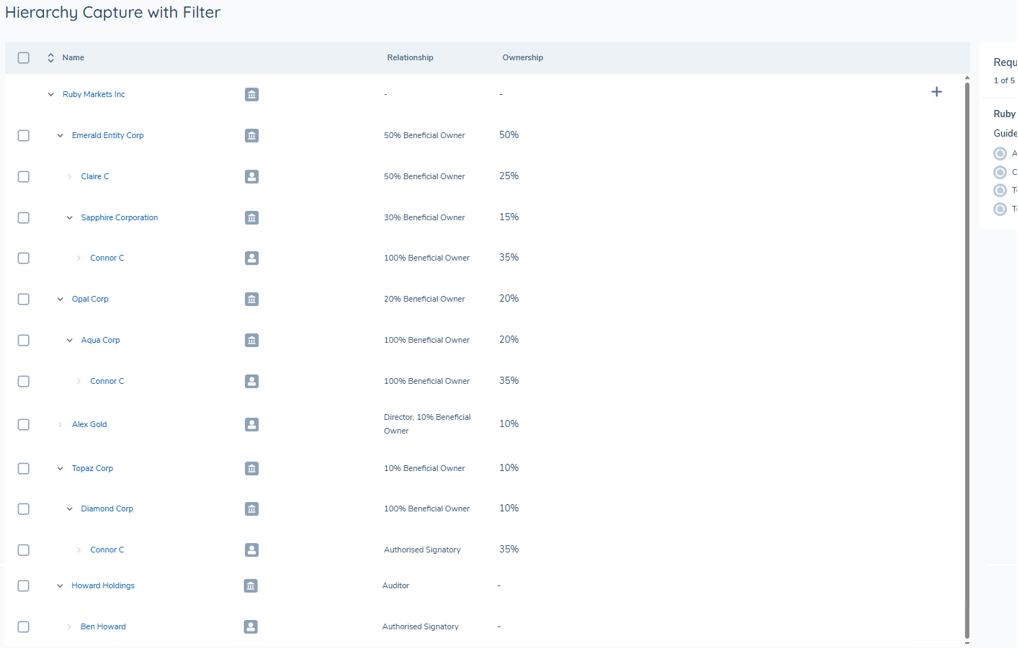
In this scenario, Connor C exists under Sapphire Corp, Diamond Corp and Aqua Corp. Connor C meets the rule and is in scope, but none of the three parent entities meet the rule themselves. Because no branch parents are in scope, the system cannot determine a single correct parent through which to display Connor C. To prevent orphaned in-scope entities, all instances of Connor C are displayed, and each of the associated parent entities — Sapphire Corp, Diamond Corp and Aqua Corp — is brought into scope alongside Connor C. There cannot be orphaned in-scope entities in the filtered hierarchy.
View of structure and rule applied:
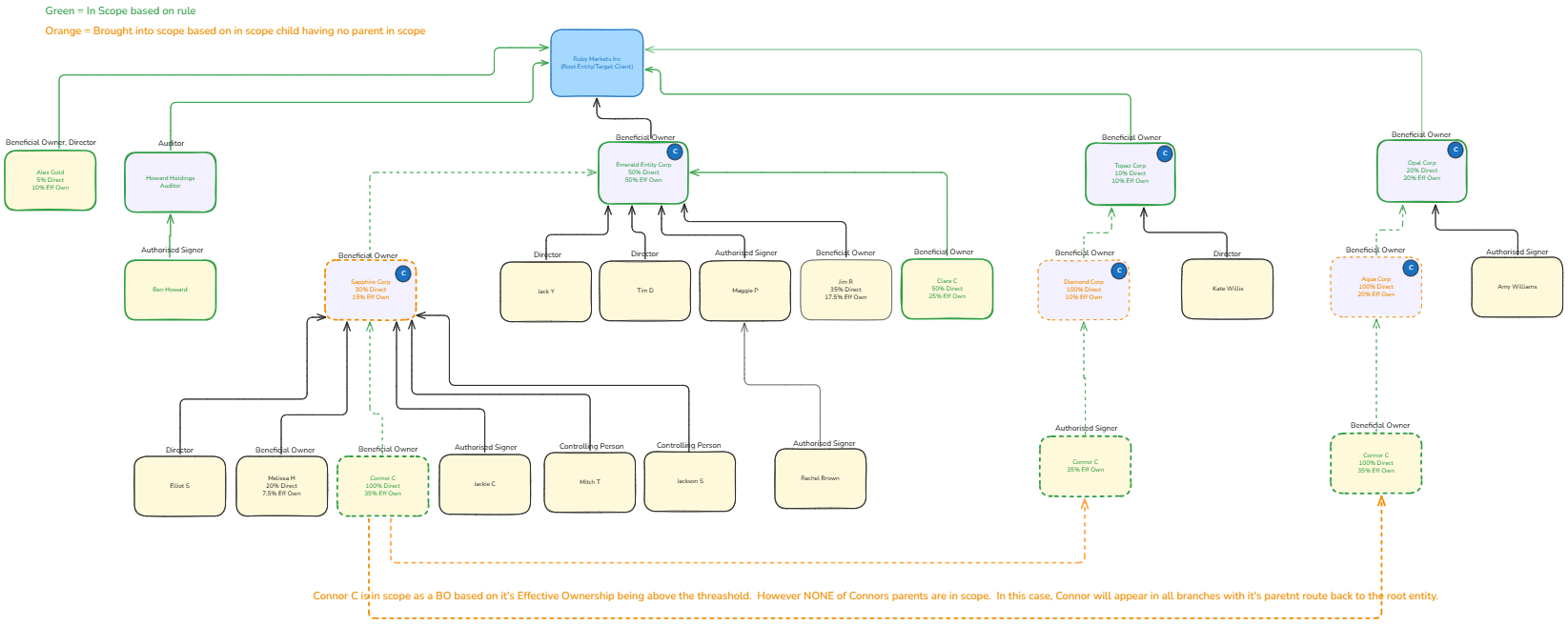
Hierarchy Capture Task with No Rule Applied:
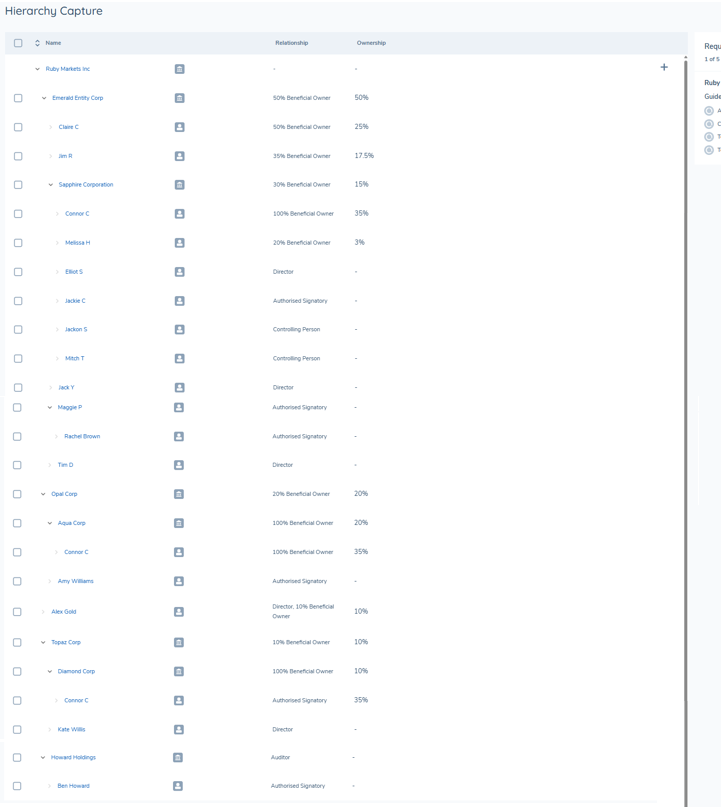
Hierarchy Capture Task display with Rule Applied:
Reviewing the Completed Hierarchy Capture Task
A user who has access to view the Hierarchy Capture task after it has been completed will be able to see the Related Parties table but they will no longer be able to edit any part of it. The icons on the table will be disabled, and the user must click on the entity name in order to view the panel on the right where they can view the relationship data, entity data and documents.
Hierarchy Snapshotting
When the Hierarchy Capture task is completed, a snapshot is taken of all of the associations of the main client in the context of the journey, as well as of the entity data for each related party. When a user navigates to a completed Hierarchy Capture task, the associations displayed in the Hierarchy Tree Grid and the entity data displayed in the panel is all retrieved from the saved snapshot. A snapshot is saved at the task level - therefore if there are multiple Hierarchy Capture tasks in a journey then each completed Hierarchy Capture task will display the data that was true at the time that the specific Hierarchy Capture task was completed.
Note: The status of Ownership and Control Requirements for each entity are not snapshotted - these are saved and calculated at the journey level, therefore there may be a difference between the hierarchy presented on the screen in a completed task versus the current status of O&C requirements. Document Requirements are also not snapshotted.
If a snapshot does not exist for a task, a snackbar message will be displayed informing the user of this, and the user will be presented with the latest associations and entity data instead. If a task is 'In Progress' it will continue to show the latest associations and entity data.
Related Parties Data & Documents Task
The Related Party Data & Documents task is designed to perform additional data and document capture for certain related parties and can be configured in a journey either as a standalone task or in conjunction with the existing Related Parties task or the Hierarchy Capture task. When configured alongside the Related Parties task or the Hierarchy Capture task, the building of the hierarchy will occur via unwrapping in those tasks, where the data capture can be kept as simple as possible when creating the structure. The Related Party Data & Documents task will then perform that additional data and document capture that is required for certain entities within the hierarchy (traditionally controlled by the ID&V functionality with the Related Parties task).
When configured alongside the Related Parties task or the Hierarchy Capture task, those tasks display all previously verified relationships and any new relationships created during the journey in a structured format, and users can manage the hierarchy from within the configured task. Please see the Related Party Management user guide for additional detail on the Related Parties task. When used as a standalone task, the Related Party Data & Documents task will operate against the existing verified hierarchy without requiring hierarchy capture to occur within the same journey.
The Related Party Data & Documents task will take a selection of related parties from the hierarchy, verified or new, and present them to the user in a grid for additional requirement capture. A rule that is pre-set on the task during configuration will automate the selection of the sub-set of those related parties from the hierarchy rather than the user having to manually select each related party from within the hierarchy.
Related Parties Table Related Party Data & Docs
When the Related Party Data & Documents task has been triggered within an active journey, the selected related parties will be presented in a table. As part of the pre-processing of the task, Data & Document compliance will be applied, along with Document Persistence if configured, meaning at first glance users can determine the status of each related party's data and document compliance.
The table displays:
- An icon to distinguish an Individual from a Company or Other entity type
- The entity name - This is retrieved from the field with datakey "legalEntityName"
- Status - The current data and document compliance based on mandatory requirement. This will be 'In Progress' or 'Complete'
- Outstanding Actions - This will display if both data and document collection, or if either data or document collection is required to be compliant (that is a stats of 'In Progress'), or '-' when the Status is 'Complete'
- Relationship - Displays the relationship type of the related party entity. If an entity has multiple types of relationships, all relationships will be listed here, and if the relationship is not a direct relationship of the entity in journey, then the level within the hierarchy will be displayed for that association, e.g. "Director of Level 1 'X'" entity. These means a related party would only be listed once should they exist multiple times within the hierarchy.
- The bulk action to the left of the table row allows for the selection of more than one entity.
The row above the table provides the ability to Search and Filter those related parties in scope within the task. The Filter contains three options to filter by and can be selected individually or combined via the Filter icon:
- Type - Entity type
- Status - In Progress/Complete
- Relationship - list based on those relationship types for the entities displayed
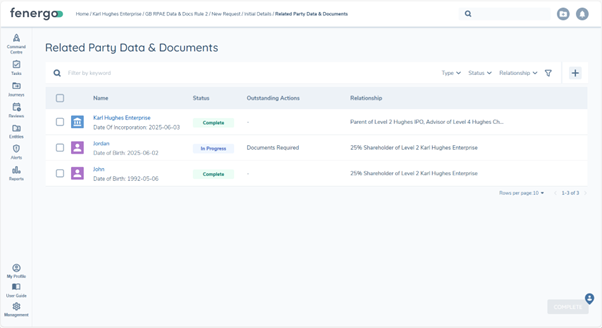
Related Party Data & Documents
Selecting the entity name of a related party from a row in the table allow the user to view and capture the additional requirements triggered based on the configuration of the task, and will open a panel to the right of the window. The View panel will display the related party name, their relationship(s) and underneath the information will be broken down into the following sections:
- Details - This will display data requirements triggered from policy based on the categories configured in the task
- Data Groups - One of more data groups will display based on the data requirements triggered from policy and on the categories configured in the task
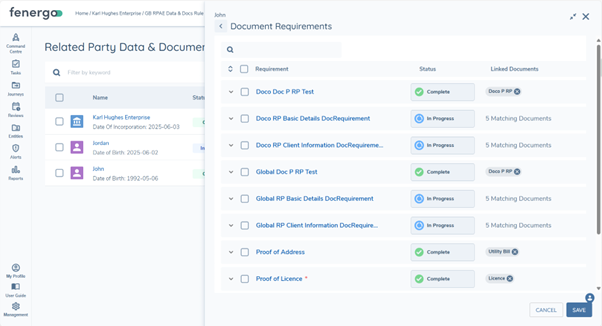
- Document Requirements - This will display document requirements triggered from policy based on the categories configured in the task
Each section will have a status icon to reflect whether all mandatory requirements have been met, which will display the green 'Complete' icon, or whether there are requirements outstanding, which will display the blue 'In Progress' icon. Underneath each section is the count of mandatory requirements and how many of those have been satisfied, e.g. "1 of 4 Details Completed". This gives the user a quick glance of what's outstanding for that related party.
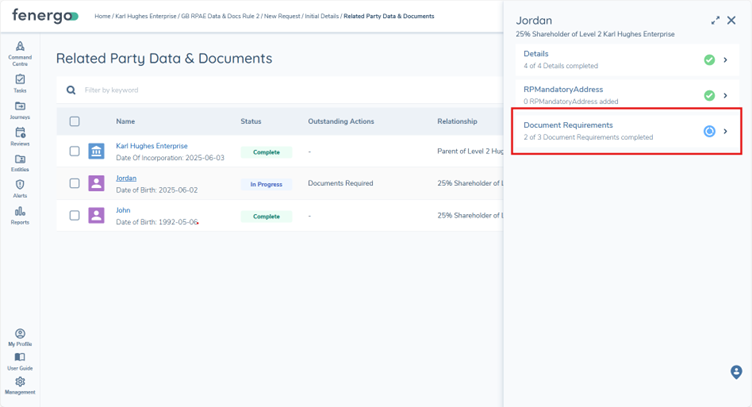
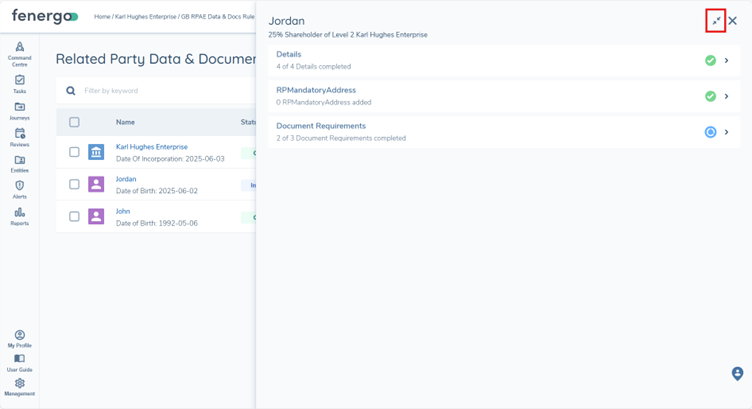
The View panel can be expanded via the icon in the top right to allow for additional real estate on screen when the user is capturing detail for the selected related party. The panel will contain a vertical scroll depending on the panel and screen size.
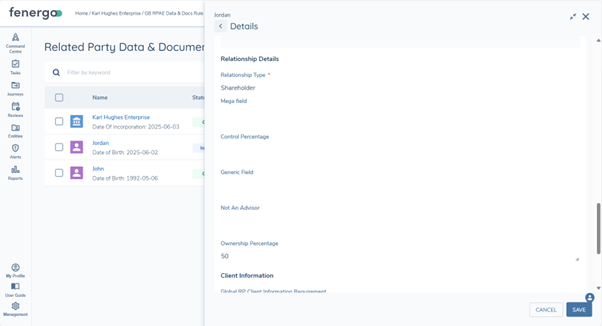
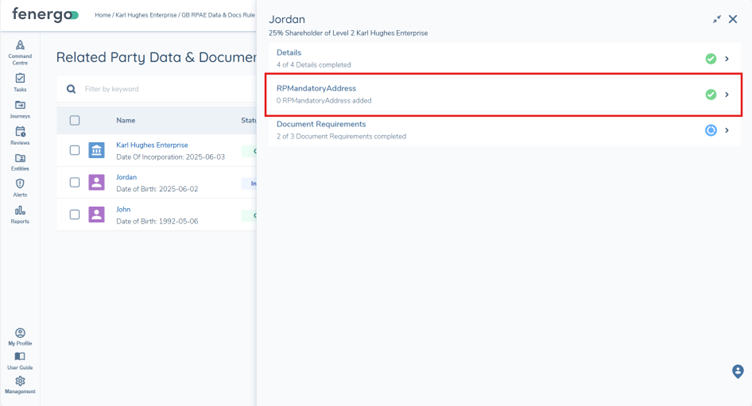
When a user selects one of the above options in the View panel, the detail will update to reflect the selection. As the user populates and saves any mandatory requirements, on returning to the View panel the count will re-evaluate to reflect any changes, and the 'Status' and 'Outstanding Actions' will also update if applicable.
In an important change from the modal within the Related Parties task, the categories used to display data and document requirements with the panel of the Related Party Data & Documents task is no longer restricted to the 'Related Party Basic Details', 'Related Party ID&V' and 'Relationship Details' categories. This task allows for the selection of any category with a Target Entity of 'Related Party' to be used for requirement capture, which provides more flexibility and structure for the gathering of that information. For context, the 'Details' tab will always display the 'Related Party Basic Details' and 'Relationship Details' categories in position 1 and 2 of the panel and these do not need to be specified in the task configuration. Any additional categories will display below these two, in either alphabetical or the order specified.
Please note that the 'Relationship Details' category will be read only as any changes to the association details should be handled in the Related Parties task, where the hierarchy is managed. The Related Party Data & Documents task focus is on the entity data of the in scope related parties. Should the related party exist multiple times in the hierarchy, all relationship types will be listed and the association metadata from the lowest level association will display.
The Data Group requirements triggered will be listed in the View panel and the panel will update to reflect the data group selected.
When the Document Requirements option is selected in the View panel, the panel will reflect those requirements triggered. The Documents V2 component has been introduced to this task, ensuring a streamlined process throughout a journey for data collection. Aligning to the Document V2 functionality, users can use the line icons to upload a document or a virtual document, and waive or defer document requirements, or indeed drag and drop documents to the requirement line. The Document V2 modal will load providing the document categorisation capabilities of this version. Each document requirement row will also be expandable to access the 'Acceptable', 'Matching' and 'Linked' options available in the Documents v2 task. Please see Document Management V2 guide for additional information.
As mentioned, Document Persistence will be checked when this task is triggered in a journey to allow previously uploaded documents to satisfy triggered document requirements where the criteria have been met. A change to document persistence has been made within this task so that document persistence will apply to all related parties in scope within the task. This means that any related party, be it a verified association or a newly added association, will have document persistence applied to satisfy requirements.
Related Party ID&V Validation
When the Related Party Data & Documents task has been triggered within an active journey, where ID&V validation rules have been configured then those rules in-scope will be displayed in the 'Minimum Data and Document Completion' table to the right of the related parties table. This panel will be overlayed by the 'Details' panel when a related party is selected from the related party table.
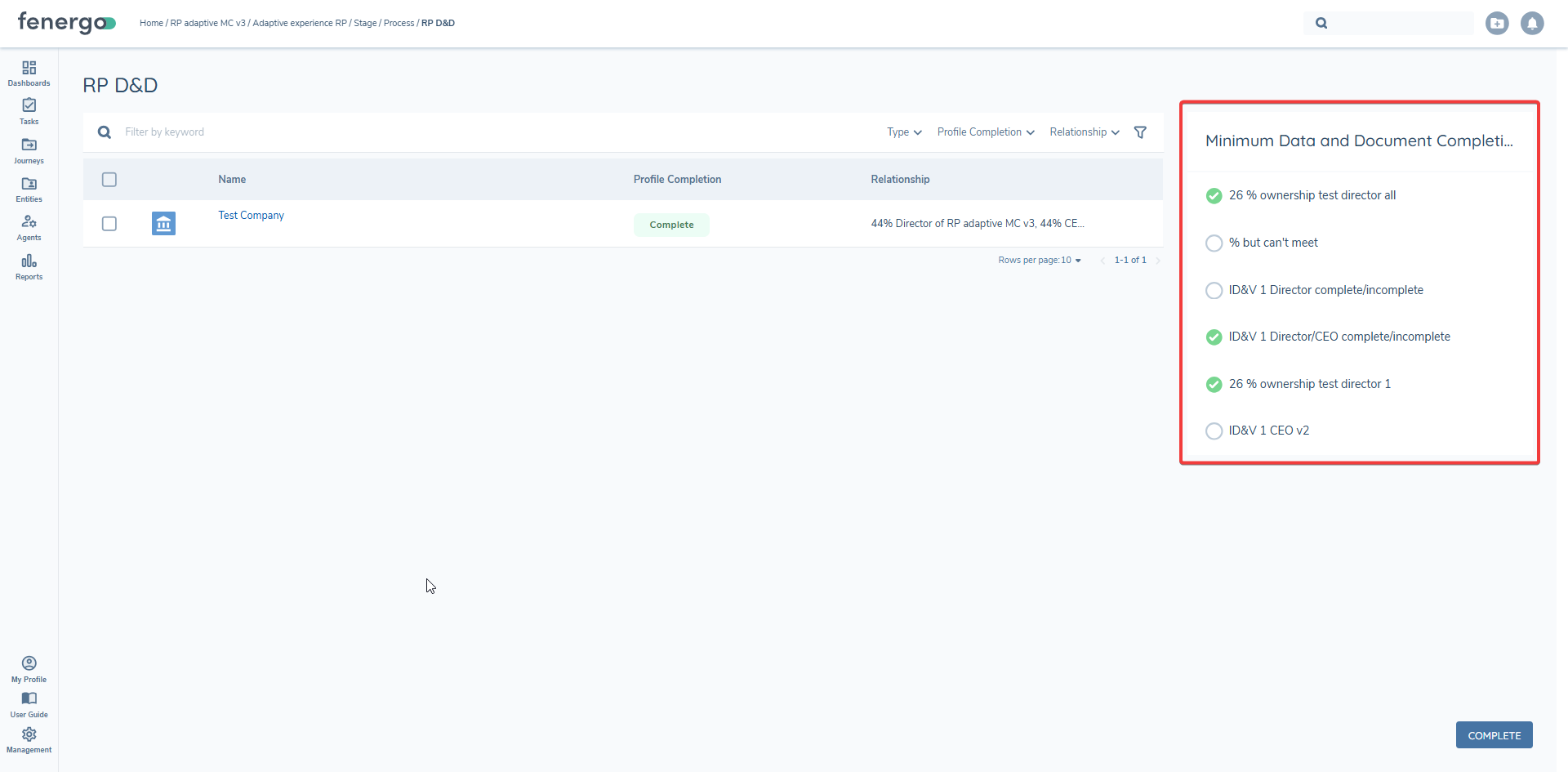
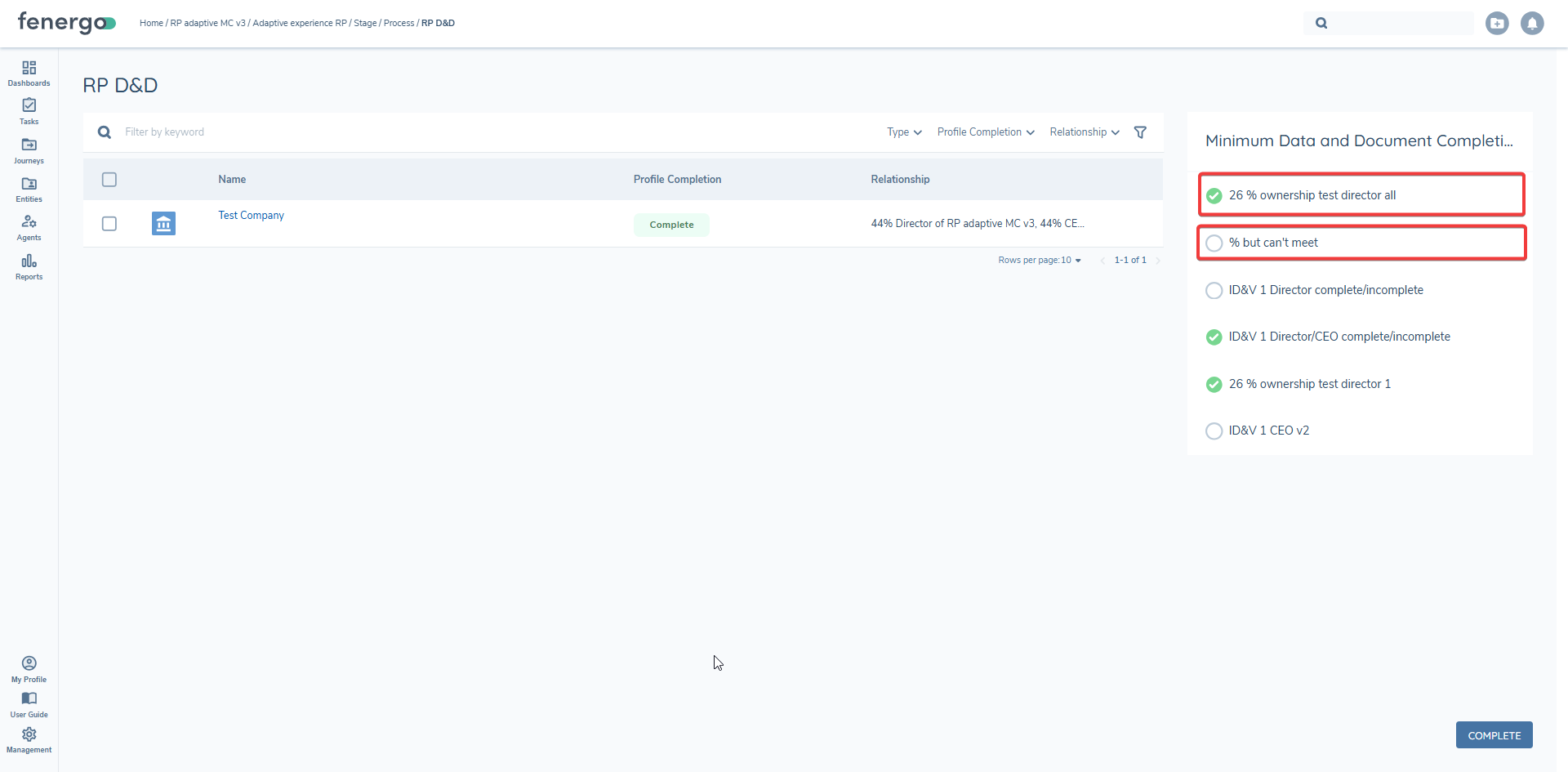
Each triggered validation will have a status icon which will reflect whether the requirement has been met or not, this will be indicated by the green 'Complete' icon when the requirement is met, or by a white circle icon when the requirement is outstanding.
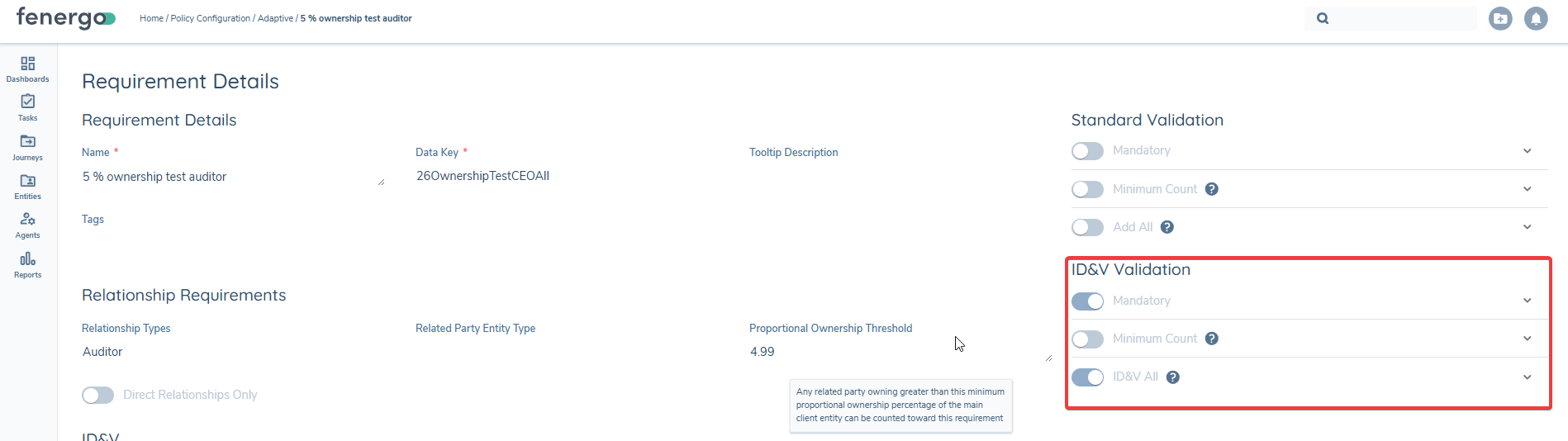
The ID&V validations configured on ownership and control requirements in policy will be used in this task, however there are some key differences to their application:
-
As with the existing task, the validations will apply only when the 'Enable ID&V' toggle is enabled during configuration.
-
As this task is focusing on ID&V only, the new 'Minimum Data and Document Completion' panel will only display validations that are mandatory, this is a change to how validations were presented in the related parties task.
o Note: Mandatory toggle must be used in conjunction with the minimum count or ID&V all toggles.
-
The minimum count will apply where configured.
-
There has been a change the 'ID&V All' functionality within this task. When enabled this will no longer be an attestation for the user and instead will mean when all relationships of that type must now have their data and documents complete before the requirement will be met. Ie. User adds 4 shareholders to their hierarchy and the system displays the validation , 'ID&V all shareholders', previously a user could select the 'ID&V All' toggle and progress but now the user will be forced to complete all data and documents on each shareholder before progressing.
o Note: Given this change enabling the 'ID&V all' and minimum count toggles for a requirement would not be required, as would result in two validations to be met.
-
As with the existing 'Related Parties' task, the following Ownership & Control Requirement settings will apply to the ID&V validations within this task.

Example: If an Unwrapping rule exposes a minimum of 2 Directors, set the ID&V minimum for Directors to 2 as well.
- Don't set ID&V higher than Unwrapping. ID&V should follow Unwrapping-ensure ID&V minimums never exceed the corresponding Unwrapping minimums so the hierarchy surfaces enough entities to satisfy ID&V.
Uploading a Document Against Multiple Related Parties
In the Related Party Data & Documents task, there are cases where a single document applies to multiple Related Parties. Rather than uploading the same document multiple times, Fenergo allows users to upload it once and have it satisfy document requirements for all relevant entities in scope.
To do this, users can select multiple Related Parties from the grid using the checkboxes. Filters can also be applied to narrow down the view before making selections.
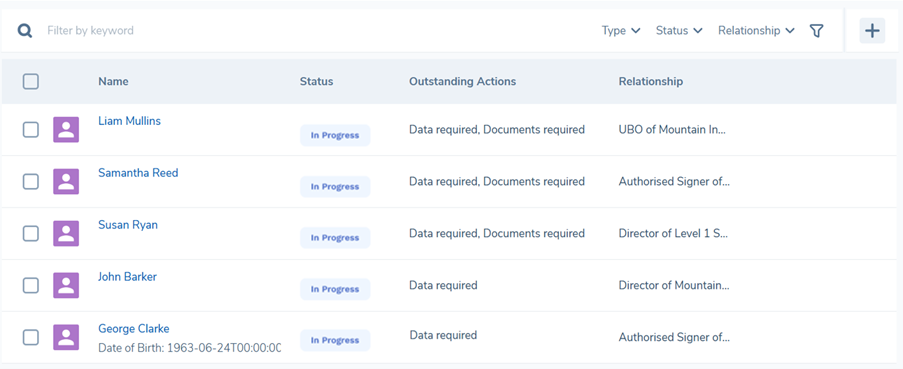
Once entities are selected, the total count appears above the table. To the right of this count-just after the De-scope icon-a document upload button is available.
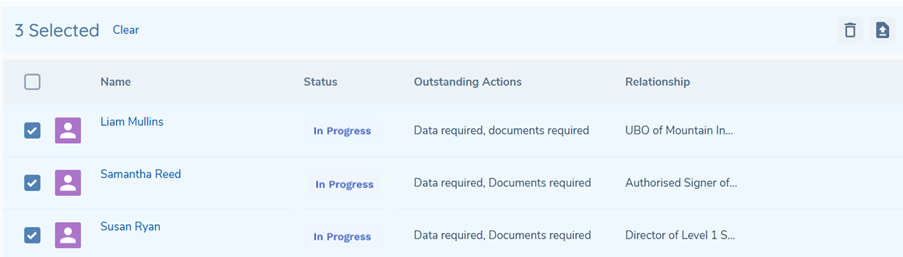
Clicking this button opens the Document Upload modal. Unlike the Document V2 Task modal, the Matching Requirements panel will not be displayed and only the metadata fields will be displayed. Users must complete the mandatory fields - Document Name and Document Type - before proceeding. Optional fields such as Access Layers are also available. The selected Document Type determines whether the document can be automatically linked to requirements for the chosen entities.
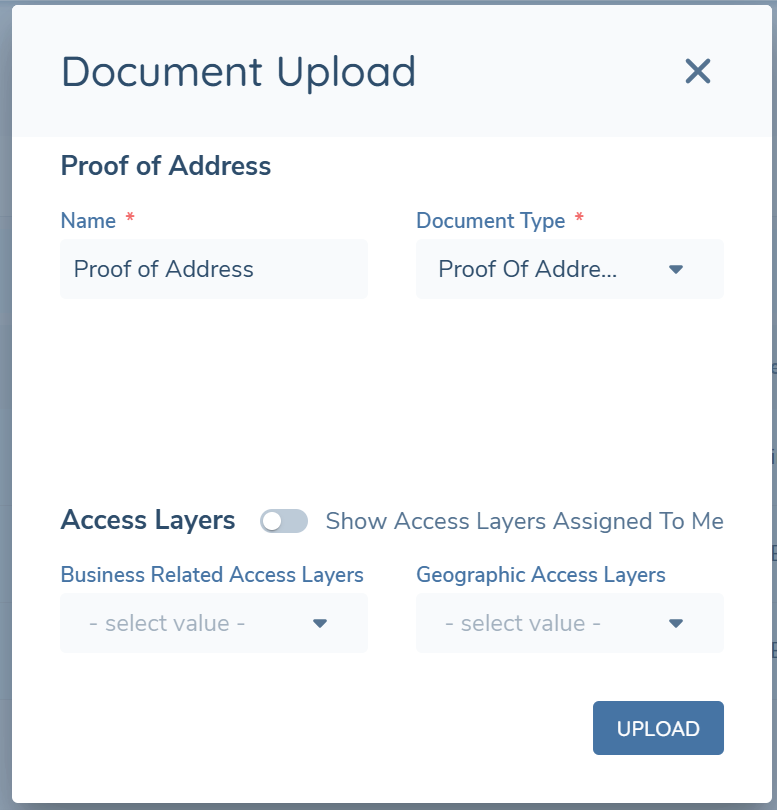
Once the upload begins, the system processes each Related Party one at a time. During this process, a Document Upload progress modal is displayed, showing a message and progress bar that indicate the current stage of the upload. This provides real-time feedback and prevents users from refreshing or navigating away while the upload is in progress.
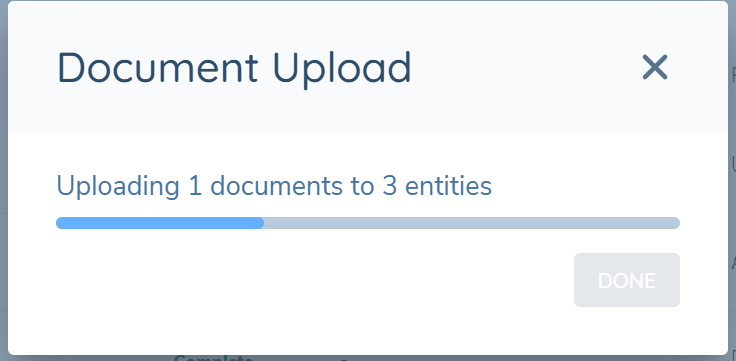
When the upload is complete, the same modal updates to show an "Upload Complete" message and a completed progress bar. A summary is also displayed, confirming how many entities the document was uploaded to and how many document requirements were satisfied across those entities.
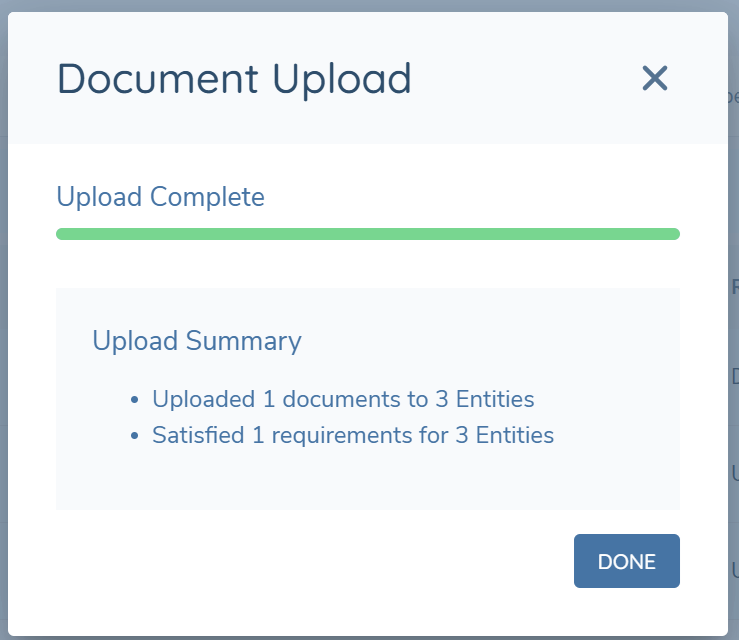
If the document doesn't satisfy any requirements for a relevant entity, it is still uploaded and stored against that entity for future use.

After completion, the grid updates automatically. If all mandatory documents for a Related Party are satisfied, the Outstanding Actions column will no longer display "Documents required." If both data and document requirements are fulfilled, the Status column updates to reflect "Complete."
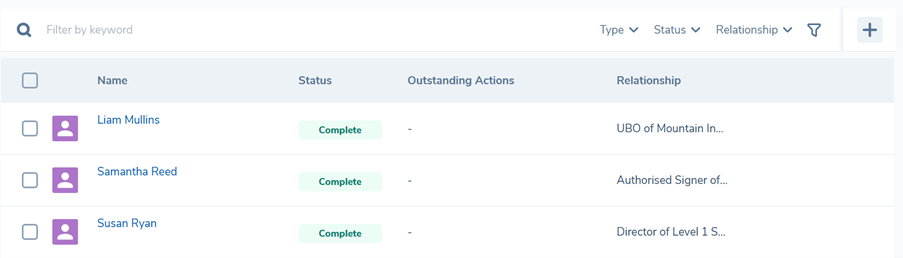
No new permissions are required for this functionality. Users with existing document upload permissions within the task can bulk assign a single document across multiple Related Parties in the Hierarchy.
Once all related parties scoped into the Related Party Data & Documents task have a 'Complete' status, the task can be completed.
The scoping rule applied to the task should be configured to present the required related parties for additional data and document capture. However, there can be exceptions to the rule and to allow for this an option to de-scope or remove an entity from scope has been provide within the task. Once users have been granted permission, when the hover on a related party within the table, a 'De-scope' icon will appear to the right of the table line. The bulk action will allow for this to be performed for multiple entities at a time if required. Once the user selects the icon a confirmation message will be presented to complete the action. Once confirmed, this action will remove the entity/entities from the scope of the task only, and the entity is still retained in the hierarchy. Additionally, if any data or documents were updated for the selected related party/parties prior to removing from scope, the details will be retained in the draft and persisted to the verified data once the journey completes.
Please note that the opposite exception to add related parties from the hierarchy into scope of the task will be included in a future release.
Configuring Related Party Adapted Experience
Relationships between entities can be created in order to establish an ownership hierarchy or to establish an association between two entities.
In Fenergo this is done in the Hierarchy Capture task which can be configured in any journey. Any creation or change made to relationships within a journey must be verified before they can be propagated outside of the journey in which they were made. This is automatically done in the Verify Related Party Associations V2 task which should be configured to be triggered after the Hierarchy Capture task at the end of the journey. Where additional data and document requirement capture is applicable to certain related parties within the hierarchy, this can be accommodated in the Related Party Data & Documents task. These tasks can be configured in any journey and can be placed multiple time within one journey if desired.
Configuring the Hierarchy Capture Task
In order to correctly render the Hierarchy Capture task there are some specific details that must be configured in Reference Data, Journey and Policy.
Reference Data Configuration
The following lookups must be configured via Reference Data configuration.
1. Relationships
The Relationships lookup is designated as a system lookup and the List name must always be "Relationships". This lookup will drive the values which appear in the Type field in the Relationship Details section of the panel.
2. Requirement Category
The Requirement Category lookup is designated as a system lookup and this drives the Category field when configuring fields in the Policy domain. The following 3 values must be added to the Requirement Category lookup:
- Relationship Details
- Related Party Basic Details
- Related Party Search Criteria
Fields with these categories will drive what appears in the side panel in the Hierarchy Capture task and specifically which section of the panel they appear in – see Policy Configuration for additional details. Additional fields can be configured in categories outside of these required categories and those categories can then be utilised in the Hierarchy Capture task configuration in Journey Builder, providing additional structured data capture if desired.
Journey Configuration
In Journey Builder, the following tasks should be added to any journey where related parties are expected to be created or updated:
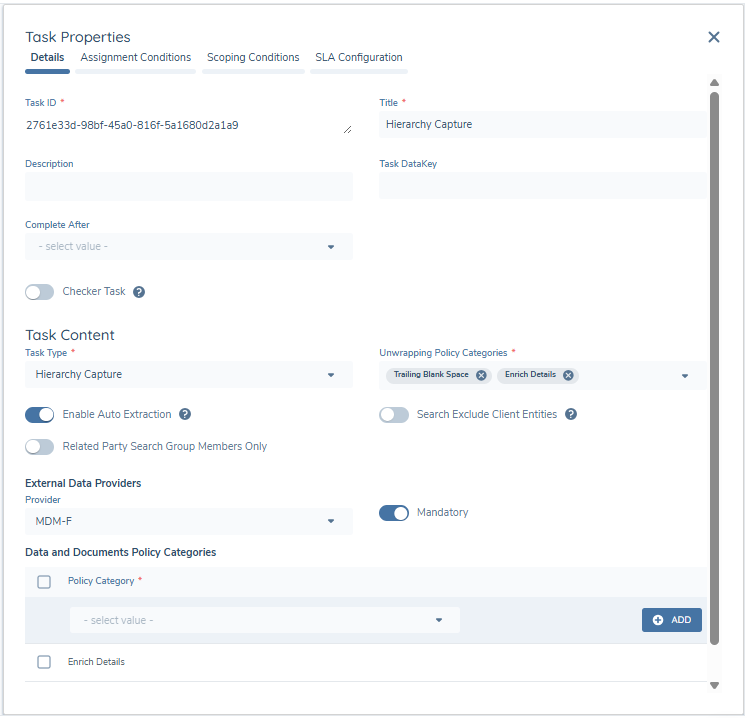
1. Hierarchy Capture Task
This user-completed task can be configured anywhere in a journey, as long as it features prior to the Related Party Data & Documents task, the Verify Related Party Associations or the Verify Related Party Associations V2 tasks. It can also be configured to appear at multiple points in the journey.
Unwrapping Policy Categories - If you want to trigger specific O&C requirements, the relevant categories can be listed here.
Enable Auto Extraction - If you wish to extract related parties from uploaded documentation, you can enable this toggle here.
Search Exclude Client Entities - toggle allows configurators to refine duplicate search results when users add related parties within a journey. When enabled, the system automatically filters out any entities marked with the "Client" role, ensuring that only non-client entities appear as search results. This helps prevent users from accidentally linking client hierarchies where it is not required for screening or ID&V purposes. When users perform a duplicate search in the Related Parties task, only non-client entities matching the search criteria will display - any entities identified as Client will be filtered out and not appear in the results list.
Data Group Search Scope — A multi-select field available on the Related Parties, Related Parties Data & Documents, and Hierarchy Capture task types, allowing one or more data groups — for example, Address Details or Tax Identifiers — to be configured as search inputs in the related party duplicate search. Please see the Related Party Management guide for further detail.
Related Party Search Group Members Only - When the entity in journey is an Entity Group, the search results within the Hierarchy Capture panel can be restricted to the verified members of that entity by enabling the 'Related Party Search Group Members Only' toggle.
Persist Documents - Document Persistence for Related Parties can be enabled using the toggle available within this task. Refer to the Functional section of this guide for more information.
Provider - You may select a third party data source to query for duplicates when adding a related party to the hierarchy, if this is toggled as mandatory then you will be blocked from progressing in the case of an error occurring. If this is optional then you will be informed of the failure but will be able to proceed without the search results. If configured, this search will be initiated after the Fenergo duplicate search is completed.
Data and Documents Policy Categories - these categories will determine the data and document requirements triggered within the task for the additional information capture. In a change to the existing Related Parties task, this task is no longer tied to the three categories the existing task modal is tied to (Related Party Basic Details, Related Party ID&V, Relationship Details), meaning any category configured on data and document requirements configured with a Target Entity of Related Party can be specified and apply to this task. This provides additional flexibility in the detail that is required within the task. Please note the Related Party Basic Details, Relationship Details & Related Party Search Criteria categories will always appear in this task so it is not necessary to include these in the category listing. The Related Party Basic Details category will display in the first oroder in the Details panel regardless of any custom category ordering. As this task is intended for the building and maintenance of the hierarchy, care should be taken to keep the categories as light as possible in this task. Additional data and document capture via additional categories can be expanded in the Related Party Data & Documents task.
2. Related Party Data & Documents Task
This task is designed for the additional data and document capture required for certain related parties for relatory purporses, and automates the selection of related parties from the hierarchy for this purpose. Please see below for additional information on this task.
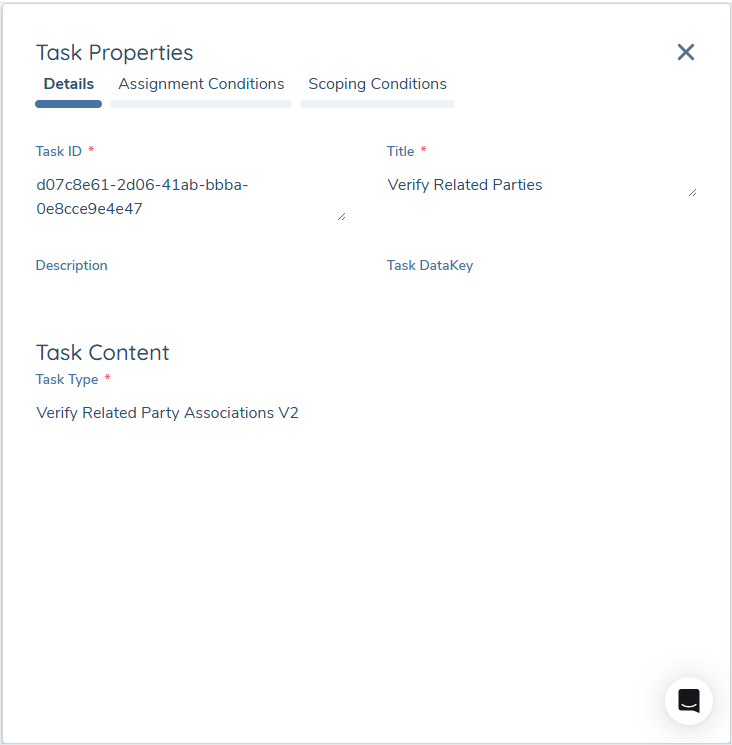
3. Verify Related Party Associations V2 Task
This automated service task must be configured at the end of a journey, either as the final task or the penultimate task (where the final task is the Verify Entity service task). It is recommended that this verification task is configured to appear only once in any single journey.
When configuring this task, the Task Type field in the Task Content panel must be populated exactly as you see in the below screenshot. The remaining fields can be populated as per your preference:
Policy Configuration
The data fields and document requirements which appear in the add/edit related party panel can be configured in Policy.
The panel will retrieve any fields and document requirements with a particular configuration based on the in-scope policies applicable to the main client in context of the journey. For example, if the main client is in scope for the Global and Singapore policies, you will see fields and/or document requirements applicable to related parties for both of these jurisdictions.
Configuring Data Fields
Policy fields must be configured with a Target Entity of "Related Party" and the following Policy Categories must be configured in order to appear in the panel in the Hierarchy Capture task:
- Relationship Details
- Related Party Search Criteria
- Related Party Basic Details
Additional categories can be configured if desired and can be included in the task configuration. The Policy Category field determines which section of the side panel the fields will appear in.
1. Relationship Details
Fields with this category appear in the side panel and are used to capture any metadata specific to the association(s) rather than the entity. These fields will be stored as properties of the association. Examples: Percentage of shareholding, Percentage of Control, Date of Appointment, etc.
2. Related Party Search Criteria
Fields with this category appear in the side panel and are used to capture the minimum data required in order to firstly perform a duplicate search and secondly create an entity record for the related party. This data is stored against the entity itself. Examples: Legal Entity Name, Company Type, First Name, Last Name, etc.
3. Related Party Basic Details
Fields with this category appear post duplicate search in the side panel and are used to capture/update the minimum data required in order to create an entity record for the related party. This data is stored against the entity itself. Examples: Legal Entity Name, Company Type, First Name, Last Name, etc.
You may configure any type of field and configure any validations or trigger conditions for these fields.
Configuring Conditional Requirements for Related Parties
Requirements that are presented in the Details panel can be configured with trigger conditions using any combination of the following options:
- the entity data of the related party itself
- the entity data of the 'Client' in the context of the current journey
- the Relationship type and Relationship Metadata (e.g. ownership percentage)
When setting the trigger condition in Policy Configuration, to use either 1 and/or 3 above, the 'Source' in the trigger condition must be "Current Entity", whereas to use 2 in trigger conditions, the 'Source' should be "Related Client". "Related Client" will only appear as a selectable source if the Target Entity of the requirement is not "Client". In summary, in the context of Related Party policy requirements, "Current Entity" as a Source in trigger conditions always refers to the entity data of the related party itself, and "Related Client" as a source always refers to the entity data of the client that is the primary subject of the current journey. In the context of Client policy requirements, "Current Entity" as a Source always refers to the client that is the primary subject of the current journey.
For example, the below data requirement is configured to trigger for a related party who is an individual, if the following conditions are met:
- the related party's Nationality is Ireland AND
- the client in this journey has an Overall Risk level of High or Restricted AND
- the related party is a Shareholder
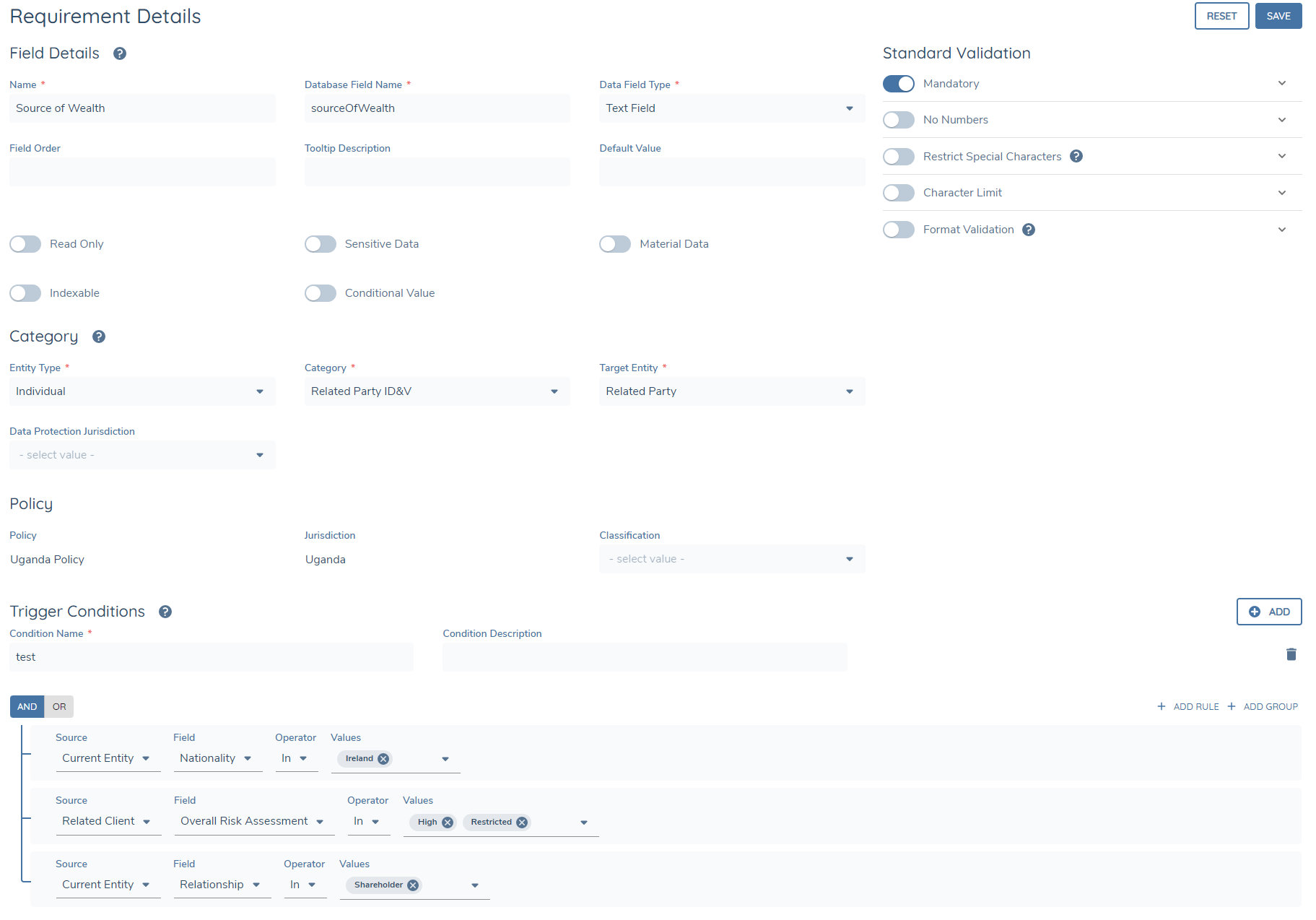
Important Note: In the Relationship Details section, trigger conditions can only be based on the Relationship type
Additionally, the fields (datakeys) listed below should be configured as system fields because the system acts on these in a particular way:
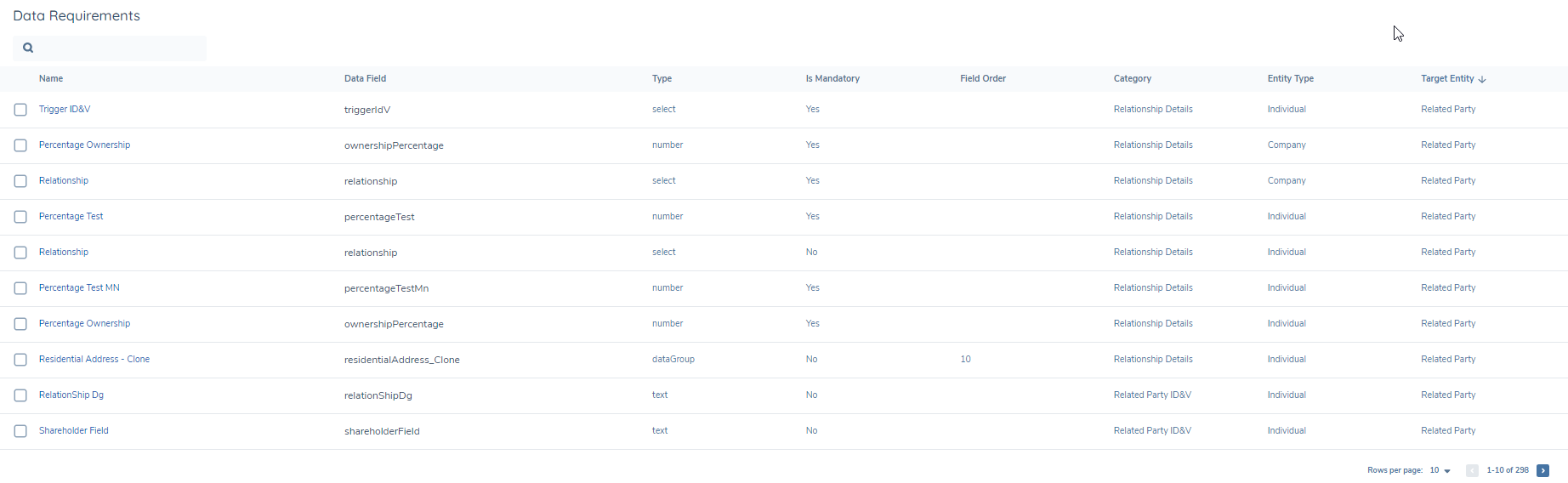
1. relationship
This field must be configured in policy as a select dropdown so that it can be used as a trigger condition
2. ownershipPercentage
This field is used to store the percentage of shareholding and calculate the proportional ownership value
See below example of fields configured for related parties:
Configuring Document Requirements
Documents for related parties can be configured in the same way as described for data fields, where the Target Entity must be Related Party. As long as the relevant policy categories are assigned to the task in Journey Builder, they will be triggered in the side panel.
As with data fields, it is also possible to set trigger conditions for document requirements and the same parameters set out above apply here.
Configuring Ownership and Control Requirements
Ownership and Control Requirements to guide the user about how to unwrap the hierarchy to meet policy requirements can be configured using Policy Configuration.
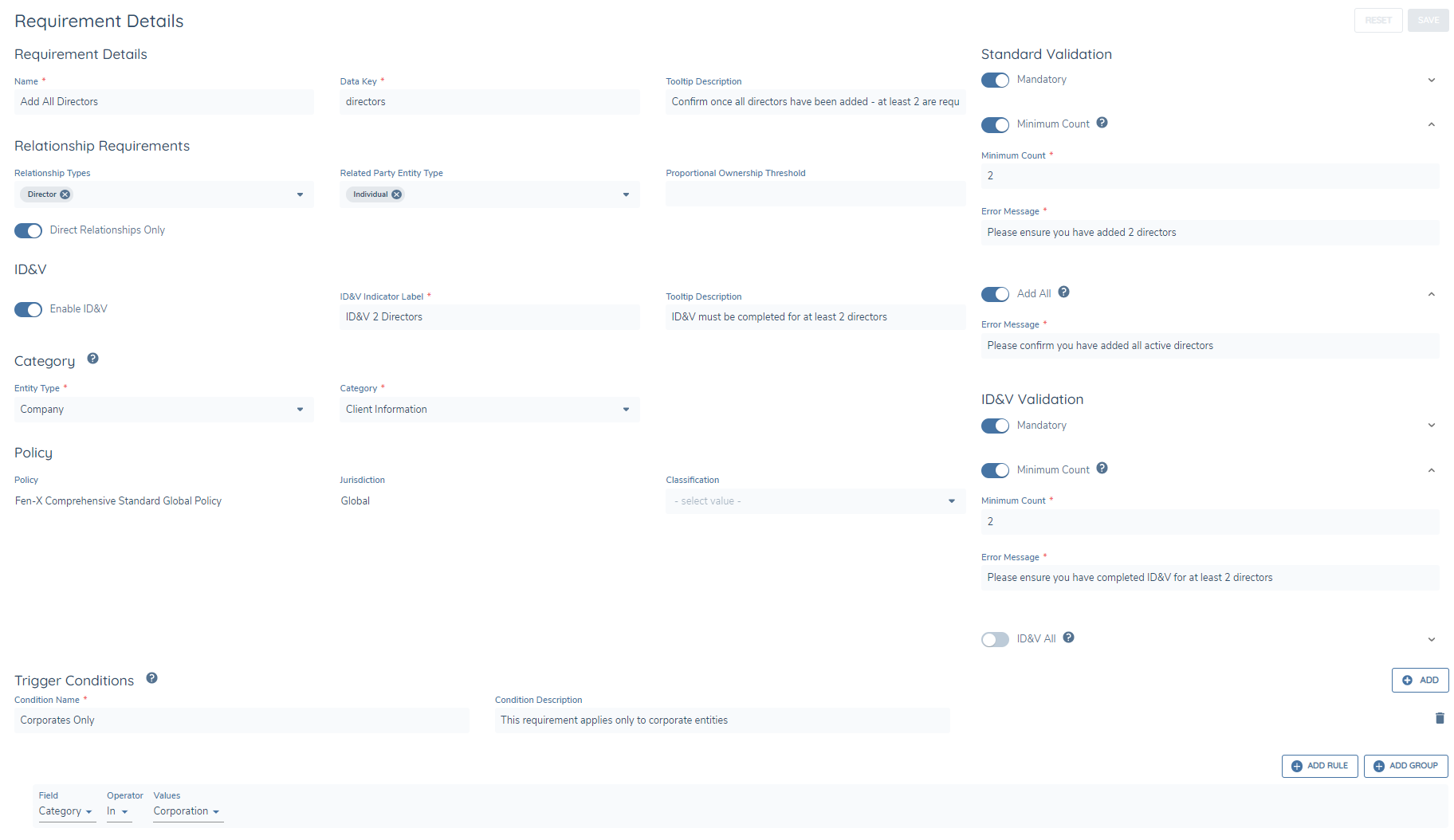
Each Ownership and Control requirement must contain an unwrapping element.
The unwrapping elements can be configured in the Requirement Details section where you can:
- set the label on the unwrapping requirement that appears in the Hierarchy Capture task using the Name field
- provide the Data Key of the requirement, which is used to de-duplicate requirements
- the Tooltip Description to provide additional guidance/info to the user when they hover over the chip in the task
In the Standard Validation section, you can also configure whether the unwrapping requirement:
- is Mandatory , in which case the user must fulfil the requirement in order to complete the task
- requires a Minimum Count of parties which match what is set out in the Relationship Requirements section
- is open-ended where the user must Add All relevant parties and then manually confirm once they have done so
The Relationship Requirements section allows you to configure the parameters that apply to the Unwrapping requirements. When the system is evaluating whether the requirements have been met or not, it will refer to the parameters set in this section to make this determination:
-
Relationship Types is an optional, multiselect field where you may select the types of relationships that count towards the requirement – any of the selected relationship types will count towards the requirement being met. If the field is empty then any relationship type will count towards the requirement being met.
-
Related Party Entity Type is an optional, multiselect field where you can classify whether you would like Individuals, Companies and/or Other types of entities to count towards the requirement being met - any of the selected entity types will count towards the requirement being met. If the field is empty then any entity type will count towards the requirement being met.
-
Proportional Ownership Threshold is an optional number field where you can input an indirect/proportional ownership % amount whereby any related parties which are above the threshold will count towards the requirement being met. If the field is empty then the proportional ownership percentage will not be used to filter relevant related parties.
-
The Direct Relationships Only toggle allows you to specify whether you are only interested in entities that are directly connected to the client to count towards the requirement being met. If this toggle is off then relationships beyond level 1 will also count towards the requirement being met.
Finally, the fields in the Category section operate in the same manner as with data and document requirements in Policy:
- Entity Type corresponds to the client Entity Type to which this requirement should apply
- Category allows you to classify common requirements together and trigger requirements in specific tasks by assigning the category to the Hierarchy Capture task or the Related Party Data & Documents task (see Journey Configuration)
You may also use trigger conditions to determine when the requirement should apply. E.g.
- Requirement 1 – Add 1 Director applies IF Company Type is Private Company
- Requirement 2 – Add Shareholders > 25% IF Company Type is Public Company AND Overall Risk is Low or Medium
De-duplicating Ownership and Control Requirements
When evaluating the in-scope O&C requirements, we use the Data Key to identify common requirements which may have different parameters, for example in different jurisdictions or under different trigger conditions that are met. Fundamentally this operates in a similar manner to how data and document requirements are de-duplicated, however there are some additional nuances that apply to O&C requirements as set out below.
When there are multiple O&C requirements in scope with the same Data Key,
1. prioritise and persist requirements where the Unwrapping requirement is mandatory. If equal/not applicable then prioritise O&C requirements where
2. the Unwrapping requirement has Add All enabled. If equal/not applicable then prioritise O&C requirements where
3. the Unwrapping requirement has the highest Minimum Count value. If equal/not applicable then prioritise O&C requirements where
4. the Relationship requirement has the lowest Proportional Ownership Threshold (greater than zero). If equal/not applicable then prioritise O&C requirements where
5. the ID&V requirement is enabled. If equal/not applicable then prioritise O&C requirements where
6. the ID&V requirement is mandatory. If equal/not applicable then prioritise O&C requirements where
7. the ID&V requirement has ID&V All enabled. If equal/not applicable then prioritise O&C requirements where
8. the ID&V requirement has the highest Minimum Count value. If equal/not applicable then prioritise O&C requirements by Requirement ID GUID
Once a requirement is prioritised and persisted over another, it will be taken in its entirety in terms of the parameters configured against that requirement, e.g. applicable relationship types, tooltip descriptions, etc.
Configuring the Related Party Data & Documents Task
As with the Hierarchy Capture task, in order to correctly render the Related Party Data & Documents task there are some specific details that must be configured in Reference Data, Journey and Policy.
Related Party Scoping Rules Configuration
To facilitate the automation of the selection of related parties from the hierarchy for additional data and document collection, Related Party Scoping Rules Must be configured. The scoping rule will determine those related parties from the hierarchy that are in scope and presented to the user, and must be applied to the instance of the Related Party Data & Documents task in Journey Builder. Once the correct permissions have been applied, the rules can be configured via the Related Party Scoping Rules options under the Journey management menu.
Once navigated to the Related Party Scoping Rules configuration, new rules can be created via the +ADD button to the top right. Configurators must define the name of the rule for creation and the logic can then be configured. The same condition configuration pattern that exists across Fenergo is applied in these rules. A number of sources can be utilised when configuring the condition(s) of the rule:
- Current Entity - Related Party entity data
- Current Entity Metadata - Entity Type
- Entity Association - Relationship Type - Association to Client - Direct/Indirect - Proportional Ownership
- Related Client - Entity data of client in journey
Scoping rules are versioned and a user must create a new draft to perform any edits to an existing rule. A scoping rule must be published in order to be available for selection on the task in Journey Builder.
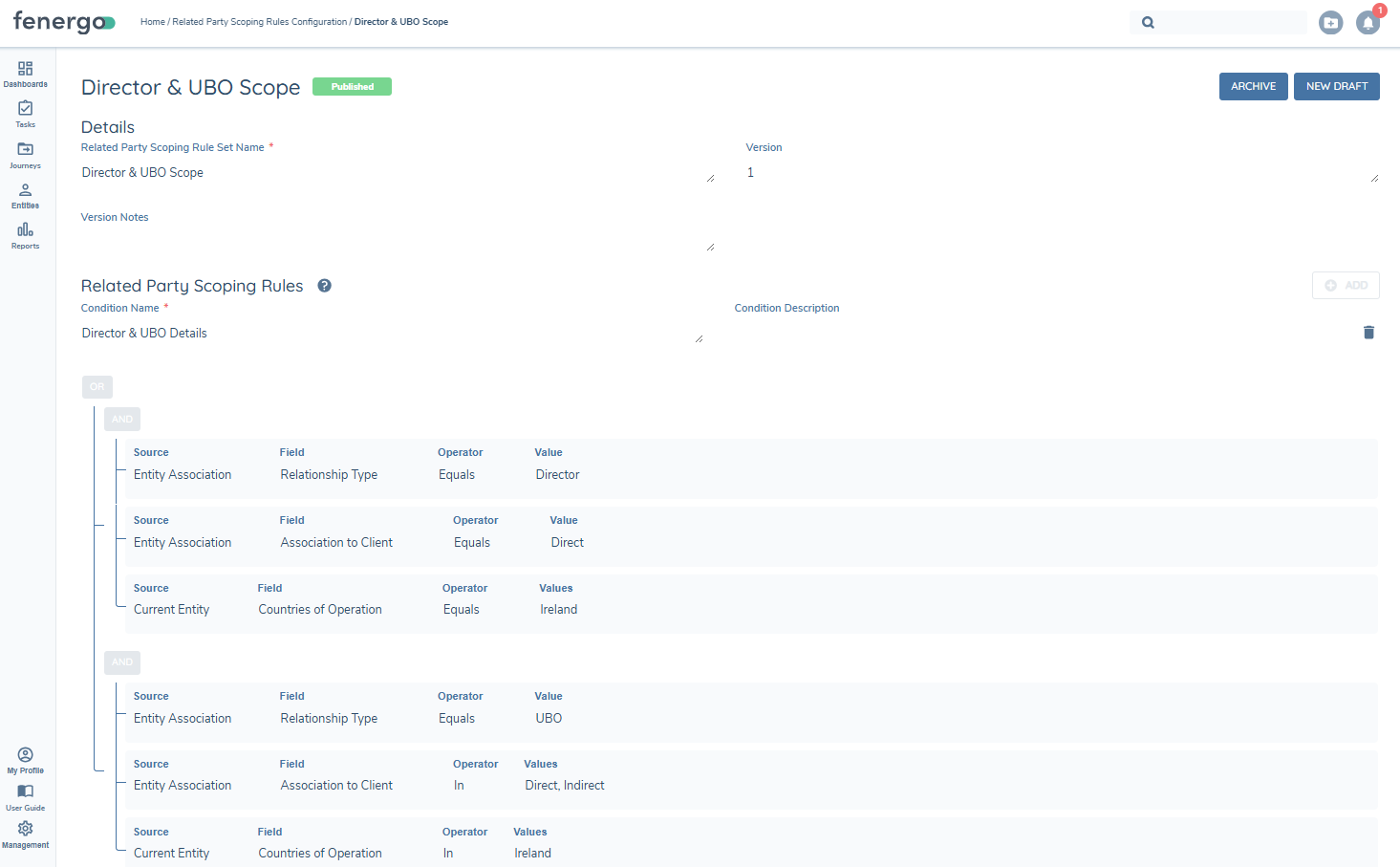
By default the full hierarchy is evaluated for the Related Party Scoping Rule as part of the task pre-processing. However, for clients with large hierarchies who only focus on direct associations in the Related Parties task, it is possible to apply some additional optimisation to restrict the full hierarchy from being evaluated in the pre-processing. This optimisation will utilise the Direct 'Association to Client' condition in the Related Party Scoping Rules, but additional limits are required in order for this apply this logic correctly.
The rule must adhere to the below requirements in order for the full hierarchy to not be accessed for the task evaluation. Any other configuration will mean the default behaviour of evaluating the full hierarchy will be applied.
- Proportional Ownership cannot be used anywhere in the rule definition. This value requires the full hierarchy in order to be determined and therefore cannot be utilised.
- Only Equals 'Direct' MUST be used in the rule - no other operator should be configured for this field and value. That is:
- Source: Entity Association
- Field: Association to Client
- Operator: Equals
- Values: Direct
- This Equals 'Direct' rule must exist in the top group of a condition and not in a lower nested group.
- If more than one condition is configured in the rule then this rule must be the top level group of the condition listed.
- If more than one rule is configured, this Equals 'Direct' top level rule must have an AND logical operator connected to it.
- The OR logical operator can be used further down in a nested rule if required.
- Multiple 'Conditions' can be configured for the Scoping Rule but each 'Condition' needs to have the same limits applied.
Configuring the Hierarchy Filter
The Hierarchy Filter is currently in Beta and is available on request for client lower level tenants.
The Hierarchy Filter applies a Related Party Scoping Rule to the Hierarchy Capture task or the Related Parties task to narrow the hierarchy displayed to users based on configurable conditions. The filter rule evaluation is applied when a task becomes active and enters pre-processing, and re-applied on each subsequent task (this journey or future journey) or on task re-open.
To configure the Hierarchy Filter, a Related Party Scoping Rule must be created and published, and then applied to the relevant task in Journey Builder.
Configuring the Scoping Rule
Related Party Scoping Rules are configured via the Related Party Scoping Rules option under the Journey Management menu. The data sources available for defining rule conditions are described in the Related Party Scoping Rules Configuration section. An additional option under the data sources is available specifically for Hierarchy Filter rules:
- Entity Association — Main Entity Structure
The Main Entity Structure field is available under the Entity Association data source, with a condition of 'Equals' Yes or No. This identifies whether an entity is part of the entity in journey's own structure (Yes) or is inherited via a Client Related Party (No).
This field is intended for use in a condition to ensure entities directly associated to the entity in journey are always displayed. It is particularly relevant for nested associations within the hierarchy that do not exist under an entity that is itself a client — without this condition, such entities could be excluded by a rule that evaluates only direct or indirect associations and/or other criteria. Care should be taken when configuring this field within the conditions to ensure it applies correctly as expected. See example below for reference.
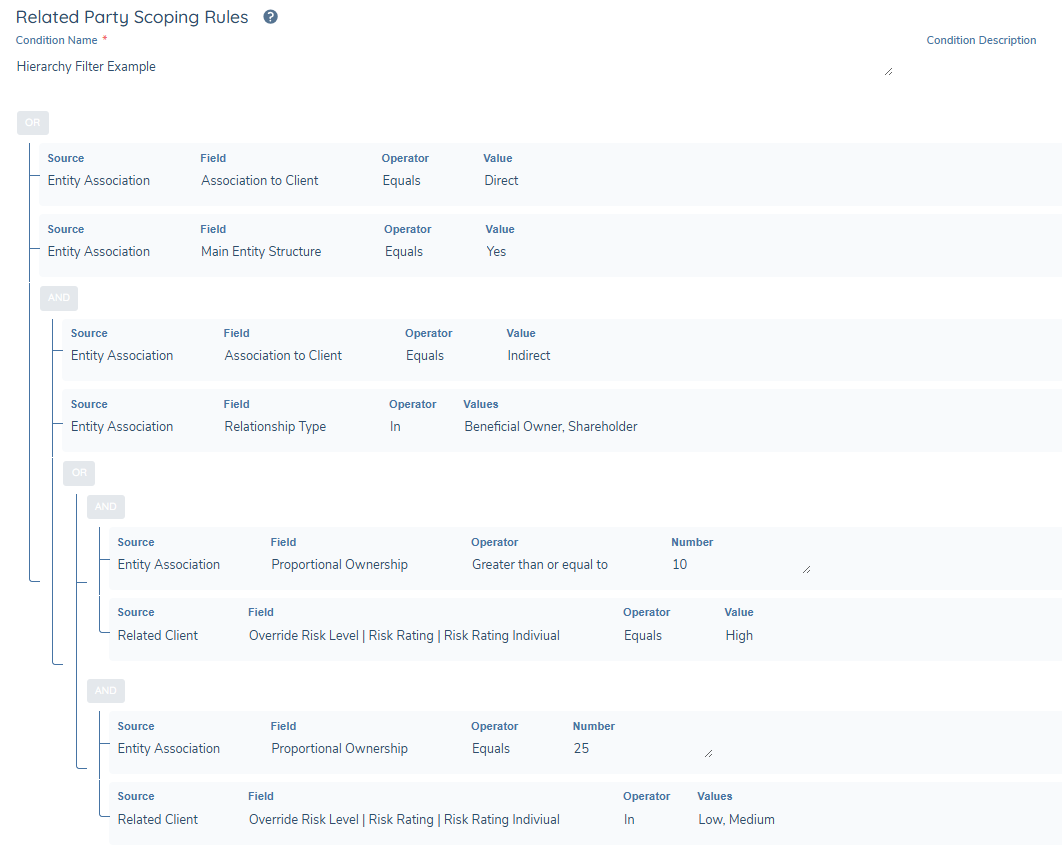
Scoping rules are versioned. A new draft must be created in order to edit an existing published rule. The rule must be published before it can be selected on a task in Journey Builder.
Applying the Rule in Journey Builder
Once a scoping rule has been published, it must be applied to the Hierarchy Capture task or Related Parties task instance in Journey Builder. The rule is selected within the task configuration and will be applied each time the task is opened within a journey.
NOTE: Ownership and Control Requirements for Related Parties that are triggered by policy within the task will apply to the full unfiltered hierarchy, and not the filtered view. Care should be taken to ensure policy is configured to align with this when introducing a filter.
Configuration Exchange for Related Party Scoping Rules
Related Party Scoping Rules can now be imported across tenant environments using Configuration Exchange. This allows configurators to promote RPSR logic consistently from Dev through to Production without manually recreating rules in each tenant.
To import Related Party Scoping Rules:
- Navigate to Configuration Exchange in the Management menu.
- Open or create an Import Record and click Add in the Selected Items tab.
- In the Bulk Selection modal, set the Domain filter to Journey.
- Set the Type filter to Related Party Scoping Rule.
- Select one or more rules from the Available list.
- Optionally, include the Journey Schemas that reference these rules in the same import record to enable automatic task reference remapping.
- Click Save and proceed to import.
Key behaviours:
- Related Party Scoping Rules always import in Published state and are immediately available for selection in Journey Builder. The "Import in a Published State" toggle has no effect on these rules.
- A new version is created in the target tenant on each import. A Version Note is automatically generated to record the source tenant, source version, and import record name for traceability.
- If a draft version of an RPSR already exists in the target tenant, the import is skipped and logged as "No Change."
- Required dependencies — including Relationship types, Entity Types, Association Types, and Requirement Categories — are automatically detected and imported before the rule itself.
- When a Journey Schema and its referenced Related Party Scoping Rules are included in the same import record, the Related Party Data & Documents task references within the imported Journey Schema are automatically updated to point to the newly imported RPSR IDs.
Related Party Scoping Rule import is controlled by the environment feature toggle "Enable RPSR Import". This must be enabled in the target environment for Related Party Scoping Rules to appear in the Bulk Selection modal and for imports to execute. Contact your Fenergo Administrator if this feature is not yet available in your environment.
Permissions required:
- ID&V Configuration Access — to access and view Related Party Scoping Rules in the source tenant
- Configuration Exchange Access — to view the Imports menu
- Configuration Exchange Edit — to select and add rules to an import record
- Configuration Exchange Publish — required to execute the import (rules always import in published state)
- Journey Access / Edit / Approve — required in source and target tenants per the standard import flow
Please refer to the Configuration Exchange User Guide for full details on creating and managing import records.
Reference Data Configuration Related Party Data & Docs
As per the configuration of the Hierarchy Capture task, the following lookups must be configured via Reference Data configuration.
-
Relationships
The Relationships lookup is designated as a system lookup and the List name must always be "Relationships". This lookup will drive the values which appear in the Type field in Relationship Details in the Details panel.
-
Requirement Category The Requirement Category lookup is designated as a system lookup and this drives the Category field when configuring fields in the Policy domain. Differing from the Related Parties task, only these 2 values must be added to the Requirement Category lookup:
- Relationship Details
- Related Party Basic Details
Fields with these categories will drive what appears in the panel of the Hierarchy Capture task and the Related Party Data & Documents task, and specifically which section they appear in – see Policy Configuration for additional details. Additional fields can be configured in categories outside of these required categories and those categories can then be utilised in the Related Party Data & Documents configuration in Journey Builder, providing additional structured data capture if desired.
Journey Configuration Related Party Data & Docs
In Journey Builder, the following task should be added to any journey where the additional related party data and document capture applies.
Related Party Data & Documents task:
This user-completed task can be configured anywhere in a journey and must feature prior to the Verify Related Party Associations V2 task. When configured in a journey that also includes the Related Parties task or the Hierarchy Capture task, it must be configured after those tasks. It can be configured to appear at multiple points in the journey, allowing for various contexts of related parties, different scoping rules can be applied to each instance of the task should this be desired.
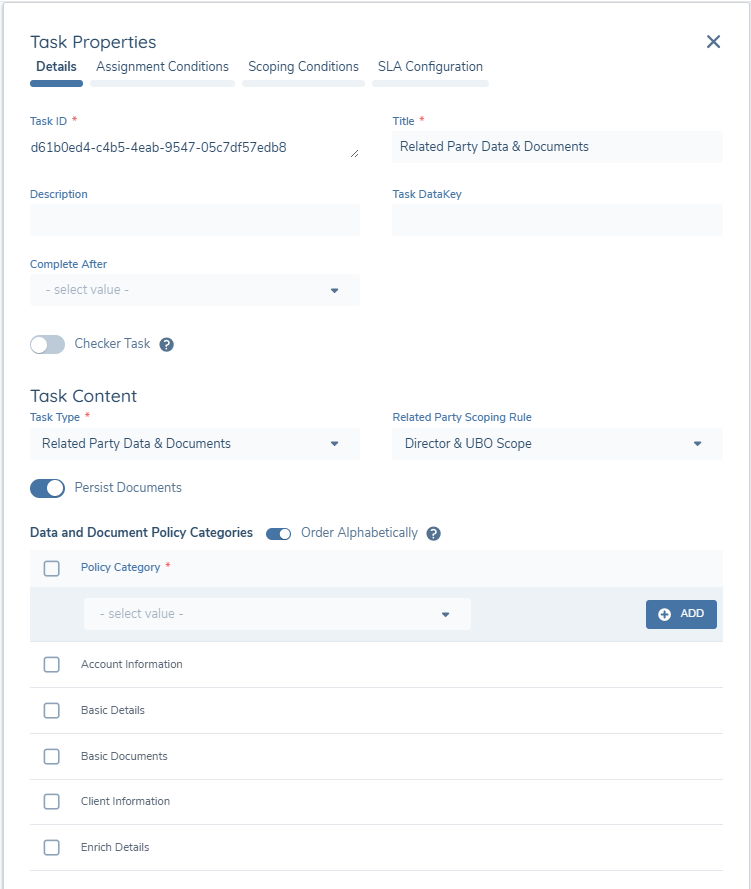
When configuring this task, the Task Type must be Related Party Data & Documents. The other options under Task Content are as follows:
-
Related Party Scoping Rule - The rule must be specified in order for related parties to be included in the scope of the task
-
Persist Documents - Document Persistence for Related Parties can be enabled using the toggle available within this task. Refer to the Functional User Guide above for more information.
-
Data and Document Policy Categories - these categories will determine the data and document requirements triggered within the task for the additional information capture. In a change to the existing Related Parties task, this task is no longer tied to the three categories the existing task modal is tied to (Related Party Basic Details, Related Party ID&V, Relationship Details), meaning any category configured on data and document requirements configured with a Target Entity of Related Party can be specified and apply to this task. This provides additional flexibility in the detail that is required within the task. Please note the Related Party Basic Details and Relationship Details categories will always appear in this task so it is not necessary to include these in the category listing. Both of these categories will display in the first and second order respectively in the panel regardless of any custom ordering.
-
Data Group Search Scope — A multi-select field available on the Related Parties, Related Parties Data & Documents, and Hierarchy Capture task types, allowing one or more data groups — for example, Address Details or Tax Identifiers — to be configured as search inputs in the related party duplicate search. Please see the Related Party Management guide for further detail.
Related Parties Task:
When configured alongside the Related Parties task or the Hierarchy Capture task, the building and maintenance of the hierarchy will occur in those tasks. The Related Party Data & Documents task removes the requirement to complete the traditional ID&V elements of the Related Parties task and therefore these will be disabled by default where this task is configured alongside the Related Party Data & Documents task. Please see the functional documentation above for detail within the task.
When the Related Party Data & Documents task is configured in a journey alongside the Related Parties task, Journey Builder includes validation to ensure the task is configured before the Related Party Data & Documents task. Similarly, the Related Party Data & Documents task and Related Parties task cannot be placed within an 'In Any Order' process or stage when both are present in a journey, and validation will trigger if this is the case. When the Related Party Data & Documents task is configured as a standalone task (without the Related Parties task), these ordering validations do not apply.
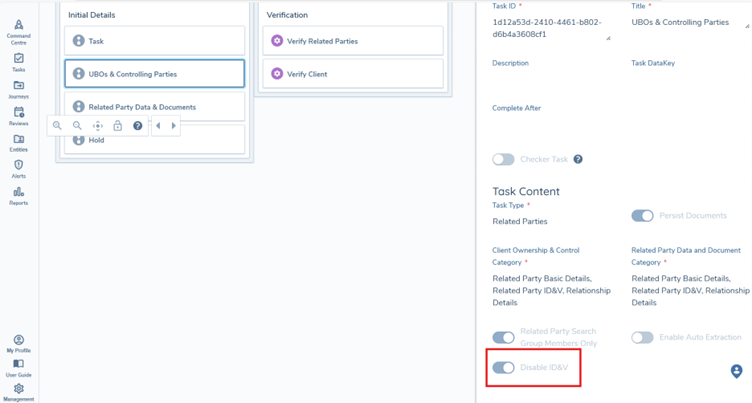
As the Related Party Data & Documents task will perform the ID&V process that exists in the Related Parties task, to avoid duplicate effort, the ID&V element of the Related Parties task will be disabled when the Related Party Data & Documents task is configured in the same journey. A new configuration toggle 'Disable ID&V' will be present on the Related Parties task, which be disabled by default. In order to configure and utilise the Related Party Data & Documents task this toggle must be enabled in the Related Parties task and validation will ensure this is the case. Once the toggle is enabled, the ID&V elements with the task will be disabled, reflected by the below changes in the task once the journey is published and the task triggered in a journey.
- The following will no longer display: - ID&V Requirements column in the task - ID&V unwrapping in the task - ID&V toggle in the modal - 'Indicate Requirements Needed to Complete ID&V' toggle in the modal
- The ID&V section of the modal will still display for data capture but the mandatory validation will no longer apply
Verify Related Party Associations V2 Task
Any new or edited relationships which are either created or any existing relationships which are marked for deletion will remain in draft and confined to the journey in which the edit/creation/deletion occurred. In order to confirm that the draft relationships are approved, these relationships must be stamped as verified.
A similar approach is taken with entity data for related parties, where any changes to entity data for a related party are confined to the journey in which the changes were made.
The Verify Related Party Associations V2 Task will automatically verify all draft relationships and draft entity records for related parties. Currently it will replace the last verified relationship/entity record with the latest version from the journey in context.
Any entity in this journey with an ID&V status of "Complete" will be updated to have an ID&V status of "Verified".
This automated service task must be configured at the end of a journey containing the Related Parties and the Related Party Data & Documents tasks, either as the final task or the penultimate task (where the final task is the Verify Entity service task).
It is recommended that this verification task is configured to appear only once in any single journey.
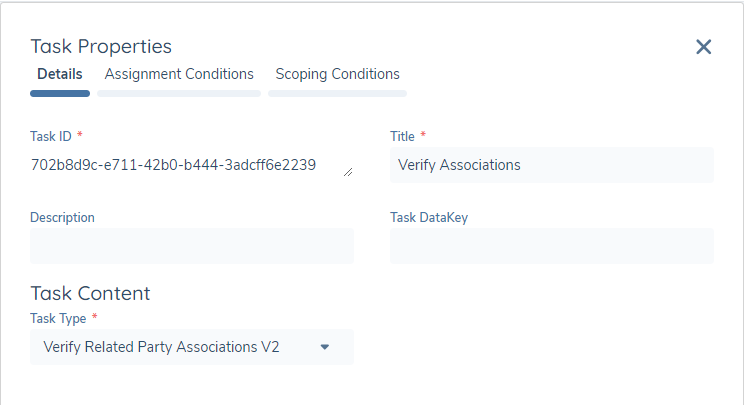
When configuring this task, the Task Type field in the Task Content panel must be populated exactly as you see in the below screenshot. The remaining fields can be populated as per your preference:
Policy Configuration Related Party Data & Docs
Please see the Hierarchy Catpure documentation above for details on configuring policy for this task.
Permissions
The below permissions apply to the functionality of the Hierarchy Capture task:
- Association Access – Allows users to view an entity's hierarchy and related parties within the UI.
- Association Edit – Allows users to add or edit draft related party associations.
- Association Delete – Allows users to delete draft associations or mark verified associations for deletion.
- Association Edit & Delete – Allows full interaction with the Related Parties task grid, including adding, editing, and removing related parties.
- Association Edit & Partial Delete – Allows adding, editing, and removing related parties, but restricts removal of all associations between a source and target entity.
- Association Edit & Link Only – Allows users to create related party associations by linking to existing entities only (no new entity creation).
- Association Verification – Allows users to verify draft related party associations and resolve conflicts between draft and verified hierarchies.
The below ID&V Permissions apply to the configuration and functionality of the Related Party Data & Documents task:
- ID&V Configuration Access - Allows a user to interact with and navigate into the Related Party Scoping Rules option under the Management Menu for Journey. Note: Journey Access is required to see this menu option.
- ID&V Configuration Create - Allows a user to create a Related Party Scoping Rule or clone an existing Related Party Scoping Rule set.
- ID&V Configuration Edit - Allows a user to create a new version of an existing Related Party Scoping Rule set, update an existing draft version of a Related Party Scoping Rule set, or submit an existing Related Party Scoping Rule set draft version for approval.
- ID&V Configuration Delete - Allows a user to delete an existing Related Party Scoping Rule set and all its versions and delete the selected version of an existing Related Party Scoping Rule set.
- ID&V Configuration Approve - Allows a user to approve or reject a version of a Related Party Scoping Rule set which has been submitted for approval.
- ID&V Configuration Archive - Allows a user to archive a version of a Related Party Scoping Rule set.
- ID&V Access - Allows a user to access the Related Party Data & Documents task in order to complete the additional data and document capture that forms ID&V.
- ID&V Edit - Allows a user to edit the fields within the Related Party Data & Documents task to complete the in-scope requirements.
- Association Access – Allows a user to view an entity's association detail. Edit of this data is not permitted within this task, as the Related Parties or Hierarchy Capture tasks maintain this detail.
- ID&V Remove Scope - Allows a user access to the grid option to remove one or more selected related parties from the scope of the task. This does not remove the entity from the hierarchy and does not delete the entity draft should any changes have been made.
Appendix
Triggering Fields Based on Relationship
You can set up trigger conditions that bring certain data fields and document requirements into scope depending on what relationship type is selected. The logic engine looks for an exact match from all the relationship types given.
Example 1: "Equals"
Trigger this requirement if Authorised Signer is the only relationship selected in the list
| ✔️ Match | ❌ No Match | | :-------------------------------------------------------------------------------: | :------------------------------------------------------------------------------: | |
|
|
Example 2: "In"
Trigger this requirement if Authorised Signer is selected in the list. It doesn't matter if more relationship types are selected too
| ✔️ Match | ❌ No Match | | :--------------------------------------------------------------------------------: | :------------------------------------------------------------------------------: | |
|
| |
Example 3: Multiple "In"
Trigger this requirement if any of the following: CEO, CFO are selected in the list. It doesn't matter if it's only one of them, or if there are other relationships selected in the list too
| ✔️ Match | ❌ No Match | | :--------------------------------------------------------------------------------: | :------------------------------------------------------------------------------: | |
|
| |
| |
Example 4: "Not In" as a filter
Trigger this requirement if Branch is included in the list, but not if Subsidiary is included
| ✔️ Match | ❌ No Match | | :-------------------------------------------------------------------------------: | :------------------------------------------------------------------------------: | |
|
|
Example 5: "Not" logic
Trigger this requirement if CEO is not included in the list of relationships If the condition is defined as below:
Then the requirement will trigger even when the list is empty:
If this is not the intended behaviour, add an 'is defined' AND condition so that the requirement only triggers when any relationship other than CEO is selected in the list:
| ✔️ Match | ❌ No Match | | :-------------------------------------------------------------------------------: | :------------------------------------------------------------------------------: | |
|
|