ETL Virtual Documents
Overview
Virtual Documents allow Fenergo to reference externally hosted files (for example, SharePoint or internal document repositories) without storing the physical files in Fenergo. Instead of uploading a file, a secure HTTPS URL is provided. Virtual Documents behave like standard documents for linking, metadata, access control, and workflow, but no file transfer or antivirus scan occurs.
ETL Virtual Documents enables clients to migrate large volumes of externally hosted document references into Fenergo in a structured, policy-driven format.
ETL Virtual Documents supports:
- Entity Virtual Documents
- Product Virtual Documents
Both follow the same ETL workflow and validation behaviour, differing only in the target record they are linked to.
ETL Virtual Documents Capabilities
When using the ETL tool to create Virtual Documents, users can:
- Create document records linked to Entities or Products
- Reference externally hosted files using a required HTTPS URL
- Apply Document Types and document metadata
- Control visibility using business and geographic access layers
ETL Virtual Documents currently supports create operations only. The ability to update existing document metadata will be introduced in a future enhancement. ::
Supported Use Cases
“I want to create Virtual Documents for a new entity identified by alternateId.”
“I want to create Virtual Documents for a new product identified by alternateId.”
“I want to create Virtual Documents for an existing entity identified by alternateId or fenxId.”
“I want to create Virtual Documents for an existing product identified by alternateId or fenxId.”
Behaviour & Limits
- Virtual Documents do not store files in Fenergo.
- No antivirus scan is performed.
- No validation is performed on file existence or accessibility.
- The provided document URL must be a valid HTTPS URL.
- Document uniqueness is not enforced.
Multiple Virtual Documents can reference the same external URL if required.
Creating an ETL Project with Virtual Documents
Create New Project
To initiate a Virtual Document migration:
- Select + on the ETL Dashboard.
- Enter a Project Name and Description.
- Select one of the following datatypes:
- Entity Virtual Document
- Product Virtual Document
ETL Workflow Steps
The Virtual Document ETL flow follows the standard ETL pattern:
- Select Data Source
- Filter Data
- Map System Fields
- Map Policy Fields
- Map Lookups
- Preview
- Validation
- Load
Select Data Source
Upload one or more CSV files containing document metadata and identifiers for the target Entity or Product.
Ensure your data source includes all mandatory fields and that reference data values (for example, Document Types) match what is configured in your environment.
Map System Fields
Once the Primary Data Source has been selected, map columns from your data source to the required System Fields.
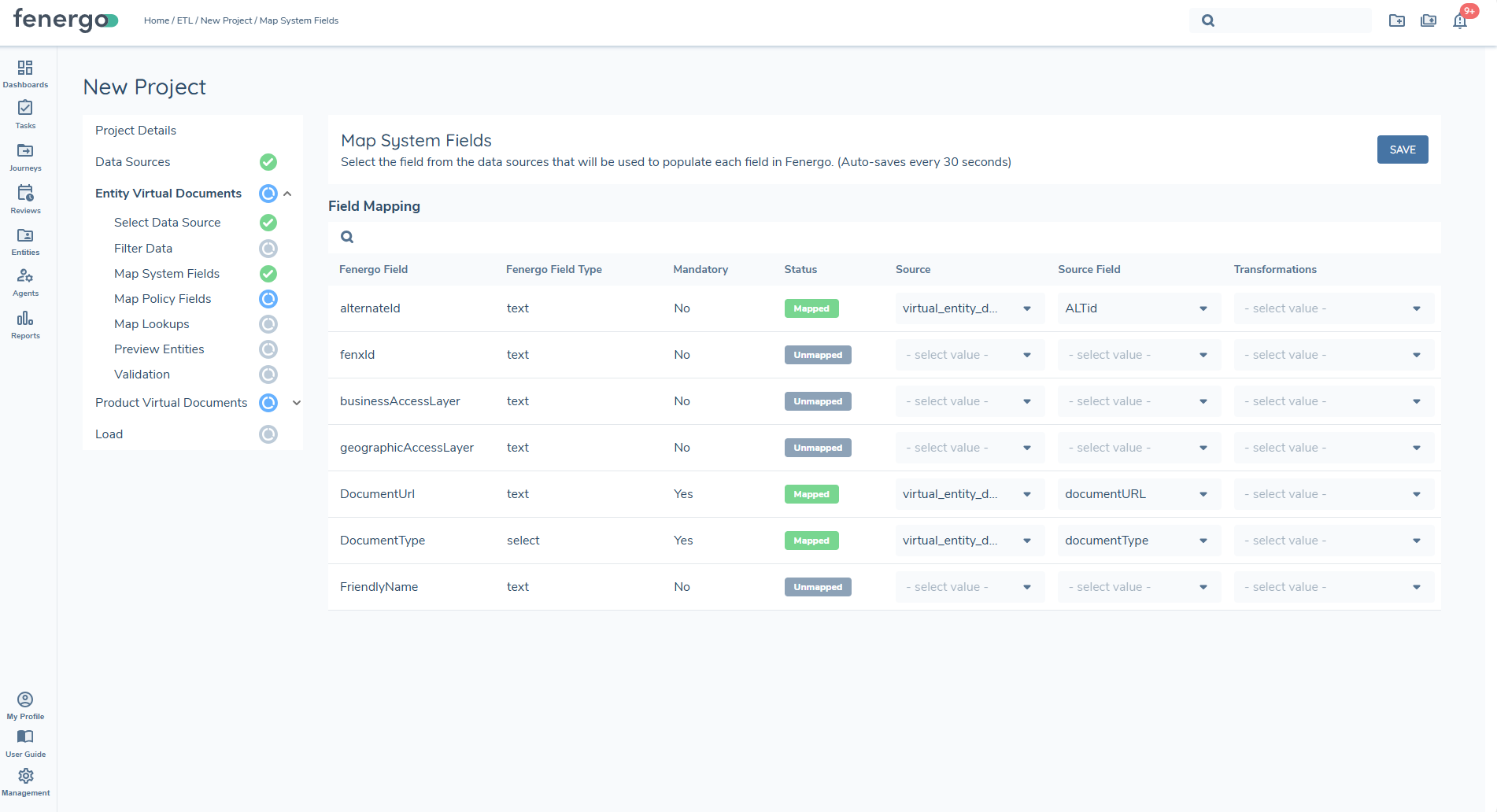
Required System Fields
fenxId
- Entity Virtual Documents: Fenergo GUID for the target entity
- Product Virtual Documents: Fenergo GUID for the target product
alternateId
External system’s unique identifier for the document record.
For Virtual Documents, either fenxId or alternateId must be provided.
documentUrl
- Full HTTPS URL to the externally hosted file
- Must begin with
https://
No validation is performed to confirm file existence or accessibility.
documentType
The value must align with a Document Type from the Metadata → Document Type reference dataset.
Only Document Type names are accepted; datakeys are not supported.
friendlyName
An optional field used to define the display name of the document.
Adding the friendlyName is recommended for Virtual Documents, as it makes the documents easier to identify and distinguish within the system.
businessAccessLayers
Defines the business units, roles, or functional groups that are permitted to access the document.
geographicAccessLayers
Specifies the geographic regions or jurisdictions that are allowed to view the document.
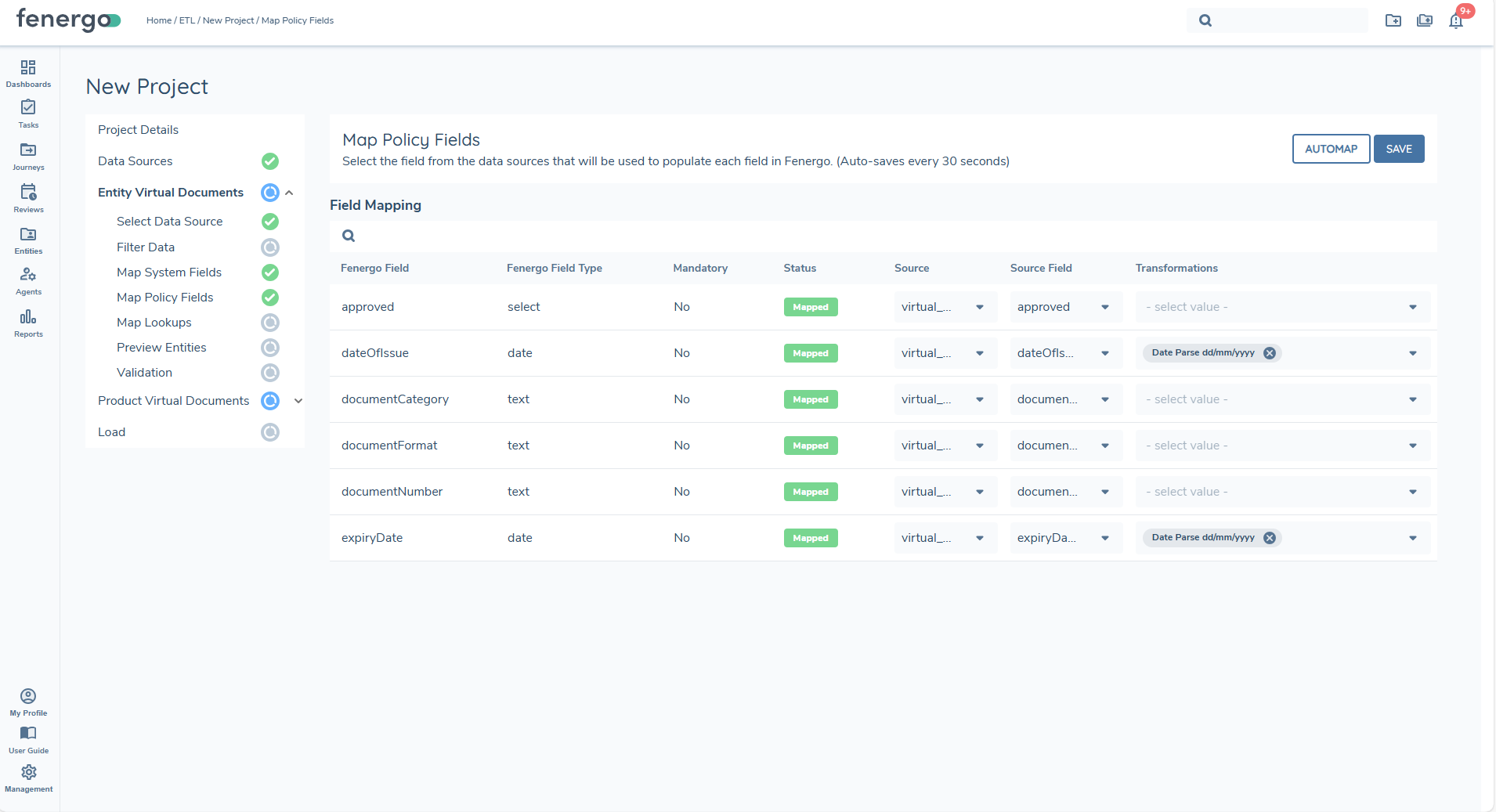
Map Policy Fields
Policy fields are sourced from the Document Metadata data group, consistent with standard ETL Documents behaviour.
- The latest version of the data group is displayed
You must map all mandatory policy fields defined by the Document Metadata data group. If required fields are missing, Preview, Validation, and Load cannot be executed.
Preview
The Preview step aggregates the data and displays how each Virtual Document will be created and linked.
The Grid View includes:
- Target Entity or Product identifier
- Document Type
- Friendly Name
- Document URL
- Access layers
- Mapped metadata
Preview does not validate URL accessibility or file existence.
Validation
Validation checks the dataset against your project configuration.
Validation includes:
- Document Types must match tenant reference data
- Metadata fields with defined lookups are validated
The following are not validated:
- File existence
- URL accessibility
Common Validation Errors
The following validation errors may occur during processing when mandatory fields are missing, or reference data is invalid. These errors will cause the load to fail and must be resolved before resubmission.
documentType errors
DocumentType specifies the type of document being uploaded. This field is required and must not be empty. The value must match one of the supported document types configured in the system.
-
[DocumentType] [DocumentTypeValidator] Document type cannot be empty
-
[DocumentType] [DocumentTypeValidator] Document type does not exist
documentUrl errors
documentUrl specifies the location where the document is hosted. This field is required and must not be empty. The value must be a valid absolute URL and conform to standard URL formatting rules.
-
[DocumentUrl] [DocumentUrlValidator] Document URL cannot be empty
-
[DocumentUrl] [DocumentUrlValidator] Document URL is not a valid URL
Load
Proceed to Load once validation is successful. The load process follows the standard ETL two-step pattern.
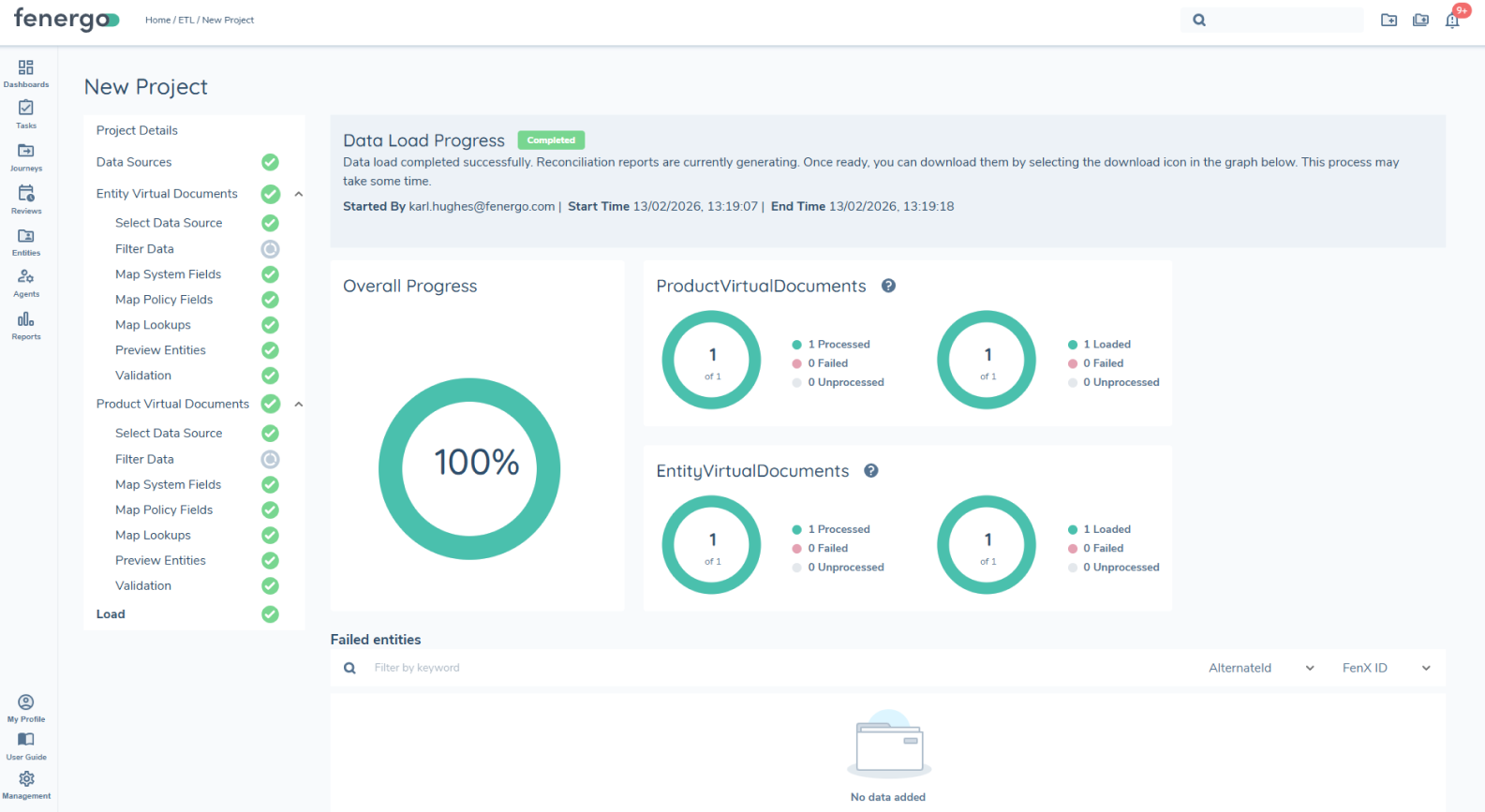
Preparation Step
During the preparation step:
- For Virtual Documents, any provided alternateId is resolved to a corresponding fenxId.
- Any supplied fenxId values are validated to ensure they reference an existing record.
Missing or invalid EntityID / ProductID
If the referenced Entity or Product does not exist, the load process fails.
- Missing or invalid EntityID / ProductID
Load Step
- Virtual document records are created within the system without storing a physical file.
- Relevant metadata is captured and appropriate access controls are applied.
- Each document is linked to the relevant Entity or Product.
- No file transfer or antivirus processing occurs, as no physical files are uploaded or stored.
- The standard two-ellipsis load UI pattern is used to maintain a consistent user experience.
Reports
After a document migration run, ETL produces a reconciliation report for every virtual document migration type in the load. These reports give row-level visibility into which documents loaded successfully, which failed.
A reconciliation report is generated for each of the following document migration types:
- Entity Virtual Documents
- Product Virtual Documents
Virtual Documents Report columns
Each reconciliation row includes the following columns:
| Column | Description |
|---|---|
| FenXID | The Fenergo identifier of the entity the document is associated with. |
| Alternate ID | The client-supplied alternate identifier for the entity, where provided in the source file. |
| Document Model ID | The unique identifier of the document record created in Fenergo. Use this to locate the document in the system after migration. |
| URL | The reference URL for the virtual document. Use this to trace a reconciliation row back to the original document location. |
| Status | The outcome for the row — for example Created for a successful load, or an error state for a failure. |
| Error Description | The error message if the row failed to load. Empty for successful rows. |
| Date Created | The timestamp of the load attempt. |
| Migration ID | The identifier of the migration run that produced the row. |
Key Differences vs ETL Documents
- No file upload required – Documents are not physically transferred or stored within the system.
- No SFTP configuration required – Since no files are being exchanged, secure file transfer setup is not needed.
- No antivirus scan required (ND3.1) – There are no physical files being received or stored. The documents are virtual and accessed dynamically via URLs.
- No file existence validation – The system does not validate file presence on a local or remote file system.
- Uses documentUrl instead of documentPath – Document references are URL-based rather than file system path–based, reflecting the virtual document model.